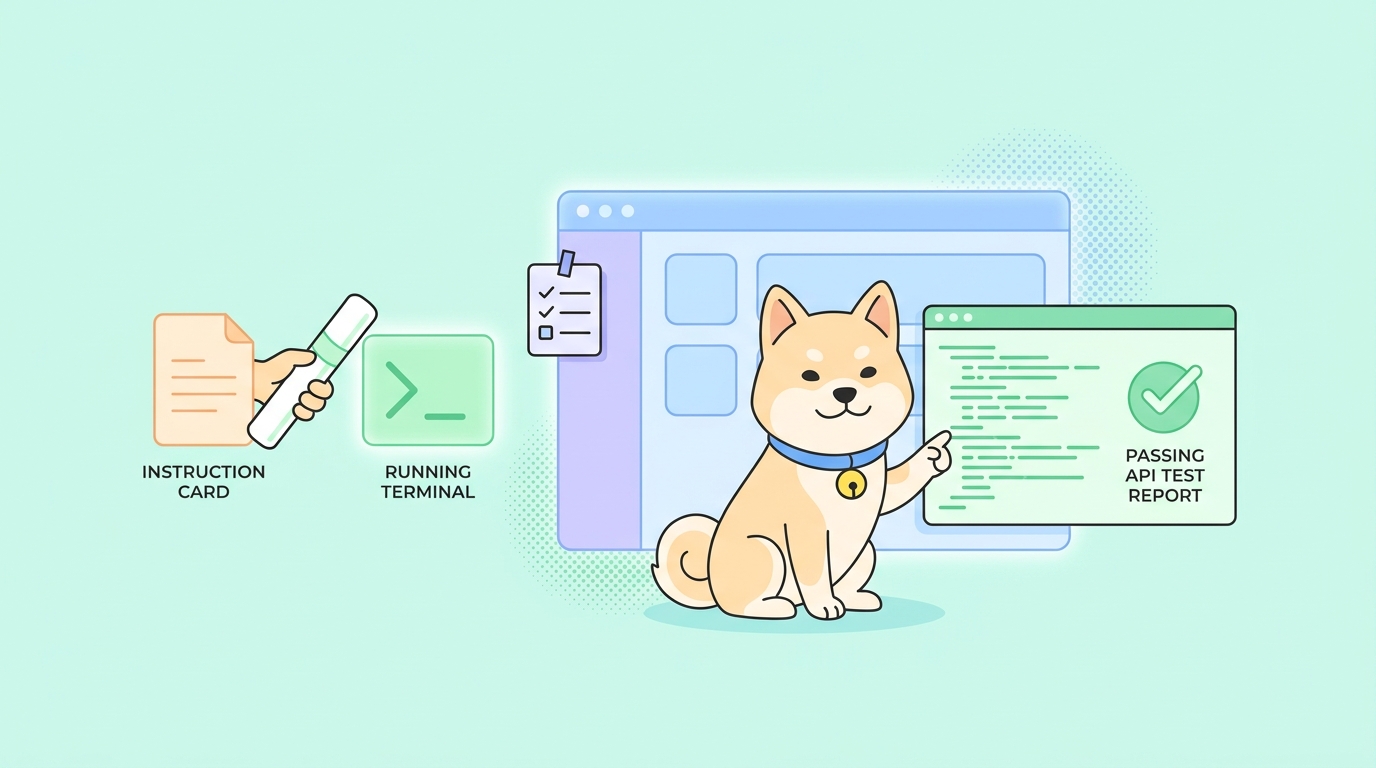
Cursor’s Agent already edits files, runs your terminal, reads the output, and fixes what it broke. The next step is to put your API tests in that loop: let Cursor run your real Apidog scenarios, read the pass or fail, and keep going. The piece that makes it work is a command-line runner Cursor can call.
That runner is the Apidog CLI, an npm package named apidog-cli. It runs the test scenarios you built visually in Apidog from a terminal and exits with a status code Cursor can act on. This guide covers the Cursor-specific half: the rule file that teaches Cursor your workflow, the prompt that runs a test, how the run folds into its edit-test-fix loop, and the optional MCP server that hands Cursor your API spec while it codes.
If the CLI isn’t installed yet, start with how to install the Apidog CLI with an AI coding agent, which walks Cursor through install and auth. Come back once apidog --version prints a number. You also need an Apidog account with at least one saved test scenario. Download Apidog if you don’t have one.
What “use the CLI in Cursor” means
There’s no Apidog plugin for Cursor, and you don’t need one. Cursor’s Agent already runs shell commands in your project terminal. So using the Apidog CLI in Cursor means three things:
- Teach Cursor the workflow once with a project rule, so it knows the command, the flags, and that the exit code is the source of truth.
- Have the Agent run
apidog runas a normal step in its loop, like it runs your unit tests. - Optionally connect the Apidog MCP server, so Cursor can read your API spec while it writes the code those tests check.
The rule is what makes this Cursor-shaped instead of a generic “open a terminal and type” guide.
Step 1: Add a project rule
Cursor reads project rules from a .cursor/rules directory at your repo root. Each rule is an .mdc file with a small frontmatter block, version-controlled alongside your code so the whole team gets the same behavior.
Create one two ways: type /create-rule in chat and describe what you want, or open Cursor Settings > Rules, Commands, click + Add Rule. Either way you get a file under .cursor/rules.
Save this as .cursor/rules/apidog-cli.mdc:
---
description: How to run Apidog API tests from the terminal
alwaysApply: false
---

# Running Apidog API tests

This project has API test scenarios in Apidog. Run them with the
apidog-cli, which is installed globally and already authenticated.

- The command is `apidog run`. The binary is `apidog`.
- Run a single scenario by ID: `apidog run -t <scenarioId> -e <environmentId> -n 1 -r cli`
  - `-t` is the test scenario ID, `-e` is the environment ID.
  - `-n 1` runs it once. `-r cli` prints a readable report to the terminal.
- Do not pass `--access-token`. Auth is handled by a prior `apidog login`.
- The exit code is the source of truth: `0` means every assertion passed,
  non-zero means a failure. Report the exit code, not just a summary.
- If a flag is unknown, run `apidog run --help` and use the exact flag from there.
  Never guess at flag names.
- After changing code that touches an endpoint, run the relevant scenario
  and read the result before claiming the change works.
The frontmatter matters. description plus alwaysApply: false makes this an apply-intelligently rule: Cursor pulls it in when the chat is about running tests, instead of burning context on every conversation. Set alwaysApply: true to keep it always in scope. To scope it to a file type, drop the description and add a globs line, and Cursor auto-attaches it when a matching file is open.
The content does the real work. It pins the command shape, says where auth comes from, and states the line that keeps an agent honest: the exit code wins over the prose. Agents sometimes read a failing report and call it “looks good.” Writing that rule down once means you don’t have to catch it by hand.
Step 2: Get the command from Apidog
Before you ask the Agent to run anything, get a known-good command. Don’t make Cursor guess the IDs.
Open your test scenario in Apidog, switch to its CI/CD tab, and choose the command-line option. Apidog builds the full apidog run command with the scenario ID, environment ID, and an access token already filled in:
apidog run --access-token YOUR_ACCESS_TOKEN -t 605067 -e 1629989 -n 1 -r cli
605067 is the test scenario ID and 1629989 is the environment ID; yours will differ. Since you authenticated the CLI during install, drop the --access-token part and keep the IDs. That’s the command your rule told Cursor to use.
Step 3: Have the Agent run the test
Open Cursor’s Agent (the chat mode that runs terminal commands, not inline edit). With the rule in place, the prompt is short:
Run my Apidog test scenario and Show me the full output and tell me the exit code.
Cursor proposes the command and, after you approve it, runs it in the integrated terminal:
apidog run -t 605067 -e 1629989 -n 1 -r cli
By default Cursor asks before executing a terminal command, so you see exactly what it’s about to run. Approve it, and the Agent runs the scenario, then reads back the execution and a summary.
Your check: look at the exit code, not the summary. apidog run exits 0 when every assertion passes and non-zero when one fails. That behavior is the whole reason this works as a gate, for CI and for the Agent. If Cursor says “tests passed” but the exit code was non-zero, it’s wrong; trust the code. This is the exact failure the Step 1 rule prevents.
For a different report format or more iterations, have the Agent run apidog run --help so it reads the real flag list for your installed version. The complete Apidog CLI guide documents every flag, including the html, json, and junit reporters and data-driven iteration.
Step 4: Read the report inside Cursor
The -r cli reporter prints results to the terminal Cursor already reads, which makes it right for Agent work. The Agent sees the same lines you do: which scenario ran, each request, each assertion, and the final pass or fail count.
When a run goes red, the report names the failing assertion, the expected value, and what the endpoint returned. Since that text is in the Agent’s context, follow up in the same chat:
The scenario failed. Read the failing assertion in the report, find the handler that produces that field, and propose a fix. Then run the scenario again and show me the new exit code.
Now the test is part of the loop. Cursor edits the handler, reruns apidog run, reads the fresh exit code, and either moves on or tries again. Your API checks live in the same edit-test-fix cycle Cursor uses for unit tests, except these run against real endpoints. For the broader pattern, how to use AI agents for API testing covers where it fits and where it doesn’t.
Optional: connect the Apidog MCP server
The CLI lets Cursor run your tests. The Apidog MCP server lets Cursor read your API spec while it writes code. The two stack: the MCP server feeds Cursor your schema so it generates code matching the contract, and the CLI verifies that code against real scenarios.
Cursor supports MCP servers through a JSON config. Put project-scoped servers in .cursor/mcp.json at your repo root, or global ones in ~/.cursor/mcp.json. The shape is an mcpServers object keyed by a name, each with a command, an args array, and optional env values:
{
  "mcpServers": {
    "apidog": {
      "command": "npx",
      "args": ["-y", "apidog-mcp-server@latest", "--project=YOUR_PROJECT_ID"],
      "env": {
        "APIDOG_ACCESS_TOKEN": "YOUR_ACCESS_TOKEN"
      }
    }
  }
}
Two notes. MCP is gated behind a toggle in some installs, so open Cursor Settings, find the Model Context Protocol section, and confirm the Apidog server is enabled. And if you commit .cursor/mcp.json, don’t hardcode the token; reference an environment variable. For the full setup, including where to get the project ID and token, see the Apidog MCP server guide. For a packaged, reusable workflow instead of wiring it up by hand, the Apidog CLI with Claude Skills guide shows the skills-based version.
From local loop to CI
Once Cursor has run the scenario locally and acted on the exit code, you’ve validated the exact command your pipeline will use. The jump to CI is small: same apidog run, with the token passed as a masked secret instead of a stored login. You can even ask Cursor to write the step, since it knows the command from your rule:
The mechanics of that step (secrets, reporters, exit-code gating) live in Apidog CLI in GitHub Actions. The same command now runs in three places, your terminal, Cursor’s Agent loop, and CI, all trusting the same exit code.
Common snags
The rule doesn’t apply. With description and alwaysApply: false, Cursor only loads the rule when it judges the chat relevant. If a testing session isn’t picking it up, mention it with @apidog-cli in chat, or switch to alwaysApply: true.
The Agent can’t run the command. If it only suggests commands instead of running them, you’re likely in an edit mode rather than the Agent, or you missed the approval prompt. Confirm you’re in the Agent chat and approve when Cursor asks. If terminal runs fail outright, it’s usually the apidog: command not found PATH problem the install guide covers.
apidog whoami shows you’re not authenticated. The login is stored on your machine, not in Cursor. Run apidog login --with-token yourself with a fresh token from Apidog, then ask the Agent to confirm with apidog whoami. Keep the token out of the chat.
It invents a flag. If a run fails with an “unknown option” error, the Agent guessed a flag that doesn’t exist in your version. Have it run apidog run --help and copy the exact flag.
Wrapping up
The Cursor setup is one file and one habit: a .cursor/rules/apidog-cli.mdc rule that pins the command, the auth source, and the exit-code rule, plus the habit of letting the Agent run apidog run and checking the exit code yourself. Add the Apidog MCP server and Cursor can also read your spec while it codes.
You keep authoring scenarios visually in Apidog; Cursor just runs them. From here, point the same command at your pipeline with Apidog CLI in GitHub Actions, or read the full flag reference in the complete Apidog CLI guide.