Your API tests pass on your machine. Then a teammate merges a change that breaks the login endpoint, and nobody notices until a customer files a ticket. The tests existed. They just never ran at the moment they mattered: on the pull request, before the merge.
That gap is what continuous integration closes. You move the tests out of your local terminal and into a pipeline that runs them automatically, on every push, against every change. For API tests specifically, the cleanest way to do this is a command-line runner that executes the exact scenarios you already built, returns a pass/fail exit code, and lets CI decide whether the build goes green or red.
TL;DR
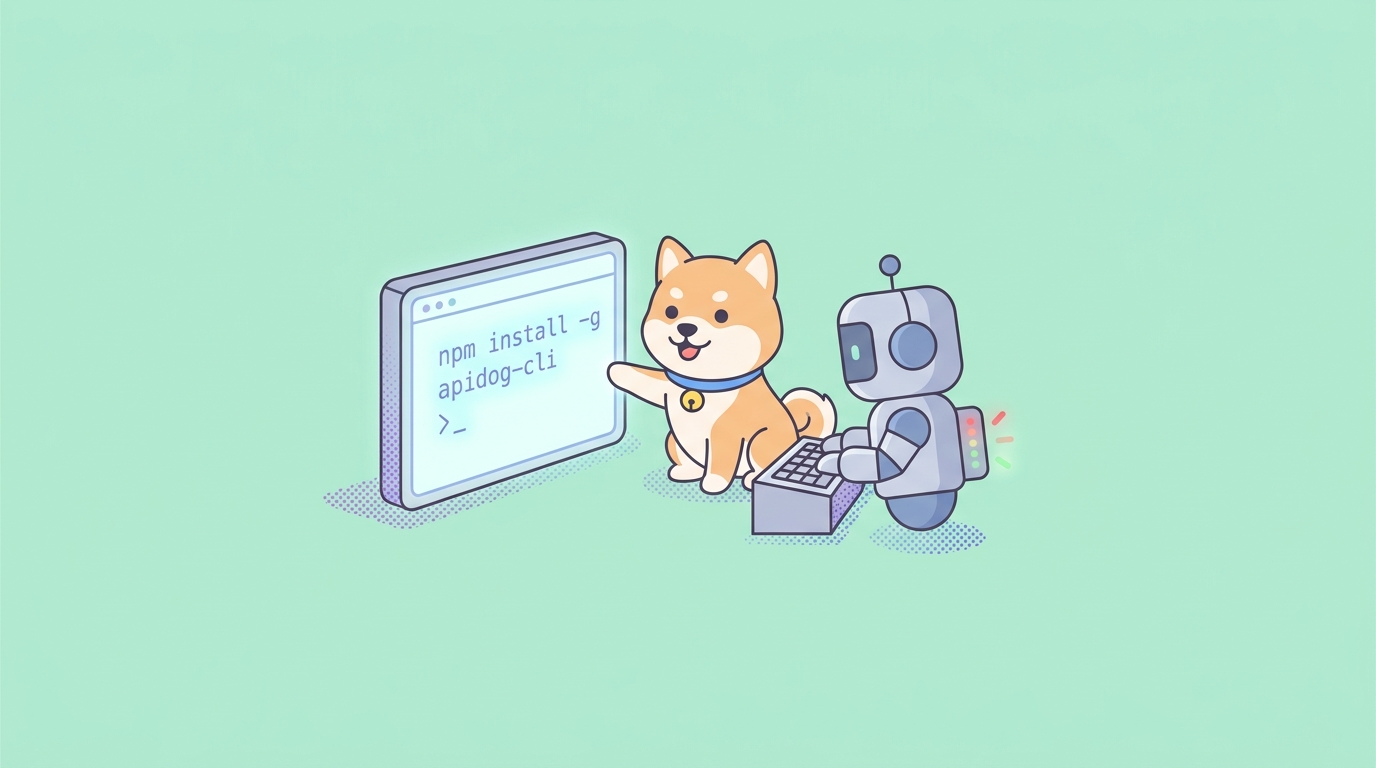
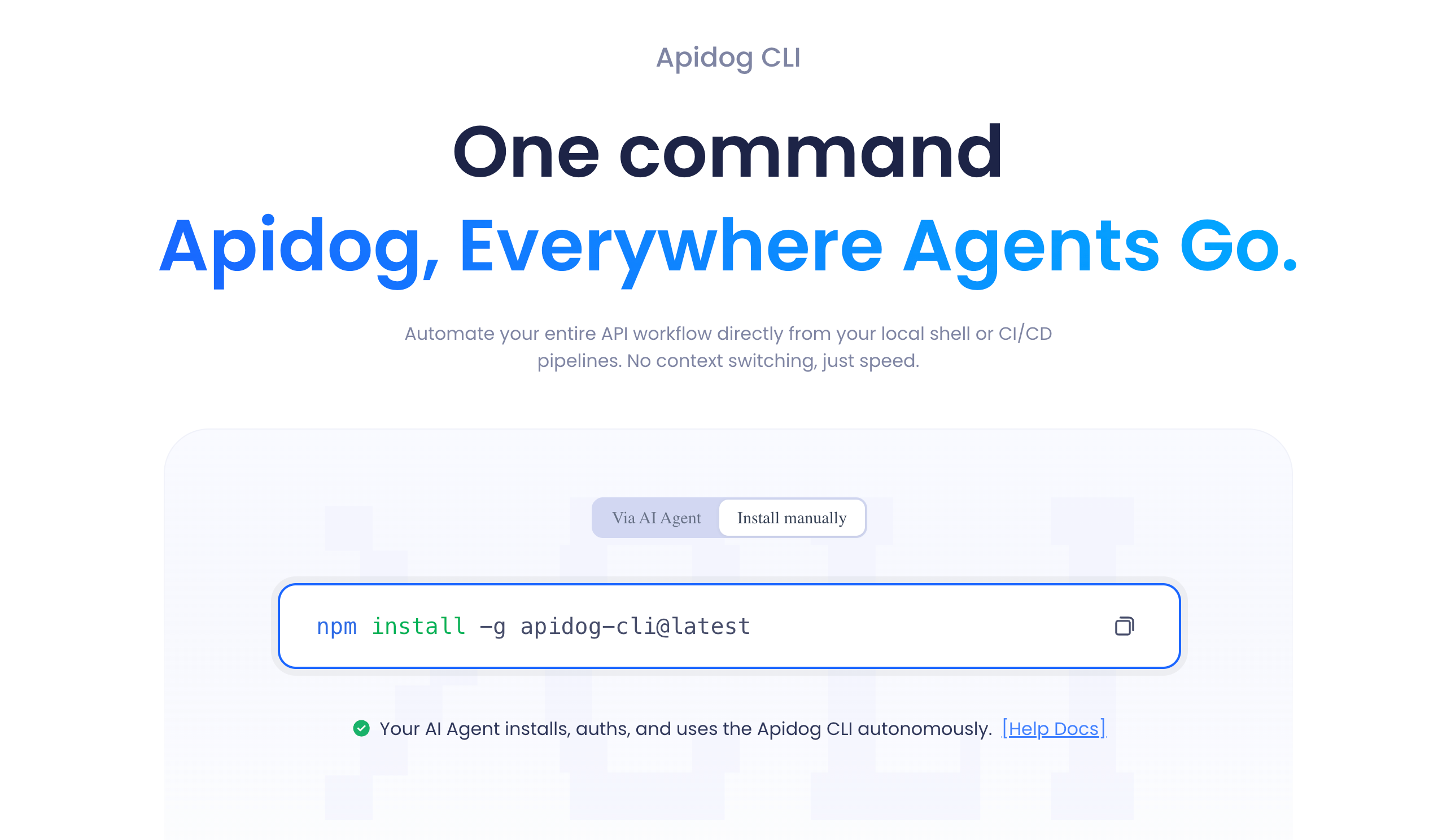
- The Apidog CLI is an npm package,
apidog-cli. Install it in a workflow step withnpm install -g apidog-cli, then run scenarios withapidog run. - It executes the test scenarios you design in the Apidog app by ID. You don’t port tests into code; the CLI runs the same scenario using an access token for authentication.
- A minimal GitHub Actions job is four steps: checkout, set up Node, install the CLI, run
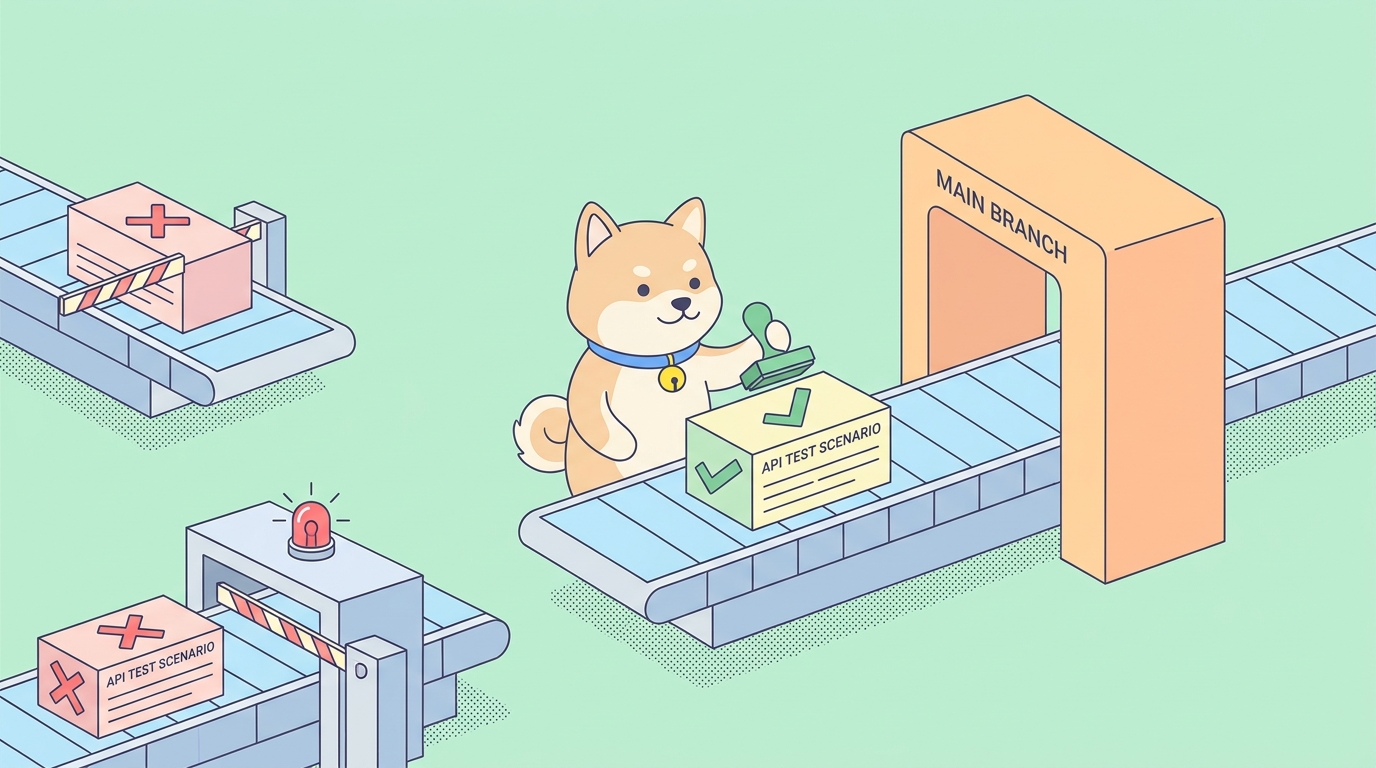
apidog run --access-token "$APIDOG_ACCESS_TOKEN" -t <scenarioId> -e <environmentId> -r junit,cli. - The CLI exits non-zero when any assertion fails. GitHub reads that exit code, fails the check, and blocks the merge. That’s the whole quality gate; you configure nothing extra.
- Store the access token as a GitHub Actions secret and pass it through
env:. Never commit it. - Use
-r junitto feed results into a dashboard,-r htmlfor a browsable artifact, andif: always()on the upload step so you still get the report when tests fail.
Why run API tests in CI at all
A test that only runs when you remember to run it is a test you can’t trust. Local runs are fine while you’re writing the scenario. They fall apart the moment a team is involved, because every developer’s machine is slightly different and nobody runs the full suite before every push.
CI fixes the trust problem by making the run automatic and uniform. Every pull request triggers the same job, on the same clean runner, against the same environment. When an endpoint starts returning a 500 or a response schema drifts, the check fails on the PR that caused it, with the name of the person who pushed it attached. The feedback arrives in minutes, while the change is still fresh, instead of days later in production.
API tests are a strong fit for this because they’re fast and deterministic. A scenario hits real endpoints, asserts on status codes and response bodies, and either passes or fails. There’s no flaky browser, no rendering to wait on. That makes them ideal as a merge gate: quick enough to run on every PR, decisive enough to block a bad one. If you want the broader background on what CI/CD is and how the pieces fit together, the primer on what CI/CD is and how it works covers the fundamentals.
What the Apidog CLI actually does
Here’s the part that saves you the most time: you don’t write test code for the CLI.
You build your test scenarios visually in the Apidog app, with the requests, assertions, environment variables, and data you need. The CLI is a runner. Given a scenario ID and an access token, it fetches that scenario from your Apidog project and executes it, request by request, evaluating every assertion exactly as the app would. The result is a report and an exit code.
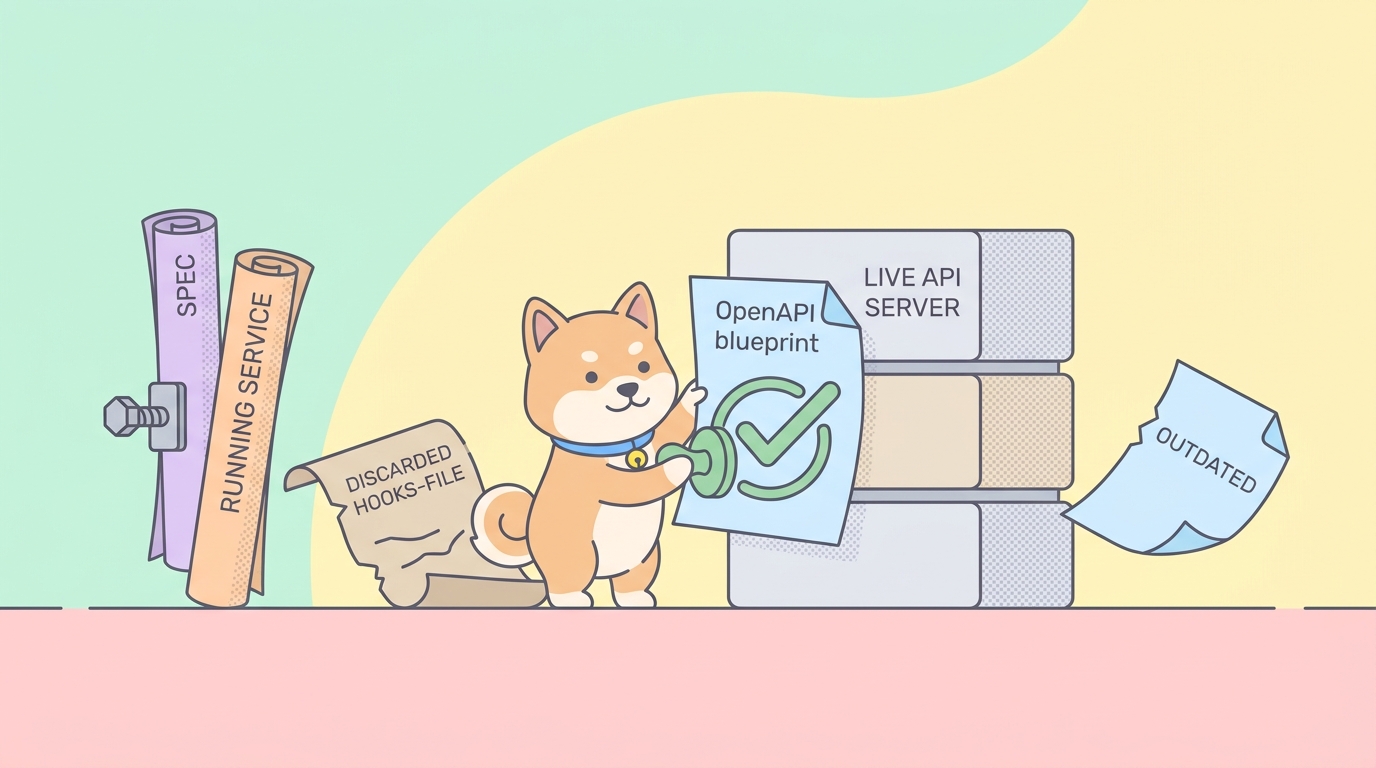
That design matters for CI. Most test runners ask you to maintain a separate code representation of your tests; the thing you run in the pipeline drifts from the thing you designed. With Apidog, the pipeline runs the same scenario your team already maintains in the app. Update an assertion in the visual editor and the next CI run picks it up. There’s no second copy to keep in sync.
The binary is apidog, distributed as the npm package apidog-cli. Every command starts with apidog run. If you want to see the runner woven into a fuller automation workflow, the walkthrough on integrating Apidog CLI with Claude Skills for API test automation covers that angle; this article focuses on the flags you need for a GitHub Actions pipeline.
Before you start: three things you need
You need three pieces of information before the workflow will run. Two are IDs from your Apidog project; one is a token.
- A test scenario. Build it in the Apidog app if you haven’t already. This is what the CLI runs. A single login-and-fetch-profile scenario is enough to start; you can scale up later.
- The scenario ID and environment ID. The scenario ID tells the CLI what to run; the environment ID tells it where (dev, staging, production). Both are visible in the app.
- An access token. This authenticates the CLI to your Apidog account so it can fetch and run the scenario.
The cleanest way to get all of these at once is the scenario’s CI/CD tab. Open the test scenario you want to automate, switch to its CI/CD tab, and choose the command-line option. Click to add an access token and generate one. Apidog assembles the full apidog run command for you, with the access token, the scenario ID (-t), and the environment ID (-e) already filled in. Copy that command; it’s the basis for your CI step.
One rule worth stating up front: treat the access token like a password. Don’t paste it into a committed workflow file. Store it as a GitHub Actions secret and reference it as an environment variable. Every example below uses $APIDOG_ACCESS_TOKEN for exactly that reason.
Step 1: store the access token as a GitHub secret
Open your repository on GitHub. Go to Settings, then Secrets and variables, then Actions, and click New repository secret.
- Name:
APIDOG_ACCESS_TOKEN - Secret: paste the token Apidog generated for you
Save it. The token is now encrypted at rest and exposed only to workflow runs, never printed in logs. In the workflow you’ll reference it as ${{ secrets.APIDOG_ACCESS_TOKEN }} and hand it to the CLI through an env: block. The scenario ID and environment ID aren’t secret; they’re harmless IDs, so you can write them directly in the workflow file. Only the token needs protecting.
If your team works across several repositories that all hit the same Apidog project, define the secret once at the organization level instead and grant the relevant repos access. Same name, one place to rotate it.
Step 2: the minimal workflow
Create .github/workflows/api-tests.yml in your repository. This is the smallest workflow that does something useful: it runs your scenario on every pull request targeting main.
name: API tests

on:
  pull_request:
    branches: [main]

jobs:
  api-tests:
    runs-on: ubuntu-latest
    steps:
      - name: Checkout
        uses: actions/checkout@v4

      - name: Set up Node.js
        uses: actions/setup-node@v4
        with:
          node-version: '20'

      - name: Install Apidog CLI
        run: npm install -g apidog-cli

      - name: Run API test scenario
        run: |
          apidog run \
            --access-token "$APIDOG_ACCESS_TOKEN" \
            -t 605067 \
            -e 1629989 \
            -r cli
        env:
          APIDOG_ACCESS_TOKEN: ${{ secrets.APIDOG_ACCESS_TOKEN }}
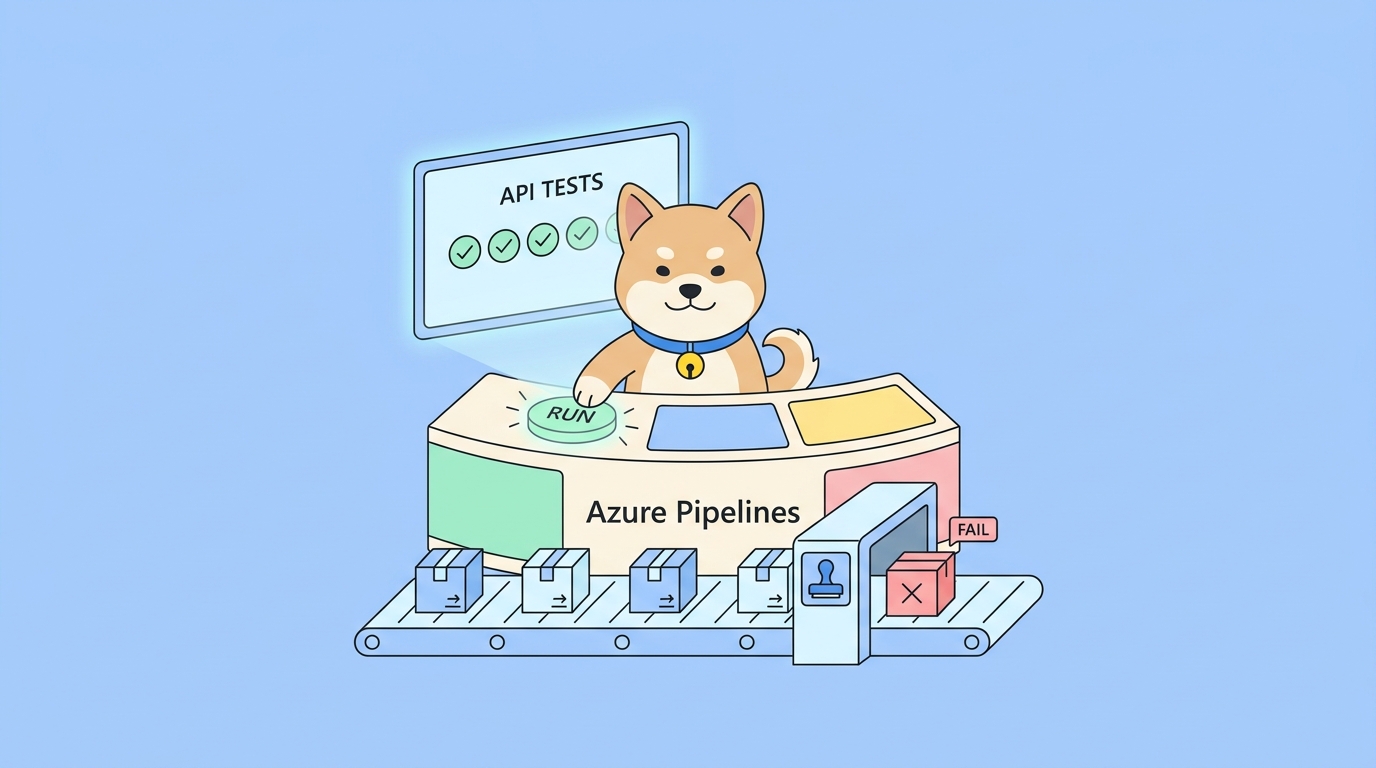
Replace 605067 with your scenario ID and 1629989 with your environment ID. Commit this file, open a pull request, and watch the Checks tab. The job spins up an Ubuntu runner, installs Node 20, installs the CLI, and runs your scenario. If every assertion passes, the check goes green. If one fails, apidog run exits non-zero, GitHub fails the check, and the PR shows a red X.
That red X is the entire point. Nobody has to read a log to know something broke; the failing check is right there on the pull request.
A note on the install step: the global npm install -g apidog-cli is simple and works. If you’d rather not mutate the runner’s global packages, you can skip the install step and call the CLI through npx instead:
      - name: Run API test scenario
        run: npx apidog-cli run --access-token "$APIDOG_ACCESS_TOKEN" -t 605067 -e 1629989 -r cli
        env:
          APIDOG_ACCESS_TOKEN: ${{ secrets.APIDOG_ACCESS_TOKEN }}
Both approaches run the identical scenario. npx is tidier on ephemeral runners; the global install is marginally faster when you cache node_modules between runs. Pick whichever fits your house style.
Step 3: publish a report you can actually read
A green or red check tells you the result. When a test fails, you want to know why, and for that you want the report.
The -r (or --reporters) flag controls report formats. It accepts cli, html, json, and junit, comma-separated. For CI, two formats earn their place:
junitemits XML in the standard JUnit format. Almost every CI dashboard and test-reporting tool knows how to parse it into a pass/fail tree.htmlproduces a self-contained report you can save as a build artifact and open in a browser, with the full request and response for each step.
Keep cli on too if you want readable output in the build log itself. Here’s the run step upgraded to produce both report formats and write them to a directory, plus an upload step so the report survives the run:
      - name: Run API test scenario
        run: |
          apidog run \
            --access-token "$APIDOG_ACCESS_TOKEN" \
            -t 605067 \
            -e 1629989 \
            -n 1 \
            -r html,junit,cli \
            --out-dir ./apidog-reports
        env:
          APIDOG_ACCESS_TOKEN: ${{ secrets.APIDOG_ACCESS_TOKEN }}

      - name: Upload test report
        if: always()
        uses: actions/upload-artifact@v4
        with:
          name: apidog-report
          path: ./apidog-reports
Two details make this work the way you want. The --out-dir flag tells the CLI where to write reports; here it’s ./apidog-reports, which the upload step then grabs. And if: always() on the upload step is the important one: by default GitHub skips later steps once a step fails, but you want the report most when the tests failed. if: always() forces the upload to run regardless of the test outcome. After the job finishes, the report shows up under Artifacts on the run summary page, ready to download.
The -n 1 flag sets the iteration count to one run; bump it if you want the scenario executed several times in a row.
If you want GitHub to surface the JUnit results inline as an annotated check rather than a downloadable file, add a published-test-results action after the run step and point it at ./apidog-reports/*.xml. That turns the XML into a pass/fail summary attached to the run, which is handy for larger suites where scrolling the log isn’t practical.
Step 4: test the right environment at the right time
A pull request should test against staging. A deploy to production should be verified against production. The same scenario can do both; you just change the environment ID with -e.
A common, durable setup uses two triggers in one workflow file. Pull requests run the scenario against your staging environment as a merge gate. Pushes to main (which is what a merge produces) run the same scenario against production as a post-deploy smoke test.
name: API tests

on:
  pull_request:
    branches: [main]
  push:
    branches: [main]

jobs:
  pr-check:
    if: github.event_name == 'pull_request'
    runs-on: ubuntu-latest
    steps:
      - uses: actions/checkout@v4
      - uses: actions/setup-node@v4
        with:
          node-version: '20'
      - run: npm install -g apidog-cli
      - name: Test staging
        run: |
          apidog run \
            --access-token "$APIDOG_ACCESS_TOKEN" \
            -t 605067 \
            -e 1629989 \
            -r junit,cli \
            --out-dir ./apidog-reports
        env:
          APIDOG_ACCESS_TOKEN: ${{ secrets.APIDOG_ACCESS_TOKEN }}
      - uses: actions/upload-artifact@v4
        if: always()
        with:
          name: staging-report
          path: ./apidog-reports

  prod-smoke:
    if: github.event_name == 'push'
    runs-on: ubuntu-latest
    steps:
      - uses: actions/checkout@v4
      - uses: actions/setup-node@v4
        with:
          node-version: '20'
      - run: npm install -g apidog-cli
      - name: Smoke test production
        run: |
          apidog run \
            --access-token "$APIDOG_ACCESS_TOKEN" \
            -t 605067 \
            -e 1730055 \
            -r cli \
            --on-error end
        env:
          APIDOG_ACCESS_TOKEN: ${{ secrets.APIDOG_ACCESS_TOKEN }}
The two environment IDs (1629989 for staging, 1730055 for production) are the only meaningful difference. The PR job builds and archives a JUnit report so reviewers can inspect failures; the production smoke test runs lean and fails fast with --on-error end, which stops at the first broken assertion so you find out quickly that a deploy went sideways.
--on-error is worth knowing. It controls what happens when a step fails mid-scenario. end stops the run on the first failure (fast feedback, good for smoke tests). continue runs every remaining step so you see all failures in one report (good for a thorough PR check). ignore skips a known-flaky step without derailing the run. Whichever you pick, the run still ends in a non-zero exit if anything failed, so the gate holds either way.
Going further: matrix runs, folders, and data-driven tests
Once the basic gate is in place, a few flags extend it without much extra YAML.
Run a whole feature area, not one scenario. Swap -t <scenarioId> for -f <folderId> to run every scenario inside a folder, or --test-suite <testSuiteId> to run a curated suite. Suites are the right tool when you want a specific, ordered set of scenarios run together as one logical job; the guide on scaling automated API testing with test suites covers when to reach for them.
Test several environments in parallel. A matrix runs the same job across multiple environment IDs at once:
jobs:
  api-tests:
    runs-on: ubuntu-latest
    strategy:
      matrix:
        env-id: [1629989, 1730055]
    steps:
      - uses: actions/checkout@v4
      - uses: actions/setup-node@v4
        with:
          node-version: '20'
      - run: npm install -g apidog-cli
      - name: Run scenario against ${{ matrix.env-id }}
        run: |
          apidog run \
            --access-token "$APIDOG_ACCESS_TOKEN" \
            -t 605067 \
            -e ${{ matrix.env-id }} \
            -r cli
        env:
          APIDOG_ACCESS_TOKEN: ${{ secrets.APIDOG_ACCESS_TOKEN }}
GitHub spins up one runner per matrix value, so staging and production get tested concurrently and each reports its own pass/fail.
Drive iterations from a data file. The -d flag runs one scenario across rows of a CSV or JSON file, treating each row as a separate pass: apidog run --access-token "$APIDOG_ACCESS_TOKEN" -t 605067 -d ./test-data.csv -r junit. This is how you validate the same endpoint against fifty inputs without building fifty scenarios.
Run against a branch. If your team uses Apidog’s branch feature, --branch <branchName> points the run at a specific branch instead of main, which lets a feature branch’s PR test against that branch’s scenario definitions.
Troubleshooting common CI failures
The job is green but a test should have failed. Check that the apidog run step’s exit code is actually reaching GitHub. If you wrapped the command in a shell pipeline or appended || true, the non-zero exit gets swallowed and the gate silently stops working. Remove anything that masks the exit code. Run the command on its own line, or as the last command in a run: block, so its exit status is the step’s exit status.
Authentication fails. The most common cause is the secret name not matching. The env: key, the value reference ${{ secrets.APIDOG_ACCESS_TOKEN }}, and the secret you created in Settings all have to use the same name. Also confirm the token hasn’t been regenerated in Apidog since you saved it; regenerating invalidates the old one.
Passes locally, fails in CI. Add --verbose to the run command temporarily. It prints the full request the runner sent and the full response it got back, which usually reveals the difference, often an environment variable that’s set on your machine but not in the CI environment, or a staging service behaving differently than your local one.
Reports aren’t showing up as artifacts. Make sure --out-dir in the run step and path: in the upload step point at the same directory, and that the upload step has if: always(). Without if: always(), a failing test skips the upload and you lose the report exactly when you need it.
The runner can’t reach your API. If your staging or production environment sits behind a firewall or a VPN, a public GitHub-hosted runner can’t reach it. You’ll need a self-hosted runner inside your network, or an allowlist entry for GitHub’s IP ranges.
How this compares to the alternatives
You could write API tests as code with a framework, wire them into a test runner, and call that from Actions. That works, but you’re now maintaining a code suite that has to stay in sync with the API and with whatever your team designs in their API tool. The Apidog approach skips that duplication: the scenario your team already maintains in the app is the test that runs in CI.
You could also script raw curl calls in a workflow step. Fine for a single health check, painful past that, because you’re hand-rolling assertions, environment switching, and reporting that the CLI gives you for free.
GitHub Actions isn’t the only home for this, either. The exact same apidog run command drops into GitLab CI, Jenkins, CircleCI, or any runner that can execute a shell command and read an exit code. If GitHub Actions isn’t your platform, the patterns here transfer directly; see the guide to automating API tests in CI/CD for the cross-platform view, or the walkthrough on integrating Apidog automated tests with Jenkins if you’re on Jenkins.
To build the scenarios you’ll run, download Apidog, design your tests in the app, and grab the CLI command from the scenario’s CI/CD tab. The runner is a free npm package; what you can run depends on your Apidog project, but the command-line runner itself isn’t a separate paid product.
Wrapping up
The setup is smaller than it looks. Build a scenario in Apidog, store one access token as a GitHub secret, and add a handful of steps to a workflow file. From there, every pull request runs your API tests automatically, a failing endpoint turns the check red before the merge, and the report waits in the Artifacts tab whenever you need to see what broke.
The reason it stays simple is the division of labor. The Apidog app owns the tests; the CLI runs them; GitHub reads the exit code. Nothing has to be duplicated or kept in sync. When you update an assertion in the app, the next CI run uses it. That’s what makes this worth doing on day one of a project instead of bolting it on after the first production incident.