Quickstart Guide of DeepSeek API
Using Deepseek project for API call testing in Apidog's API Hub is a straightforward process that allows developers to efficiently test various API functionalities.
Getting Started Resources
To debug the DeepSeek API, all you need is:
- API Key: DeepSeek Platform
- DeepSeek API:Apidog API Hub
The project in Apidog API Hub includes not only the full API documentation but also various configurations like the environment. Just paste your API Key in the designated field to start debugging—making the process quick and easy.
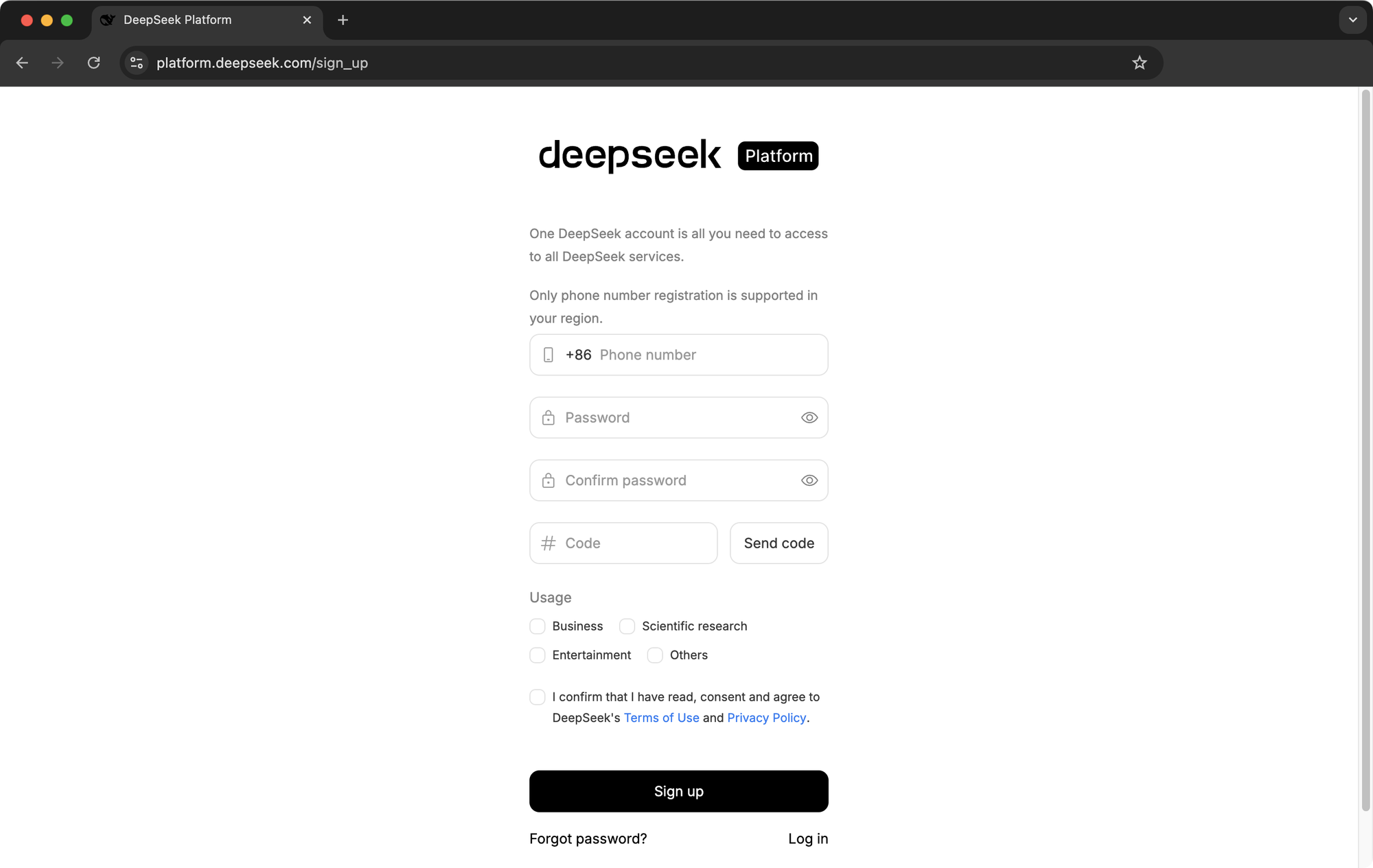
Login to DeepSeek Platform
Register at platform.deepseek.com for API keys.
Create your API Key
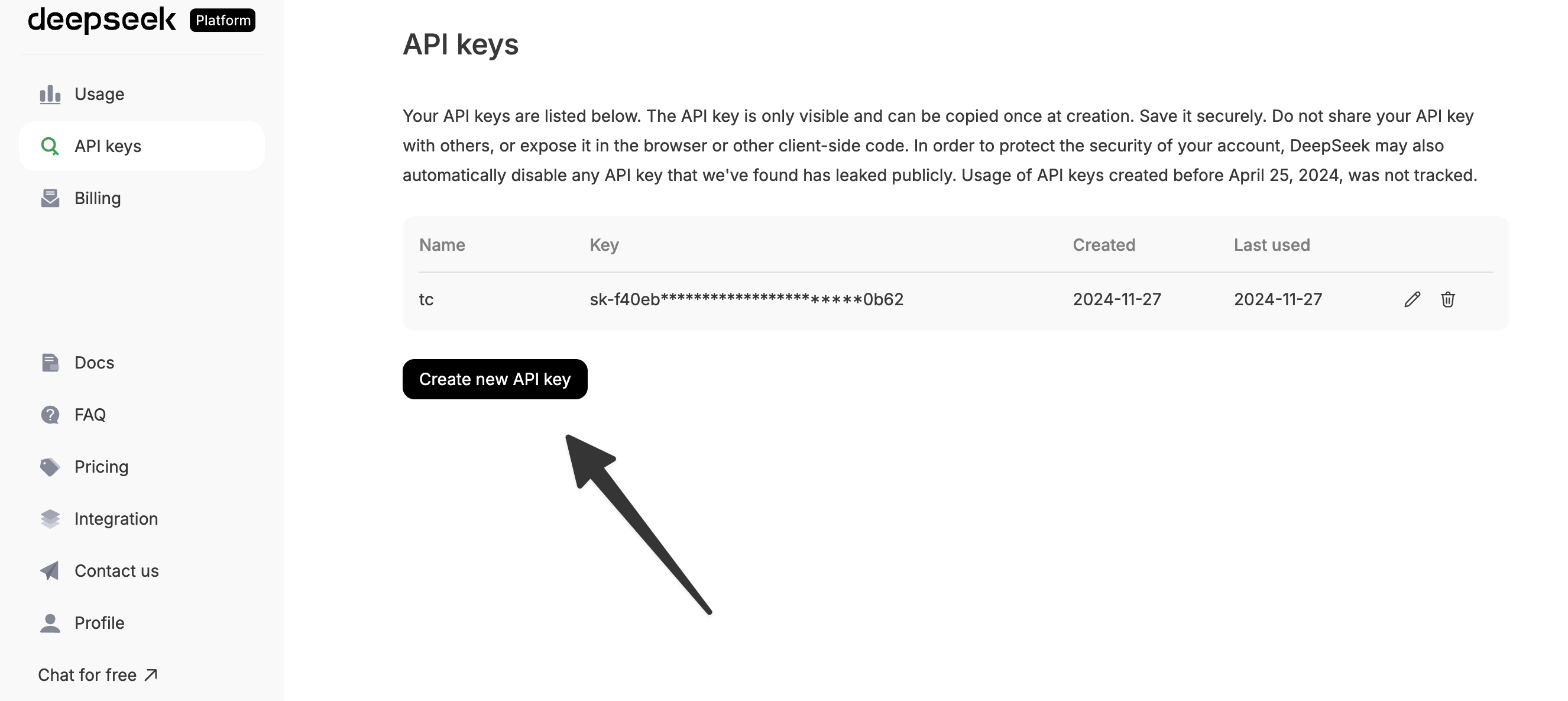
In the “API Keys” section of Deepseek, select “Create new API key”. Once created, copy the key and save it properly, you will not be able to copy the key again after closing the window.
Testing Deepseek API
Debugging Deepseek's API can be done effortlessly.
Using Apidog's API Hub, you can directly access the Deepseek API. It offers comprehensive documentation and pre-configured environments, enabling you to start making API calls instantly.

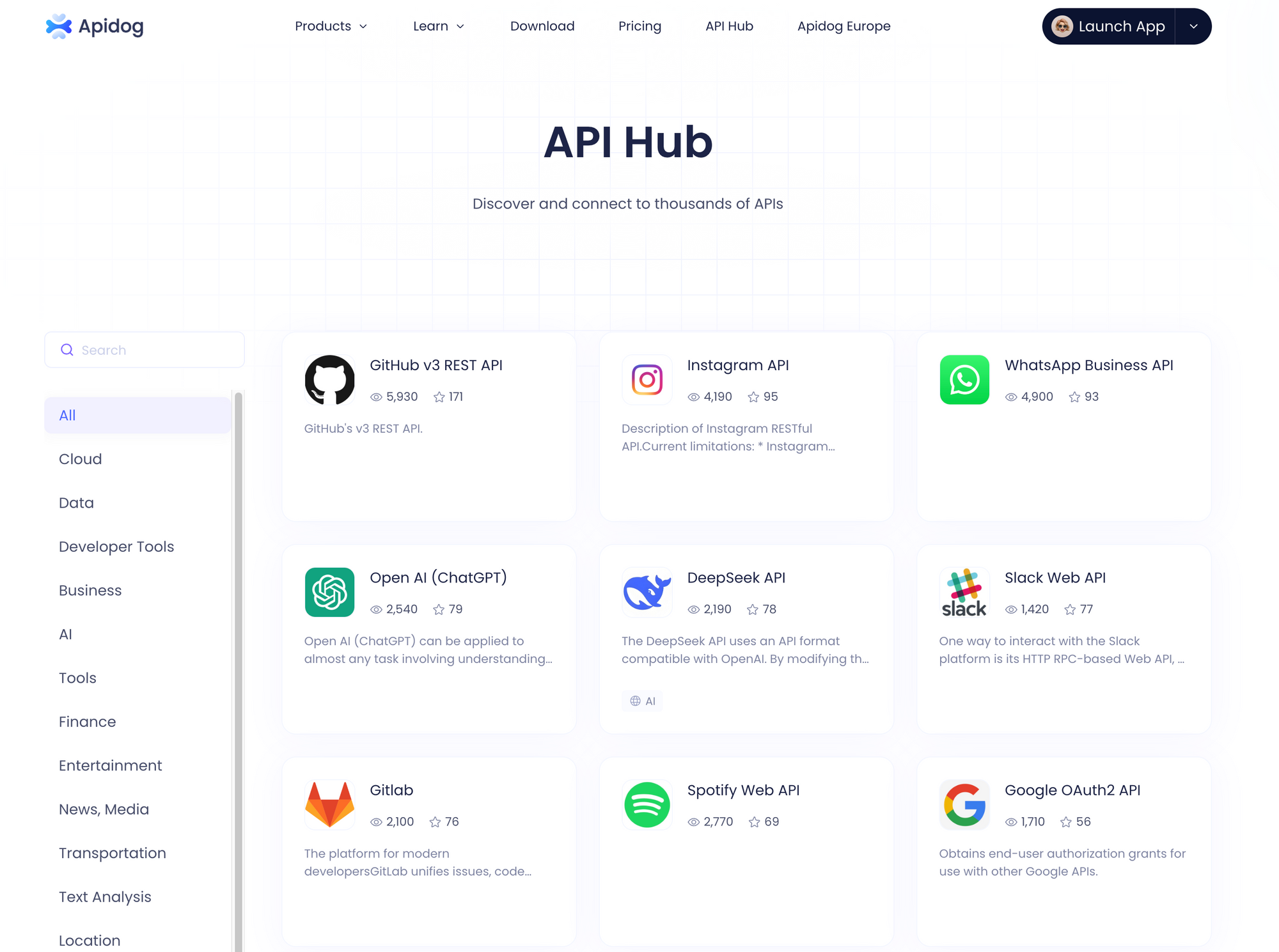
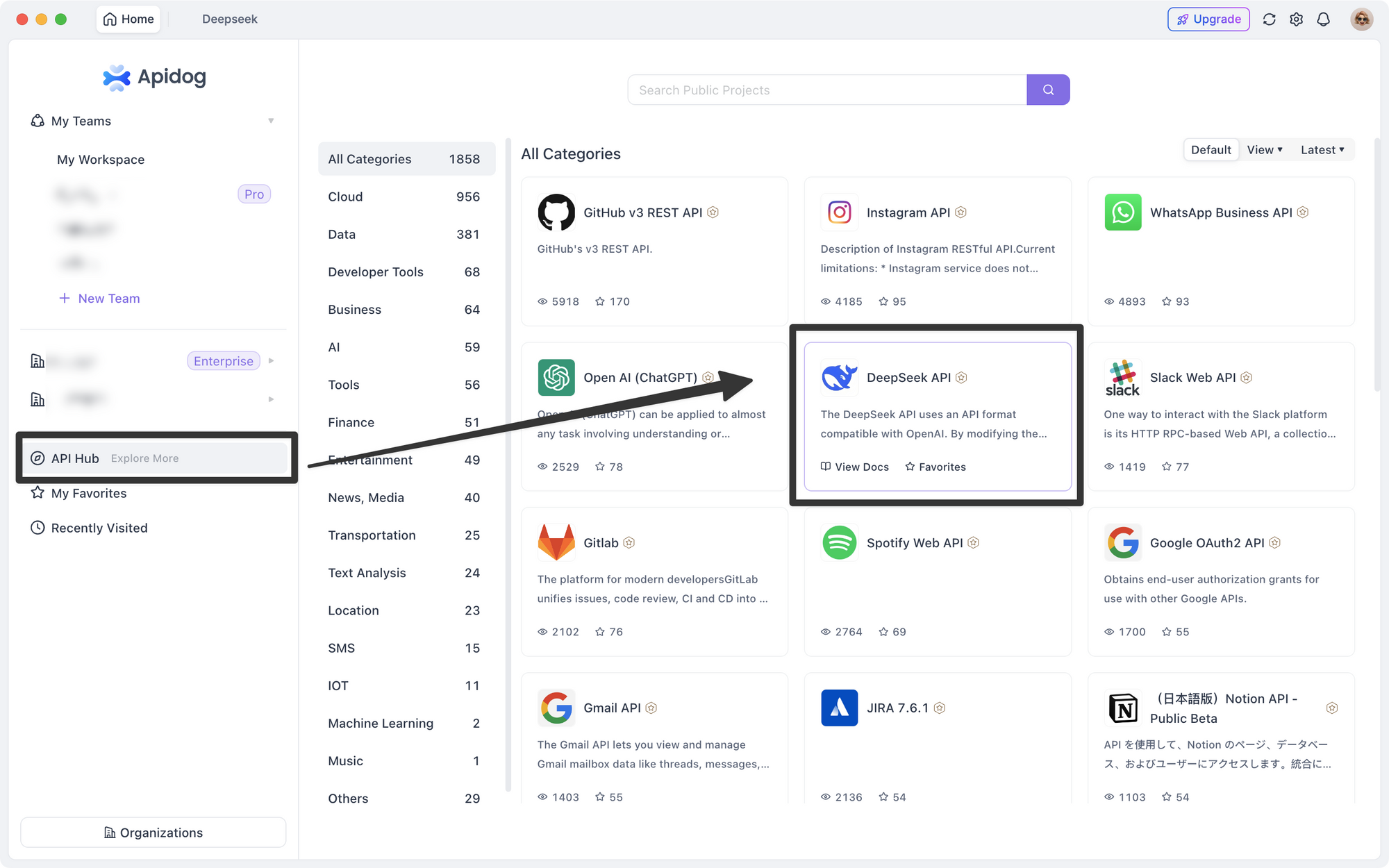
You can either go to Apidog API Hub to locate the DeepSeek project, or directly access the API Hub from the Apidog client. Once you’ve chosen the project, you can start using the API endpoints available inside.
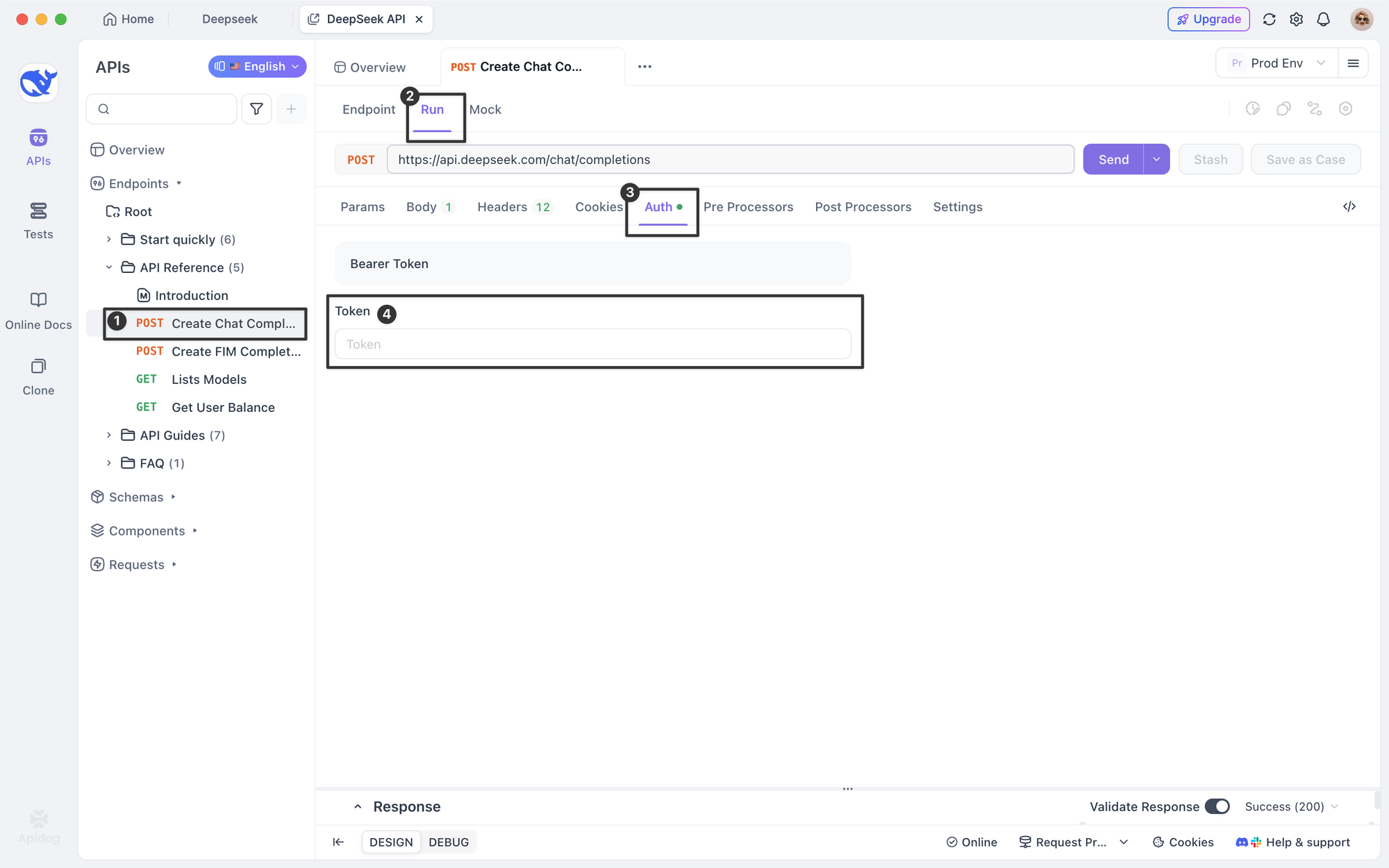
We just need to paste the API Key into the token field in the Auth settings.
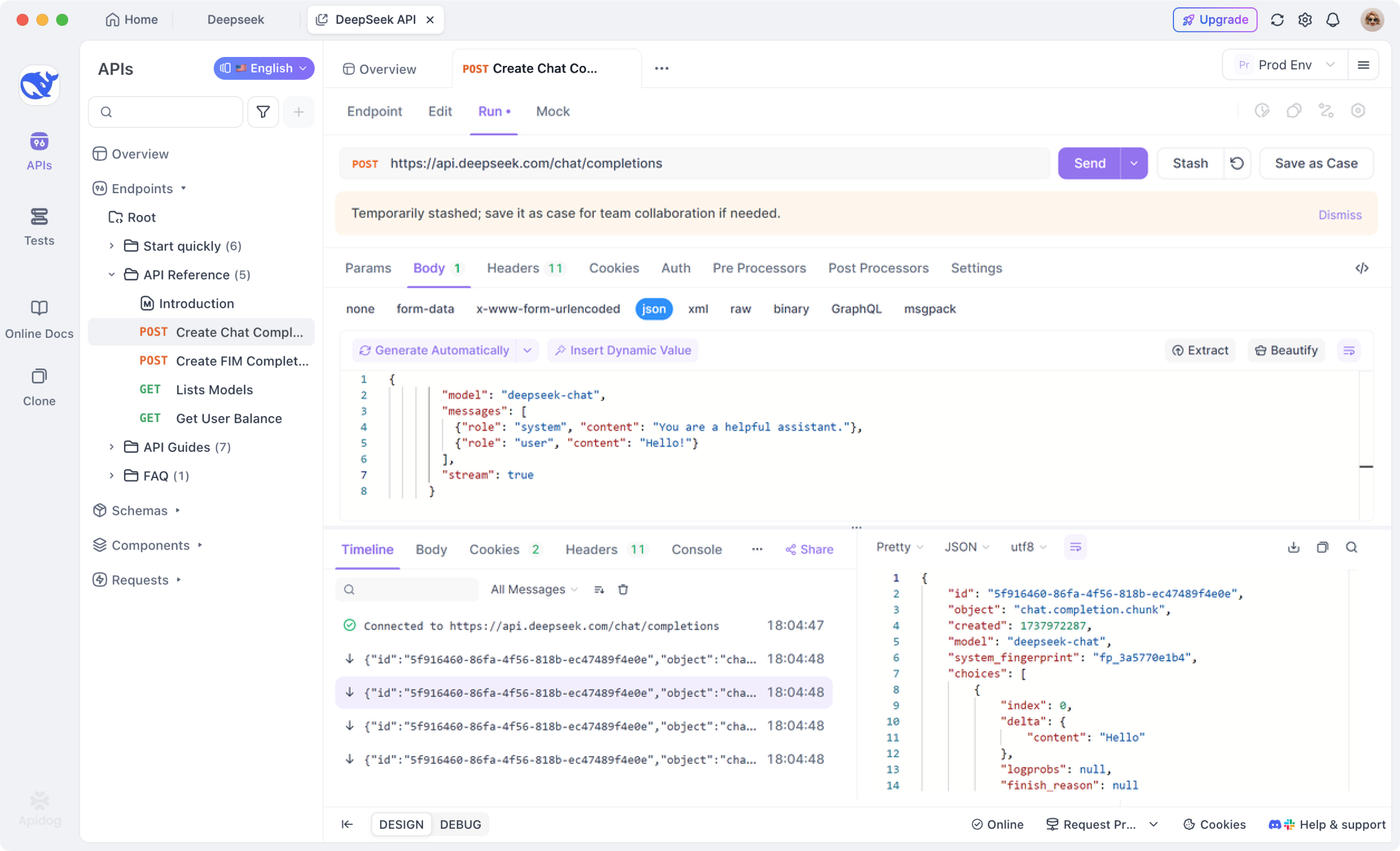
Click "Send" to submit your request and receive a response from the endpoint. Adjusting the message content in the Body allows you to simulate various conversations.
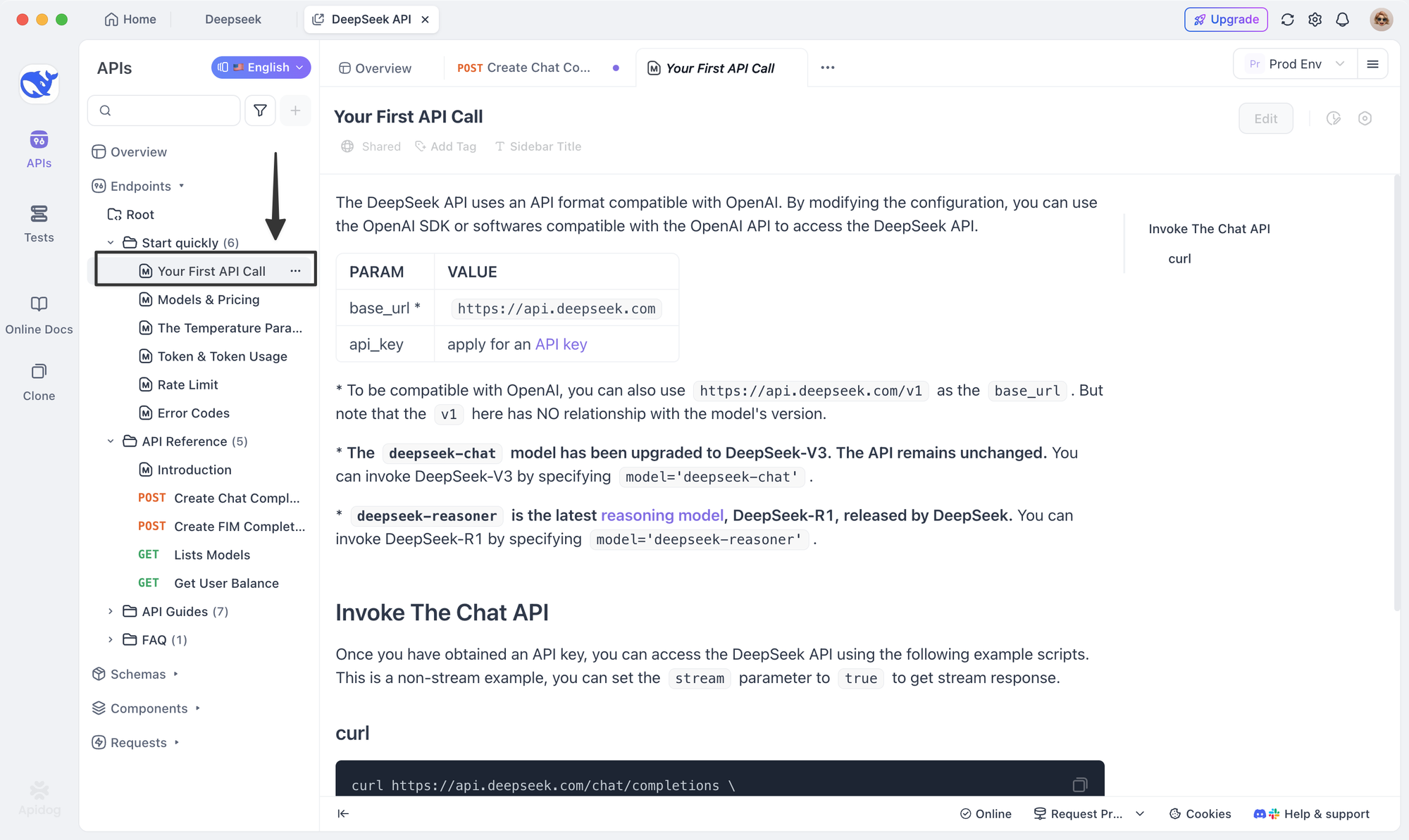
During API debugging, you can conveniently consult the Markdown documentation above to resolve any issues.
If you’d rather not debug the DeepSeek API through the API Hub, there are other methods you can use. This article will guide you through them.

Summary
Using the DeepSeek project in Apidog’s API Hub for API testing is a great way for developers to streamline their testing processes and ensure the reliability of their APIs. Just keep your API Key on hand, and you’ll be able to get started quickly. With Apidog, you can easily test and manage the DeepSeek API.