Apidog Spec-First Mode is a workspace built for teams who treat their OpenAPI spec as source code. You write the spec directly as YAML or JSON in an IDE-style editor, then sync it both ways with a connected Git repository. No form-based editor sits between you and the file. The spec is the project. If you’ve ever wanted to edit openapi.yaml in a real code editor and push it to GitHub without leaving your API tool, this is the mode for you.
This guide is the complete reference for the has itself. It covers every capability, the full setup walkthrough, who it’s for, the limitations to expect from a beta, and a practical FAQ. For the broader idea behind this approach, see our git-native API workflow .
What is Apidog Spec-First Mode?
Spec-First Mode is a beta editing mode in Apidog where your API design lives as a raw OpenAPI document. You open the file, edit YAML or JSON, validate it, commit it, and push it to Git. Apidog keeps the spec and the repo in sync in both directions. Pull a teammate’s change and your editor updates. Push your edit and the repo updates.
It’s built for one kind of team specifically: people who already run a native Git workflow. Backend engineers, platform teams, and API-first shops that version their contracts in pull requests will feel at home. The spec file becomes the single source of truth, and Git handles history, review, and branching the way it does for the rest of your codebase.
This is different from how most API tools work. Most tools hide the spec behind a graphical form. Spec-First Mode shows you the file.
Spec-First Mode vs Design-First Mode at a glance
Apidog ships two modes. Design-First Mode is the visual, form-based editor most teams start with. Spec-First Mode is the code-editor approach this guide covers. Here’s the short version. For a full breakdown of the trade-offs, read our spec-first vs design-first comparison.
| Aspect | Design-First Mode | Spec-First Mode (Beta) |
|---|---|---|
| Primary editor | Visual forms and UI panels | Raw YAML/JSON code editor |
| Source of truth | Apidog project database | The spec file in your Git repo |
| Git sync | Export/import based | Native two-way sync |
| Best for | Visual designers, mixed teams | Git-native engineering teams |
| Learning curve | Gentle, guided | Familiar if you know OpenAPI |
Neither mode is “better.” They serve different teams. You can switch between them, which we cover below.
Key has
Spec-First Mode is more than a text box. It bundles an editor, a navigator, Git integration, and team controls. Here’s every capability in detail.
The IDE-style OpenAPI editor
The center of the workspace is a full code editor for your OpenAPI document. You edit the raw YAML or JSON directly. It behaves like the editor you already use every day.
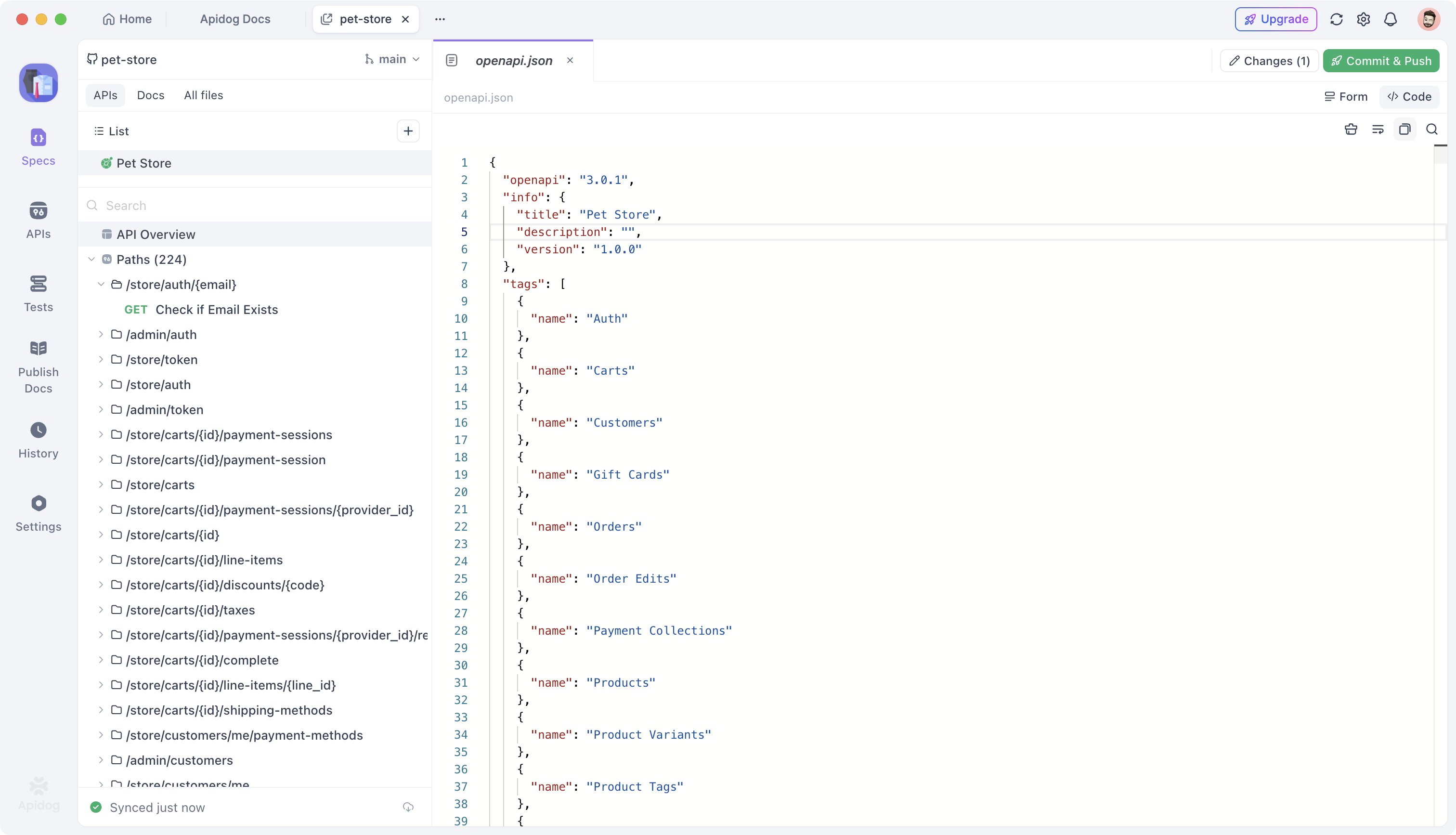
You get syntax highlighting that colors keys, values, and structure so the file stays readable at scale. You get schema validation that flags errors against the OpenAPI specification as you type, so a malformed response object or a missing required field shows up immediately. You get auto-completion tuned for OpenAPI and Swagger, which suggests valid keywords, field names, and structure while you write.
That auto-completion matters most when you’re deep in a schema and can’t remember whether it’s additionalProperties or additionalItems. The editor knows the spec, so it helps you stay correct.
small slice of what you’d edit:
paths:
 /users/{userId}:
 get:
 summary: Get a user by ID
 operationId: getUserById
 parameters:
 - name: userId
 in: path
 required: true
 schema:
 type: string
 responses:
 '200':
 description: A single user
 content:
 application/json:
 schema:
 $ref: '#/components/schemas/User'
Auto-parsed navigable outline
A raw spec file gets long fast. A real API can run thousands of lines. Spec-First Mode solves that with a left sidebar that auto-parses the file into a visual outline.
As you type, Apidog reads the document and builds a navigable structure: paths, operations, schemas, and components. Click any node in the outline and the editor jumps to that spot in the file. You navigate by meaning, not by scrolling. The outline updates live as the spec changes, so it always reflects what’s actually in the file.
This keeps a large openapi.yaml manageable. You think in terms of “the POST /orders operation,” not “line 1,847.”
Two-way Git sync
This is the core of the mode. Spec-First Mode connects to your Git repository and syncs the spec in both directions.
GitHub and GitLab are supported directly. Azure DevOps works through a generic Git Connection, which lets you point Apidog at the repo using standard Git credentials. Once connected, pulling brings repo changes into your editor, and pushing sends your edits back to the repo. The spec stays consistent across everyone on the team because Git is the shared backbone.
| Provider | How it connects |
|---|---|
| GitHub | Direct integration |
| GitLab | Direct integration |
| Azure DevOps | Via generic Git Connection |
If you want a focused, step-by-step on one provider, our sync OpenAPI spec to GitHub guide walks through that exact flow.
Commit, push, and the sync status indicator
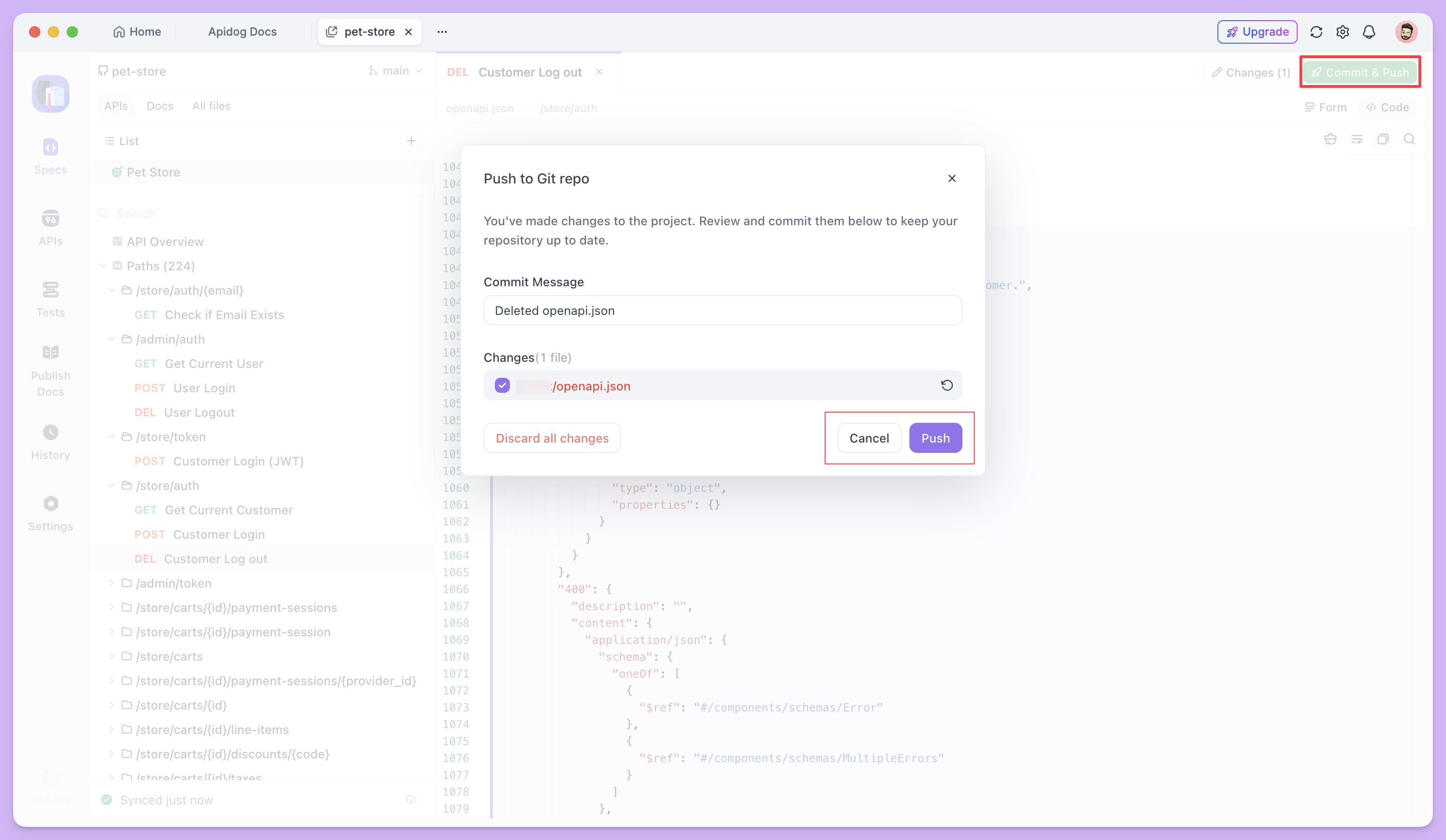
You don’t just save and hope. Spec-First Mode follows the Git model you already know. When you finish an edit, you write a commit message and commit the change. Then you push it to the connected repo.
A sync status indicator keeps you informed the whole time. It shows states like “Synced just now” when your local spec matches the repo, and it changes when you have unpushed work. You always know whether the version in front of you is the version your teammates see. No guessing, no stale specs.
File change tracking
Before you commit, Spec-First Mode shows you exactly what changed. It tracks modifications at the file level and marks each entry as modified, added, or deleted. You review the set of changes the way you’d review a Git status output.
This matters because it gives you a checkpoint. You can confirm you’re committing the right edits and nothing extra. And if you decide an experiment didn’t work out, you can discard unpushed edits before they ever reach the repo. That keeps your shared history clean. Local exploration stays local until you choose to push it.
Branch and repo-scoped projects with team permissions
A Spec-First project isn’t floating in the abstract. You create it from a specific repository and a specific branch, usually main. That scoping means the project always points at a real place in Git. Your spec, your history, and your branch line up.
Team permissions get configured during setup. You decide who can access the project and what they can do, so the people working on the contract are the people you intend. Because the project is tied to a repo and branch, your access model can mirror the access model you already enforce in Git.
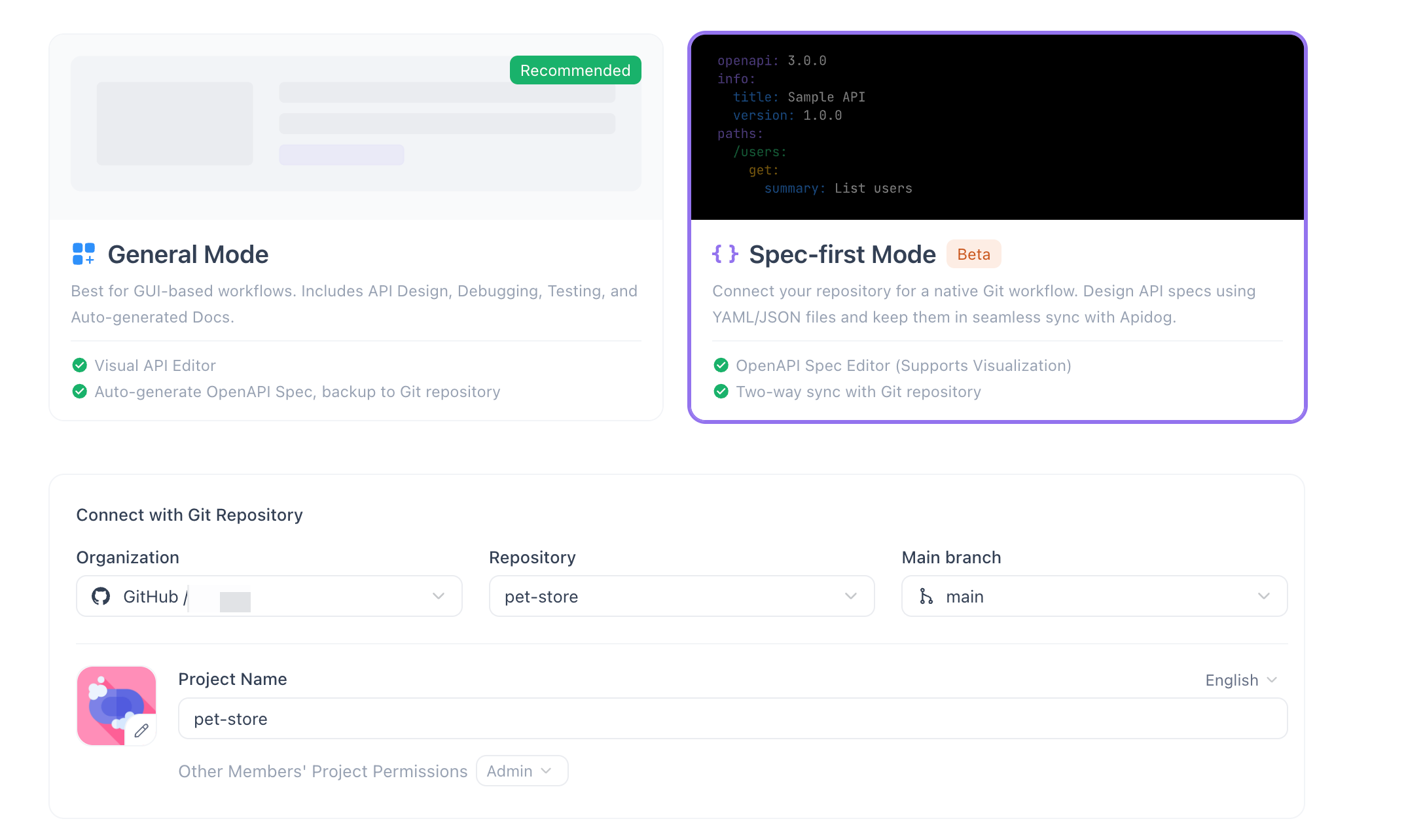
How to set up Spec-First Mode
Setup is a short, linear flow. Follow these steps. The official walkthrough lives at docs.apidog.com/spec-first-mode-beta-2058268m0 if you want screenshots alongside.
- Switch the mode. Open the APIs module in Apidog. Find the mode toggle at the bottom-left of the module and switch from Design-First to Spec-First Mode.
- Connect your Git provider. Authorize GitHub or GitLab directly. For Azure DevOps, set up a generic Git Connection with your Git credentials.
- Create a project from your repo. Choose the repository that holds your spec and select the branch, typically
main. Apidog scopes the new project to that repo and branch. - Configure team permissions. During setup, set who can access the project and what they can change.
- Edit the spec. Open your
openapi.yamloropenapi.jsonin the IDE-style editor. Use the outline on the left to navigate. Lean on validation and auto-completion as you write. - Commit your changes. Write a clear commit message. Review the tracked changes first. Discard anything you don’t want to keep.
- Push to the repo. Push your commit to the connected branch.
- Verify the sync. Check the sync status indicator. When it reads “Synced just now,” your spec and repo match.
That’s the whole loop: switch, connect, create, edit, commit, push, verify.
A typical day-to-day workflow
Here’s how the mode feels in practice once it’s set up.
You start your day by pulling the latest from the connected branch, so your editor reflects what your teammates merged overnight. You open the outline, click into the operation you’re working on, and start editing the YAML. A new endpoint needs a request body, so you define a schema. Auto-completion helps you get the field names right, and validation catches a typo in a $ref before it becomes a problem.
When the endpoint looks good, you check the file change tracking. It shows your modifications. You write a commit message like Add POST /invoices endpoint, commit, and push. The status indicator flips to “Synced just now.” A teammate reviews the change in a normal pull request, because the spec lives in Git like everything else.
Here’s the kind of addition you’d make in that flow:
components:
 schemas:
 Invoice:
 type: object
 required: [id, amount, currency]
 properties:
 id:
 type: string
 format: uuid
 amount:
 type: integer
 description: Amount in the smallest currency unit
 currency:
 type: string
 example: USD
 status:
 type: string
 enum: [draft, sent, paid]
The whole cycle stays inside the tools you trust. The spec is code, and you treat it like code.
Who should use Spec-First Mode
Spec-First Mode fits some teams better than others. Be honest about which one you are.
Use Spec-First Mode if your team already lives in Git. If you review API contracts in pull requests, if you want the spec versioned next to your service code, or if your engineers prefer editing YAML directly, this mode removes friction. It’s a strong fit for backend and platform teams that treat the OpenAPI document as a first-class artifact.
Choose Design-First Mode instead if you want a guided, visual experience. Teams with non-engineers contributing to design, or anyone who’d rather click through forms than write YAML, will move faster there. Mixed teams where product and design weigh in on endpoints often prefer the visual editor. There’s no wrong answer. Pick the mode that matches how your team actually works. Our comparison post goes deeper on this decision.
Limitations and beta notes
Spec-First Mode is a beta. That word is doing real work, so set your expectations accordingly.
As a beta, the has is still maturing. Capabilities and behavior can change as Apidog refines the mode based on feedback. Direct provider integration covers GitHub and GitLab today, while Azure DevOps relies on the generic Git Connection rather than a dedicated integration. If your team depends on a specific Git provider or workflow, confirm it fits your needs before you commit a critical project to the mode.
Because the spec syncs with a live repo, normal Git discipline applies. Commit deliberately, push intentionally, and use the discard option when an edit shouldn’t ship. The file change tracking and sync indicator are there to keep you safe, but the responsibility for clean history is still yours. Treat the beta the way you’d treat any new tool touching your main branch: try it on a non-critical repo first, then expand once you trust the flow.
The upside of a beta is influence. Early feedback shapes where the has goes, so if something’s missing for your workflow, that’s worth reporting.
FAQ
Is Spec-First Mode free?
Spec-First Mode is a beta has inside Apidog. Access follows your Apidog plan, so check the mode’s availability against your current plan and the beta status. Because it’s in beta, the simplest path is to enable it in the APIs module and see whether it’s available for your account.
Which Git providers are supported?
GitHub and GitLab are supported through direct integration. Azure DevOps works via a generic Git Connection, which uses standard Git credentials to point Apidog at your repository. Other Git hosts may also work through that generic connection, since it relies on standard Git rather than a provider-specific API.
Can I switch back to Design-First Mode?
Yes. The mode toggle sits at the bottom-left of the APIs module, and you switch between Spec-First and Design-First there. You’re not locked in. Pick the mode that suits the project in front of you.
What file formats can I edit?
You edit your OpenAPI document as raw YAML or JSON in the IDE-style editor. The editor provides syntax highlighting, schema validation, and auto-completion for both OpenAPI and Swagger, so you stay correct as you write in either format.
What happens to my unpushed edits?
Unpushed edits stay local until you push them. Spec-First Mode tracks every change as modified, added, or deleted, and the sync indicator shows when you have work that hasn’t reached the repo. If you decide against a change, discard it before pushing and it never enters your shared history.
Conclusion
Apidog Spec-First Mode brings the OpenAPI editor and Git together in one place. You edit the spec as YAML or JSON, navigate it through an auto-parsed outline, validate as you type, and sync both ways with GitHub, GitLab, or Azure DevOps. Commit messages, push, change tracking, and a clear sync indicator give you the Git workflow you already know, applied to your API contract.
It’s a beta, and it’s aimed at Git-native teams who want the spec to be source code. If that’s you, the mode is worth a serious look. Enable it in the APIs module, connect a repo, and try a small edit-commit-push cycle to feel the flow. When you’re ready, try Spec-First Mode in the docs and connect it to a repo you trust.