You already have an AI coding agent open. It edits your files, runs your tests, and reads your terminal output. So why are you about to install a command-line tool by hand, copying npm commands out of a tab and pasting them one at a time?
You don’t have to. The Apidog CLI is an npm package named apidog-cli that runs the API test scenarios you built in Apidog, straight from a terminal. Installing it is a short sequence of shell commands, an auth step, and a first run. That is exactly the kind of mechanical work an agent like Claude Code, Cursor, Windsurf, or GitHub Copilot in agent mode does well. You describe the goal, the agent runs the real commands, and you check its work.
This guide shows that workflow end to end. You’ll see the exact prompts to hand your agent, the commands it will run, and how to verify each step instead of taking the agent’s word for it. The payoff at the end is the part worth the setup: once the CLI is installed and authenticated, your agent can run your Apidog tests itself, inside its own loop or in CI, and read the pass or fail result. To follow along you need an Apidog account with at least one project. Download Apidog first if you don’t have one yet.
Why let an agent do the install
Nothing about the install commands changes when an agent runs them. It’s the same npm install -g apidog-cli@latest you’d type yourself. What changes is who types it and who reads the output.
An agent is good at this for three concrete reasons. It can run a command, read the exit status and the printed text, and decide the next step from what it actually saw, so a “command not found” doesn’t stall the way it would in a copy-paste loop. It already has your shell, your Node version, and your PATH in front of it, so it adapts the fix to your machine instead of a generic one. And it does the boring parts, checking Node first, verifying the version after install, confirming auth, without you babysitting each line.
What you need before you start
The CLI ships as an npm package, so the only system dependency is a Node.js runtime. Three things need to be true:
- Node.js and npm are installed. The package installs through npm and runs on Node. A current LTS release is the safe choice on any developer machine.
- An Apidog account with project access. The CLI doesn’t store tests of its own. It reaches into your Apidog project and runs the scenarios that live there, so you need an account that can see at least one project.
- A test scenario to run. The runner executes scenarios, not loose requests. Build one in the Apidog app first: chain a few requests, add assertions, and save it. If you’re new to writing checks against responses, API assertions: a practical guide walks through it.
You also need an AI coding agent with permission to run shell commands. Claude Code, Cursor’s agent, Windsurf’s Cascade, and GitHub Copilot’s agent mode all qualify. The one thing to confirm before you start is that your agent is allowed to execute commands in your terminal, not only suggest them. If it can only print commands for you to paste, you can still follow this guide, you’ll just be the one pressing Enter.
Step 1: Have the agent check the environment
Start by letting the agent confirm Node is present, so it knows whether it can install at all. A prompt like this works:
Check whether Node.js and npm are installed on this machine. Runnode -vandnpm -vand tell me the versions. If either is missing, tell me, don’t try to install Node yourself.
The agent will run:
node -v
npm -v
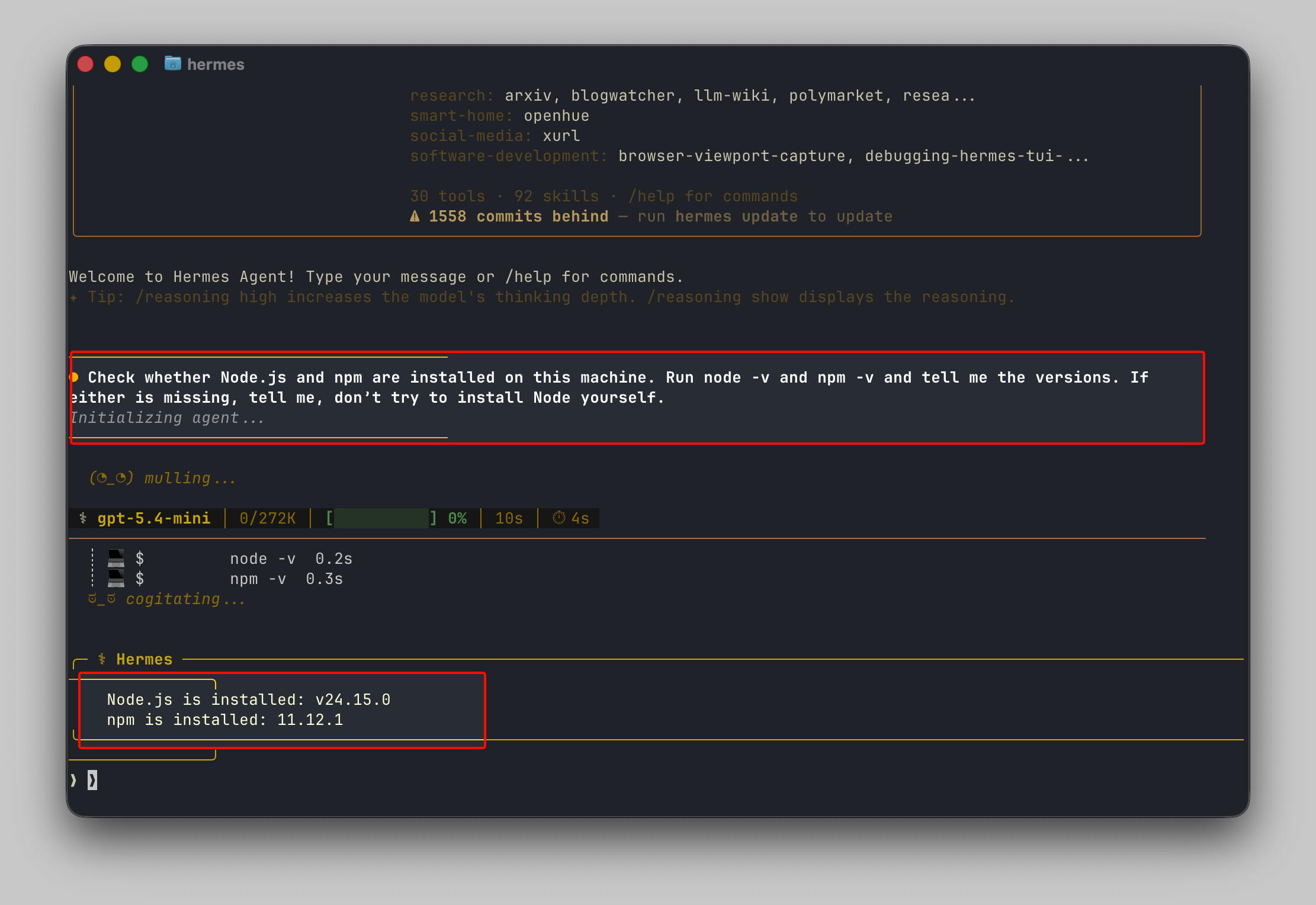
It should report two version numbers back to you. Your check: read the versions it prints. If it claims Node is installed but doesn’t show you a version string, ask it to paste the raw command output. The reason for the “don’t install Node yourself” line in the prompt is that installing a runtime is a bigger, machine-specific decision you want to make deliberately, not something to hand off blind. If Node is missing, install it from nodejs.org yourself, then continue.
Step 2: Have the agent install the CLI
Once Node is confirmed, hand off the install:
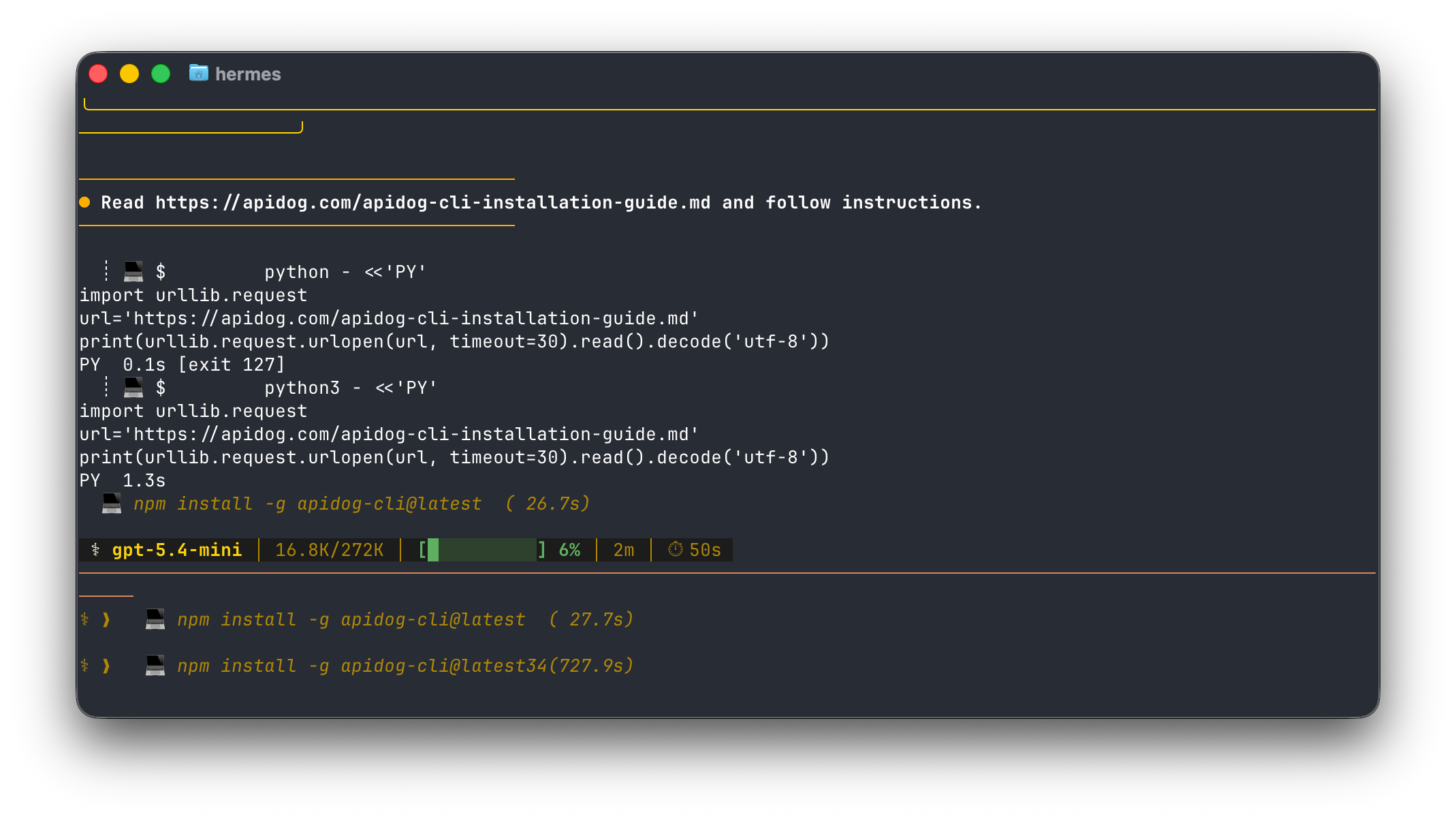
Read https://apidog.com/apidog-cli-installation-guide.md and follow instructions.
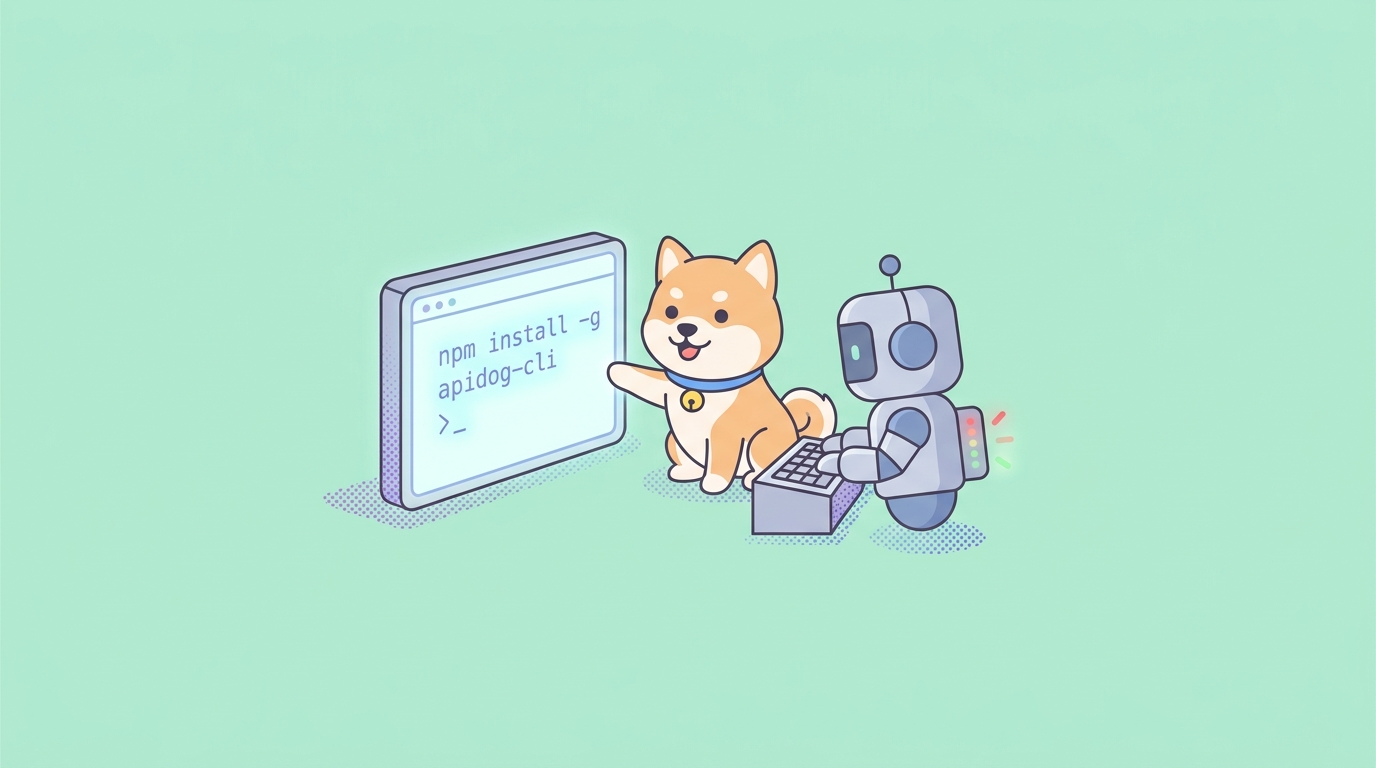
The agent will run the install command.
The -g flag puts the apidog binary on your global PATH instead of in one project’s node_modules. The @latest tag pulls the newest published version, which is what you want for a first install. When npm finishes, the binary is named apidog, so every command from here starts with apidog.
Then it will verify:
apidog --version
apidog --help
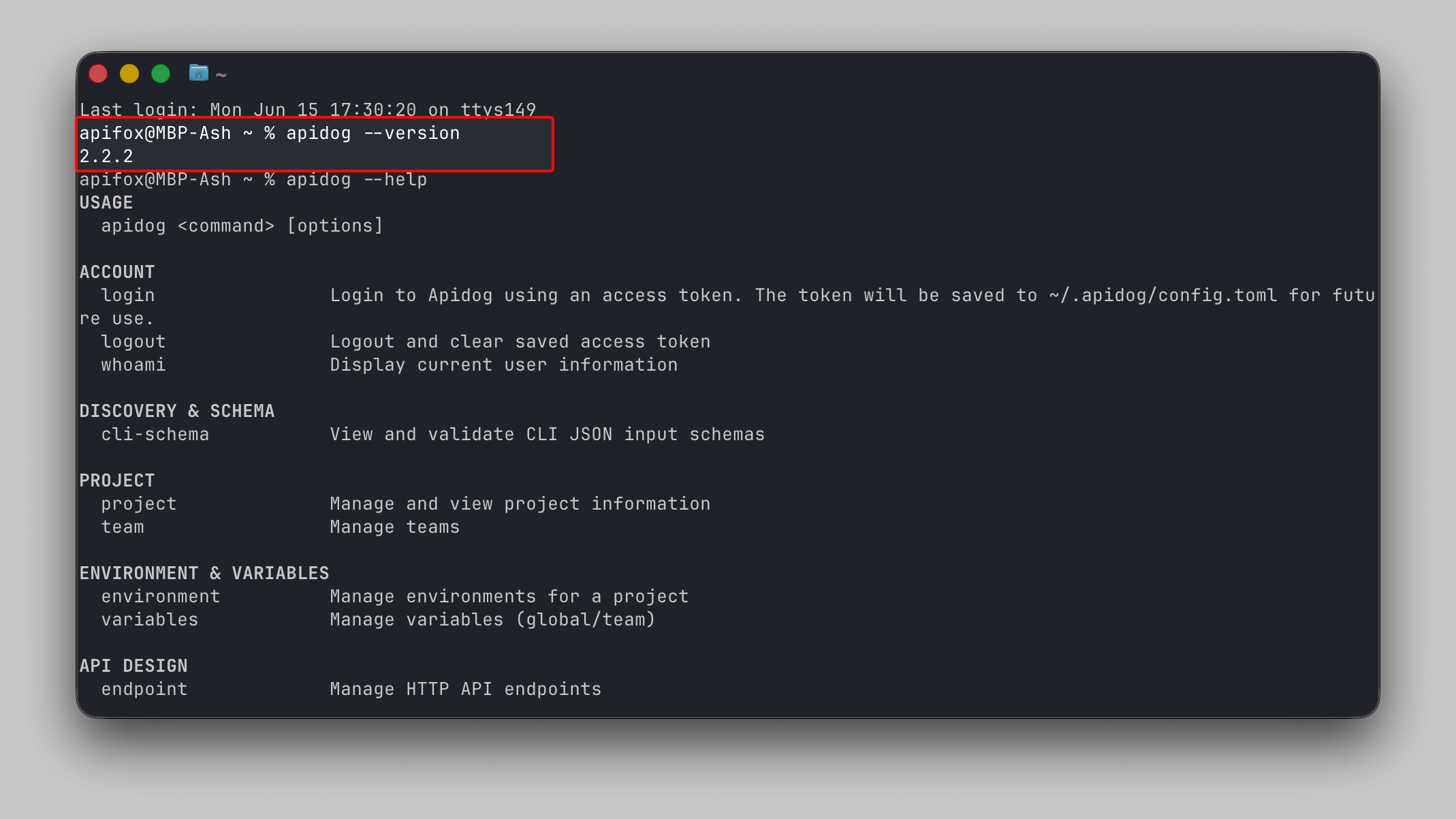
Your check: this is the most important verification in the whole process, because it’s the easiest place for an agent to claim success it didn’t get. Make sure apidog --version printed an actual version number, not a “command not found” the agent waved past. The --help output should list apidog run and its options. If you want a single line you can run yourself to confirm the binary and the runtime behind it both resolve, ask the agent to run this and paste the result:
node -v && apidog --version && which node && which apidog
If every line returns a version or a path, the install is clean. If the agent reports trouble, the most common cause is the global bin directory not being on your PATH; the troubleshooting section near the end covers it.
If you’d rather the agent not mutate your global packages, tell it to use npx instead. npx apidog-cli --version fetches the package, runs it, and leaves nothing behind on your PATH, which suits a shared machine or an ephemeral CI runner. For a machine you use every day, the global install is simpler and faster on repeat calls.
Step 3: Have the agent authenticate, but you handle the token
The CLI runs scenarios from your account, so it has to prove it’s allowed to. It does that with an access token. This is the one step you don’t fully delegate, because the token is a secret and you don’t want it pasted into a chat transcript, a log file, or anywhere the agent might echo it back.
Generate the token yourself first. Open the Apidog app or web console, click your user avatar, go to Account Settings, then API Access Token, and generate a new one. Copy it somewhere safe and treat it like a password, because anyone holding it can run scenarios as you.
Then prompt the agent without ever putting the token in the prompt:
I’ll authenticate the Apidog CLI myself so the token stays out of this chat. Tell me the exactapidog logincommand to run, then after I confirm I’ve run it, runapidog whoamito verify the CLI is authenticated and show me the result.
You run the login command in your own terminal:
apidog login --with-token YOUR_ACCESS_TOKEN
Let the agent run the verification:
apidog whoami
Your check: apidog whoami should print your account. If it does, auth is set. The reason to keep the token in your hands is simple operational hygiene: a token that lands in an agent’s context window can end up in logs or a saved transcript. The login command stores it locally on your machine, so the agent never needs to see the raw string to run tests afterward. For CI, the rule is the same but stricter, which the last section covers.
Step 4: Have the agent do a first test run
Now go from “installed” to “it actually ran.” The core command is apidog run, pointed at a scenario by its ID.
The cleanest way to get a correct command is to let Apidog build it for you. Open the test scenario in Apidog, switch to its CI/CD tab, choose the command-line option, and Apidog generates the full apidog run command with the scenario ID, environment ID, and an access token already filled in. Copy that, and you have a guaranteed-valid starting point. It looks like this:
apidog run --access-token YOUR_ACCESS_TOKEN -t 605067 -e 1629989 -n 1 -r cli
Here’s what each part does. --access-token authenticates the run. -t names the test scenario by ID (605067 is a placeholder; yours will differ). -e selects the environment to run against, like dev or staging. -n 1 runs the scenario once. -r cli writes a readable report to your terminal.
Because you already logged in, you can hand the agent the IDs without the token and let it run:
Run my Apidog test scenario with the CLI. I’m already authenticated, so don’t pass an access token. Use: apidog run -t 605067 -e 1629989 -n 1 -r cli. Show me the full output and tell me the exit code.The agent will run the scenario and report back the step-by-step execution and a summary. Your check: ask for the exit code explicitly, because that’s the signal everything downstream depends on. apidog run exits 0 when every assertion passes and a non-zero code when something fails. That single behavior is what lets a pipeline, or an agent, treat the run as a clean pass or fail gate without extra wiring. If the agent says “tests passed” but the exit code was non-zero, it’s wrong, trust the code, not the prose.
Want a different report format or more iterations? Have the agent run apidog run --help, which prints every flag the runner supports, including the other reporters and the data-driven iteration options. For the full flag reference and CI examples, the complete Apidog CLI guide covers each one.
The payoff: now the agent can test on its own
Here’s why the setup was worth it. With the CLI installed and authenticated, running an Apidog test is now a single shell command your agent can issue any time, and read the result of. That folds API testing into the agent’s normal loop.
Picture the agent changing a handler that touches an endpoint. Instead of editing the code and declaring victory, it can run your Apidog scenario against the affected environment, read the exit code, and act on it: green, it moves on; red, it reads the failing assertion in the report and tries a fix. The test becomes part of the agent’s feedback loop, the same way it already runs your unit tests. For a wider look at this pattern, how to use AI agents for API testing covers where it fits and where it doesn’t.
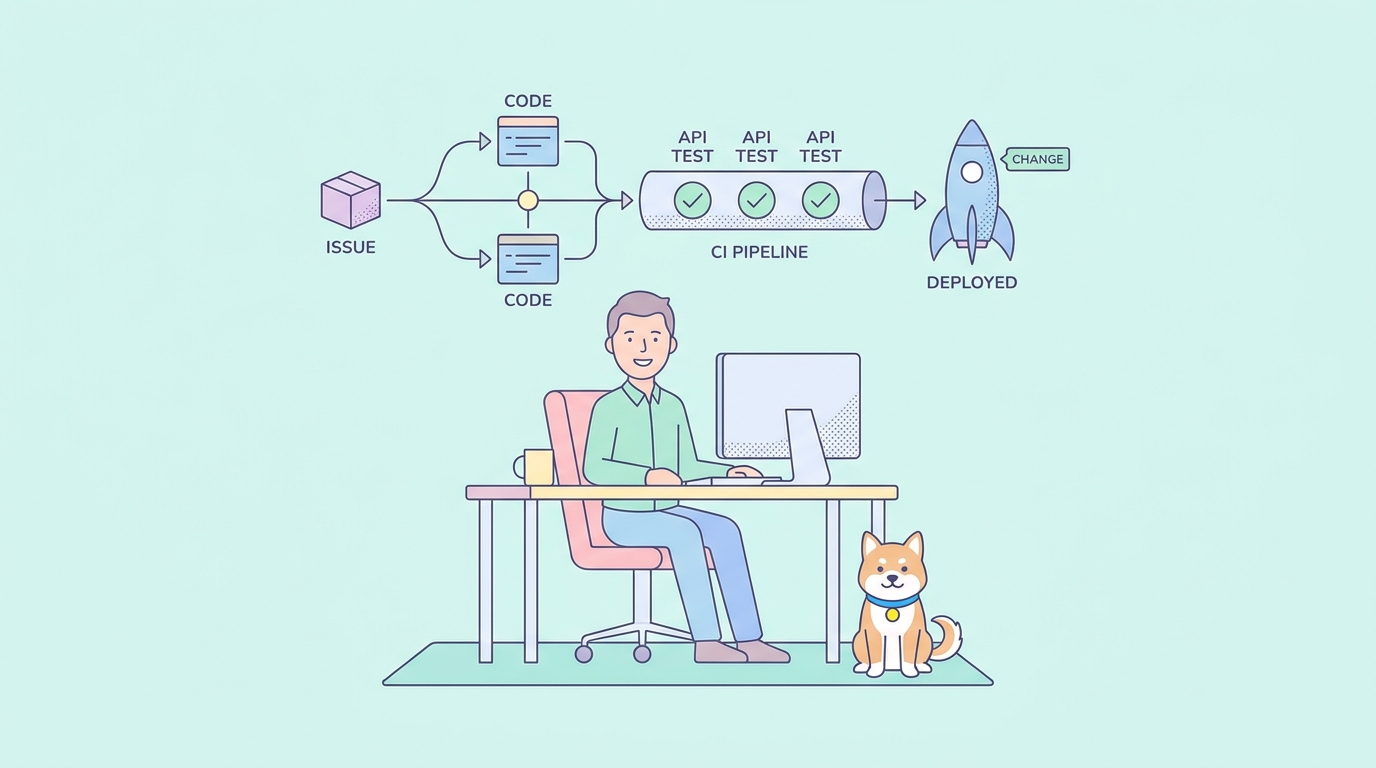
This carries straight into CI, where the agent isn’t even present. Once you’ve watched the command work locally, you can have the agent write the pipeline step that runs it on every push. The mechanics of that, secrets, reporters, exit-code gating, live in Apidog CLI in GitHub Actions.
If you want the agent integration to go deeper than running shell commands, two Apidog features connect agents to your API specs and scenarios more directly. The Apidog MCP server exposes your API specifications to AI coding tools over the Model Context Protocol, so the agent can read your schema while it codes. And Apidog CLI with Claude Skills packages the CLI workflow into a reusable skill, so the test-running step becomes something Claude reaches for on its own. Both build on top of the same installed apidog-cli you just set up.
From delegated install to a tested loop
That’s the whole path. You confirm Node, the agent installs apidog-cli with one npm command, you verify with apidog --version, you authenticate with a token you keep in your own hands, and the agent fires a first apidog run while you check the exit code. A few minutes of delegate-then-verify, and your agent can now run your API tests itself.
The reason this matters is the same reason any test gate matters, with one addition. Tests trapped behind a GUI run only when a human clicks. A one-line command runs on every push. And once that command is in reach of your coding agent, it runs inside the agent’s own edit-test-fix loop, on changes you haven’t even reviewed yet. You keep authoring scenarios visually in Apidog, and both your pipeline and your agent run them where no human is watching.
From here, point the same command at CI in Apidog CLI in GitHub Actions, or read the full flag reference in the complete Apidog CLI guide.