
Your API passes every test on your laptop. Then a teammate merges a branch that renames a field, and nobody notices until a mobile client starts crashing in production. Manual testing missed it because nobody re-ran the suite. This is the exact gap continuous integration is built to close, and TeamCity is one of the strongest tools for closing it.
TeamCity, JetBrains’ CI/CD server, runs your build pipeline every time code lands. It can compile, test, package, and deploy without anyone clicking a button. The piece teams often skip is wiring real API tests into that pipeline. They test units, they test the build compiles, and they ship the API on faith. A renamed field, a 500 on an edge case, a broken auth flow; none of that shows up until a human hits the endpoint.
This guide walks through running automated API tests inside TeamCity from end to end. You’ll design and validate your tests in Apidog, then run them headlessly through the Apidog CLI as a TeamCity build step. The result is a pipeline that fails the build the moment your API stops behaving, before a bad response ever reaches a user.
What you’ll build
By the end you’ll have:
- A TeamCity project connected to your Git repository
- A build configuration with a VCS trigger that fires on every push
- A build step that runs your API test suite through the Apidog CLI
- Parsed test results visible in the TeamCity Tests tab
- A build that turns red and blocks the merge when an endpoint breaks
The same pattern works for a small internal service or a public API with hundreds of endpoints. You scale it by adding test scenarios in Apidog, not by editing pipeline code.
Why API tests belong in TeamCity, not just on your machine
Local testing has one fatal flaw: it depends on someone remembering to run it. CI removes the human from the loop. Every commit triggers the same suite, in the same environment, with the same assertions. There’s no “it works on my machine” because there is no machine; there’s a build agent that runs the exact steps you defined.
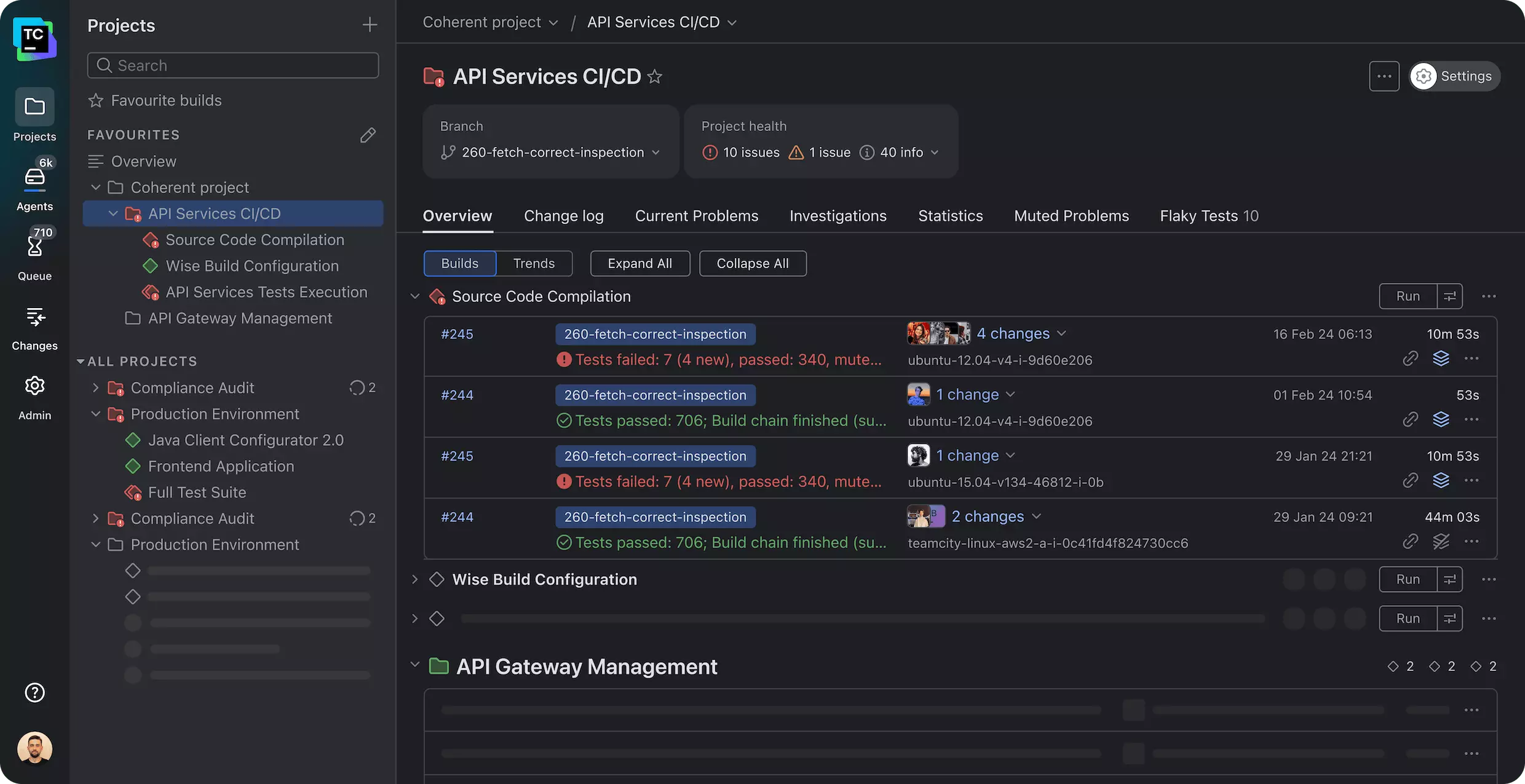
TeamCity is a good fit for this for a few concrete reasons:
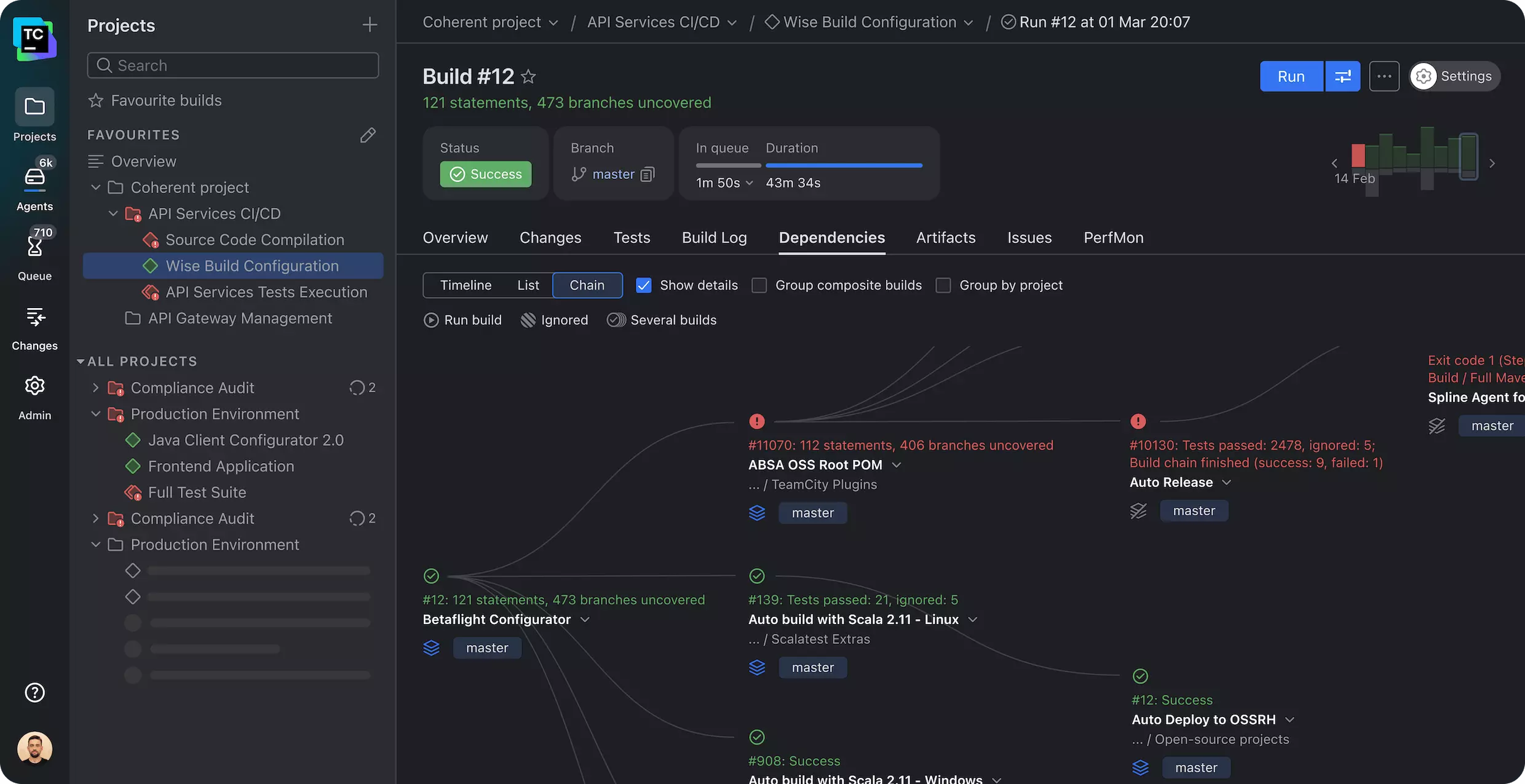
- Build chains. You can make the API-test step depend on a deploy-to-staging step, so tests always run against a freshly deployed build, never a stale one.
- Test history. TeamCity tracks which tests passed and failed across hundreds of builds. When a test starts flaking, you see exactly which commit introduced it.
- Investigation and muting. A flaky endpoint can be muted and assigned to an owner instead of blocking everyone’s merges.
- Agent pools. Heavy suites run on dedicated agents so they don’t slow down your compile builds.
The catch is that TeamCity does not know how to call your API or check the response. It runs whatever command you give it. So the real work is producing a single command that runs your whole API suite and exits with a non-zero code when something fails. That’s where the test design matters.
Step 1: Design and validate your API tests in Apidog
Before anything touches TeamCity, you need tests that actually run unattended. A test that needs you to eyeball a JSON response is useless in CI. Every check has to be an assertion the machine can evaluate: status code is 200, the id field is a number, the response came back in under 800 ms.
Apidog is built for exactly this. You design the request, then attach API assertions that validate the response automatically; status codes, JSON Schema conformance, specific field values, response time. You can chain requests into a scenario so the output of a login call feeds the token into the next request. No scripting required for the common cases, and full scripting available when you need it.
A realistic scenario for an e-commerce API might look like this:
- POST
/auth/loginwith test credentials, assert200, extract the bearer token into a variable. - GET
/products?category=bookswith that token, assert200, assert the response is an array, assert every item has apricegreater than 0. - POST
/cart/itemswith a product ID, assert201, assert the returned cart total matches the item price. - GET
/cart, assert the item count is 1.
Each step has assertions that pass or fail on their own. Run the scenario inside Apidog first and confirm it goes green against your staging environment. If it can’t pass when you run it by hand, it will never pass in CI. Group related scenarios into a test suite so you can run the whole thing with one command instead of scenario by scenario.
The advantage of building tests this way is that the same scenarios you use for manual debugging become your CI suite. You don’t maintain two parallel sets of tests; one in a GUI for exploration, one in code for automation. It’s one source of truth. If you’re coming from a code-first framework like REST Assured, this is the part that saves the most time: you stop writing and re-writing boilerplate request/assertion code for every endpoint.
Download Apidog if you want to build along. It’s free to start, and the CLI is part of the same toolchain.
Step 2: Get the Apidog CLI running locally first
Never debug a new command for the first time inside CI. The feedback loop in a CI server is brutal; you push, wait for an agent, read a log, fix one character, push again. Prove the command works on your machine, then copy the working version into TeamCity.
The Apidog CLI runs on Node.js, so install it globally with npm:
npm install -g apidog-cli
Confirm it’s there:
apidog --version
Now run your test scenario. The CLI can run a scenario or suite directly from your Apidog project by referencing its ID, authenticated with an access token, or from a local exported file. The online approach keeps your tests as the single source of truth; whatever your team edits in Apidog is what runs in CI, with no export step to forget.
Generate an access token from your Apidog account settings, then run:
apidog run \
 --access-token "$APIDOG_ACCESS_TOKEN" \
 -e "$APIDOG_ENV_ID" \
 -r cli,html,junit
A few things to notice here:
--access-tokenauthenticates the run. Pass it inline like this, or log in once withapidog login --with-token.-eselects which environment to run against; staging, production-readonly, whatever you defined in Apidog. You point the same tests at different base URLs by switching this ID.-rchooses reporters.cliprints human-readable output to the console,htmlproduces a report you can browse, and a JUnit-format report is what lets TeamCity parse and display individual test results.
When the run finishes, the CLI exits 0 if everything passed and non-zero if any assertion failed. That exit code is the whole game in CI: a non-zero exit is what tells TeamCity to mark the build as failed.
For tests that need to run across many inputs, the CLI supports data-driven runs. Point it at a CSV or JSON file and it iterates the scenario once per row:
apidog run \
 --access-token "$APIDOG_ACCESS_TOKEN" \
 -d test-data/checkout-cases.csv \
 -r cli,junit
This is how you test a hundred product IDs or a table of invalid payloads without writing a hundred scenarios. Each row becomes its own iteration with its own pass/fail result.
Once you see green output locally, you have a command you trust. Copy it. That exact command is what goes into TeamCity.
Step 3: Connect TeamCity to your repository
Now switch to TeamCity. The goal of this step is to give TeamCity a project, point it at your code, and let it trigger builds on every push.
If you’re running TeamCity for the first time, the simplest path is the official Docker image. It gets you a working server in a couple of minutes:
docker run -d --name teamcity-server \
 -v ~/teamcity/datadir:/data/teamcity_server/datadir \
 -v ~/teamcity/logs:/opt/teamcity/logs \
 -p 8111:8111 \
 jetbrains/teamcity-server
Open http://localhost:8111, complete the first-run setup (database choice, admin account), and you land on the dashboard. Production setups use a proper external database and dedicated build agents, but for following this guide the bundled agent is enough.
Create the project:
- Go to Administration and choose Create project.
- Pick From a repository URL and paste your Git remote (HTTPS or SSH).
- Add credentials if the repo is private; a deploy key or a personal access token.
- TeamCity scans the repo and has to auto-detect build steps. You can let it, but for API tests it’s cleaner to configure the step yourself in the next section.
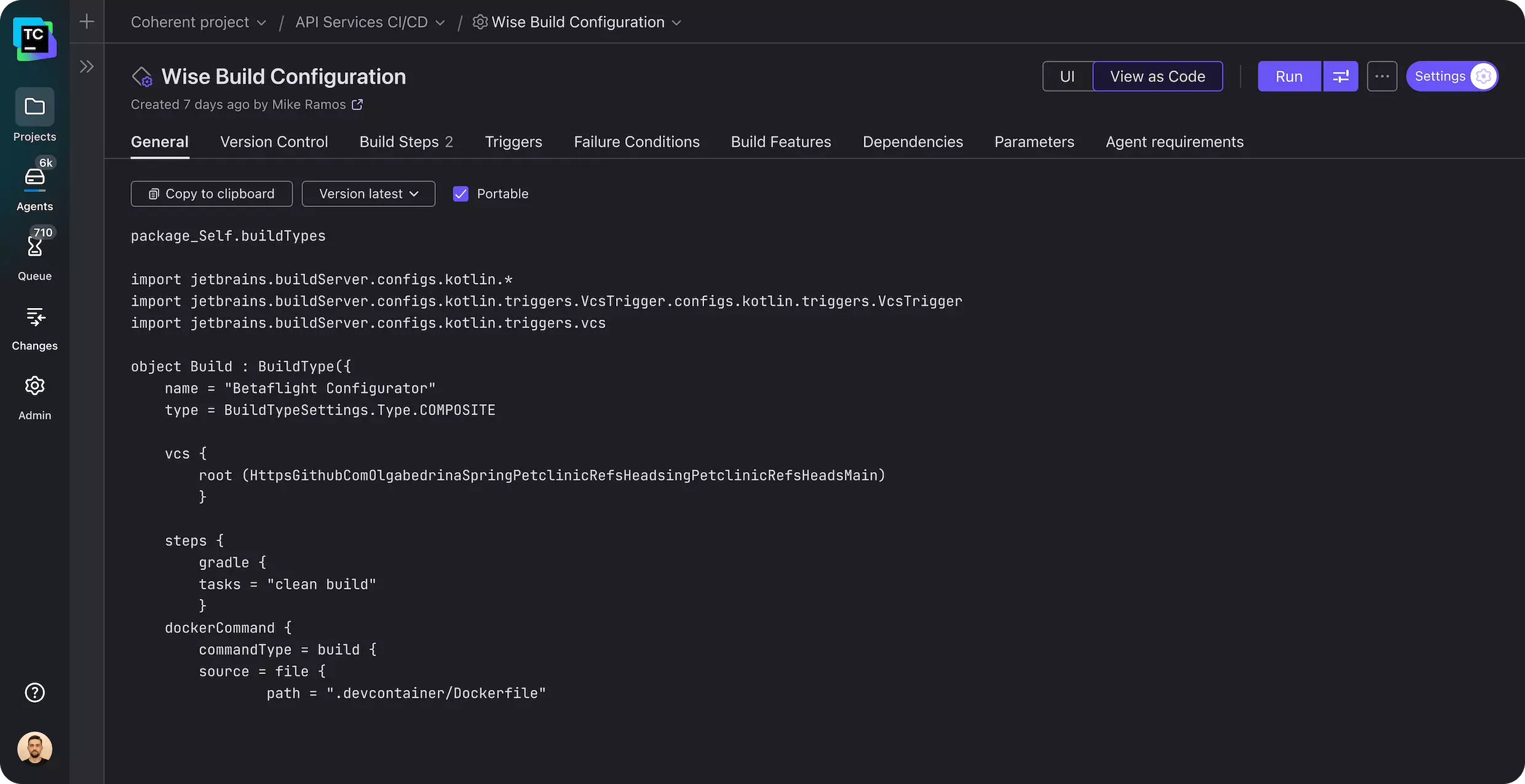
TeamCity creates a VCS root (its connection to your repo) and a build configuration (the set of steps that run). With the VCS root in place, set up the trigger so builds fire automatically:
- Open your build configuration and go to Triggers.
- Add a VCS Trigger.
- Leave the default rule so every change to the watched branch queues a build.
From here, every push to your repository will kick off a build. Right now that build does nothing useful; the next step gives it the API-test command.
Step 4: Add the Apidog CLI as a build step
This is the core of the setup. You’re adding a build step that installs the CLI on the agent and runs your suite.
In your build configuration, open Build Steps and add a new step of type Command Line. Choose Custom script and paste:
#!/bin/bash
set -e

# Install the Apidog CLI on the build agent
npm install -g apidog-cli

# Run the API test suite and emit a JUnit report for TeamCity
apidog run \
 --access-token "%env.APIDOG_ACCESS_TOKEN%" \
 -e "%env.APIDOG_ENV_ID%" \
 -r cli,junit \
 --out-dir reports
That’s the same command you proved locally, with two changes for CI. First, set -e makes the script abort on any error. Second, the secrets are referenced as TeamCity parameters (%env.APIDOG_ACCESS_TOKEN%) instead of being hardcoded; you’ll define those next.
If your build agent doesn’t already have Node.js, install it earlier in the chain or use an agent image that includes it. The official TeamCity agent Docker images and most cloud agent pools ship with Node available. You can also run the whole step inside a Node container by setting the step to run in a Docker image like node:20.
One detail worth getting right: the CLI must run after your API is deployed and reachable. If TeamCity is testing a service it just deployed to staging, make the test build depend on the deploy build using a Snapshot Dependency or a Build Chain. That guarantees the tests always hit the version of the API this commit produced, never the previous one.
Step 5: Store secrets as TeamCity parameters
Your access token is a credential. It does not belong in the build script, in your repository, or in the build log. TeamCity has a first-class place for this.
- In your build configuration (or the parent project, to share across configs), open Parameters.
- Add a new parameter named
env.APIDOG_ACCESS_TOKEN. - Set its Spec to Password. This masks the value in the UI and scrubs it from build logs.
- Paste your Apidog access token as the value.
- Add
env.APIDOG_ENV_IDthe same way with your environment ID (this one isn’t secret, but keeping it a parameter lets you change environments without editing the script).
Defining these at the project level rather than the build-configuration level means every API-test build under that project inherits them. Rotate the token once, and every pipeline picks up the new value.
A password parameter is the difference between a token that lives safely in TeamCity and one that leaks into a log file the whole team can read. Treat it the way you’d treat a database password.
Step 6: Show test results in the TeamCity Tests tab
A build that just goes red tells you something broke. A build that shows which test broke tells you where to look. That’s what the JUnit report gives you.
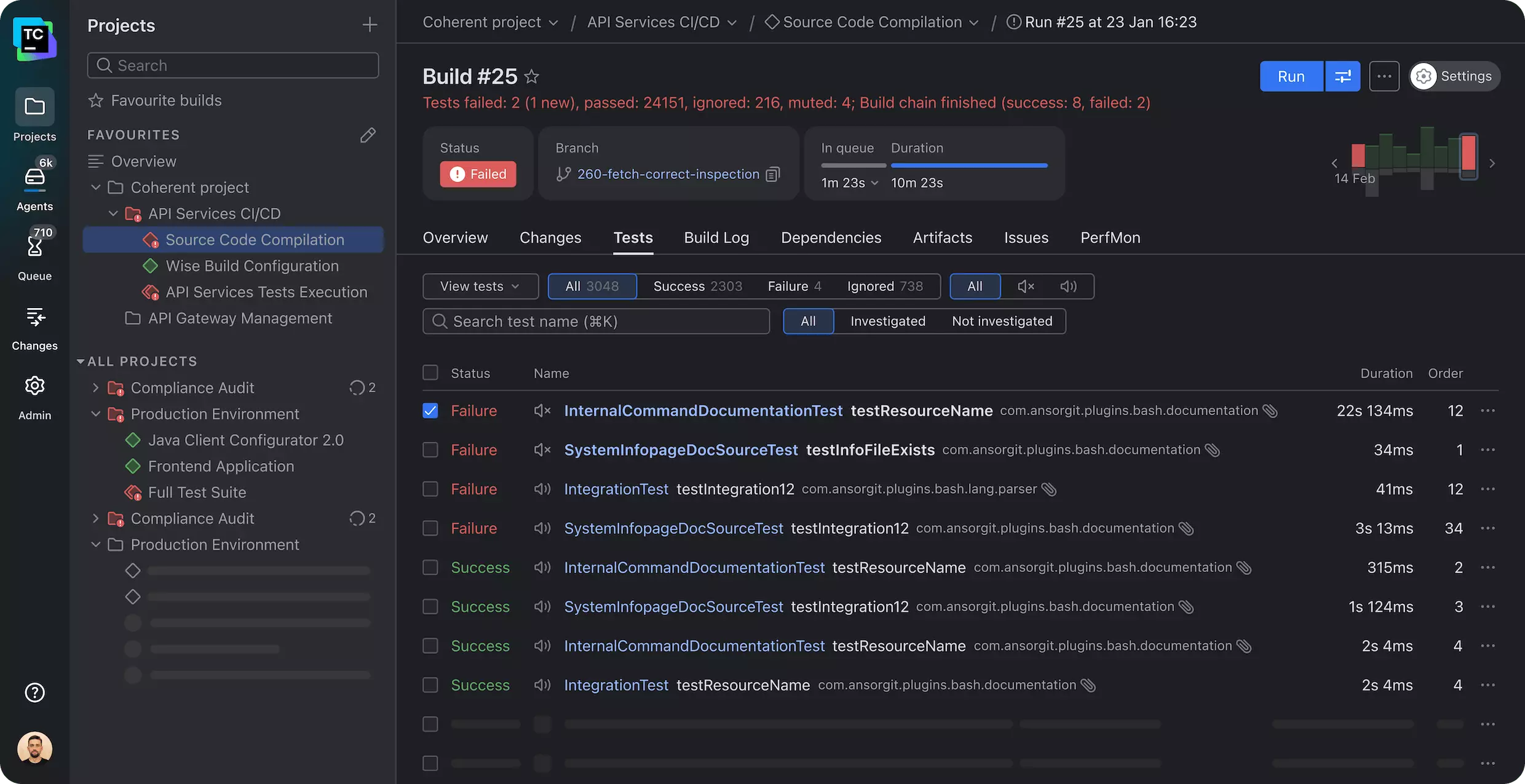
The -r junit reporter writes an XML file in JUnit format, the standard CI test-result format that TeamCity reads natively. You point TeamCity at that file with an XML Report Processing build feature.
- Open Build has in your build configuration.
- Add XML report processing.
- Set the report type to Ant JUnit.
- Set the monitoring path to match your output, for example
reports/*.xml.
Run a build. Open it and click the Tests tab. You’ll see each scenario and assertion as an individual test with a pass/fail status and timing. When a test fails, TeamCity shows the failure message inline, links it to the commit that introduced it, and tracks it across future builds. If the same test fails twice in a row, TeamCity can flag it as a new failure rather than a flaky one.
This is the payoff for choosing JUnit output earlier. Without it, a failure is one red build and a wall of console text. With it, you get a structured, searchable test history that turns “the API build is broken” into “the cart-total assertion started failing in commit a3f9c2.”
Step 7: Fail the build and block the merge
The point of all this is to stop bad code from merging. Two things make that happen.
First, the exit code. Because the Apidog CLI exits non-zero on any failed assertion and your script uses set -e, a failing test fails the build step, which fails the build. You don’t have to configure anything extra; a red API test is a red build by default.
Second, the merge gate. If your team works in pull or merge requests, configure your Git host (GitHub, GitLab, Bitbucket) to require the TeamCity check to pass before merging. TeamCity reports its build status back to the commit via a Commit Status Publisher build feature:
- Add the Commit Status Publisher build feature.
- Select your VCS hosting provider.
- Add an access token so TeamCity can post statuses.
Now a contributor opens a PR, TeamCity runs the API suite against their branch, and the merge button stays disabled until the suite is green. The renamed-field scenario from the start of this guide gets caught here, on the branch, before it ever reaches main.
A realistic full pipeline
Putting the pieces together, a working build configuration for an API-testing pipeline looks like this:
- VCS root pointed at your repository, with a VCS trigger on the main branch and PR branches.
- Build step 1: deploy the service to a staging environment (or spin it up in a Docker container on the agent).
- Build step 2: the Apidog CLI command from Step 4, running your suite against that staging environment.
- Build has: XML report processing reading
reports/*.xml. - Build has: Commit Status Publisher reporting back to your Git host.
- Parameters:
env.APIDOG_ACCESS_TOKEN(password) andenv.APIDOG_ENV_ID.
For teams who keep their entire CI config in version control, TeamCity supports defining all of this in a Kotlin DSL (.teamcity/settings.kts) committed to the repo, instead of clicking through the UI. The build step is the same apidog run command either way; the DSL just describes the configuration as code so it’s reviewed and versioned alongside everything else.
You can run the suite on more than just every push. Add a Schedule Trigger to run the full regression suite every night against staging, so you catch drift that happens between commits; a third-party dependency that changed, a database that got into a weird state. Nightly API runs are cheap insurance and they keep the morning’s first commit from inheriting yesterday’s broken environment.
How this compares to other CI platforms
The pattern here is portable. The command that runs your tests (apidog run with an access token and a JUnit reporter) is identical no matter which CI server invokes it. Only the wrapper changes:
- In GitHub Actions you’d put the same command in a workflow YAML step. We cover that in How to Automate API Tests in GitHub Actions.
- In Jenkins it goes in a
Jenkinsfilestage. See How to Integrate Apidog Automated Tests with Jenkins for CI/CD. - The broader strategy across any platform is in How to Automate API Tests in CI/CD.
If you’re still choosing a CI server, our comparison of the best CI/CD tools breaks down where TeamCity fits against the alternatives. TeamCity’s strengths are its build chains, granular test history, and the Kotlin DSL; it’s a strong pick for teams already in the JetBrains ecosystem or running complex multi-stage pipelines.
Common problems and how to fix them
The build can’t find the apidog command. Node.js isn’t installed on the agent, or the global npm bin directory isn’t on the agent’s PATH. Add a Node install step earlier in the chain, or run the step inside a node:20 Docker image.
Tests pass locally but fail in CI with connection errors. The build agent can’t reach your API. A staging URL that resolves on your laptop’s VPN may be unreachable from a cloud agent. Confirm the environment you select with -e points at a host the agent can actually reach, and that any required network access or firewall rules cover the agent.
Authentication fails only in CI. Check that the password parameter is spelled exactly as the script references it and that the token hasn’t expired. A common mistake is defining APIDOG_ACCESS_TOKEN while the script reads %env.APIDOG_ACCESS_TOKEN%; the env. prefix matters.
Tests are flaky; they pass and fail on the same code. Usually a timing or data-ordering problem. Use Apidog’s response-time assertions to surface slow endpoints, and make each scenario set up and tear down its own data so runs don’t depend on each other’s leftovers. TeamCity’s mute-and-investigate feature lets you quarantine a flaky test so it stops blocking everyone while you fix the root cause.
The Tests tab is empty even though the build ran. The XML report processing path doesn’t match where the CLI wrote the report. Confirm --out-dir in the command and the monitoring path in the build feature point at the same place.
FAQ
Do I need to write code to run API tests in TeamCity? No. You design the tests visually in Apidog with assertions, and the only “code” in TeamCity is the one-line apidog run command in a Command Line build step. That’s the main difference from a code-first approach like REST Assured, where every endpoint needs hand-written request and assertion code.
Can I run the tests against different environments? Yes. Define each environment (staging, pre-prod, production-readonly) in Apidog, then switch which one runs in CI by changing the -e environment ID parameter. The same tests run against any environment by pointing at a different base URL.
How do I keep my access token secure in TeamCity? Store it as a TeamCity parameter with the Password spec. That masks it in the UI and scrubs it from build logs. Never hardcode it in the build script or commit it to your repository. Define it at the project level so you can rotate it once for all pipelines.
Will a failed API test actually block a merge? Yes, with two pieces in place. The Apidog CLI exits non-zero on any failed assertion, which fails the TeamCity build. Add the Commit Status Publisher build feature and require the check in your Git host’s branch protection rules, and the merge button stays disabled until the suite passes.
What’s the difference between running tests online versus from an exported file? Running online by project ID and access token means your tests in Apidog are the single source of truth; whatever the team edits is what runs in CI. Running from an exported file pins the tests to a version committed in your repo. Online is simpler to keep in sync; exported gives you tests that travel with the code. Most teams start online.
Can I run the full regression suite on a schedule instead of on every push? Yes. Add a Schedule Trigger to the build configuration to run nightly (or hourly) against staging. Many teams run a fast smoke suite on every push and the full regression suite on a nightly schedule, so quick feedback and deep coverage don’t compete for the same minutes.
Wrapping up
A TeamCity pipeline that runs your API tests on every commit changes the economics of a broken endpoint. Instead of a customer finding the bug, the build finds it; on the branch, before merge, with the exact failing assertion and the commit that caused it laid out in the Tests tab.
The setup comes down to three moving parts: tests with real assertions you build in Apidog, a single apidog run command that runs them headlessly and exits non-zero on failure, and a TeamCity build configuration that runs that command, parses the JUnit results, and reports status back to your Git host. Once it’s in place, you maintain coverage by adding scenarios in Apidog, not by touching pipeline code.
Download Apidog to design your first test suite, prove the CLI command locally, then drop it into TeamCity. From that point on, your API is tested the same way every single commit, whether anyone remembers to run it or not.