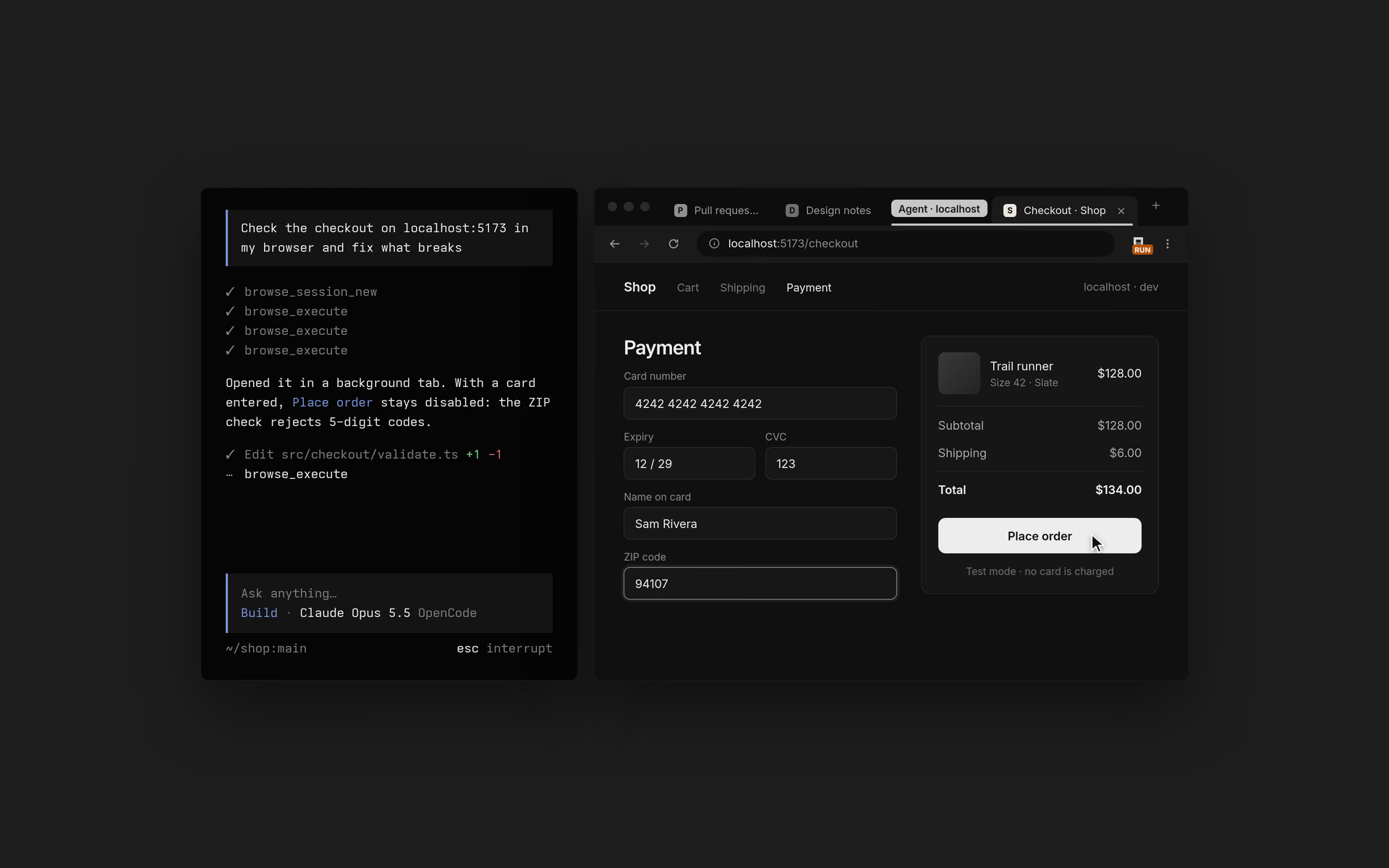
To turn website network traffic into an API spec, let a coding agent drive your real browser with OpenCode Browse: it starts a network capture on a tab, you click through the site while signed in, and it stops the capture to get every request with credentials redacted. The agent then writes an OpenAPI file from those exchanges, and Apidog CLI imports it and runs a test against it.
This guide walks through that loop with one agent prompt: what Browse captures, what it hides, and the apidog commands that finish the job.
What is OpenCode Browse?
OpenCode Browse is an MCP server plus a Chromium extension that lets your coding agent use your real browser, with your tabs, logins and extensions. Agents open background tabs, read pages, click, type, take screenshots, record tabs and capture network traffic. When a step needs you (a login, a 2FA prompt, a payment), the agent hands the tab back and waits until you click Continue.
| Item | What the source says |
|---|---|
| Licence | MIT (the repository’s LICENSE file) |
| First public code | Repository created October 27, 2026 |
| Current release | v0.1.0, published November 16, 2026 (a rewrite as one Rust binary) |
| Browsers | Chrome, Edge, Brave, Arc, Helium, Vivaldi, Opera, Chromium |
| Agents | OpenCode, Claude Code, Codex, Cursor, Zed and about 30 more MCP clients |
| Pricing | Not stated on the product page |
The product page lists no price or launch date, so treat the MIT licence as the only cost signal you can confirm today. If you’re comparing it with the DevTools route, our guide to Chrome DevTools MCP with Claude covers the alternative.
Why capture traffic from your real browser?
Most undocumented APIs sit behind a login. A headless browser starts with no cookies, so your agent hits a sign-in wall. Browse works inside the profile you already use, so the agent sees the same authenticated requests you do. That helps with three jobs:
- Documenting an internal tool that never had a spec, so new teammates stop reading minified JavaScript.
- Building an integration against a SaaS dashboard whose public API covers less than its own frontend.
- Writing regression tests for a web app before you refactor its backend.
The manual version is a HAR export from DevTools; see our guide to reverse engineering APIs. The agent version writes the spec for you.
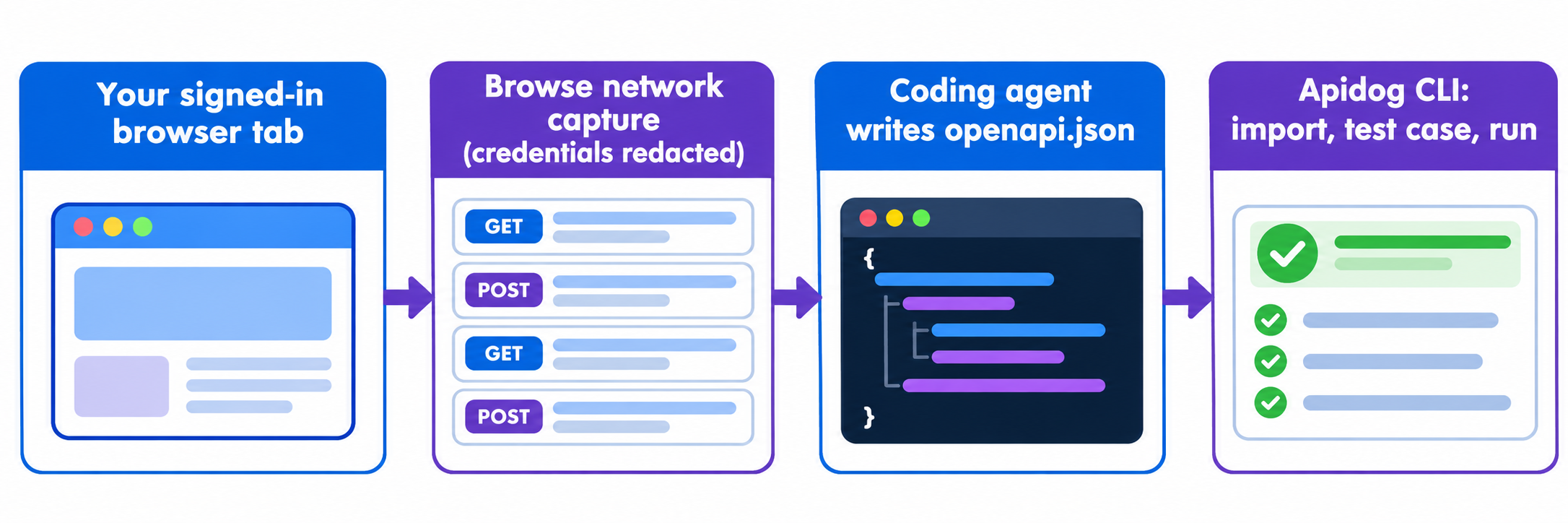
How to turn website network traffic into an API spec: 5 steps
- Install Browse and pair the extension with your browser.
- Ask your agent to open the site in a Browse tab and start a
networkcapture filtered to XHR and Fetch. - Click through the features you want documented, then tell the agent to stop the capture.
- Have the agent group the exchanges into paths and write
openapi.json. - Import the spec with Apidog CLI, create a test case and run it.
Step 1: Install Browse and connect your agent
Browse installs with one script on macOS and Linux:
curl -fsSL https://opencode.ai/browse/install | bash
On Windows, run irm https://opencode.ai/browse/install.ps1 | iex in PowerShell. You can also use npm i -g @opencode/browse and then browse install.
browse install puts the binary in place, adds the Browse MCP server to the agents it finds, and pairs the Chrome Web Store extension. To skip the interactive picker:
browse install -a claude codex   # Claude Code and Codex only
browse install -y                # every agent found on this computer
Restart your agent afterwards. browse status reports whether the relay, extension and pairing are healthy.
One detail changes how your agent works. OpenCode gets plain tools (navigate, snapshot, click, network and the rest). Claude Code, Codex, Cursor and other clients get execute, status and tabs, where execute runs JavaScript that can call every Browse tool. Either way, the agent reaches the same network capture.
Step 2: Start a filtered network capture
The network tool takes an action of start, status, stop or cancel, one capture per tab. On start you can narrow what it records:
| Option | What it does | Default |
|---|---|---|
urlFilter |
Capture only URLs containing this text | None |
resourceTypes |
Capture only these types, such as ["XHR", "Fetch"] |
All types |
methods |
Capture only these HTTP methods | All methods |
bodies |
Capture request and response bodies | true |
maxDurationMs |
End and discard the capture after this long | 1,800,000 (30 minutes) |
Filter to XHR and Fetch, and add a urlFilter such as /api/ to skip analytics beacons. The call looks like this:
{
  "action": "start",
  "tab": "<tabId>",
  "resourceTypes": ["XHR", "Fetch"],
  "urlFilter": "/api/"
}
To keep the agent on one site, open the tab with allowedOrigins. Browse’s README is clear that this limits navigation, not the requests a page makes itself, so it’s a guardrail, not a data boundary.
Step 3: Click through the site, then stop the capture
Now use the site in the agent’s tab: open a list, filter it, view a detail page, create and delete a test record. If the site asks you to sign in mid-session, the agent calls handoff, you finish the login, and you click Continue.
When you’re done, the agent sends {"action": "stop"}. That returns every exchange: method, URL, headers, status and bodies. The limits are worth knowing:
- Up to 1,000 requests per capture.
- JSON, form and multipart bodies come back as text, up to 1 MB each and 25 MB per capture.
- HTML, scripts, CSS and images are never fetched, only described by MIME type and size.
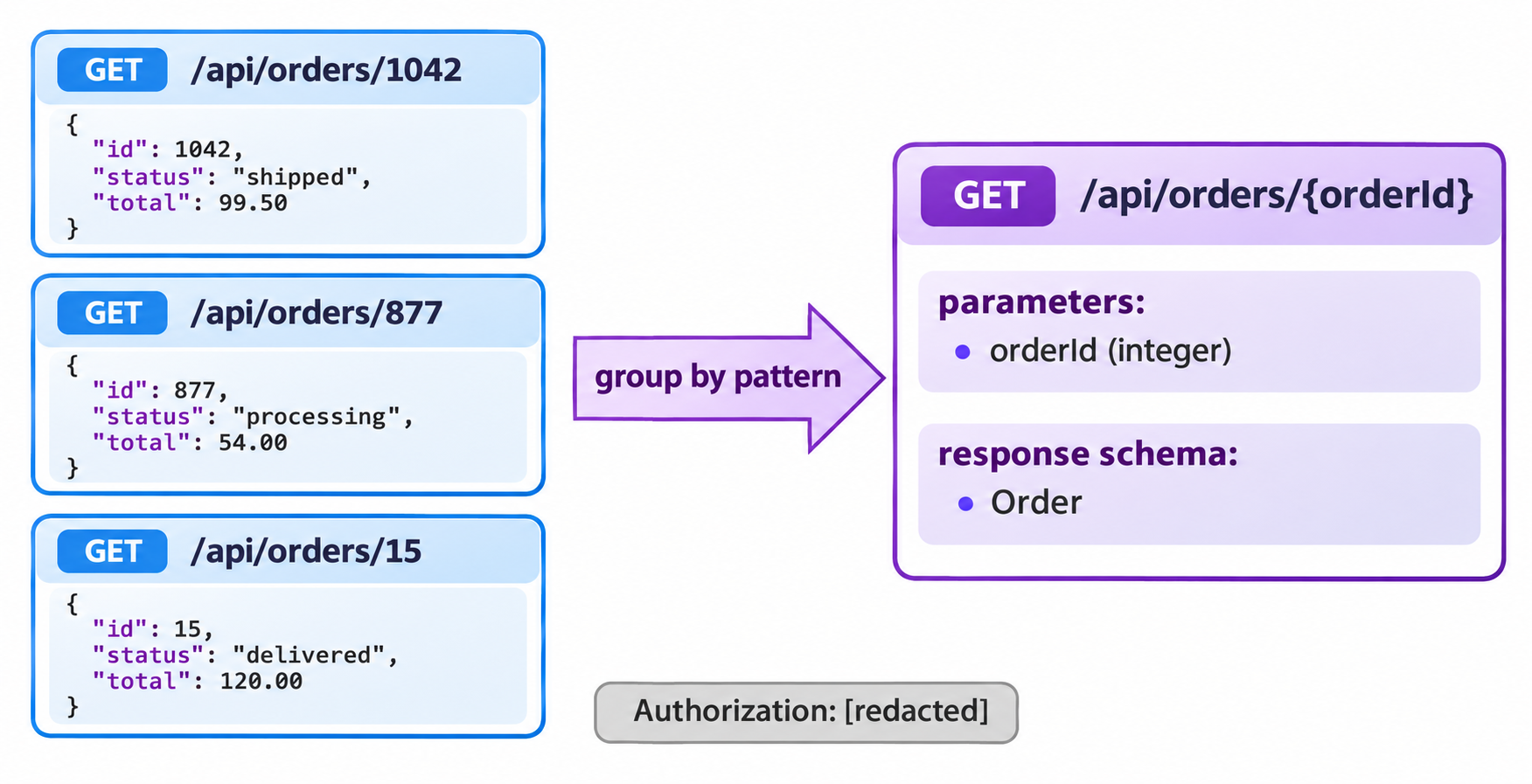
Credentials are always replaced with [redacted]: authorization and API-key headers, every cookie value, secret-named query, JSON and form fields, and token-like path segments. The README warns that a secret under an ordinary field name can still slip through, so read the spec before you share it.
One change to plan around: version 0.0.17 (November 14, 2026) removed HAR export, and captures now return redacted traffic directly. If you need a HAR file, export it from DevTools and use our guide on importing a HAR file into Apidog.
Step 4: Let the agent write the OpenAPI spec
Raw traffic isn’t a spec. Calls to /api/orders/1042, /api/orders/877 and /api/orders/15 should become one path, /api/orders/{orderId}, with one response schema. A coding agent is good at exactly this: spotting the pattern and inferring types from real responses.
Ask the agent to follow a few rules so the output imports cleanly:
- Write OpenAPI 3.x JSON, one path per method and route pattern.
- Turn numeric IDs, UUIDs and slugs in URLs into path parameters.
- Build schemas under
components/schemasfrom the response bodies it saw, and mark fields as required only when every sample had them. - Declare the auth scheme the site uses (bearer, cookie or API key) under
securitySchemes, with no real values. - Set
info.titleto something stable, because Apidog uses it as the module name on import.
Step 5: Import the spec and test it with Apidog CLI
Once openapi.json exists, hand the rest to the same agent. Apidog CLI gives it commands for importing specs, creating test cases and running them, and every command prints structured JSON your agent can read.
Set it up once:
npm install -g apidog-cli@latest
apidog auth login --with-token <YOUR_TOKEN>
apidog skill install
Then give your agent one prompt that covers the whole job:
Open https://app.example.com in a Browse tab limited to app.example.com.
Start a network capture for XHR and Fetch requests whose URL contains /api/.
Hand the tab to me, wait while I use the orders pages, then stop the capture.
Write openapi.json (OpenAPI 3.1, info.title "Example Orders API") with path
parameters for IDs and schemas from the real responses. Create an AI branch in
Apidog project <projectId>, import the spec there, create a test case for
GET /api/orders/{orderId} that asserts status 200 and a numeric id, run it
against environment <envId> and summarize any failures.
The agent runs the commands below. Every flag here comes from apidog <cmd> --help on Apidog CLI 2.2.12:
apidog branch create --project <projectId> --type ai \
  --name "ai/20261117-from-main-orders-capture" --from main
apidog import --project <projectId> --branch "ai/20261117-from-main-orders-capture" \
  --format openapi --file ./openapi.json
apidog endpoint list --project <projectId> --branch "ai/20261117-from-main-orders-capture" \
  --path-contains /api/orders
apidog test-case category --project <projectId> --branch "ai/20261117-from-main-orders-capture"
apidog cli-schema get test-case-create
apidog cli-schema validate test-case-create --file case.json
apidog test-case create --project <projectId> --branch "ai/20261117-from-main-orders-capture" \
  --file case.json
apidog run --test-case <caseId> --project <projectId> --branch "ai/20261117-from-main-orders-capture" \
  -e <envId> -r cli,json
Importing into an AI branch keeps a captured spec away from your main design until you’ve reviewed it. If you re-capture later and import again, keep info.title unchanged or pass --module-map "<info.title>=<moduleId>", so Apidog updates endpoints in place instead of creating a second copy of each one.
Once the test passes, the same apidog run ... -r junit command goes straight into CI. Our Apidog CLI CI/CD guide shows the pipeline setup, and Apidog CLI in Claude Code covers the agent side in more depth.
Tips for a cleaner captured spec
- Capture one feature at a time. A focused 5-minute session on “orders” gives a tighter spec than 30 minutes of clicking everywhere.
- Trigger the error paths. Submit an invalid form or open a deleted record so the spec includes 4xx responses, not only 200s.
- Check the redaction yourself. Search
openapi.jsonfor long random strings before you commit it. - Respect the site’s terms. Capture only apps you own, are allowed to integrate with, or are testing with permission.
FAQ
Is OpenCode Browse free? The repository is MIT licensed, and the product page lists no price. That’s all the source confirms as of November 17, 2026, so check the page again before you plan around cost.
Does OpenCode Browse work with Claude Code, or only OpenCode? It works with Claude Code, Codex, Cursor, Zed and about 30 other MCP clients. browse install -a claude sets up Claude Code. OpenCode gets plain tools, and other clients get an execute tool that calls the same tools from JavaScript.
Can Browse export a HAR file? Not anymore. Version 0.0.17 removed HAR export, and network now returns redacted traffic directly as structured data. For a HAR file, save one from Chrome DevTools and import it with apidog import --format har.
Will my session cookies or tokens end up in the spec? Browse redacts authorization and API-key headers, all cookie values, secret-named fields and token-like path segments. A secret stored under an ordinary field name can still appear, so review the file before you share it.
Which Apidog import format should I use for the agent’s output? Use --format openapi for the spec the agent writes. Apidog CLI also accepts Postman, HAR, Insomnia, Swagger 2.0 and more than 20 other formats through the same apidog import command.