
By the end of this guide you’ll be able to define a tool, send it to OpenAI, read the tool call the model returns, and run your own function with the structured arguments it hands back. You’ll also turn on strict mode and parallel calls, then assert and mock the tool side with Apidog so you trust the output before it reaches production. Keep OpenAI’s function calling documentation open in another tab for the source of truth, and see our primer on building agents with the OpenAI Agents SDK for the higher-level picture.
What you need before you start
Function calling (often called tool calling) is how a model connects to your code and external systems. You describe the functions your app exposes, the model reads the user’s request, and when a function fits, it returns the function name plus a JSON object of arguments. The model never runs anything itself. It hands you a structured request, and your code does the work.
That split is the thing to keep in mind as you build. The model picks the intent and fills in the parameters. You stay in control of execution. A “get the weather in Paris” message turns into a clean get_weather({"location": "Paris, France"}) call instead of a paragraph you’d have to parse by hand.
To follow along you need an OpenAI API key and a function in your own code that you want the model to be able to trigger. One more thing to decide up front: which endpoint you’re on. The same feature works in two places. The older Chat Completions API supports it, and so does the newer Responses API, which unifies what used to be split across Chat Completions and the Assistants API. The shapes differ slightly, and the steps below cover both.
Step 1: Define your tool
A tool is a function definition the model can read. You give it a name, a description, and a JSON Schema for the arguments. The description is doing real work here. It tells the model when to reach for the function, so write it like an instruction, not a label.
Here’s a tool definition in the Chat Completions shape, where the function lives under a function wrapper:
{
  "type": "function",
  "function": {
    "name": "get_weather",
    "description": "Get the current weather for a city. Use when the user asks about temperature or conditions.",
    "parameters": {
      "type": "object",
      "properties": {
        "location": {
          "type": "string",
          "description": "City and country, e.g. Bogotá, Colombia"
        },
        "unit": {
          "type": "string",
          "enum": ["celsius", "fahrenheit"]
        }
      },
      "required": ["location"],
      "additionalProperties": false
    }
  }
}
The Responses API flattens this. The name, description, parameters, and strict fields sit at the top level of the tool object, with no nested function key. Same information, fewer layers.
If you already maintain an OpenAPI spec for the underlying service, the parameter shapes carry over almost directly. Our walkthrough on generating test collections from OpenAPI specs shows how that schema work pays off twice.
Step 2: Make your first request
Send your tool to the model along with the user’s message. A full Chat Completions request that does this looks like this:
curl https://api.openai.com/v1/chat/completions \
  -H "Authorization: Bearer $OPENAI_API_KEY" \
  -H "Content-Type: application/json" \
  -d '{
    "model": "gpt-4.1",
    "messages": [
      {"role": "user", "content": "What is the weather in Paris right now?"}
    ],
    "tools": [
      {
        "type": "function",
        "function": {
          "name": "get_weather",
          "description": "Get the current weather for a city.",
          "parameters": {
            "type": "object",
            "properties": {
              "location": {"type": "string"}
            },
            "required": ["location"],
            "additionalProperties": false
          }
        }
      }
    ]
  }'
The tools array carries every function you want to expose for this turn. The model reads the user message, decides whether any tool fits, and responds. When it picks one, you get a tool call back instead of prose, which is what you read in the next step.
Step 3: Read the tool call the model returns
When the model decides to call a function, it doesn’t return text. It returns a tool call you read from the response.
In Chat Completions, the assistant message carries a tool_calls array. Each entry has an id, a type of function, and a function object with the name and an arguments string:
{
  "id": "call_12345xyz",
  "type": "function",
  "function": {
    "name": "get_weather",
    "arguments": "{\"location\":\"Paris, France\"}"
  }
}
In the Responses API, the call shows up in the output array with a flatter shape: a type of function_call, a call_id, a name, and arguments:
{
  "type": "function_call",
  "call_id": "call_12345xyz",
  "name": "get_weather",
  "arguments": "{\"location\":\"Paris, France\"}"
}
One detail trips people up: arguments is a JSON-encoded string, not a parsed object. You parse it yourself, run your function, then send the result back so the model can finish its reply.
Step 4: Return the result to the model
After you run your function, hand the result back so the model can produce a final answer. In Chat Completions you append a tool role message keyed to the call id. In the Responses API you send a function_call_output item keyed to the call_id. Either way the loop is the same: model asks, you run, you return the result, model responds.
Step 5: Add parallel calls and strict mode
Two settings change how reliable and how fast this gets, and you add them once the basic loop works.
Parallel tool calls. By default the model can return more than one tool call in a single turn. If a user asks for the weather in three cities, you might get three calls at once and can run them together. When you’d rather force at most one call per turn, set parallel_tool_calls to false.
Strict mode. Set strict: true on the function definition and the model’s arguments are guaranteed to match your JSON Schema instead of being best effort. OpenAI recommends always enabling it. Strict mode has rules: every object needs additionalProperties: false, and every field in properties must appear in required. To make a field optional, you don’t drop it from required; you add null to its list of allowed types.
| Setting | What it controls | Default | When to change it |
|---|---|---|---|
parallel_tool_calls |
Whether multiple tool calls can come back in one turn | true |
Set false when calls depend on each other or must run in order |
strict |
Whether arguments are forced to match the schema | best effort unless set; recommended on | Turn on for any call you parse without defensive code |
tool_choice |
Whether and which function the model may call | auto |
required to force a call, none to disable, or name one to pin it |
The optional-field rule catches people off guard. Say unit is optional in get_weather. Under strict mode you still list it in required, then mark it nullable in the schema, like "unit": {"type": ["string", "null"], "enum": ["celsius", "fahrenheit"]}. The model can now pass a real unit or an explicit null, but it can never omit the key. That predictability is the whole point: your parsing code knows exactly which keys to expect every time.
Strict mode reduces malformed JSON, but it doesn’t check that the values make business sense. A location can be schema-valid and still be a city you don’t serve. That’s where testing comes in.
How to test it in Apidog
The model gives you a tool call. Before you wire it to a live function, you want two guarantees: the arguments match the shape you expect, and the downstream API your function would hit behaves the way you assume. Apidog covers both sides of that, and it’s worth being precise about which.
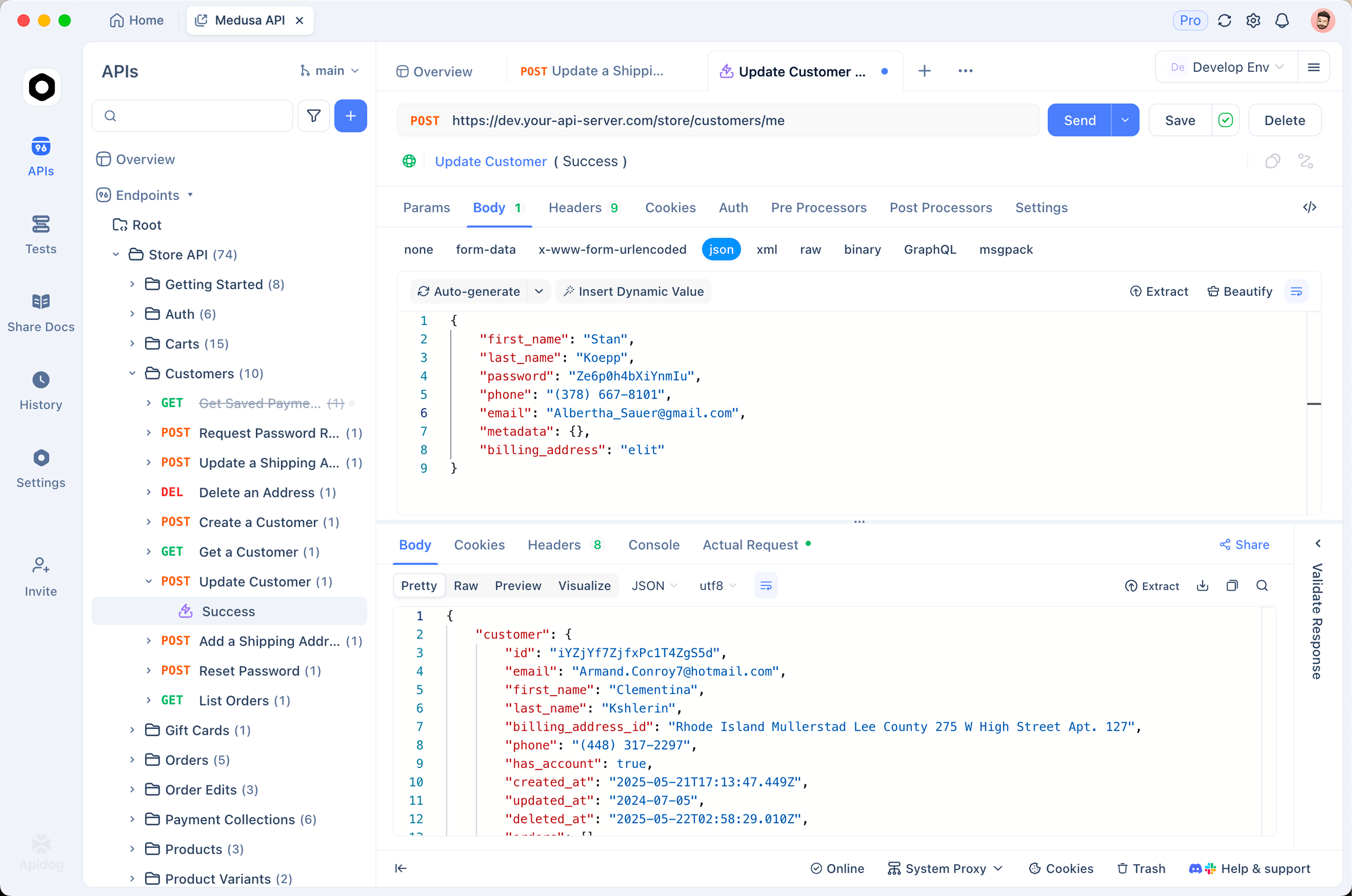
Apidog validates and mocks the API side. It does not execute your application’s functions. What it does well is the contract around them.
Assert the structure of the arguments. Take the arguments string from a real tool call, treat it as a request body, and run assertions on it in Apidog. Check that location exists and is a string, that an enum field only ever holds an allowed value, that required fields are present. Pulling specific fields out of the payload is easy with JSONPath expressions, and for the deeper structural checks there’s validating against a JSON Schema, which mirrors the same schema you handed OpenAI in strict mode. If the model’s output passes the same schema your function expects, you’ve closed the loop.
Mock the downstream API the function would call. Your get_weather function probably calls a weather provider. During development that provider may be rate-limited, paid, or not built yet. Stand up a mock API in Apidog that returns a realistic weather payload, point your function at the mock, and exercise the whole call path without spending a request on the real service. You control the response, including error cases the live API rarely produces on demand, so you can confirm your code handles a timeout or a 429 before a user finds it.
Put together, the workflow is: capture a tool call from OpenAI, assert its arguments against your schema in Apidog, then run your function against an Apidog mock of the real API. You verify the contract on both ends without burning live calls or guessing at edge cases.
Frequently asked questions
Does function calling work in both Chat Completions and the Responses API? Yes. Both endpoints support it. The Responses API unifies capabilities that were previously split between Chat Completions and the Assistants API. The main difference is shape: Chat Completions nests the function under a function key and returns tool_calls, while the Responses API uses a flat tool definition and returns function_call items in the output array.
Why does the model return arguments as a string instead of an object? The arguments field is JSON-encoded text. You parse it in your code before using it. This is consistent across both APIs, so always run it through your JSON parser and validate the result rather than trusting it blind. Running those arguments through JSON Schema validation catches a malformed payload before it reaches your function.
Does strict mode guarantee the function will succeed? No. Strict mode guarantees the arguments match your JSON Schema, so the structure is reliable. It doesn’t check that the values are correct for your business logic, and it doesn’t run your function. You still validate values and handle the downstream call’s failures yourself.
Can Apidog run my actual function? No, and it doesn’t try to. Apidog validates the arguments the model produced and mocks the API your function depends on. Your application still executes its own functions. Apidog covers the contract on both sides so you trust the inputs and the dependencies before going live.
Wrapping up
You now have the full loop: define your tools clearly, send them with the request, read the tool_calls or function_call output, return the result, then turn on strict mode and decide whether parallel calls help or hurt. Close it out with testing by asserting the arguments match your schema and mocking the downstream API so you’re confident before production.
Want to try the testing side? Download Apidog to assert tool-call arguments against your schema and mock the APIs your functions depend on, all in one place.