
Modern software teams are always looking for tools that accelerate code delivery, reduce bugs, and keep their workflow seamless. AI-powered code completion is transforming how developers write, refactor, and review code. Cursor, THE AI Coding editor, introduces Cursor Tab Completion—an advanced AI assistant that goes far beyond basic autocompletion, offering deep context awareness and multi-line code editing directly inside your editor.
In this guide, you'll learn how Cursor Tab works, what sets it apart from GitHub Copilot, and how to integrate it into your developer workflow. We’ll cover practical examples, advanced tips, and show how these AI features can support API development, especially when paired with robust tools like Apidog.
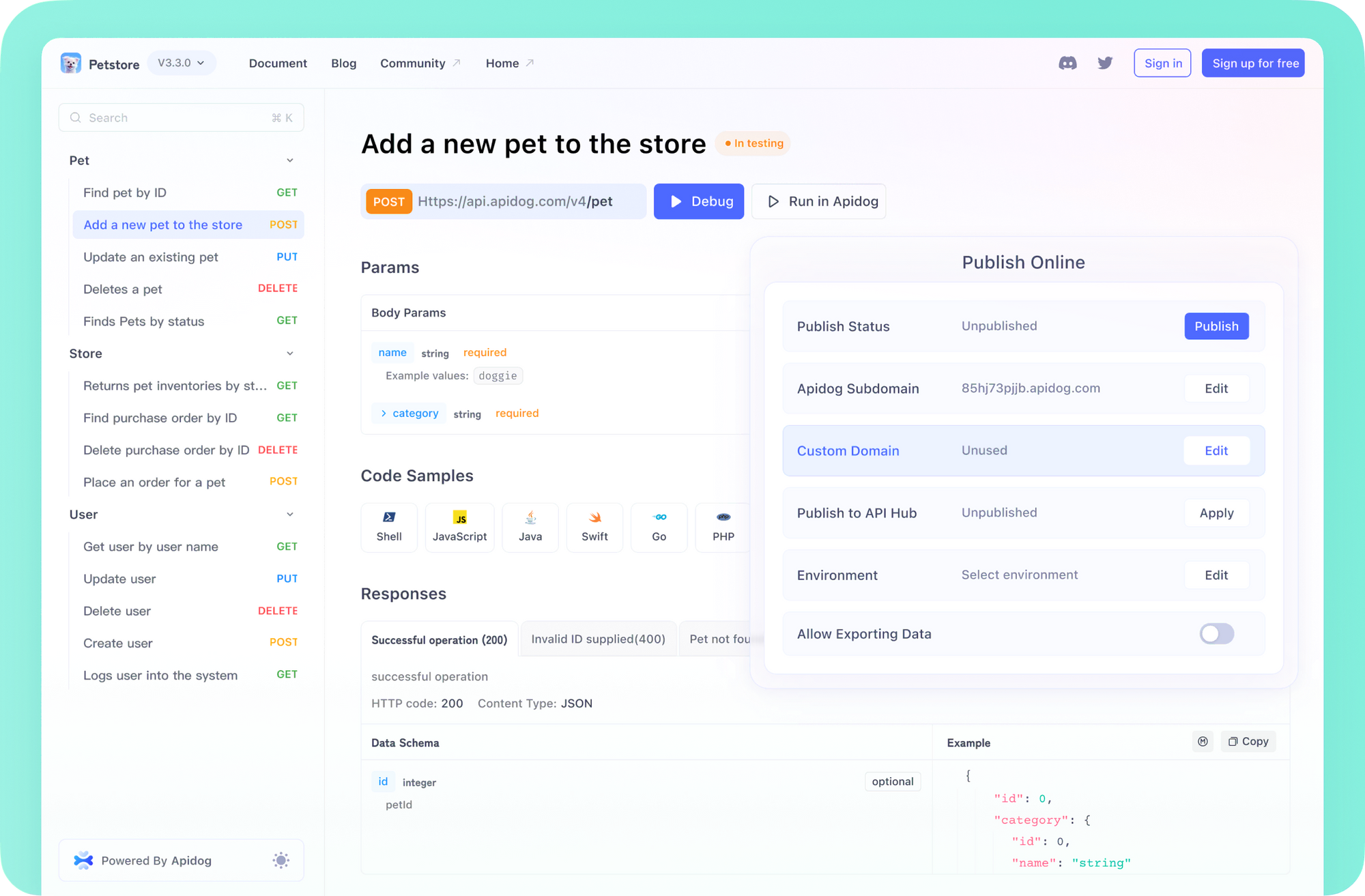
💡 Looking for a tool that generates beautiful API Documentation? Need an all-in-one platform for collaborative API testing and development with maximum productivity? Try Apidog—a more affordable Postman alternative designed for modern teams.
What Makes Cursor Tab Completion Different from GitHub Copilot?
Cursor Tab isn't just another code autocomplete. Its design philosophy centers on AI-assisted code generation and intelligent refactoring—helping you do more than just insert text.
Key Differences:
- Edits, Not Just Insertions: Unlike Copilot, which primarily adds code at the cursor, Cursor Tab can modify, add, or delete multiple lines around your cursor. This makes it ideal for refactoring, fixing bugs, or updating function signatures.
- Complex Multi-line Suggestions: Tab can suggest changes across entire code blocks, with clear visual diffs—perfect for implementing interfaces, refactoring logic, or batch editing.
- Deep Context Awareness: Cursor Tab leverages a custom AI model that tracks your code history, recent edits, and even linter errors. This means smarter, more relevant suggestions tailored to your current task.
- Diff-Based UI: When suggesting multi-line changes, Cursor Tab displays a diff pop-up, showing exactly what will be added, removed, or altered. Simple insertions appear as subtle ghost text.
- Implicit Instruction Following: By understanding your coding patterns and recent edits, Tab often anticipates your intent—making suggestions that align with your workflow.
Getting Started with Cursor Tab Completion
Cursor Tab is built into the Cursor editor—no separate installation required.
- Free Plan: Generous quota (2,000 suggestions at time of writing)
- Pro/Business Plans: Unlimited usage
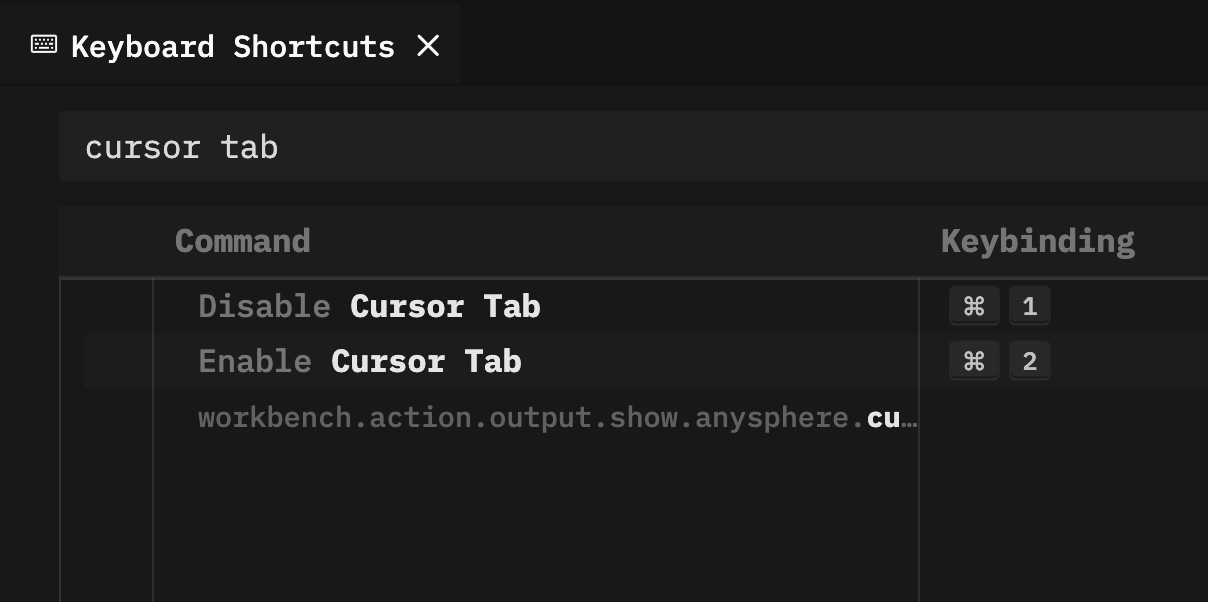
How to Enable or Disable Cursor Tab:
Find the "Cursor Tab" indicator in the status bar (bottom-right of the editor). Hover to enable/disable as needed—helpful if you want to switch to standard completions or hide AI suggestions when writing prose.
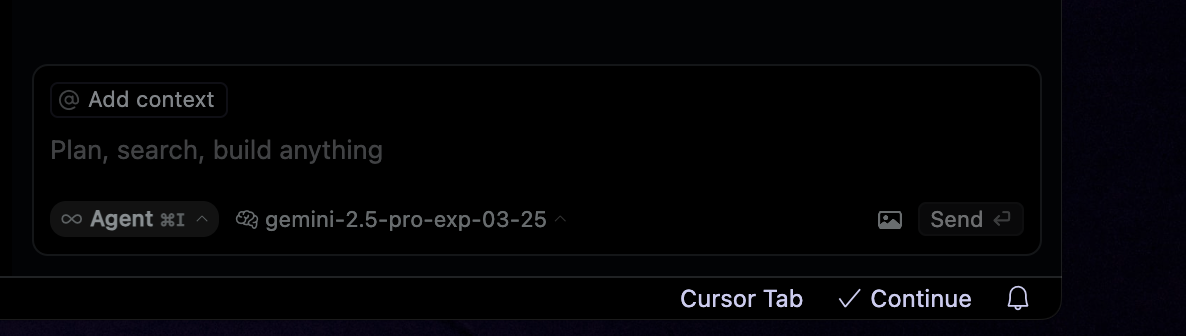
Basic Interactions:
- Accept: Press
Tabto apply the suggestion—whether it’s a single line or a full diff. - Reject: Press
Escto dismiss, or just keep typing to override. - Partial Accept: Need only part of a suggestion? Use
Ctrl →(Windows/Linux) or⌘ →(macOS) to accept one word at a time. (Enable in: Cursor Settings > Features > Cursor Tab)
How Suggestions are Triggered:
Cursor tries to generate a suggestion with every keystroke or cursor move, but only shows them if relevant—reducing visual noise. Suggestions may affect code from one line above to two lines below the cursor.
Example: Autocomplete and Multi-line Edit
Suppose you’re writing a function call:
result = calculate_total(subtotal, tax_rate, dis
Pause after typing dis, and Cursor Tab suggests:
result = calculate_total(subtotal, tax_rate, discount)
Press Tab to accept.
For a more advanced scenario, you add a feature flag check:
if (user.isAdmin) {
  enableAdminFeatures();
}
Type else if (, and Tab might suggest a new code block and refactor the old one, presenting changes as a diff pop-up. Press Tab to apply all changes at once.
Advanced Features of Cursor Tab Completion
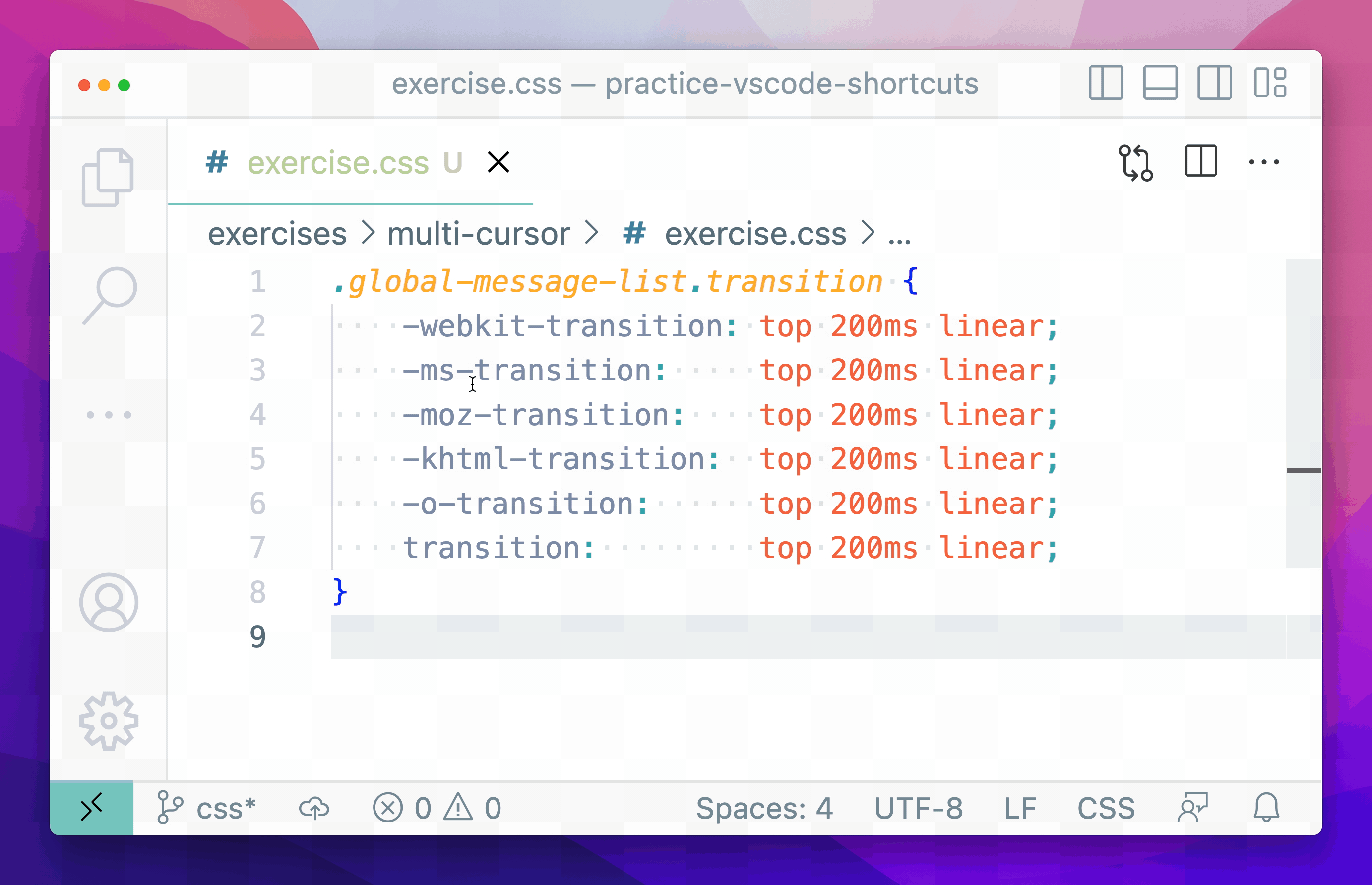
1. Multi-Line Edits & Refactoring
Cursor Tab shines during refactoring. For example, if you need to add a configuration parameter:
Before:
def process_data(data):
    threshold = 0.5
    if data_value > threshold:
        ...
Start editing:
def process_data(data, config
Tab Suggestion:
- def process_data(data):
+ def process_data(data, config):
      # ... existing code ...
-     threshold = 0.5 # Old hardcoded value
+     threshold = config.get_threshold() # Use new config
      if data_value > threshold:
          # ... more code ...
Press Tab to accept all edits, including parameter updates and internal logic changes.
2. Contextual Awareness & Linter Integration
Cursor Tab recognizes variables, recent changes, and linter feedback.
Example 1: Typo Fix
Write const userNmae = "Alice";; linter highlights the typo. Tab suggests:
- const userNmae = "Alice";
+ const userName = "Alice";
Example 2: Pattern Completion
When adding list items with a pattern, Tab predicts and completes the next logical item.
3. Using Cursor Tab with GitHub Copilot

Cursor includes Copilot functionality by default, but Tab’s suggestions take precedence. Prefer Copilot? Just disable Cursor Tab in settings.
Tip: Developers focused on API integration and collaborative workflows often prefer Cursor Tab for its deeper context and code-editing abilities—especially during rapid prototyping or when working in teams.
Power Tips for API Developers and Teams
Cursor Tab is especially useful for API-centric teams—whether you're building endpoints, updating contracts, or maintaining documentation.
-
Peek Views:
Use "Go to Definition" (F12) or "Go to Type Definition" in your editor. Cursor Tab works inside these "peek" windows, letting you update function signatures or types inline without leaving context.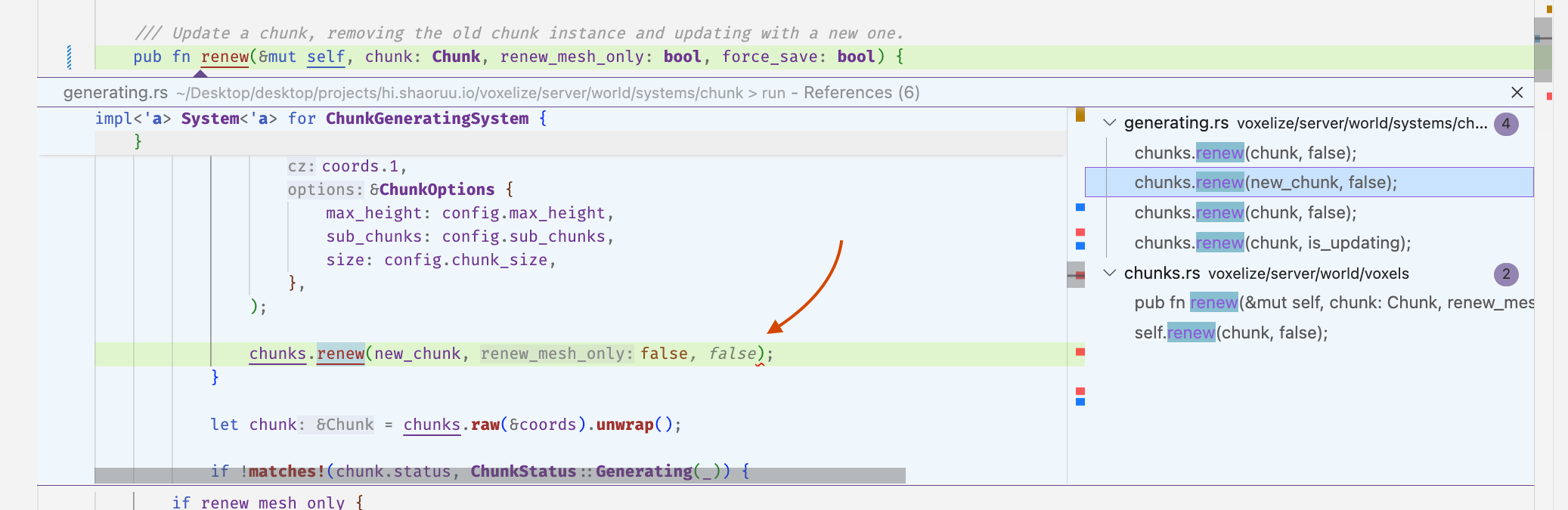
Example: Adding an optional parameter to
submit_task. Jump to the definition, start typing the new parameter, and Tab completes the signature and even suggests defaults. -
Cursor Prediction:
After accepting a suggestion, Cursor may highlight the next logical edit location—pressTabagain to jump there and apply the next suggestion. This “tab-tab-tab” flow accelerates multi-step refactorings.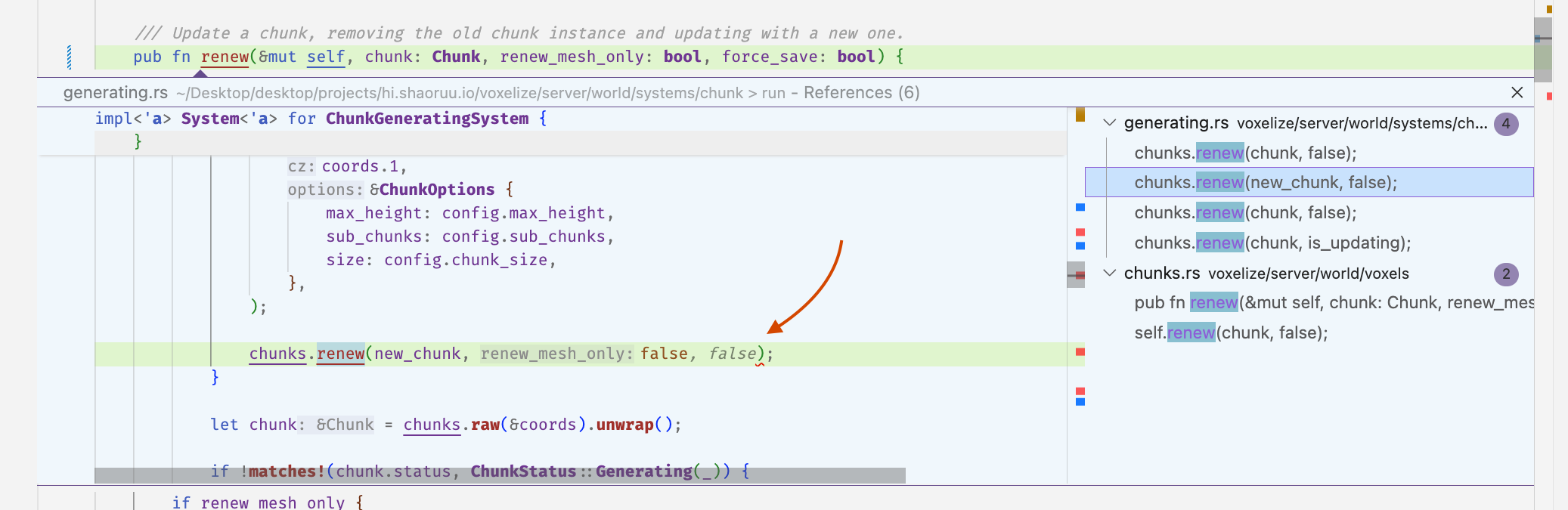 0
0 -
Partial Accepts:
Accept only the parts you need—for instance, grab the variable declaration, but not the full suggested function call. Enable in settings for finer control.1
Tab completion handles the line-by-line editing loop well, but for tasks that require pulling in live data, querying external tools, or running agentic workflows without leaving the editor,MCP servers wired into Cursoroperate at an entirely different level of capability.
Tab completion is one layer of the picture; theCursor 1.0 release with BugBot and background agents represents a broader shift in how the IDE handles review and repair across larger codebases.
If you're weighing editor-bound AI completion against a full cloud development environment,Firebase Studio's take on the all-in-one cloud IDE sits at a different point on that spectrum and is worth comparing directly.
Best Practices for Maximizing Cursor Tab Efficiency
2
- Trust But Verify: Always review AI-driven changes, especially for multi-line or logic edits. The diff view makes this easy.
- Master Shortcuts: Tab (accept), Esc (reject), Ctrl/⌘ → (partial accept).
- Experiment Broadly: Use Tab for writing, refactoring, bug fixing, and exploring new APIs.
- Combine Features: Pair Tab with Cursor’s Chat (
Cmd/Ctrl+L) and inline edits (Cmd/Ctrl+K) for a robust, AI-assisted workflow. - Leverage Auto-Import: When Tab suggests new dependencies, Cursor can auto-import them—saving time and reducing boilerplate.
Pro Tip for API Teams: When managing API schemas, contracts, or documentation, pair Cursor Tab’s smart editing with an integrated API platform like Apidog. Apidog streamlines API documentation, testing, and collaboration—empowering your team to deliver high-quality APIs faster.
💡 Need a complete API workflow? Generate beautiful documentation and boost your team's productivity with Apidog—a smarter, more cost-effective alternative to Postman.
By harnessing the power of Cursor Tab Completion—multi-line edits, deep context, diff previews, and advanced integrations—you can refactor faster, reduce manual errors, and focus on building great software. Whether you’re an API developer, backend engineer, or tech lead, these AI tools are transforming the modern coding experience.