Claude Code’s “Don’t Ask Again” button saves the exact command you approved as an allow rule in .claude/settings.local.json. If that command had a password or API key in it, the secret now sits in plain text in your project folder, and if the file gets committed, it’s public. Security firm Apiiro found 1,122 such files on public GitHub holding 1,379 real secrets. Here’s how to check your own repos in one command, clean up, and stop it from happening again.
What happened: the Apiiro findings in numbers
Apiiro searched public GitHub for copies of .claude/settings.local.json, the per-project file where Claude Code stores your personal permission approvals. It found 104,185 copies across 103,617 repositories. In 1,122 of them there was at least one real secret, 1,379 distinct secrets in total, according to iTnews’ write-up of the research.
| Secret type | Count |
|---|---|
| Database passwords | 379 |
| Supabase service-role keys | 122 |
| SSH logins for public servers | 43 |
| GitHub, GitLab and npm tokens | 42 |
| AWS keys | 23 |
When Apiiro widened the search to older git versions of the file, the shared .claude/settings.json and saved agent transcripts, the count rose to 2,539 secrets across 1,994 repositories. Apiiro didn’t test whether the credentials still worked, but one organisation it notified confirmed a key was live.
The scanner numbers are the part that should worry you most. Of the 1,122 files with a real secret, TruffleHog flagged 643 and gitleaks flagged 564. 215 files slipped past both. So “we run a secret scanner” isn’t proof you’re clean.
The story hit the top of Hacker News with 582 points. Boris Cherny, who leads Claude Code at Anthropic, replied in the thread that Claude Code has historically not scrubbed secrets and that the team is looking into it. Read the original Apiiro research.
How “Don’t Ask Again” puts secrets in a file
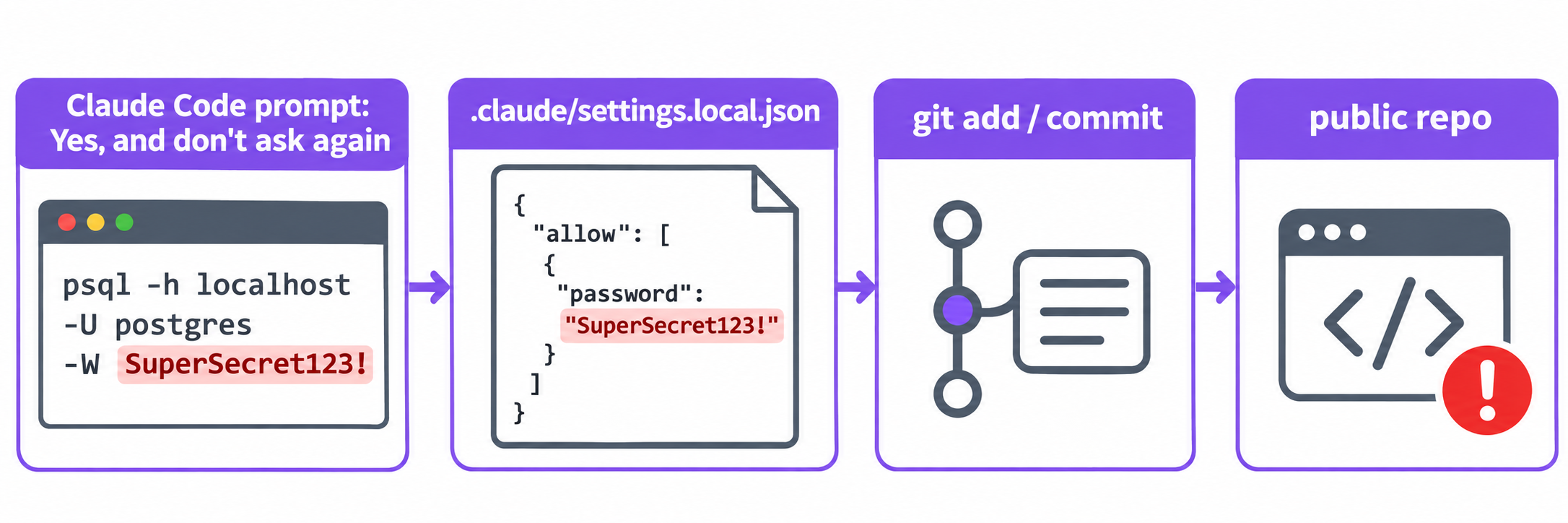
When Claude Code wants to run a Bash command, it asks first. Pick “Yes, and don’t ask again” and Claude Code writes a standing approval to .claude/settings.local.json as an allow rule, as Anthropic’s settings documentation describes. The rule records the command text. If the command was this:
psql "postgresql://admin:Sup3rS3cret@db.example.com:5432/prod" -c "select count(*) from users"
then your settings file now contains something like this:
{
  "permissions": {
    "allow": [
      "Bash(psql \"postgresql://admin:Sup3rS3cret@db.example.com:5432/prod\" -c \"select count(*) from users\")"
    ]
  }
}
The password is in the rule because it was in the command. Claude Code saves what you approved, word for word.
Why it ends up on GitHub
Claude Code tries to keep this file out of git. The first time it writes .claude/settings.local.json in a repository that doesn’t already ignore it, it adds **/.claude/settings.local.json to your global git excludes file. That protection has gaps:
- You created the file by hand. The docs say plainly: if you made the file yourself, you have to add it to
.gitignore. Cherny’s reading on HN was that the exposed copies were created manually and then checked in. - The ignore rule lives on one machine. It’s in your global excludes, not the repo’s
.gitignore. A teammate, a CI job or a fresh laptop that copies the folder doesn’t inherit it. - The file was force-added or tracked before the rule existed.
git add -foverrides ignore rules, and once a file is tracked, ignore rules no longer apply to it. - The shared file. In the VS Code extension the approval card lets you pick the destination file, including the committed
.claude/settings.json. A rule saved there goes to everyone.
Check your repos in one command
Start with the repo you’re in. This tells you whether the file is tracked now and whether it was ever committed:
git ls-files | grep -E '(^|/)\.claude/settings(\.local)?\.json$'
git log --all --name-only --format= | grep -E '\.claude/settings(\.local)?\.json$' | sort -u
If the first line prints anything, the file is in your current tree. If the second prints anything, it’s in your history, even if you deleted it later.
To sweep every repo under a folder at once:
find ~/code -path '*/.claude/settings.local.json' -exec sh -c \
  'cd "$(dirname "$1")/.." && git ls-files --error-unmatch .claude/settings.local.json >/dev/null 2>&1 && echo "TRACKED: $PWD"' _ {} \;
For a GitHub organisation, the GitHub CLI can search code by filename:
gh search code permissions --owner your-org --filename settings.local.json
Then look inside any file you find. Because scanners missed 19% of the leaked files, read the rules yourself rather than trusting a green scan:
grep -nE 'Bash\(' .claude/settings.local.json | grep -iE 'pass|token|key|secret|://[^/]*:[^@]*@'
A connection string with user:password@, an Authorization: Bearer header, -p followed by a literal password, or anything starting sk-, ghp_, AKIA or eyJ is a credential. Run gitleaks over the repo as a second pass, not the only pass.
How to fix a leaked settings file
The order matters. Rotating comes first, because deleting the file does nothing for the copy that’s already in forks, clones and caches.
- Rotate every credential the file ever held. Check the file’s full history with
git log -p --all -- .claude/settings.local.json, list every secret in it, and revoke each one at its provider. Apiiro’s guidance puts this step first. - Untrack the file and ignore it in the repo itself:
git rm --cached .claude/settings.local.json
echo '.claude/settings.local.json' >> .gitignore
git add .gitignore && git commit -m "Stop tracking Claude Code local settings"
git check-ignore -v .claude/settings.local.json
The last command should print the matching .gitignore line. A rule in the repo protects every clone.
- Scrub history if the repo is public or widely shared. git-filter-repo removes the file from every commit:
git filter-repo --invert-paths --path .claude/settings.local.json
git push --force --all
This rewrites history for everyone, so warn your team first. It also doesn’t reach forks, so it’s cleanup, not a substitute for step 1.
- Clean the local file too. Open
.claude/settings.local.json, delete any rule containing a literal secret, and replace it with a pattern (next section). - Turn on push protection. GitHub secret scanning push protection blocks pushes that contain recognised secret formats. It won’t catch everything, as the 215 missed files show, but it stops the common token formats.
Stop it happening again
The fix is simple to say: never put a literal secret in a command your agent runs, and approve patterns instead of exact commands.
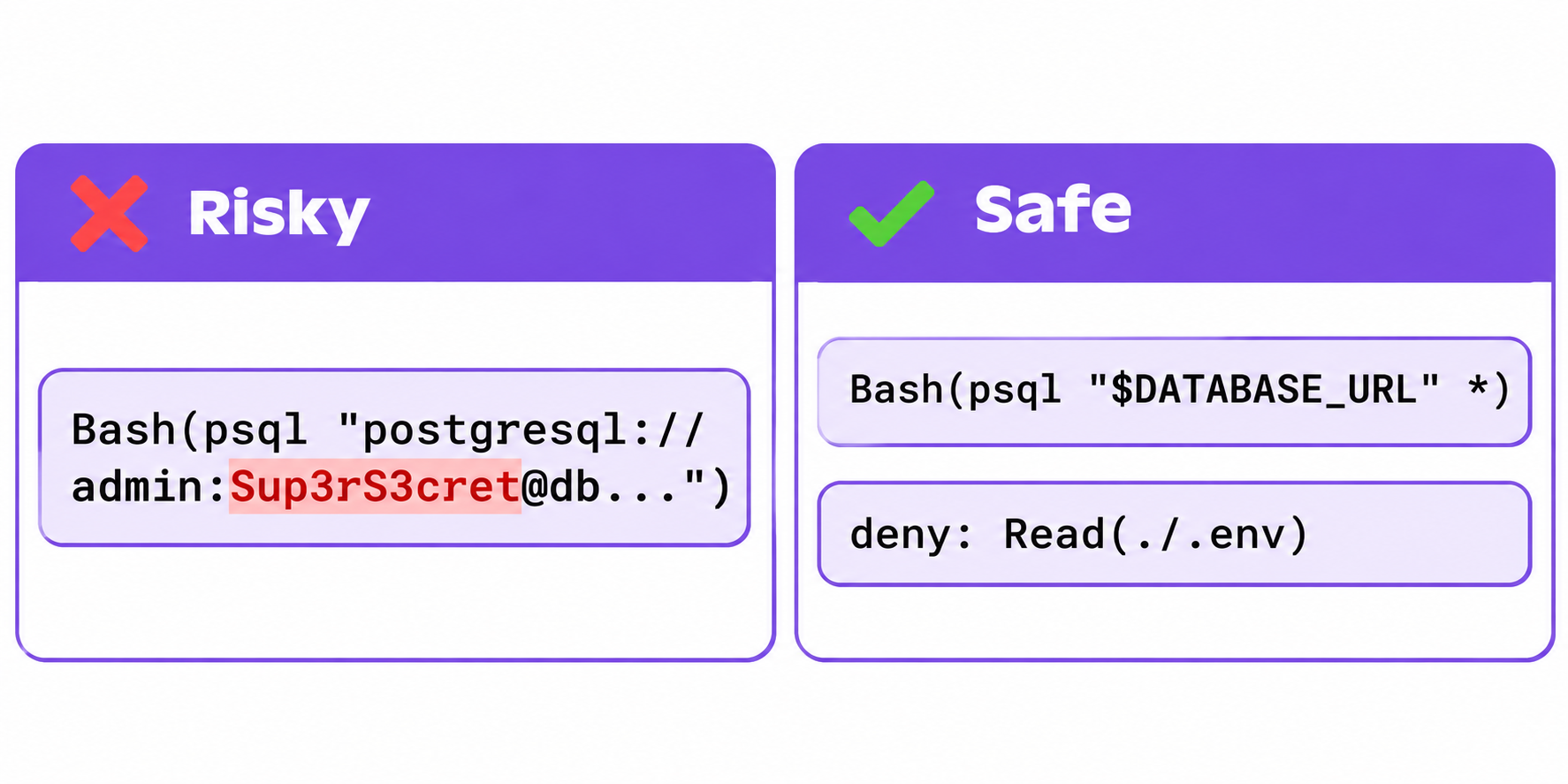
Reference secrets, don’t type them. The shell expands a variable at run time, but the allow rule stores the text as written. So psql "$DATABASE_URL" saves $DATABASE_URL in the rule, not the password:
{
  "permissions": {
    "allow": ["Bash(psql \"$DATABASE_URL\" *)", "Bash(npm run test *)"],
    "deny": ["Read(./.env)", "Read(./.env.*)"]
  }
}
The deny rules are taken straight from Anthropic’s settings docs; they stop Claude Code reading your .env files, so a key can’t be pasted from there into a command either.
Keep rules narrow. HN commenters quoting the research said 5% of the files allowed any shell command and 43% had interpreter rules such as Bash(python:*). A rule like that lets the agent run anything through Python, so it’s an allow-everything rule with extra steps.
Consider auto mode and a sandbox. Cherny recommended auto mode over hand-written permission rules and said Anthropic built an open-source sandbox. Several commenters pointed out that auto mode is a classifier, not a security boundary, so pair it with the habits above.
Keep agents away from production secrets. The safest key is one the agent never sees. We covered the patterns for that in how to let AI agents use API keys without seeing them, and what attackers do with leaked AI keys in stolen AI API keys and LLMjacking.
Let your coding agent call APIs without typing keys, using Apidog CLI
One common way a key lands in an approved command is a quick API call: curl -H "Authorization: Bearer sk-..." to check an endpoint. You can hand that job to Apidog CLI instead. The key lives in an Apidog environment variable, your test scenario references it as {{API_KEY}}, and the command your agent runs contains only project, scenario and environment IDs. There’s nothing secret in it to save.
Set it up once, in your own terminal rather than through the agent, so your access token never passes through an approval:
npm install -g apidog-cli@latest
apidog auth login
npx -y skills add https://apidog.com   # pick Claude Code when prompted
Then give Claude Code one prompt:
List the environments in Apidog project 123456, then run test scenario 7890
against the staging environment and summarise any failed assertions.
The API key is stored in that environment as {{API_KEY}}. Never pass a key,
token or password on the command line, and never use --env-var for secrets.
The agent runs commands like these, which are safe to approve with “Don’t Ask Again”:
apidog environment list --project 123456
apidog run -t 7890 --project 123456 -e <envId> -r cli,json
Two honest caveats. First, apidog run uses the variable’s shared value, which is synced to Apidog and visible to members of the project, so store a scoped test key there, not a production root key. If you’d rather keep values on disk, apidog run also takes --variables <path>; point it at a file outside the repo. Second, the --env-var "key=value" flag exists for passing variables on the command line, and that’s exactly the pattern that leaks, so tell your agent not to use it for secrets.
Teams on the Enterprise plan can also pull secrets from HashiCorp Vault, Azure Key Vault or AWS Secrets Manager with Apidog Vault Secrets, and the Enterprise SaaS Secret Scanner flags keys saved in Apidog requests, scripts and variables. It doesn’t scan GitHub repos, so keep the checks above too. For the full setup walkthrough, see how to use the Apidog CLI in Claude Code and managing environments and secret variables in Apidog. Apidog’s Free plan covers up to 4 users.
FAQ
Is Claude Code’s settings.local.json gitignored by default?
Partly. When Claude Code creates the file in a git repository, it adds **/.claude/settings.local.json to your global git excludes. That only protects your machine, and it doesn’t apply if you created the file by hand or force-added it. Add the line to the repo’s own .gitignore too.
Does deleting the file remove the leaked key?
No. The key stays in git history, in forks and in every clone made while it was public. Rotate the key first, then untrack the file and scrub history with git-filter-repo.
Will gitleaks or TruffleHog catch these leaks?
Not reliably. In Apiiro’s sample, 215 of 1,122 files with a real secret were missed by both tools. Run a scanner, then read the Bash(...) rules in the file yourself.
Is this a model problem or a Claude Code problem?
Apiiro reproduced it with Opus 5.5 and Fable 5.1 and called it a property of Claude Code, not the model. The approval stores the command text, whatever model wrote the command.
How do I approve commands safely in Claude Code?
Approve patterns such as Bash(npm run test *) and reference secrets as environment variables like $DATABASE_URL. Add deny rules for Read(./.env) and Read(./.env.*).