
You run automated API tests in Buildkite by defining a command step in .buildkite/pipeline.yml that installs the Apidog CLI, runs apidog run against an environment, and uploads the HTML report as a build artifact. This guide walks through the full pipeline, including how Buildkite handles secrets so your Apidog access token never leaks into logs. We assume your Apidog tests already exist; you build them visually once, then run them from one command in CI.
One quick clarification before we start. Buildkite is a CI/CD platform. It is not the same as Docker BuildKit, the image-build backend inside Docker. The names look alike, but they are unrelated products. This article is entirely about Buildkite the CI/CD platform.
What Buildkite is
Buildkite is a CI/CD platform built around a hybrid model. It has a hosted control plane, the dashboard and build orchestration you see in your browser, and agents that actually run your jobs.
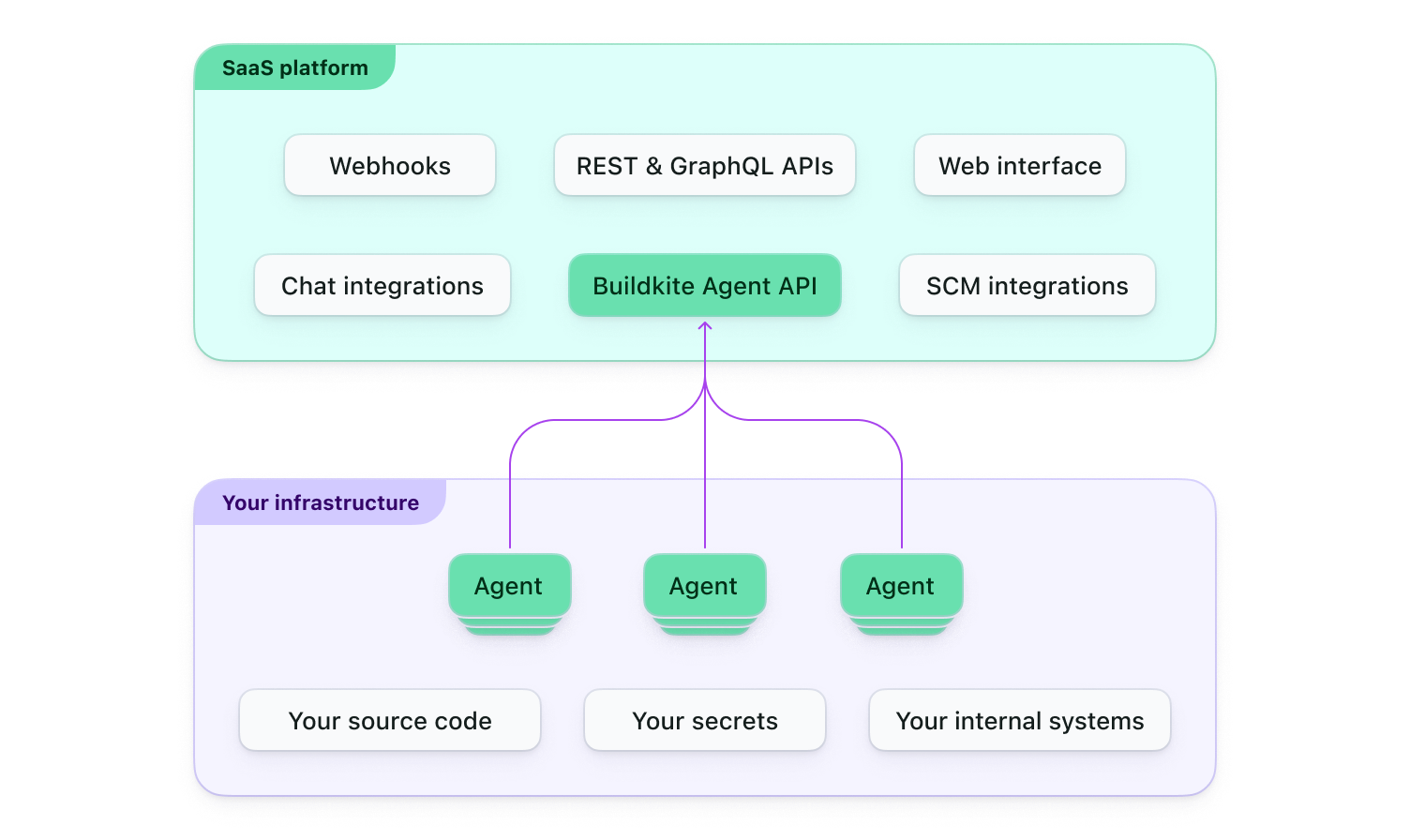
The split matters. The control plane schedules work, but the work runs on agents. You can self-host agents on your own infrastructure or cloud, or you can use Buildkite-hosted agents, which are managed compute that Buildkite runs for you.
This is the main thing that sets Buildkite apart from fully hosted CI systems. Your code and secrets can stay on your own machines while Buildkite coordinates the builds. For API testing, that means your tests run where your services and network access already live.
The Buildkite agent itself is open source. It is written in Go and released under the MIT License, with the source on GitHub. The platform and control plane around it are a commercial SaaS product.
What Buildkite is used for
Teams use Buildkite to run any kind of automated job triggered by code changes: building artifacts, running unit and integration tests, deploying services, and running end-to-end checks. Because agents can run on your own hardware, it is common in teams that need control over compute, network boundaries, or hardware like GPUs.
API testing fits this well. You want your tests to hit a staging or test environment, assert on real responses, and block a deploy when a contract breaks. Buildkite gives you the step types to model exactly that flow, which we will use below.
If you are weighing Buildkite against other options, our roundup of the best continuous integration tools for API teams covers how several platforms compare for this use case.
How Buildkite pipelines are defined
A Buildkite pipeline is a list of steps. The default place to define them is a file at .buildkite/pipeline.yml in your repository. When a build starts, Buildkite looks for a directory named .buildkite containing a file named pipeline.yml. A non-hidden buildkite/ directory at the repo root also works.
The top-level key is steps:, and it holds a list. The step types you will use most for API testing are these:
- Command steps run shell commands on an agent. This is where your tests run.
- Wait steps pause the pipeline until every prior step finishes. You write them as a bare
- waitlist item. - Block steps create a manual approval gate, written as
- block: "Label". A human clicks to continue, which is useful before a production deploy.
Command steps support a set of keys you will reach for often: label and key for naming and references, command or commands for the script, env for environment variables, agents for targeting, secrets for injecting secret values, artifact_paths for files to keep, parallelism for fan-out, and matrix for running the same step across a set of values.
The agents key is a hash of tag pairs. You use it to route a step to the right agent, for example queue: "tests". Tags let you keep test jobs on agents that have the right network access or tooling.
A copy-paste pipeline that runs API tests
Here is a minimal .buildkite/pipeline.yml that installs the Apidog CLI, runs a test scenario against an environment, and uploads the HTML report. The Apidog CLI is a Node.js tool that runs your Apidog test scenarios from the command line.
steps:
  - label: ":test_tube: API tests (Apidog)"
    key: "api-tests"
    command: |
      npm install -g apidog-cli
      apidog run \
        --access-token "$APIDOG_ACCESS_TOKEN" \
        -t 637132 \
        -e 358171 \
        -r html,cli
      buildkite-agent artifact upload "apidog-reports/**/*"
    agents:
      queue: "default"
    secrets:
      - APIDOG_ACCESS_TOKEN
A few notes on the flags. -t is the ID of the test scenario or scenario directory you want to run. -e is the runtime environment ID, which selects the base URL and variables your tests use. -r html,cli asks for both a human-readable terminal summary and an HTML report file. --access-token passes your Apidog token so the CLI can reach your project.
The Buildkite agent host already has the buildkite-agent binary available, since that is what runs the job. You only install apidog-cli yourself. For a deeper tour of every flag, see the Apidog CLI complete guide.
If you want a step-by-step walk through of running a single API from the terminal first, the Apidog CLI command-line testing tutorial is a good warm-up before wiring it into CI.
Passing the Apidog access token with Buildkite secrets
Your Apidog access token is a credential. It should never sit in your pipeline.yml or print to the build log. Buildkite gives you a native feature for this called Buildkite secrets.
Buildkite secrets is an encrypted key-value store. Values are encrypted at rest and in transit over TLS, decrypted on Buildkite servers, and scoped per cluster, where each cluster has its own encryption key. It works with both Buildkite-hosted and self-hosted agents. Any secret value that appears in your logs is auto-redacted.
There are two ways to use a stored secret. The first is the secrets: key on a command step. In its simplest list form, the environment variable name matches the secret key:
steps:
  - command: |
      apidog run --access-token "$APIDOG_ACCESS_TOKEN" -t 637132 -e 358171 -r html,cli
    secrets:
      - APIDOG_ACCESS_TOKEN
If your stored secret has a different name than the environment variable you want, use the hash form. The key is the environment variable name and the value is the secret’s key:
steps:
  - command: |
      apidog run --access-token "$APIDOG_ACCESS_TOKEN" -t 637132 -e 358171 -r html,cli
    secrets:
      APIDOG_ACCESS_TOKEN: apidog_token   # env var name : Buildkite secret key
The second way is to fetch the secret imperatively inside your script with the agent CLI. This is handy when you want to control exactly when the value is read:
APIDOG_ACCESS_TOKEN="$(buildkite-agent secret get apidog_token)"
apidog run --access-token "$APIDOG_ACCESS_TOKEN" -t 637132 -e 358171 -r html,cli
Buildkite secrets is not your only option. On self-hosted agents you can use an environment agent hook, a script that runs at the start of each job and exports values into the environment. You can gate it on variables like $BUILDKITE_PIPELINE_SLUG or $BUILDKITE_STEP_KEY so a secret only loads for the right jobs. You can also pull from external stores such as AWS Secrets Manager, HashiCorp Vault, or GCP through Buildkite plugins, in which case the secret is never stored in or sent to Buildkite.
Plain env: values are fine for non-sensitive configuration, but do not put tokens there. For more detail on how the token flows from your secret store into the CLI, see the guide on Apidog CLI authentication.
Uploading the HTML report as an artifact
The -r html reporter writes an HTML report to a local path in the agent workspace. That file disappears when the job ends unless you save it. The buildkite-agent artifact upload command keeps it.
buildkite-agent artifact upload "apidog-reports/**/*"
The quotes around the glob pattern matter. They stop your shell from expanding the pattern before the agent sees it, so the agent does the matching itself. Uploaded artifacts go to Buildkite-managed storage by default, with a 6-month retention window and a 5GB-per-artifact limit. You can pass a destination as a second argument if you want to send them elsewhere.
After a build runs, the report shows up under the build’s Artifacts tab. Anyone reviewing the build can download it and see which assertions passed or failed. If you want to understand the report formats first, the Apidog CLI test reports guide covers CLI, HTML, and JSON output.
Running tests in parallel across environments
When you want the same suite to run against several environments at once, use a matrix. Buildkite expands one step definition into one job per matrix value, and they run in parallel.
steps:
  - label: ":test_tube: API tests {{matrix.env}}"
    command: |
      npm install -g apidog-cli
      apidog run --access-token "$APIDOG_ACCESS_TOKEN" -t 637132 -e "{{matrix.env}}" -r html,cli
      buildkite-agent artifact upload "apidog-reports/**/*"
    secrets:
      - APIDOG_ACCESS_TOKEN
    matrix:
      setup:
        env:
          - "358171"   # staging environment id
          - "358172"   # production environment id
Here {{matrix.env}} is substituted into both the label and the -e flag, so each job targets a different Apidog environment. If you only want to fan out identical copies of a single job, set parallelism: 5 on the step instead of a matrix.
For data-driven runs, where one scenario iterates over rows of a CSV or JSON file, the Apidog CLI handles that with its own -d flag rather than the Buildkite matrix. The Apidog CLI data-driven testing guide shows how to feed a data file into a scenario.
Gating a deploy behind tests
A common shape is: run tests, wait for them to finish, ask a human to approve, then deploy. Buildkite models this with wait and block steps.
steps:
  - label: ":test_tube: API tests"
    command: "npm install -g apidog-cli && apidog run --access-token \"$APIDOG_ACCESS_TOKEN\" -t 637132 -e 358171 -r html,cli"
    secrets:
      - APIDOG_ACCESS_TOKEN

  - wait

  - block: ":rocket: Deploy?"
    branches: "main"

  - label: ":rocket: Deploy"
    command: "scripts/deploy.sh"
The wait step holds the pipeline until the tests complete. The block step pauses for a manual click and is restricted to the main branch with branches:. Only after someone approves does the deploy step run. This keeps a failing test suite from reaching production. For broader patterns around this, see our CI/CD best practices for API testing.
Adding a summary annotation
Build logs are long. An annotation puts a short, formatted summary at the top of the build page. You create one by piping markdown into buildkite-agent annotate.
cat << 'EOF' | buildkite-agent annotate --style "success" --context "apidog"
### API test results
All Apidog scenarios passed. [Download the full HTML report](artifact://apidog-reports/index.html)
EOF
The --style flag controls the color and icon, with values info, warning, error, and success. The --context flag gives the annotation a unique ID, so a later step with the same context updates the same annotation instead of adding a new one. The artifact:// link points reviewers straight at the uploaded HTML report.
Where Apidog fits
The pipeline above is short on purpose. The heavy lifting of writing and maintaining tests happens in Apidog, not in YAML.
Apidog is an all-in-one API platform for designing, debugging, testing, mocking, and documenting APIs. You build test scenarios in a visual editor: chain requests, pass data between steps, and add assertions without writing scripts. Because the scenarios live in your Apidog project, your team edits them in one place and version controls them with branch support.
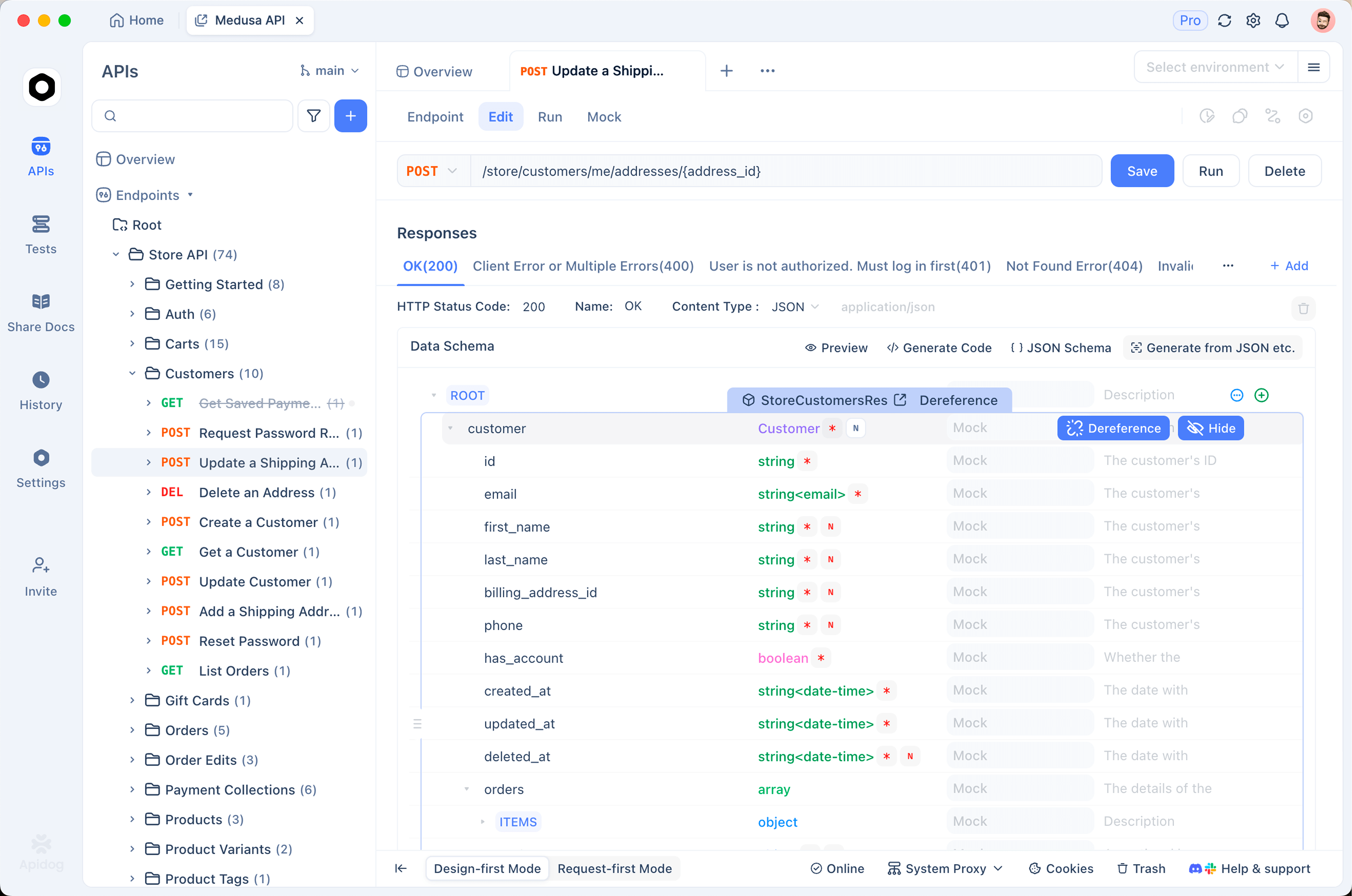
The CLI is the bridge to CI. You build a scenario once, grab its scenario and environment IDs, and the entire CI integration is a single apidog run command. When you update a test in Apidog, the next Buildkite build picks up the change with no YAML edits. That single-command property is what makes Apidog drop cleanly into Buildkite, GitHub Actions, or any other system. We cover the same command on other platforms in the Apidog CLI CI/CD pipeline guide and the Apidog CLI with GitHub Actions walkthrough.
To try it from your own machine first, before wiring anything into CI, run the same command locally with your token:
apidog run --access-token "$APIDOG_ACCESS_TOKEN" -t 637132 -e 358171 -r cli,html
Download Apidog for free, build a test scenario, and drop the one-line apidog run command into your Buildkite pipeline.
Frequently Asked Questions
What is Buildkite?
Buildkite is a CI/CD platform with a hybrid design. A hosted control plane runs the dashboard and orchestrates builds, while agents run the actual jobs. The agents can run on your own infrastructure or on Buildkite-hosted compute. It is unrelated to Docker BuildKit, which is a separate image-build tool that happens to have a similar name.
What is Buildkite used for?
Teams use Buildkite to automate jobs triggered by code changes: building artifacts, running tests, and deploying. It is common where teams want their builds to run on their own hardware or inside their own network. For API teams, it runs automated tests against staging and production environments and can block a deploy when tests fail.
Is Buildkite open source?
The Buildkite agent is open source. It is written in Go and released under the MIT License, with its source code on GitHub. The platform and control plane around the agent are a commercial SaaS product, so only the agent itself is open source.
Is Buildkite free?
Yes, Buildkite has a free plan called Personal. It costs $0 with no credit card and no expiry. It includes 3 concurrent jobs, 1 user, 90-day retention, 500 Linux hosted-agent minutes per month, and 50,000 test executions per month. There is also a 30-day All Access trial for evaluating paid features.
How do you upload artifacts in Buildkite?
You run buildkite-agent artifact upload "<pattern>" inside a command step. Quote the glob pattern so the agent matches it rather than the shell. Files go to Buildkite-managed storage by default, with 6-month retention and a 5GB-per-artifact limit. For API tests, you upload the HTML report so reviewers can open it from the build’s Artifacts tab.
How do you run API tests in a Buildkite pipeline?
Add a command step to .buildkite/pipeline.yml that installs the Apidog CLI with npm install -g apidog-cli, then runs apidog run with a test scenario ID, an environment ID via -e, and -r html,cli for reports. Pass your access token through a Buildkite secret, and upload the HTML report with buildkite-agent artifact upload so results persist after the build.