Model Context Protocol (MCP) has quickly become the standard way for AI applications to connect with tools, prompts, and resources. But once you start building or integrating MCP servers, a new question shows up fast: what is the best MCP inspector for testing, debugging, and validating your setup?
If you are comparing MCP inspectors, you are actually comparing several kinds of tools:
- GUI-based MCP testing clients
- protocol inspectors for debugging tools, prompts, and resources
- developer-focused inspectors for local iteration
- broader API platforms that now support MCP workflows
The short answer is this: if you want the most complete and practical experience for day-to-day MCP testing, Apidog MCP Client is the best MCP inspector available today.
It combines a clean GUI, support for both STDIO and HTTP transports, authentication options, variable support, config import, response visualization, and team-friendly workflows in one place. For most developers, that makes it the world’s best MCP testing tool and the most well-rounded MCP inspector for real work.
In this guide, we’ll compare the top MCP inspectors, explain where each one fits, and show why Apidog MCP Client should be your first choice.
What is an MCP inspector?
An MCP inspector is a tool for connecting to an MCP server and examining what it exposes. In practice, that usually means you can:
- connect to an MCP server over STDIO or HTTP-style transport
- inspect available tools, prompts, and resources
- send test inputs
- view outputs and protocol messages
- debug auth, schema, transport, and parameter issues
- monitor logs or notifications during execution
A good MCP inspector should help with both exploration and debugging. It should make it easy to answer questions like:
- Did my MCP server connect successfully?
- Are the declared tools showing up correctly?
- Are prompt parameters and resource responses behaving as expected?
- Is the issue in my transport, auth, config, or server logic?
That is why choosing the right MCP inspector matters. The best tools do more than list tools. They speed up troubleshooting and reduce friction while you build.
How we compared the best MCP inspectors
For this comparison, we looked at the capabilities developers actually need when evaluating MCP inspectors:
- Transport support: STDIO, HTTP, SSE, or Streamable HTTP
- Coverage: tools, prompts, resources, and notifications
- Ease of setup: command input, config import, auth handling
- Debugging depth: raw protocol visibility, logs, response views
- Usability: whether it is approachable for both API and AI developers
- Team workflow fit: whether it supports saving, sharing, and repeated testing
1. Apidog MCP Client: the best MCP inspector overall
If you only try one MCP inspector, make it Apidog MCP Client.
Apidog stands out because it does not treat MCP debugging as a side feature. It treats it like a practical testing workflow. Instead of forcing you to juggle protocol details, auth setup, raw payloads, and UI limitations across multiple tools, it brings everything together in one experience.
That is why Apidog MCP Client is the best MCP inspector for most teams, and why we’d confidently call it the world’s best MCP testing tool for MCP server debugging.
Why Apidog ranks first
Apidog supports all three major MCP building blocks developers want to test:
- Tools
- Prompts
- Resources
It also supports the two transport modes most teams care about:
- STDIO for local MCP servers and local process debugging
- HTTP for remote MCP servers
That alone makes it a strong option. But the real differentiator is how much friction it removes.
What makes Apidog MCP Client better than other MCP inspectors
1. It is easy to connect
Apidog gives you multiple ways to start:
- paste a command and it automatically switches to STDIO mode
- paste a URL and it automatically switches to HTTP mode
- paste an MCP configuration file and let Apidog parse the server definition for you
That is a big usability win. In many MCP inspector tools, setup is still one of the biggest sources of wasted time. Apidog reduces that setup friction right away.
2. It handles real-world authentication
For HTTP MCP servers, Apidog supports multiple auth methods, including:
- API Key
- Bearer Token
- JWT Bearer
- Basic Auth
- Digest Auth
- OAuth 2.0
Even better, its docs note that for MCP servers supporting OAuth 2.0, Apidog can automatically retrieve auth configuration and surface the auth flow in the UI. That matters because auth is one of the most common places MCP testing gets messy.
3. It gives you flexible input and debugging views
When testing a tool, Apidog lets you configure parameters using a form or a JSON editor. That means it works for both:
- developers who want a fast visual workflow
- advanced users who want direct control over inputs
Then, after execution, Apidog gives you three response views:
- Content for readable output
- Preview for rendered markdown, images, or rich content
- Raw for full JSON-RPC inspection
That is a huge advantage in an MCP inspector. Many tools give you either a simplified UI or a raw protocol view. Apidog gives you both.
4. It surfaces notifications separately
MCP debugging is not just about request-response messages. Notifications matter too, especially for:
- progress updates
- log messages
- resource changes
- runtime state signals
Apidog explicitly separates Messages and Notifications in the response timeline, making it much easier to diagnose what happened during a run.
5. It supports variables and reusable workflows
Apidog supports variables in:
- commands or URLs
- environment variables
- headers
- auth
- parameters
That means you can create reusable MCP test setups instead of rebuilding them from scratch every time. You can also save configured MCP clients into the project for reuse and collaboration.
For teams working on MCP servers over multiple environments, that is a meaningful advantage over simpler inspector tools.
Best use cases for Apidog MCP Client
Apidog is the best MCP inspector if you want to:
- test local MCP servers over STDIO
- debug remote MCP servers over HTTP
- validate tools, prompts, and resources in one UI
- inspect both friendly output and raw JSON-RPC
- troubleshoot auth issues without switching tools
- share and save testing setups across a team
- use a GUI-first workflow instead of a purely developer-centric inspector
Detailed guide: how to use Apidog MCP Client
Here is the practical flow based on the Apidog MCP Client documentation.
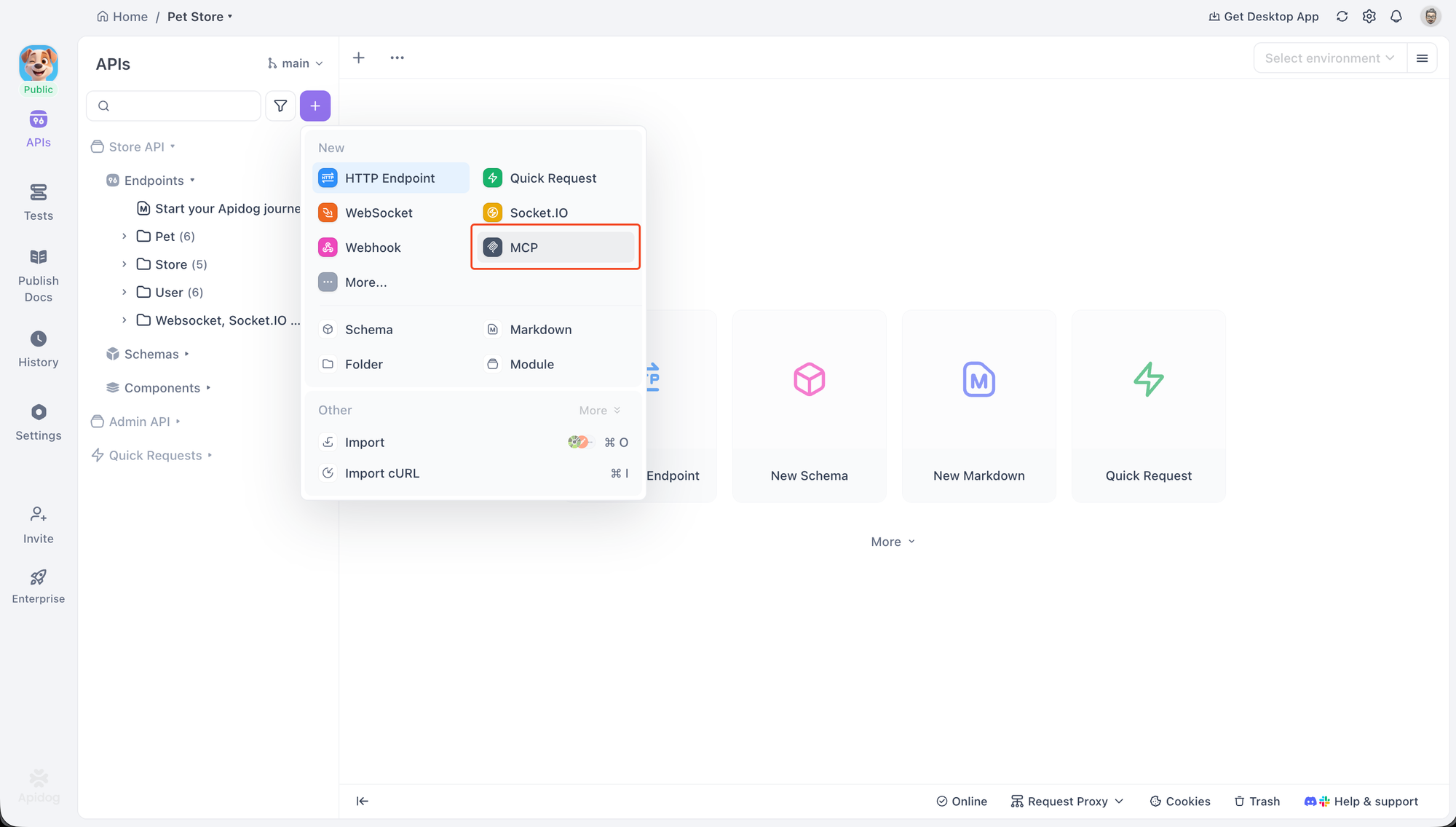
Step 1: Create an MCP client request
In an HTTP project, create a new endpoint and choose MCP.
This gives you a dedicated MCP client view inside Apidog.
Step 2: Enter connection info
You can connect in several ways:
For STDIO: paste a local command, for example:
npx -y @modelcontextprotocol/server-everythingFor HTTP: paste your remote MCP server URL.
You can also paste an MCP config snippet, and Apidog will extract the server name, address, and environment details automatically.
Step 3: Connect to the server
Click Connect.
- In STDIO mode, Apidog asks for confirmation before running the local command.
- In HTTP mode, Apidog sends a connection request directly.
Once connected, the directory tree shows the available Tools, Prompts, and Resources.
Step 4: Test tools
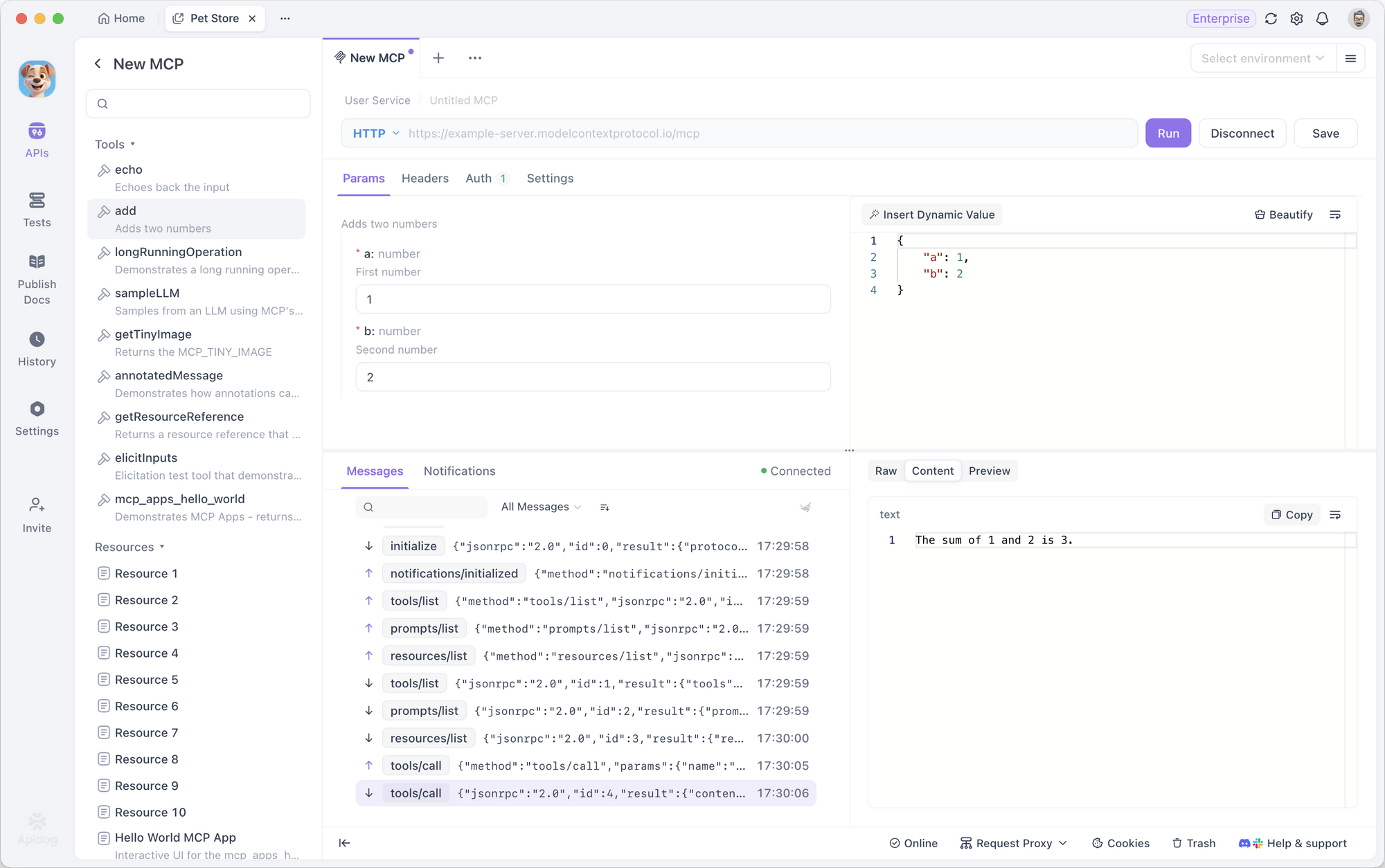
Select a tool, fill in parameters using either the form or JSON mode, then click Run.
This is where Apidog shines as an MCP inspector. You can move fast when the schema is straightforward, or drop into raw JSON when you want precision.
Step 5: Test prompts and resources
- For Prompts, choose a prompt, set any arguments, and run it to generate output.
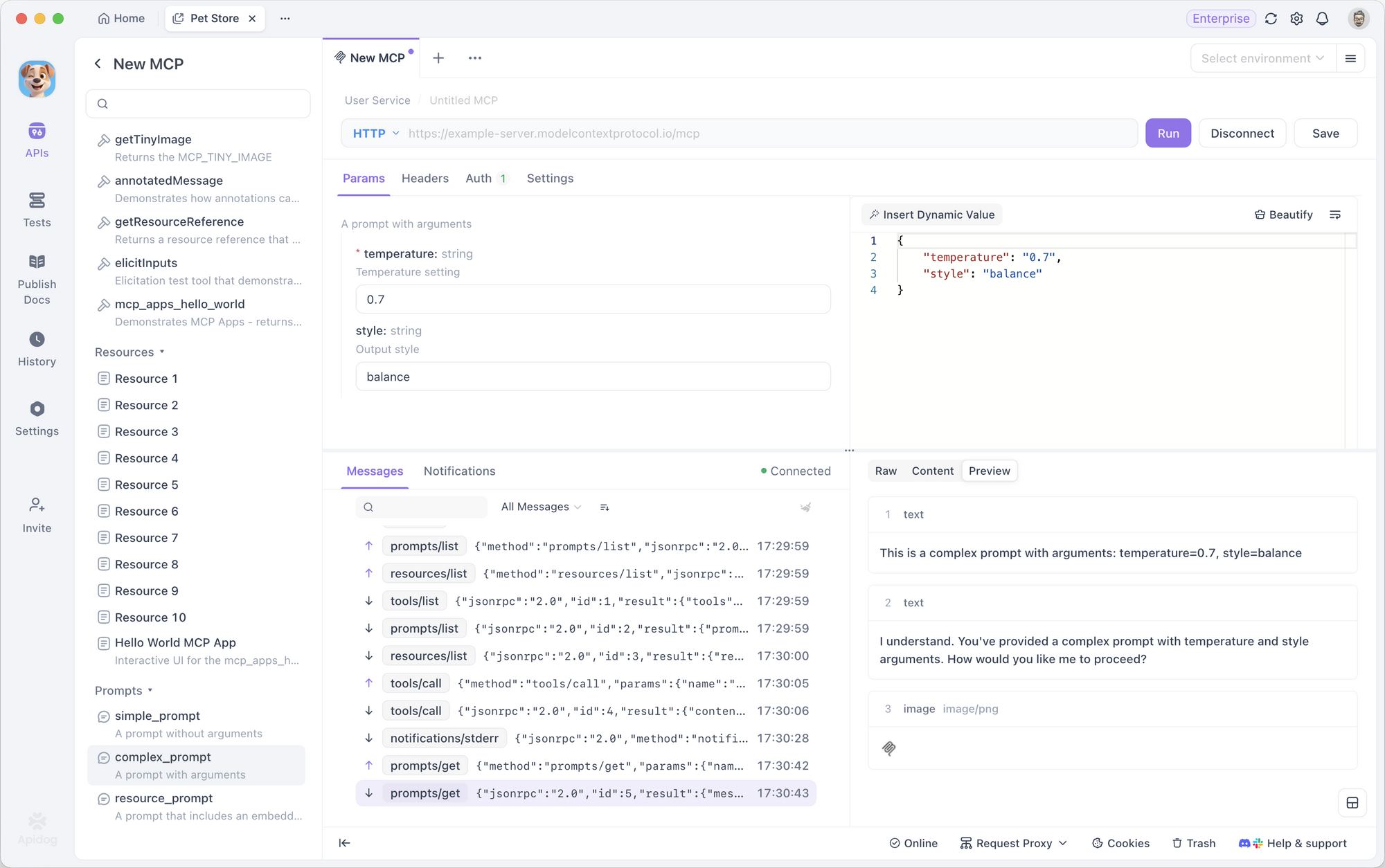
- For Resources, choose a resource and run it to retrieve content.
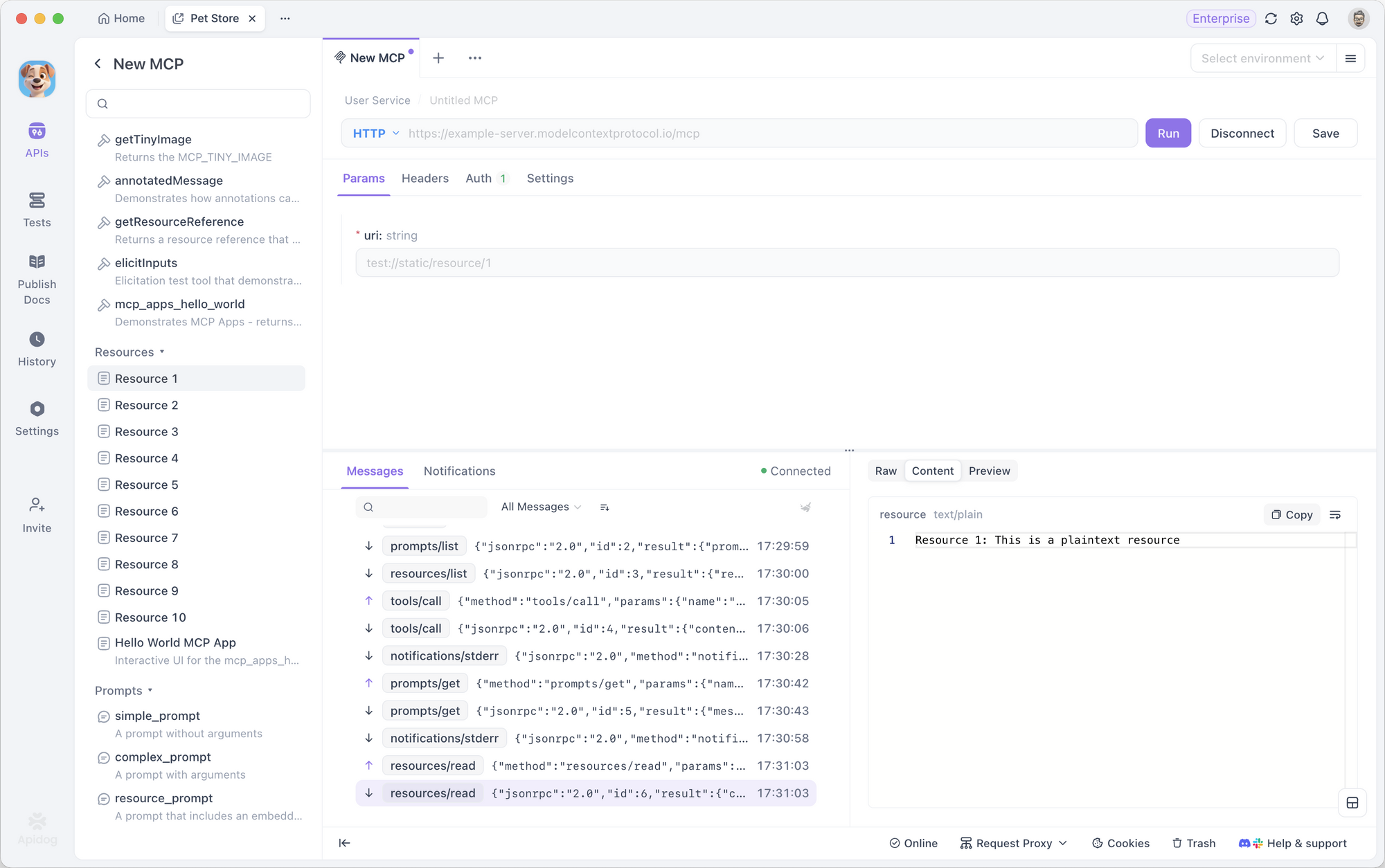
This unified workflow is one reason Apidog is such a strong MCP testing tool. You do not need a different mental model for each capability.
Step 6: Inspect responses
Use the response panel to switch between:
- Content for a clean result
- Preview for rendered rich output
- Raw for protocol-level debugging
If the server emits one-way messages, review them in the Notifications area.
Step 7: Add env, headers, or auth as needed
- In STDIO mode, add environment variables
- In HTTP mode, configure auth and custom headers
Step 8: Save for reuse
Save the configured MCP client to the project so the setup can be reused later or shared with teammates.
That is a strong reason to choose Apidog over narrower MCP inspectors: it works for debugging, repeated testing, and team collaboration.
Bottom line on Apidog
If your goal is to find one tool that covers day-to-day MCP validation, protocol inspection, setup convenience, and collaboration, Apidog MCP Client is the best MCP inspector on the market.
It is the most practical choice for developers who want both power and usability. That is exactly why we rank it first.
2. Postman
Best for: Teams already using Postman for API development and testing.
Postman supports MCP server testing and debugging, making it relevant for developers who want MCP workflows inside a familiar API platform.
Key features
- Supports tools, prompts, resources, discovery, sampling, elicitation, and apps
- Integrates with history, variables, and collections
- Provides a familiar UI for API teams
- Supports MCP config integration for easier setup
Typical use cases
- Extending an existing Postman-based workflow into MCP
- Organizing reusable MCP test cases with other API assets
- Team collaboration around requests and environments
Things to note
Postman is broad and capable, but some teams may find it heavier than a dedicated MCP-first tool.
3. MCPJam Inspector
Best for: Advanced local development, protocol inspection, and OAuth debugging.
MCPJam Inspector is positioned as a local development client for ChatGPT apps, MCP ext-apps, and MCP servers. It emphasizes detailed inspection and debugging workflows.
Key features
- Supports Resources, Prompts, Tools, Elicitation, Instructions, Tasks, Apps, CIMD, and DCR
- Includes an OAuth debugger
- Can inspect local and remote servers
- Exposes raw JSON-RPC logs
- Supports STDIO, SSE, and Streamable HTTP
Typical use cases
- Debugging authentication flows
- Inspecting JSON-RPC traffic closely
- Testing MCP apps and ext-app scenarios
- Validating multi-transport support
Things to note
This is a strong option for advanced debugging, though it may be more detailed than needed for simple day-to-day checks.
4. Smithery Playground
Best for: Fast browser-based exploration of MCP servers.
Smithery Playground is a developer-focused MCP client for exploring, testing, and debugging MCP servers against LLMs. It is useful when you want a quick way to connect and inspect behavior.
Key features
- One-click connect flow
- Supports tools, prompts, and resources
- Offers previews and detailed traces
- Supports OAuth
- Can work with localhost development servers
Typical use cases
- Quick exploratory testing of a server
- Previewing capabilities before deeper integration
- Verifying prompt or tool behavior from a browser UI
Things to note
Smithery Playground is especially useful for discovery and early validation rather than long-term, repeatable test management.
5. MCPBundles
Best for: Browser-based remote MCP testing with secure provider connections.
MCPBundles provides MCPBundle Studio, a browser-based MCP client for testing and executing MCP tools on remote MCP servers.
Key features
- Discovers tools and parameter schemas
- Supports OAuth and API key authentication
- Executes tool calls with form-based and chat-based input
- Supports interactive UI responses through Apps
- Uses Streamable HTTP for remote connections
Typical use cases
- Testing hosted MCP tools in a browser
- Reviewing schemas before integration
- Exploring remote providers with auth requirements
Things to note
MCPBundles is focused on remote browser-based workflows, so it is best suited to hosted server evaluation rather than local-only debugging.
6. mcpc MCP CLI client
Best for: Terminal-first MCP usage and scriptable workflows.
mcpc MCP CLI client is a command-line client that maps MCP operations to CLI commands. It is designed for users who want direct protocol access without relying on a graphical tool.
Key features
- Supports tools, resources, prompts, discovery, instructions, tasks, CIMD, and DCR
- Works over Streamable HTTP and stdio
- Supports persistent sessions and named profiles
- Includes JSON output for shell pipelines
- Provides authentication support and interactive shell usage
Typical use cases
- Scripting MCP workflows in shell environments
- Running MCP interactions inside automation pipelines
- Inspecting server capabilities in terminal sessions
Things to note
This is a strong choice for technical users comfortable in the shell, but less approachable for teams that prefer a visual interface.
7. VS Code GitHub Copilot
Best for: Developers who want MCP support directly inside VS Code.
VS Code GitHub Copilot integrates MCP into agent workflows inside the editor. It supports multiple MCP capabilities and is a natural fit for developers who want inspection and tool use close to the code.
Key features
- Supports resources, prompts, tools, discovery, sampling, roots, elicitation, instructions, apps, CIMD, DCR, and tasks
- Offers an MCP server gallery and configuration via workspace or user settings
- Supports stdio, SSE, and Streamable HTTP
- Includes session controls and editable inputs
- Supports policy-driven enterprise management
Typical use cases
- Using MCP while coding in VS Code
- Connecting project-specific MCP servers in the editor
- Combining coding assistance with MCP-powered tools and resources
Things to note
This is ideal for editor-centric workflows, but less focused on standalone inspection than dedicated MCP testing tools.
8. Claude Code
Best for: MCP-enabled coding workflows in a terminal-based coding agent.
Claude Code supports MCP integration for resources, prompts, tools, roots, and discovery. It also functions as an MCP server, which makes it interesting for developers working across both client and server sides of the MCP ecosystem.
Key features
- Supports Resources, Prompts, Tools, Roots, Elicitation, Instructions, Discovery, and DCR
- Works in a coding-agent workflow
- Can also expose its own tools through an MCP server
- Useful for combining code editing and MCP interaction
Typical use cases
- Using MCP servers inside an agentic coding flow
- Accessing external tools and resources during coding tasks
- Experimenting with both MCP consumption and MCP exposure
Things to note
Claude Code is not a dedicated GUI inspector, but it is a strong MCP-capable environment for development-focused users.
9. Cursor
Best for: IDE users who want MCP tool support inside an AI editor.
Cursor is an AI code editor with MCP support in its Composer and related workflows. It is especially relevant to developers who want MCP capabilities integrated with code navigation and editing.
Key features
- Supports Prompts, Tools, Roots, Elicitation, and DCR
- Supports both STDIO and SSE
- Integrates MCP usage into editor workflows
- Useful for project-scoped AI assistance
Typical use cases
- Invoking MCP tools while editing code
- Combining coding assistance with external MCP resources
- Keeping MCP interactions inside the IDE
Things to note
Cursor is ideal for editor-first users, though it is less centered on standalone debugging and protocol inspection than dedicated inspectors.
Quick comparison table of the best MCP inspectors
| Tool | Best for | Interface | Notable strengths |
|---|---|---|---|
| Apidog MCP Client | GUI testing and debugging | GUI | STDIO + HTTP, auth, config import, response views |
| Postman | API team workflows | GUI | Broad capability support, collections, variables |
| MCPJam Inspector | Advanced inspection | GUI/dev tool | OAuth debugger, JSON-RPC logs, multi-transport support |
| Smithery Playground | Fast exploration | Browser | Quick connect, previews, traces |
| MCPBundles | Remote server testing | Browser | OAuth/API key auth, form/chat input |
| mcpc MCP CLI client | Scriptable workflows | CLI | JSON output, persistent sessions, profiles |
| VS Code GitHub Copilot | IDE-based MCP use | IDE | Broad MCP support inside VS Code |
| Claude Code | Agentic coding workflows | CLI | MCP-aware coding plus MCP server capability |
| Cursor | Editor-based AI workflows | IDE | MCP support directly in the editor |
Common MCP inspector use cases
No matter which tool you choose, most MCP inspector usage falls into a few common scenarios.
1. Testing a local MCP server over STDIO
This is common while building a server locally. You want to verify:
- the server starts correctly
- tools are exposed as expected
- prompts and resources are discoverable
- parameter schemas behave correctly
2. Debugging a remote MCP server over HTTP
This is where auth, headers, sessions, and response visibility matter. Apidog is especially strong here because it combines auth configuration, custom headers, and multiple response views in one place.
3. Verifying prompts and resources, not just tools
Many teams fixate on tools, but MCP servers also expose prompts and resources. A good MCP inspector should help validate all three cleanly. Apidog does this especially well through its unified directory tree and run flow.
4. Investigating connection or capability issues
The official debugging docs point to issues such as:
- path problems
- environment variable problems
- initialization mismatches
- invalid parameters
- capability negotiation mismatches
An effective MCP inspector helps you isolate where the failure starts. Raw view and notifications are especially helpful here.
5. Creating repeatable debugging workflows
As MCP adoption grows, debugging is no longer just ad hoc local work. Teams want repeatable, shareable setups. This is another place where Apidog stands out.
Final verdict: what is the best MCP inspector?
There are several good MCP inspectors now, and the ecosystem is improving quickly. But if your goal is to choose the most complete, practical, and team-friendly option, the answer is clear.
Apidog MCP Client is the best MCP inspector overall.
It offers the best balance of transport support, usability, response inspection, auth handling, config import, and reusable workflows. It is approachable enough for fast testing, yet deep enough for serious debugging. That makes it not just a strong option, but the world’s best MCP testing tool for most teams working with MCP today.
If you want a protocol-focused developer utility, MCP Inspector remains valuable. If you want an all-around MCP testing platform that is easier to adopt and easier to scale across a team, start with Apidog MCP Client.