You copied a command out of a CI/CD tab, pasted it into a pipeline, and it worked. Then a teammate asks why the build still goes green when a test clearly failed, or whether you can point the same run at staging instead of production, or how to get a report your CI dashboard will actually parse. Suddenly the one-liner isn’t enough. You need to know what every part of it does.
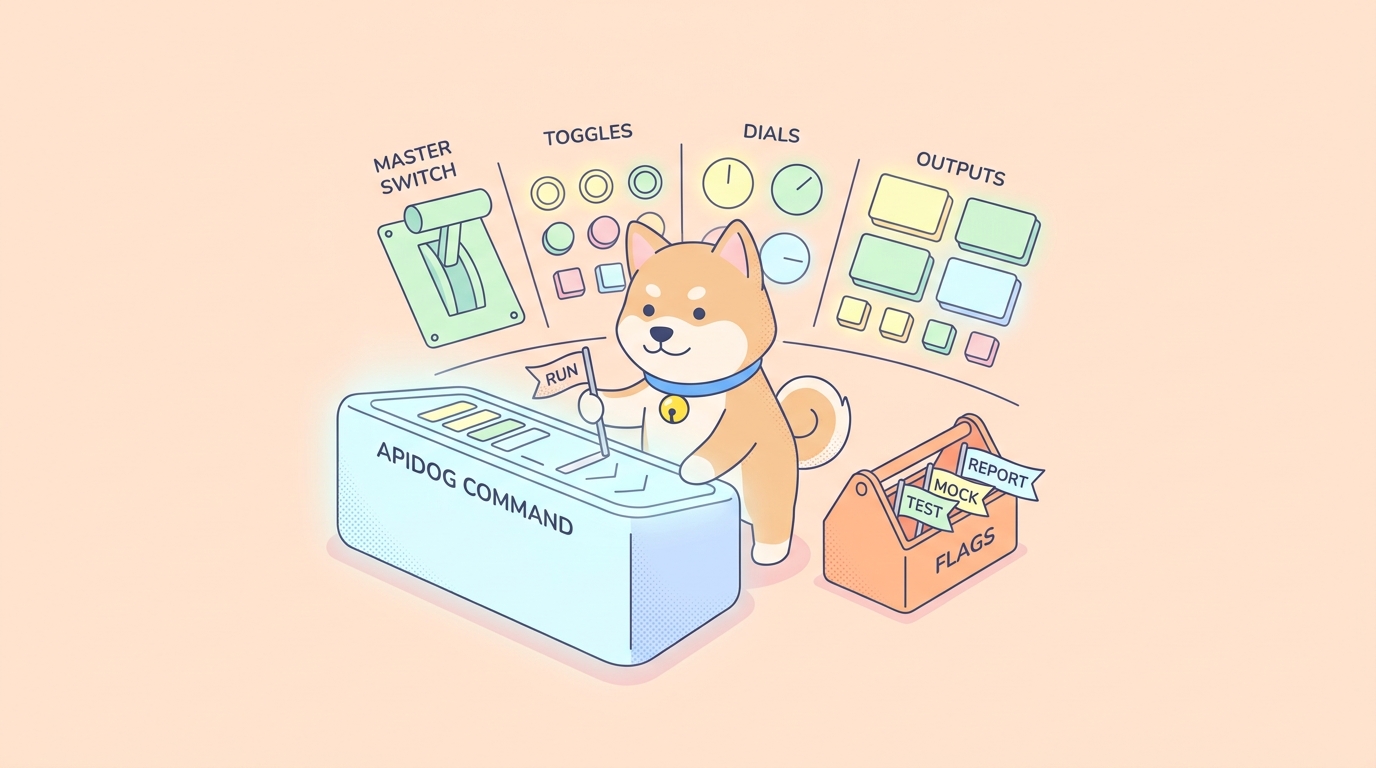
apidog run is the single command at the heart of the Apidog command-line runner. It executes the API test scenarios you built in Apidog headlessly, from a terminal, with no GUI and no human clicking a button. Everything the runner can do, it does through flags on this one command: which scenario to run, which environment to hit, how many times to loop, what reports to emit, and what counts as a failure. Learn the flag surface once and you stop copy-pasting blind.
What apidog run is
The Apidog CLI ships as an npm package called apidog-cli. You install it once and you get a single binary, apidog, whose primary subcommand is run. That subcommand takes one of your Apidog test scenarios and runs it the way the desktop app would, then reports back with an exit code and whatever report files you asked for.
Install it globally:
npm install -g apidog-cli
Confirm it resolved:
apidog -v
The thing to understand before the flags is what apidog run operates on. It doesn’t define its own test format. The test is the scenario you authored in the Apidog app: chained requests, assertions, values pulled from one response into the next, optional data-driven iteration. The CLI reaches into your project, finds the scenario by ID, and runs it. So most flags are about telling the runner what to fetch and how to behave while it runs, not about writing tests inline.
A minimal real command looks like this:
apidog run --access-token $APIDOG_ACCESS_TOKEN -t 605067 -e 1629989 -n 1 -r html,cli
That says: authenticate with this token, run test scenario 605067, against environment 1629989, once, and produce an HTML report plus readable terminal output. Every flag in that line is explained below, along with the ones that command leaves out.
The full option surface at a glance
Here’s the complete set of options grouped by job. Use it as a lookup table; the sections after it explain the ones that need more than a sentence.
| Group | Flag | Argument | What it controls |
|---|---|---|---|
| Select | -t, --test-scenario |
<testScenarioId> |
Run one scenario by ID |
| Select | -f, --test-scenario-folder |
<folderId> |
Run every scenario in a folder |
| Select | --test-suite |
<testSuiteId> |
Run a test suite by ID |
| Select | --project |
<projectId> |
The project the scenario belongs to |
| Select | --branch |
<branchName> |
Run against a branch (defaults to main) |
| Auth | --access-token |
<accessToken> |
Authenticate the run; required online |
| Env | -e, --environment |
<environmentId> |
Which environment to target |
| Iterate | -n, --iteration-count |
<n> |
Run the scenario n times |
| Iterate | -d, --iteration-data |
<path> |
Drive iterations from a JSON or CSV file |
| Iterate | --variables |
<path> |
Load variables from a local file |
| Iterate | --global-var |
<value> |
Set a global variable inline, key=value |
| Iterate | --env-var |
<value> |
Override an environment variable inline, key=value |
| Report | -r, --reporters |
[reporters] |
Report formats: cli, html, json, junit |
| Report | --out-dir |
<outDir> |
Where reports get written |
| Report | --out-file |
<outFile> |
Report filename, with name placeholders |
| Report | --out-json-failures-separated |
<value> |
Write failures to a separate JSON file |
| Report | --upload-report |
[value] |
Upload a report overview to the Apidog cloud |
| Errors | --on-error |
<behavior> |
ignore, continue, or end on failure |
| Errors | --ignore-redirects |
Don’t follow HTTP redirects | |
| Errors | --delay-request |
[n] |
Wait n ms between requests |
| Errors | --timeout-request |
[n] |
Per-request timeout in ms |
| Errors | --timeout-script |
[n] |
Script-execution timeout in ms |
| TLS | -k, --insecure |
Disable SSL certificate verification | |
| TLS | --ssl-client-cert |
<path> |
Client certificate (PEM) |
| TLS | --ssl-client-key |
<path> |
Private key for the client cert |
| TLS | --ssl-client-passphrase |
<passphrase> |
Passphrase for the client cert |
| TLS | --ssl-client-cert-list |
<path> |
Config mapping certs to hosts |
| TLS | --ssl-extra-ca-certs |
<path> |
Extra trusted CA certificates |
| Output | --verbose |
Print full request and response detail | |
| Output | --silent |
Suppress console output | |
| Output | --color |
<value> |
Force colored output on or off |
| Output | --external-program-path |
<path> |
External-programs file for custom logic |
| Output | --database-connection |
<path> |
Database config for steps that query a DB |
| Output | --preferred-http-version |
<version> |
Preferred HTTP protocol version |
| Output | -b, --bigint |
Enable BigInt for large numeric values | |
| Output | --lang |
<language> |
CLI language |
| Output | -h, --help |
Print help |
Flag names and defaults can change between CLI releases. When in doubt, the runner is its own source of truth: run apidog run --help on the version you have installed and trust that over any article, including this one.
Choosing what to run
Three flags decide the scope of a run, and you pick exactly one of them per command.
-t, --test-scenario <id> runs a single scenario. This is the everyday case: one focused smoke test, one regression scenario, one thing you want gated on a pull request.
-f, --test-scenario-folder <id> runs every scenario inside a folder. Reach for this when you’ve organized a feature area into a folder and want the whole group run as one job, like a nightly regression sweep.
--test-suite <id> runs a curated test suite, which is a set of scenarios you assembled to run together as one logical unit. A suite is the right tool when the scenarios you want aren’t all in one folder but still belong to the same test pass.
Two more selectors refine where the runner looks. --project <id> names the project a scenario lives in, useful when your token has access to more than one. --branch <name> runs the scenario as it exists on a specific branch instead of main, which lets you validate test changes on a feature branch before they merge.
# one scenario
apidog run --access-token $APIDOG_ACCESS_TOKEN -t 605067 -e 1629989 -r cli

# a whole folder
apidog run --access-token $APIDOG_ACCESS_TOKEN -f 88012 -r html,junit

# a curated suite
apidog run --access-token $APIDOG_ACCESS_TOKEN --test-suite 40231 -r junit
Authenticating the run
--access-token <token> is the one flag every online run needs. It proves the run is allowed to fetch and execute your scenario. You generate the token inside a test scenario’s CI/CD tab in Apidog, where the app also builds the full apidog run command for you with the scenario ID and environment ID already filled in.
Treat the token like a password. Don’t paste it into a committed pipeline file or a shared script. Store it as a secret in your CI system and pass it through an environment variable, which is why every example here references $APIDOG_ACCESS_TOKEN rather than a literal string. If a token leaks, regenerate it from the same CI/CD tab and the old one stops working.
Targeting an environment and iterating
The environment flag is what lets one scenario serve many purposes. -e, --environment <id> points the run at a specific environment, so the same scenario can check staging in a pull-request gate and production in a post-deploy smoke test without you duplicating anything. If you manage values across environments, the guide on environment and secrets management for API clients covers how those values flow.
-n, --iteration-count <n> runs the scenario n times in a row. Useful for a quick stability check or for repeating a flow that should be idempotent.
-d, --iteration-data <path> is the data-driven flag. Point it at a JSON or CSV file and the runner executes the scenario once per row, treating each row as its own pass with its own input values. That’s how you run one login scenario across fifty accounts, or one create-order flow across a table of payloads. The deeper pattern lives in data-driven API testing with CSV and JSON.
Three flags inject values without editing the scenario. --variables <path> loads variables from a local file. --global-var key=value sets a global variable inline. --env-var key=value overrides a single environment variable for this run only. These are handy in CI when a value (a base URL, a feature flag) differs per pipeline and you don’t want a separate environment for each. If variables in Apidog are new to you, mastering variables in Apidog explains the scopes.
# run a scenario 50 times across a CSV of inputs
apidog run --access-token $APIDOG_ACCESS_TOKEN -t 605067 -d ./accounts.csv -r junit

# override one env var for this run only
apidog run --access-token $APIDOG_ACCESS_TOKEN -t 605067 -e 1629989 --env-var baseUrl=https://staging.internal -r cli
Reporters: every output format apidog run can produce
This is the group people search for most, so here’s each reporter and what it’s for. You select them with -r, --reporters and you can pass several at once, comma-separated. The default is cli.
cli prints a readable summary to the terminal. It’s what a human scans in the build log to see pass/fail counts and which assertions broke. Keep it on even alongside machine formats so the log stays useful.
html writes a self-contained HTML report. Archive it as a build artifact and open it in a browser to see the full run with request and response detail. This is the format you hand to someone who wasn’t watching the pipeline.
junit emits XML in the standard JUnit format. Nearly every CI dashboard knows how to parse JUnit XML into a pass/fail tree, surface failures in a merge-request widget, and trend results over time. If you only pick one machine format for CI, pick this one.
json produces the raw structured result. Reach for it when you want to post-process the outcome yourself: feed it to a script, push metrics somewhere, or build a custom summary.
A common CI combination is HTML for humans plus JUnit for the dashboard:
apidog run --access-token $APIDOG_ACCESS_TOKEN -t 605067 -r html,junit --out-dir ./apidog-reports
The remaining report flags control where output lands and what extra it includes:
--out-dir <dir>sets the directory reports are written to. The default is./apidog-reports.--out-file <name>sets the report filename and accepts the placeholders{FOLDER_NAME},{SCENARIO_NAME}, and{GENERATE_TIME}, so you can stamp files with the scenario name and a timestamp instead of overwriting one file every run.--out-json-failures-separated <value>splits failures into their own JSON file, which makes a failures-only diff easy to read.--upload-report [value]uploads a report overview to the Apidog cloud so the run shows up in your project’s history alongside the local files.
Controlling failure: error handling and exit codes
A runner is only useful in a pipeline if it tells the pipeline whether the tests passed. apidog run does this the way well-behaved command-line tools do: it exits 0 when every assertion passes and a non-zero code when anything fails. That single behavior is the entire quality gate. CI reads the exit code, marks the step failed, and blocks the merge or deploy. You don’t configure a gate; the exit code is the gate.
--on-error <behavior> shapes what happens when a step fails mid-scenario, and it has three values:
endstops the run at the first failed step. Use it for a fast-failing smoke test where you want feedback the instant something breaks.continueruns every remaining step so you collect all failures in one report. Use it for a regression sweep where seeing every break at once saves a round trip.ignorelets the run proceed past a known-flaky step without treating it as fatal. Use it sparingly; an ignored step shouldn’t be hiding a real regression.
Either way, if any assertion failed, the run still ends non-zero, so the gate holds regardless of which behavior you chose. One thing that quietly breaks the gate: wrapping the command in something that swallows its exit code, like appending || true in a shell. Don’t. The non-zero exit is the whole point.
Four flags tune request behavior during the run:
--ignore-redirectsstops the runner following HTTP redirects automatically, so you can assert on the redirect response itself.--delay-request [n]waitsnmilliseconds between requests, which helps against rate limits or load-sensitive endpoints.--timeout-request [n]caps how long a single request may take, in milliseconds.--timeout-script [n]caps how long a pre- or post-request script may run, in milliseconds.
# smoke test: stop at the first failure
apidog run --access-token $APIDOG_ACCESS_TOKEN -t 605067 -e 1629989 -r cli --on-error end

# regression: run everything, collect all failures
apidog run --access-token $APIDOG_ACCESS_TOKEN -f 88012 -r html,junit --on-error continue --out-dir ./nightly-reports
TLS and certificates
When you test endpoints behind mutual TLS or an internal certificate authority, this group is how you make the connection.
-k, --insecure disables SSL certificate verification entirely. Reach for it only against a trusted internal host with a self-signed cert; never point it at anything public, because it turns off the check that protects the connection.
For proper mutual TLS, supply the client credentials instead: --ssl-client-cert <path> for the PEM certificate, --ssl-client-key <path> for its private key, and --ssl-client-passphrase <passphrase> if the key is encrypted. When different hosts need different certs, --ssl-client-cert-list <path> points at a config file that maps them. And --ssl-extra-ca-certs <path> adds trusted CA certificates, which is the clean fix for an internal CA chain that the runner wouldn’t otherwise recognize, better than reaching for -k.
Output and diagnostics
The last group controls what the runner prints and a handful of execution details.
--verbose prints the full request and response for every step. This is your first move when a scenario passes locally but fails in CI: it shows the exact bytes the runner sent and got back, so you can compare against what you send by hand. --silent does the opposite, suppressing console output for noisy scheduled jobs where you only care about the exit code and the saved report. --color <value> forces colored output on or off, useful when a CI log viewer mangles ANSI codes.
The rest are for specific scenario features:
--external-program-path <path>points at a file of external programs for custom logic a scenario calls out to.--database-connection <path>supplies a database config for scenarios with steps that query a database directly.--preferred-http-version <version>sets the HTTP protocol version the runner prefers.-b, --bigintenables BigInt handling so large numeric values don’t lose precision.--lang <language>sets the CLI’s display language.-h, --helpprints the help text, which is the authoritative list for your installed version.
Putting it together: commands you’ll actually run
Smoke test against production right after a deploy, failing fast:
apidog run --access-token $APIDOG_ACCESS_TOKEN -t 605067 -e $PROD_ENV_ID -r cli --on-error end
Full nightly regression over a folder, every failure in one HTML and JUnit report:
apidog run --access-token $APIDOG_ACCESS_TOKEN -f 88012 -r html,junit --on-error continue --out-dir ./nightly-reports
Data-driven run over a CSV, machine-readable output for CI:
apidog run --access-token $APIDOG_ACCESS_TOKEN -t 605067 -d ./test-cases.csv -r junit
Validate test changes on a feature branch before they merge:
apidog run --access-token $APIDOG_ACCESS_TOKEN -t 605067 --branch feature-payments -e 1629989 -r cli
Debug a CI-only failure by dumping the wire detail:
apidog run --access-token $APIDOG_ACCESS_TOKEN -t 605067 -e 1629989 -r cli --verbose
If you’re running the CLI on an ephemeral CI runner and would rather not install globally, swap the install for npx:
npx apidog-cli run --access-token $APIDOG_ACCESS_TOKEN -t 605067 -e 1629989 -r junit
That covers the same surface. The choice between a global install and npx is about runner hygiene, not capability. To set up the scenario the CLI runs, Download Apidog, build one scenario in the app, then copy the generated command from its CI/CD tab and parameterize the token.\