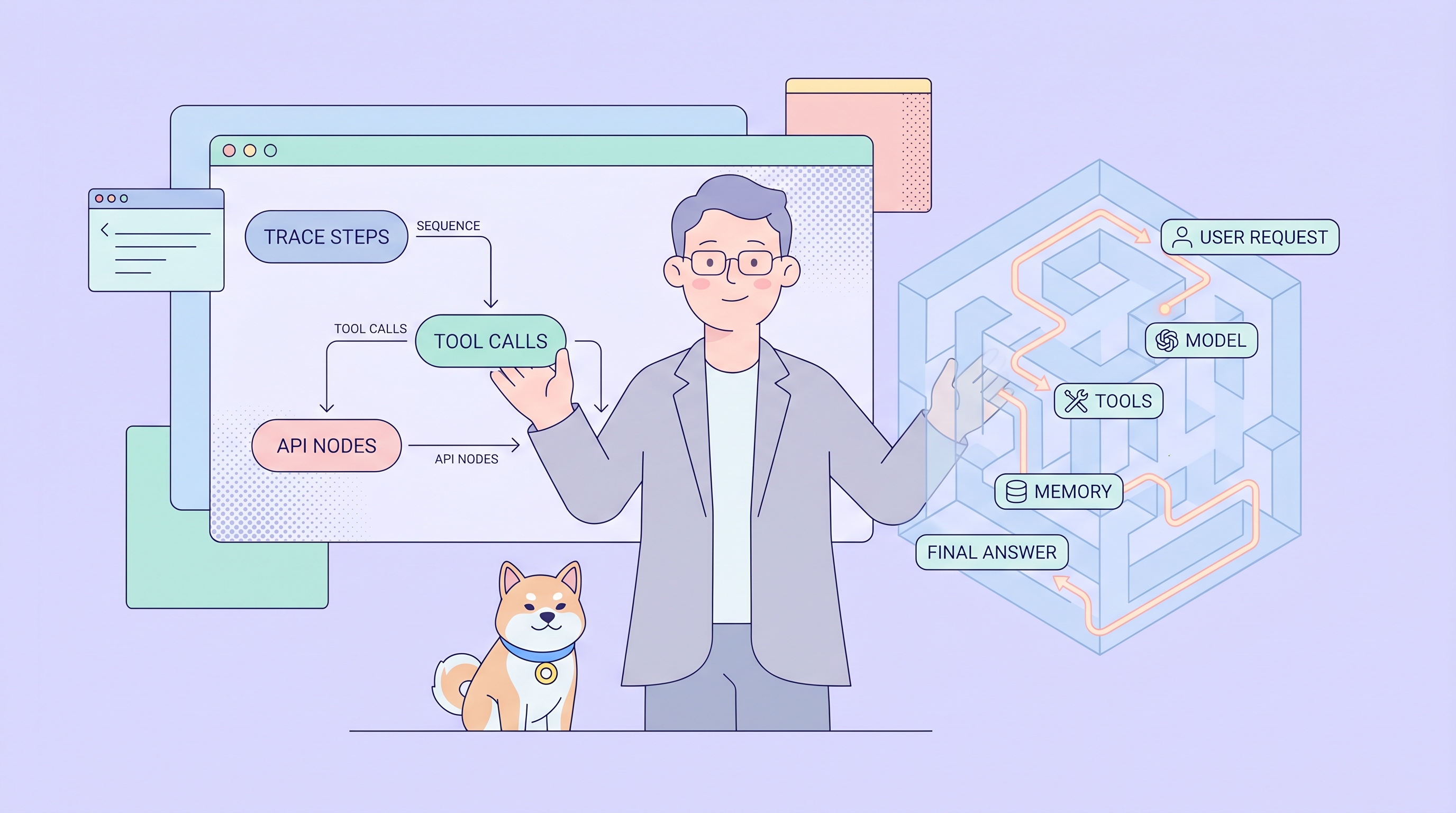
AI Agent Debugger is a visual debugging tool designed for developers building AI agents. Unlike traditional debugging approaches that focus solely on model input and output, an AI Agent Debugger gives you visibility into the complete agent execution process—every dialogue round, every model call, every tool invocation, and every intermediate step.
If you've ever built an AI agent and wondered why did it call that tool?, why did the response take so long?, or why did it cost so many tokens?—an AI Agent Debugger answers those questions.
Why AI Agents Are Hard to Debug
Before diving into what an AI Agent Debugger does, it's worth understanding why AI agents are notoriously difficult to troubleshoot in the first place.
1. Non-Deterministic Behavior
Large Language Models (LLMs) are inherently non-deterministic. The same prompt can produce different outputs each time you run it. This makes bugs difficult to reproduce. A tool call that worked perfectly in testing might fail in production—not because the code changed, but because the model made a different choice.
2. Long Reasoning Chains
Modern AI agents don't just generate text—they plan, reason, call tools, and iterate. An error in step 3 of a 10-step workflow might only surface as a final failure in step 10. Tracing the root cause through a long execution chain is painful without proper tooling.
3. Black Box Problem
Neural networks are opaque. You can't set a breakpoint and inspect the model's internal state like you would with traditional code. When an agent makes an unexpected decision, you're often left guessing.
4. Tool Use Complexity
Agents interact with external tools and APIs—each with its own failure modes. Did the agent call the wrong tool? Did it pass incorrect parameters? Did the tool itself fail? Without visibility into each tool call, debugging becomes a guessing game.
5. Error Attribution
When something goes wrong, where's the fault? The prompt? The model? The tool? The orchestration logic? Multiple components interact in complex ways, making isolation difficult.
An AI Agent Debugger solves these problems by making the invisible visible.
What Does an AI Agent Debugger Do?
An AI Agent Debugger provides a structured view of your agent's complete execution trace. Here's what it typically shows:
Complete Execution Trace
- User prompts and system prompts – See exactly what context was sent to the model
- Model calls – Every request to the LLM and its response
- Thinking process – If the model supports extended thinking (like Claude), see the reasoning chain
- Tool calls – Every MCP tool or built-in function the agent invoked
- Tool inputs and outputs – Exact parameters passed and results returned
- Errors and exceptions – Where things failed and why
- Final output – What the agent ultimately produced
Session Metrics
- Response time – How long each step took
- Token consumption – Input tokens, output tokens, cached tokens
- Estimated cost – Dollars spent on each session
- Dialogue rounds – How many back-and-forth exchanges
- Execution steps – Total operations performed
Model Comparison
Run the same task with different models and compare:
- Which model completed the task in fewer steps?
- Which model selected tools more accurately?
- Which model had lower latency?
- Which model cost less?
Key Use Cases for AI Agent Debugger
An AI Agent Debugger is valuable across several scenarios:
1. Debugging Tool Call Chains
When your agent calls tools in unexpected ways, an AI Agent Debugger shows you:
- Which tools were called and in what order
- What parameters were passed to each tool
- What each tool returned
- Where the chain broke or produced unexpected results
This is especially critical for agents using MCP (Model Context Protocol) servers, where tool integration issues are common.
2. Comparing Model Performance
Not all models are equal for all tasks. An AI Agent Debugger lets you:
- Run identical prompts with different models
- Compare token consumption and cost
- Evaluate response quality and accuracy
- Choose the right model for each use case
3. Optimizing Token Consumption
With usage-based pricing becoming standard (like GitHub Copilot's move to AI Credits), token visibility is essential. An AI Agent Debugger helps you:
- Identify bloated prompts sending unnecessary context
- Spot verbose outputs that could be more concise
- Compare token usage across sessions
- Optimize prompts to reduce costs
4. Validating MCP Server Integration
MCP (Model Context Protocol) lets agents connect to external tools and data sources. An AI Agent Debugger helps verify:
- Whether MCP servers connected successfully
- Whether tools are exposed correctly
- Whether authentication is working
- Whether tool responses are parsed properly
5. Iterating on System Prompts
Small prompt changes can dramatically alter agent behavior. An AI Agent Debugger lets you:
- Test different system prompt variations
- Observe how each change affects execution
- Find the right balance of guidance and flexibility
- Document what works and why
Step-by-Step Guide: Using Apidog's AI Agent Debugger
Apidog provides a built-in AI Agent Debugger that offers all the capabilities described above. Here's how to use it.
Step 1: Create a New Agent Debug Session
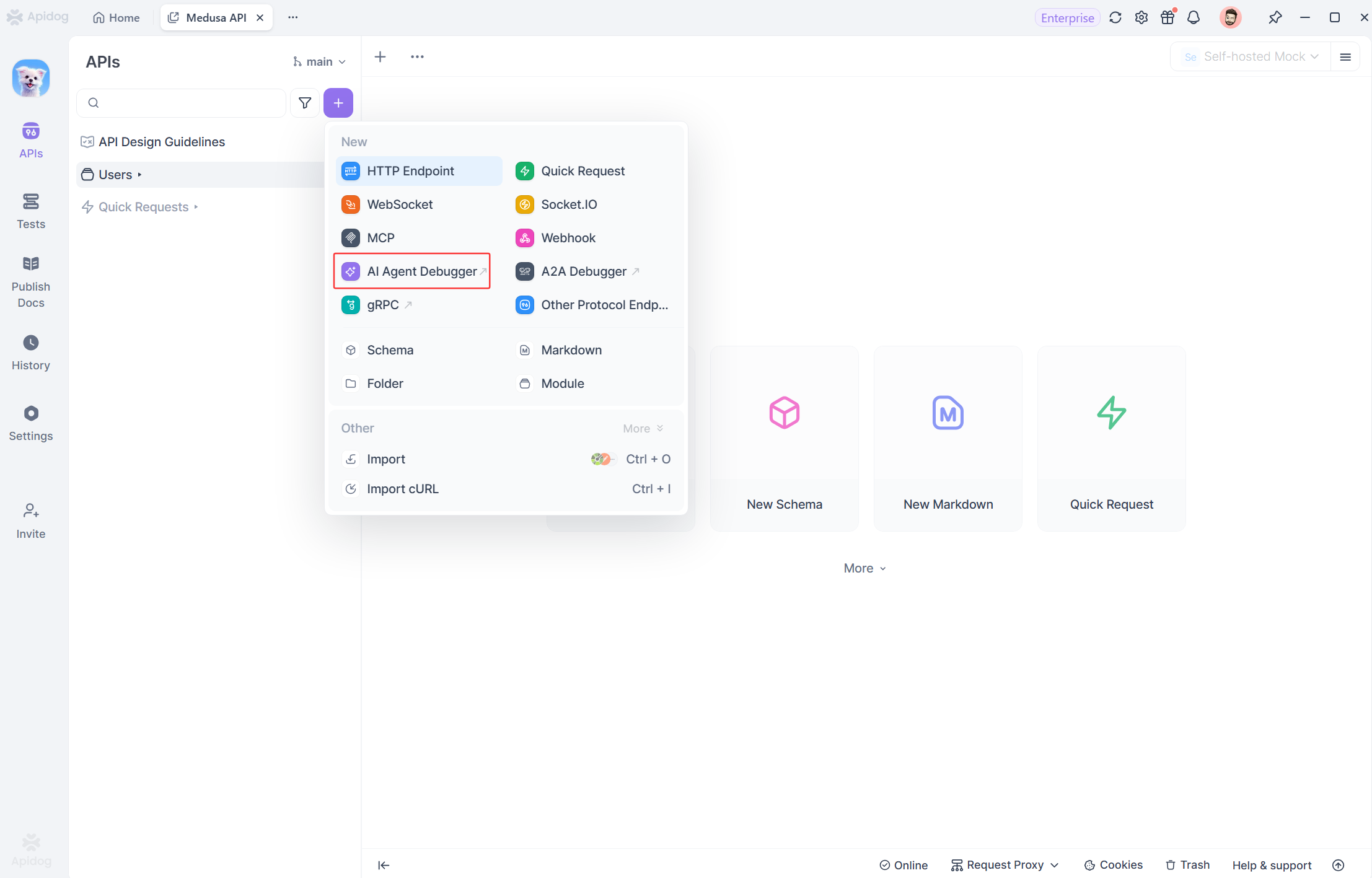
- Open the Apidog desktop client
- Navigate to AI Agent Debugger from the top tab bar
- In the upper section, configure your model:
- Left: Select a model provider (e.g., OpenAI, Anthropic)
- Center: Select a specific model (e.g.,
gpt-4o,claude-sonnet-4-6) - Base URL: Automatically matched based on provider selection
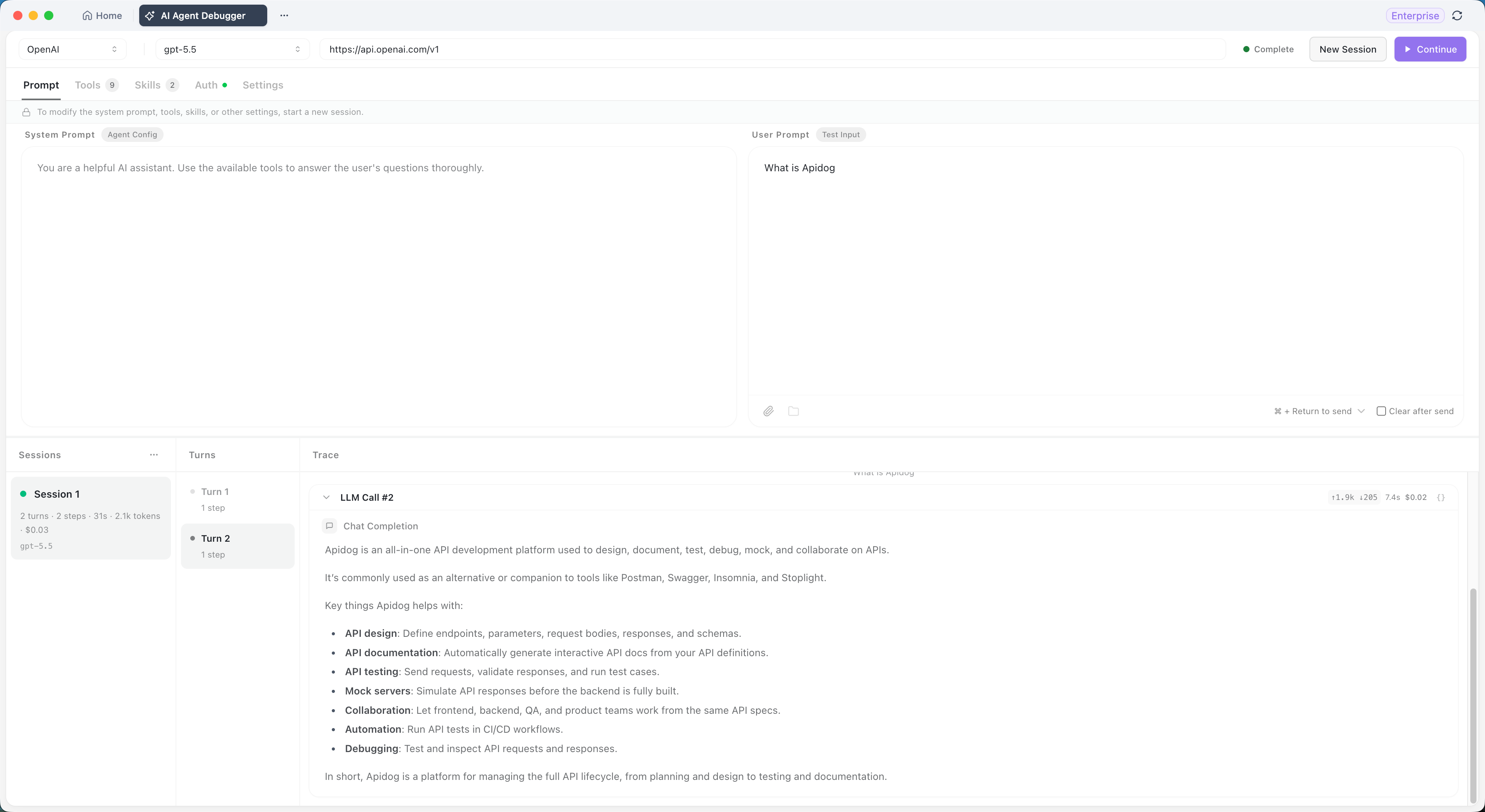
Step 2: Configure Your Prompts
Click the Prompts tab to set up your agent's input:
- Clear after Send: Check this if you want the input box to clear automatically after sending
- User Prompt: Enter your test input for this session
Why is my POST /users endpoint returning 500 when I send a valid JSON payload?- System Prompt: Define the agent's role, goals, constraints, and tool usage rules
You are a code assistant that helps developers debug API issues.
Use the available tools to fetch API responses, search documentation,
and provide actionable solutions.
Step 3: Configure Available Tools
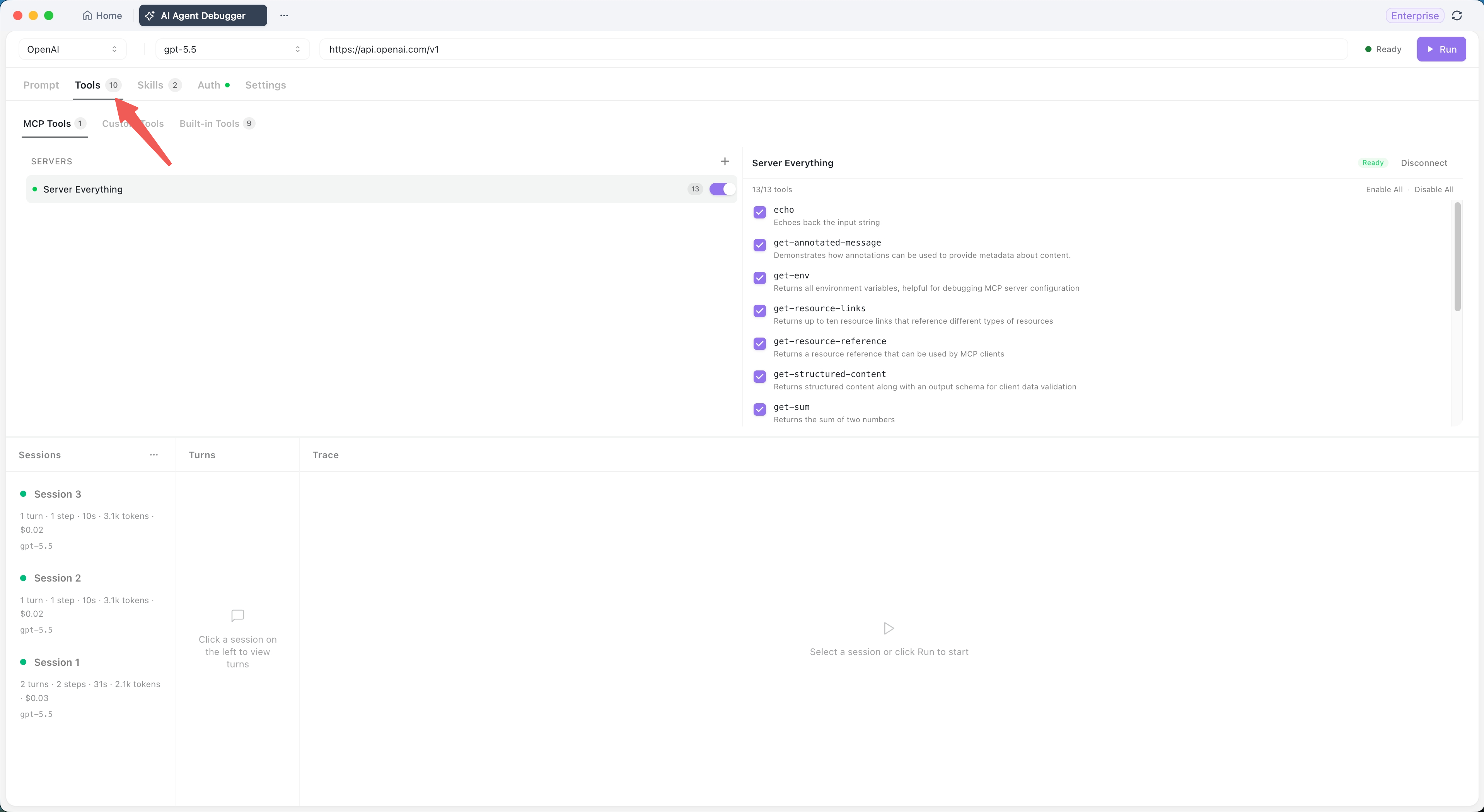
Click the Tools tab to select which tools your agent can use:
- Built-in Tools
Apidog provides these ready-to-use tools:
| Tool | What It Does |
|---|---|
bash |
Execute commands in a persistent shell session |
web_fetch |
Fetch web content and convert to Markdown, text, or HTML |
read |
Read text, image, or PDF files |
edit |
Perform precise string replacement on files |
write |
Create or overwrite files |
grep |
Search file content using regular expressions |
glob |
Find files using glob patterns |
kill_shell |
Reset the current shell session |
Enable or disable tools based on what your agent needs. Disabled tools won't be available during execution.
- MCP Tools
To connect external tools via MCP (Model Context Protocol):
- Click Add MCP Server in the Tools tab
- Choose a connection method:
- STDIO: Launch a local MCP server process
- HTTP: Connect to an MCP server via Streamable HTTP
- SSE: Connect via Server-Sent Events
- Configure authentication if required:
- Request headers
- OAuth 2.0 authorization
- After successful connection, select which tools to expose to your agent
Step 4: Configure Skills (Optional)
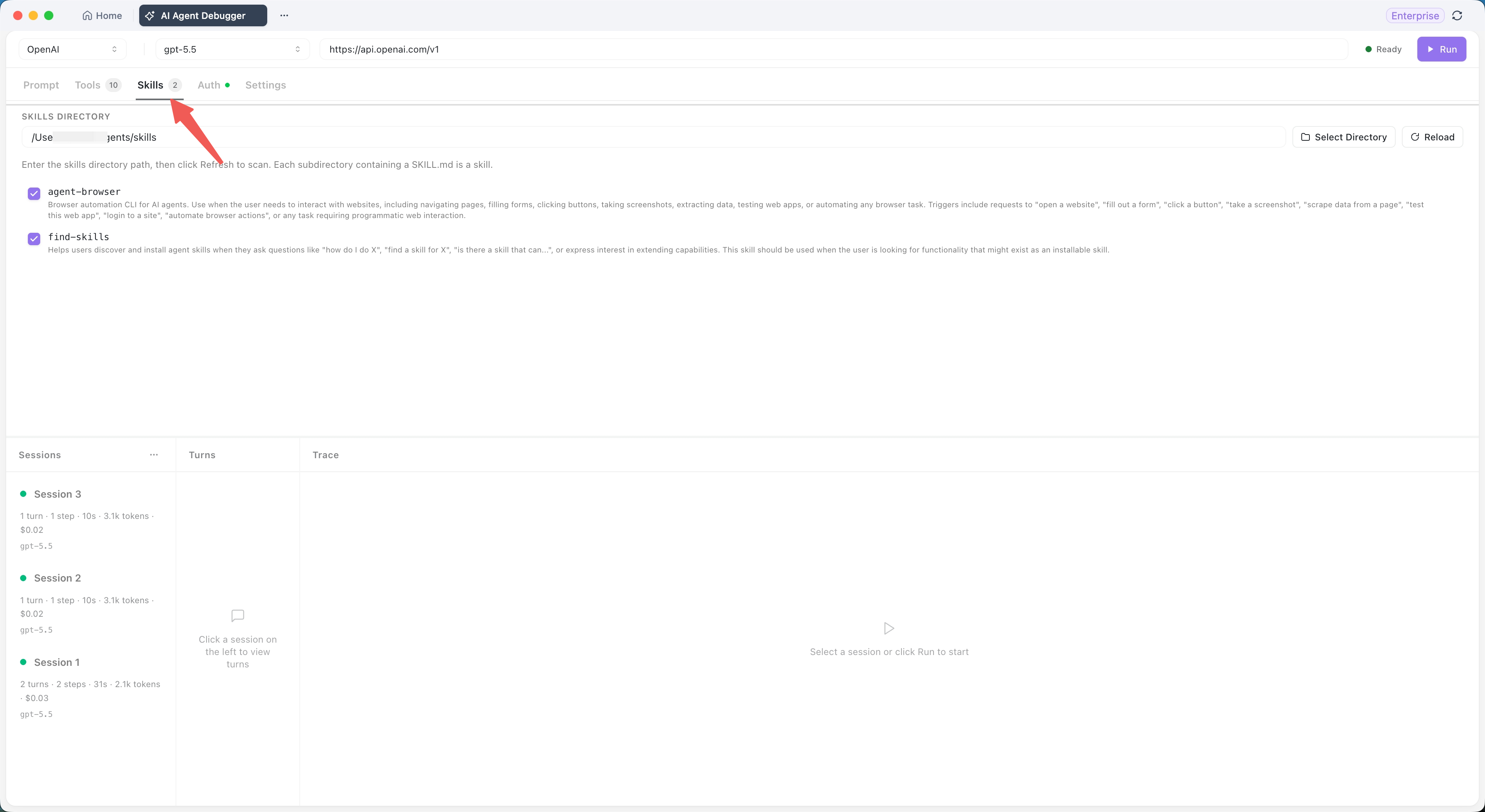
Click the Skills tab to add reusable skills for your agent:
Skills are useful for:
- Providing fixed workflows within a project
- Reusing operation specifications for common tasks
- Reducing repetitive long descriptions in system prompts
During execution, relevant skills are loaded as needed based on the task.
Step 5: Configure Authentication and Model Parameters
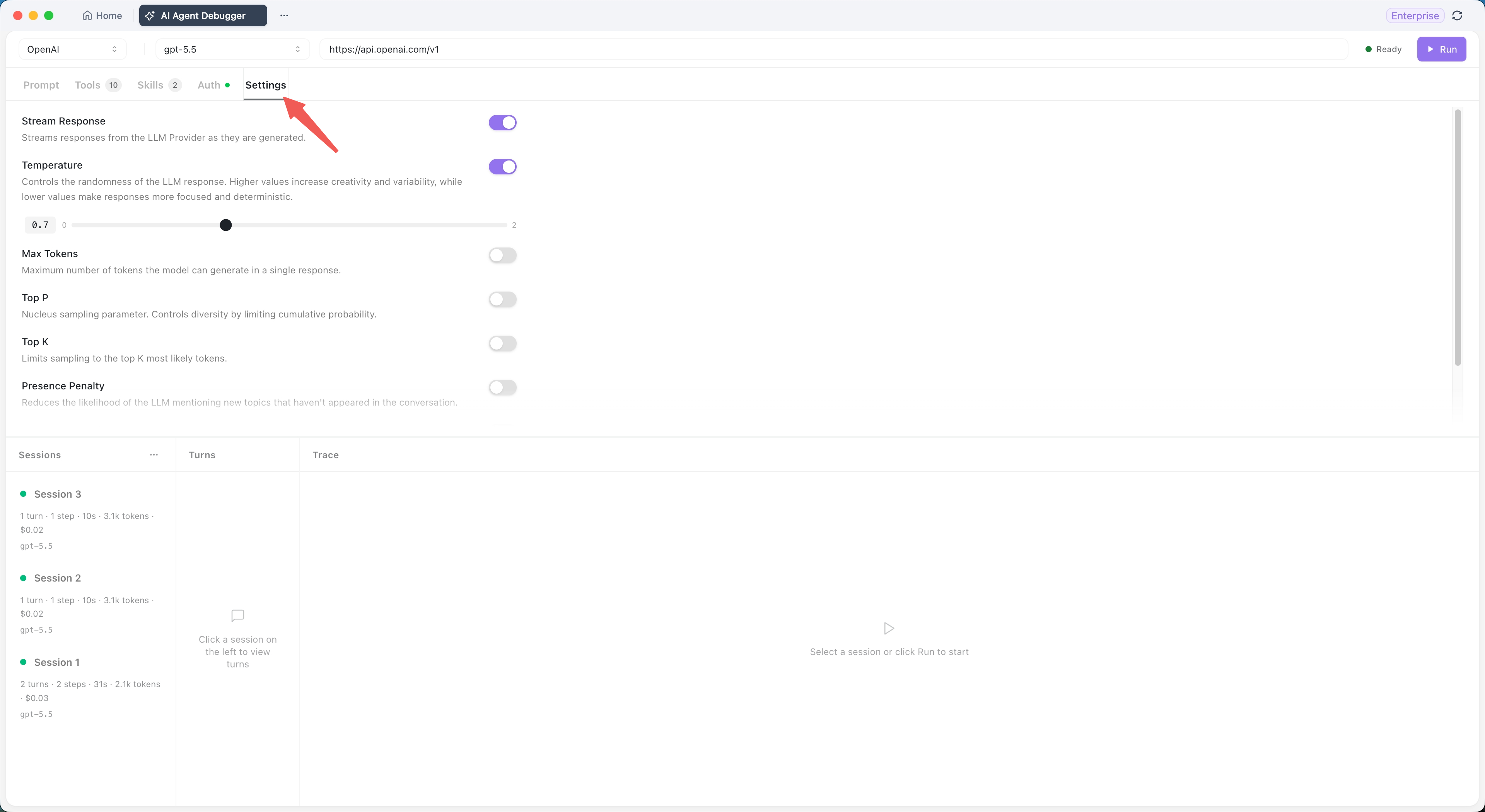
Authentication Tab: Add credentials required by model services or MCP services
Settings Tab: Configure model runtime parameters:
- Temperature: Controls randomness (0 = deterministic, 1 = creative)
- Max Tokens: Maximum response length
- Top P: Nucleus sampling parameter
- Other parameters vary by model provider
Step 6: Run and Observe
Click Run in the upper right to start debugging.
After execution, you'll see:
Session List (Left Panel)
Each run creates a session showing:
Session 3
1 turn · 1 step · 10s · 3.1k tokens · $0.02
gpt-4o
Click different sessions to compare runs.
Turns Panel (Middle)
Shows multi-round dialogues. If your agent has multiple back-and-forth exchanges, each round appears here. Click any turn to see its trace.
Traces Panel (Right)
This is where the magic happens. The Traces panel shows your agent's complete execution process in order:
- Prompts: Exact user and system prompts sent
- Model calls: Every LLM request and response
- Thinking process: Model reasoning (if supported)
- Tool calls: MCP tools and custom skills executed
- Tool details: Input parameters, results, timing, errors
- Final output: What the agent produced
Step 7: Debug Failed Tool Calls
When something goes wrong, the Traces panel is your best friend:
- Locate the failed step in the trace
- Check the input parameters – did the agent pass the wrong values?
- Check the output result – did the tool return an error?
- Check the error message – what went wrong?
Common failure causes:
- MCP server not connected or disconnected
- Parameter format doesn't match tool requirements
- Authentication configuration incorrect (OAuth, API key, headers)
- Local STDIO service startup command unavailable
Step 8: Compare Model Performance
To find the best model for your use case:
- Configure your prompts and tools
- Run with Model A (e.g., GPT-4o)
- Run the same task with Model B (e.g., Claude Sonnet)
- Compare sessions:
- Did one model complete in fewer steps?
- Which selected tools more accurately?
- Which had lower response time?
- Which consumed fewer tokens?
- Which cost less?
AI Agent Debugger vs Traditional Debugging
| Aspect | Traditional Debugging | AI Agent Debugger |
|---|---|---|
| Focus | Code logic, variables, call stack | Model calls, tool invocations, prompts |
| Visibility | Step through code line by line | See complete execution trace |
| Non-determinism | Code is reproducible | Compare multiple runs, find patterns |
| Black boxes | Can inspect any variable | See model inputs/outputs, not internal weights |
| Tool integration | Debug each API separately | See all tool calls in one trace |
| Cost visibility | N/A | Token consumption and estimated cost |
Common Questions
Why didn't my agent call the expected tool?
Check these configurations:
- Is the tool enabled in the Tools tab?
- Does the system prompt clearly describe when to use the tool?
- Is the MCP server connected and the tool not disabled?
- Do you see thinking processes or tool call records in the traces?
- Does your model support tool calling?
My MCP tool calls keep failing. What should I check?
In the Traces panel, examine the failed tool call:
- Input parameters: Is the format correct for the tool?
- Output result: What error did the tool return?
- Connection status: Is the MCP server still connected?
- Authentication: Are API keys, OAuth tokens, or headers configured correctly?
- STDIO command: Is the local server startup command valid?
Why run the same task multiple times?
Agents are non-deterministic. The same prompt can produce different execution paths. Running multiple times helps you:
- Observe variance in behavior
- Compare execution steps and results
- Evaluate which configurations are more stable
- Find the right balance of temperature, tools, and prompts
Getting Started
AI Agent Debugger is available in Apidog, a comprehensive API development platform. To start debugging your AI agents:
- Download the latest Apidog desktop client
- Navigate to AI Agent Debugger from the top tab
- Configure your model, prompts, and tools
- Run your agent and inspect every step
The Bottom Line
AI Agent Debugger transforms agent development from a frustrating guessing game into a systematic engineering discipline. Instead of wondering why your agent behaved unexpectedly, you can see exactly what happened—at every step, in every tool call, with every token accounted for.
As AI agents become more sophisticated and tool integrations more complex, this level of visibility isn't just helpful—it's essential for building reliable, cost-effective agent systems.