Non-coders increasingly seek tools that deliver genuine automation without requiring programming expertise. Claude Cowork addresses this demand directly. Anthropic designed this agentic feature in the Claude Desktop app to extend advanced capabilities to knowledge workers who avoid terminals and scripts. Users point the tool at a local folder, describe their desired outcome in plain English, and watch Claude plan and execute multi-step tasks autonomously.
What Exactly Is Claude Cowork?
Claude Cowork extends the agentic architecture of Claude Code into Claude Desktop. It targets knowledge work beyond coding. Users avoid terminals and scripts. Instead, they operate through a graphical interface.
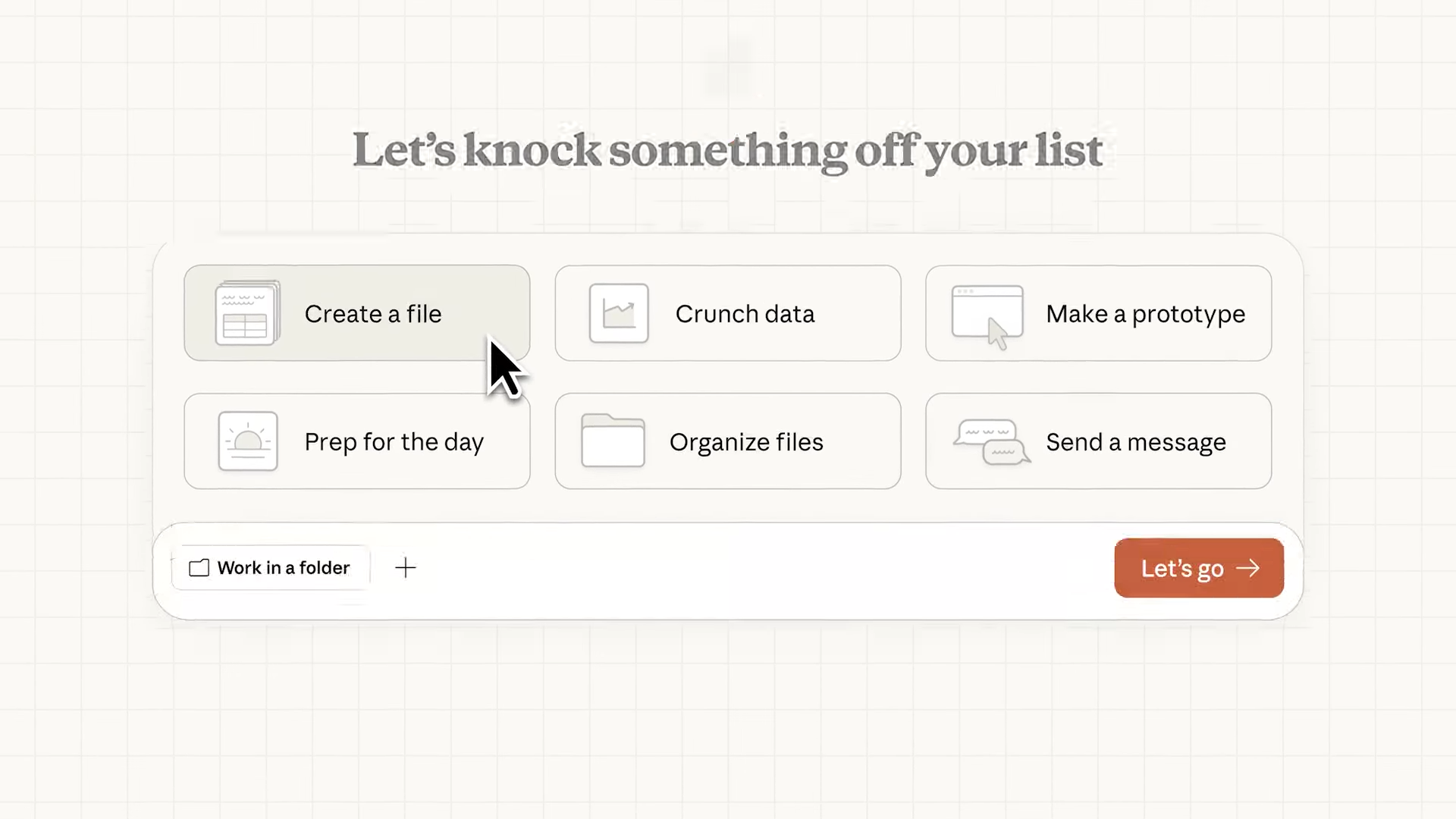
The system analyzes the user’s natural language request. It constructs a detailed plan. It breaks the plan into subtasks. It coordinates parallel execution where possible. Throughout the process, Claude Cowork displays reasoning traces, current actions, and partial outputs. Users review and adjust the direction in real time.
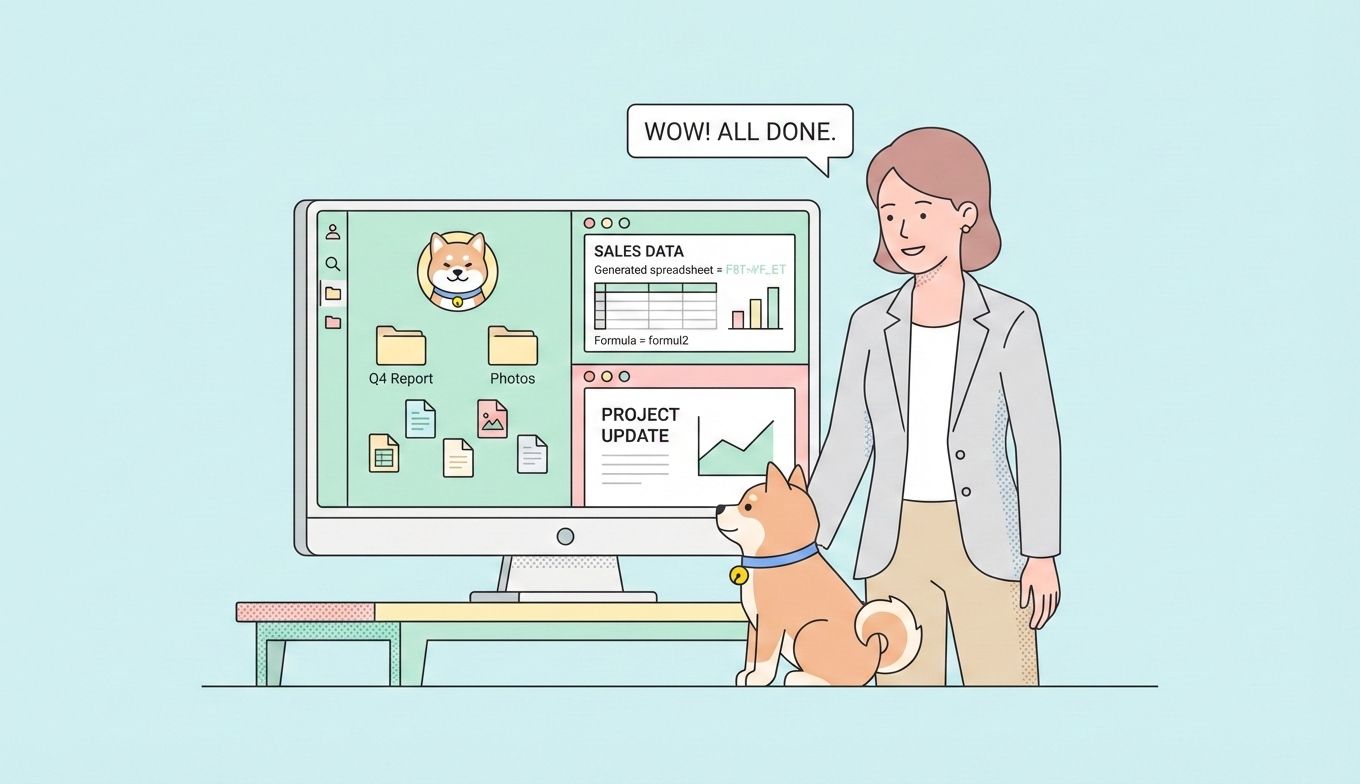
The tool generates professional artifacts. It creates Excel files that include formulas, conditional formatting, and multi-sheet structures. It assembles presentation decks from raw materials. It produces consistent Markdown reports or CSV manifests. These outputs integrate easily with downstream systems.
Claude Cowork runs in an isolated environment. It scopes file access to the selected folder. It requires explicit user approval for sensitive operations. This design maintains security while enabling direct filesystem interaction.
Availability on Windows and Mac: Easy Cross-Platform Access
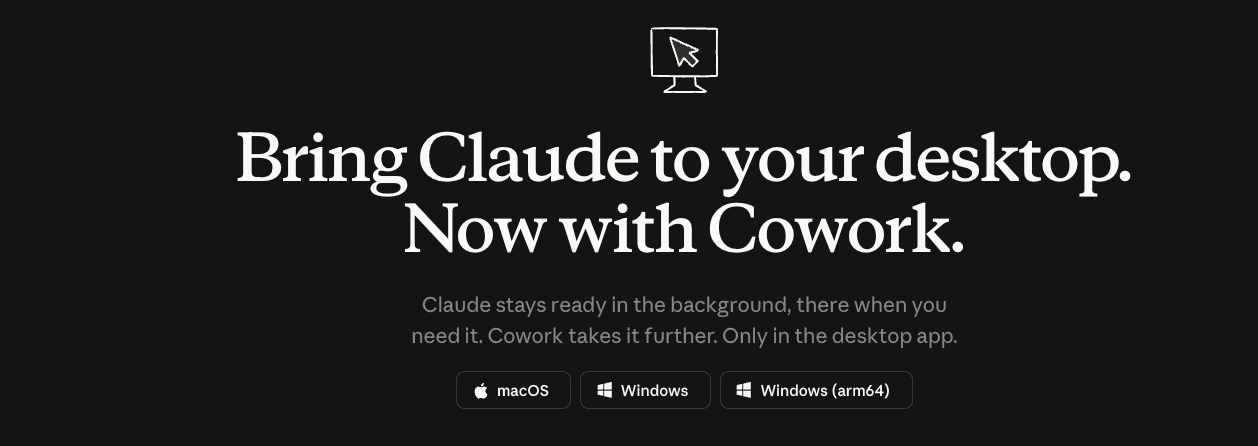
Claude Cowork operates on both macOS and Windows. Users run the tool through the Claude Desktop application. macOS support is native. Windows support covers x64 systems and delivers full feature parity, including file access, multi-step execution, plugins, and connectors. Windows on ARM64 remains unsupported.
Professionals install the latest Claude Desktop version from the official site. They launch the app and switch to the Cowork tab. This cross-platform availability allows mixed teams to standardize on the same workflow automation tool. The desktop requirement ensures local file operations and data control.
Step-by-Step Guide: Getting Started with Claude Cowork
Non-coders follow a clear process to use Claude Cowork effectively.
First, install and update Claude Desktop on Windows or Mac. Open the application and select the Cowork tab.
Second, set global instructions in the preferences. Define persistent rules such as output formats, naming conventions, or tone guidelines. These instructions apply to every task.
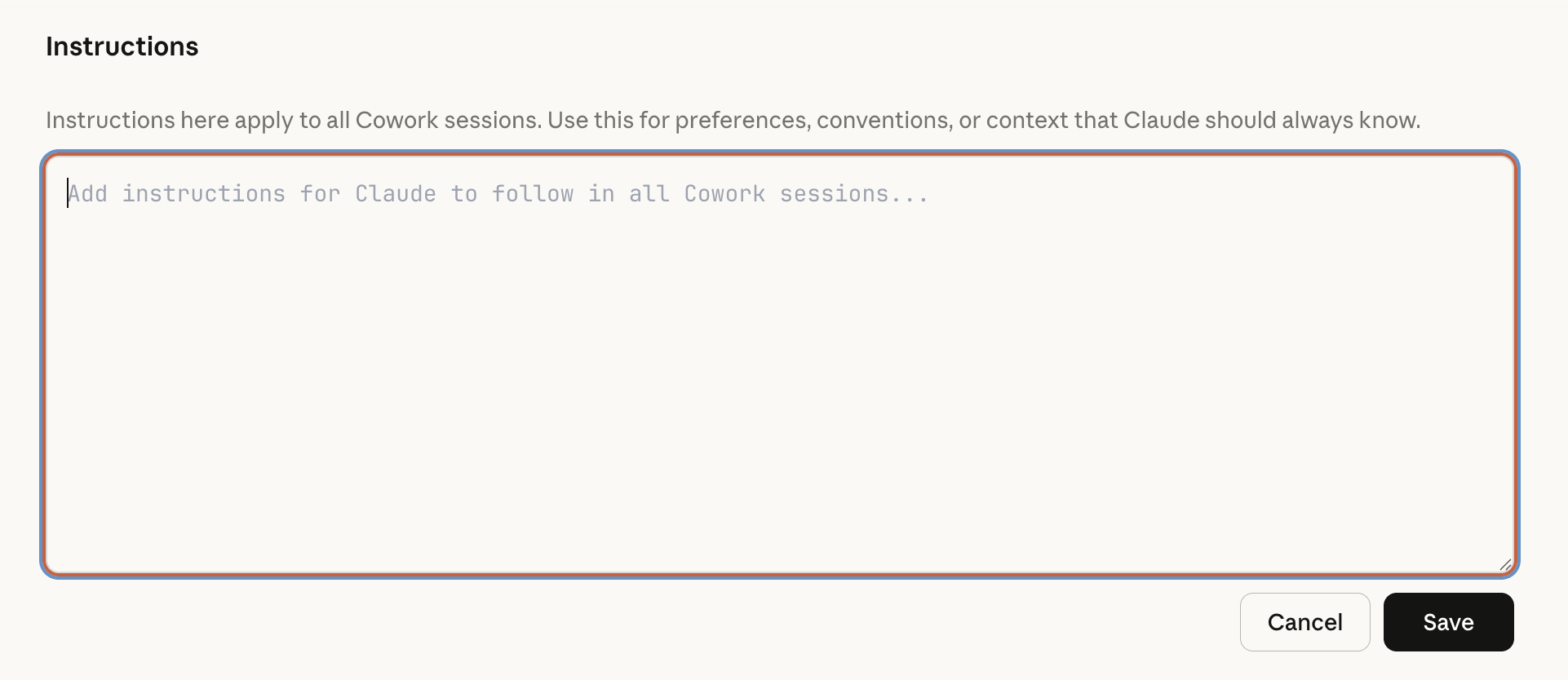
Third, choose a local folder as the working directory. Claude Cowork restricts all read and write operations to this folder unless users grant additional permissions.
Fourth, enter the task description. Use specific language: “Organize files in this folder by date and project. Generate a manifest.csv with metadata for each file. Create a summary.md report.” Include constraints: “Preserve originals with _backup suffix” or “Limit scope to this directory only.”
Fifth, examine the generated plan. Claude Cowork presents its reasoning and proposed subtasks. Approve the plan or refine it with additional details.
Sixth, grant required permissions. The interface lists file access, network requests, or other actions clearly. Confirm only what the task needs.
Seventh, monitor execution. The tool shows active subtasks, reasoning steps, and emerging outputs. Provide corrections through follow-up messages when the agent deviates.
Eighth, retrieve results from the folder. Review generated files. Start a new task to iterate: “Refine the charts in the spreadsheet for better readability.”
This workflow enables non-coders to achieve complex results through iterative collaboration.
Best Practices for Non-Coders to Maximize Results
Effective use of Claude Cowork hinges on clear communication and iterative refinement.
Start with well-defined outcomes rather than vague instructions. Specify deliverables, formats, and constraints explicitly. Phrases like “preserve all original files with _backup suffix” or “output only to the results subfolder” prevent unintended side effects.
Provide context through folder contents and global instructions. The agent infers much from available files, so organizing source materials improves accuracy.
Monitor early stages closely. Review the initial plan and first few actions to calibrate the agent’s understanding. Small corrections at this point prevent larger deviations later.
Iterate on completed tasks. Use follow-up prompts to refine outputs: “Improve the chart aesthetics in the generated spreadsheet” or “Expand section three of the report with additional examples.”
Experiment with plugin libraries to address specialized needs. Custom plugins enable tailored behaviors without coding.
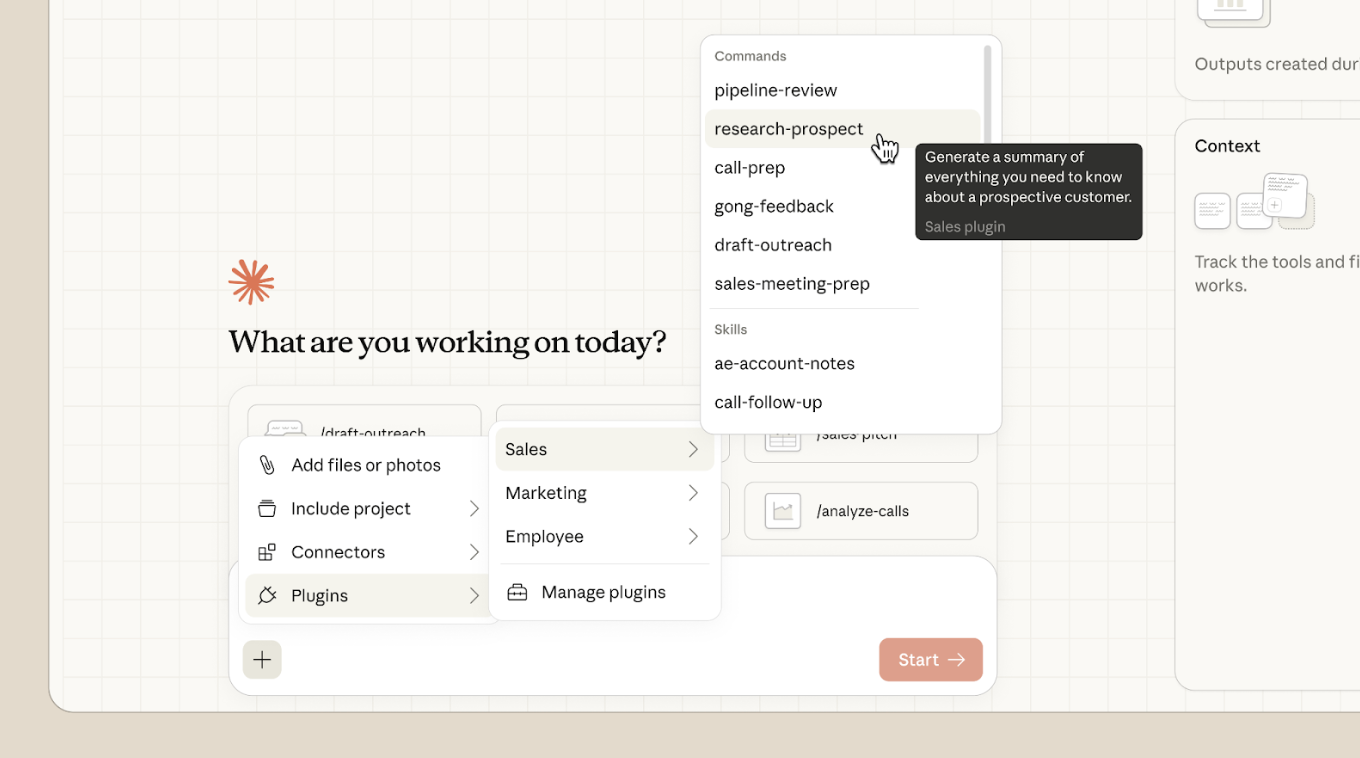
Additionally, combine Claude Cowork with complementary tools. For workflows involving external services or APIs, Apidog offers a visual environment to design, test, and document integrations. Non-coders use its drag-and-drop features to validate connections that Claude Cowork might invoke during research or data-fetching tasks.
Enhancing Claude Cowork Workflows with Apidog
Automated processes often require external data or services. When Claude Cowork tasks involve API interactions, Apidog fills the integration gap.
Non-coders download Apidog for free and use its interface to build API collections. They run tests visually and generate documentation. This preparation allows seamless references in Claude Cowork prompts.
The pairing reduces friction in hybrid automations. Claude Cowork manages local files and synthesis. Apidog ensures reliable external connectivity. Together, they enable end-to-end workflows that span desktop resources and cloud services.
Conclusion
Claude Cowork delivers agentic automation to non-coders through an accessible desktop interface. Users select folders, articulate goals, and guide the agent via transparent progress views. The tool handles multi-step execution and produces professional outputs.
Availability on both Windows and Mac expands access. Combined with thoughtful prompting and complementary tools like Apidog, Claude Cowork addresses most practical challenges.
Begin with straightforward organization tasks. Build proficiency through practice. Advance to ambitious projects as prompting skills develop. The transition from manual work to outcome-directed automation yields measurable productivity gains.
Download Claude Desktop, install Apidog to support integrations, and start using Claude Cowork. Non-coders now direct sophisticated AI agents with natural language alone.