Connect your AI agents directly to the LINE Messaging API with the open-source LINE MCP server. This step-by-step guide shows API professionals how to set up and use the LINE MCP server, power AI-driven LINE bots, and streamline development with best practices.
💡 Looking for robust API testing, beautiful API documentation, and a unified workspace for your developer team? Discover how Apidog boosts productivity and replaces Postman at a better price.
What Is LINE and Why Integrate AI?
LINE is one of Asia’s most popular messaging platforms, serving millions of active users. Its Messaging API enables developers to build chatbots and automation for LINE Official Accounts, handling tasks like customer support, notifications, and broadcasts.
Unlocking AI for LINE Bots
By integrating advanced AI agents (such as Claude or Gemini) with the LINE Messaging API, you can deliver human-like, conversational experiences at scale. The LINE MCP server bridges this gap, allowing your AI to interact with users natively in LINE—sending messages, retrieving user info, and more.
Introducing the LINE MCP Server
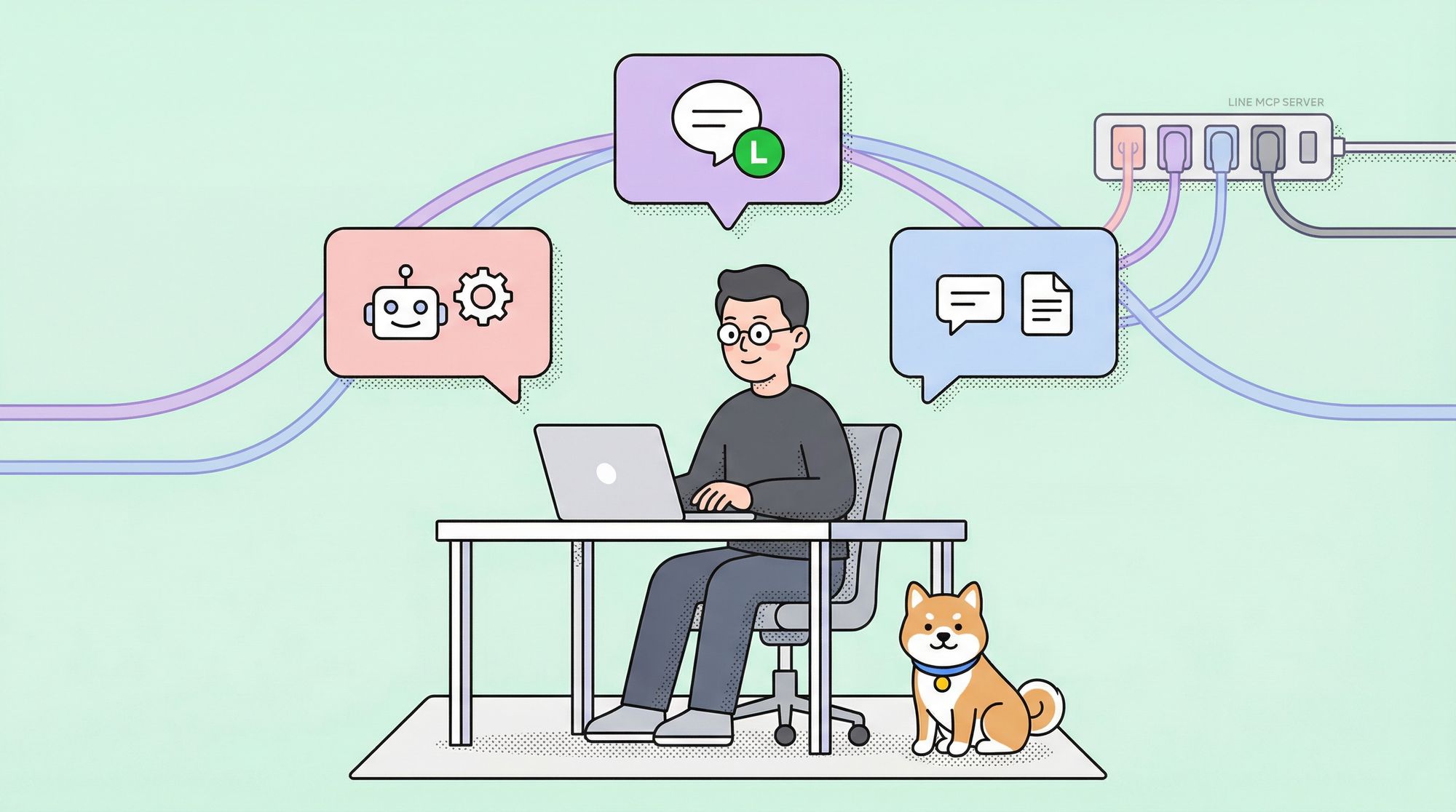
The LINE MCP server is an open-source project from LINE that connects AI agents to the LINE Messaging API using the Model Context Protocol (MCP)—a standardized protocol for AI tool access (think “universal adapter” for AI).
Key Features:
- Seamless message sending and receiving through LINE Official Accounts.
- Dynamic Flex Message creation for rich, interactive content.
- Broadcast capabilities to reach multiple users efficiently.
- User profile access (display names, avatars, etc.).
Note: The LINE MCP server is currently in a trial phase and supports core Messaging API features, making it an ideal playground for AI-powered chatbot development.
Why Use the LINE MCP Server?
For API and backend engineers, the LINE MCP server offers:
- AI-Native Chatbot Experiences: Let your AI agent manage conversations, automate replies, and deliver dynamic content on LINE.
- Reduced Integration Overhead: Skip manual API wiring—focus on crafting workflow logic and business value.
- Open-Source Flexibility: Customize or extend the server via GitHub to fit your team’s needs.
- Rich Messaging Options: Flex Messages, profile lookups, and multi-user broadcasts—all accessible via prompt or API.
Step-by-Step: Installing the LINE MCP Server with Claude Desktop
Prerequisites
Before you begin, ensure you have:
- Node.js 20+ (for npx installation): Download here
- Docker (for Docker installation): Get started here
- LINE Official Account (created in LINE Developers Console)
- LINE Channel Access Token (Messaging API tab in the console)
- LINE Destination User ID (optional but required for some workflows)
- Claude Desktop (will be installed below)
- GitHub account (for Docker method)
Option 1: Installation Using npx
Step 1: Set Up Your LINE Official Account
- Sign in to the LINE Developers Console.
- If needed, create a Provider (e.g., “MyBotTeam”).
- Create a Messaging API channel and copy the Channel Access Token.
- Enable the webhook (URL will be set later).


Step 2: Install Claude Desktop
- Download Claude Desktop from claude.ai/download (macOS/Windows).
- Launch the app, click Get Started, and log in with your Claude or Google account.

Step 3: Configure LINE MCP Server in Claude Desktop
- Open Claude Desktop and go to Settings (gear icon).

- Select the Developer tab and click Edit Config (this opens the configuration folder).

- Find or create
claude_desktop_config.jsonand add:
{
  "mcpServers": {
    "line-bot": {
      "command": "npx",
      "args": ["@line/line-bot-mcp-server"],
      "env": {
        "CHANNEL_ACCESS_TOKEN": "FILL_HERE",
        "DESTINATION_USER_ID": "FILL_HERE"
      }
    }
  }
}
- Replace
FILL_HEREwith your Channel Access Token and (optionally) Destination User ID. - Save and restart Claude Desktop.

Option 2: Installation Using Docker
Step 1: Create LINE Official Account
Follow the same steps as in the npx method above.
Step 2: Build and Run the LINE MCP Server Docker Image

- Clone the repo and build the Docker image:
git clone git@github.com:line/line-bot-mcp-server.git
cd line-bot-mcp-server
docker build -t line/line-bot-mcp-server .
Step 3: Configure in Claude Desktop
- Open Claude Desktop, go to Settings, and open Edit Config.
- Edit or create
claude_desktop_config.jsonwith:
{
  "mcpServers": {
    "line-bot": {
      "command": "docker",
      "args": [
        "run",
        "-i",
        "--rm",
        "-e",
        "CHANNEL_ACCESS_TOKEN",
        "-e",
        "DESTINATION_USER_ID",
        "line/line-bot-mcp-server"
      ],
      "env": {
        "CHANNEL_ACCESS_TOKEN": "FILL_HERE",
        "DESTINATION_USER_ID": "FILL_HERE"
      }
    }
  }
}
- Fill in your actual access token and user ID as before.
- Save, then restart Claude Desktop.

Testing the LINE MCP Server: Example Prompts
Once set up, you can interact with your LINE bot using natural language prompts.
1. Send a Simple Text Message
Prompt:
Send LINE message to user say "I love you MCP"

Claude will send this message to your LINE user via the MCP server.
2. Retrieve User Profile and Send Flex Message
Prompt:
Get user profile and create beautiful Flex message and send to user
0
The server will fetch the user’s display name and image, then craft a personalized Flex Message.
Troubleshooting Common Issues
- Webhook Not Working? Double-check the ngrok URL and that the webhook is enabled in the LINE Console.
- Server Fails to Start? Verify Node.js (for npx) or Docker installation, and confirm environment variables.
- Claude Can't Connect? Review your
claude_desktop_config.jsonand restart Claude Desktop. - npx/Docker Errors? Ensure binaries are installed and available in your PATH.
How Does LINE MCP Server Accelerate AI Integration?
The LINE MCP server transforms your LINE bot into an AI-powered assistant with:
- Direct AI Integration: Send messages, create Flex content, or fetch user data—no API boilerplate.
- Natural Language Control: Manage bots with prompts like “Send a sale promo to all users.”
- Scalability: Test locally or deploy to production servers.
- Trial-Ready: Messaging, profiles, and broadcasting supported, with more features in development.
Practical Example:
Let users ask, “What’s my profile name?” and the AI fetches it via the MCP server in real-time, or broadcast targeted promotions with a single prompt.
Conclusion
The LINE MCP server is a powerful bridge between AI agents and the LINE Messaging API—enabling teams to build advanced, conversational LINE bots without friction. Whether you’re prototyping or scaling, the setup is straightforward and developer-friendly.
If your team values fast, collaborative API development, Apidog provides clear documentation, productivity tools, and an integrated platform that outperforms Postman for less.