TL;DR
Qwen3.5-Omni accepts text, images, audio, and video as input and returns text or real-time speech. Access it through the Alibaba Cloud DashScope API or run it locally via HuggingFace Transformers. This guide covers API setup, working code examples for each modality, voice cloning, and how to test your requests with Apidog.
What you’re working with
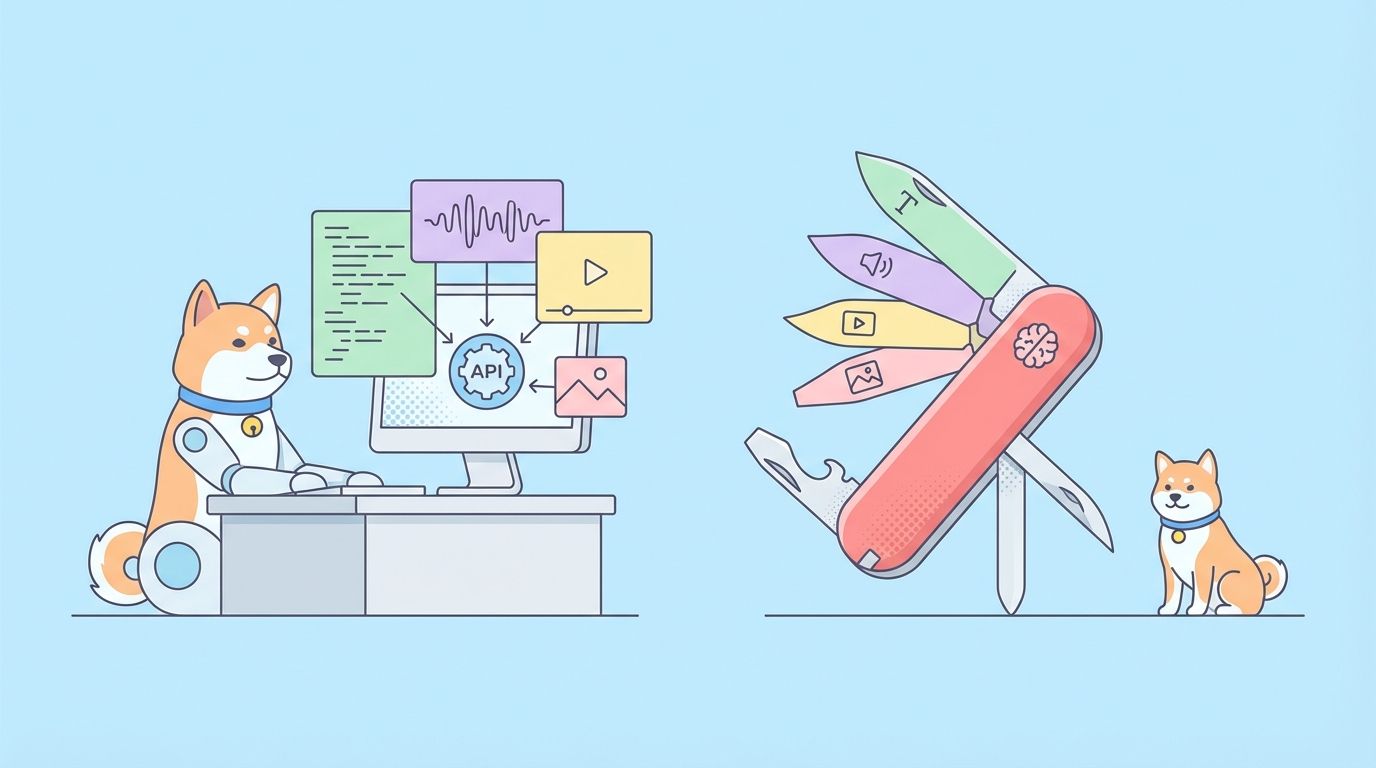
Qwen3.5-Omni is a single model that handles four input types simultaneously: text, images, audio, and video. It returns either text or natural speech, depending on how you configure the request.
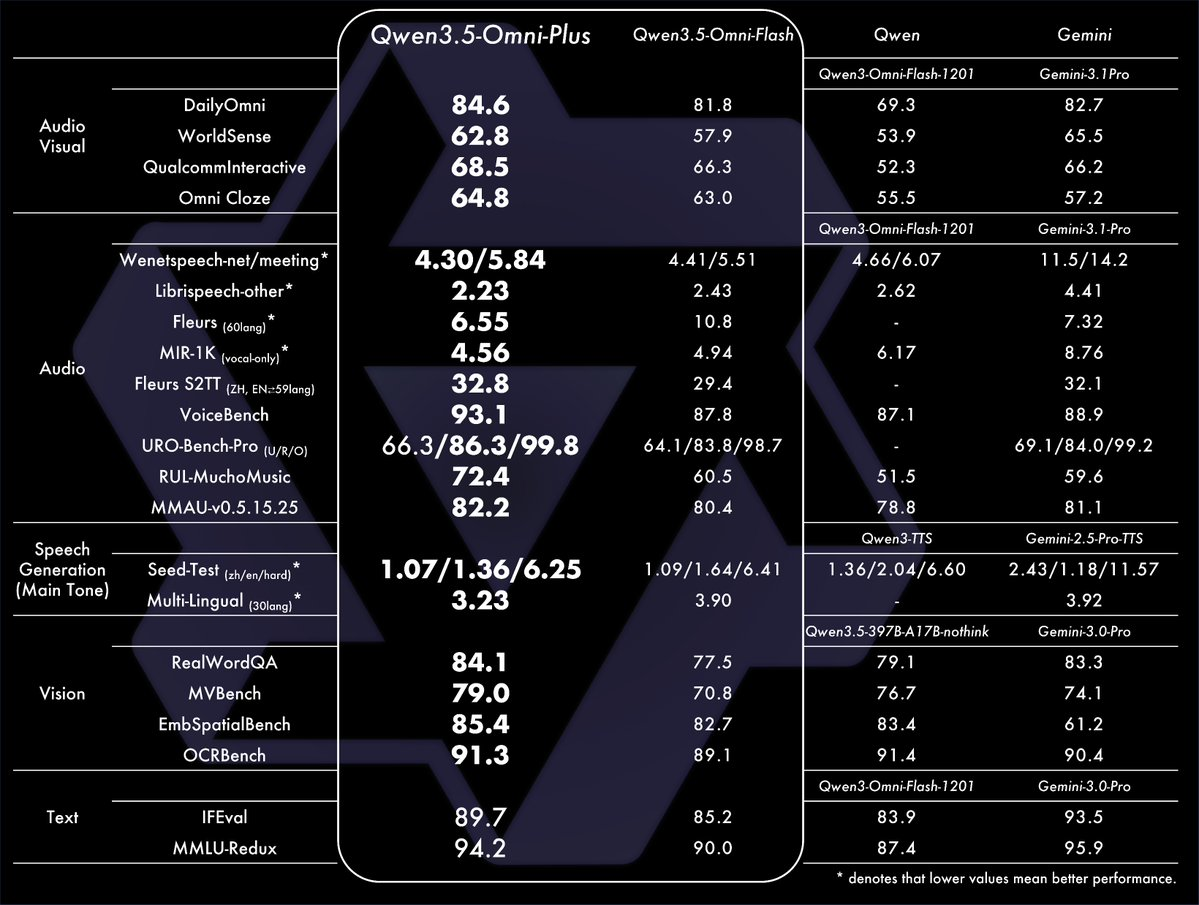
Released March 30, 2026, it’s built on a Thinker-Talker architecture with an MoE backbone. The Thinker processes multimodal input and reasons over it. The Talker converts the output to speech using a multi-codebook system that starts streaming audio before the full response is complete.
Three variants are available:
- Plus: Highest quality, best for reasoning and voice cloning
- Flash: Balanced speed and quality, recommended for most production use
- Light: Lowest latency, for mobile and edge scenarios
This guide uses Flash for most examples since it’s the right starting point for most applications. Swap in Plus where you need maximum quality.
API access via DashScope
Alibaba Cloud’s DashScope API is the primary way to use Qwen3.5-Omni in production. You’ll need a DashScope account and an API key.
Step 1: Create a DashScope account
Go to dashscope.aliyuncs.com and sign up. If you already have an Alibaba Cloud account, use that.
Step 2: Get your API key
- Log in to the DashScope console
- Click API Key Management in the left sidebar
- Click Create API Key
- Copy the key (format:
sk-...)
Step 3: Install the SDK
pip install dashscope
Or use the OpenAI-compatible endpoint directly with the openai SDK:
pip install openai
DashScope exposes an OpenAI-compatible API at https://dashscope.aliyuncs.com/compatible-mode/v1, which means you can swap your base_url and use the same code you’d write for OpenAI.
Text input and output
Start with the simplest case: text in, text out.
from openai import OpenAI

client = OpenAI(
    base_url="https://dashscope.aliyuncs.com/compatible-mode/v1",
    api_key="sk-YOUR_DASHSCOPE_KEY",
)

response = client.chat.completions.create(
    model="qwen3.5-omni-flash",
    messages=[
        {
            "role": "user",
            "content": "Explain the difference between REST and GraphQL APIs in plain terms."
        }
    ],
)

print(response.choices[0].message.content)
Switch to qwen3.5-omni-plus for harder reasoning tasks or qwen3.5-omni-light when latency is the priority.
Audio input: transcription and understanding
Pass an audio file URL or base64-encoded audio. The model transcribes, understands, and reasons over the content natively. No separate ASR step needed.
import base64
from openai import OpenAI

client = OpenAI(
    base_url="https://dashscope.aliyuncs.com/compatible-mode/v1",
    api_key="sk-YOUR_DASHSCOPE_KEY",
)

# Load a local audio file
with open("meeting_recording.wav", "rb") as f:
    audio_data = base64.b64encode(f.read()).decode("utf-8")

response = client.chat.completions.create(
    model="qwen3.5-omni-flash",
    messages=[
        {
            "role": "user",
            "content": [
                {
                    "type": "input_audio",
                    "input_audio": {
                        "data": audio_data,
                        "format": "wav"
                    }
                },
                {
                    "type": "text",
                    "text": "Summarize the key decisions made in this meeting and list any action items."
                }
            ]
        }
    ],
)

print(response.choices[0].message.content)
The model handles 113 languages for speech recognition. You don’t need to specify the language; it detects it automatically.
Supported audio formats: WAV, MP3, M4A, OGG, FLAC.
Audio output: text-to-speech in the response
To get speech back instead of text, set the modalities parameter and configure audio output:
from openai import OpenAI
import base64

client = OpenAI(
    base_url="https://dashscope.aliyuncs.com/compatible-mode/v1",
    api_key="sk-YOUR_DASHSCOPE_KEY",
)

response = client.chat.completions.create(
    model="qwen3.5-omni-flash",
    modalities=["text", "audio"],
    audio={"voice": "Chelsie", "format": "wav"},
    messages=[
        {
            "role": "user",
            "content": "Describe the steps to authenticate a REST API using OAuth 2.0."
        }
    ],
)

# The response includes both text and audio
text_content = response.choices[0].message.content
audio_data = response.choices[0].message.audio.data  # base64-encoded WAV

# Save the audio
with open("response.wav", "wb") as f:
    f.write(base64.b64decode(audio_data))

print(f"Text: {text_content}")
print("Audio saved to response.wav")
Two built-in voices are available: Chelsie (female) and Ethan (male). Speech generation works in 36 languages.
Image input: visual understanding
Pass an image URL or base64-encoded image alongside a text question:
from openai import OpenAI

client = OpenAI(
    base_url="https://dashscope.aliyuncs.com/compatible-mode/v1",
    api_key="sk-YOUR_DASHSCOPE_KEY",
)

response = client.chat.completions.create(
    model="qwen3.5-omni-flash",
    messages=[
        {
            "role": "user",
            "content": [
                {
                    "type": "image_url",
                    "image_url": {
                        "url": "https://example.com/api-diagram.png"
                    }
                },
                {
                    "type": "text",
                    "text": "Describe this API architecture diagram and identify any potential bottlenecks."
                }
            ]
        }
    ],
)

print(response.choices[0].message.content)
For local images, encode them as base64:
import base64

with open("screenshot.png", "rb") as f:
    image_data = base64.b64encode(f.read()).decode("utf-8")

# Use data URL format
image_url = f"data:image/png;base64,{image_data}"

response = client.chat.completions.create(
    model="qwen3.5-omni-flash",
    messages=[
        {
            "role": "user",
            "content": [
                {
                    "type": "image_url",
                    "image_url": {"url": image_url}
                },
                {
                    "type": "text",
                    "text": "What error is shown in this screenshot?"
                }
            ]
        }
    ],
)
Video input: understanding recordings and screen captures
Video input is where Qwen3.5-Omni does something no text or image model can do: reason across both the visual and audio tracks simultaneously.
from openai import OpenAI
import base64

client = OpenAI(
    base_url="https://dashscope.aliyuncs.com/compatible-mode/v1",
    api_key="sk-YOUR_DASHSCOPE_KEY",
)

# Pass a video URL
response = client.chat.completions.create(
    model="qwen3.5-omni-flash",
    messages=[
        {
            "role": "user",
            "content": [
                {
                    "type": "video_url",
                    "video_url": {
                        "url": "https://example.com/product-demo.mp4"
                    }
                },
                {
                    "type": "text",
                    "text": "Describe what the developer is building in this demo and write equivalent code."
                }
            ]
        }
    ],
)

print(response.choices[0].message.content)
Audio-Visual Vibe Coding
The “Vibe Coding” use case is passing a screen recording and asking the model to generate code from what it sees:
with open("screen_recording.mp4", "rb") as f:
    video_data = base64.b64encode(f.read()).decode("utf-8")

response = client.chat.completions.create(
    model="qwen3.5-omni-plus",  # Use Plus for best code generation quality
    messages=[
        {
            "role": "user",
            "content": [
                {
                    "type": "video_url",
                    "video_url": {
                        "url": f"data:video/mp4;base64,{video_data}"
                    }
                },
                {
                    "type": "text",
                    "text": "Watch this screen recording and write the complete code that replicates what you see being built. Include all the UI components and their interactions."
                }
            ]
        }
    ],
)

print(response.choices[0].message.content)
The 256K token context window fits roughly 400 seconds of 720p video with audio. For recordings longer than that, trim or split.
Voice cloning
Voice cloning lets you give the model a target voice and have it respond in that voice. This is available on Plus and Flash via the API.
import base64
from openai import OpenAI

client = OpenAI(
    base_url="https://dashscope.aliyuncs.com/compatible-mode/v1",
    api_key="sk-YOUR_DASHSCOPE_KEY",
)

# Load a 10-30 second voice sample for cloning
with open("voice_sample.wav", "rb") as f:
    voice_sample = base64.b64encode(f.read()).decode("utf-8")

response = client.chat.completions.create(
    model="qwen3.5-omni-plus",
    modalities=["text", "audio"],
    audio={
        "voice": "custom",
        "format": "wav",
        "voice_sample": {
            "data": voice_sample,
            "format": "wav"
        }
    },
    messages=[
        {
            "role": "user",
            "content": "Welcome to the Apidog developer portal. How can I help you today?"
        }
    ],
)

audio_data = response.choices[0].message.audio.data
with open("cloned_response.wav", "wb") as f:
    f.write(base64.b64decode(audio_data))
Tips for voice cloning quality:
- Use a clean recording with no background noise
- 15-30 seconds works better than very short clips
- WAV format at 16kHz or higher
- The voice sample should have natural speech, not read-aloud text, for better prosody matching
Streaming responses
For real-time voice chat or interactive applications, use streaming. The model starts returning audio before the full response is generated:
from openai import OpenAI

client = OpenAI(
    base_url="https://dashscope.aliyuncs.com/compatible-mode/v1",
    api_key="sk-YOUR_DASHSCOPE_KEY",
)

stream = client.chat.completions.create(
    model="qwen3.5-omni-flash",
    modalities=["text", "audio"],
    audio={"voice": "Ethan", "format": "pcm16"},
    messages=[
        {
            "role": "user",
            "content": "Explain how WebSocket connections differ from HTTP polling."
        }
    ],
    stream=True,
)

audio_chunks = []
text_chunks = []

for chunk in stream:
    delta = chunk.choices[0].delta
    if hasattr(delta, "audio") and delta.audio:
        if delta.audio.get("data"):
            audio_chunks.append(delta.audio["data"])
    if delta.content:
        text_chunks.append(delta.content)
        print(delta.content, end="", flush=True)

print()  # newline after streaming text

# Combine and save audio chunks
if audio_chunks:
    import base64
    full_audio = b"".join(base64.b64decode(chunk) for chunk in audio_chunks)
    with open("streamed_response.pcm", "wb") as f:
        f.write(full_audio)
PCM16 format works well for streaming since you can pipe it directly to an audio output buffer without waiting for a complete file.
Multi-turn conversation with mixed modalities
Real conversations mix inputs across turns. Here’s how to manage conversation history with different modalities:
from openai import OpenAI

client = OpenAI(
    base_url="https://dashscope.aliyuncs.com/compatible-mode/v1",
    api_key="sk-YOUR_DASHSCOPE_KEY",
)

conversation = []

def send_message(content_parts):
    conversation.append({"role": "user", "content": content_parts})

    response = client.chat.completions.create(
        model="qwen3.5-omni-flash",
        messages=conversation,
    )

    reply = response.choices[0].message.content
    conversation.append({"role": "assistant", "content": reply})
    return reply

# Turn 1: text
print(send_message([{"type": "text", "text": "I have an API that keeps returning 503 errors."}]))

# Turn 2: add an image (error log screenshot)
import base64
with open("error_log.png", "rb") as f:
    img = base64.b64encode(f.read()).decode()

print(send_message([
    {"type": "image_url", "image_url": {"url": f"data:image/png;base64,{img}"}},
    {"type": "text", "text": "Here's the error log screenshot. What's causing this?"}
]))

# Turn 3: follow-up text
print(send_message([{"type": "text", "text": "How do I fix the connection pool exhaustion you mentioned?"}]))
The 256K context window means you can carry long conversations, including ones with embedded images and audio, without hitting truncation issues.
Local deployment with HuggingFace
If you need to run Qwen3.5-Omni on your own infrastructure:
pip install transformers==4.57.3
pip install accelerate
pip install qwen-omni-utils -U
pip install -U flash-attn --no-build-isolation
import soundfile as sf
from transformers import Qwen3OmniMoeForConditionalGeneration, Qwen3OmniMoeProcessor
from qwen_omni_utils import process_mm_info

model_path = "Qwen/Qwen3-Omni-30B-A3B-Instruct"

model = Qwen3OmniMoeForConditionalGeneration.from_pretrained(
    model_path,
    device_map="auto",
    attn_implementation="flash_attention_2",
)
processor = Qwen3OmniMoeProcessor.from_pretrained(model_path)

conversation = [
    {
        "role": "system",
        "content": [
            {"type": "text", "text": "You are Qwen, a virtual human developed by the Qwen Team, Alibaba Group, capable of perceiving auditory and visual inputs, as well as generating text and speech."}
        ],
    },
    {
        "role": "user",
        "content": [
            {"type": "audio", "audio": "path/to/your/audio.wav"},
            {"type": "text", "text": "What is being discussed in this audio?"}
        ],
    },
]

text = processor.apply_chat_template(
    conversation,
    add_generation_prompt=True,
    tokenize=False,
)
audios, images, videos = process_mm_info(conversation, use_audio_in_video=True)
inputs = processor(
    text=text,
    audio=audios,
    images=images,
    videos=videos,
    return_tensors="pt",
    padding=True,
)
inputs = inputs.to(model.device).to(model.dtype)

text_ids, audio_output = model.generate(**inputs, speaker="Chelsie")

text_response = processor.batch_decode(text_ids, skip_special_tokens=True)[0]
sf.write("local_response.wav", audio_output.reshape(-1).cpu().numpy(), samplerate=24000)

print(text_response)
GPU memory requirements for local deployment:
| Variant | Precision | Min VRAM |
|---|---|---|
| Plus (30B MoE) | BF16 | ~40GB |
| Flash | BF16 | ~20GB |
| Light | BF16 | ~10GB |
For production local inference, use vLLM instead of HuggingFace Transformers. MoE models run faster under vLLM’s routing optimizations.
Testing your Qwen3.5-Omni requests with Apidog
Multimodal API requests are harder to debug than plain JSON. You’re dealing with base64-encoded audio and video, nested content arrays, and responses that can include both text and audio. Doing this from a terminal gets tedious quickly.
Apidog handles this cleanly. Set up your DashScope endpoint as a new collection, store your API key as an environment variable, and build request templates for each modality you’re working with.
For each variant (Plus, Flash, Light), you can duplicate the base request and change the model parameter. Run all three in sequence and compare responses, latency, and output quality in one view.
You can also write test assertions in Apidog to verify your multimodal responses:
- Check that
choices[0].message.contentis not empty for text responses - Verify that
choices[0].message.audio.datais present when audio output is requested - Assert that response latency for Flash is under your target threshold
This is useful when you’re deciding which variant to use in production.
Error handling and retry logic
Rate limits and timeouts are common with large multimodal models, especially for video inputs. Build retry handling from the start:
import time
import random
from openai import OpenAI, RateLimitError, APITimeoutError, APIConnectionError

client = OpenAI(
    base_url="https://dashscope.aliyuncs.com/compatible-mode/v1",
    api_key="sk-YOUR_DASHSCOPE_KEY",
    timeout=120,  # 2-minute timeout for large video inputs
)

def call_with_retry(messages, model="qwen3.5-omni-flash", max_retries=3):
    for attempt in range(max_retries):
        try:
            return client.chat.completions.create(
                model=model,
                messages=messages,
            )
        except RateLimitError:
            wait = (2 ** attempt) + random.uniform(0, 1)
            print(f"Rate limit hit. Waiting {wait:.1f}s...")
            time.sleep(wait)
        except (APITimeoutError, APIConnectionError) as e:
            if attempt == max_retries - 1:
                raise
            wait = (2 ** attempt) + random.uniform(0, 1)
            print(f"Connection error: {e}. Retrying in {wait:.1f}s...")
            time.sleep(wait)
    raise RuntimeError(f"Failed after {max_retries} attempts")
For video inputs larger than 100MB, consider:
- Trimming to the relevant portion before sending
- Reducing resolution to 480p if the visual content doesn’t require high resolution
- Splitting long recordings into segments and aggregating results
Common issues and fixes
“Audio output is garbled on numbers or technical terms”This is the problem ARIA technology addresses. Make sure you’re on Qwen3.5-Omni (not an earlier version). If you’re self-hosting, use the latest model weights from HuggingFace.
“The model keeps talking when I send an audio interruption”Semantic interruption requires the Flash or Plus variant. Light may not have this feature. Also check that you’re streaming the response (not batch) for interruption to work.
“Voice cloning quality is poor”The voice sample needs to be clean. Remove background noise with a tool like Audacity before uploading. Use at least 15 seconds of audio. WAV at 16kHz or 44.1kHz works best.
“Video input returns an error about token limits”256K tokens covers roughly 400 seconds of 720p video. Longer videos need trimming or lower resolution. Check your video duration and reduce to under 6 minutes for safety.
“Local deployment is very slow”Use vLLM, not HuggingFace Transformers, for production local inference. MoE models need vLLM’s routing optimizations for reasonable throughput.
For developers whose primary need is high-fidelity speech synthesis rather than full multimodal inference,Fish Audio S2's dedicated TTS and voice-cloning APIoffers a narrower, faster endpoint worth evaluating alongside the all-in-one models.
FAQ
Which DashScope model ID do I use for Qwen3.5-Omni?
Use qwen3.5-omni-plus, qwen3.5-omni-flash, or qwen3.5-omni-light depending on your quality and latency needs. Start with Flash for most use cases.
Can I use the OpenAI Python SDK with DashScope?
Yes. Set base_url="https://dashscope.aliyuncs.com/compatible-mode/v1" and use your DashScope key as api_key. The request and response format is identical to the OpenAI API.
How do I send multiple files (audio + image) in one request?
Put them in the content array as separate typed objects alongside your text prompt. All four modalities can appear in the same message.
Is there a size limit for audio or video files?
DashScope has per-request payload limits. For large files, use a URL reference instead of base64 encoding. Host the file on accessible storage and pass the URL in the audio or video_url field.
How do I disable audio output and get text only?
Set modalities=["text"] or omit the modalities parameter. Text-only responses are faster and cheaper.
Does it support function/tool calling?
Yes. Use the standard tools parameter with function definitions, same as with any OpenAI-compatible model. The model returns structured tool call objects that you execute in your own code.
What’s the best way to handle long audio recordings?
For recordings under 10 hours, send them as a single request. For longer recordings, split at natural pause points and process each segment separately. Aggregate the results in your application layer.
How do I test my multimodal requests before building a full application?
Use Apidog to build and save request templates for each modality. You can switch between model variants, inspect the full response structure, and write assertions that verify output quality without writing application code first.