
When it comes to testing APIs, Postman is one of the most popular tools used by developers. But what if we need to upload a file and JSON data together? These skills are invaluable for anyone seeking to enhance the efficiency of their API testing processes. In this section, we will learn how to upload a file and JSON data in Postman.
Upload a File and JSON Data in Postman
When testing APIs using Postman, it's common to need to send JSON data along with the request. Fortunately, Postman makes it easy to upload JSON data.
How to Upload Files in Postman?
To upload files in Postman, follow these steps:
- Select the `POST` method type as an example.
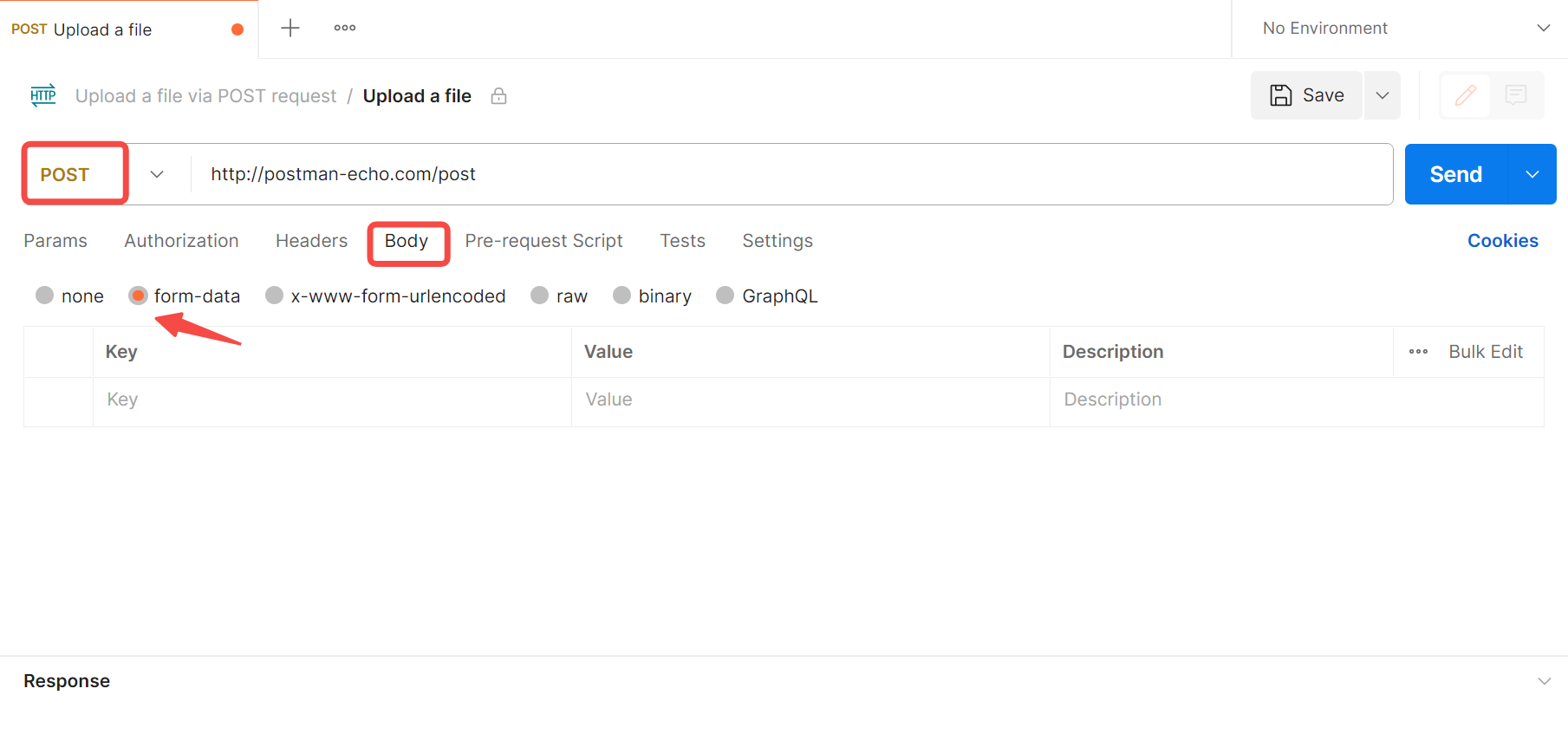
2. Click the " form-data" in the request body.
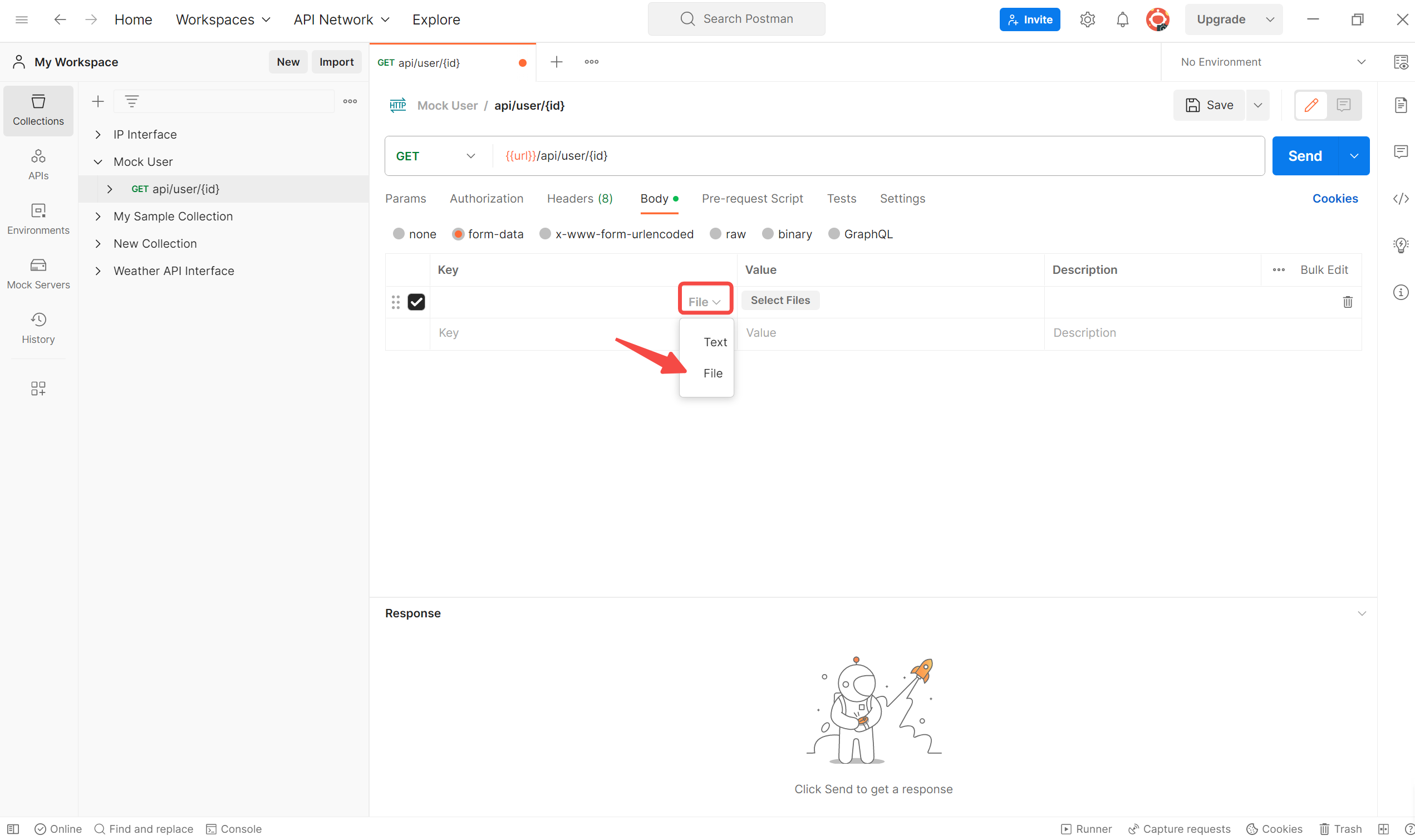
3. Hovering your mouse in the key field, and will show a dropdown menu like Text/File. Select the "File" and click " Select file" in the value field.
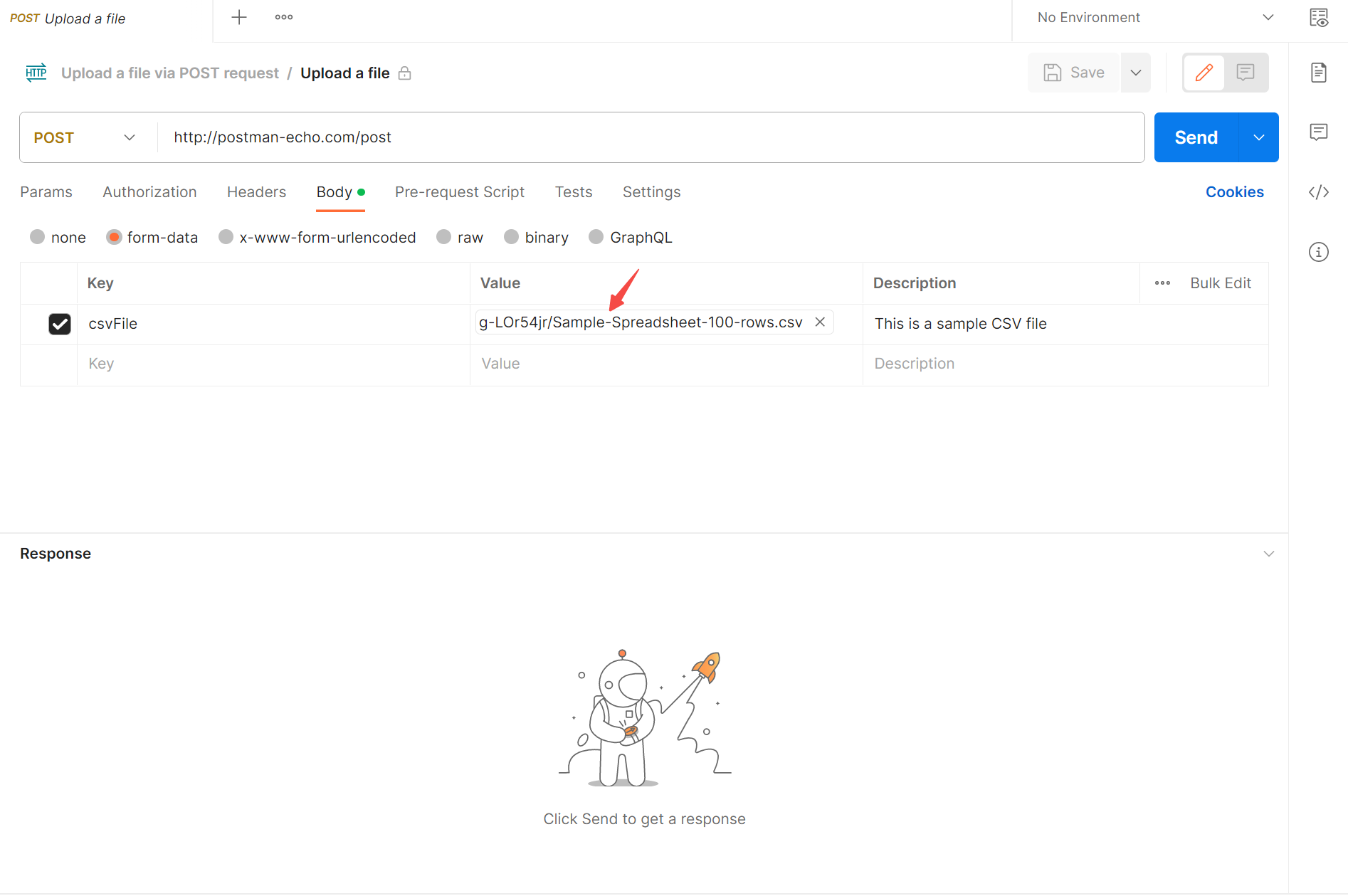
4. Upload your files into Postman, and you can also enter the related value. At last, click the "Send" button to test the POST API in Postman.
How to Upload JSON Data in Postman?
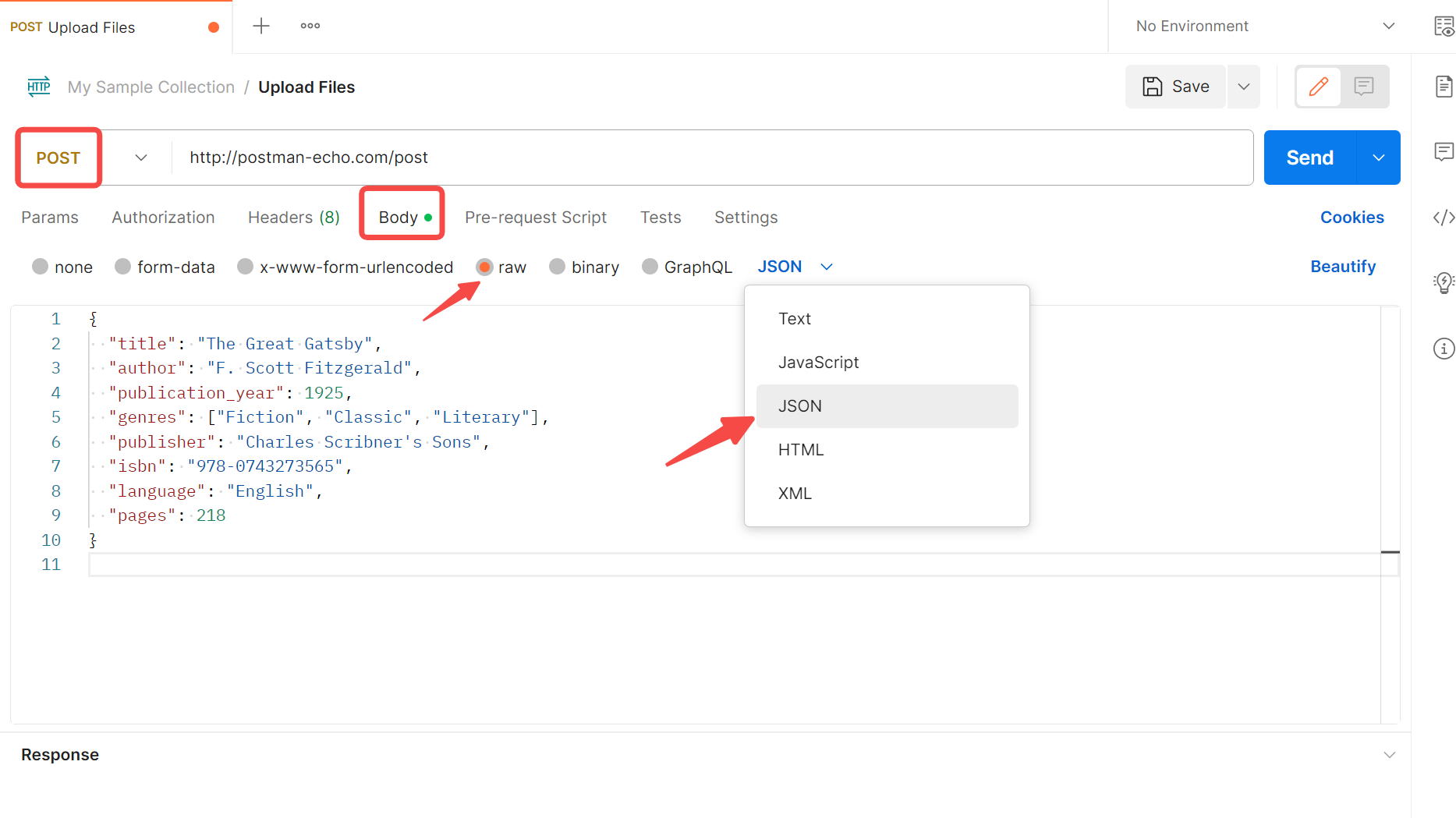
The previous steps are the same as the former. Choose POST, choose Body->-raw->-JSON.
Then input your JSON data in the text area. Once you've entered your JSON data, you can click "Send" and see the response in the "Response" tab.
Apidog: The Best Alternative to Upload Files and JSON Data
Apidog is a powerful API toolkit that boasts a user-friendly interface and supports the uploading of multiple file formats. Apidog's file uploading capability is designed to make API testing more efficient and effective, allowing developers and testers to seamlessly incorporate file upload functionality into their API testing workflows. With its user-friendly interface and support for multiple file types.
In Apidog, you can easily upload files for testing by creating a new request and navigating to the "Body" tab. From there, you can select various parameters, such as from-data, binary, JSON, etc. You can easily switch from Postman to Apidog as a beginner.
Now, we will introduce the guide on how to upload a file in Apidog quickly. First, you can get started on Apidog web or free download to log in via Google or Github.
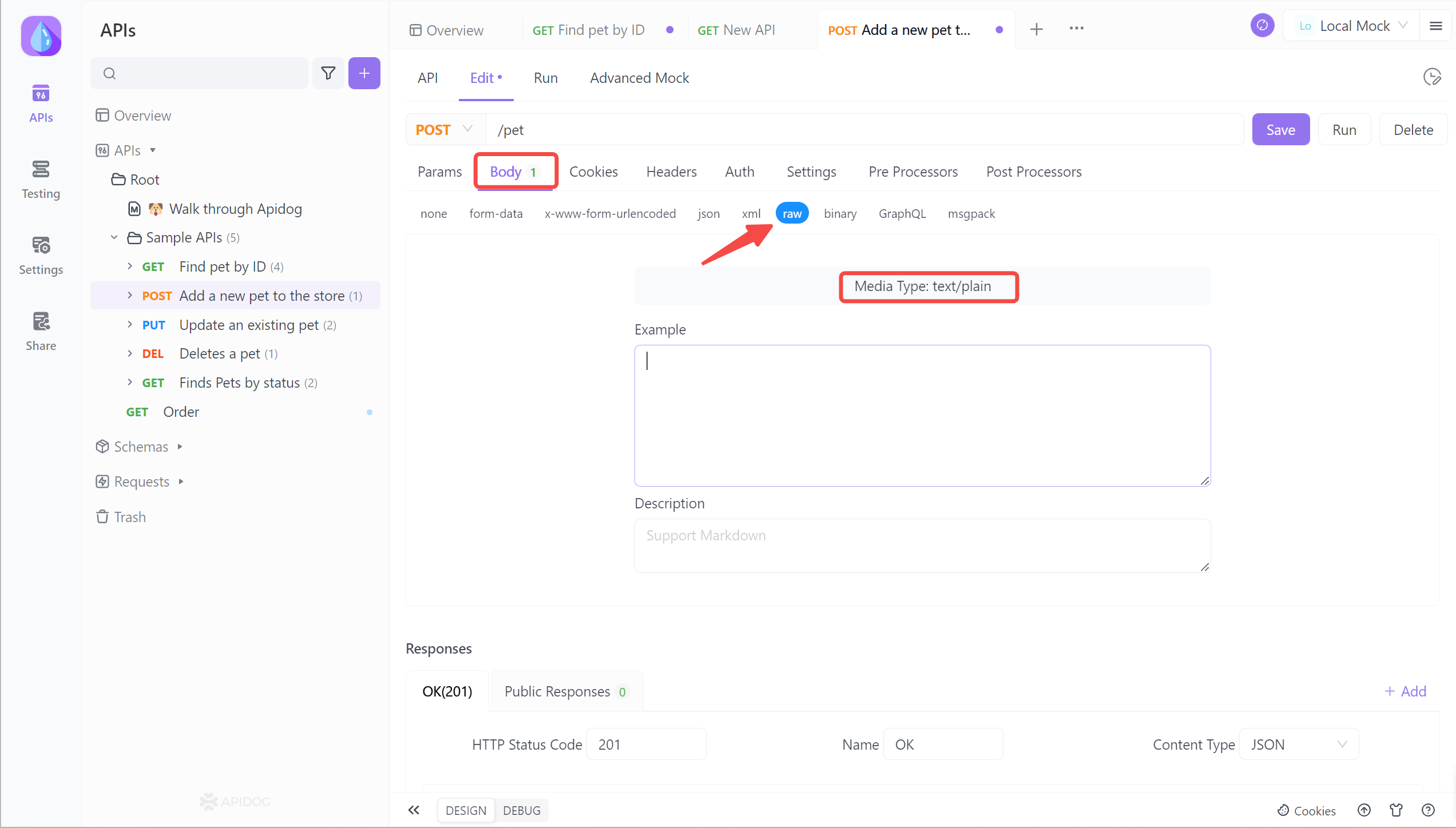
- To open the API, switch to the Edit page. If you're a new user, you can quickly create a new request by clicking on the "+" icon in the left sidebar.
- Next, in the "Body", you can select the media type or data type you want to upload. Select "raw", and input text or plain below.
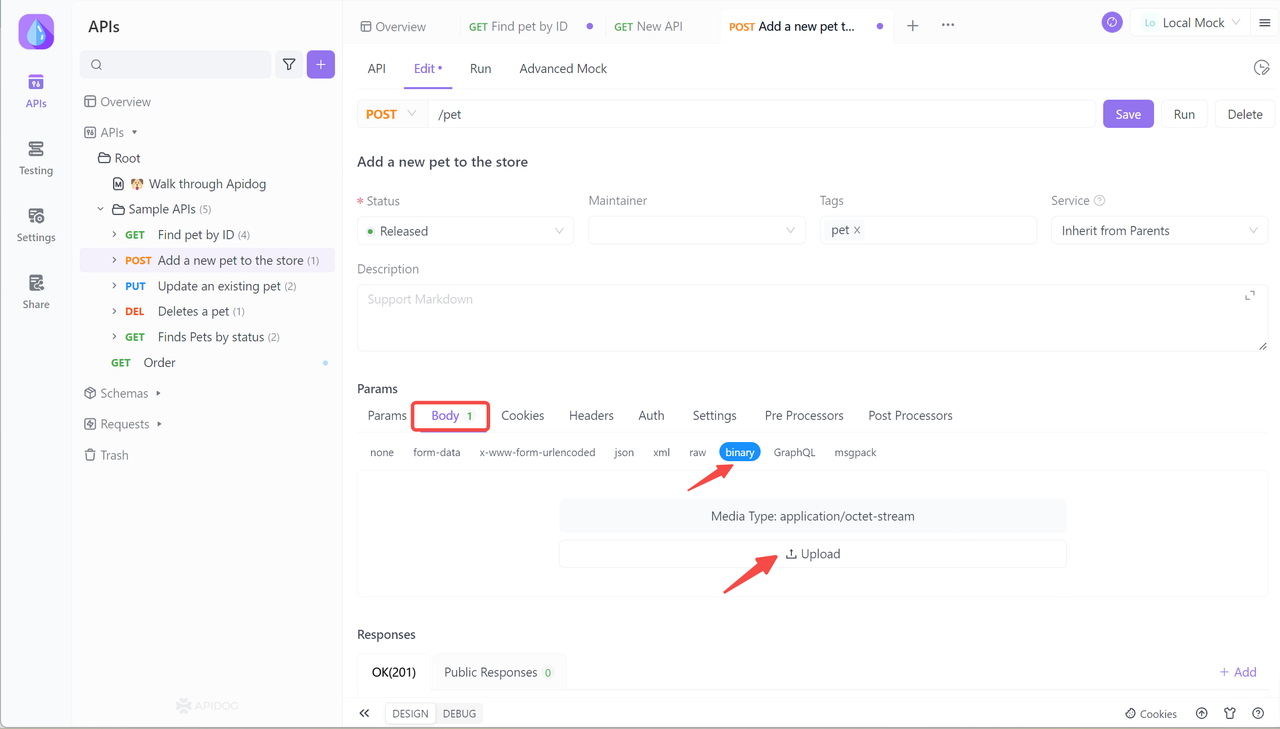
Optional: Apidog also supports uploading applications and octet-stream. You can click the "Upload" button to choose which file you want to upload in Apidog.
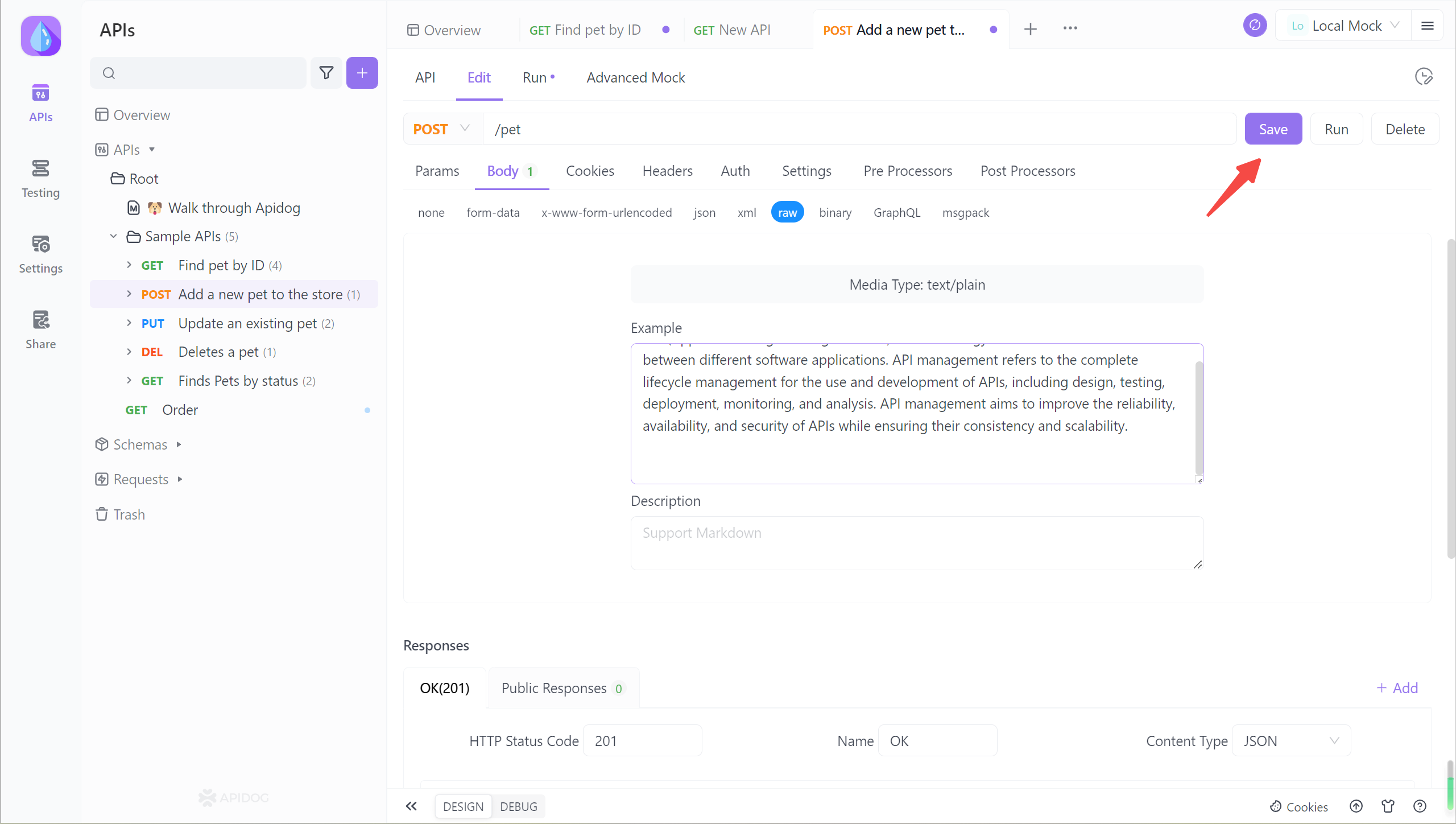
3. Select the Text document to be uploaded, which supports Markdown format. When finished, click the Save button.
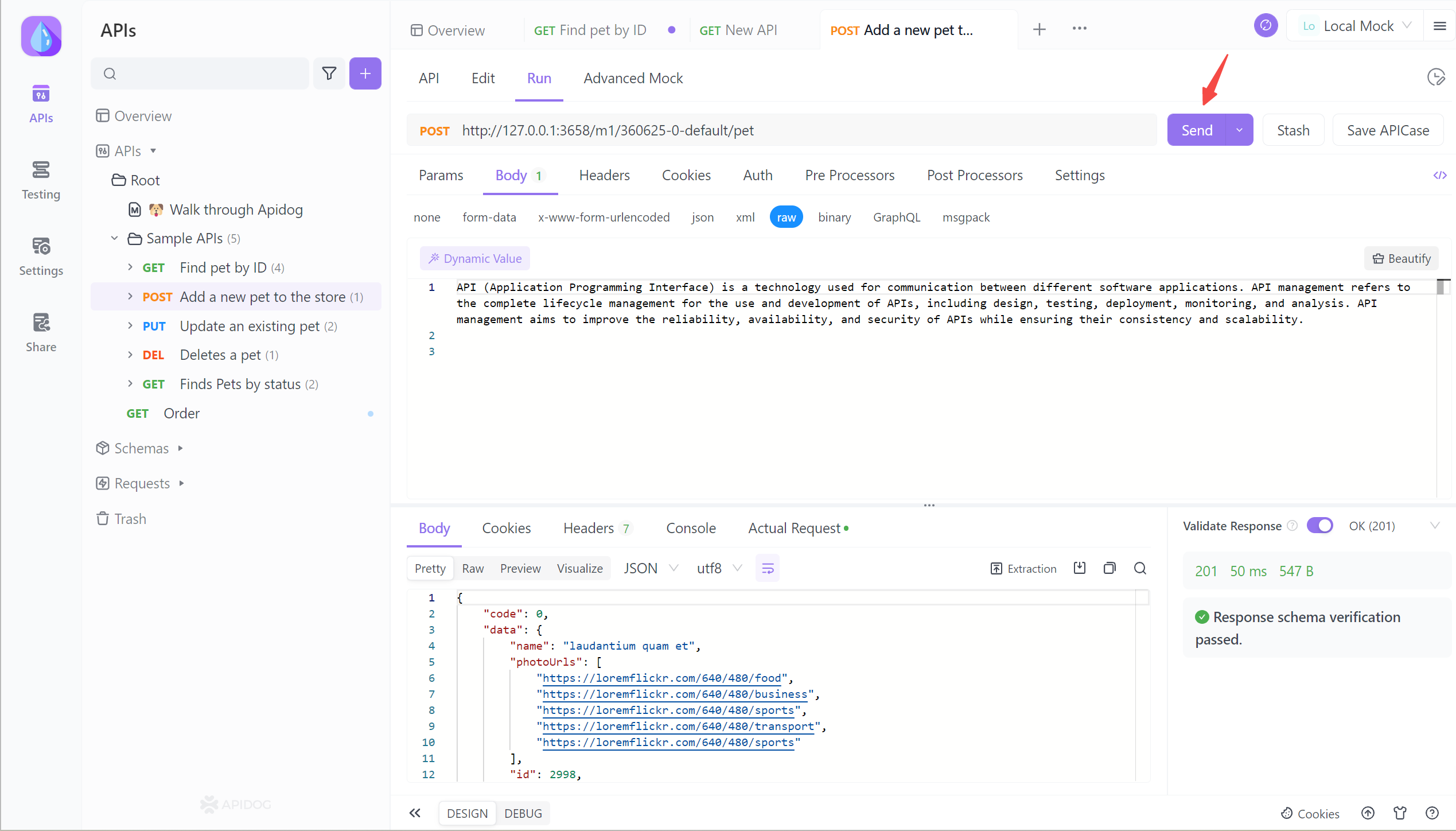
4. Send the request and Response schema verification passed.
Apiodg stands out as an API documentation generator due to its exemplary ease of use, combined with a broad range of feature offerings. Additionally, the learning curve for using this tool is notably low, making it accessible to users of all levels of experience and technical proficiency.
Overall, Apiodg has become a popular choice for developers seeking a user-friendly and comprehensive solution for generating API documentation.