Claude install as app is a new beta that turns any Claude artifact into a desktop app for Mac or Windows. To install one, update Claude for Mac or Windows, open the artifact, choose Install as app from its Share menu, then decide how much of your computer the app may touch. It’s available on all plans, with a few exceptions covered below.
Anthropic announced the feature on November 24, 2026, in Turn artifacts into Mac and Windows apps. There’s no packaging, no code signing and no API key. This guide covers the install steps, the three permission levels, admin settings and beta limits, then shows how your coding agent can check the API your app depends on.
What is Claude install as app?
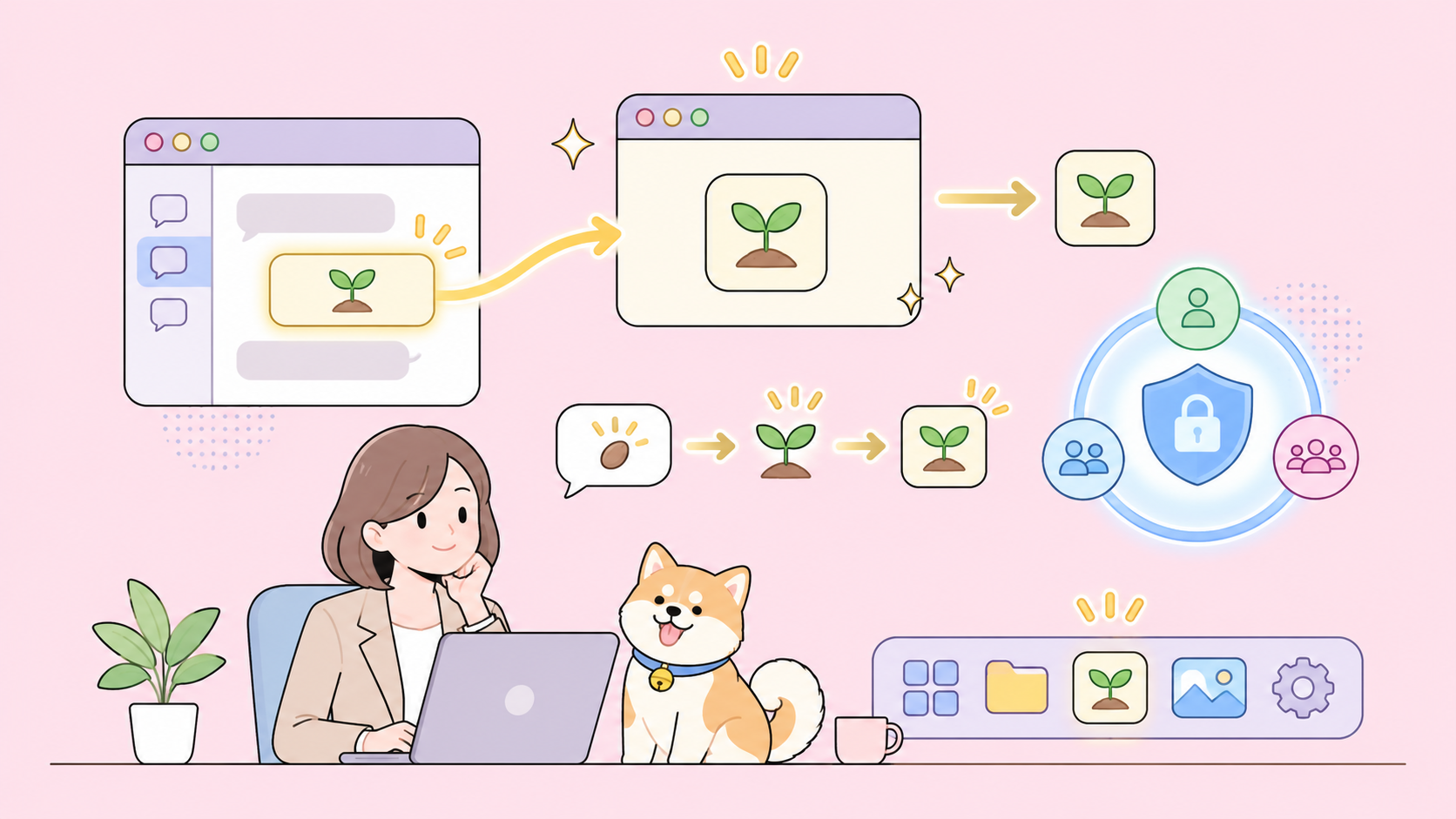
Install as app is a beta feature in Claude for Mac and Windows that installs an artifact as its own desktop app. The app gets its own icon and window, can use Claude and your connectors, updates when you edit the artifact, and asks for your permission before it interacts with your computer.
Three details matter for day-to-day use:
- It runs on your Claude account. The app signs in with the account you already use, so there’s no separate login and no API key to manage.
- Its Claude requests count toward your plan. When the app asks Claude for something, that usage comes out of your plan’s usage limits.
- It updates itself. Edit the artifact and the installed app picks up the change.
If you’ve already set up connectors in Claude Desktop (for example through MCP, as in our guide to connecting an MCP server to Claude Desktop), an installed app can use those connectors too.
Requirements: plans, platforms and exclusions
You need the Claude desktop app on Mac or Windows, an artifact you want to keep, and an internet connection. The feature isn’t in the browser version of Claude.
| Requirement | What the announcement says |
|---|---|
| Platforms | Claude for Mac and Claude for Windows |
| Plans | All plans, in beta |
| Team plans | On by default, full computer access off |
| Enterprise plans | Off until an owner turns it on |
| Not available | HIPAA-ready organizations and hybrid deployments |
| Can’t be installed | Claude Docs, Slides and Sheets |
| To open an app | You must be online and signed in to Claude |
If you don’t have the desktop app yet, get it from the Claude download page. Anthropic’s help article on installing Claude Desktop lists the current system requirements for each operating system. If you already have it, update to the latest version first, since the option only appears in updated builds.
How to install a Claude artifact as a desktop app
Here’s the full flow, from idea to an app with its own icon.
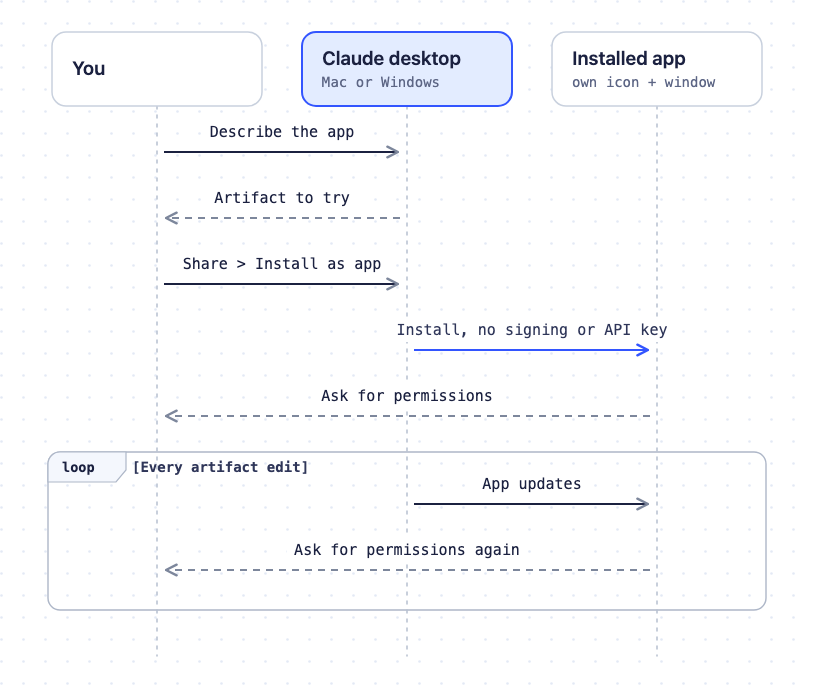
- Update Claude for Mac or Windows. Install the latest version so the Install as app option shows up.
- Build or open the artifact. Describe the app you want in a chat (“a menu bar timer that logs my focus sessions to a list”) and try it as an artifact. Or open an artifact you already use every day.
- Open the Share menu. On the artifact, open Share.
- Choose Install as app. Claude installs the artifact as its own app. You don’t package it, sign it or paste a key.
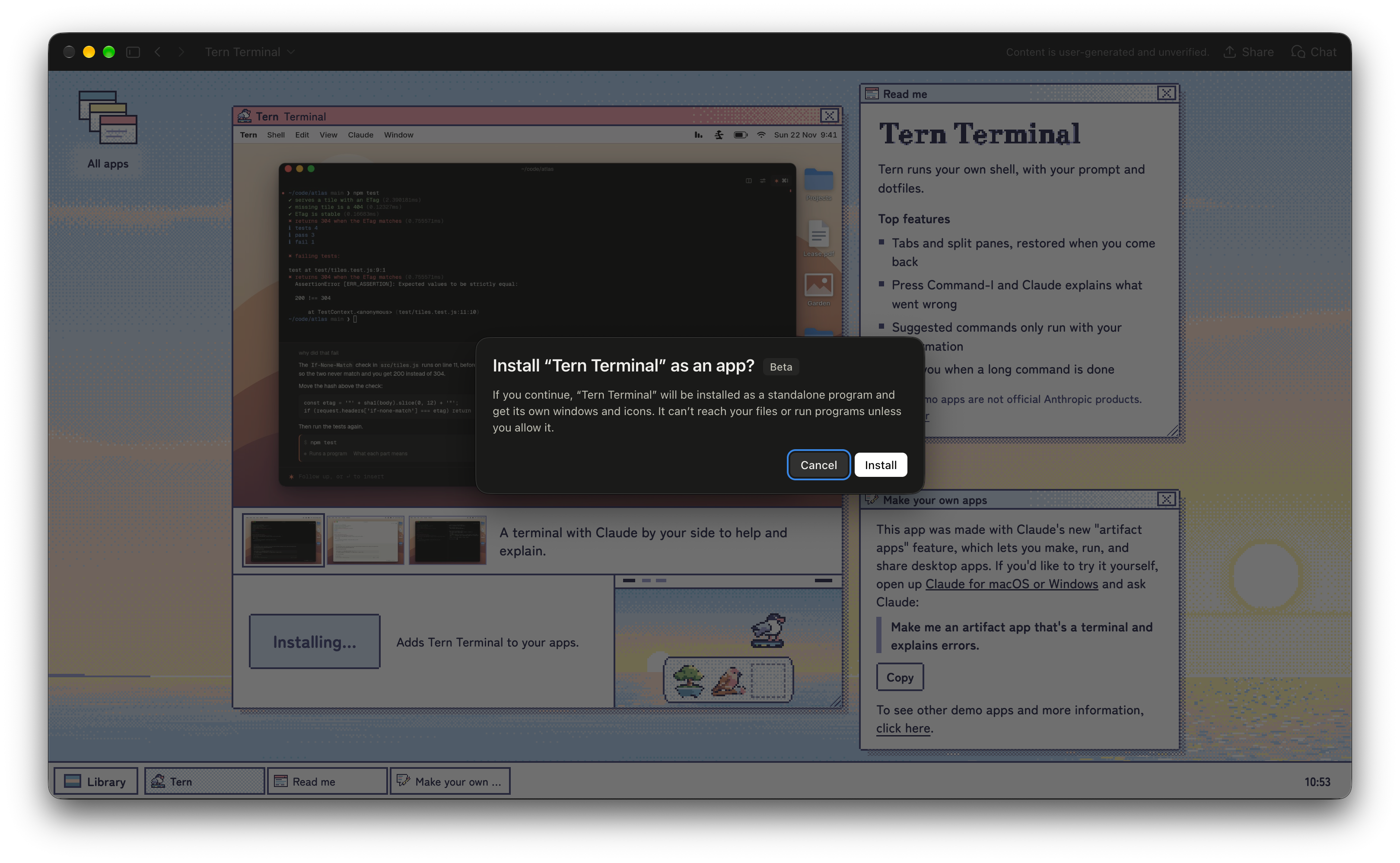
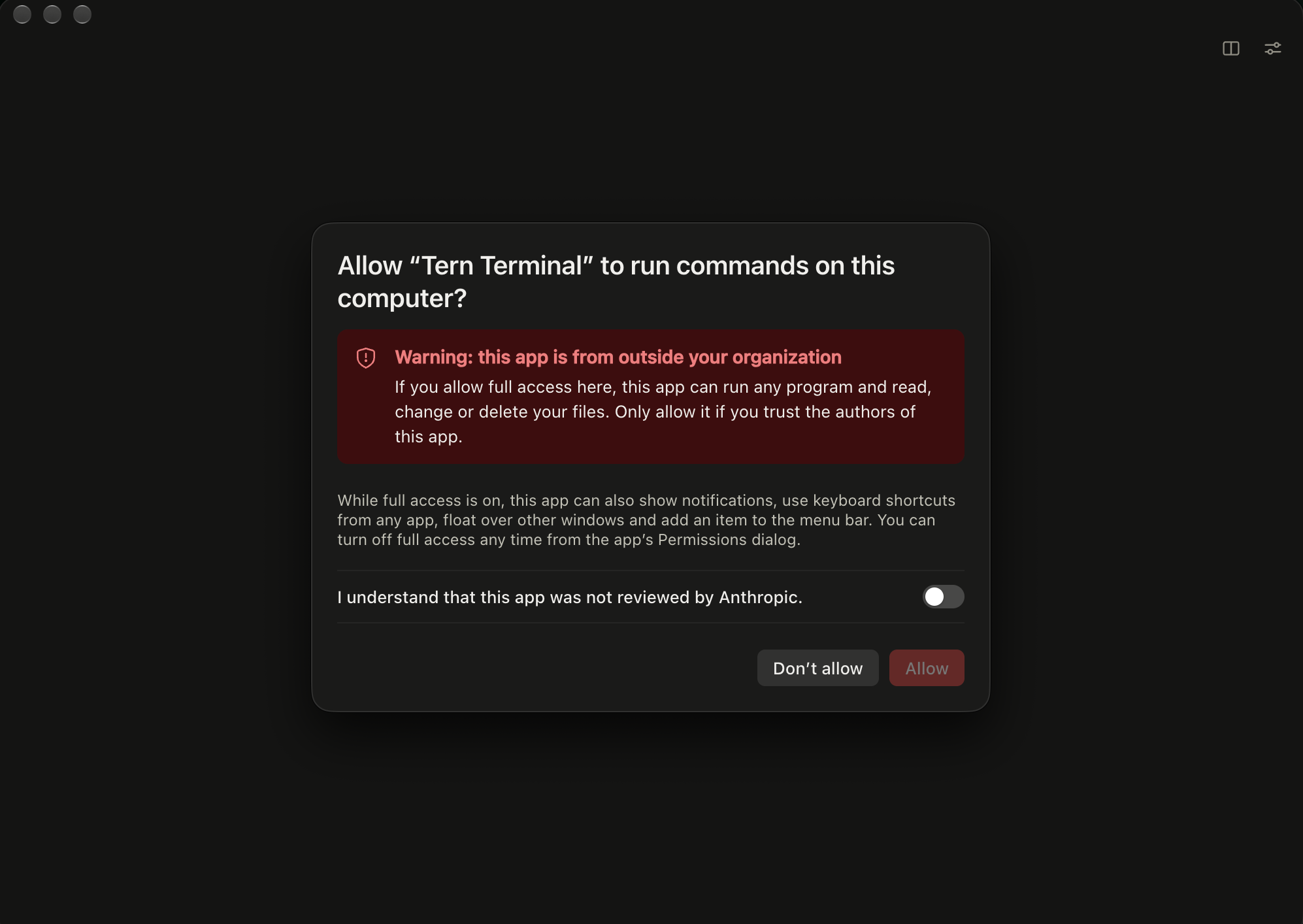
- Set permissions. When the app asks to do more than a browser page could, Claude asks you first. Pick the level you’re comfortable with (see the next section).
- Open it like any other app. It launches in its own window with its own icon. Keep in mind you need to be online and signed in for it to open.
To change the app later, edit the artifact in Claude. The installed app updates, and Claude asks you to approve its permissions again for the new version.
A tip for step 2: describe the job, not the code, iterate in the chat, and install only when the artifact is worth keeping.
Claude install as app permissions: the three levels
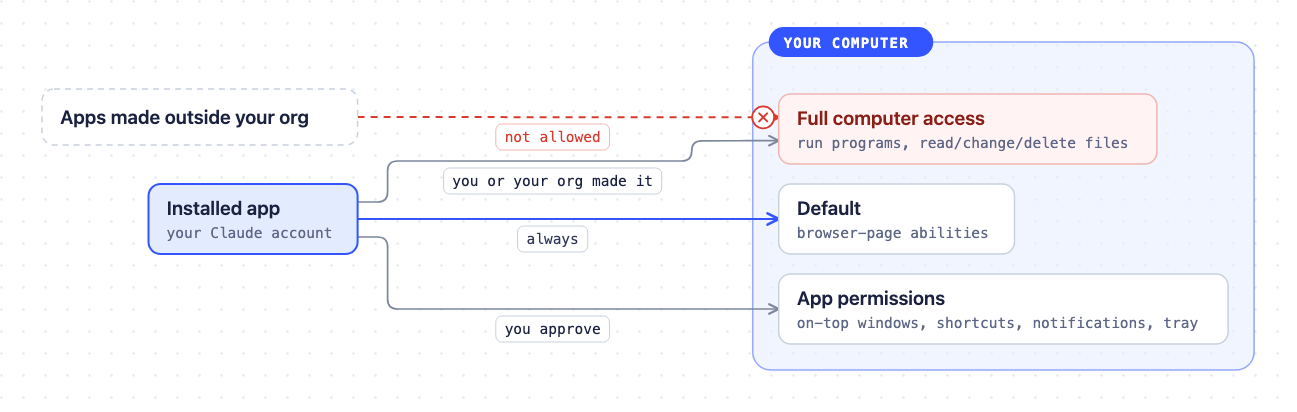
Every installed app starts with the least access and asks for more. Anthropic describes three levels:
| Level | What the app can do | Who can grant it |
|---|---|---|
| Default | Only what it could do as a page in a browser | Everyone |
| App permissions | Common features Claude can tightly control: always-on-top windows, global keyboard shortcuts, notifications, menu bar and system tray items | You choose per app |
| Full computer access | Run programs and read, change or delete your files without asking each time | Only for apps you made, or on Team and Enterprise, apps made by people in your organization |
Four rules sit on top of that table, and they’re worth reading twice:
- Permission covers one version. Claude asks again after every update, including edits you make yourself.
- Outside code isn’t re-checked. If part of an app loads from another website, that part can change without Claude asking you again.
- Anthropic doesn’t review apps. Nobody checks an app before you install it, so give full access only to apps you trust.
- Full access is limited to apps you or your org made. An app someone shared with you from outside your organization can’t get full computer access.
Most apps never need more than the default. Move to App permissions when the job depends on it, such as a timer that sends notifications. Save full computer access for tools you built yourself and have read through.
Admin settings for Team and Enterprise
Admins can turn app permissions and full access on or off for their whole organization. The defaults differ by plan:
- Team: Install as app is on by default. Full computer access is off by default.
- Enterprise: The feature is off until an owner turns it on.
- HIPAA-ready organizations and hybrid deployments: The feature isn’t available.
On Team, decide on full access before people start building: it can extend to apps made by anyone in your organization, so one shared app could change files on every machine that grants it.
Example apps to build first
Anthropic staff shared five apps built this way, each available as an artifact you can open from the announcement:
- Linnet: a full layered image editor.
- Phosphor: a file manager styled like a movie-set computer.
- Sift: sets folder rules and uses Claude to keep files organized.
- Tern: a terminal with Claude built in to help and explain commands.
- Vitals: a menu bar and system tray app for checking your computer’s performance.
Vitals lives in the menu bar and tray, one of the features App permissions cover. Sift moves files and Tern runs commands, the kind of work that falls under full computer access, which is why the rules above matter.
For non-developers, this sits close to what Claude Cowork offers: Claude doing real work on your desktop. The difference is that an installed app is a fixed tool you reuse, not a one-off task.
Limits and gotchas in the beta
Know these before you rely on an installed app for daily work:
- No offline mode. You must be online and signed in to Claude to open the app.
- It spends your plan’s usage. An app that calls Claude often, like Tern explaining every command, draws from the same limits as your chats.
- Some artifacts can’t be installed. Claude Docs, Slides and Sheets are excluded.
- It’s a beta. The announcement doesn’t cover how you remove an installed app or move it between machines, so check the menus in your Claude build before you plan around either.
Give your app a tested API with Apidog CLI
Many useful apps are thin front ends on an API, like a status board for your services. When one breaks, you want to know fast whether the app or the API is at fault. The announcement doesn’t spell out which network requests an installed app can make at each permission level, so check the API on its own first. Let your coding agent do that with Apidog CLI instead of clicking through requests by hand.
Set it up once in Claude Code, Codex or whichever agent you use:
npm install -g apidog-cli@latest
apidog login --with-token <YOUR_TOKEN>
npx -y skills add https://apidog.com   # pick your agent when prompted
Then give your agent one prompt:
In Apidog project <projectId>, list the endpoints my status-board app will call,
export them as an OpenAPI 3.1 file I can attach when I ask Claude to build the app,
then run the status-board test scenario against the Testing environment and
summarize any failures.
The agent finds the endpoints, exports a spec Claude can build against, and runs the checks:
apidog endpoint list --project <projectId>
apidog environment list --project <projectId>
apidog export --project <projectId> --format openapi --oas-version 3.1 --output ./openapi.json
apidog run -t <scenarioId> --project <projectId> -e <envId> -r cli,json
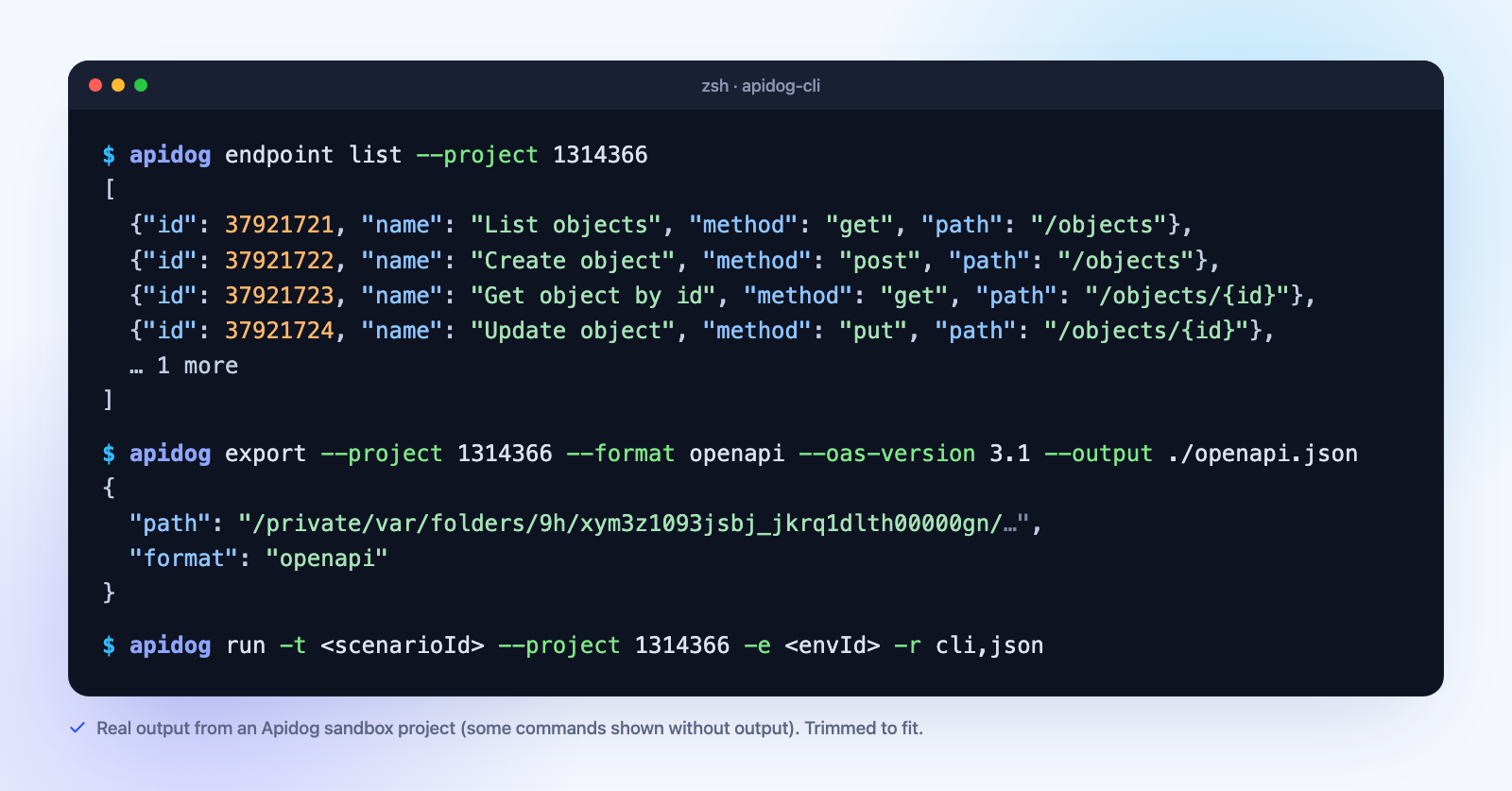
Attach openapi.json when you describe the app to Claude, and the artifact starts from your real paths and fields instead of guesses. Each time you edit the artifact, ask the agent to rerun the scenario. If the API passes and the app still fails, the problem is in the app. Our guide to using Apidog CLI in Claude Code covers more prompts, and the installation guide covers tokens and agent skills.
Once several people on your team are asking agents to build apps and check their APIs, Sharkly lets you hand those agent runs out as tasks on a shared board, run them on your own machines with your own Claude Code or Codex plan, and review what each agent ships before it merges. It’s free to start.
FAQ
Is Claude install as app free? It’s in beta on all plans, including the free one, according to Anthropic’s announcement. Requests the app makes to Claude count toward your plan’s usage limits, so a busy app uses up a free plan faster.
Does Install as app work in the browser or on Linux? No. Anthropic lists Claude for Mac and Claude for Windows only. You need the desktop app, updated to a current version.
Do I need an API key or a developer account? No. The app uses your Claude account, so there’s no API key, no separate login and no packaging or code signing.
Can an installed Claude app delete my files? Only if you grant full computer access, and only apps you made (or, on Team and Enterprise, apps made by people in your organization) can receive it. Anthropic doesn’t review apps, so grant full access only to apps you trust.
Why does my app ask for permission again? A permission covers the current version only. Claude asks again after every update, including your own edits to the artifact.