The gpt-image-2 API is OpenAI’s new image-generation endpoint, shipped alongside ChatGPT Images 2.0 on April 21, 2026. If you already call the OpenAI chat or embeddings APIs, adding image generation takes a single new request shape, an API key with the right scope, and about ten minutes.
This guide is strictly about the API: authentication, request parameters, code samples in three languages, thinking mode, batch generation, response handling, error codes, rate limits, and the testing workflow that keeps you from burning credits on broken prompts. For the product-level overview of what’s new in ChatGPT Images 2.0, see our ChatGPT Images 2.0 breakdown.
By the end you will have working calls, a reusable Apidog collection for iteration, and a clear picture of what each parameter costs.
Prerequisites
Before your first request you need four things:
- An OpenAI account with API access. Developer accounts are separate from ChatGPT Plus; a ChatGPT subscription does not include API credits.
- A billable usage tier.
gpt-image-2is available on Tier 1 and above. New accounts start at Free tier and must add payment before image endpoints unlock. - An API key with the
images:writescope. Project-scoped keys are recommended over user-scoped keys for production. - A testing tool that previews image responses. Terminal curl works for a first request; after that, use a real API client. More on that below.
Set the key once in your shell so every example in this guide runs without edits:
export OPENAI_API_KEY="sk-proj-..."
Endpoint and authentication
gpt-image-2 uses the same image generation endpoint as the previous model:
POST https://api.openai.com/v1/images/generations
Authentication is a bearer token in the Authorization header. Every request also carries a JSON body with the model ID, prompt, and output parameters.
curl https://api.openai.com/v1/images/generations \
  -H "Authorization: Bearer $OPENAI_API_KEY" \
  -H "Content-Type: application/json" \
  -d '{
    "model": "gpt-image-2",
    "prompt": "A sharp product hero image for an API testing platform, dark background",
    "size": "1024x1024",
    "n": 1,
    "quality": "high"
  }'
If the call succeeds you get back a JSON object with a data array of images. Failures return a standard OpenAI error envelope with a code and a human-readable message; the error table later in this guide covers the common ones.
Request parameters
Every field in the request body changes what you pay and what you get. Here’s the complete parameter map for gpt-image-2.
| Parameter | Type | Values | Notes |
|---|---|---|---|
model |
string | gpt-image-2 |
Required. |
prompt |
string | Up to 32,000 characters | Required. Longer prompts burn more input tokens. |
size |
string | 1024x1024, 1024x1536, 1536x1024, 2000x1000, 1000x2000, 2000x667, 667x2000 |
Drives output token count. |
quality |
string | standard, high |
high costs about 2× but handles fine text and UI elements. |
n |
integer | 1–10 | Batched requests share style across the set. |
thinking |
string | off, low, medium, high |
Reasoning budget before rendering. |
response_format |
string | url, b64_json |
URLs expire in one hour. |
user |
string | Free-form | Used for abuse detection; pass a hashed user ID. |
background |
string | auto, transparent, opaque |
Transparent output ships as PNG with alpha. |
seed |
integer | Any int32 | Loose control; same seed plus same prompt is close, not identical. |
The three parameters that most change cost are size, quality, and thinking. A 2000-wide high quality image with thinking: "high" can cost 4–5× a baseline 1024x1024 standard render.
Python example
The official SDK (openai>=1.50.0) adds native support for gpt-image-2:
import base64
from pathlib import Path
from openai import OpenAI

client = OpenAI()

response = client.images.generate(
    model="gpt-image-2",
    prompt=(
        "A minimalist diagram of an OAuth 2.1 authorization code flow with PKCE. "
        "Five boxes labeled in English: User, Client, Auth Server, Resource Server, Token. "
        "Sharp sans-serif text, off-white background, teal accent arrows."
    ),
    size="1536x1024",
    quality="high",
    n=2,
    thinking="medium",
    response_format="b64_json",
)

out_dir = Path("out")
out_dir.mkdir(exist_ok=True)

for i, image in enumerate(response.data):
    png_bytes = base64.b64decode(image.b64_json)
    (out_dir / f"oauth_{i}.png").write_bytes(png_bytes)

print(f"Generated {len(response.data)} images into {out_dir.resolve()}")
Two things worth flagging:
response.datais a list even whenn=1. Always iterate.b64_jsonis easier for local scripts;urlis better when you forward the image to a CDN or S3 upload, since you skip the decode-then-reencode cycle.
Node.js / TypeScript example
import fs from "node:fs/promises";
import OpenAI from "openai";

const client = new OpenAI();

const response = await client.images.generate({
  model: "gpt-image-2",
  prompt:
    "Dashboard UI mockup for a REST client, sentence-case labels, latency sparkline in the top-right, cool grey palette.",
  size: "1536x1024",
  quality: "high",
  n: 4,
  thinking: "medium",
  response_format: "b64_json",
});

await Promise.all(
  response.data.map(async (image, i) => {
    if (!image.b64_json) return;
    await fs.writeFile(`dash_${i}.png`, Buffer.from(image.b64_json, "base64"));
  }),
);

console.log(`Saved ${response.data.length} images`);
Use the official SDK rather than raw fetch unless you have a reason not to. The SDK handles retry, idempotency headers, and streaming, and it tracks breaking schema changes between model revisions.
Thinking mode: when to use it
thinking controls how much compute the model spends planning the layout before rendering. Four values, roughly:
off: no reasoning. Fastest, cheapest, best for loose creative prompts where composition does not have to be exact.low: light planning. A good default for product shots and hero images.medium: heavier planning. Right choice for diagrams, infographics, slides, and anything with counted elements (“four panels”, “three arrows”).high: maximum reasoning. Only pays off on complex multilingual layouts or strict technical diagrams; expect noticeably higher latency and cost.
A practical rule: if the prompt contains a number, a label, or a positional constraint, move up one tier. If it just says “a cozy scene”, drop a tier.
Thinking mode adds reasoning tokens to the bill on top of image output tokens. The OpenAI pricing page lists current per-token rates; budget for 1.2–2× your baseline image cost when medium or high is on.
Batch generation
Setting n > 1 returns multiple images in a single response that share composition and style. This is not the same as calling the endpoint n times in parallel; that gives you four unrelated images. Batched output is coherent, which matches how a design team iterates.
response = client.images.generate(
    model="gpt-image-2",
    prompt="Four different hero illustrations for an API documentation landing page, shared color palette, shared line weight.",
    size="1536x1024",
    quality="high",
    n=4,
    thinking="low",
)
You pay per image, so n=4 costs roughly 4× n=1. The win is consistency, not throughput.
Response format and storage
Two formats, two use cases:
b64_json: the image is inline in the response. Easy for scripts. Response payloads get large fast; a 2000-wide high-quality PNG can push response size past 3 MB.url: the image sits on OpenAI’s CDN for one hour, and you download it yourself. Better for serverless functions with response size limits and for pipelines that forward the image to your own storage.
For production, download the URL and push it to your own S3, R2, or Cloudflare Images bucket immediately. Do not ship OpenAI URLs to end users; they expire.
Error handling and rate limits
gpt-image-2 returns standard OpenAI error shapes. Here are the ones you will hit:
| HTTP | code |
Cause | Fix |
|---|---|---|---|
| 400 | invalid_request_error |
Bad size, unsupported ratio, prompt over 32k chars | Check the size list and trim the prompt. |
| 401 | invalid_api_key |
Missing or wrong key | Re-export OPENAI_API_KEY. |
| 403 | insufficient_quota |
No credits, or Free tier | Add billing, verify tier. |
| 429 | rate_limit_exceeded |
Too many requests per minute | Back off with jitter; retry with Retry-After. |
| 429 | image_generation_user_error |
Content policy refusal | Reword prompt. |
| 500 | server_error |
Transient OpenAI issue | Retry twice with exponential backoff. |
| 503 | overloaded |
Region-wide spike | Wait and retry. |
Rate limits on gpt-image-2 are tier-based. At Tier 1 you start around 50 requests per minute; higher tiers scale up. Always read x-ratelimit-remaining-requests and x-ratelimit-remaining-tokens headers on every response and throttle before you hit the wall.
Retryable errors in production:
import time
from openai import OpenAI, RateLimitError, APIStatusError

client = OpenAI()

def generate_with_retry(prompt: str, tries: int = 3):
    delay = 1.0
    for attempt in range(tries):
        try:
            return client.images.generate(
                model="gpt-image-2",
                prompt=prompt,
                size="1024x1024",
                quality="high",
                n=1,
            )
        except RateLimitError:
            time.sleep(delay)
            delay *= 2
        except APIStatusError as e:
            if 500 <= e.status_code < 600 and attempt < tries - 1:
                time.sleep(delay)
                delay *= 2
                continue
            raise
    raise RuntimeError("gpt-image-2 retries exhausted")
Do not retry 400s, 401s, or content-policy 429s; those fail for a reason and retrying wastes credits.
Testing the API with Apidog
Iterating on image-generation prompts from a terminal is slow: you cannot see the result, cannot diff parameter changes, and cannot version the good prompts. A purpose-built API client solves all three.
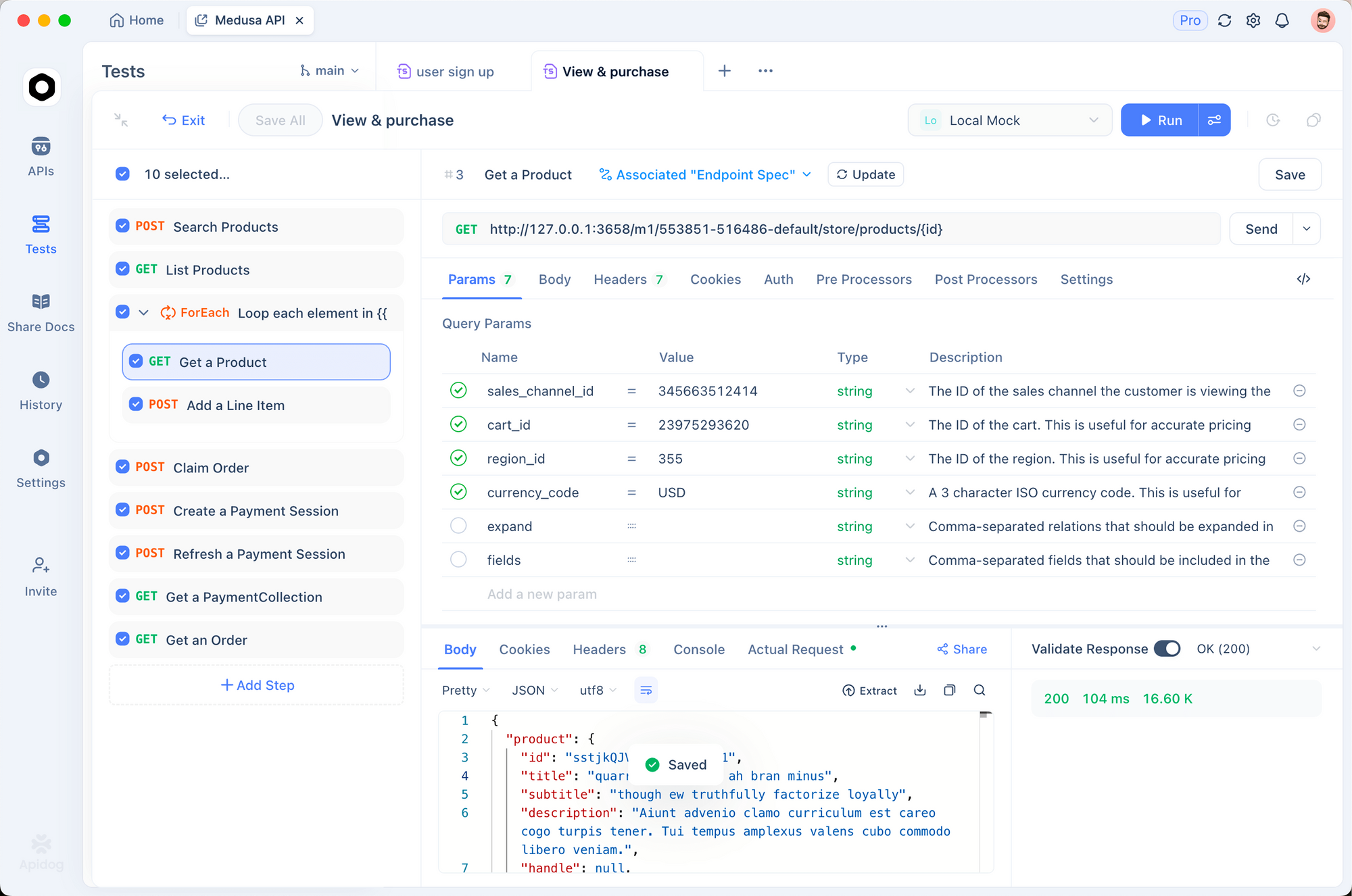
Apidog treats the gpt-image-2 endpoint as a first-class request. Typical workflow:
- Create a new request in your OpenAI collection, method
POST, URLhttps://api.openai.com/v1/images/generations. - Add
Authorization: Bearer {{OPENAI_API_KEY}}as a header; setOPENAI_API_KEYin an environment variable so it never lives in source. - Paste the JSON body with your prompt; Apidog validates against the OpenAPI spec and surfaces type mismatches before you send.
- Hit Send. Image responses render inline; save the good ones, tag the bad ones, fork the request for variants.
- Save environments for
thinking: off,thinking: medium, andthinking: highto compare the same prompt across reasoning levels.
Apidog’s request diffing is the part that matters most here. You tweak one parameter; you see the before-and-after image side by side; you commit the winner to a prompt library your whole team shares. This is the workflow the terminal cannot give you.
If you are coming from a generic HTTP client or a crashed Postman workspace, Download Apidog and point it at your OpenAI key; setup takes under five minutes. Teams evaluating alternatives can also read our API testing without Postman guide and the Apidog VS Code extension overview.
Common pitfalls
A handful of mistakes burn credits and time on the first week with gpt-image-2.
- Using
quality: "standard"for text-heavy prompts. Standard quality garbles small text. Jump tohighwhen labels, icons, or UI copy matter. - Over-prompting. 32k characters is the ceiling, not the target. Past a few hundred tokens the model starts ignoring earlier instructions. Keep prompts under 500 words and use
thinkingto enforce complex constraints. - Expecting reproducibility from
seed. Seed reduces variance but does not pin output. If you need the exact same image, cache the bytes; do not re-roll. - Shipping OpenAI URLs. They expire in one hour. Always copy to your own storage before serving downstream.
- Calling the endpoint in a tight loop. Image generation is slow. Parallelize across workers and respect rate-limit headers; sequential tight loops just queue and timeout.
FAQ
How is gpt-image-2 different from gpt-image-1 at the API level?Same endpoint, same auth. New parameters: thinking (off/low/medium/high), extra size values up to 2000 px, and n up to 10 with shared style. Existing SDK integrations keep working after a model ID swap; you only add the new parameters where they help. For the full diff, see the ChatGPT Images 2.0 overview.
What’s the fastest way to prototype a gpt-image-2 integration?Create a request in Apidog, save two environments (standard vs thinking), and iterate on prompts without touching code. Export the final request as curl or SDK code when you are ready to commit.
Does the API support image editing or inpainting?Edit and variation endpoints follow the same pattern as the previous generation under the new model ID. Check the gpt-image-2 model reference for the latest schema; parameters for masks and input images are documented there.
Can I use gpt-image-2 for commercial output?Yes, under OpenAI’s standard usage policies. You own the generated images; OpenAI retains rights to use inputs and outputs for abuse monitoring. Trademarked characters and named public figures still trigger guardrails.
What about cost for a production workload?At roughly $0.21 per 1024×1024 high-quality image in standard mode, 10,000 images a month runs about $2,100 without thinking. Add 20–80% for thinking mode. Compare this against self-hosted alternatives like our GLM 5V Turbo API guide and Qwen 3.5 Omni integration if budget matters more than peak quality.
Is there a cheaper alternative with similar text rendering?Not yet at the same quality for multilingual text. Open-weight models have closed the gap on composition but still lag on CJK and Indic scripts.