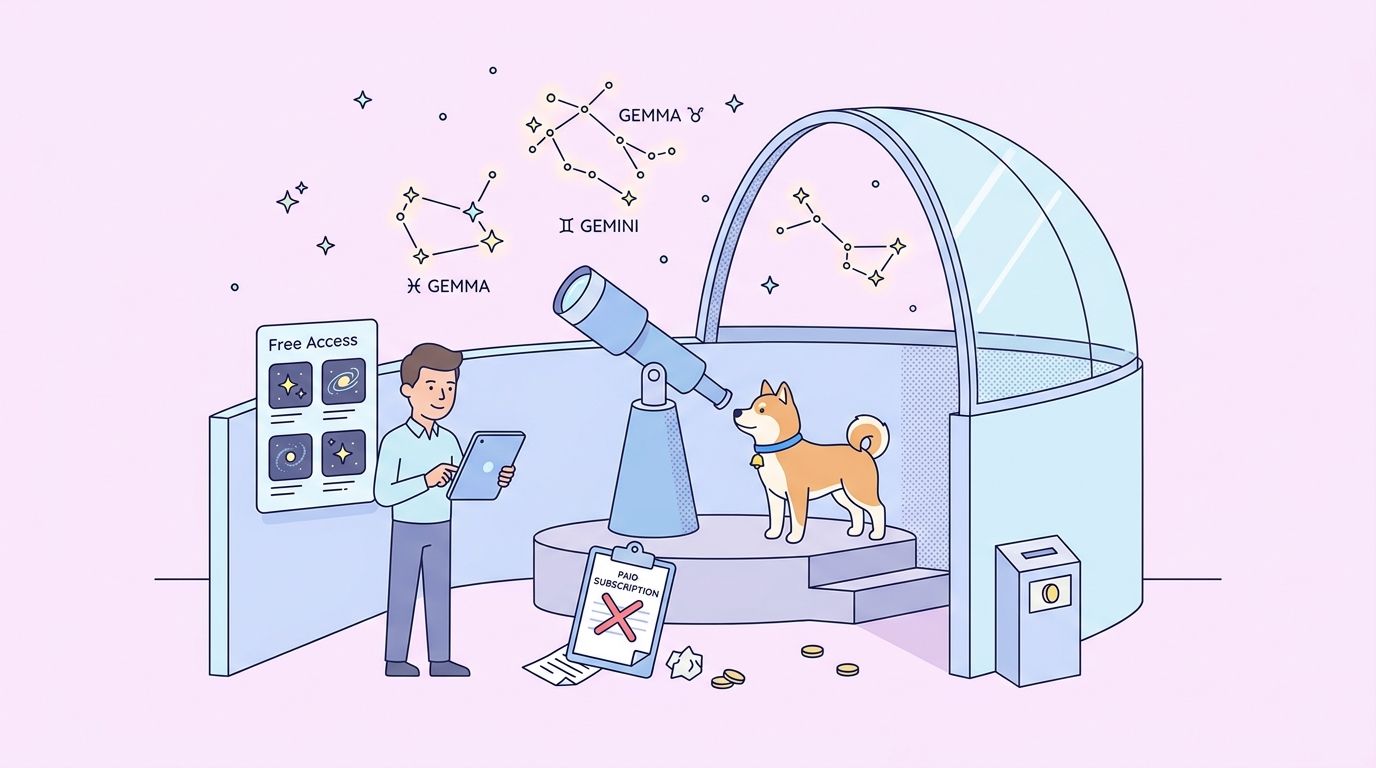
Google’s Gemini family is the most cost-effective frontier model line for high-volume workloads, with Gemini 2.5 Pro running $1.25 / $10 per million tokens and Flash variants running far cheaper. For a free public app, a side project, or a hackathon build, even those rates add up fast once a few thousand users hit your endpoint. Puter.js flips the model: it exposes the entire Gemini lineup (2.5 Pro, 2.5 Flash, 2.0 Flash, the 3 Flash preview, plus the open Gemma 2/3/4 family) without a Google API key and bills the end user instead of you. For the developer, the surface is free and unlimited.
TL;DR
- Puter.js gives developers free, unlimited access to the full Gemini and Gemma catalog with no Google API key, no Google Cloud project, no server.
- Supported Gemini: 2.5 Pro, 2.5 Flash, 2.5 Flash Lite, 2.0 Flash, 2.0 Flash Lite, 3 Flash Preview, plus dated previews.
- Supported Gemma: Gemma 2, 3, 4 in multiple sizes (4B, 12B, 27B, 31B, 26B-A4B).
- One
<script>tag, one function call, you are talking to Gemini. - Streaming, vision input, temperature control all work in the browser.
- The end user covers their usage from a Puter account; you pay zero, forever.
- Use Apidog to benchmark Puter against the official Gemini API for migration planning.
How “free unlimited” works
Puter.js inverts the LLM billing model. Instead of you holding the Google AI Studio key and eating every token cost, your end user signs in to Puter (free account) and the call charges against their balance. New Puter accounts get starter credit; users top up if they want more.
For the developer, the consequences are clean:
- No Google Cloud project, no AI Studio key. No quota negotiation, no key rotation, no billing relationship.
- No usage cap on your side. Your “limit” scales linearly with your user base.
- No vendor lock-in to Google billing. Puter handles the upstream call.
The trade-off: this is browser-first. A backend cron job cannot use Puter without a logged-in user session.
Step 1: Install
One CDN tag, no build step:
<script src="https://js.puter.com/v2/"></script>
That is the entire installation. Or for a bundled app:
npm install @heyputer/puter.js
import { puter } from '@heyputer/puter.js';
Step 2: Pick a model
The Gemini lineup on Puter, with the right tool for each shape:
| Model ID | When to use |
|---|---|
google/gemini-2.5-pro |
Deepest reasoning; complex analysis and long-context tasks |
google/gemini-2.5-flash |
Default daily driver; strong cost/quality balance |
google/gemini-2.5-flash-lite |
Cheapest Flash variant; high-volume classification |
google/gemini-2.0-flash |
Stable baseline; well-understood behavior |
google/gemini-3-flash-preview |
Latest preview; cutting-edge speed |
google/gemma-3-27b-it |
Open Gemma; instruction-tuned, good for fine-tuning baselines |
google/gemma-4-31b-it |
Largest open Gemma; closer to closed-Gemini quality |
For most apps, default to gemini-2.5-flash and only reach for Pro on hard prompts. The Lite variants are an order of magnitude faster and good enough for tagging, classification, and simple Q&A.
Step 3: Make Gemini talk
The minimum viable call:
<!DOCTYPE html>
<html>
<body>
  <script src="https://js.puter.com/v2/"></script>
  <script>
    puter.ai.chat(
      "Explain machine learning in three sentences",
      { model: 'google/gemini-2.5-flash' }
    ).then(response => {
      puter.print(response);
    });
  </script>
</body>
</html>
Open in a browser. Puter handles the call, the user signs in (or creates a free Puter account on first run), and the response prints to the page. No API key, no environment variable, no server.
Step 4: Stream the response
For chat UIs and long answers, streaming is the right default:
const response = await puter.ai.chat(
  "Explain photosynthesis in detail",
  {
    model: 'google/gemini-2.5-flash',
    stream: true,
  }
);

for await (const part of response) {
  if (part?.text) {
    outputDiv.innerHTML += part.text;
  }
}
Each part.text is a chunk of the response. Append to your UI; the user sees text appear word by word.
Step 5: Vision (image input)
Gemini’s strongest feature is multimodal grounding. Pass an image URL as the second argument:
puter.ai.chat(
  "What do you see in this image? Describe colors, objects, and mood.",
  "https://assets.puter.site/doge.jpeg",
  { model: 'google/gemini-2.5-flash' }
).then(response => {
  puter.print(response);
});
Use cases: alt-text generation, visual QA, screenshot analysis, OCR, accessibility tooling, product image tagging. Gemini’s vision quality is consistently strong on natural images and diagrams; on dense text screenshots, GPT-5.x sometimes edges it out.
Step 6: Tune temperature
Pass standard parameters in the options object:
const response = await puter.ai.chat(
  'Write a creative short story about a robot chef',
  {
    model: 'google/gemini-2.5-flash',
    temperature: 0.2,
  }
);
Lower temperature (0.0–0.3) for factual or structured output, higher (0.7–1.0) for creative writing. Gemini Flash defaults work well at temperature 0.7 for most chat use cases.
Step 7: Multi-turn conversations
Pass an array of messages:
const messages = [
  { role: 'user', content: 'I am building a Next.js app with Postgres.' },
  { role: 'assistant', content: 'Got it. What do you need help with?' },
  { role: 'user', content: 'How should I structure migrations?' },
];

const response = await puter.ai.chat(messages, {
  model: 'google/gemini-2.5-pro',
});

console.log(response);
Push every user message and every assistant response onto the array before the next call. Gemini reads the whole transcript and stays consistent across turns.
Comparing Gemini against other models on the same prompt
Puter exposes every major LLM through one interface. The fastest way to find the right model for your use case is to script the same prompt across providers:
const models = [
  'google/gemini-2.5-flash',
  'claude-sonnet-4-6',
  'gpt-5.5',
  'x-ai/grok-4.3',
];
const prompt = "Refactor this React component to use hooks: ...";

for (const model of models) {
  const start = performance.now();
  const response = await puter.ai.chat(prompt, { model });
  const elapsed = performance.now() - start;
  console.log(`${model}: ${elapsed.toFixed(0)}ms`);
  console.log(response);
  console.log('---');
}
Run it once and you see the trade-off pattern. Gemini Flash is usually the latency winner, Sonnet is the quality winner on coding, GPT-5.5 is the quality winner on long-form writing, Grok 4.3 wins on cost. Pick the model that fits your shape.
What you get and what you don’t
The honest split:
You get:
- Full Gemini 2.5/2.0/3 Flash catalog plus 2.5 Pro
- Open Gemma family (2/3/4) for open-weight workflows
- Multi-turn conversations
- Streaming responses
- Vision input (image URL)
- Temperature, max_tokens, system prompts
- Production-ready scale
You may not get (depending on Puter version):
- Native function calling on Gemini (check latest Puter docs)
- Code execution tool
- Google Search grounding
- Long context up to Gemini’s full 2M-token ceiling
- Server-side use without a browser context
- Direct rate limit visibility from Google
For deep agentic flows that need code execution and grounding, the official Google AI Studio API gives you more. For typical chat, Q&A, content gen, and visual tasks, Puter is enough.
When to use Puter vs the official Gemini API
The split:
Use Puter when:
- You are shipping a free public app and do not want billing exposure.
- You are prototyping and do not want to set up a Google Cloud project.
- You want Gemini in a static site, hackathon project, or browser extension without a backend.
- Your users are happy to sign in to Puter.
Use the official Gemini API when:
- You need server-side calls (cron, batch, webhooks).
- You need code execution, Search grounding, or long-context Gemini Pro at full 2M ceiling.
- You need a contractual relationship with Google for compliance.
- You need fine-tuning on your own dataset.
- Your users will not tolerate a Puter sign-in step.
For the standalone Gemini 3 Flash walkthrough, see How to use the Gemini 3 Flash Preview API.
Testing the integration in Apidog
Puter calls happen in the browser, so you cannot script them from a backend test runner. The pattern that works:
- Build a small static page with the Puter script and a query parameter for the prompt.
- Use Apidog to validate the upstream Google Gemini API surface (when you eventually migrate).
- Keep both as separate environments in the same Apidog collection so you can swap with one click.
Download Apidog and set up two environments: puter-prototype (a localhost URL hosting your Puter page) and gemini-prod (https://generativelanguage.googleapis.com/v1). The collection ports cleanly when you graduate. For broader API testing patterns, see API testing tool for QA engineers.
Other free LLM paths through Puter
The same user-pays model works for every major LLM:
- Get free unlimited Claude API (Anthropic Opus, Sonnet, Haiku)
- Get free unlimited GPT-5.5 API (full OpenAI catalog)
- How to use Grok 4.3 for free (xAI)
- Get free unlimited DeepSeek API
The single Puter script handles all of them. Switch the model string and you switch providers.
FAQ
Is this truly unlimited, or is there a hidden cap?Unlimited from the developer’s side, yes. The end user has whatever balance is in their Puter account; new accounts get starter credit and users top up if they want more.
Do I need a Google account or Google Cloud project?No. Puter handles the Google relationship. You never see a Google API key.
Can I use this in production?Yes for browser-based apps. Puter runs production infrastructure. The right question is whether your users tolerate a Puter sign-in step.
Does Gemini through Puter perform identically to the official API?Model output is the same; Puter calls Google’s API on the user’s behalf. Latency may be marginally higher because of the extra hop, but model behavior is unchanged.
What about Gemini’s massive 2M-token context window?Puter does not expose the full 2M ceiling on every model variant today. For extremely long context, the official Google AI Studio API is the right path. Most use cases stay well under 200K tokens, where Puter is fine.
Can I use Gemini through Puter in a Discord bot or backend service?Not cleanly. Puter is browser-first and assumes a user session. Backend services should use the official Gemini API directly.
What model should I default to?google/gemini-2.5-flash. It is the right balance of cost, speed, and quality for most prompts. Move to google/gemini-2.5-pro for hard reasoning tasks, and google/gemini-2.5-flash-lite for high-volume classification.
Is image generation supported (Imagen)?Puter exposes image generation through OpenAI’s gpt-image-2 and DALL-E variants today, not Imagen. See Get free unlimited GPT-5.5 API for the image gen path.
Wrapping up
Free unlimited Gemini through Puter.js is the cleanest path for any browser-based app that wants Google-quality multimodal output without Google Cloud setup. Drop in the script, pick gemini-2.5-flash, write the prompt. The end user covers usage; you ship without a key.
For server-side Gemini, fine-tuning, code execution tools, or full 2M-token context, the official Google AI Studio API is still the right answer. For prototypes, hackathon builds, free public apps, and static sites, Puter is the answer.
Build the request once in Apidog, benchmark Puter against the official API, and pick the path that matches your shape.