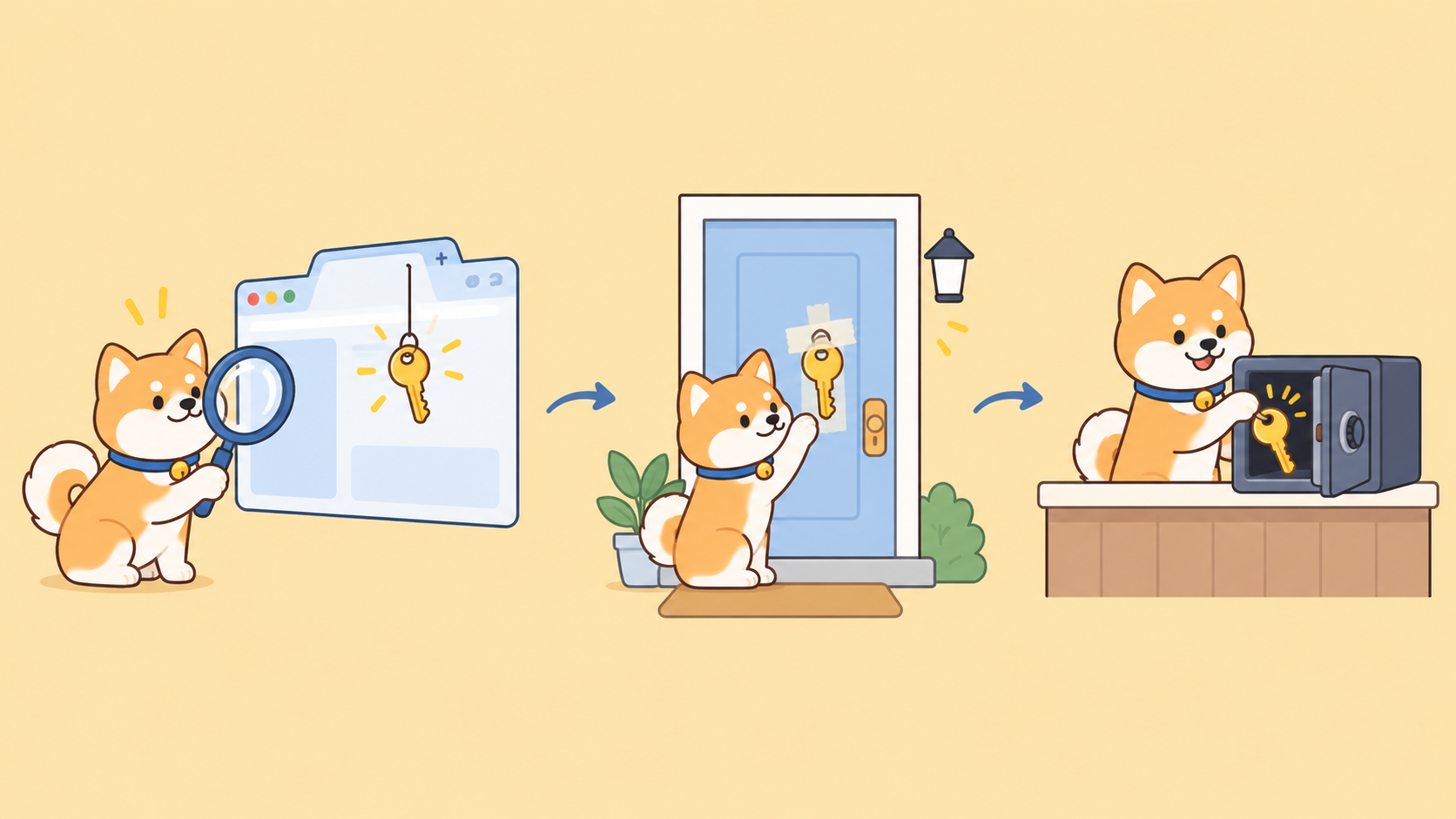
If your web app calls OpenAI, Claude or Gemini straight from the browser, your API key is exposed in the browser, and anyone who opens DevTools can copy it. You can confirm it in 2 minutes: open the Network tab, send one AI request, and look for an Authorization, x-api-key or x-goog-api-key header going to the provider. If you see your key there, rotate it today and move the call behind a server route.
Below: the check, the fix order, and how your coding agent can test the fixed route.
Why an API key exposed in the browser is a problem
An API key exposed in the browser is a secret that ships inside your frontend code or network traffic, where every visitor can read it. If the browser sends the key, the user can copy it and call the provider on your bill.
Google’s Gemini API key guide says “Do not hardcode API keys directly in web or mobile apps” because “Keys compiled in client-side code can be extracted by users,” and it tells you to “run a backend proxy server to make the actual API calls.” OpenAI’s API key safety guide gives the same rule: route requests through your own backend instead of deploying the key to the client.
The openai-node README says browser support is disabled by default “to avoid exposing your secret API credentials,” and you have to set dangerouslyAllowBrowser: true to turn it on. Anthropic’s TypeScript SDK uses the same option name, and its API only accepts browser (CORS) calls when the request carries the anthropic-dangerous-direct-browser-access: true header, as Simon Willison documented when it shipped.
The pattern is common in apps built fast with AI app builders and coding agents: the shortest working path is a fetch from a React component with the key in a VITE_ or NEXT_PUBLIC_ variable. Stolen keys then get resold for bulk inference, as covered in our post on stolen AI API keys and LLMjacking, and your bill is where you notice.
How to check if your API key is exposed (2 minutes)
Run these checks against production, not localhost.
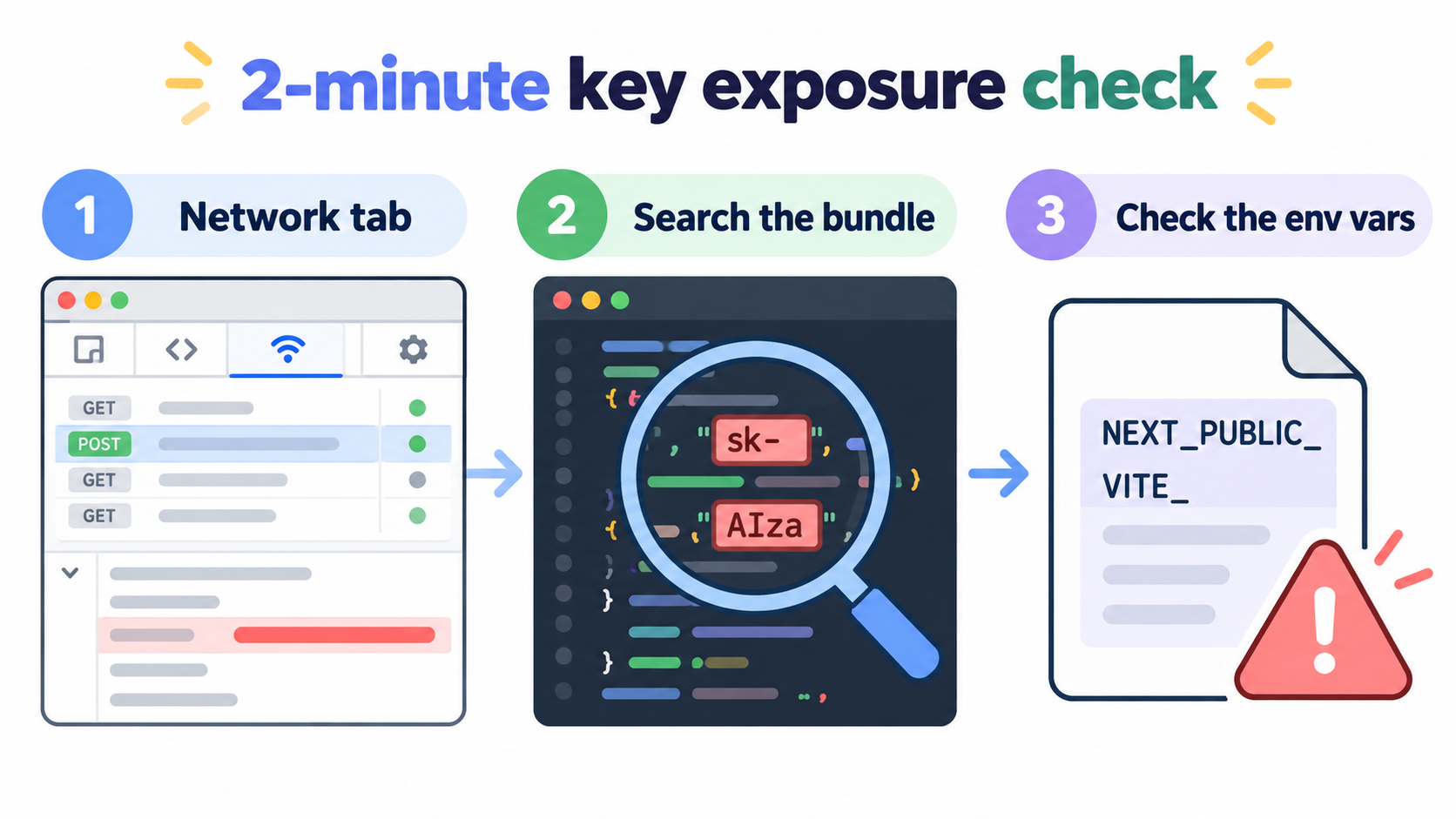
- Watch the Network tab (45 seconds). Open your site, press F12 (Cmd+Option+I on a Mac), pick the Network tab and trigger one AI feature, like sending a chat message. Filter by
openai,anthropicorgoogleapis. If any request goes straight toapi.openai.com,api.anthropic.comorgenerativelanguage.googleapis.com, click it and open Headers. A key inAuthorization: Bearer,x-api-key,x-goog-api-keyor a?key=query parameter means it’s exposed. - Search the bundle (45 seconds). In DevTools, press Cmd+Option+F (Ctrl+Shift+F on Windows) to search all loaded scripts. Search for
sk-,sk-ant-,AIzaanddangerouslyAllowBrowser. Any hit in a.jsfile served to the browser is a leak, even if no request has fired yet. - Check your env var prefixes (30 seconds). Open your
.envfile and your hosting dashboard. Build tools copy some variables into the client bundle by design:VITE_*in Vite (see the Vite env docs),NEXT_PUBLIC_*in Next.js,REACT_APP_*in Create React App andEXPO_PUBLIC_*in Expo. A provider key behind any of those prefixes is public, no matter how it’s named.
For a terminal scan of your build output:
# from your project root after a production build
grep -rnoE "sk-(proj-|ant-)?[A-Za-z0-9_-]{20,}|AIza[0-9A-Za-z_-]{35}" dist/ build/ .next/static/ 2>/dev/null
grep -rn "dangerouslyAllowBrowser" dist/ build/ .next/static/ 2>/dev/null
Empty output is a pass. Google says new AI Studio keys created since May 28, 2026 are “auth keys,” whose format may differ from AIza, so also search the bundle for generativelanguage.googleapis.com. You pass only when the browser talks to your own domain (for example /api/chat) and no provider hostname or key shows up anywhere.
What to do when your key is exposed: fix order
Rotating first closes today’s hole; the architecture change closes it for good.
| Step | What you do | Why this order | Time |
|---|---|---|---|
| 1. Rotate the key | Create a new key in the provider console, then revoke the leaked one | The old key may already be copied; revoking is the only thing that stops its use | 5 min |
| 2. Move the call server-side | Put the provider call in a server route or edge function that holds the key | Stops the new key from leaking the same way | 30 to 60 min |
| 3. Add auth and per-user rate limits | Require a session on the route and cap requests per user | Without this, your proxy becomes a free AI endpoint for anyone | 30 min |
| 4. Set provider spend limits | Set budgets or spend limits in each provider’s billing settings | Caps the worst-case bill if something else leaks | 10 min |
| 5. Scan in CI | Fail the build if a key pattern shows up in the output bundle | Keeps the next agent-written feature from undoing the fix | 15 min |
Deploy the new key server-side before you revoke the old one, or your AI feature goes down. Our guide to API key rotation best practices covers zero-downtime rotation. On step 4, OpenAI’s key-safety guidance recommends spend limits with hard enforcement, because alerts alone don’t stop traffic; a Google Cloud billing budget alerts you but doesn’t stop usage by itself.
How to move OpenAI, Claude and Gemini calls behind a server route
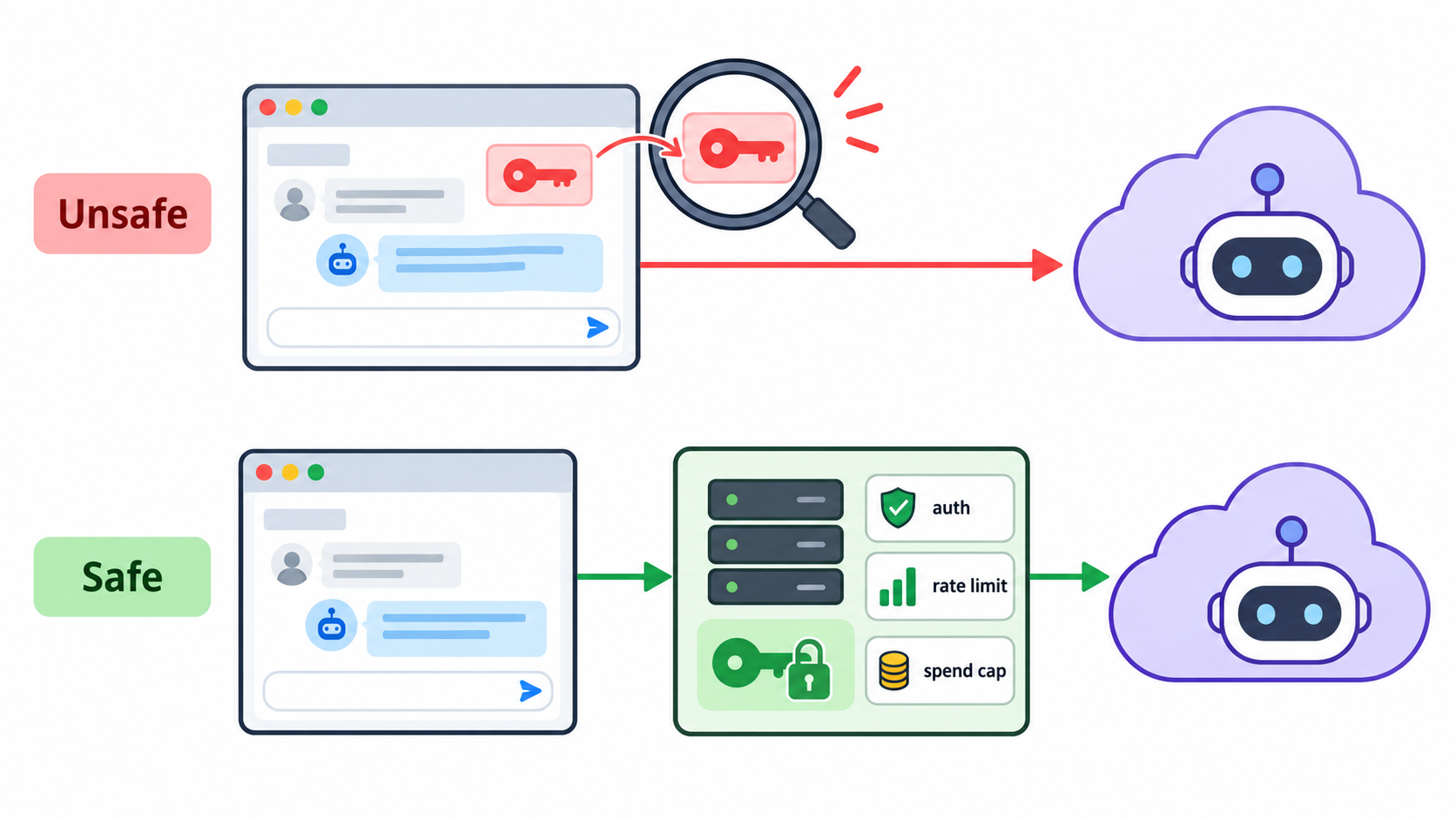
A backend proxy route is a small server endpoint that receives the user’s prompt, adds the API key on the server, calls the provider and returns only the answer. The browser never sees the key. Here’s a minimal Next.js route for OpenAI; Claude and Gemini follow the same shape:
// app/api/chat/route.ts (runs on the server only)
import OpenAI from "openai";
import { getSession } from "@/lib/auth";        // your auth helper
import { checkRateLimit } from "@/lib/limits";  // your per-user limiter

const client = new OpenAI({ apiKey: process.env.OPENAI_API_KEY }); // no NEXT_PUBLIC_ prefix

export async function POST(req: Request) {
  const session = await getSession(req);
  if (!session) return new Response("Unauthorized", { status: 401 });

  if (!(await checkRateLimit(session.userId, 20))) {   // 20 requests per minute
    return new Response("Too many requests", { status: 429 });
  }

  const { message } = await req.json();
  if (typeof message !== "string" || message.length > 4000) {
    return new Response("Bad request", { status: 400 });
  }

  const response = await client.responses.create({
    model: process.env.OPENAI_MODEL!,   // pin the model server-side
    input: message,
  });

  return Response.json({ reply: response.output_text }); // return the answer, nothing else
}
What makes it safe, not just hidden:
- The model lives on the server. If the browser picks the model, an attacker picks the most expensive one.
- The input is capped. No huge prompts through your account.
- Only the answer goes back. Never return the raw provider response or error object.
- No public prefix.
OPENAI_API_KEYstays server-side;NEXT_PUBLIC_OPENAI_API_KEYships to every visitor.
For Claude and Gemini, use their SDKs with ANTHROPIC_API_KEY or GEMINI_API_KEY. Google’s website and IP restrictions help, but anyone with curl can send any Referer header, so treat them as a second layer. The one fair case for browser calls is a bring-your-own-key tool where each user pastes their own key.
Let your coding agent test the proxy route with Apidog CLI
Moving the key is half the job; the other half is proving it stays moved after the next feature your agent writes. Let the agent that built the route test it with Apidog CLI. Set it up once:
npm install -g apidog-cli@latest
apidog login --with-token <YOUR_TOKEN>
npx -y skills add https://apidog.com   # pick your agent when prompted
Then give Claude Code, Codex, Cursor or whichever agent you use one prompt:
Create Apidog test cases in project <id> for POST /api/chat on our staging
environment that assert:
1. a request without a session cookie returns 401,
2. a valid request returns 200 and the body does not contain "sk-", "sk-ant-",
   "AIza" or "api_key",
3. the 21st request inside 60 seconds from the same user returns 429.
Run them and summarize any failures.
The agent reads the schema, validates its payload, writes the cases and runs them:
apidog test-case category --project <id>
apidog cli-schema get test-case-create
apidog cli-schema validate test-case-create --file case.json
apidog test-case create --project <id> --file case.json
apidog run --test-case <caseId> --project <id> -e <envId> -r cli,json
The second assertion is the one that matters most: it fails the moment a provider error object or debug field starts echoing your key back to the client. Put the same apidog run ... -r junit step in your pipeline so every deploy re-checks it; our Apidog CLI CI/CD guide shows the setup, and Apidog CLI in Claude Code covers the agent side. Apidog’s Free plan covers up to 4 users, so a small team can run this without a paid seat.
For the repo side of the same problem, keys committed to Git rather than shipped to the browser, see our API key leak check with a secret scanner. If your agents call tools that handle customer data, testing AI agents for data leaks covers the next layer.
Common mistakes that keep the key exposed
- Base64-encoding or splitting the key. The browser must rebuild it to send it, so DevTools shows the real value.
- Moving it to localStorage or a cookie. It’s still on the client.
- Proxying without auth. A public
/api/chatis an open AI endpoint on your bill. - Keeping the old key “just in case.” A key that was public for a day is copied.
- Forgetting the mobile app. Google’s guide names “web or mobile apps” together for a reason.
FAQ
How do I know if my OpenAI API key is exposed in the browser? Trigger an AI feature with the DevTools Network tab open. A request to api.openai.com with an Authorization: Bearer sk-... header means it’s exposed. Also search loaded scripts for sk- and dangerouslyAllowBrowser.
Is it safe to put an API key in a NEXT_PUBLIC_ or VITE_ environment variable? No. Those prefixes exist to copy values into the client bundle. Any provider key stored under them ships to every visitor. Use an unprefixed server-only variable and read it inside a server route.
Does restricting a Gemini API key to my website make it safe in the browser? It helps, but a script outside the browser can send any Referer header. Google’s own guide recommends a backend proxy for client apps.
I found my key exposed. What should I do first? Create a new key, deploy it server-side, then revoke the old one. Next, move the call behind an authenticated route with per-user rate limits, and set provider spend limits.
Can my coding agent fix and test this for me? Yes. Ask it to move the provider call into a server route, then use Apidog CLI to create and run tests that assert a 401 without a session, no key patterns in responses and a 429 past your rate limit.