
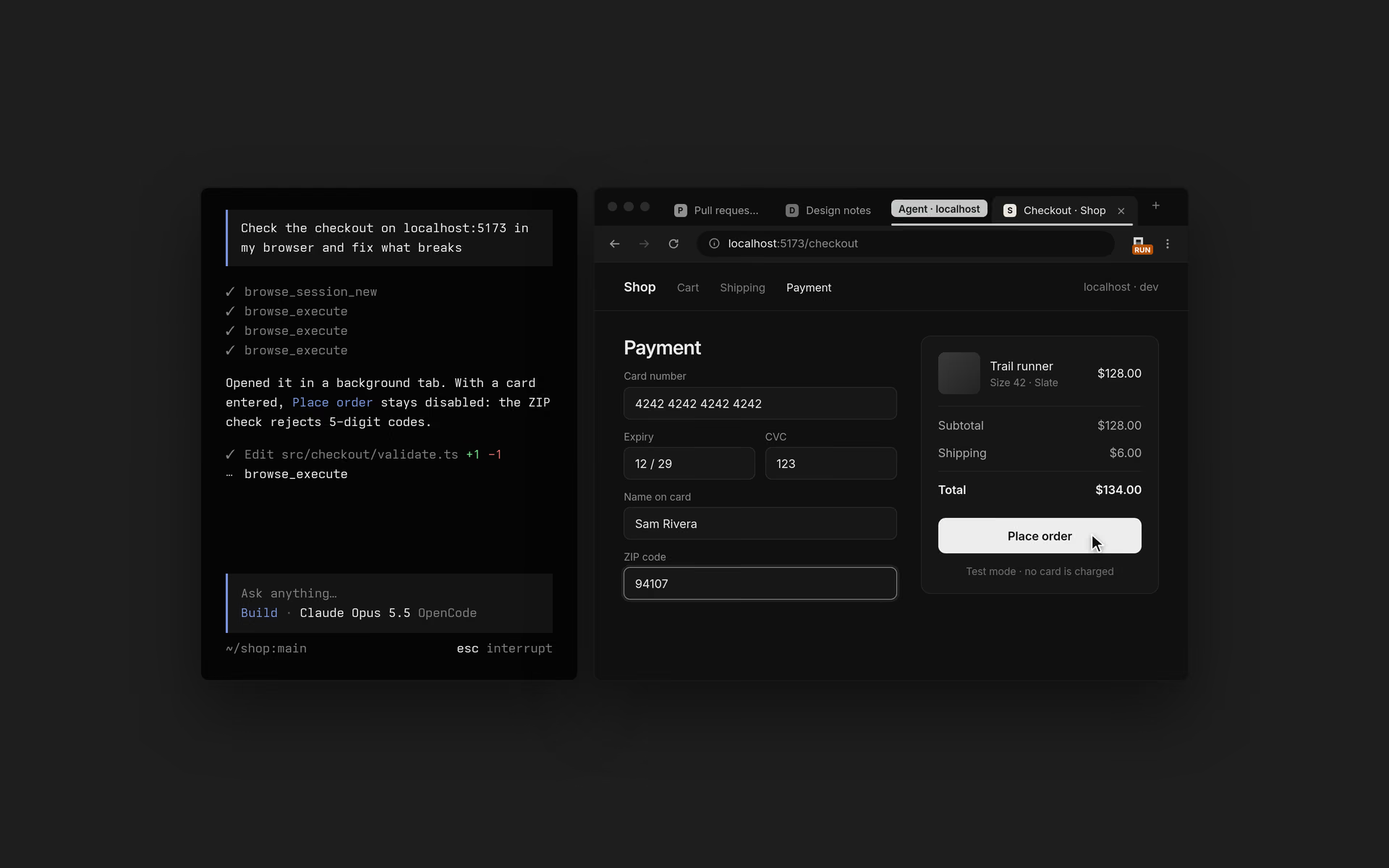
OpenCode Browse is an MCP server plus a Chromium extension that lets a coding agent use your real browser: your tabs, your logins and your extensions. The agent opens tabs in a background group, reads pages, clicks, types, takes screenshots, records tabs and captures network traffic. When a step needs a person, like a login, a 2FA prompt or a payment, it hands the tab back to you.
Browse comes from Anomaly, the team behind OpenCode, and it works with any MCP client, not only OpenCode. Version 0.1.0 shipped on November 16, 2026, and the source is MIT-licensed.
Below: how the pieces fit together, how to install it, how handoffs and allowed sites work, how it compares with Playwright MCP and Chrome DevTools MCP, and how your agent can turn captured traffic into tested APIs with Apidog CLI.
What is OpenCode Browse?
OpenCode Browse is a small native MCP server (the browse CLI) and a browser extension that give an AI coding agent controlled access to the browser you already use. Agents work in their own grouped tabs, act on pages with human-like input, and pause for you on logins, 2FA and payments.
| Item | Detail |
|---|---|
| Maker | Anomaly (the OpenCode team) |
| Pieces | browse CLI and MCP server, plus a Chrome Web Store extension |
| Browsers | Chrome, Edge, Brave, Arc, Helium, Vivaldi, Opera, Chromium |
| MCP clients | OpenCode, Claude Code, Cursor, Codex, Zed and 30+ more |
| Licence | MIT |
| Latest release | v0.1.0, November 16, 2026 |
| Price | None listed on the product page |
Most browser tools for agents start a fresh profile, so the agent can’t see anything you’re signed in to. Browse flips that: the agent works inside your own profile, so a dashboard or admin panel you’re logged in to is right there, with no API keys to hand over.
How Browse works: MCP server, relay and extension
Browse has three moving parts.
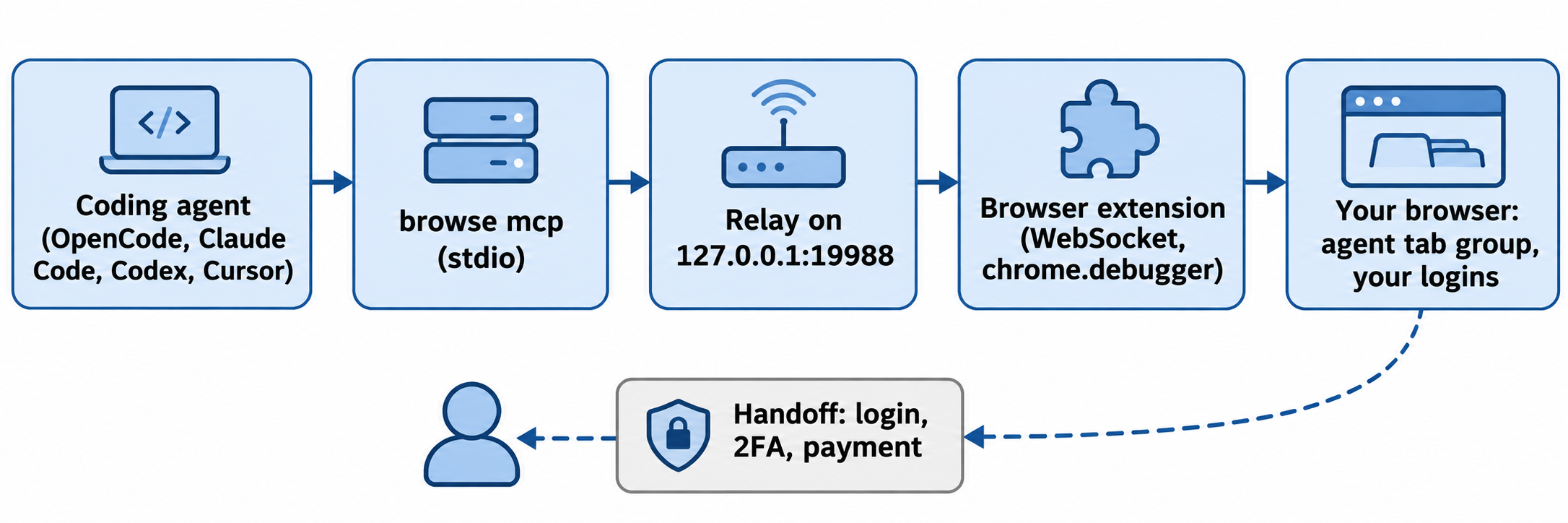
- The MCP server. Your agent starts
browse mcp, a small stdio process. - The relay. It starts on demand on
127.0.0.1:19988(or the next free port up to 19997), keeps agent tabs, handoffs, recordings and network captures, and exits when nothing uses it. - The extension. It connects to the relay over a WebSocket and runs commands in your browser through
chrome.debugger.
Tabs are the handle. When an agent calls navigate without a tab, Browse opens a background tab and returns its id, and every later call passes that id. Agents only touch tabs they opened or you lent them, and an idle tab closes after 10 minutes.
OpenCode gets the plain tools (navigate, snapshot, click, fill, screenshot, network, recording and more). Other MCP clients get execute, status and tabs, where execute runs sandboxed JavaScript with a Playwright-style page object that can call every tool. Each tool is also a CLI command: browse navigate https://example.com prints a tab id.
How to install OpenCode Browse
The product page suggests starting with the Chrome extension, which walks you through the rest. From the terminal, the README lists:
# macOS and Linux
curl -fsSL https://opencode.ai/browse/install | bash

# Windows PowerShell
irm https://opencode.ai/browse/install.ps1 | iex

# npm or bun
npm install -g @opencode/browse && browse install
bun add -g @opencode/browse && browse install
You can also paste one line into your agent: “Set up browse so you can use my Chrome: run curl -fsSL https://opencode.ai/browse/install | bash.” Browse then sets itself up for that agent.
browse install does three things:
- Puts the
browsebinary in place and adds it to your PATH. - Adds the MCP server to your agents, from a picker, or directly with
browse install -a claude codex. - Pairs the extension, opening the Chrome Web Store page if no browser has it yet.
Restart any running agent so it loads the server, then try “open news.ycombinator.com and tell me the top story.” For a client the installer doesn’t know, browse install --agent none prints the stdio entry to paste by hand. New to the protocol? The Model Context Protocol docs explain how clients load servers.
Handoffs, lent tabs and allowed sites
These three features decide how much control you keep.
Handoffs. When an agent hits a login, 2FA prompt or payment, it calls handoff. The page shows a small card with the site’s origin and the badge reads WAIT. You do the human part, then click Continue. Only a real click finishes a handoff, so a page can’t fake one.
Lend a tab. Click the Browse toolbar button on any open tab and the badge shows ON: the agent can use it. Click again to take it back, even mid-run.
Allowed sites and read-only tabs. An agent can open a tab with allowedOrigins, which limits navigation and popups to the sites you name, or as readOnly, which refuses clicks, typing, uploads and navigation. The README is clear that these are guardrails, not a data boundary: requests the page makes itself aren’t filtered, and eval still runs in a read-only tab. If you don’t want an agent to read a page, don’t open it in Browse.
Other protections in the README:
- The relay listens on
127.0.0.1only by default and needs a token only you can read. - A pairing code works once, within 10 minutes, and each browser gets its own key.
- Network captures redact auth headers, API keys, cookie values and secret-named fields. A secret under an ordinary name can still slip through, so review captures before sharing them.
- Clearing cookies, closing the browser and changing site permissions are refused.
OpenCode Browse vs Playwright MCP vs Chrome DevTools MCP
All three let an agent drive a Chromium browser over MCP. They start from different defaults.
| OpenCode Browse | Playwright MCP | Chrome DevTools MCP | |
|---|---|---|---|
| Default browser | Your running browser and profile | A browser it launches, with its own persistent profile | A Chrome it starts when a tool needs one |
| Use your logins | Yes, by design | Yes, via --extension and the Playwright Extension |
Yes, by connecting to a running Chrome |
| Human handoff | Built-in handoff card |
None in its README | None in its README |
| Network capture | Yes, credentials redacted | Yes, request list and details | Yes, request analysis |
| Performance traces | Not a listed tool | Not its focus | Yes, with insights |
| Licence | MIT | Apache-2.0 | Apache-2.0 |
Sources: the Playwright MCP README and the Chrome DevTools MCP README, read November 17, 2026.
Pick by job:
- Browse when the agent needs your signed-in sessions and you want to stay in the loop for logins and payments.
- Playwright MCP for repeatable end-to-end flows in a clean or isolated profile. See our Playwright MCP guide.
- Chrome DevTools MCP for performance, console errors or a slow request. See how to connect Chrome DevTools MCP.
They’re separate servers, so one agent can use Browse for a logged-in admin panel and Playwright MCP for a test run in the same session.
Turn captured traffic into tested APIs with Apidog CLI
Many web apps call an internal API with no public spec. Your agent can open the app in your signed-in browser, capture the traffic with Browse, and hand it to Apidog CLI, which imports it and tests it. You write one prompt.
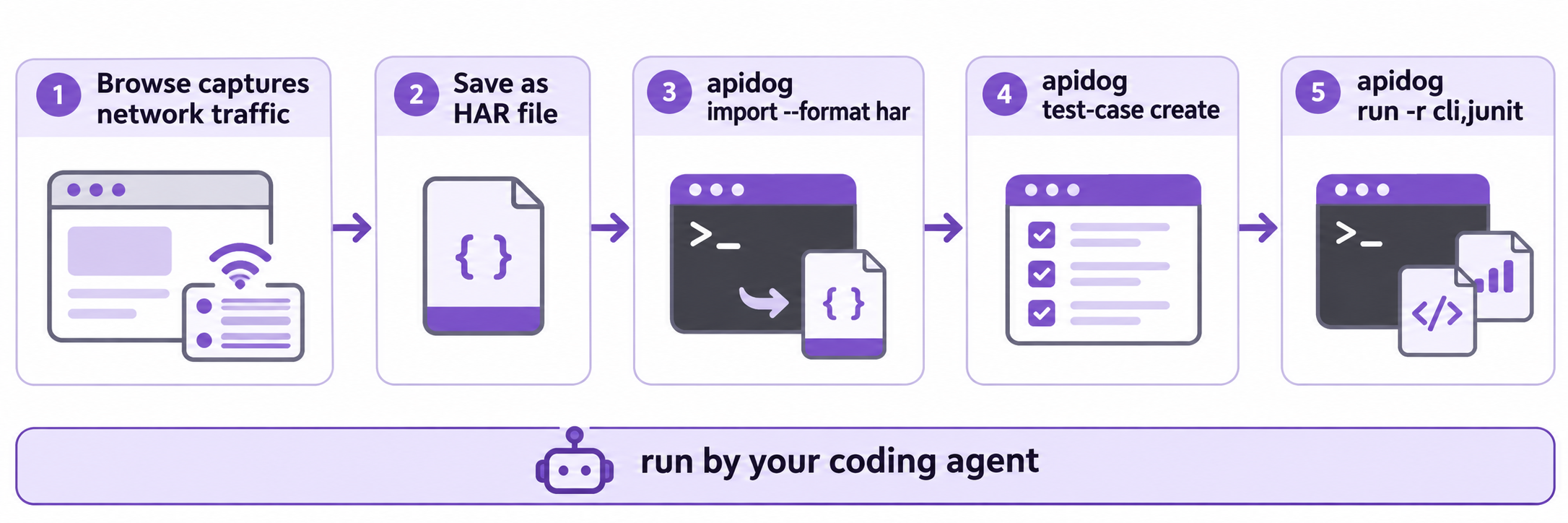
Browse’s changelog describes its network captures as HAR files, and Apidog CLI imports HAR with --format har. Set up the CLI once:
npm install -g apidog-cli@latest
apidog auth login --with-token <YOUR_TOKEN>
apidog skill install
Or tell your agent: “Read https://apidog.com/apidog-cli-installation-guide.md and set up Apidog CLI.” That guide is written for agents.
Then give your agent one prompt:
Use browse to open https://app.example.com/orders in my browser and capture
its network traffic while you load the orders list and open one order.
Save the capture as a HAR file. Import it into Apidog project 123456,
then create a test case for GET /api/orders that asserts status 200 and
a non-empty items array, run it against environment 7890 and summarize failures.
After the capture, the agent runs commands like these:
apidog import --project 123456 --format har --file ./orders.har --overwrite-mode merge
apidog endpoint list --project 123456
apidog cli-schema get test-case-create
apidog cli-schema validate test-case-create --file case.json
apidog test-case create --project 123456 --file case.json
apidog run --test-case <caseId> --project 123456 -e 7890 -r cli,json
The agent reads the payload shape from apidog cli-schema get and validates it before writing, so it never guesses the JSON. --overwrite-mode merge keeps endpoints you already have.
Once the case passes, the same apidog run with -r junit drops into CI: see the Apidog CLI CI/CD guide and Apidog CLI in Claude Code. Exported a HAR by hand instead? See how to import HAR files into Apidog. Apidog’s Free plan covers up to 4 users.
Limits to know before you start
- It’s version 0.1.0. The repo dates from late October 2026, and updates install themselves by default (
browse update --mode notifyswitches to notices). - Chromium only. Firefox and Safari aren’t supported.
- Visible debugging. The browser shows its “started debugging” bar while an agent is attached.
- Your data goes where your agent sends it. Browse stays local, but page content your agent reads goes to its model provider.
FAQ
Is OpenCode Browse free?
The source is MIT-licensed, and the product page lists no price. You install the CLI with a script or package manager and the extension from the Chrome Web Store.
Do I need OpenCode to use Browse?
No. The installer sets up Claude Code, Codex, Cursor, Zed, VS Code, Gemini CLI and many others, and browse install --agent none prints a manual entry for the rest.
Can an agent see my passwords?
The fill tool hides password and one-time-code values, and logins are meant to go through a handoff where you type them yourself. Screenshots and page text are returned as they are, so keep sensitive pages out of agent tabs.
Can I use Browse when my agent runs on another machine?
Yes. Run browse install --remote on the agent’s machine and pair the extension with that address. Browse doesn’t encrypt that link, so use Tailscale or WireGuard.
How is Browse different from Playwright MCP?
Browse drives your existing browser and profile by default and has built-in handoffs. Playwright MCP launches its own browser by default and can attach to yours through its extension mode.