TL;DR
Build an MCP server with TypeScript that exposes three tools: run_test, validate_schema, and list_environments. Configure it in ~/.claude/settings.json for Claude Code or .cursor/mcp.json for Cursor. Your AI agents can then run Apidog tests, validate OpenAPI schemas, and fetch environments without leaving the chat interface. The full source code is about 150 lines and uses the @modelcontextprotocol/sdk package.
Build an MCP server that lets Claude Code, Cursor, and other AI agents run Apidog API tests, validate schemas, and compare responses, all without leaving their chat interface.
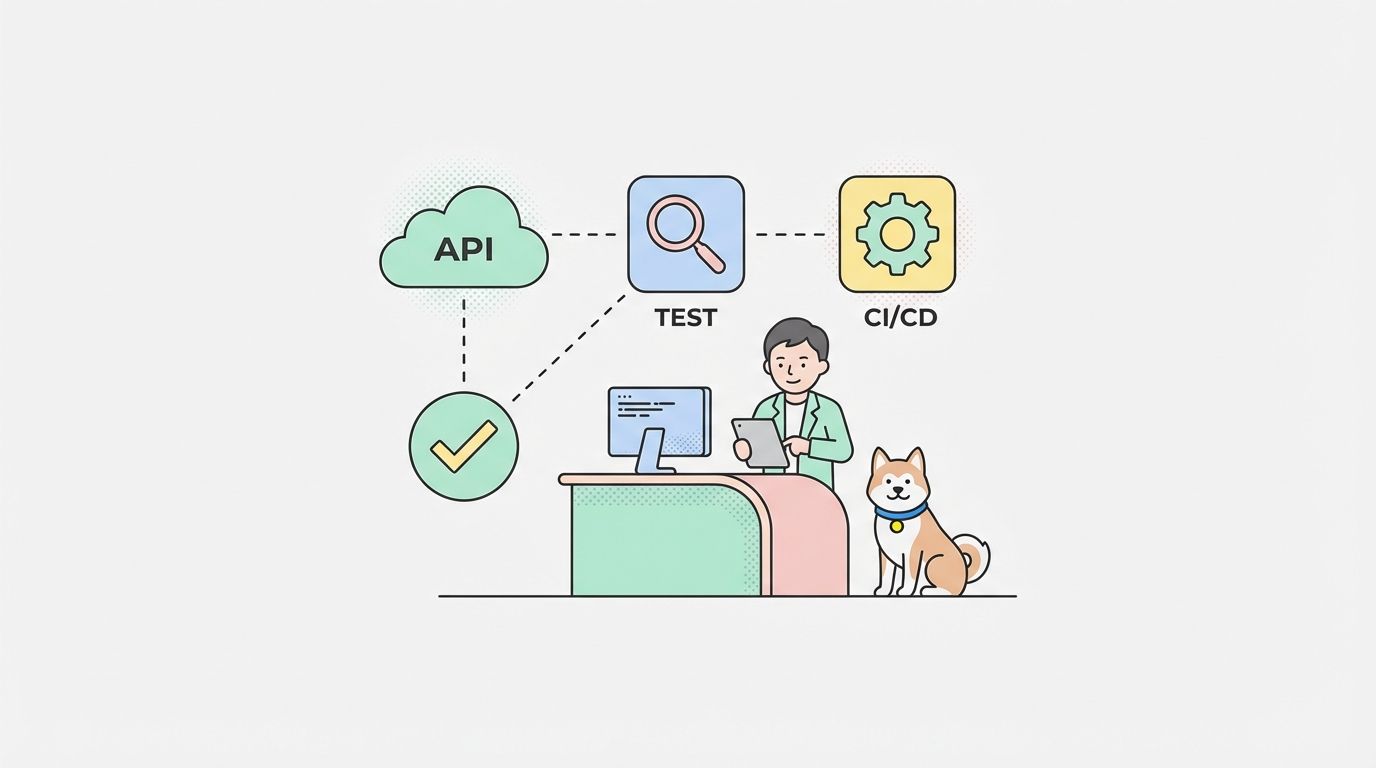
That’s what the Model Context Protocol (MCP) enables. MCP lets AI agents access external tools through a standardized interface. Build an MCP server for Apidog, and your AI agent can run tests, validate schemas, and fetch environments without context switching.
What Is MCP?
MCP (Model Context Protocol) is a protocol for AI agents to access external tools and data sources. Think of it as a plugin system that works across Claude Code, Cursor, and other MCP-compatible clients.
An MCP server exposes tools (functions the agent can call) and resources (data the agent can read). Your Apidog MCP server will expose tools for API testing.
┌─────────────────┐         ┌──────────────────┐         ┌─────────────┐
│  AI Agent       │         │  MCP Server      │         │  Apidog     │
│  (Claude Code)  │◄───────►│  (Your Code)     │◄───────►│  API        │
└─────────────────┘   JSON  └──────────────────┘  HTTP   └─────────────┘
Step 1: Set Up the Project
Create a new TypeScript project:
mkdir apidog-mcp-server
cd apidog-mcp-server
npm init -y
npm install @modelcontextprotocol/sdk zod
npm install -D typescript @types/node
Create tsconfig.json:
{
  "compilerOptions": {
    "target": "ES2022",
    "module": "NodeNext",
    "moduleResolution": "NodeNext",
    "outDir": "./dist",
    "rootDir": "./src",
    "strict": true,
    "esModuleInterop": true,
    "skipLibCheck": true,
    "forceConsistentCasingInFileNames": true
  },
  "include": ["src/**/*"],
  "exclude": ["node_modules"]
}
Add a build script to package.json:
{
  "scripts": {
    "build": "tsc",
    "start": "node dist/index.js"
  }
}
Step 2: Create the MCP Server Skeleton
Create src/index.ts:
import { McpServer } from "@modelcontextprotocol/sdk/server/mcp.js";
import { StdioServerTransport } from "@modelcontextprotocol/sdk/server/stdio.js";
import { z } from "zod";

const server = new McpServer({
  name: "apidog",
  version: "1.0.0",
  description: "Apidog API testing tools for AI agents"
});

// Tools will be defined here

const transport = new StdioServerTransport();
await server.connect(transport);
This skeleton creates an MCP server and connects it to stdio transport. The transport handles communication between the AI agent and your server through standard input/output.
Step 3: Define the run_test Tool
Add the first tool to src/index.ts:
import { McpServer } from "@modelcontextprotocol/sdk/server/mcp.js";
import { StdioServerTransport } from "@modelcontextprotocol/sdk/server/stdio.js";
import { z } from "zod";

const server = new McpServer({
  name: "apidog",
  version: "1.0.0",
  description: "Apidog API testing tools for AI agents"
});

// Tool: run_test
server.tool(
  "run_test",
  {
    projectId: z.string().describe("Apidog project ID (found in project URL)"),
    environmentId: z.string().optional().describe("Optional environment ID for test execution"),
    testSuiteId: z.string().optional().describe("Optional test suite ID to run specific suite")
  },
  async ({ projectId, environmentId, testSuiteId }) => {
    const apiKey = process.env.APIDOG_API_KEY;
    if (!apiKey) {
      return {
        content: [{
          type: "text",
          text: "Error: APIDOG_API_KEY environment variable not set"
        }]
      };
    }

    // Build API URL
    let url = `https://api.apidog.com/v1/projects/${projectId}/tests/run`;
    const params = new URLSearchParams();
    if (environmentId) params.append("environmentId", environmentId);
    if (testSuiteId) params.append("testSuiteId", testSuiteId);
    if (params.toString()) url += `?${params.toString()}`;

    try {
      const response = await fetch(url, {
        method: "POST",
        headers: {
          "Authorization": `Bearer ${apiKey}`,
          "Content-Type": "application/json"
        }
      });

      if (!response.ok) {
        const error = await response.text();
        return {
          content: [{
            type: "text",
            text: `API Error: ${response.status} ${error}`
          }]
        };
      }

      const results = await response.json();
      return {
        content: [{
          type: "text",
          text: JSON.stringify(results, null, 2)
        }]
      };
    } catch (error) {
      return {
        content: [{
          type: "text",
          text: `Request failed: ${error instanceof Error ? error.message : String(error)}`
        }]
      };
    }
  }
);

const transport = new StdioServerTransport();
await server.connect(transport);
The tool definition has three parts:
- Name —
run_test(agents select tools by name, so make it descriptive) - Schema — Zod validation for parameters with descriptions
- Handler — Async function that calls the Apidog API
Step 4: Add validate_schema Tool
Add schema validation to catch OpenAPI errors before deployment:
// Tool: validate_schema
server.tool(
  "validate_schema",
  {
    schema: z.object({}).describe("OpenAPI 3.x schema object to validate"),
    strict: z.boolean().optional().default(false).describe("Enable strict mode for additional checks")
  },
  async ({ schema, strict }) => {
    const apiKey = process.env.APIDOG_API_KEY;
    if (!apiKey) {
      return {
        content: [{
          type: "text",
          text: "Error: APIDOG_API_KEY environment variable not set"
        }]
      };
    }

    try {
      const response = await fetch("https://api.apidog.com/v1/schemas/validate", {
        method: "POST",
        headers: {
          "Authorization": `Bearer ${apiKey}`,
          "Content-Type": "application/json"
        },
        body: JSON.stringify({ schema, strict })
      });

      const result = await response.json();

      if (!response.ok) {
        return {
          content: [{
            type: "text",
            text: `Validation failed: ${JSON.stringify(result.errors, null, 2)}`
          }]
        };
      }

      return {
        content: [{
          type: "text",
          text: result.valid
            ? "Schema is valid OpenAPI 3.x"
            : `Warnings: ${JSON.stringify(result.warnings, null, 2)}`
        }]
      };
    } catch (error) {
      return {
        content: [{
          type: "text",
          text: `Validation failed: ${error instanceof Error ? error.message : String(error)}`
        }]
      };
    }
  }
);
Step 5: Add list_environments Tool
Add a tool to fetch available test environments:
// Tool: list_environments
server.tool(
  "list_environments",
  {
    projectId: z.string().describe("Apidog project ID")
  },
  async ({ projectId }) => {
    const apiKey = process.env.APIDOG_API_KEY;
    if (!apiKey) {
      return {
        content: [{
          type: "text",
          text: "Error: APIDOG_API_KEY environment variable not set"
        }]
      };
    }

    try {
      const response = await fetch(
        `https://api.apidog.com/v1/projects/${projectId}/environments`,
        {
          headers: {
            "Authorization": `Bearer ${apiKey}`
          }
        }
      );

      if (!response.ok) {
        const error = await response.text();
        return {
          content: [{
            type: "text",
            text: `API Error: ${response.status} ${error}`
          }]
        };
      }

      const environments = await response.json();
      return {
        content: [{
          type: "text",
          text: environments.length === 0
            ? "No environments found for this project"
            : environments.map((e: any) =>
                `- ${e.name} (ID: ${e.id})${e.isDefault ? " [default]" : ""}`
              ).join("\n")
        }]
      };
    } catch (error) {
      return {
        content: [{
          type: "text",
          text: `Request failed: ${error instanceof Error ? error.message : String(error)}`
        }]
      };
    }
  }
);
Step 6: Build and Test
Build the server:
npm run build
Test with a simple MCP client. Create test-client.js:
import { spawn } from "child_process";

const server = spawn("node", ["dist/index.js"], {
  env: { ...process.env, APIDOG_API_KEY: "your-api-key" }
});

server.stdout.on("data", (data) => {
  console.log(`Server output: ${data}`);
});

server.stderr.on("data", (data) => {
  console.error(`Server error: ${data}`);
});

// Send a test message
const message = {
  jsonrpc: "2.0",
  id: 1,
  method: "initialize",
  params: {
    protocolVersion: "2024-11-05",
    capabilities: {},
    clientInfo: { name: "test-client", version: "1.0.0" }
  }
};

server.stdin.write(JSON.stringify(message) + "\n");
Step 7: Configure for Claude Code
Add the MCP server to your Claude Code configuration:
Create or edit ~/.claude/settings.json:
{
  "mcpServers": {
    "apidog": {
      "command": "node",
      "args": ["/absolute/path/to/apidog-mcp-server/dist/index.js"],
      "env": {
        "APIDOG_API_KEY": "your-api-key-here"
      }
    }
  }
}
Restart Claude Code. The Apidog tools should now appear when you ask for API testing help.
Usage in Claude Code:
Use the run_test tool to run tests on my Apidog project.
Project ID: proj_12345
Environment: staging
Validate this OpenAPI schema against Apidog rules:
[paste schema]
List all environments for project proj_12345
Step 8: Configure for Cursor
Cursor uses a similar MCP configuration. Create .cursor/mcp.json in your project:
{
  "mcpServers": {
    "apidog": {
      "command": "node",
      "args": ["/absolute/path/to/apidog-mcp-server/dist/index.js"],
      "env": {
        "APIDOG_API_KEY": "your-api-key-here"
      }
    }
  }
}
Usage in Cursor:
@apidog run_test projectId="proj_12345" environmentId="staging"
Complete Source Code
Here’s the full src/index.ts:
import { McpServer } from "@modelcontextprotocol/sdk/server/mcp.js";
import { StdioServerTransport } from "@modelcontextprotocol/sdk/server/stdio.js";
import { z } from "zod";

const server = new McpServer({
  name: "apidog",
  version: "1.0.0",
  description: "Apidog API testing tools for AI agents"
});

// Tool: run_test
server.tool(
  "run_test",
  {
    projectId: z.string().describe("Apidog project ID"),
    environmentId: z.string().optional().describe("Environment ID"),
    testSuiteId: z.string().optional().describe("Test suite ID")
  },
  async ({ projectId, environmentId, testSuiteId }) => {
    const apiKey = process.env.APIDOG_API_KEY;
    if (!apiKey) {
      return {
        content: [{
          type: "text",
          text: "Error: APIDOG_API_KEY not set"
        }]
      };
    }

    let url = `https://api.apidog.com/v1/projects/${projectId}/tests/run`;
    const params = new URLSearchParams();
    if (environmentId) params.append("environmentId", environmentId);
    if (testSuiteId) params.append("testSuiteId", testSuiteId);
    if (params.toString()) url += `?${params.toString()}`;

    try {
      const response = await fetch(url, {
        method: "POST",
        headers: {
          "Authorization": `Bearer ${apiKey}`,
          "Content-Type": "application/json"
        }
      });

      const results = await response.json();
      return {
        content: [{
          type: "text",
          text: JSON.stringify(results, null, 2)
        }]
      };
    } catch (error) {
      return {
        content: [{
          type: "text",
          text: `Request failed: ${error instanceof Error ? error.message : String(error)}`
        }]
      };
    }
  }
);

// Tool: validate_schema
server.tool(
  "validate_schema",
  {
    schema: z.object({}).describe("OpenAPI schema"),
    strict: z.boolean().optional().default(false)
  },
  async ({ schema, strict }) => {
    const apiKey = process.env.APIDOG_API_KEY;
    if (!apiKey) {
      return {
        content: [{
          type: "text",
          text: "Error: APIDOG_API_KEY not set"
        }]
      };
    }

    const response = await fetch("https://api.apidog.com/v1/schemas/validate", {
      method: "POST",
      headers: {
        "Authorization": `Bearer ${apiKey}`,
        "Content-Type": "application/json"
      },
      body: JSON.stringify({ schema, strict })
    });

    const result = await response.json();
    return {
      content: [{
        type: "text",
        text: result.valid
          ? "Schema is valid"
          : `Issues: ${JSON.stringify(result.errors || result.warnings, null, 2)}`
      }]
    };
  }
);

// Tool: list_environments
server.tool(
  "list_environments",
  {
    projectId: z.string().describe("Apidog project ID")
  },
  async ({ projectId }) => {
    const apiKey = process.env.APIDOG_API_KEY;
    if (!apiKey) {
      return {
        content: [{
          type: "text",
          text: "Error: APIDOG_API_KEY not set"
        }]
      };
    }

    const response = await fetch(
      `https://api.apidog.com/v1/projects/${projectId}/environments`,
      {
        headers: { "Authorization": `Bearer ${apiKey}` }
      }
    );

    const environments = await response.json();
    return {
      content: [{
        type: "text",
        text: environments.map((e: any) =>
          `- ${e.name} (${e.id})${e.isDefault ? " [default]" : ""}`
        ).join("\n")
      }]
    };
  }
);

const transport = new StdioServerTransport();
await server.connect(transport);
What You Built
| Component | Purpose |
|---|---|
| MCP Server | Bridges AI agents to Apidog API |
run_test |
Execute test collections programmatically |
validate_schema |
Catch OpenAPI errors before deployment |
list_environments |
Discover available test environments |
| Zod validation | Type-safe parameter handling |
| Stdio transport | Works with Claude Code, Cursor, any MCP client |
Next Steps
Extend the server:
- Add
compare_responsestool to diff test results across environments - Add
get_test_historyto fetch historical test runs - Add
trigger_mock_serverto start/stop mock endpoints
Production considerations:
- Add retry logic for flaky network requests
- Implement rate limiting to avoid API throttling
- Add logging for debugging failed tool calls
- Store API keys in a secure vault instead of environment variables
Share with your team:
- Publish to npm as
@your-org/apidog-mcp-server - Document required environment variables
- Include example MCP configurations for common clients
Troubleshooting Common Issues
MCP server not loading in Claude Code:
- Verify the path in
~/.claude/settings.jsonis absolute (not relative) - Check that
nodeis in your PATH:which node - Ensure the built
dist/index.jsexists:ls -la dist/ - Look for errors in Claude Code’s MCP logs
Tools not appearing after configuration:
- Restart Claude Code completely (quit and reopen)
- Run
npm run buildto ensure TypeScript is compiled - Check that all three tools are defined before
server.connect() - Verify the server starts without errors:
node dist/index.js
API requests failing with 401:
- Confirm
APIDOG_API_KEYis set in the config - Check for extra spaces or quotes around the key value
- Verify your Apidog account has API access enabled
- Test the key manually:
curl -H "Authorization: Bearer $APIDOG_API_KEY" https://api.apidog.com/v1/user
Zod validation errors:
- Ensure parameter names match the schema exactly
- Check that required fields are provided (no typos in
projectId) - Verify optional fields use
.optional()in the schema - Read the full error message — Zod tells you which field failed
TypeScript compilation errors:
- Run
npm installto ensure all dependencies are installed - Check TypeScript version:
npx tsc --version(should be 5.x) - Clear and rebuild:
rm -rf dist && npm run build - Look for type mismatches in fetch responses (add
astype assertions)
Testing Your MCP Server Locally
Before deploying to production, test your server locally:
Manual testing with stdio:
# Start the server
node dist/index.js

# In another terminal, send a test message
echo '{"jsonrpc":"2.0","id":1,"method":"tools/list","params":{}}' | node dist/index.js
Expected output:
{
  "jsonrpc": "2.0",
  "id": 1,
  "result": {
    "tools": [
      { "name": "run_test", "description": "...", "inputSchema": {...} },
      { "name": "validate_schema", "description": "...", "inputSchema": {...} },
      { "name": "list_environments", "description": "...", "inputSchema": {...} }
    ]
  }
}
Test a tool call:
echo '{"jsonrpc":"2.0","id":2,"method":"tools/call","params":{"name":"list_environments","arguments":{"projectId":"your-project-id"}}}' | node dist/index.js
Your AI agents now have direct access to Apidog’s testing capabilities. No more copy-paste between chat and browser. No more manual test runs. Type a command, get results back.
That’s the power of MCP: extend your AI agents with domain-specific tools, and let them do what they’re supposed to do — help you ship faster.
Key Takeaways
- MCP servers bridge AI agents to external APIs — Build once, use across Claude Code, Cursor, and any MCP-compatible client
- Three tools cover most API testing needs —
run_testfor execution,validate_schemafor OpenAPI validation,list_environmentsfor discovery - Zod validation prevents bad parameters — Type-safe tool definitions catch errors before API calls
- Configuration is tool-specific — Claude Code uses
~/.claude/settings.json, Cursor uses.cursor/mcp.json - Production requires error handling — Add retry logic, rate limiting, and secure key storage before deploying
FAQ
What is MCP in AI?MCP (Model Context Protocol) is a standardized protocol that lets AI agents access external tools and data sources. Think of it as a plugin system for AI agents.
How do I create an MCP server for Apidog?Install @modelcontextprotocol/sdk, define tools with Zod validation, implement handlers that call the Apidog API, and connect via StdioServerTransport.
Can I use this with Cursor?Yes. Add the MCP server configuration to .cursor/mcp.json in your project root. The same server works with Claude Code, Cursor, and other MCP clients.
What tools should I expose?Start with run_test for executing test collections, validate_schema for OpenAPI validation, and list_environments for fetching available environments.
Is the Apidog MCP server production-ready?The tutorial code is a starting point. Add retry logic, rate limiting, proper error handling, and secure API key storage before using in production.
Do I need an Apidog API key?Yes. Set APIDOG_API_KEY as an environment variable. The server reads this at runtime to authenticate API requests.
Can I share this MCP server with my team?Yes. Publish to npm as a private package, document the required environment variables, and include example MCP configurations.