Your API works on your laptop. It passes every check in your local test client. Then a teammate merges a branch, the deploy goes out, and an endpoint that used to return 200 starts returning 500 in production. Nobody caught it, because nobody ran the tests on that branch. They ran them on a machine, once, by hand.
That gap, between “tests exist” and “tests run on every change,” is exactly what a CI pipeline closes. If your code already lives in Azure Repos or GitHub and your team builds on Azure DevOps, Azure Pipelines is the natural place to put that safety net. The hard part is rarely the YAML. It’s getting your API test suite into a form the pipeline can run headlessly, with the right environment, against a freshly deployed build, and then fail the build loudly when something breaks.
TL;DR
- Azure Pipelines runs your API tests automatically on every commit or PR, so regressions get caught before they ship.
- Build your test scenarios visually in Apidog, then run them in CI with the Apidog CLI (
apidog-cli) instead of writing and maintaining test scripts by hand. - The pipeline needs four things: Node.js installed on the agent, the CLI installed, your test scenario reachable via a link or exported file, and an access token stored as a secret.
- A non-zero exit code from the CLI fails the build automatically. That’s what gives you a real gate.
- Publish the HTML or JUnit report as a pipeline artifact (or via
PublishTestResults) so anyone can read pass/fail without opening logs.
What “automated API testing in Azure Pipelines” actually means
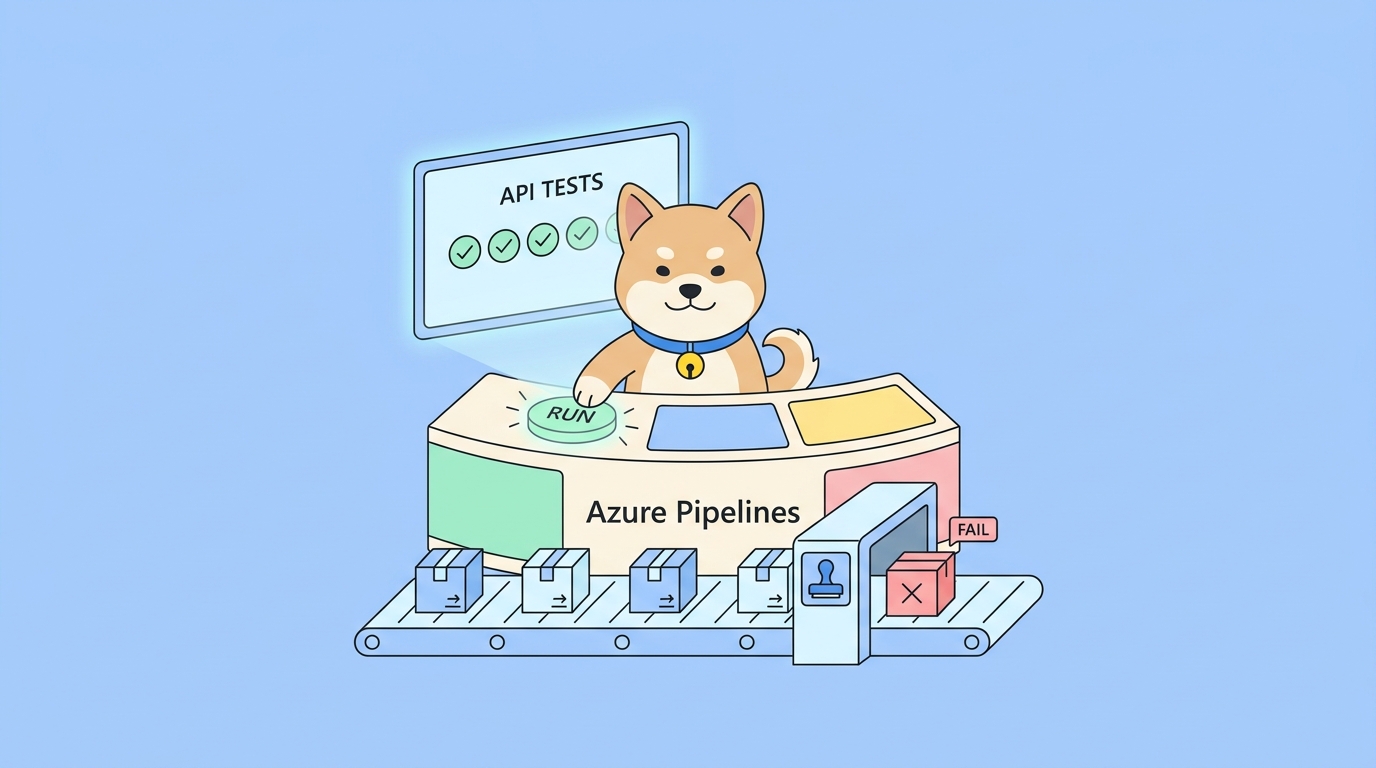
Azure Pipelines is the CI/CD service inside Azure DevOps. You describe a build in a YAML file (azure-pipelines.yml) that lives in your repo, and Azure runs that file on a hosted or self-hosted agent every time a trigger fires; a push, a pull request, a schedule, or a manual run.
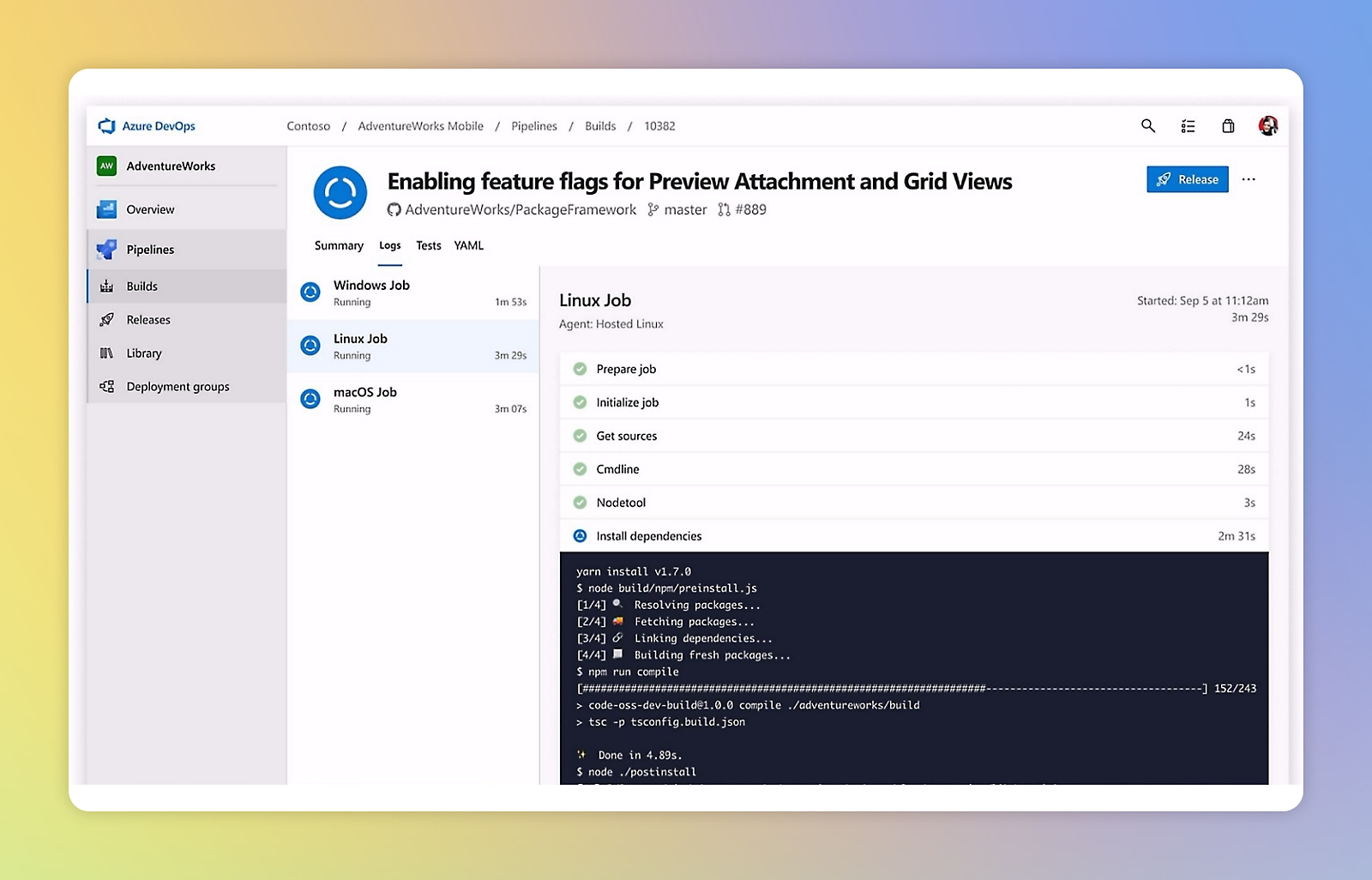
For API testing, the job is straightforward in shape:
- Spin up an agent (a clean VM).
- Install whatever your test runner needs.
- Run the API tests against a target environment.
- Report the results and set the build status based on them.
The detail that trips people up is step 3. A local API client is interactive; you click “Send,” you eyeball the response, you read a green checkmark. A pipeline has no one to click and no one to eyeball. You need a way to run the same assertions without a human and without a GUI. That’s the whole reason a command-line runner exists.
If you want a broader primer on the CI concepts here, the difference between continuous integration, continuous delivery, and continuous deployment is worth a quick read before you wire up your first pipeline.
Why design tests in Apidog and run them with the CLI
You could write API tests in raw code. Pick a language, pull in an HTTP library and an assertion framework, hand-roll request bodies, parse responses, manage auth tokens, and keep all of it in sync with an API that changes every sprint. Teams do this. They also spend a disproportionate amount of time maintaining it.
Apidog takes a different path. You build test scenarios visually: chain requests together, pass data from one response into the next request, add assertions on status codes, headers, and JSON fields, and drive the same scenario with multiple rows of data. Because Apidog already holds your API definitions, the tests stay close to the spec. When the schema changes, you see the drift instead of discovering it in production.
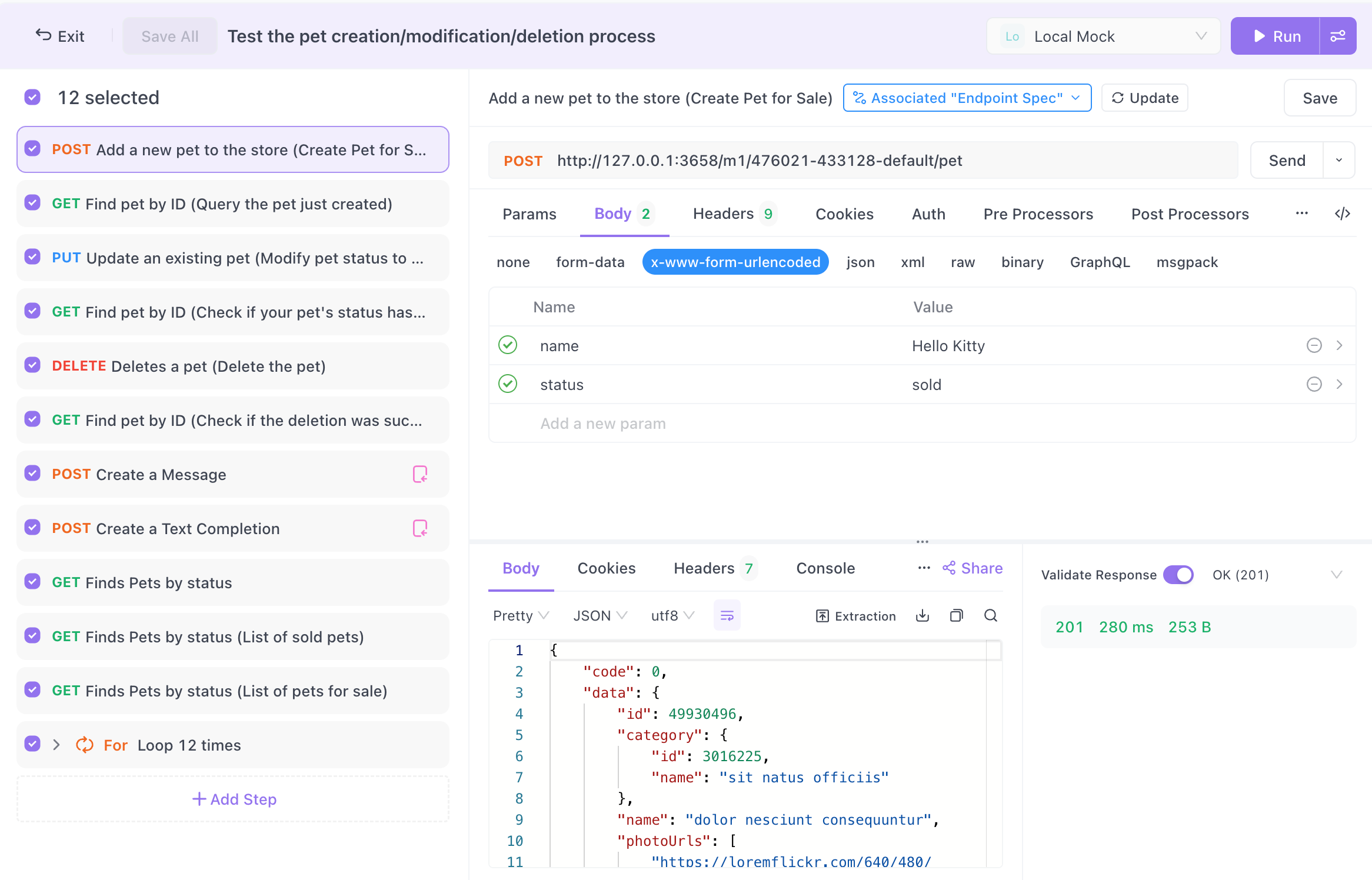
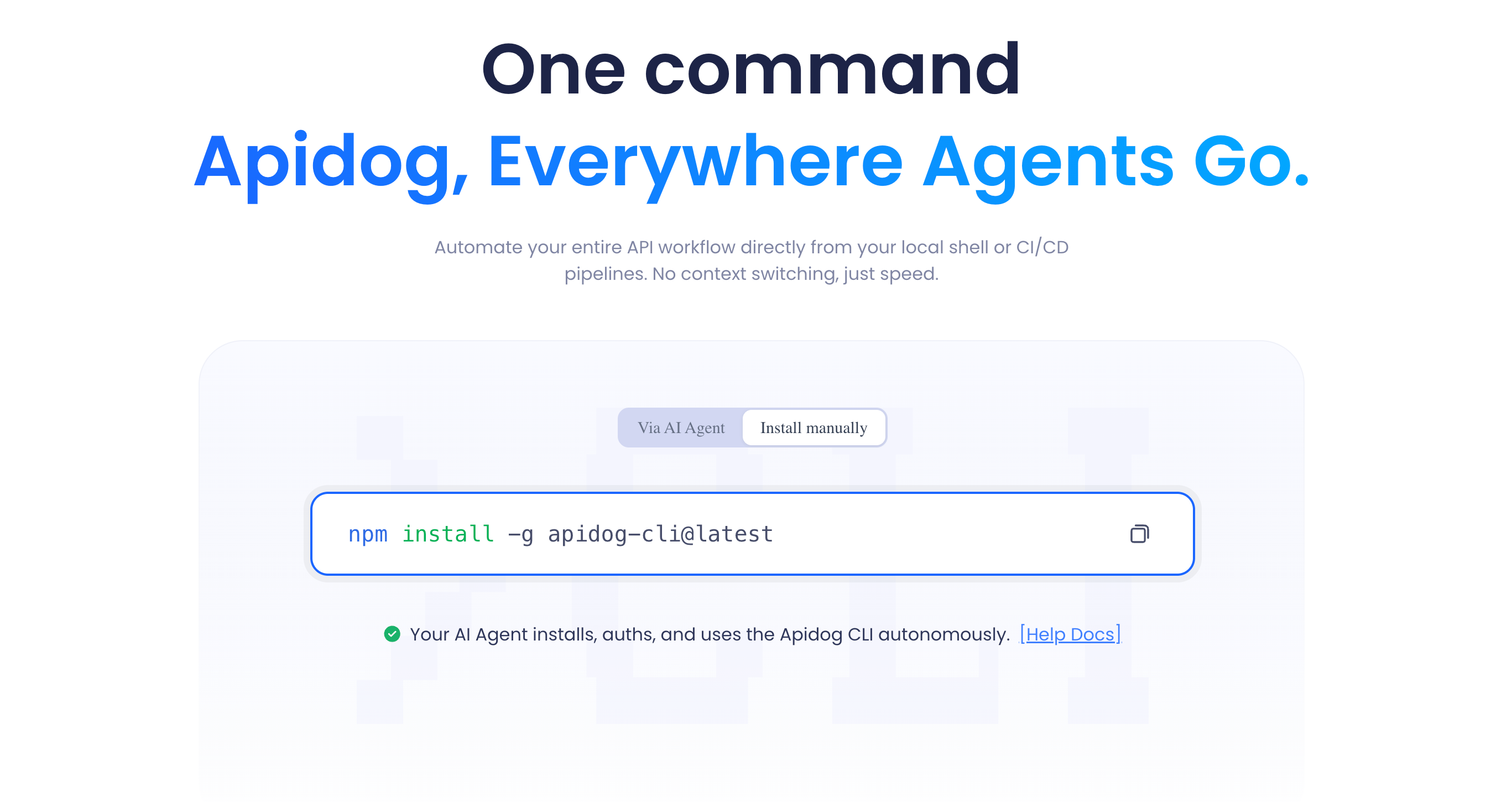
The piece that connects that visual work to CI is the Apidog CLI, a command-line runner published on npm. It executes a saved test scenario headlessly and exits with a status code that reflects the result: 0 if everything passed, non-zero if any assertion failed. That exit code is the contract every CI system understands. Azure Pipelines reads it and decides whether the build is green or red. You design once in the GUI, and the same scenario runs unchanged in the pipeline.
This is the same model that works for GitHub Actions, GitLab CI, and Jenkins. Azure Pipelines is just another host for the same CLI command, which means the knowledge transfers if your team ever switches platforms.
Prerequisites
Before you build the pipeline, get these in place:
- An Apidog project with at least one test scenario. Open the Test Scenarios section, create a scenario, add a few requests, and attach assertions. Run it once locally and confirm it passes. If it’s flaky on your machine, it’ll be flaky in CI.
- An Apidog access token. The CLI authenticates with a personal access token from your Apidog account settings. Treat it like a password; you’ll store it as a pipeline secret, never in the YAML.
- An Azure DevOps project with a repo. Your
azure-pipelines.ymlwill live at the repo root. - Node.js familiarity (light). The CLI runs on Node, so the agent needs Node installed. Azure’s hosted agents already have it; you’ll just pick a version.
- A reachable target environment. Your tests have to hit a running API; a staging URL, a preview deployment, or a service the pipeline starts itself. Decide which before you write the trigger.
A quick note on which target to test against. Running the suite against production on every commit is risky and often impossible (you don’t want test data in prod). Most teams point CI tests at a staging environment or a per-branch preview deployment. Apidog environments make this clean: keep a Staging environment with its own base URL and variables, and tell the CLI which one to use at run time.
Step 1: Get your test scenario into a runnable form
The CLI needs to know which scenario to run. Apidog gives you two ways to feed it one.
Option A, run from a shared online link. In Apidog, open your test scenario, choose to run it via CLI, and Apidog generates a command that points at the scenario over the network. This is the lower-maintenance option: the pipeline always runs the current version of the scenario, and you don’t commit test files to the repo. The trade-off is that the pipeline depends on that link being reachable at run time.
Option B, export the scenario to a file and commit it. Export the scenario (and its environment) to a local file, commit it alongside your code, and point the CLI at the file path. This pins the test to a specific commit, which is what you want if you care about reproducibility; the tests that ran are exactly the tests in that commit. The trade-off is that you have to re-export when the scenario changes.
For most teams starting out, Option A is faster to wire up. For regulated or audit-heavy work, Option B’s reproducibility wins. You can also mix: link-based for fast-moving feature branches, file-based for release branches.
Either way, note the exact run command Apidog gives you. It will look close to this:
apidog run https://api.apidog.com/api/v1/test-scenarios/<scenario-id> \
 -t <access-token> \
 -e <environment-id>
The flags you’ll lean on most:
- the scenario reference (an online link or a local file path),
-t/ access token for authentication,-efor which environment to run against,- a reporter option to control output format (CLI text, HTML, or a machine-readable summary),
- an iteration count when you want the scenario to loop over a data set.
Confirm the exact flag names against the run command Apidog generates for your scenario; the runner prints usage with apidog run --help. Don’t guess flags; copy the ones Apidog hands you and parameterize the secrets.
Step 2: Verify the CLI works locally first
Never debug a new tool inside CI. Pipeline feedback loops are slow and the logs are noisier than your terminal. Get a green run on your own machine first.
Install the CLI:
npm install -g apidog-cli
Then run your scenario:
apidog run https://api.apidog.com/api/v1/test-scenarios/<scenario-id> \
 -t "$APIDOG_ACCESS_TOKEN" \
 -e "<staging-environment-id>"
You’re checking three things:
- The command finishes and prints a pass/fail summary.
- The exit code matches the result. Run
echo $?right after; it should be0on success and non-zero on failure. - The environment resolved correctly; the requests hit your staging URL, not some leftover local one.
That exit-code check matters more than it looks. If the CLI exits 0 even when an assertion fails, your pipeline will go green on broken code, which is worse than having no tests at all. Force a failure once (break an assertion on purpose) and confirm you get a non-zero code. Then put the assertion back.
Step 3: Create the Azure Pipelines YAML
Add a file named azure-pipelines.yml to the root of your repo. complete, working starting point for a hosted Ubuntu agent:
trigger:
 branches:
 include:
 - main
 - develop

pr:
 branches:
 include:
 - main

pool:
 vmImage: ubuntu-latest

variables:
 NODE_VERSION: '20.x'

steps:
 - task: NodeTool@0
 inputs:
 versionSpec: $(NODE_VERSION)
 displayName: 'Install Node.js'

 - script: npm install -g apidog-cli
 displayName: 'Install Apidog CLI'

 - script: |
 apidog run https://api.apidog.com/api/v1/test-scenarios/$(SCENARIO_ID) \
 -t $(APIDOG_ACCESS_TOKEN) \
 -e $(STAGING_ENV_ID)
 displayName: 'Run API tests'
Walking through it:
triggerruns the pipeline on every push tomainanddevelop. Adjust to your branch names.prruns it on pull requests targetingmain. This is the gate that stops a broken branch from merging.pool/vmImagepicks a Microsoft-hosted Ubuntu agent. No infrastructure to manage.NodeTool@0installs a specific Node version, so your runs are reproducible.- The install step pulls the CLI fresh on each run. For faster builds you can cache
node_modulesor pin a version, but start simple. - The run step is the one that matters. If any assertion fails,
apidog runexits non-zero, the script task fails, and the whole build goes red.
The $(...) references are pipeline variables. SCENARIO_ID, STAGING_ENV_ID, and especially APIDOG_ACCESS_TOKEN come from the next step, not hard-coded here.
Step 4: Store secrets the right way
Your access token must never sit in the YAML in plain text. Anyone with read access to the repo would see it, and it grants access to your Apidog project.
Use a secret pipeline variable:
- In Azure DevOps, open your pipeline and choose Edit, then Variables (or Library for a shared variable group).
- Add
APIDOG_ACCESS_TOKENand paste the token. - Toggle the lock icon to mark it secret. Azure encrypts it and masks it in logs.
Secret variables aren’t injected into the shell environment automatically; you map them explicitly in the step. Update the run step to pass the secret through env:
 - script: |
 apidog run https://api.apidog.com/api/v1/test-scenarios/$(SCENARIO_ID) \
 -t $(APIDOG_ACCESS_TOKEN) \
 -e $(STAGING_ENV_ID)
 displayName: 'Run API tests'
 env:
 APIDOG_ACCESS_TOKEN: $(APIDOG_ACCESS_TOKEN)
SCENARIO_ID and STAGING_ENV_ID don’t need to be secret; treat them as plain variables for readability, or move them into a variable group you reuse across pipelines. For teams managing many secrets, back the variable group with Azure Key Vault so rotation happens in one place.
Step 5: Publish a readable test report
A red build tells you something broke. It doesn’t tell you what. The fix is to have the CLI emit a report and have Azure surface it.
The Apidog CLI can write its results to a report file. Point it at an output format (HTML for humans, a JUnit-style XML if you want Azure’s native test view) and an output directory, then publish that directory.
For a human-readable artifact:
 - script: |
 apidog run https://api.apidog.com/api/v1/test-scenarios/$(SCENARIO_ID) \
 -t $(APIDOG_ACCESS_TOKEN) \
 -e $(STAGING_ENV_ID) \
 -r html \
 --out-dir $(Build.ArtifactStagingDirectory)/api-report
 displayName: 'Run API tests'
 env:
 APIDOG_ACCESS_TOKEN: $(APIDOG_ACCESS_TOKEN)

 - task: PublishBuildArtifacts@1
 condition: always()
 inputs:
 pathToPublish: $(Build.ArtifactStagingDirectory)/api-report
 artifactName: api-test-report
 displayName: 'Publish API test report'
Two things to notice. First, condition: always() makes the publish step run even when the test step fails; that’s the whole point, since you most want the report when something broke. Second, check the exact reporter flag (-r, --reporter, or similar) and output option against apidog run --help for your CLI version, then adjust the example to match.
If you’d rather see results in Azure’s built-in Tests tab with trend graphs, have the CLI emit JUnit XML and add a PublishTestResults@2 task pointed at the XML. That gives you per-assertion history across builds, not just a one-off file.
Step 6: Make the gate real
Wiring the pipeline isn’t the same as enforcing it. By default, a failing build doesn’t stop anyone from merging unless you tell Azure DevOps to require it.
Set up a branch policy on main:
- Go to Repos, then Branches, find
main, and open Branch policies. - Add Build Validation and select your pipeline.
- Set it to required.
Now a pull request can’t merge into main until the API test pipeline passes. That’s the difference between tests that run and tests that protect. Until you turn this on, you have a dashboard; after, you have a gate.
A realistic data-driven example
Single-shot scenarios catch obvious breaks. Real APIs need the same endpoint exercised with many inputs; valid payloads, edge cases, the malformed request that should return 400 instead of 500.
Apidog supports data-driven testing: attach a CSV or JSON data set to a scenario, and it runs once per row, substituting the row’s values into requests and assertions. A login scenario, for instance, might run rows for a valid user, a wrong password, a locked account, and an empty body, each with its own expected status code.
In the pipeline, nothing changes about the shape of the command; you still call apidog run against the same scenario. The data set travels with the scenario, so one CLI invocation covers every row. When you add a new edge case in Apidog, the next pipeline run picks it up with no YAML edit. That’s the payoff of keeping test logic in the tool instead of the pipeline: the pipeline stays boring while your coverage grows.
Common problems and how to fix them
The build passes even though an endpoint is broken. Almost always an exit-code problem. Confirm the CLI returns non-zero on failure (Step 2), and make sure you’re not swallowing it; a trailing || true or a multi-command script that ends on a different command will mask the failure. Keep the apidog run call as the last meaningful command in its script block.
apidog: command not found. The install step didn’t run, ran after the test step, or installed to a path the agent’s shell can’t see. Confirm npm install -g apidog-cli appears before the run step. On some self-hosted agents the global npm bin isn’t on PATH; install locally and call it via npx apidog run ... instead.
Authentication fails in CI but works locally. The secret isn’t reaching the step. Secret variables must be mapped through env: (Step 4); they aren’t auto-injected. Also check the token hasn’t been pasted with a trailing newline or a quote.
Tests hit the wrong environment. The -e value points at the wrong Apidog environment, or the environment’s base URL still references localhost. Keep a dedicated Staging environment whose variables resolve to reachable, CI-safe URLs, and pass its ID explicitly.
Flaky pass/fail across runs. Usually shared mutable state; a test that creates a record, and a later run that collides with it. Make scenarios self-contained: create what you need, assert, then clean up, or use unique identifiers per run so reruns don’t trip over yesterday’s data. If you’re migrating off another tool, the patterns in how to run API tests in CI without Newman cover the same isolation pitfalls.
Beyond the basics
Once the core pipeline is solid, a few extensions pay off:
- Schedule a nightly run. Add a
schedulestrigger to run the full suite at 2 a.m. against staging, so you catch drift from data changes or third-party API shifts even on days nobody pushes code. - Split fast and slow suites. Run a quick smoke scenario on every PR for fast feedback, and the full regression suite on merges to
main. Two pipeline definitions, same CLI. - Test multiple environments in a matrix. Use a pipeline matrix to run the same scenario against staging and a pre-prod environment in parallel, each with its own environment ID.
- Gate the deploy, not just the merge. Put the API test stage before your deploy stage in a multi-stage pipeline, so a failed test stops the release, not just the merge.
Each of these is a small addition to the same foundation: a CLI that exits cleanly and a pipeline that respects the exit code.
Frequently asked questions
Do I need to write any code to run API tests in Azure Pipelines? No. You build the test scenarios visually in Apidog and the pipeline runs them with a single CLI command. The only “code” is the azure-pipelines.yml itself, which is configuration, not test logic. If you prefer fully script-based tests, you can still do that, but the point of this workflow is to skip it.
Can I run my existing Postman collections in Azure Pipelines instead? You can, typically with Newman or a similar runner. If you’re weighing the options, Apidog imports Postman collections directly, so you can bring existing tests in and run them through the same CLI without maintaining a separate toolchain. See how to run API tests in CI without Newman for the comparison.
Where should the tests point; staging or production? Staging or a per-branch preview environment, almost always. Running write-heavy tests against production pollutes real data and can trigger real side effects. Keep a dedicated Apidog environment for CI with safe base URLs, and pass its ID to the CLI with -e.
How does the pipeline know a test failed? Through the exit code. apidog run returns 0 when every assertion passes and a non-zero code when any fails. Azure Pipelines fails the script task on a non-zero exit, which fails the build. Verify this once locally with echo $? so you trust the gate.
Does this work with Azure DevOps Classic (UI) pipelines, not just YAML? Yes. The same steps apply; add a “Use Node” task, a command-line task that runs npm install -g apidog-cli, and another command-line task that runs apidog run .... YAML is recommended because it lives in your repo and is version-controlled, but the runner doesn’t care how the steps are defined.
Can I use a self-hosted agent instead of a Microsoft-hosted one? Yes. Self-hosted agents work the same way; just make sure Node.js is installed and the global npm bin is on the agent’s PATH, or call the CLI through npx. Self-hosted agents are useful when your staging API is only reachable from inside a private network.
Wrapping up
A green CI build should mean your API actually works, not just that the code compiled. Getting there in Azure Pipelines comes down to four moves: design real test scenarios in Apidog, run them headlessly with the Apidog CLI, let the exit code drive the build status, and require the build to pass before anything merges. Once that loop is running, every push gets the same scrutiny your most careful teammate would give it, automatically, every time.
The reason this stays maintainable is the split. Test logic lives in Apidog, where it’s close to your API spec and easy to extend. The pipeline stays a thin wrapper; install, run, report. When your API grows, you add scenarios and data rows in the tool, and the pipeline keeps doing its one job without edits.
Ready to wire it up? Download Apidog, build a test scenario, grab the CLI run command, and drop it into your azure-pipelines.yml. Your next regression gets caught by a machine instead of a customer.