
Google Gemini Embedding 2 API ช่วยให้คุณสามารถสร้าง Embeddings สำหรับข้อความ, รูปภาพ, วิดีโอ, เสียง และไฟล์ PDF คู่มือนี้จะแสดงวิธีใช้งาน พร้อมตัวอย่างโค้ดจริงที่คุณสามารถนำไปใช้ได้วันนี้
หมายเหตุ: คู่มือนี้ครอบคลุมเวอร์ชันพรีวิวสาธารณะ (gemini-embedding-2-preview) API อาจมีการเปลี่ยนแปลงก่อนเปิดตัวอย่างเป็นทางการ
ต้องการทำความเข้าใจว่า Gemini Embedding 2 คืออะไรก่อนหรือไม่? อ่านภาพรวมของเรา: Gemini Embedding 2 คืออะไร?
ข้อกำหนดเบื้องต้น
คุณต้องมี:
- คีย์ API ของ Google AI
- Python 3.7 หรือสูงกว่า
- Google Generative AI SDK
การติดตั้ง
ติดตั้ง SDK:
pip install google-generativeai
การตั้งค่าพื้นฐาน
ตั้งค่าคีย์ API ของคุณ:
import google.generativeai as genai

# Set your API key
genai.configure(api_key='YOUR_API_KEY')
สำหรับการใช้งานจริง ให้ใช้ตัวแปรสภาพแวดล้อม:
import os
import google.generativeai as genai

api_key = os.getenv('GEMINI_API_KEY')
genai.configure(api_key=api_key)
การทดสอบด้วย Apidog
ก่อนที่จะลงมือเขียนโค้ด คุณสามารถทดสอบ Gemini Embedding API ได้โดยตรงใน Apidog:
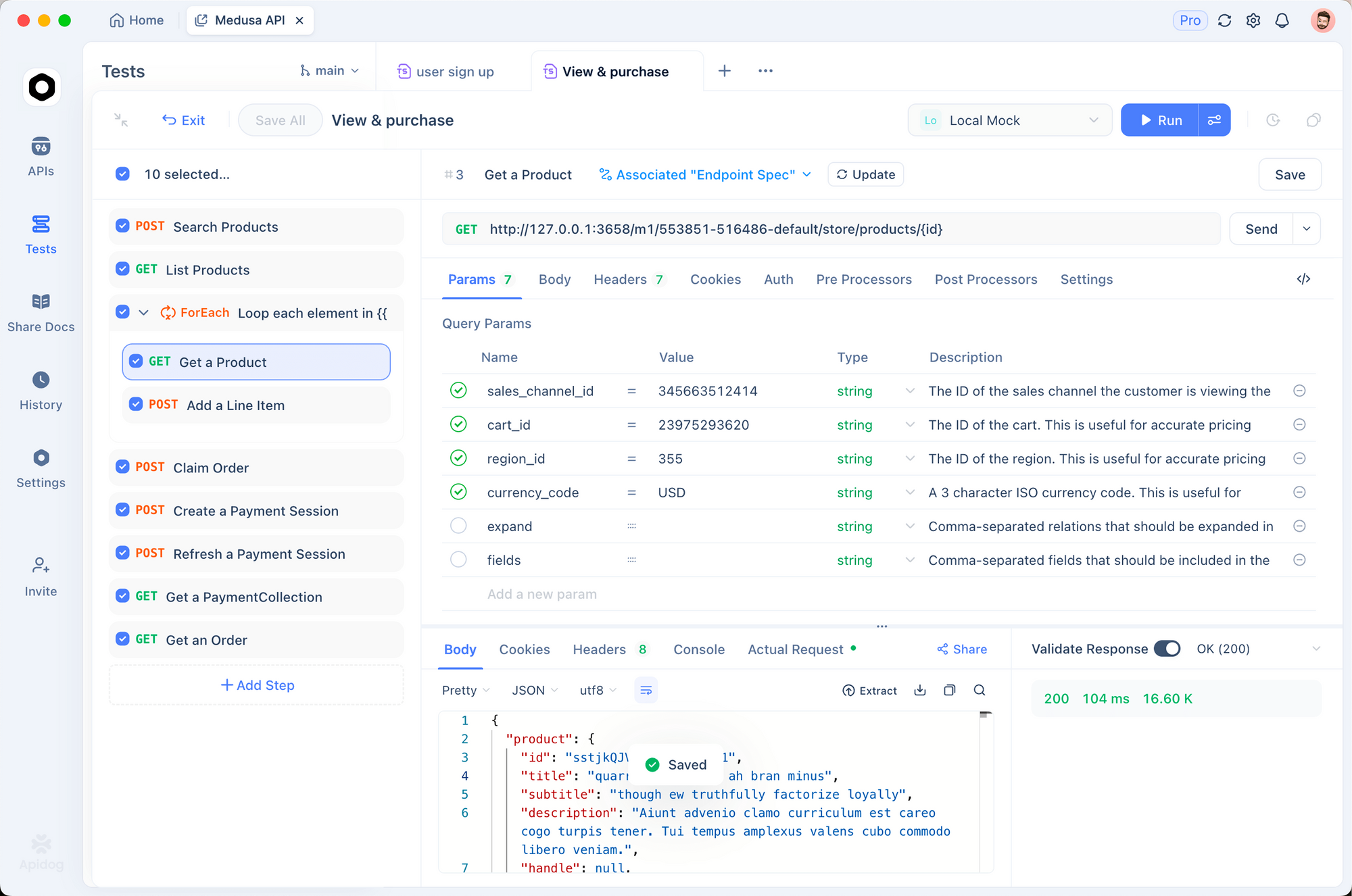
- สร้างคำขอใหม่ใน Apidog
- กำหนดเมธอดเป็น
POST - URL:
https://generativelanguage.googleapis.com/v1beta/models/gemini-embedding-2-preview:embedContent - เพิ่มเฮดเดอร์:
x-goog-api-key: YOUR_API_KEY - บอดี้ (JSON):
{
  "content": {
    "parts": [{
      "text": "What is API testing?"
    }]
  }
}
วิธีนี้ช่วยให้คุณยืนยันว่าคีย์ API ของคุณใช้งานได้และเห็นโครงสร้างการตอบกลับก่อนเขียนโค้ด คุณสามารถบันทึกสิ่งนี้เป็นกรณีทดสอบและตรวจสอบการตอบกลับของ Embedding ใน CI/CD pipeline ของคุณได้
การสร้าง Text Embeddings
กรณีการใช้งานที่ง่ายที่สุด - การฝังข้อความ:
import google.generativeai as genai

genai.configure(api_key='YOUR_API_KEY')

# Generate embedding
result = genai.embed_content(
    model='models/gemini-embedding-2-preview',
    content='What is the meaning of life?'
)

# Get the embedding vector
embedding = result['embedding']
print(f"Embedding dimensions: {len(embedding)}")
print(f"First 5 values: {embedding[:5]}")
ผลลัพธ์:
Embedding dimensions: 3072
First 5 values: [0.0234, -0.0156, 0.0891, -0.0423, 0.0567]
หมายเหตุ: โครงสร้างการตอบกลับคือ result['embedding'] ซึ่งจะคืนค่าเป็นลิสต์ของเลขทศนิยม เลขทศนิยมแต่ละตัวแสดงถึงมิติหนึ่งของเวกเตอร์ Embedding
การใช้คำแนะนำสำหรับงาน
คำแนะนำสำหรับงานช่วยปรับปรุง Embeddings ให้เหมาะสมกับกรณีการใช้งานเฉพาะ:
# For search queries
query_result = genai.embed_content(
    model='models/gemini-embedding-2-preview',
    content='best API testing tools',
    task_type='RETRIEVAL_QUERY'
)

# For documents you're indexing
doc_result = genai.embed_content(
    model='models/gemini-embedding-2-preview',
    content='Apidog is an API testing platform...',
    task_type='RETRIEVAL_DOCUMENT'
)
ประเภทของงานที่มีให้เลือก:
RETRIEVAL_QUERY- ใช้สำหรับคำค้นหาRETRIEVAL_DOCUMENT- ใช้สำหรับเอกสารที่คุณกำลังทำดัชนีSEMANTIC_SIMILARITY- ใช้สำหรับการเปรียบเทียบความคล้ายคลึงของเนื้อหาCLASSIFICATION- ใช้สำหรับงานการจัดหมวดหมู่CLUSTERING- ใช้สำหรับการจัดกลุ่มเนื้อหาที่คล้ายกัน
การควบคุมมิติของผลลัพธ์
ลดค่าใช้จ่ายในการจัดเก็บโดยใช้มิติที่เล็กลง:
# Production-optimized: 768 dimensions
result = genai.embed_content(
    model='models/gemini-embedding-2-preview',
    content='Your text here',
    output_dimensionality=768
)

# Balanced: 1536 dimensions
result = genai.embed_content(
    model='models/gemini-embedding-2-preview',
    content='Your text here',
    output_dimensionality=1536
)

# Maximum quality: 3072 dimensions (default)
result = genai.embed_content(
    model='models/gemini-embedding-2-preview',
    content='Your text here',
    output_dimensionality=3072
)
สำหรับการใช้งานส่วนใหญ่ การใช้ 768 มิติ ให้คุณภาพเกือบสูงสุดพร้อมลดพื้นที่จัดเก็บได้ถึง 75%
การฝังรูปภาพ
ฝังรูปภาพสำหรับการค้นหาด้วยภาพ:
import PIL.Image

# Load image
image = PIL.Image.open('product-photo.jpg')

# Generate embedding
result = genai.embed_content(
    model='models/gemini-embedding-2-preview',
    content=image
)

embedding = result['embedding']
คุณสามารถฝังรูปภาพได้สูงสุด 6 รูปต่อหนึ่งคำขอ:
images = [
    PIL.Image.open('image1.jpg'),
    PIL.Image.open('image2.jpg'),
    PIL.Image.open('image3.jpg')
]

result = genai.embed_content(
    model='models/gemini-embedding-2-preview',
    content=images
)
การฝังวิดีโอ
ฝังเนื้อหาวิดีโอสำหรับการค้นหาวิดีโอ:
# Upload video file first
video_file = genai.upload_file(path='demo-video.mp4')

# Wait for processing
import time
while video_file.state.name == 'PROCESSING':
    time.sleep(2)
    video_file = genai.get_file(video_file.name)

# Generate embedding
result = genai.embed_content(
    model='models/gemini-embedding-2-preview',
    content=video_file
)

embedding = result['embedding']
ข้อจำกัดของวิดีโอ:
- สูงสุด 128 วินาทีต่อคำขอ
- รูปแบบ: MP4, MOV
- ตัวแปลงสัญญาณ: H264, H265, AV1, VP9
การฝังเสียง
ฝังเสียงโดยไม่ต้องถอดเสียง:
# Upload audio file
audio_file = genai.upload_file(path='podcast-episode.mp3')

# Wait for processing
while audio_file.state.name == 'PROCESSING':
    time.sleep(2)
    audio_file = genai.get_file(audio_file.name)

# Generate embedding
result = genai.embed_content(
    model='models/gemini-embedding-2-preview',
    content=audio_file
)

embedding = result['embedding']
ข้อจำกัดของเสียง:
- สูงสุด 80 วินาทีต่อคำขอ
- รูปแบบ: MP3, WAV
การฝังเอกสาร PDF
ฝังหน้า PDF สำหรับการค้นหาเอกสาร:
# Upload PDF
pdf_file = genai.upload_file(path='user-manual.pdf')

# Wait for processing
while pdf_file.state.name == 'PROCESSING':
    time.sleep(2)
    pdf_file = genai.get_file(pdf_file.name)

# Generate embedding
result = genai.embed_content(
    model='models/gemini-embedding-2-preview',
    content=pdf_file
)

embedding = result['embedding']
ข้อจำกัดของ PDF:
- สูงสุด 6 หน้าต่อคำขอ
- ประมวลผลทั้งข้อความและเนื้อหาภาพ
Multimodal Embeddings (ข้อความ + รูปภาพ)
รวมเนื้อหาหลายประเภทใน Embedding เดียวกัน:
import PIL.Image

image = PIL.Image.open('product.jpg')
text = "High-quality wireless headphones with noise cancellation"

# Embed both together
result = genai.embed_content(
    model='models/gemini-embedding-2-preview',
    content=[text, image]
)

embedding = result['embedding']
สิ่งนี้จะเก็บความสัมพันธ์ระหว่างข้อความและรูปภาพไว้ใน Embedding เดียว
การประมวลผลแบบแบตช์
ประมวลผลหลายรายการได้อย่างมีประสิทธิภาพ:
texts = [
    "First document about API testing",
    "Second document about automation",
    "Third document about performance"
]

embeddings = []
for text in texts:
    result = genai.embed_content(
        model='models/gemini-embedding-2-preview',
        content=text,
        task_type='RETRIEVAL_DOCUMENT',
        output_dimensionality=768
    )
    embeddings.append(result['embedding'])

print(f"Generated {len(embeddings)} embeddings")
สำหรับแบตช์ขนาดใหญ่ ให้ใช้ Batch API เพื่อประหยัดค่าใช้จ่าย 50%
การสร้างระบบค้นหาเชิงความหมาย (Semantic Search System)
นี่คือตัวอย่างที่สมบูรณ์ในการใช้ Gemini Embedding 2 สำหรับการค้นหาเชิงความหมาย
ขั้นตอนที่ 1: ติดตั้ง Dependencies
pip install google-generativeai numpy scikit-learn
ขั้นตอนที่ 2: ฝังเอกสารของคุณ
import google.generativeai as genai
import numpy as np
from sklearn.metrics.pairwise import cosine_similarity

genai.configure(api_key='YOUR_API_KEY')

# Sample documents
documents = [
    "Apidog is an API testing platform for developers",
    "REST APIs use HTTP methods like GET, POST, PUT, DELETE",
    "GraphQL provides a query language for APIs",
    "API documentation helps developers understand endpoints",
    "Postman is a popular API testing tool"
]

# Generate embeddings for all documents
doc_embeddings = []
for doc in documents:
    result = genai.embed_content(
        model='models/gemini-embedding-2-preview',
        content=doc,
        task_type='RETRIEVAL_DOCUMENT',
        output_dimensionality=768
    )
    doc_embeddings.append(result['embedding'])

# Convert to numpy array
doc_embeddings = np.array(doc_embeddings)
ขั้นตอนที่ 3: สร้างฟังก์ชันค้นหา
def search(query, top_k=3):
    # Embed the query
    query_result = genai.embed_content(
        model='models/gemini-embedding-2-preview',
        content=query,
        task_type='RETRIEVAL_QUERY',
        output_dimensionality=768
    )
    query_embedding = np.array([query_result['embedding']])

    # Calculate similarities
    similarities = cosine_similarity(query_embedding, doc_embeddings)[0]

    # Get top results
    top_indices = np.argsort(similarities)[::-1][:top_k]

    results = []
    for idx in top_indices:
        results.append({
            'document': documents[idx],
            'score': similarities[idx]
        })

    return results
ขั้นตอนที่ 4: ค้นหา
# Test the search
results = search("What tools can I use for API testing?")

for i, result in enumerate(results, 1):
    print(f"{i}. Score: {result['score']:.4f}")
    print(f"   {result['document']}\n")
ผลลัพธ์:
1. Score: 0.8234
   Apidog is an API testing platform for developers

2. Score: 0.7891
   Postman is a popular API testing tool

3. Score: 0.6543
   API documentation helps developers understand endpoints
การสร้างระบบ RAG
ใช้ Gemini Embedding 2 สำหรับ Retrieval-Augmented Generation (RAG)
ขั้นตอนที่ 1: ตั้งค่าฐานความรู้
import google.generativeai as genai
import numpy as np
from sklearn.metrics.pairwise import cosine_similarity

genai.configure(api_key='YOUR_API_KEY')

# Knowledge base
knowledge_base = [
    "Apidog supports REST, GraphQL, and WebSocket APIs",
    "You can create test cases and run them automatically",
    "Apidog generates API documentation from your requests",
    "Mock servers help you test before backend is ready",
    "Team collaboration features include shared workspaces"
]

# Embed knowledge base
kb_embeddings = []
for doc in knowledge_base:
    result = genai.embed_content(
        model='models/gemini-embedding-2-preview',
        content=doc,
        task_type='RETRIEVAL_DOCUMENT',
        output_dimensionality=768
    )
    kb_embeddings.append(result['embedding'])

kb_embeddings = np.array(kb_embeddings)
ขั้นตอนที่ 2: สร้างฟังก์ชันการสืบค้น RAG
def rag_query(question):
    # 1. Embed the question
    query_result = genai.embed_content(
        model='models/gemini-embedding-2-preview',
        content=question,
        task_type='RETRIEVAL_QUERY',
        output_dimensionality=768
    )
    query_embedding = np.array([query_result['embedding']])

    # 2. Find relevant context
    similarities = cosine_similarity(query_embedding, kb_embeddings)[0]
    top_idx = np.argmax(similarities)
    context = knowledge_base[top_idx]

    # 3. Generate answer with context
    prompt = f"""Context: {context}

Question: {question}

Answer the question based on the context provided."""

    model = genai.GenerativeModel('gemini-2.0-flash-exp')
    response = model.generate_content(prompt)

    return response.text
ขั้นตอนที่ 3: สอบถามระบบ RAG ของคุณ
# Test RAG
answer = rag_query("Can Apidog generate documentation?")
print(answer)
สิ่งนี้จะดึงบริบทที่เกี่ยวข้องที่สุดจากฐานความรู้ของคุณและนำไปใช้ในการสร้างคำตอบที่แม่นยำ
การจัดเก็บ Embeddings ในฐานข้อมูลเวกเตอร์
ใช้ ChromaDB เพื่อจัดเก็บและสืบค้น Embeddings:
import chromadb
import google.generativeai as genai

genai.configure(api_key='YOUR_API_KEY')

# Initialize ChromaDB
client = chromadb.Client()
collection = client.create_collection(name="my_documents")

# Documents to index
documents = [
    "API testing ensures your endpoints work correctly",
    "REST APIs follow stateless architecture principles",
    "GraphQL allows clients to request specific data"
]

# Generate and store embeddings
for i, doc in enumerate(documents):
    result = genai.embed_content(
        model='models/gemini-embedding-2-preview',
        content=doc,
        task_type='RETRIEVAL_DOCUMENT',
        output_dimensionality=768
    )

    collection.add(
        embeddings=[result['embedding']],
        documents=[doc],
        ids=[f"doc_{i}"]
    )

# Query the collection
query = "How do I test my API?"
query_result = genai.embed_content(
    model='models/gemini-embedding-2-preview',
    content=query,
    task_type='RETRIEVAL_QUERY',
    output_dimensionality=768
)

results = collection.query(
    query_embeddings=[query_result['embedding']],
    n_results=2
)

print("Top results:")
for doc in results['documents'][0]:
    print(f"- {doc}")
การจัดการข้อผิดพลาด
จัดการข้อผิดพลาดของ API อย่างเหมาะสม:
import google.generativeai as genai
from google.api_core import exceptions

genai.configure(api_key='YOUR_API_KEY')

def safe_embed(content):
    try:
        result = genai.embed_content(
            model='models/gemini-embedding-2-preview',
            content=content,
            output_dimensionality=768
        )
        return result['embedding']

    except exceptions.InvalidArgument as e:
        print(f"Invalid input: {e}")
        # Example: Content too long or unsupported format
        return None

    except exceptions.ResourceExhausted as e:
        print(f"Quota exceeded: {e}")
        # Example: Rate limit hit or quota exhausted
        return None

    except exceptions.DeadlineExceeded as e:
        print(f"Request timeout: {e}")
        # Example: Network issues or slow response
        return None

    except Exception as e:
        print(f"Unexpected error: {e}")
        return None

# Use it
embedding = safe_embed("Your text here")
if embedding:
    print("Embedding generated successfully")
else:
    print("Failed to generate embedding")
ข้อความแสดงข้อผิดพลาดที่พบบ่อย:
InvalidArgument: Content exceeds maximum length- ลดขนาดข้อมูลนำเข้าResourceExhausted: Quota exceeded- รอหรืออัปเกรดแผนUnauthenticated: API key not valid- ตรวจสอบคีย์ API ของคุณPermissionDenied: Model not available- ตรวจสอบชื่อโมเดล
การจำกัดอัตรา (Rate Limiting) และแนวทางปฏิบัติที่ดีที่สุด
การจำกัดอัตรา:
- ระดับฟรี: 60 คำขอต่อนาที
- ระดับเสียค่าใช้จ่าย: ขีดจำกัดที่สูงขึ้นตามแผนของคุณ
แนวทางปฏิบัติที่ดีที่สุด:
ใช้มิติข้อมูลที่เหมาะสม: 768 สำหรับการใช้งานจริง, 3072 เมื่อคุณต้องการคุณภาพสูงสุดเท่านั้น
คำขอแบบแบตช์: ประมวลผลหลายรายการพร้อมกันเมื่อเป็นไปได้
แคช Embeddings: อย่าฝังเนื้อหาเดิมซ้ำ
ใช้คำแนะนำสำหรับงาน: สิ่งเหล่านี้ช่วยปรับปรุงความแม่นยำสำหรับกรณีการใช้งานเฉพาะ
จัดการข้อผิดพลาด: ใช้ retry logic พร้อม exponential backoff
ตรวจสอบค่าใช้จ่าย: ติดตามการใช้งานโทเค็นของคุณ
การเพิ่มประสิทธิภาพต้นทุน
ลดค่าใช้จ่ายด้วยกลยุทธ์เหล่านี้:
1. ใช้มิติข้อมูลที่เล็กลง:
# 768 dimensions = 75% less storage
result = genai.embed_content(
    model='models/gemini-embedding-2-preview',
    content=text,
    output_dimensionality=768
)
2. ใช้ Batch API สำหรับงานที่ไม่เร่งด่วน:
# 50% cost savings for batch processing
# (Batch API implementation depends on your setup)
3. แคช Embeddings:
import hashlib
import json

embedding_cache = {}

def get_embedding_cached(content):
    # Create cache key
    cache_key = hashlib.md5(content.encode()).hexdigest()

    # Check cache
    if cache_key in embedding_cache:
        return embedding_cache[cache_key]

    # Generate embedding
    result = genai.embed_content(
        model='models/gemini-embedding-2-preview',
        content=content,
        output_dimensionality=768
    )

    # Store in cache
    embedding_cache[cache_key] = result['embedding']

    return result['embedding']
ปัญหาทั่วไปและวิธีแก้ไข
ปัญหา: “Invalid API key”
# วิธีแก้ไข: ตรวจสอบคีย์ API ของคุณ
import os
api_key = os.getenv('GEMINI_API_KEY')
if not api_key:
    print("API key not set!")
ปัญหา: “Content too long”
# วิธีแก้ไข: แบ่งข้อความยาวๆ เป็นส่วนๆ
def chunk_text(text, max_tokens=8000):
    # Simple word-based chunking
    words = text.split()
    chunks = []
    current_chunk = []

    for word in words:
        current_chunk.append(word)
        if len(current_chunk) >= max_tokens:
            chunks.append(' '.join(current_chunk))
            current_chunk = []

    if current_chunk:
        chunks.append(' '.join(current_chunk))

    return chunks

# Embed each chunk
for chunk in chunk_text(long_text):
    embedding = genai.embed_content(
        model='models/gemini-embedding-2-preview',
        content=chunk
    )
ปัญหา: “File processing timeout”
# วิธีแก้ไข: เพิ่มเวลาการรอสำหรับไฟล์ขนาดใหญ่
import time

video_file = genai.upload_file(path='large-video.mp4')

max_wait = 300  # 5 minutes
waited = 0
while video_file.state.name == 'PROCESSING' and waited < max_wait:
    time.sleep(5)
    waited += 5
    video_file = genai.get_file(video_file.name)

if video_file.state.name == 'PROCESSING':
    print("File processing timeout")
else:
    # Generate embedding
    result = genai.embed_content(
        model='models/gemini-embedding-2-preview',
        content=video_file
    )
ขั้นตอนต่อไป
ตอนนี้คุณทราบวิธีใช้ Gemini Embedding 2 API แล้ว นี่คือสิ่งที่คุณควรลองทำต่อไป:
- สร้างระบบค้นหาเชิงความหมาย สำหรับเอกสารของคุณ
- สร้างแอปพลิเคชัน RAG ที่มีบริบทแบบหลายโมดอล
- นำการค้นหาด้วยภาพไปใช้ สำหรับแคตตาล็อกสินค้า
- ตั้งค่าการค้นหาด้วยเสียง สำหรับเนื้อหาพอดแคสต์หรือวิดีโอ
- ทดลองใช้มิติข้อมูลที่แตกต่างกัน เพื่อเพิ่มประสิทธิภาพต้นทุน
API นี้ใช้งานง่าย แต่มีความเป็นไปได้มหาศาล เริ่มต้นด้วยการฝังข้อความ จากนั้นเพิ่มรูปภาพ, วิดีโอ หรือเสียงตามความต้องการในการใช้งานของคุณ
กำลังทดสอบการนำไปใช้งานของคุณอยู่ใช่หรือไม่? ใช้ Apidog เพื่อทดสอบปลายทาง (endpoints) ของ Gemini API, ตรวจสอบความถูกต้องของการตอบกลับ และทำให้การทดสอบ Embedding pipeline ของคุณเป็นแบบอัตโนมัติ