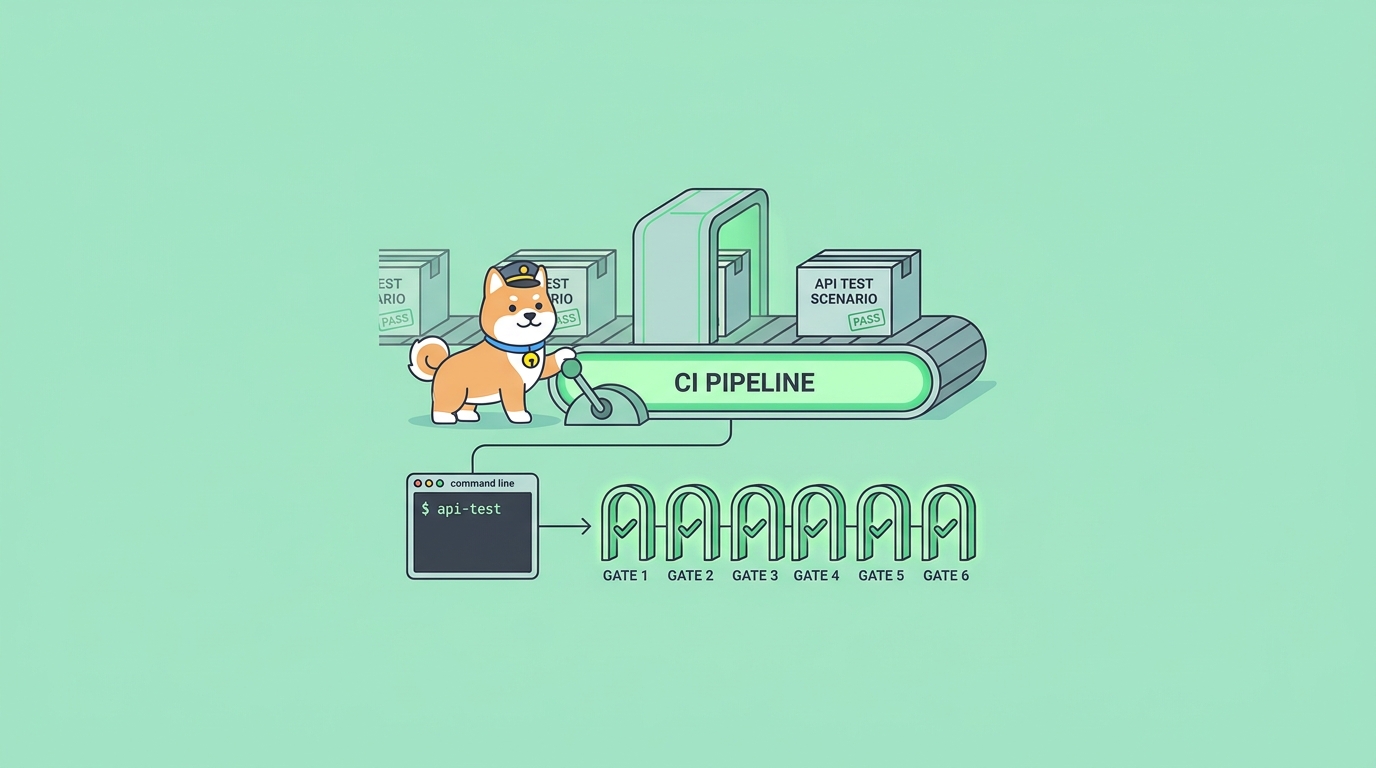
Your API works on your machine. The unit tests are green. You merge, deploy, and an hour later a teammate pings you: the /checkout endpoint is returning a 500 for anyone with an empty cart. The bug was never in the code you changed; it was in a contract two services away that nobody re-tested. This is the gap that integration-level API tests fill, and it’s exactly the kind of check you want running automatically on every commit instead of in someone’s head.
Travis CI is one of the oldest hosted continuous integration services, and it still does one thing well: it watches your Git repository, spins up a clean environment for every push and pull request, and runs whatever commands you put in a .travis.yml file. Most teams use it for compile-and-unit-test loops. Far fewer use it to run real HTTP tests against a running API, even though that’s where the expensive bugs hide. The reason is friction. Wiring an API test runner into a CI box, passing secrets safely, and getting a pass/fail signal back is fiddly enough that people skip it.
This guide walks through closing that gap with the Apidog command-line runner. You design and debug your API tests in the Apidog desktop app, where you can see requests and assertions visually, then run those exact same tests headlessly inside Travis CI with a single command. No rewriting test logic as code, no maintaining a separate test harness. The article covers the full path: a minimal .travis.yml, installing the runner, passing your access token securely, choosing what to run, generating reports, and making the build fail loudly when an endpoint breaks. Download Apidog if you want to follow along.
Why run API tests in CI at all
Unit tests confirm a function returns the right value. API tests confirm the whole request-response cycle behaves: the route exists, auth is enforced, the status code is correct, the JSON schema matches, and the values inside the body are sane. These are different failure modes, and the second kind is the one your users actually hit.
Running them locally is fine until it isn’t. Local runs depend on you remembering to run them, on your machine matching production config, and on you not being mid-coffee when a regression slips through. Continuous integration removes all three excuses. Every push triggers the same suite in the same environment, and the result is attached to the commit and the pull request for everyone to see.
There’s a deeper payoff for API teams specifically. When your tests live next to your API design, a breaking change shows up as a failed assertion the moment it’s pushed, not as a support ticket. If you want the conceptual background on where this fits in a delivery pipeline, the what is CI/CD explainer is a good companion read; this article stays focused on the hands-on Travis CI build.
What you need before you start
Three things, and you probably already have two of them.
- A Git repository connected to Travis CI. The free tier on
travis-ci.comworks for public and private repos within usage limits.
- An Apidog project with at least one test scenario you’ve already built and run successfully in the desktop app. A test scenario in Apidog is an ordered set of API requests with assertions; think of it as one end-to-end flow, like “log in, create an order, fetch the order, delete it.”
- Node.js. The Apidog CLI runs on Node, and it needs version 16 or later. Travis provides Node out of the box in the
node_jslanguage environment, so this is mostly a one-line declaration.
If you haven’t built a test scenario yet, do that first in the app. The whole point of this workflow is that you debug visually once, then automate forever. Trying to author tests blind inside a CI log is the slow path. For the fundamentals of writing good checks, API assertions: a practical guide covers how to validate status codes, response bodies, and JSON schema before you ever push.
Step 1: Get your access token and scenario ID
The Apidog CLI runs your cloud-stored tests headlessly, so it needs two pieces of identity:
- An access token that proves the runner is allowed to read your project. Generate it from your Apidog account settings under access tokens. Treat it like a password; it grants API access to your project data.
- A test scenario ID. Open the scenario in the desktop app and copy its ID, or use the “Run in CI/CD” option, which generates a ready-made command with the ID already filled in.
The easiest way to get a correct first command is to let Apidog write it for you. Inside a test scenario, the CI/CD run option produces something like this:
apidog run --access-token <your-access-token> -t 5564321 -e 4417023 -r cli
That’s the whole shape of it: authenticate, point at a scenario (-t), point at an environment (-e), and pick a reporter (-r). Copy that, confirm it runs on your own laptop first, and only then move it into Travis. Verifying locally saves you a dozen red builds spent debugging a typo in a token.
Step 2: Store the token as an encrypted Travis variable
Never paste your access token into .travis.yml. That file is committed to Git, and a leaked token gives anyone read access to your API project. Travis has two safe options.
The clean way is repository environment variables set in the Travis web UI. Go to your repository settings on Travis, find environment variables, and add:
APIDOG_ACCESS_TOKENwith your token valueAPIDOG_ENV_IDwith the environment ID you want to test against
Leave the “display value in build log” toggle off so the token never prints. Travis injects these into every build as real environment variables, and your config references them by name. This keeps secrets out of the repository entirely, which is the behavior you want; if a contributor forks the repo, your token does not come along for the ride.
If you prefer everything in the file, Travis also supports encrypted variables via its CLI:
travis encrypt APIDOG_ACCESS_TOKEN="your-token-here" --add env.global
This writes an encrypted blob into .travis.yml that only your repository’s build can decrypt. Either approach works. The UI route is simpler for most teams and easier to rotate when a token expires.
Step 3: Write the .travis.yml
Here is a complete, minimal configuration that installs the Apidog CLI and runs one scenario on every push and pull request:
language: node_js
node_js:
  - "18"

cache:
  npm: true

install:
  - npm install -g apidog-cli

script:
  - apidog run --access-token $APIDOG_ACCESS_TOKEN -t 5564321 -e $APIDOG_ENV_ID -r cli
Three blocks do the work. language: node_js with a version gives you a Node runtime new enough for the CLI. The install step installs apidog-cli globally so the apidog command is on the path. The script step runs your tests. The -r cli reporter prints a readable pass/fail summary straight into the Travis log, which is what you’ll stare at when something breaks.
Notice the scenario ID is hardcoded but the secrets come from environment variables. That’s the right split: the ID is not sensitive, the token is. Commit this file, push, and Travis runs your API tests automatically. The first green build is the moment your API gets a safety net.
If you maintain several services and want a shared mental model across runners, the automate API tests in CI/CD walkthrough shows the same pattern applied to other platforms, and the GitHub Actions version is nearly identical in spirit if you ever migrate.
Step 4: Make the build fail when a test fails
This is the part teams forget, and it quietly defeats the entire exercise. A CI job is only useful if a failing test turns the build red. If the runner exits zero no matter what, you’ve built a very expensive log printer.
Good news: the Apidog CLI already does the right thing. When an assertion fails, the apidog run process exits with a non-zero status code, and Travis treats any non-zero exit in the script phase as a build failure. So the minimal config above already fails correctly out of the box. You don’t need extra glue.
What you can tune is how the run behaves mid-scenario when a single request errors. The --on-error flag controls this:
--on-error endstops the scenario at the first failure. Fastest feedback, less output.--on-error continueruns the remaining steps so you see every failure in one pass.--on-error ignorekeeps going and does not let errors stop the run.
For CI, continue is usually the sweet spot: you want the full picture of what broke without the job bailing after the first red assertion, while still ending with a non-zero exit so the build fails. A reasonable script line looks like this:
script:
  - apidog run --access-token $APIDOG_ACCESS_TOKEN -t 5564321 -e $APIDOG_ENV_ID -r cli --on-error continue
Avoid the temptation to append || true to the command to “make the build pass.” That swallows the exit code and reintroduces the exact blind spot you set out to remove.
Step 5: Generate and keep an HTML report
The cli reporter is fine for a quick glance, but when a build fails you often want a richer artifact: which request, which assertion, what the actual response body was. The CLI generates an HTML report with the html reporter, and you can stack reporters in one run.
script:
  - apidog run --access-token $APIDOG_ACCESS_TOKEN -t 5564321 -e $APIDOG_ENV_ID -r cli,html --out-dir ./apidog-reports
-r cli,html prints to the log and writes a standalone HTML file. --out-dir sets where the report lands, defaulting to ./apidog-reports. To make that report survive after the build ends, deploy it somewhere Travis can publish to, such as an S3 bucket or GitHub Pages, in a deploy block. A common pattern:
deploy:
  provider: pages
  skip_cleanup: true
  github_token: $GITHUB_TOKEN
  local_dir: apidog-reports
  on:
    branch: main
If you’d rather not manage artifact storage at all, the CLI can push the report to the Apidog cloud with --upload-report, where your team can open it from a link without any extra hosting. That’s the lowest-maintenance option for distributed teams.
Step 6: Add environments, data, and matrix runs
A single scenario against a single environment is a fine start. Real pipelines grow in three directions, and the CLI flags map cleanly onto each.
Multiple environments. The -e flag selects which environment’s base URLs and variables to use. Run the same scenario against staging on every push and against production on a nightly cron build by swapping the environment ID. Travis cron jobs are configured per-repository in the settings UI.
Data-driven runs. The -d flag (long form --iteration-data) feeds a CSV or JSON file into your scenario so it runs once per row. This is how you cover edge cases: valid input, missing fields, oversized payloads, special characters, all from one scenario definition. Pair it with -n (--iteration-count) when you want a fixed number of repeats instead of file-driven iterations.
apidog run --access-token $APIDOG_ACCESS_TOKEN -t 5564321 -e $APIDOG_ENV_ID -d ./test-data.csv -r cli
Parallel scenarios. Travis build matrices let you run several scenarios at once across parallel jobs. Define an environment-variable matrix where each entry carries a different scenario ID, and each matrix job runs one. The build only goes green when all of them pass.
env:
  - SCENARIO_ID=5564321   # checkout flow
  - SCENARIO_ID=5564322   # auth flow
  - SCENARIO_ID=5564323   # search flow

script:
  - apidog run --access-token $APIDOG_ACCESS_TOKEN -t $SCENARIO_ID -e $APIDOG_ENV_ID -r cli
As suites grow, organizing scenarios into test suites for automated API testing keeps the matrix manageable instead of becoming a wall of IDs.
Why this beats hand-coding tests in your CI script
You could write API tests directly in a Travis script with curl and jq, or as a Newman run of an exported collection. Both work, and both age badly.
The curl-plus-shell approach turns every assertion into a brittle string comparison. Checking a nested JSON field becomes a jq incantation; checking a schema is basically impossible; and the moment your API adds a field, half your greps need rewriting. You end up maintaining a second, worse copy of your API knowledge in Bash.
The collection-runner approach is better but couples your CI to an export-and-sync ritual: edit tests in one tool, export, commit the JSON, hope it didn’t drift from reality. The drift is real, and it’s the source of the “the tests pass but the API is broken” complaints. We’ve written about this exact failure mode in why your Postman collections are not a source of truth, and if you’re running collections in CI today, how to run Postman collections in CI without Newman covers the migration path.
The Apidog model collapses the loop. Your tests, your API design, your environments, and your mock servers live in one place. The CLI runs the live, current version of those tests; there is nothing to export and nothing to drift. You debug a flaky assertion visually in the app, save, and the next CI run picks up the change. That single source of truth is the entire reason to use a purpose-built runner over a pile of shell scripts. If you’re evaluating it against your current setup, the best Postman alternatives for API testing roundup puts the options side by side.
A note on Travis CI specifically
Travis was the default open-source CI for years, and a lot of older repositories still run on it. If you’re starting fresh in 2026, it’s worth knowing the field has shifted; GitHub Actions, GitLab CI, and CircleCI now carry most new projects, and our best CI/CD tools comparison breaks down where each one fits. The good news is that the Apidog CLI is platform-agnostic by design. The exact same apidog run command that works in your .travis.yml works in a GitHub Actions step, a GitLab .gitlab-ci.yml, or a Jenkins stage. If you ever move off Travis, your API tests move with you unchanged; only the surrounding YAML keys differ. That portability is a quiet but real benefit of keeping test logic out of CI-specific syntax.
Frequently asked questions
Do I need to install the Apidog desktop app on the CI box? No. The desktop app is for designing and debugging tests. Travis only needs the apidog-cli npm package and a Node 16+ runtime, which the node_js language environment already provides. The CLI fetches and runs your cloud-stored scenarios headlessly.
Where do I find my access token and scenario ID? Generate the access token in your Apidog account settings under access tokens. The scenario ID is visible in the desktop app on each test scenario; the built-in “Run in CI/CD” option also generates a full command with the ID pre-filled, which is the fastest way to get a working baseline.
How do I keep the token out of my repository? Set it as a repository environment variable in the Travis web UI with the build-log display turned off, then reference it as $APIDOG_ACCESS_TOKEN in your config. Alternatively, use travis encrypt to store an encrypted value in .travis.yml. Never commit the raw token.
Will the build actually fail if a test fails? Yes. The apidog run command exits non-zero when an assertion fails, and Travis treats any non-zero exit in the script phase as a failed build. Just don’t suppress the exit code with || true. Use --on-error continue if you want every failure reported in a single run while still failing the build.
Can I run tests against multiple environments or with multiple data sets? Yes. Use -e to switch environments (staging on push, production on a nightly cron), -d to feed a CSV or JSON data file for data-driven iterations, and a Travis build matrix to run several scenarios in parallel jobs.
Can I use this if I’m not on Travis CI? Yes. The CLI command is identical across platforms. Swap the surrounding YAML for GitHub Actions, GitLab CI, or Jenkins and the apidog run line stays the same.
Wrapping up
Getting API tests into Travis CI comes down to four moves: store your access token as an encrypted variable, install apidog-cli in the install step, run your scenario with apidog run in the script step, and let the non-zero exit code fail the build. From there you layer on HTML reports, multiple environments, data-driven iterations, and a parallel matrix as your suite grows.
The reason to do it with a dedicated runner rather than a wall of curl calls is the single source of truth. You design and debug visually, then run the live version of those exact tests on every commit, with no export step to drift out of sync. Your /checkout regression gets caught on the pull request, not in production.
Build your first test scenario, then download Apidog and wire it into your next push. Once the first build goes green, every commit after it ships with a net.