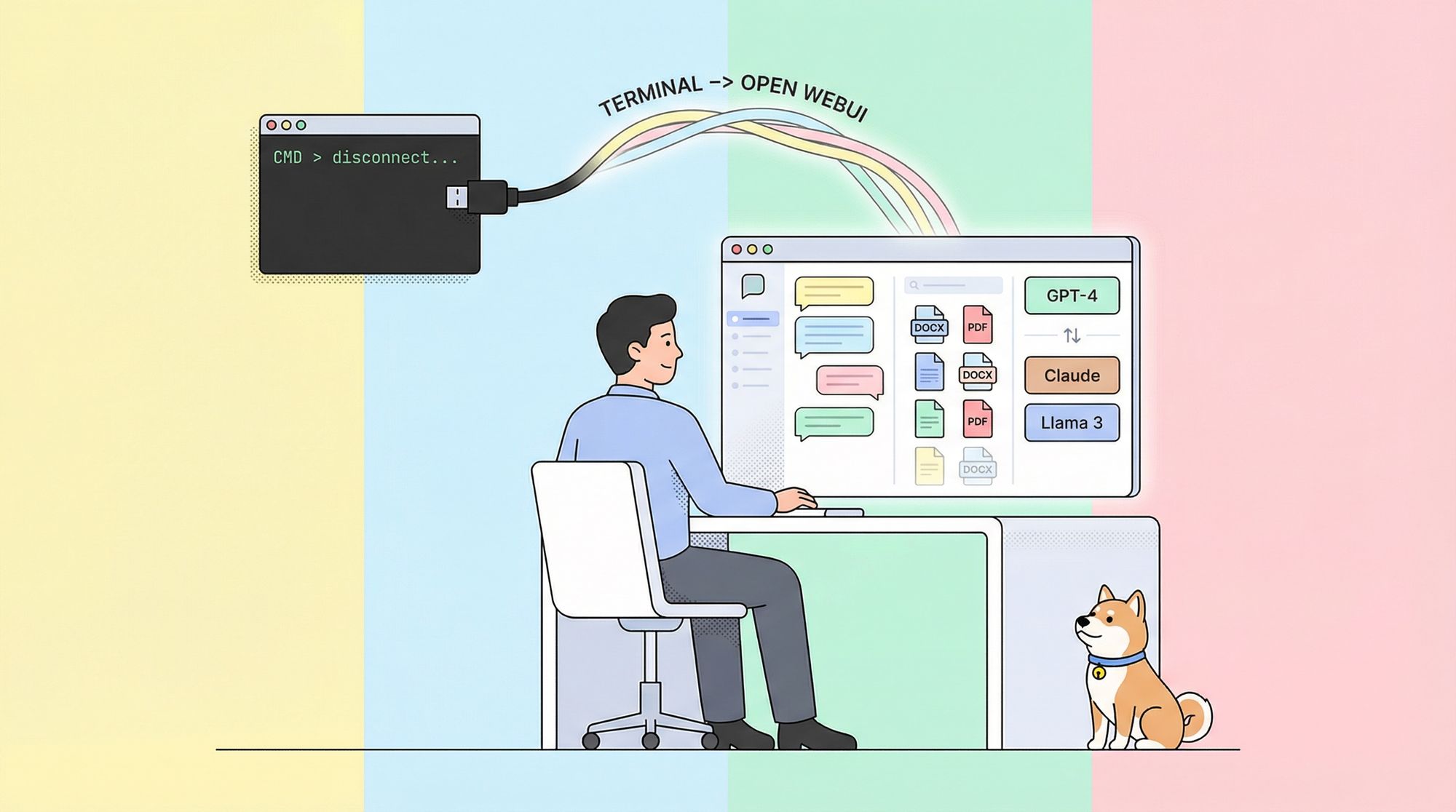
Are you looking for a seamless way to interact with advanced local language models like Llama 3.1 or Mistral—without being stuck in a terminal? Open WebUI provides a modern, browser-based alternative to the command line, making it easy to chat, save prompts, upload documents, and manage models—all in one intuitive dashboard.
In this guide, you’ll learn how to:
- Install and test Ollama with Llama 3.1 or Mistral
- Set up Open WebUI using Docker for a fast, reliable environment
- Explore productivity features like chat history, document RAG, and model switching
- Connect the experience with API documentation using Apidog for your AI projects
What is Open WebUI? A Visual Interface for Local LLMs
Open WebUI is an open-source, self-hosted web dashboard for Ollama, enabling you to run and interact with large language models (LLMs) like Llama 3.1 or Mistral—right from your browser. Unlike the Ollama command line, Open WebUI offers:
- Persistent Chat History: Review and continue previous conversations.
- Prompt Management: Save, organize, and quickly reuse favorite prompts.
- Document Uploads: Add files to enable Retrieval-Augmented Generation (RAG) for context-rich answers.
- Easy Model Switching: Change between local models with one click.
With over 50,000 GitHub stars, Open WebUI is trusted by developers and AI enthusiasts who want a collaborative, efficient interface for running LLMs locally.
Step 1: Installing and Testing Ollama
Before leveraging Open WebUI, you’ll need Ollama and at least one model installed. This section ensures your environment is ready.
System Requirements
- OS: Windows, macOS, or Linux (Ubuntu 24.04+ recommended)
- Hardware: 16GB+ RAM, 10GB+ free disk (Llama 3.1 8B ≈ 5GB). GPU optional for acceleration.
- Software: Ollama
Install Ollama
Download and install Ollama for your OS from ollama.com. Then verify:
ollama --version
You should see a version number (e.g., 0.1.44).

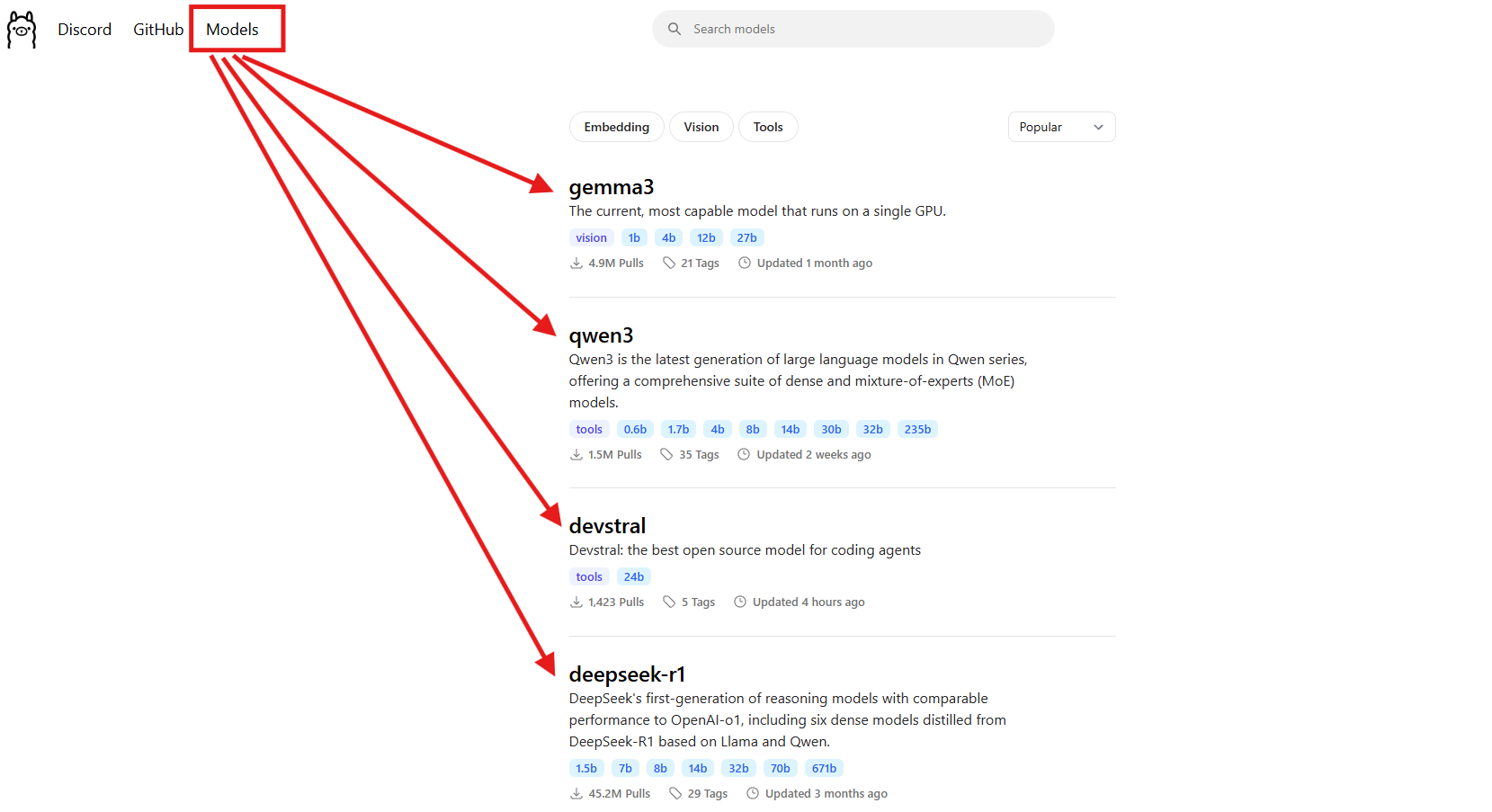
Download a Model
Pull the Llama 3.1 (8B) model as an example:
ollama pull llama3.1
This will download approximately 5GB. For lighter-weight alternatives, try:
ollama pull mistral
Check installed models:
ollama list
Test the Model in Terminal
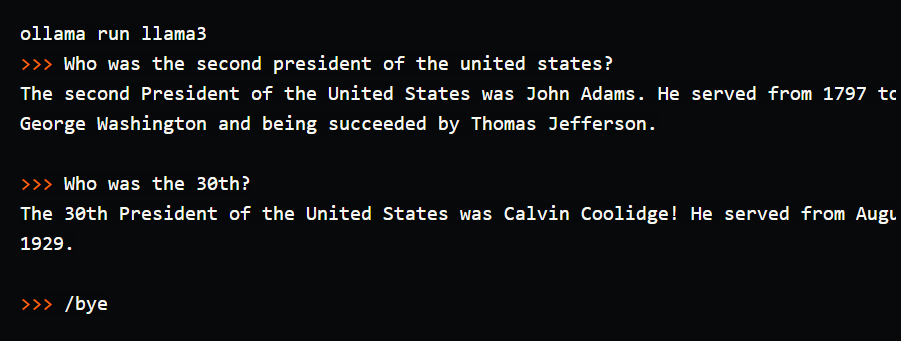
Run the model to verify everything works:
ollama run llama3.1
At the >>> prompt, type:
Tell me a dad joke about computers.
Sample output: "Why did the computer go to the doctor? It had a virus!"
Exit with /bye.
While this works, the terminal lacks chat history, organization, and document support—areas where Open WebUI excels.
Step 2: Prepare Your Environment for Open WebUI
With Ollama and your model running, let’s configure the workspace for Open WebUI. Docker is required for this setup.
Verify Docker Installation
Check Docker’s status:
docker --version
If missing, download Docker Desktop for your OS.
Organize Your Project
Create a project folder for clarity:
mkdir ollama-webui
cd ollama-webui
Run Ollama’s API Server
Start Ollama in a dedicated terminal (leave it running):
ollama serve
Ollama’s API will be available at http://localhost:11434.
Step 3: Install Open WebUI Using Docker
Deploy Open WebUI with a single Docker command inside your project directory:
docker run -d -p 3000:8080 \
  --add-host=host.docker.internal:host-gateway \
  -v open-webui:/app/backend/data \
  --name open-webui --restart always \
  ghcr.io/open-webui/open-webui:main
- Port 3000: Access Open WebUI in your browser.
- Persistent Data: Chat history and settings are saved in the Docker volume.
- Host Connection: Connects to Ollama’s API at
localhost:11434.
Check the container status:
docker ps
Step 4: Access and Set Up Open WebUI
Visit http://localhost:3000 in your browser. You’ll see the Open WebUI welcome screen.
- Click Sign Up to create your admin account (first user gets admin rights).
- Choose a strong password and store it securely.
If the interface doesn’t load, check Docker logs:
docker logs open-webui
And verify port 3000 is available.
Step 5: Chatting with LLMs in Open WebUI
Now you can interact with your local LLMs in a modern interface.
Start a Conversation
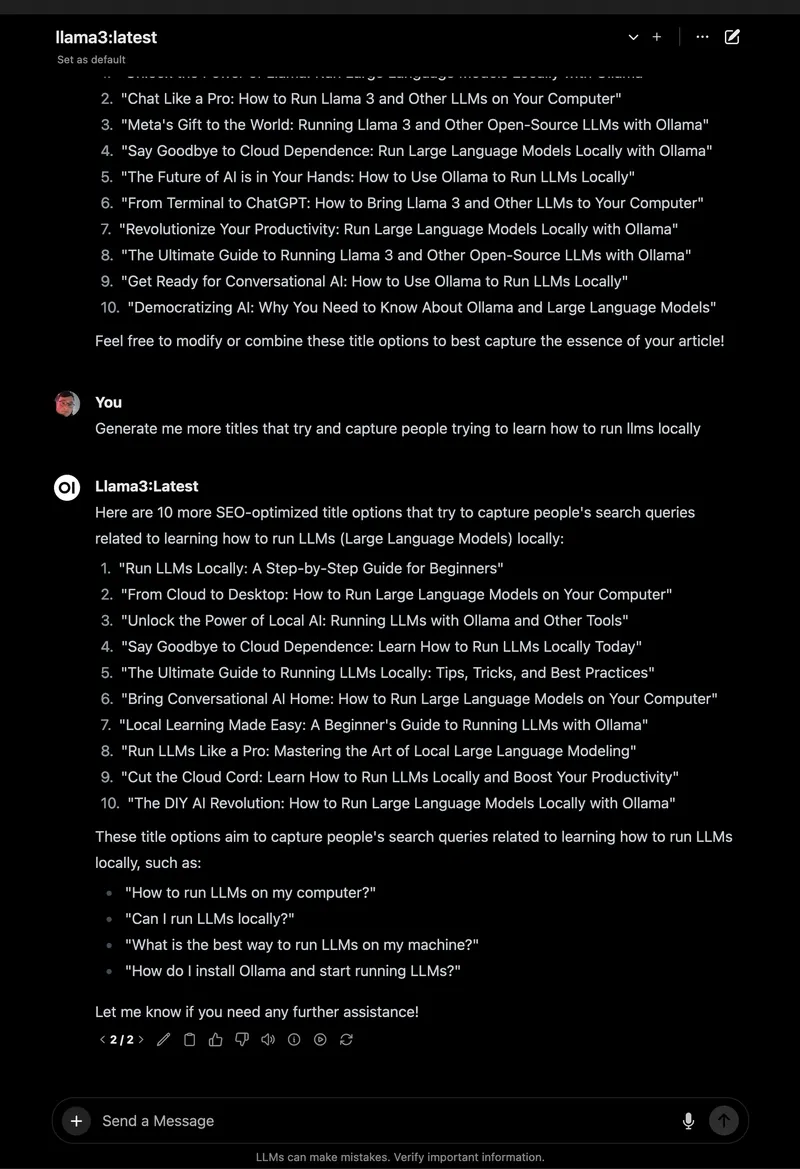
- Select
llama3.1:8bfrom the model dropdown (top-left). - Click New Chat.
- Enter:
Tell me a dad joke about computers. - Press Enter. The response and prompt are saved in your chat history.
Organize and Reuse
- Pin Chats: Click the pin icon to save important conversations (e.g., “Dad Jokes”).
- Rename, Archive, or Delete: Manage chats directly from the sidebar.
Store and Manage Prompts
- Go to Settings > Prompts.
- Click New Prompt, name it (e.g., “Dad Joke”), and add your prompt.
- Apply saved prompts in any chat with one click.
Document Upload (RAG)
- Click the
#icon in the chat input to open the document library. - Upload a relevant file (e.g., a technical guide PDF).
- Ask Llama 3.1 a question related to your document for context-aware responses.
Example: After uploading a Spring Boot guide, try:
“How do I use the REST Client in Spring Boot 3.2?”
You’ll get a targeted code snippet or explanation.
Advanced Features
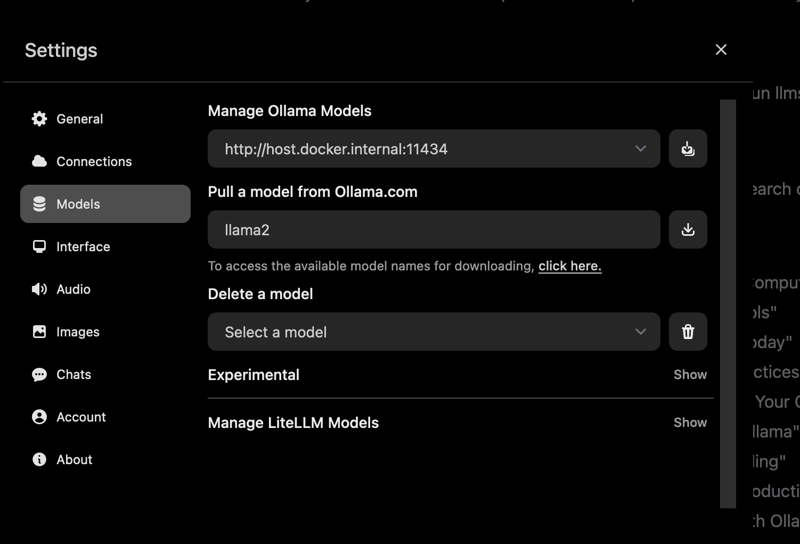
- Model Switching: Easily swap to models like Mistral.
- Chat Controls: Adjust tone or response length.
- Admin Tools: Manage users and access in Settings > Admin.
Documenting Your LLM APIs with Apidog
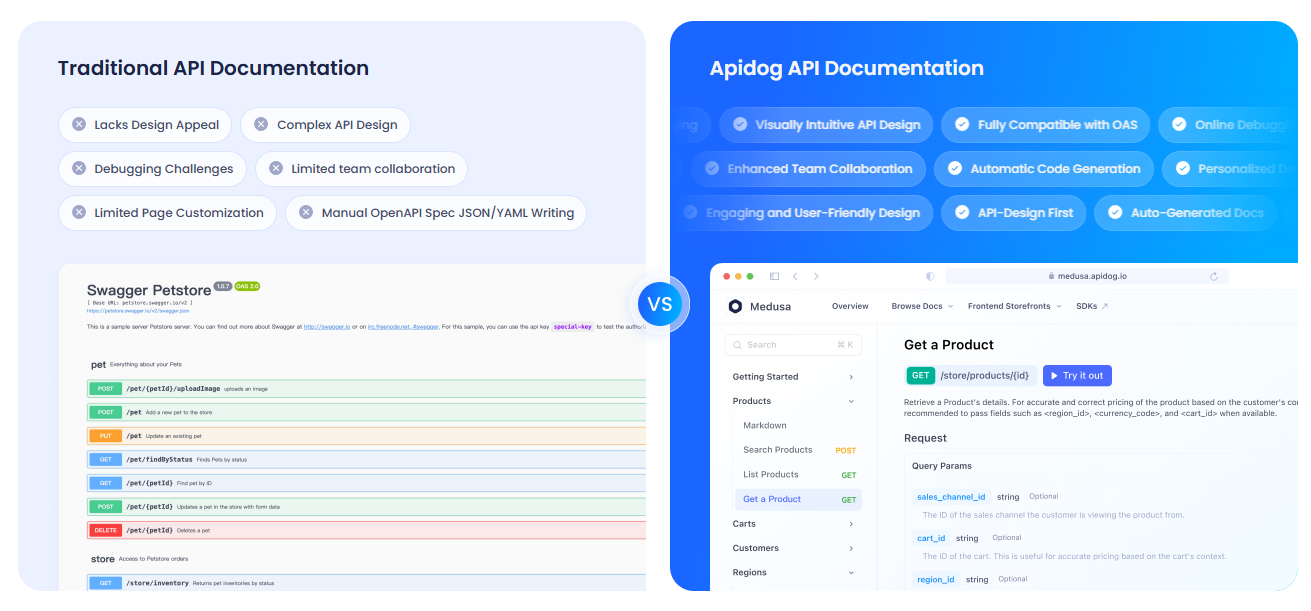
If you’re building or consuming APIs with Ollama and Open WebUI, clear documentation is essential for collaboration and scaling. Apidog provides a polished, interactive platform to design, test, and share your API docs—making it a valuable complement to your AI stack.
Troubleshooting & Practical Tips
-
Open WebUI Can’t Connect?
Ensureollama serveis running and port 11434 is open. -
Port 3000 Conflicts?
Stop the container:docker stop open-webui docker rm open-webuiRerun with a new port:
docker run -d -p 3001:8080 ... -
Slow Model Responses?
Use a GPU (:cudatags) or select lighter models like Mistral. -
Need Help?
Join Open WebUI’s GitHub Discussions or Discord. -
New to Ollama?
See our beginner’s guide here.
Why Developers Choose Open WebUI for Local LLMs
Open WebUI transforms Ollama’s CLI into a modern productivity tool:
- User-Friendly: Clean browser interface suits both beginners and power users.
- Organized Workflows: Persistent chats and prompt storage streamline experimentation.
- Smarter Context: Document uploads enable robust RAG for technical use cases.
- Privacy: Runs locally—your code, data, and ideas stay secure.
If you’re developing AI-powered features, prototyping APIs, or collaborating with teams, Open WebUI and Ollama make local LLM work efficient and enjoyable.
Conclusion: Unlock Modern LLM Workflows—No Terminal Required
You’ve now upgraded from command-line LLMs to an intuitive, browser-based chat experience with Open WebUI and Ollama. With model management, document uploads, and saved prompts, your local AI workflows are faster and more organized. For teams working on API-driven AI projects, integrating Apidog brings clarity and efficiency to your documentation process.
Share your Open WebUI experiments with the community—and happy building!