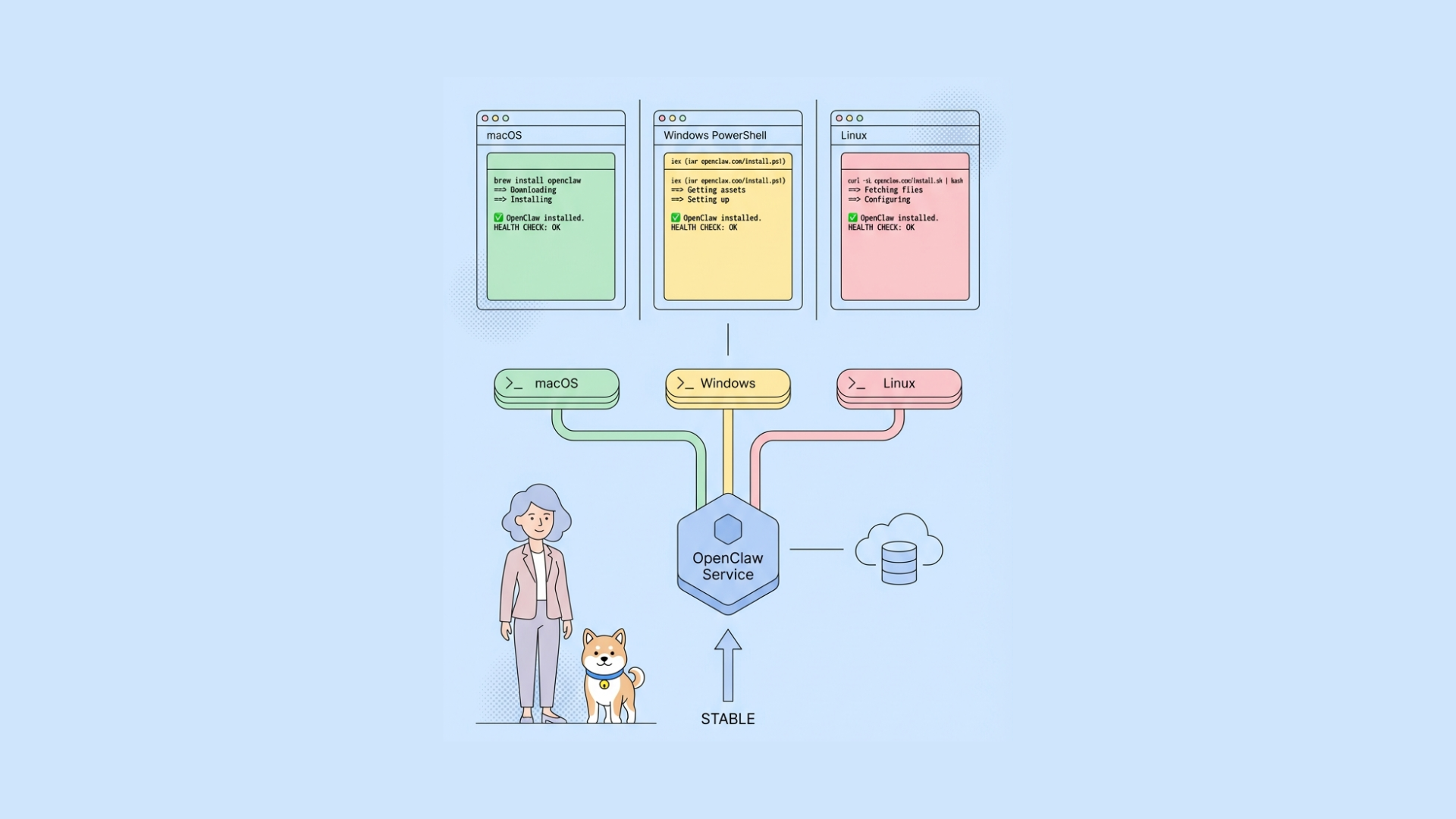
If you’re trying to get OpenClaw (often referenced in community forks or packages as Moltbot/Clawdbot) running locally, the hard part usually isn’t cloning the repo—it’s handling runtime versions, environment variables, and platform-specific build issues.
This guide gives you a practical, cross-platform installation path, with debugging steps that help when things go sideways.
What OpenClaw setup typically involves
Most OpenClaw distributions follow the same deployment shape:
- Clone source code from Git.
- Install language/runtime dependencies.
- Configure a
.envfile (tokens, DB, API keys). - Initialize storage (SQLite/Postgres/Redis depending on build).
- Run migration/bootstrap scripts.
- Start the service and validate health endpoints.
Even if your specific fork differs, this checklist maps to nearly every install.
Prerequisites (all operating systems)
Before OS-specific steps, confirm these basics:
- Git: for cloning and pulling updates.
- Runtime: commonly Node.js (LTS) or Python (3.10+), depending on the fork.
- Package manager: npm/pnpm/yarn for Node, pip/poetry for Python.
- Database (optional): SQLite for local quick start, Postgres for team/staging use.
- Terminal shell: PowerShell (Windows), zsh/bash (macOS/Linux).
Verify your tools
bash git --version node -v npm -v python3 --version pip --version
If your project docs specify exact versions, pin them now. Version drift is the #1 cause of “works on my machine” install failures.
Install OpenClaw on macOS/Linux
On macOS or Linux, run the unified installer:
curl -fsSL https://openclaw.ai/install.sh | bash
For alternative installation methods and detailed system requirements, see the Install section.
1. Run the Onboarding Wizard
openclaw onboard --install-daemon
This wizard sets up authentication, gateway configuration, and any optional messaging channels (WhatsApp, Telegram, etc.).
For a full walkthrough, refer to the Onboarding Wizard documentation.
2. Verify the Gateway
If you installed the background service (daemon), it should already be running. Check its status with:
openclaw gateway status
3. Open the Control UI
Launch the dashboard:
openclaw dashboard
You can now access your OpenClaw instance through the browser-based control UI.
Install OpenClaw on Windows
On Windows (with PowerShell), run the unified installer:
iwr -useb https://openclaw.ai/install.ps1 | iexFor alternative installation methods and detailed system requirements, see the Install section.
1. Run the Onboarding Wizard
openclaw onboard --install-daemon
This wizard sets up authentication, gateway configuration, and any optional messaging channels (WhatsApp, Telegram, etc.).
For a full walkthrough, refer to the Onboarding Wizard documentation.
2. Verify the Gateway
If you installed the background service (daemon), it should already be running. Check its status with:
openclaw gateway status
3. Open the Control UI
Launch the dashboard:
openclaw dashboard
You can now access your OpenClaw instance through the browser-based control UI.
Docker-based installation (recommended for consistency)
If you want fewer host-level dependency issues, run OpenClaw with Docker Compose.
Example docker-compose.yml pattern:
yaml version: '3.9' services: app: build: . ports: - "3000:3000" env_file: - .env depends_on: - db - redis
db: image: postgres:15 environment: POSTGRES_USER: openclaw POSTGRES_PASSWORD: openclaw POSTGRES_DB: openclaw ports: - "5432:5432"
redis: image: redis:7 ports: - "6379:6379"
Start:
bash docker compose up --build
This approach gives reproducible environments across macOS, Windows, and Linux, especially for teams.
Common installation errors and fixes
1) MODULE_NOT_FOUND or import errors
Cause: dependencies not installed, wrong lockfile, or incompatible runtime.
Fix:
- Remove
node_modulesand reinstall withnpm ci. - Match runtime to project docs (
.nvmrc,pyproject.toml,runtime.txt). - Don’t mix package managers unless repo supports it.
2) Database connection refused
Cause: DB service is down or DATABASE_URL is wrong.
Fix:
- Confirm service status (
systemctl status postgresql,brew services list). - Validate host/port/user/pass/db name.
- Test connection independently with
psql.
3) Port already in use
Fix: find and stop conflicting process.
macOS/Linux:
bash lsof -i :3000 kill -9
Windows:
powershell netstat -ano | findstr :3000 taskkill /PID /F
4) Permission denied on Linux/macOS
Cause: script lacks execute permission.
bash chmod +x ./scripts/*.sh
Avoid running app commands with sudo unless absolutely required.
5) Environment variable not loaded
Fix:
- Ensure
.envis in project root. - Restart process after
.envchange. - Verify loader package (
dotenv) is initialized early.
Post-install hardening checklist
Once OpenClaw starts successfully, do these before sharing with teammates:
- Rotate default secrets.
- Enforce strong API tokens.
- Restrict CORS and callback URLs.
- Set production-safe log levels.
- Add health/readiness probes.
- Configure backup strategy for DB volumes.
If you expose it beyond localhost, put it behind a reverse proxy (Nginx/Caddy) with TLS.
Validate and test OpenClaw APIs quickly
After installation, you should verify endpoint behavior—not only process startup.
A fast pattern:
- Import OpenClaw’s OpenAPI file (if provided).
- Create environment variables for local/staging URLs.
- Build regression checks for auth, CRUD, and webhook endpoints.
This is where Apidog helps reduce friction. You can design, debug, test, and document APIs in one workspace, so setup validation doesn’t sprawl across multiple tools.
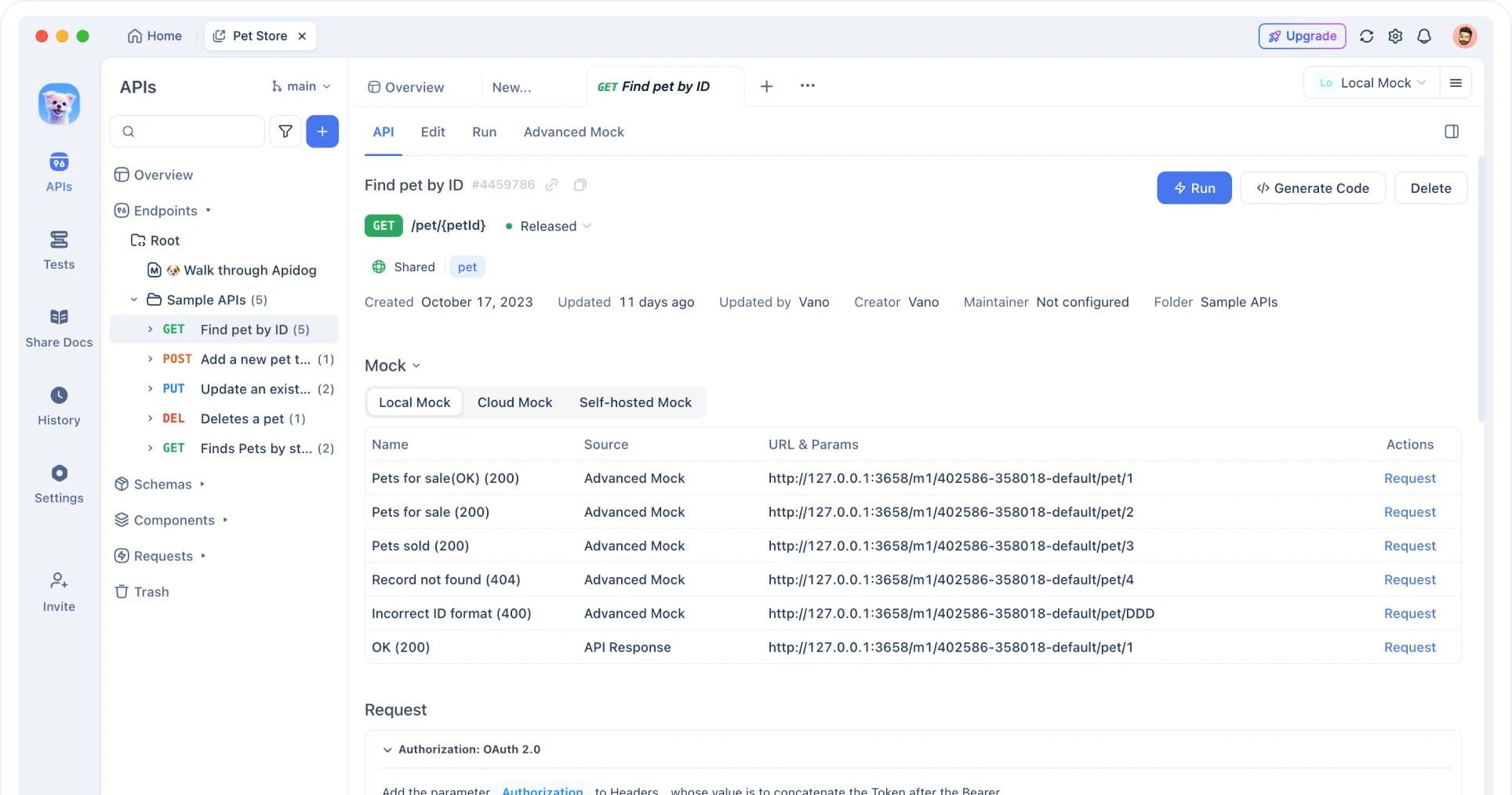
Practical workflow in Apidog:
- Import schema and generate request collections.
- Add automated testing with scenario-based assertions.
- Mock missing dependencies with dynamic responses.
- Share interactive docs with your team once stable.
If you’re testing OpenClaw forks with frequent changes, that single workflow is faster than manually maintaining scripts plus separate docs.
Upgrade strategy for OpenClaw forks
Open-source bot/tool forks evolve quickly. Use a repeatable update path:
bash git fetch origin git checkout main git pull npm ci npm run migrate npm test npm run dev
For Python builds:
bash pip install -r requirements.txt python manage.py migrate pytest
Use branch-based testing before merging upstream changes. If your team uses API contracts, schema diff checks prevent silent breaking changes.
Final thoughts
Installing OpenClaw (Moltbot/Clawdbot) on macOS, Windows, or Linux is straightforward once you control three variables: runtime version, environment config, and service dependencies.
If you’re installing for a team, Docker Compose is usually the most reliable baseline. If you’re installing for local development, native setup is fine—just pin versions and commit onboarding scripts.
Once OpenClaw is running, treat API validation as part of installation done-right. You can import and test endpoints in Apidog, create automated checks, and keep documentation synced as your fork evolves.
Try it free—no credit card required—and use it to lock down your OpenClaw API workflow from first boot to regression testing.