
A Tuesday afternoon. Twelve turns into a debug session, and the agent was confidently telling me our /users endpoint was responding in forty-seven seconds. The real number was forty-seven milliseconds.
I had been chasing this bug for two days. Every time I added a print statement to the MCP server, the agent’s answer shifted just enough to make me think I was getting somewhere. Every time I rewrote the system prompt, the response sounded more plausible. None of it was right.
What I had not done, until that afternoon, was open the actual execution trace and look at what was being passed between the model and the tool. That is what Apidog’s AI Agent Debugger is for. I had installed it three weeks earlier and forgotten about it. It took twelve minutes to find the bug.
This is what surprised me.
The bug I’d been chasing
The setup was simple. An agent built on GPT-5.5. One MCP server I’d written in a weekend, exposing a get_response_time(endpoint) tool that queried our metrics pipeline. A system prompt of maybe forty words. The user prompt: “How fast is the /users endpoint?”
The agent answered fast. It answered confidently. It answered wrong, every time, in different ways. Sometimes “the endpoint is responding in 47 seconds.” Sometimes “around 0.05 seconds.” Once, memorably, “performance is acceptable.”
I had been doing the things you do. Adding logging to the MCP server. Reading the model’s response token-by-token. Diffing system prompts. Cursing. I had three open terminal windows and a Notion page of failed hypotheses by Tuesday morning.
The thing about debugging agents is that the bug is rarely where you look first. It can live in the system prompt, in the model choice, in the tool definition, in the parameters the model passed to the tool, in the data the tool returned, or in how the model interpreted that data. Six places. A console log shows you one.
What the Traces panel actually shows
The Apidog debugger opens into three columns. Sessions on the left. Turns in the middle. Traces on the right. Click any session and the middle column shows you the dialogue: user message, model response, tool call, tool return, next model response. Click any turn and the right column expands into the full execution tree underneath it.
The execution tree is the part I had been missing. Every step, in order:
- System prompt as the model received it
- User prompt as the model received it
- Tool call name and parameters, as JSON, exactly as the model emitted them
- Tool result payload, as JSON, exactly as the tool returned it
- Model response, with timing and tokens for the turn
I opened the failing session. The tool call looked fine: get_response_time(endpoint="/users"). The model had picked the right tool with the right argument.
Then I expanded the tool result.
{"value": 47, "p95": 89, "samples": 1240}
There it was. The metrics pipeline returned the value in milliseconds. The model assumed seconds. 47 became “47 seconds” via a confident hallucination that did not bother questioning the unit. The tool was correct. The model was wrong. My system prompt had no instruction on units, and the tool response had no unit annotation.
Twelve minutes from opening the debugger. Two days I had been blaming the system prompt.
The fix took six lines
I changed two things. In the MCP server, I updated the response shape:
{
  "value": { "amount": 47, "unit": "ms" },
  "p95": { "amount": 89, "unit": "ms" },
  "samples": 1240
}
Then I added one sentence to the system prompt: “Tool results return units explicitly. Read them carefully.”
I ran the same /users prompt three more times. Three different sessions on the left panel. All three correctly returned “the endpoint is responding at around 47 ms” with a millisecond-to-percentile breakdown in the model’s reasoning. The token cost was eighteen percent lower than my failing runs, probably because the model wasn’t generating recovery prose around its own bad assumptions.
I ran the same prompt on Claude Opus 4.7 in a second session, side by side. Same result, twice the cost, slightly more verbose. I knew which model was going to production.
This is the part of the tool that earned my respect. Not the bug-finding, which any decent debugger should do. The model comparison, run on identical configurations with summary metrics in the left panel: turn count, step count, time, tokens, dollars. I had been doing that comparison in a Google Sheet for six months. Now it was three clicks.
What I had been getting wrong
The cheap take is that the AI Agent Debugger is a logging tool. It is not. Logging tools show you what happened. The debugger shows you what the model and the tool actually exchanged, which is a different layer.
If you write agents and you have been doing what I had been doing, which is reading model output and guessing at the cause of failures, here is what I would push back on. You are not debugging the agent. You are debugging your hypothesis about the agent. Those are different things, and only one of them gets you to a fix.
The thing I had refused to internalize for six months was that the agent is a closed system between the model, the prompt, the tools, and the tool responses. The bug always lives in one of those four. If you can see all four at the same time, you can find the bug in twelve minutes. If you cannot, you can chase it for a week.
The other thing the debugger surfaced, which I had not expected, was non-determinism in my own agent. I ran the same prompt five times after the fix, just to confirm. Three runs called get_response_time once. Two runs called it twice, the second time with the endpoint path in different case. My tool schema was case-sensitive. I had not noticed because my failing test cases all happened to use lowercase. That was a second bug I would have shipped without seeing.
Multi-run analysis is the feature I am going to use the most going forward. Click Run five times. Look at the sessions panel. Anything that varies across runs is a place your agent is fragile.
Try it yourself: a full setup walkthrough
If you want the same setup I had open during the bug hunt, here is the path from a fresh install to a running debug session. Five screens, in order.
Step 1: Create a new agent debug session
Open Apidog and click AI Agent Debugger in the top tab bar. The upper section of the page configures the model and run status.
- Pick the model provider on the left (OpenAI, Anthropic, and others)
- Pick the specific model in the middle, for example
gpt-5.5 - The Base URL fills in automatically once the provider is selected, no manual entry needed
- Click Run to start a session
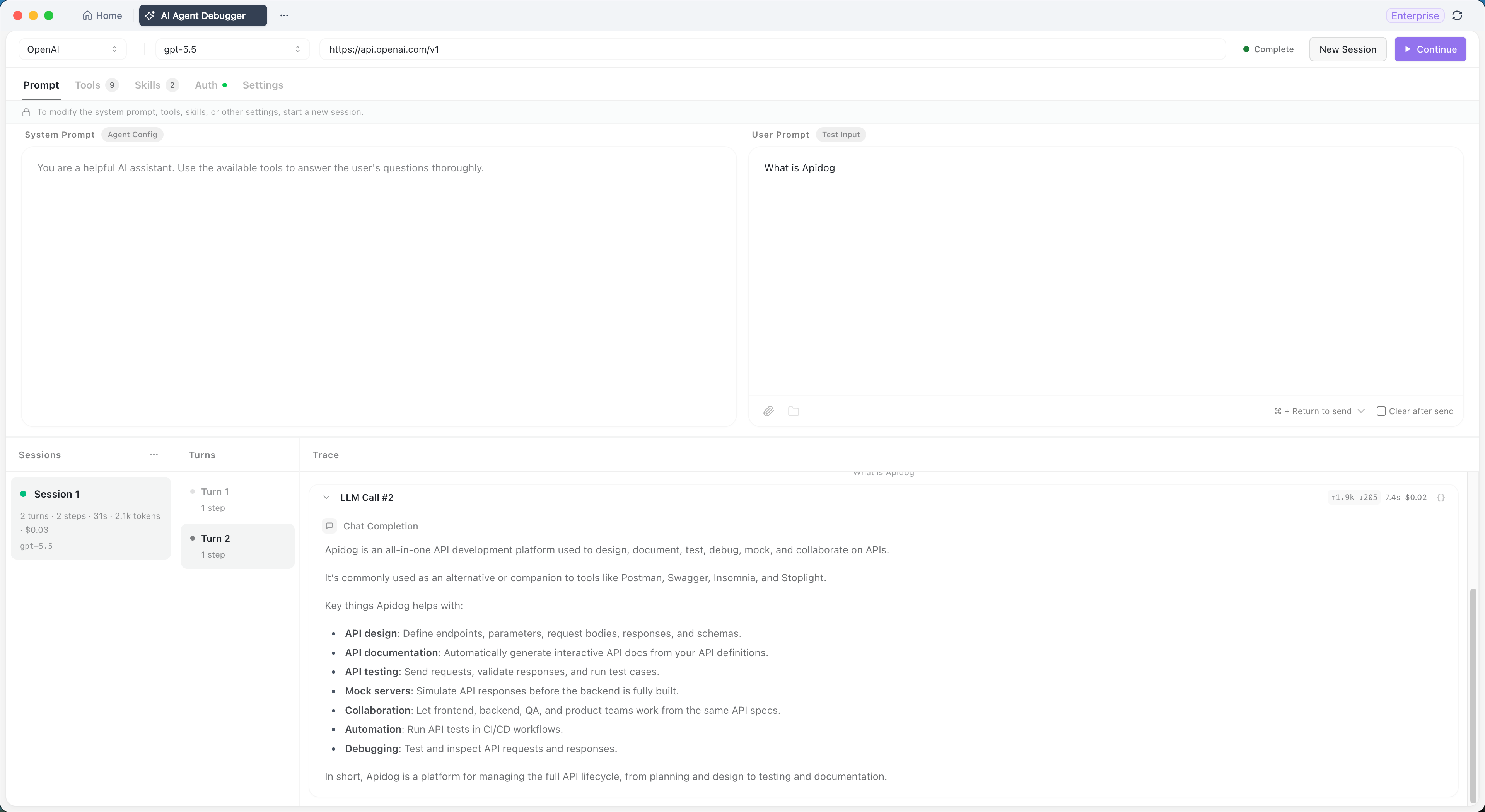
Step 2: Configure the prompts
The Prompts tab has two input areas.
- System Prompt: defines the agent’s role, goals, constraints, and tool usage rules
- User Prompt: the test input for this session, for example “What’s Apidog?”
Click Run in the upper right when both are set. If you want the input box to clear automatically after each run, check Clear after Send.
Step 3: Configure the tools
The Tools tab lists everything the agent can call at runtime. The number on the tab is the current count of available or configured tools.
Built-in tools ship with the debugger. Toggle them on or off as needed.
| Tool | What it does |
|---|---|
bash |
Execute commands in a persistent shell session |
web_fetch |
Fetch web content and convert it to Markdown, text, or HTML |
read |
Read text, image, or PDF files |
edit |
Apply precise string replacements to files |
write |
Create or overwrite files |
grep |
Search file content with regular expressions |
glob |
Find files using glob patterns |
kill_shell |
Reset the current shell session |
MCP tools add external systems or custom capabilities through MCP Servers. Three connection methods:
- STDIO: launch a local MCP Server process
- HTTP: connect to an MCP Server that supports Streamable HTTP
- SSE: connect to an MCP Server based on Server-Sent Events
MCP Servers that require authentication accept request headers or OAuth 2.0 flows. Once the connection succeeds, pick which tools the server exposes to the agent.
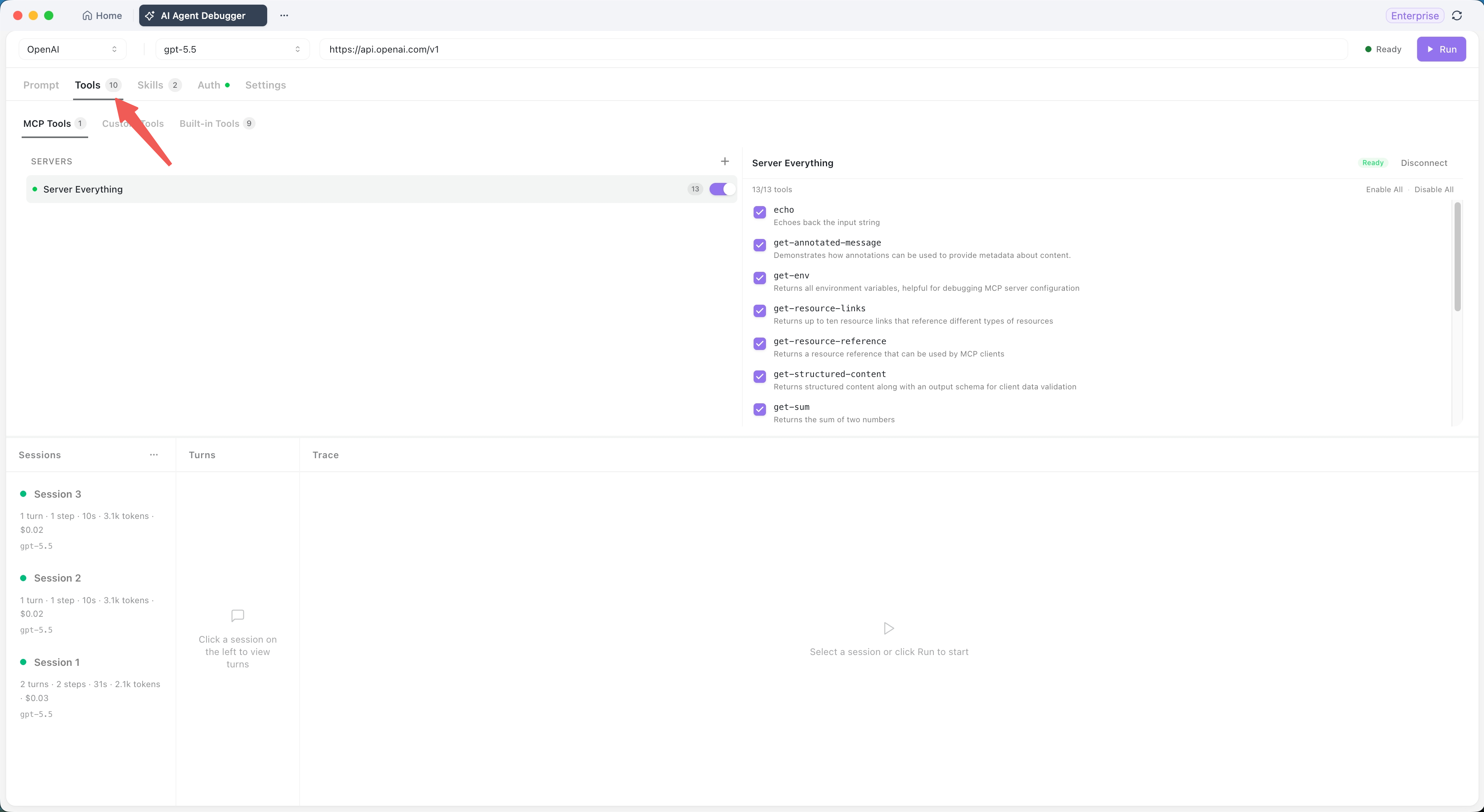
Step 4: Configure skills, authentication, and model parameters
Three smaller tabs round out the setup.
- Skills: reusable workflows for the agent. Useful for fixed project workflows, common task operation specs, and reducing repetitive long-text in system prompts. Skills are loaded as needed at runtime.
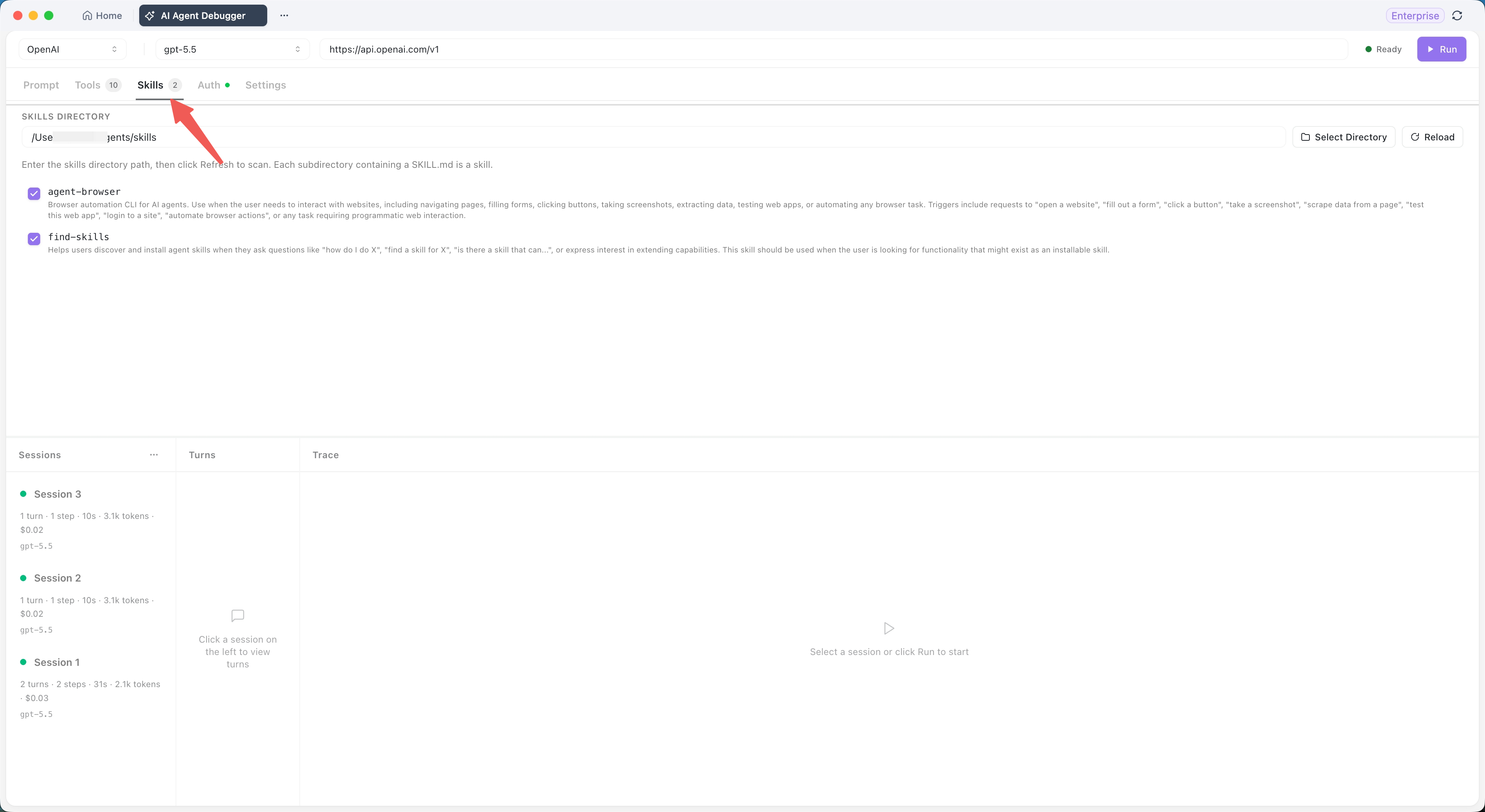
- Authentication: credentials required by model services or MCP services.
- Settings: model runtime parameters such as Temperature, Max Tokens, and Top P. Supported parameters vary by provider, so check what your model actually accepts.
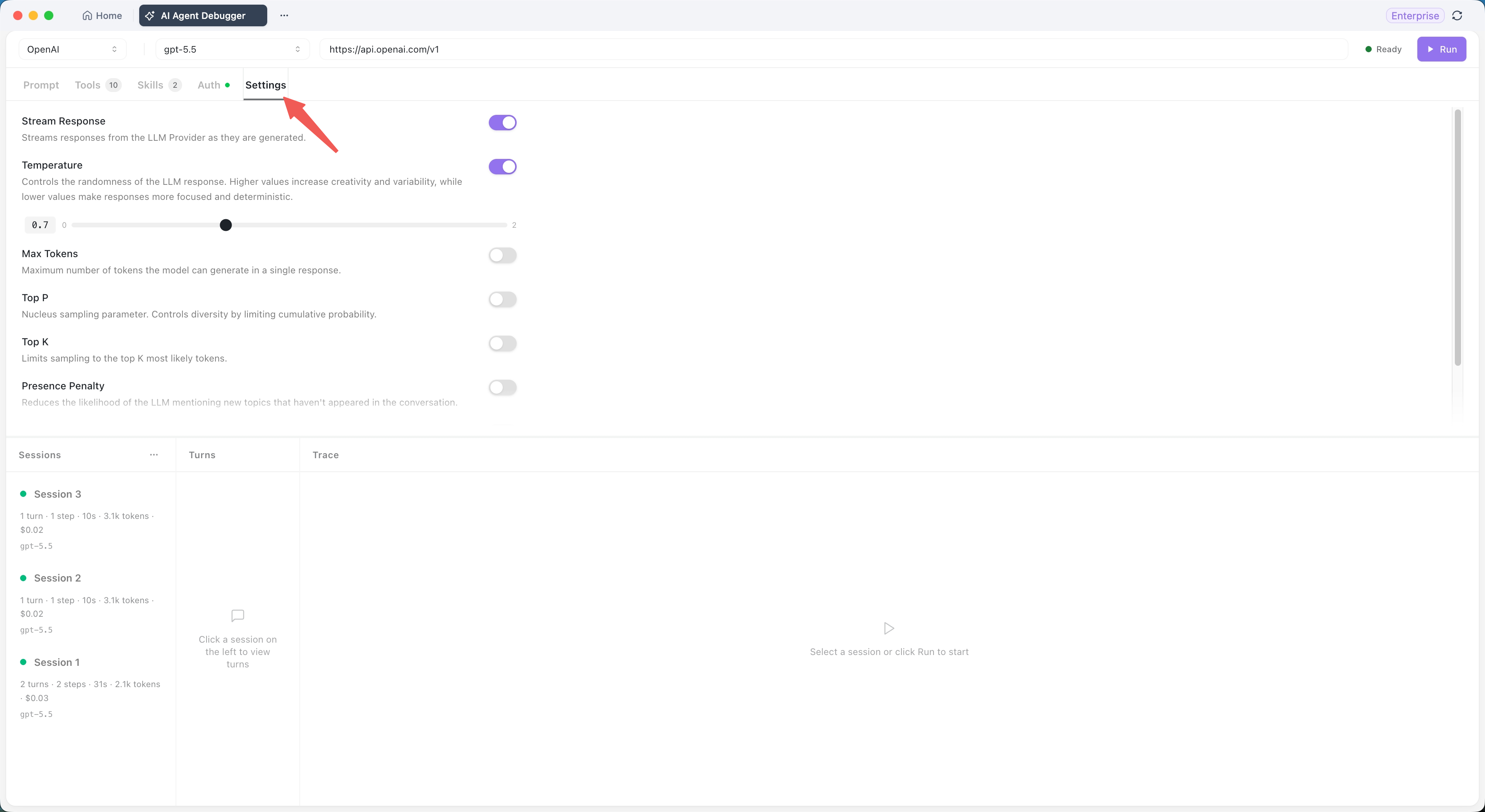
Step 5: Read the three panels
After clicking Run, the session you just created appears in the left panel. Each session shows a one-line summary:
Session 3
1 turn · 1 step · 10s · 3.1k tokens · $0.02
gpt-5.5
- Sessions panel (left): history of every run with summary metrics
- Turns panel (middle): each round of user/model dialogue. Click a round to load its execution detail on the right.
- Traces panel (right): the agent’s full execution chain in order, including system and user prompts, every model call, the model’s thinking process if the model exposes it, MCP tool calls and custom Skill executions, tool input parameters, results, time consumed, error messages, and the final output.
When a tool call fails or the model returns an exception, the failing step is right there in the Traces panel with its inputs and outputs visible. No log diving.
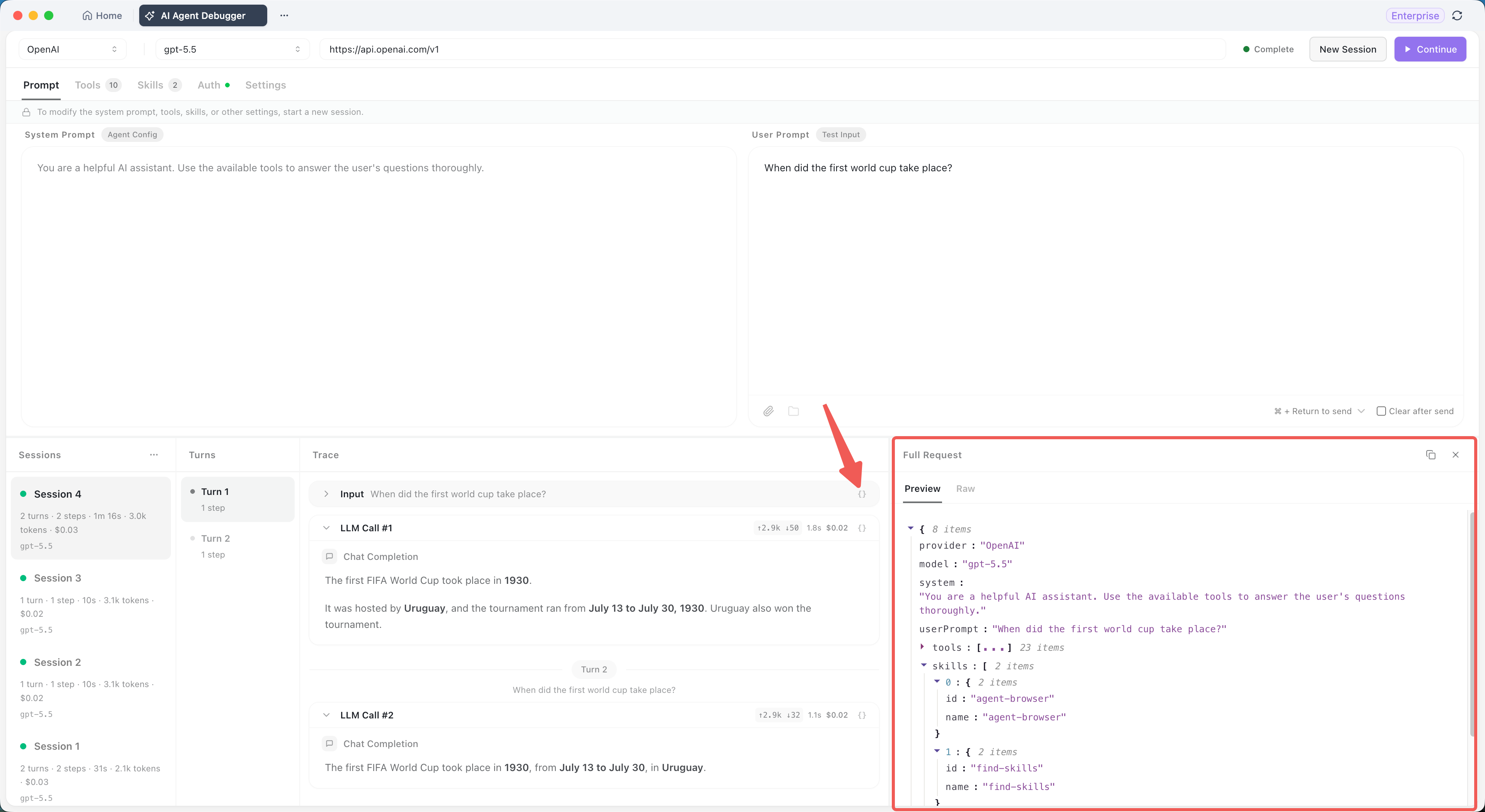
Step 6: Compare model performance
Same prompt, same tool configuration, different model. Each run creates a new session, and the left panel lets you compare them side by side.
Useful metrics to compare:
- Number of execution steps for the same task
- Which model picks tools more accurately
- Which model has lower response time
- Which model keeps token consumption and cost more predictable
The takeaway
Two days of debugging collapsed into an afternoon, and I did not learn the lesson on the bug. I learned it on the tooling. The reason I had been chasing the wrong fix was that the tools I was using did not show me what I needed to see. I had a model output and a tool output, and no shared frame to look at them together. The shared frame is the entire point.
If you have written more than one agent and you have not yet opened Apidog’s AI Agent Debugger, the next agent you ship will have a bug that lives between the model and the tool. You will spend a week on it. You will write a Notion page of failed hypotheses. The bug will be exactly where the debugger would have shown you on day one.
Download Apidog and open it on the next agent that gives you a wrong answer with a confident voice. Twelve minutes. Forty-seven milliseconds, not forty-seven seconds.
The full feature reference, including MCP transport setup and plan availability, lives in Apidog AI Agent Debugger: availability, coverage, and setup.