Looking to supercharge your coding workflow with the latest AI features in Cursor 0.50? This in-depth guide shows API and backend developers how to access Cursor 0.50 through the Early Access Program, with step-by-step instructions and practical tips for leveraging its new productivity tools.
What Is Cursor 0.50? Why Developers Are Buzzing
Cursor, built on VS Code, uses AI to help developers write and manage code more effectively. Version 0.50 is a major update—introducing multi-file editing, background agents, and improved inline editing—all designed to save time for busy engineers and API developers.
However, Cursor 0.50 is currently exclusive to Early Access Program users. Here’s how you can join the program and get your hands on this powerful update.
How to Download Cursor 0.50 via the Early Access Program
Many developers are unsure how to access Cursor 0.50. Follow these clear steps to join the Early Access Program and upgrade:
1. What is Cursor’s Early Access Program?
The Early Access Program gives users the chance to try features like Cursor 0.50 before public release. In return, you provide feedback to help improve the tool.
2. Check Your Current Cursor Version
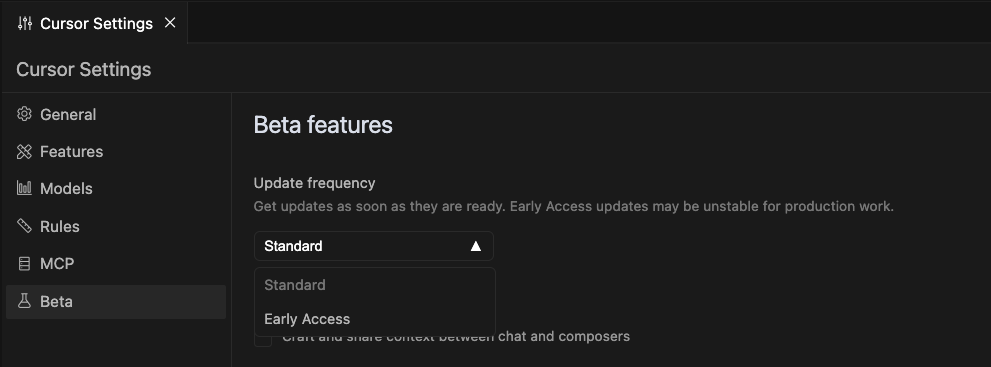
- Open Cursor.
- Click the gear icon (bottom left) to open settings.
- Check your version. If it’s not 0.50+, you’ll need to update via Early Access.
3. Join the Early Access Program
-
Open settings (gear icon).
-
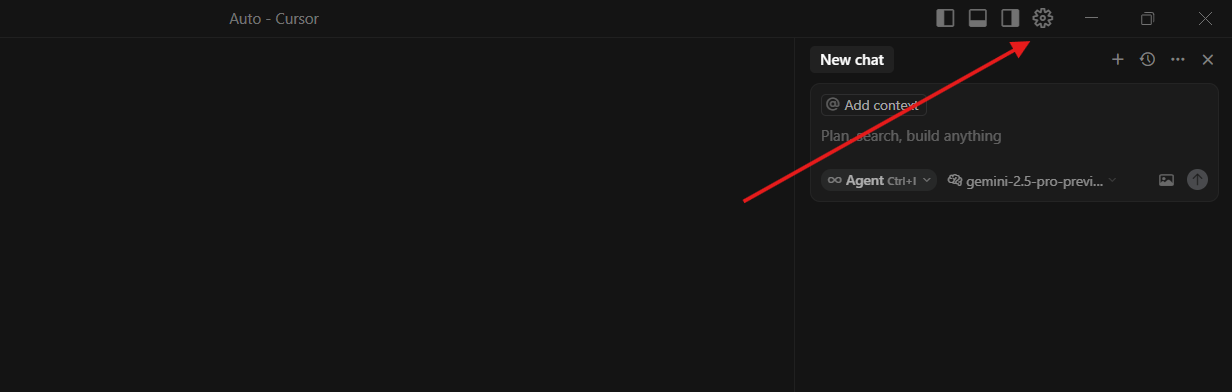
Go to the “Beta” dropdown.
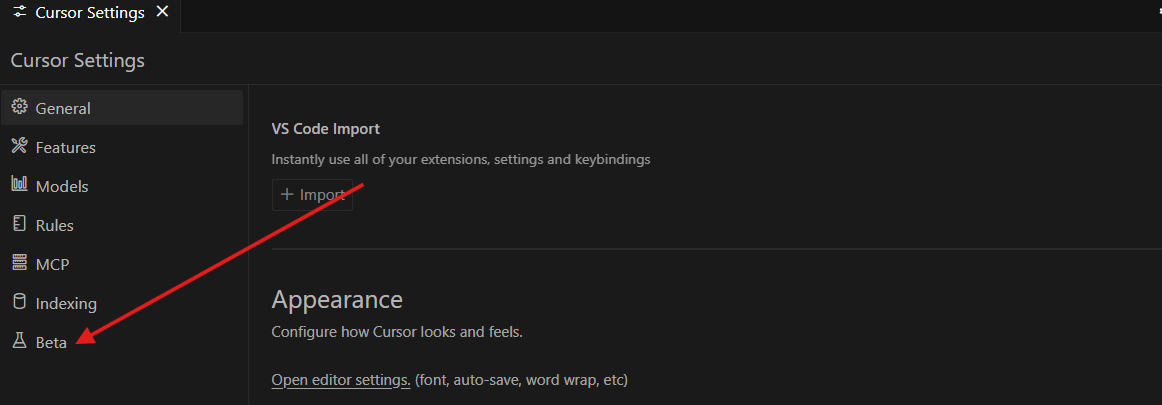
-
Switch from “Standard” to “Early Access.”
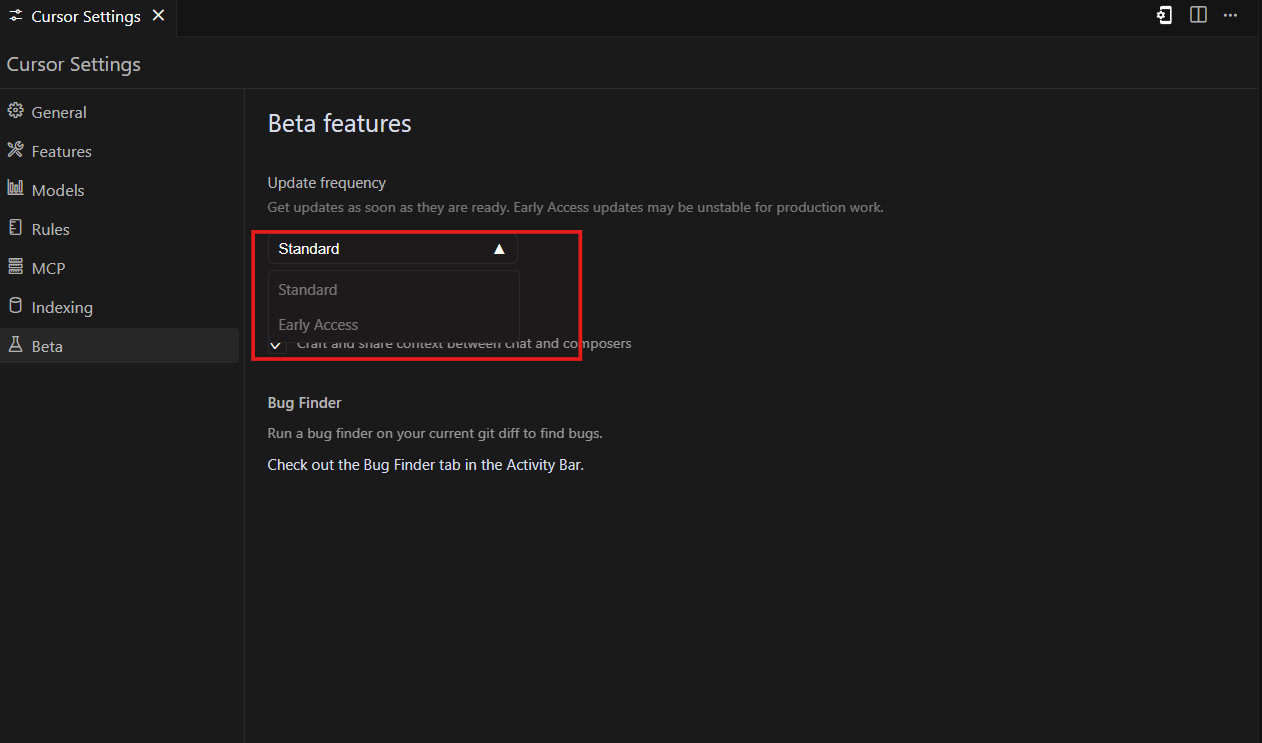
-
Save your changes.
4. Update to Cursor 0.50
After joining Early Access:
- Cursor should prompt you to update.
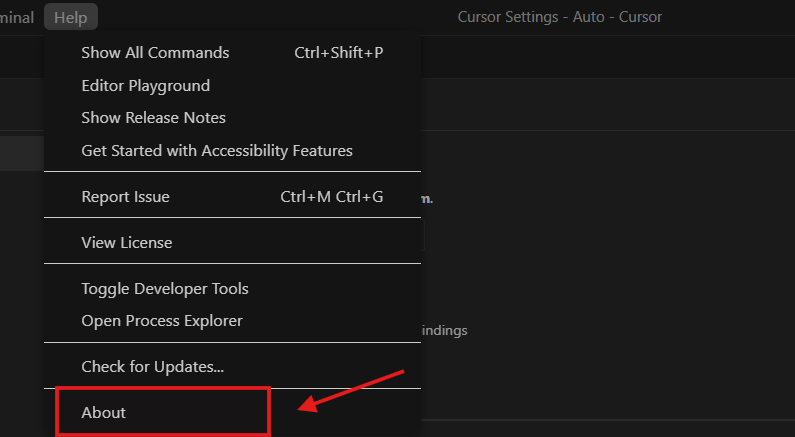
- If not, check for updates manually via the “help” menu.
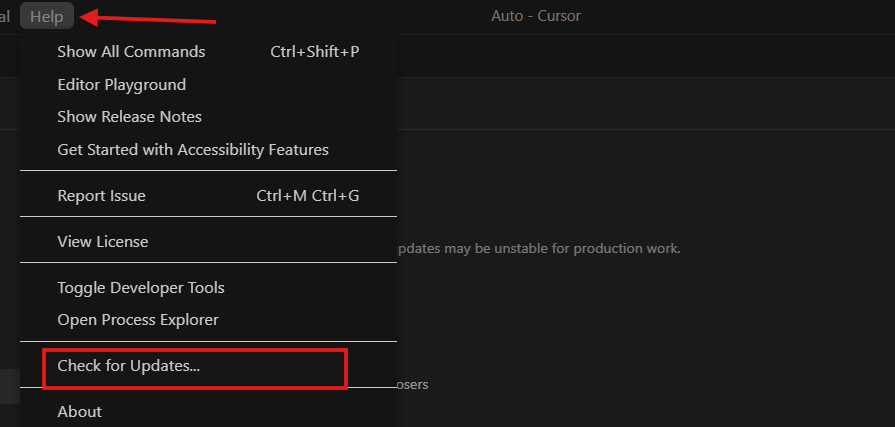
5. Install and Confirm the Update
- Follow the on-screen instructions to install.
- Reopen Cursor.
- Check settings to confirm you’re running version 0.50.
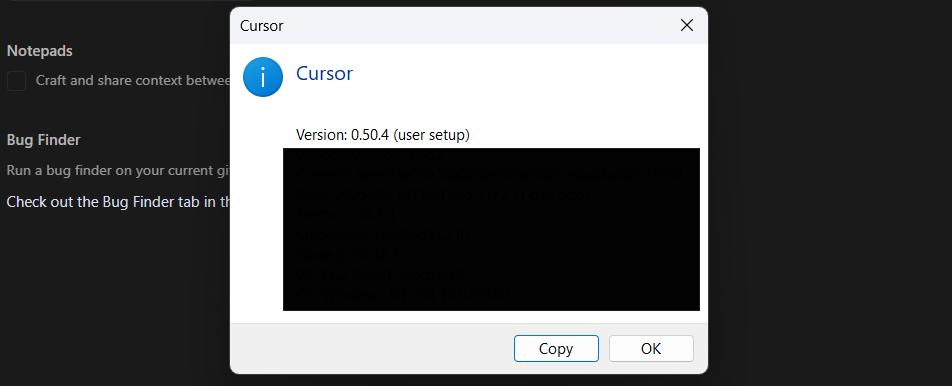
6. How to Opt Out
To revert back to stable releases:
- Go to the Beta dropdown in settings.
- Switch back to “Standard.”
By following these steps, you’ll have Cursor 0.50 ready to go.
Cursor 0.50: New Features That Boost Developer Productivity
Cursor 0.50 introduces several enhancements geared toward API and backend teams. Here’s what stands out:
1. Advanced Tab Model for Multi-File Editing
Now, the Tab Model supports editing and suggesting changes across multiple files—ideal for large codebases and projects that span several modules. For example, when adding a new TypeScript symbol, Cursor can suggest necessary imports and changes in related files.
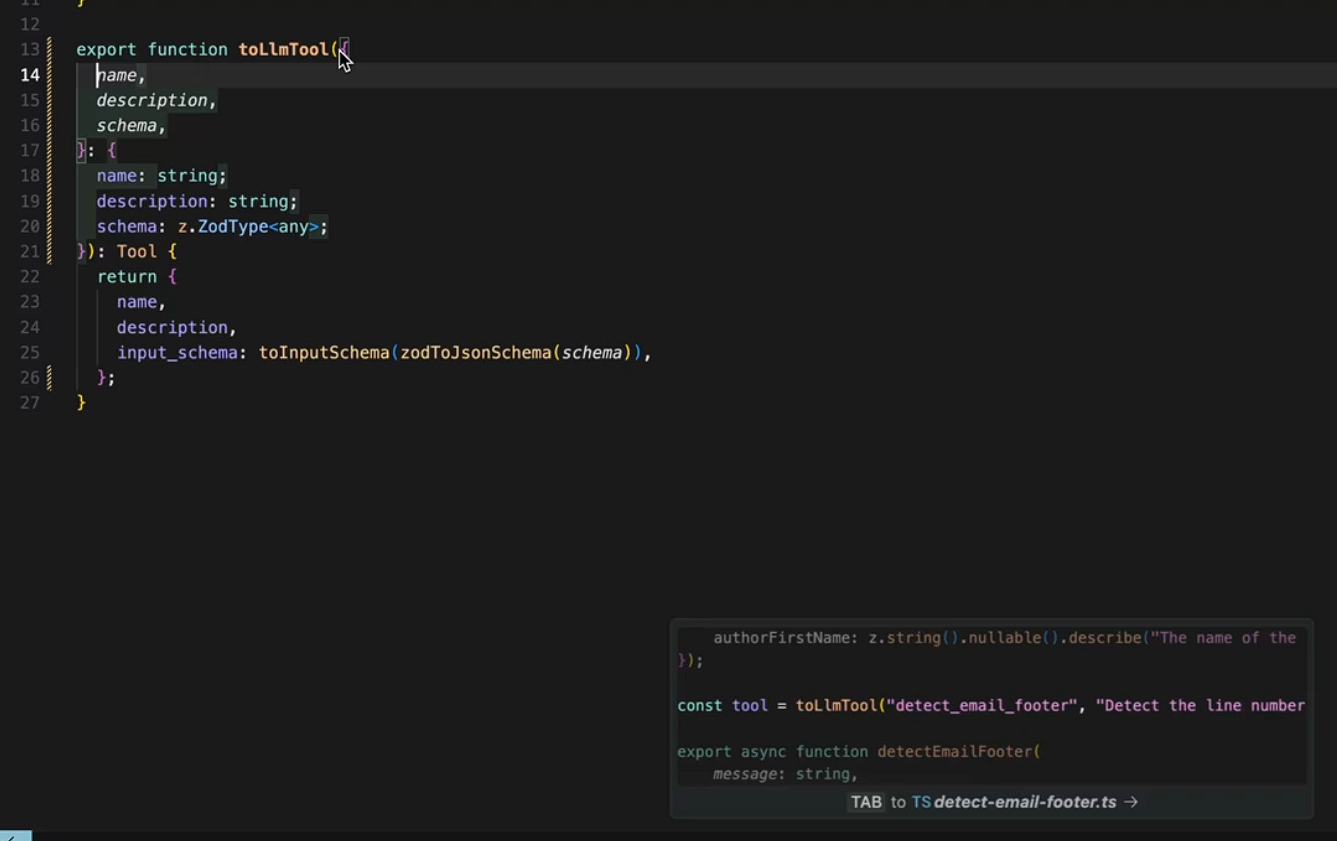
Practical Example:
Start typing in one file, and Cursor will automatically recommend edits in related files, letting you approve changes in one go.
2. Background Agent: Run AI Tasks Remotely
The new Background Agent (preview) allows you to run AI-powered tasks in parallel on remote VMs. This means you can delegate code generation, debugging, or test runs to background agents without slowing down your local machine.
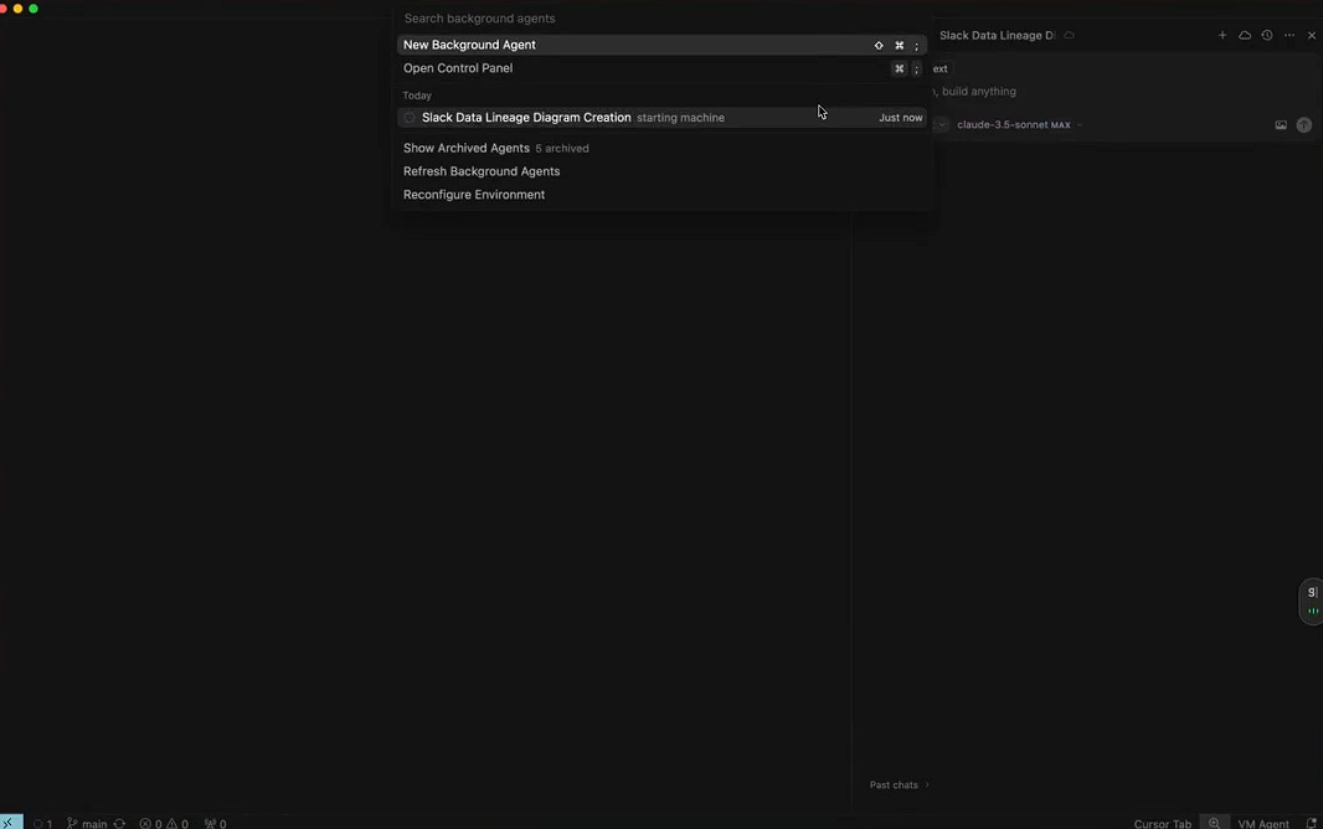
Scenario:
While working on a resource-heavy API integration, offload test generation to a background agent and focus on other tasks in the main editor.
3. Enhanced Inline Edit: Edit Entire Files with AI
Inline Edit (Cmd/Ctrl + K) now supports full-file edits and agent handoff. This is perfect for refactoring large scripts or making sweeping changes—simply instruct Cursor, and let the AI make intelligent modifications.
Tip:
For big refactors, pass the task to a Background Agent to keep your main editor responsive.
4. Smarter Codebase Inclusion with @-Folder
The new @-folder command lets you include entire codebases in Cursor’s context. If the project is too large, Cursor will visually indicate which files are excluded.
Usage Example:
Type @backend and @frontend to include both folders, ensuring Cursor has the full context for precise AI suggestions.
5. Workspaces: Manage Multiple Projects Seamlessly
The workspace feature lets you add multiple folders or repositories—perfect for teams working across several microservices or APIs.
How-To:
Go to File → Add Folder to Workspace. Save your workspace as a JSON file for quick reopening.
6. Upgraded Chat Features
You can now export and duplicate chats, making collaboration and documentation easier. Adjust chat font size for readability.
Collaboration Tip:
Export a debug chat session and share it with your team to document troubleshooting steps.
7. Simplified Pricing & Max Mode
Cursor 0.50 unifies pricing—all model calls count as requests. Max Mode (premium, 20% above API pricing) is available for every frontier model, letting you boost AI performance when needed.
To enable, toggle “Max Mode” in chat settings and select your preferred model.
8. Other Notable Improvements
- MCP on WSL & Remote SSH: Multi-Command Palette now works on Windows Subsystem for Linux and remote SSH sessions.
- Toggleable MCP Tools: Enable or disable tools as needed.
- Streamable HTTP for MCP: Improved performance for MCP operations.
- Native Agent Terminal: Faster, more reliable native terminal replaces the emulator.
Why Cursor 0.50 Is a Game-Changer for API & Backend Developers
The developer community is already praising Cursor 0.50 for its multi-file editing, AI background agents, and improved workspace support. These features empower API-focused teams to move faster and manage complex projects with less friction.
If you’re focused on API development and want to boost your testing workflow alongside Cursor’s new AI tools, Apidog is an ideal companion. It integrates smoothly for rapid API testing, helping you catch issues and iterate faster while using Cursor’s latest features.
Start Using Cursor 0.50 & Level Up Your Development
Cursor 0.50 brings cutting-edge AI coding tools to your workflow through the Early Access Program. Follow the guide above to upgrade, and start exploring features like the new Tab Model, Background Agent, and workspace support for productivity gains.