TL;DR
Claude Code can now control your Mac. It opens apps, clicks through UIs, runs tests, and screenshots results, all from the same terminal session where it wrote the code. It’s a research preview for Pro and Max plan subscribers on macOS. Enable it by running /mcp in Claude Code, turning on the computer-use server, and granting Accessibility and Screen Recording permissions in System Settings.
Claude can now use your computer
Anthropic announced Claude Code computer use on March 23, 2026. The idea is direct: Claude writes code, then verifies it works by actually running it, the same way you would.
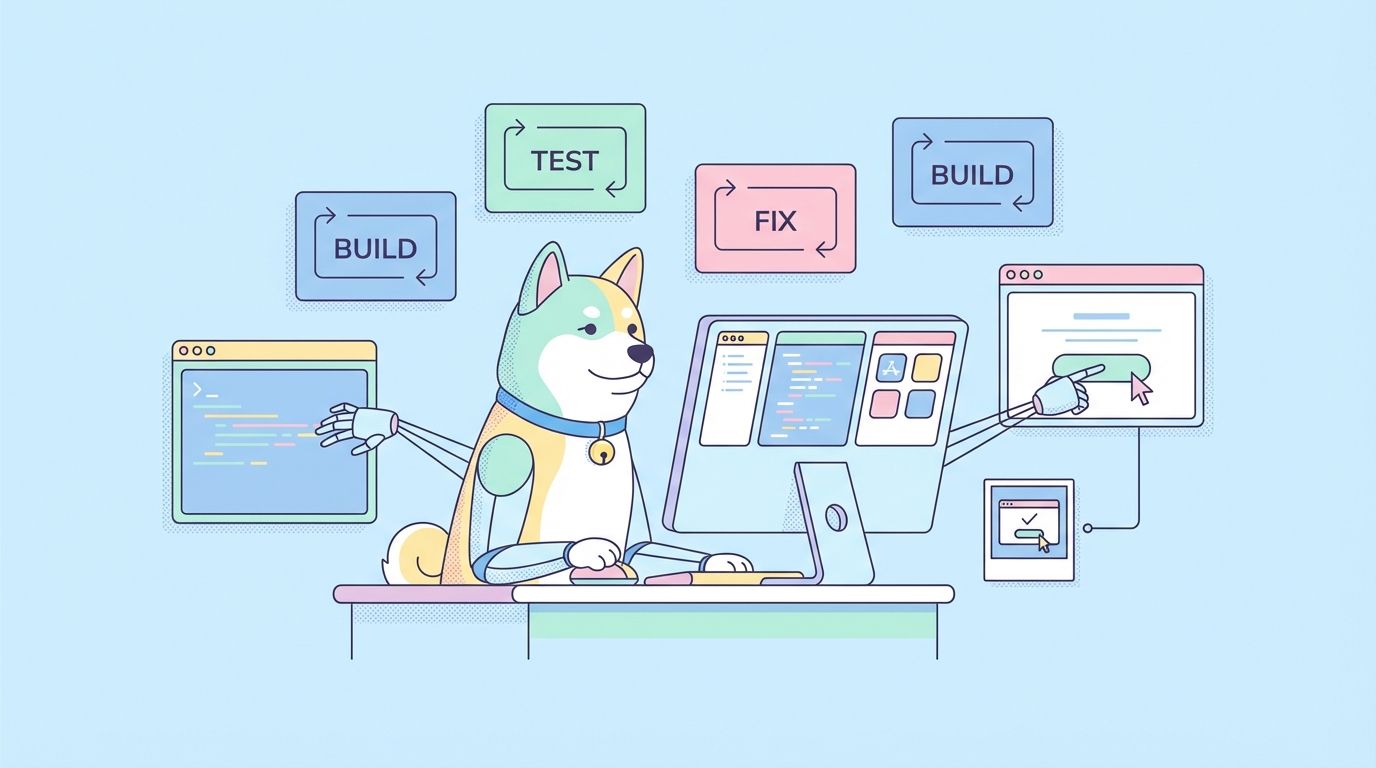
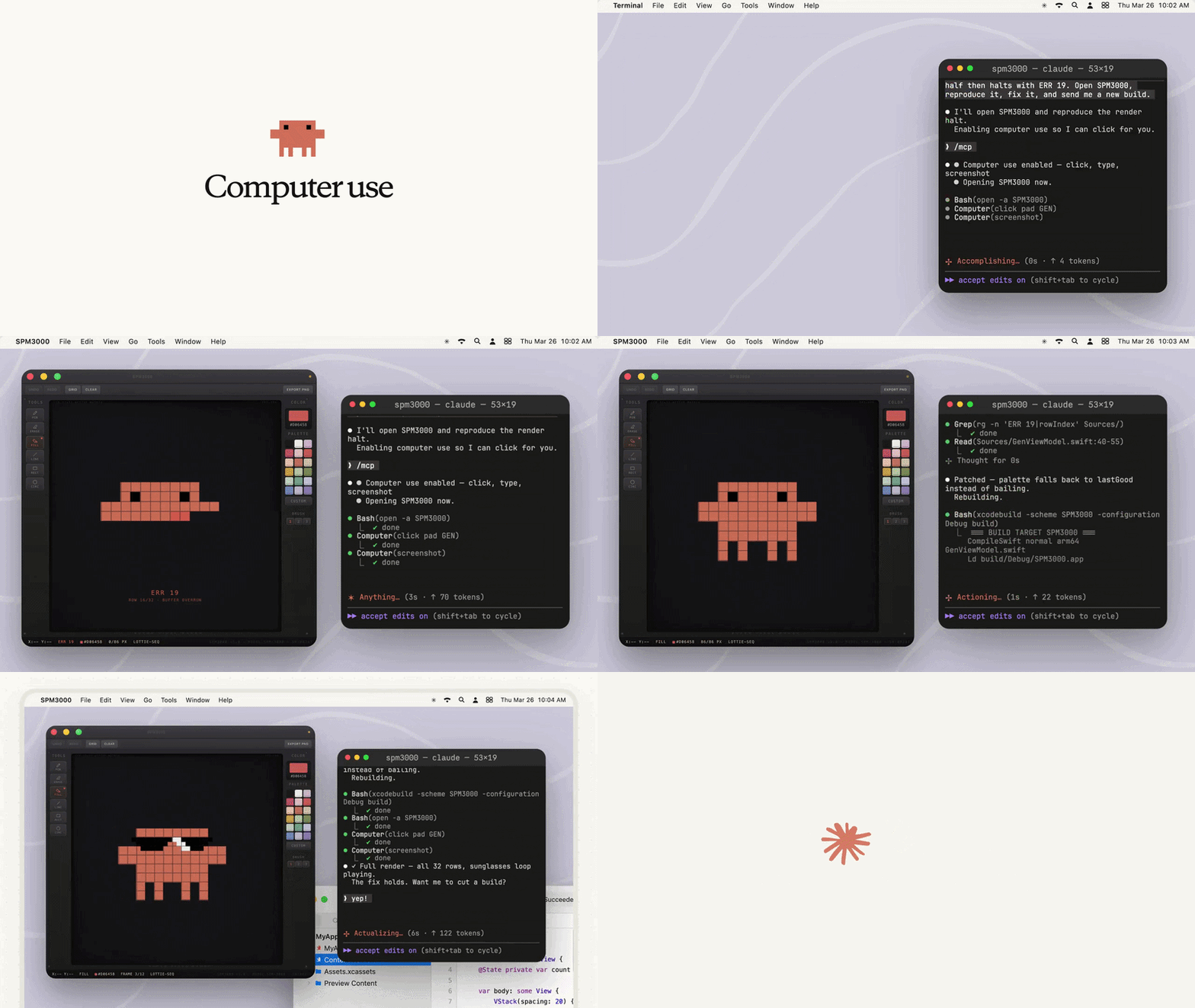
Before this, Claude could write a macOS menu bar app, but you had to compile it, launch it, and click through the UI yourself to check if it worked. Now Claude does that entire loop. It compiles, launches, interacts with every control, screenshots error states, and patches what it finds, without you leaving the terminal.
This changes the unit of work you hand to Claude. Before: “write me this app.” Now: “build this app and make sure it works.”
What you can do with it
Build and validate native apps end-to-end
This is the headline use case. Write a prompt like:
Build the MenuBarStats target, launch it, open the preferences window,
and verify the interval slider updates the label. Screenshot the
preferences window when done.
Claude runs xcodebuild, launches the binary, interacts with the preferences panel, and reports what it finds. If the slider is broken, it reads the relevant code, patches it, and re-tests. You get a verified build, not a “looks right to me” draft.
UI testing without a test framework
Instead of setting up Playwright, Selenium, or XCTest for a new project, describe the flow in plain text:
Open the app, click through the onboarding screens, and tell me if any
screen takes more than a second to load.
Claude opens the app, clicks through signup, screenshots each step, and flags slow transitions. No test harness to configure. No brittle selectors to maintain. This works for Electron apps, native macOS apps, and iOS Simulator flows.
Debug visual and layout bugs
CSS bugs that only appear at specific window sizes are tedious to reproduce manually. With computer use:
The settings modal clips its footer on narrow windows. Resize the app
window until you can reproduce it, screenshot the clipped state, then
check the CSS for the modal container.
Claude resizes the window, captures the broken state, reads the stylesheets, and patches the layout. It sees what you see; no guessing from a description.
Drive GUI-only tools
Some tools have no CLI or API. Design software, hardware control panels, proprietary enterprise apps, the iOS Simulator. Computer use gives Claude access to all of them. You describe what you need in the terminal and Claude handles the interaction.
How to enable it
Computer use is off by default. It ships as a built-in MCP server called computer-use that you enable per project.
Requirements before you start:
- macOS (not available on Windows or Linux)
- Claude Code v2.1.85 or later (check with
claude --version) - Pro or Max plan (not available on Team or Enterprise)
- Authentication through claude.ai (not available via Amazon Bedrock, Google Vertex AI, or Microsoft Foundry)
- An interactive session (the
-pnon-interactive flag disables it)
Step 1: Open the MCP menu
In any active Claude Code session, run:
/mcp
This opens the server list. Find computer-use. It shows as disabled.
Step 2: Enable the server
Select computer-use and choose Enable. The setting persists per project. You only do this once for each project where you want computer use.
Step 3: Grant macOS permissions
The first time Claude tries to control your screen, two permission prompts appear:
- Accessibility: lets Claude click, type, and scroll
- Screen Recording: lets Claude see what’s on screen
The prompts include direct links to the relevant System Settings panes. Grant both. After granting Screen Recording, you may need to restart Claude Code for the permission to take effect.
After setup, ask Claude something that needs the GUI:
Build the app target, launch it, and click through each tab to confirm
nothing crashes. Screenshot any error states you find.
How Claude works on your screen
One session at a time
Computer use holds a machine-wide lock while active. If another Claude Code session is running computer use, new requests fail with a message telling you which session holds the lock. Finish or exit that session first.
Apps hide while Claude works
When Claude takes control, other visible apps hide so Claude interacts only with the apps you approved. Your terminal stays visible and is excluded from screenshots, so Claude never sees its own prompts on screen.
When Claude finishes a turn, hidden apps restore automatically.
Stop at any time
When Claude acquires the lock, a macOS notification appears: “Claude is using your computer - press Esc to stop.” Press Esc from anywhere to abort immediately. Claude releases the lock, unhides your apps, and returns control to you. Ctrl+C in the terminal does the same.
Per-app approval
Enabling the computer-use server doesn’t grant Claude access to every app. The first time Claude needs a specific app in a session, a terminal prompt shows:
- Which apps Claude wants to control
- Any extra permissions requested (clipboard access, etc.)
- How many other apps will hide while Claude works
Choose Allow for this session or Deny. Approvals last for the session only. You approve again in the next session.
Three categories of apps show extra warnings before you approve them:
| Warning | Apps |
|---|---|
| Equivalent to shell access | Terminal, iTerm2, VS Code, Warp, other terminals and IDEs |
| Can read or write any file | Finder |
| Can change system settings | System Settings |
These aren’t blocked outright. The warning is a signal for you to decide whether the task warrants that level of access.
App control tiers
Claude’s control level varies by app category:
| Control level | App types |
|---|---|
| View-only | Browsers, trading platforms |
| Click-only | Terminals, IDEs |
| Full control | All other apps |
Browsers are view-only because they have broad access to your accounts and data. If you need full browser automation, use Claude in Chrome instead.
How Claude decides when to use computer use
Computer use is Claude’s last resort, not its first choice. Claude picks the most precise tool available:
- MCP server for the service (if you have one configured)
- Bash for shell commands
- Claude in Chrome for browser tasks (if configured)
- Computer use when nothing else can reach the target
Screen control is reserved for things that have no programmatic interface: native desktop apps, simulators, and GUI-only tools. When you ask Claude to “run the tests,” it uses npm test via Bash, not a click on a UI button.
Safety model
Computer use on your actual desktop is different from Claude’s sandboxed Bash tool. The Bash tool runs in an isolated environment that limits filesystem and network access. Computer use runs on your real machine with access to whatever you approve.
Anthropic built several guardrails in:
Per-app approval. Claude can only control apps you’ve explicitly allowed in the current session. No blanket access to your machine.
Sentinel warnings. Apps that grant shell access, filesystem access, or system settings changes are flagged before you approve them. You know what you’re granting.
Terminal excluded from screenshots. Claude never sees your terminal window in screenshots, so an on-screen prompt can’t feed back into the model.
Global escape. Esc aborts computer use from anywhere. The key press is consumed by Claude Code, so prompt injection attacks can’t use it to dismiss dialogs.
Lock file. One session controls your machine at a time. No concurrent access.
Prompt injection detection. Claude checks each action and flags content on screen that looks like an attempt to redirect its behavior.
Anthropic’s own guidance: don’t use computer use for tasks involving sensitive information until you’re comfortable with how it behaves on your machine. Start with isolated test environments or sandboxed apps.
Example workflows
End-to-end Swift app validation
After making changes to a macOS or iOS app, have Claude compile and test in one pass:
Build the MenuBarStats target, launch it, open the preferences window,
and verify the interval slider updates the label. Screenshot the
preferences window when done.
What Claude does:
- Runs
xcodebuildto compile - Launches the resulting binary
- Clicks to open the preferences window
- Moves the slider and checks the label
- Screenshots the result
- Reports any failures with the relevant source locations
Reproducing a layout bug
The settings modal clips its footer on narrow windows. Resize the app
window down until you can reproduce it, screenshot the clipped state,
then check the CSS for the modal container.
Claude resizes the window in increments, captures the broken state, reads modal.css, identifies the overflow issue, applies the fix, and re-tests.
iOS Simulator testing without XCTest
Open the iOS Simulator, launch the app, tap through the onboarding
screens, and tell me if any screen takes more than a second to load.
Claude controls the Simulator as if it were using a mouse and keyboard. No XCTest setup, no UI test targets, no Instruments configuration.
Electron app onboarding flow
Launch the desktop app in dev mode, complete the signup flow using
test@example.com, and screenshot each step. Flag any step where the
button is not clickable or the UI shows an error.
Claude opens the app, fills the form fields, clicks through each screen, and produces a screenshot log of the full flow with any failures noted.
Using computer use with API testing
Claude Code computer use works well alongside Apidog for full-stack API verification.
A typical workflow:
- Claude writes and builds a local server
- Claude uses computer use to open the app, trigger a user action, and confirm the UI response
- You capture the underlying API call in Apidog and build a test that verifies the same request programmatically
- Future regressions get caught by the automated Apidog test, not by running the UI flow manually
This combination gives you both human-readable end-to-end verification (Claude clicking through the app) and programmatic API tests that run in CI. The computer use pass confirms the happy path; the Apidog tests guard it going forward.
Differences between CLI and Desktop app
The CLI and Desktop share the same computer use engine. A few settings are Desktop-only for now:
| Feature | Desktop | CLI |
|---|---|---|
| Enable | Settings > Desktop app > General | /mcp > enable computer-use |
| Denied apps list | Configurable in Settings | Not available yet |
| Auto-unhide toggle | Optional | Always on |
| Dispatch integration | Yes | Not applicable |
For most development workflows, the CLI version covers everything you need.
Troubleshooting
“Computer use is in use by another Claude session”
Another Claude Code session holds the machine lock. Exit that session. If it crashed, the lock releases automatically once Claude Code detects the process is gone.
macOS permissions prompt keeps reappearing
macOS sometimes requires a process restart after you grant Screen Recording. Quit Claude Code completely and start a new session. If the prompt persists, open System Settings > Privacy & Security > Screen Recording and confirm your terminal emulator is listed and enabled.
computer-use doesn’t appear in /mcp
Check each of these:
- You’re on macOS (not Linux or Windows)
claude --versionshows v2.1.85 or later- You’re on a Pro or Max plan (run
/statusto confirm) - You’re authenticated via claude.ai, not a third-party provider like Bedrock or Vertex AI
- You’re in an interactive session (not using
-p)
Claude can’t see the app after I approved it
Make sure you’re clicking Allow for this session when the per-app approval prompt appears, not just dismissing it. If you accidentally denied the app, exit the session and start a new one; approvals and denials reset each session.
FAQ
Which Claude Code version do I need?
Version v2.1.85 or later. Check your version with claude --version in the terminal. Update with npm install -g @anthropic-ai/claude-code if needed.
Does it work on Windows or Linux?
No. Computer use is macOS-only in the current research preview. Anthropic has not announced a timeline for Windows or Linux support.
Can I use computer use if I access Claude through Amazon Bedrock or Google Vertex AI?
No. Computer use requires authentication through a claude.ai account (Pro or Max). Third-party providers don’t support this feature. You need a separate claude.ai subscription.
Is it available on Team or Enterprise plans?
No. It’s available on Pro and Max plans only during the research preview.
What happens if I don’t grant Screen Recording permission?
Claude can still perform some actions (clicking, typing) if Accessibility is granted, but it won’t be able to verify visual results without Screen Recording. Most useful workflows require both permissions.
Can Claude access apps I didn’t approve?
No. Claude can only control apps you’ve explicitly approved in the current session. The approval prompt appears the first time Claude needs each app.
How do I revoke computer use access completely?
Go to /mcp in Claude Code and disable the computer-use server. To remove macOS permissions, open System Settings > Privacy & Security, remove your terminal app from the Accessibility and Screen Recording lists.
Is computer use safe to use for work with sensitive data?
Anthropic recommends against using it for sensitive data during the research preview. Start with isolated test environments and apps that don’t contain private information. Review the computer use safety guide before using it in workflows that touch credentials, personal data, or production systems.
Can multiple Claude Code sessions use computer use at the same time?
No. Computer use holds a machine-wide lock. Only one session can control your screen at a time. If another session holds the lock, you’ll see an error message with the session details.
How is this different from running Playwright or Selenium?
Playwright and Selenium require you to write test scripts with selectors, assertions, and configuration. Computer use lets Claude interact with any app through natural language, with no test harness setup. The tradeoff is reliability: scripted tests are deterministic; computer use relies on Claude’s judgment. For production regression suites, Playwright is the better choice. For exploratory testing, quick UI verification, or apps that can’t be automated with code, computer use is faster to get running.