Imagine this: instead of hunting through folders for the right test script or manually typing out long CLI commands with environment IDs and tokens, you simply type: "Run the payment flow tests in staging."
Seconds later, your AI assistant executes the tests, analyzes the logs, and tells you exactly which API failed and why.
This isn't a future concept—it’s the reality of combining Claude Code with the Apidog CLI. By leveraging Claude Skills, you can transform your API testing from a manual chore into a conversational, automated workflow.
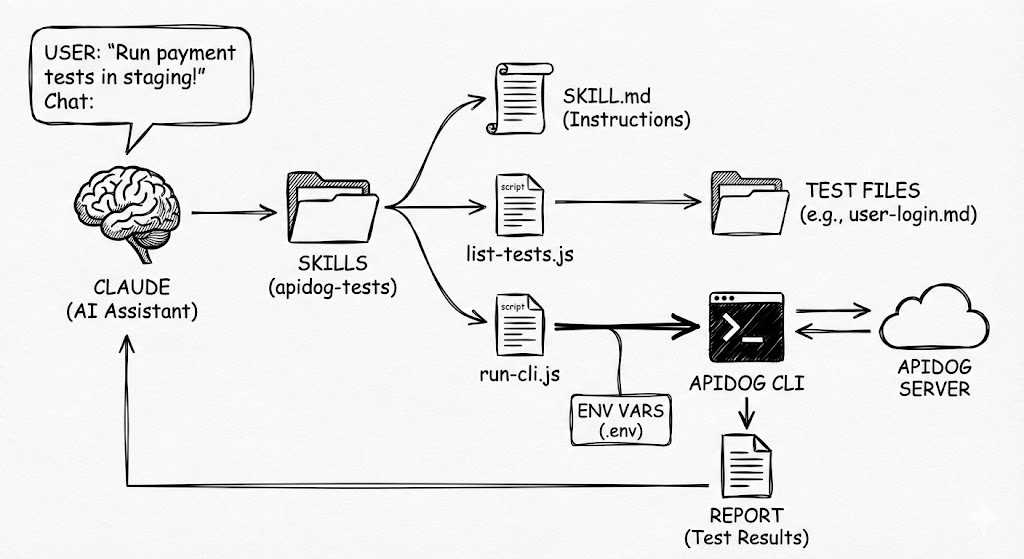
In this workflow, you only need to say a single sentence to Claude Code in your terminal, for example:
"Run the user order flow test in dev."
Claude Code will automatically understand your intent, locate the corresponding test scenario or test suite, execute the tests, and then summarize and interpret the results for you.

Tooling Overview
This workflow is composed of three tools:
1. Apidog CLI
The command-line interface provided by Apidog. It is used to execute API automation tests from the terminal and generate test reports.
2. Claude Code
A command-line AI assistant released by Anthropic. It can operate on files, run commands, execute scripts, and interact with your local development environment.
3. Claude Skills
Also known as Agent Skills, an extension mechanism of Claude Code. A Skill defines how Claude should complete a specific task, essentially acting as an executable set of operational instructions.
In this workflow, Claude Code is responsible for understanding natural-language instructions. When a user’s request matches a predefined Claude Skill, Claude automatically executes the corresponding Apidog CLI commands and analyzes the results.
What This Workflow Can Do
Below are several real-world scenarios to illustrate how this workflow can be used in practice.
1. Run a Single Test
If you want to run a specific test scenario, you can explicitly name it. For example:
"Run the login tests in dev."
After the test completes, Claude analyzes the results and provides a summary.

2. List All Available Tests
To see which test scenarios or test suites are available, you can say:
"Show me the available tests."
Claude will execute the relevant script and list all tests.

3. Run All Tests for a Business Module
If you want to execute all tests for a specific business domain—such as payment-related tests—you can say:
"Run all payment tests in the test env."
Claude will automatically locate all related test files and execute them sequentially or in parallel.

4. Compare Test Results Across Environments
To compare results across environments, you can say:
"Run the login tests in dev and test."
Claude will execute the tests in both environments and analyze the differences in the results.

5. Run Tests Based on Code Changes
After code changes, you can ask Claude to run only the affected tests:
"Based on recent code changes, run the impacted API tests in dev."
Claude will analyze Git changes, determine the affected test scenarios or suites, and execute only those tests—saving time and resources.
More scenarios are waiting for you to explore.
Next, we’ll walk through how to install and configure Apidog CLI, Claude Code, and Claude Skills, and how to combine them into a complete workflow.
Preparation
Environment Requirements
Ensure Node.js is installed on your machine. Verify it in your terminal:
node -v
npm -v
Installing Apidog CLIInstall via npm:
npm install -g apidog-cliVerify the installation:
apidog --versionIf a version number is displayed, the installation was successful.
You can copy a CLI command for a test scenario or test suite from Apidog → Tests → CI/CD, add your Access Token, and run it in the terminal.

If test output appears, Apidog CLI is working correctly.
Installing Claude
CodeInstall via npm:
npm install -g @anthropic-ai/claude-codeVerify:
claude --versionOn first run, you need to log in:
claudeFollow the authorization steps. A Claude account is required. After logging in, you’ll enter the interactive interface and can ask basic questions.
At this point, Claude doesn’t yet know how to run Apidog tests. Next, we’ll teach it using Claude Skills.
Building Claude Skills
Understanding How Skills Work
When using Claude Code, you don’t manually select a Skill. You simply describe what you want to do in natural language.
If your request matches the description of a Skill, Claude automatically loads that Skill and executes the defined workflow.
Step 1: Create the Skill Folder
All Skill configurations live under the .claude/skills/ folder. Each Skill has its own subfolder.
Create a minimal Skill folder for Apidog automation testing in the project root:
mkdir -p .claude/skills/apidog-testsResulting structure:
.claude/skills/apidog-tests/We’ll gradually add entry files and scripts here.
Step 2: Create SKILL.md
Each Skill requires a SKILL.md file that defines how Claude should execute the task once the Skill is triggered.
The file starts with YAML metadata wrapped in ---. The name and description fields are required.
The description is especially important—it determines when Claude should activate this Skill.
Below the YAML block, the Markdown content defines execution logic, decision rules, scripts to invoke, and constraints.
Example SKILL.md for Apidog Automation Testing
---
name: apidog-tests
description: Executes and interprets Apidog automated API tests via Apidog CLI. Trigger this Skill whenever the user explicitly asks to run tests, test cases, test scenarios, or test suites, including requests to execute tests in a specific environment such as dev, test, or prod, to verify API behavior after code changes, to perform regression or pre-release testing, or to run API checks before git commit, push, or merge. Even if the user does not explicitly mention "Apidog" or "API", assume these requests refer to Apidog automated tests when test execution is implied. The Skill should select the appropriate test scenario or test suite, execute the tests, and explain the results without modifying test definitions or commands themselves.
---

# Apidog Tests

Executes Apidog automated tests and interprets the results.

## Workflow

1. **Select Test**:

- If the user explicitly provides:
  - Test file path
  - Test file name
  - Or a clear, uniquely matching test name
- Use that test directly without automatic selection.
- If information is unclear, prioritize running the `node ./.claude/skills/apidog-tests/scripts/list-tests.js` script to quickly retrieve all test file paths and descriptions.
- Avoid blind global searches in large project directories; instead, locate the test file directory `./.claude/skills/apidog-tests/tests/` dedicated to this skill.

2. **Multiple Test Execution Rules**

- By default, execute only one test, but offer the option for batch execution.
- If the user explicitly states:
  - "Run these few"
  - "Run them all"
- Enter **Batch Execution Mode**.

In Batch Execution Mode:
- Clearly list the tests to be executed.
- **Ask for execution method**: Let the user choose between "Sequential Execution" (better readability) or "Parallel Execution" (faster).
  - **Sequential Execution**: Run tests one by one and analyze immediately, suitable for debugging.
  - **Parallel Execution**: Start multiple tests simultaneously (using `&` or concurrent scripts), suitable for quick regression, though logs may interleave.
- Request user confirmation for the execution method and test list (Yes / No).
- Execute tests according to the chosen method.
- Finally, summarize or individually explain the results of each test.

3. **Confirm Environment**:
- Supported environments include:
  - `dev`
  - `test`
  - `prod`
- If the user has not specified an environment:
  - List the environment names above.
  - Have the user confirm which one to use.

4. **Execute Test**:
- Execute the test once the following information is clear:
  - Test file path
  - Environment name (dev / test / prod)
```bash
node ./.claude/skills/apidog-tests/scripts/run-cli.js <test_file_path> <env_name>
```

5. **Interpret Results**: Analyze Apidog CLI output and explain causes of failure.

## Failure Handling

- Do not modify test files.
- Do not modify execution commands.
- Explain failure reasons based on test names, API semantics, and CLI output.
Step 3: Supporting Files
In the previous steps, we have created the SKILL.md file, which defines the trigger conditions and the overall execution workflow for this Skill.
Based on this foundation, all remaining files serve only as supporting components for SKILL.md. Additional files are introduced on demand, only when the workflow requires extra information—such as runtime environments, execution commands, or test definitions.
Final folder structure:
.claude/skills/apidog-tests/
├── SKILL.md
├── env/
│   ├── dev.env
│   ├── test.env
│   └── prod.env
├── scripts/
│   ├── list-tests.js
│   └── run-cli.js
└── tests/
    ├── payment-flow.md
    └── refund-flow.md
Below, we walk through each supporting file, explaining its purpose and providing examples.
Environment Configuration (env)
The env/ folder is used to store environment variable configurations, such as the Apidog access token and environment ID.
By extracting the environment ID into a variable, we can quickly switch the test execution environment (e.g., development, testing, production) without modifying any commands or scripts.
For example, create a dev.env file under the env/ folder:
APIDOG_ACCESS_TOKEN=APS-your-access-token
APIDOG_ENV_ID=your-environment-id
If multiple environments are required, you can create additional files in the same way:
test.envprod.env- …
Each file only needs to maintain the variables for its corresponding environment.

The environment ID corresponds to the numeric value passed to the -e parameter in the Apidog CLI command. Each runtime environment (such as development, testing, or production) has a unique environment ID in Apidog.

.env files under the env/ folder contain access tokens, which are sensitive information and must not be committed to Git.Execution Scripts (scripts)
The scripts/ folder contains executable scripts responsible for converting test definitions into actual runnable Apidog CLI commands, injecting environment variables, and executing the tests.
In this Skill, Node.js is chosen for two main reasons:
- Apidog CLI itself depends on Node.jsReusing the same runtime avoids the need to install additional runtimes such as Python.
- Reducing context overhead and token consumptionBy handling command parsing, variable injection, and execution logic inside scripts, Claude does not need to repeatedly construct full CLI commands during the conversation, which significantly reduces context usage.
If you are not familiar with scripting, you may choose not to use scripts at all. Instead, you can let Claude assemble and execute the CLI commands directly in SKILL.md.
However, this approach comes with higher context and token costs.
Create run-cli.js under the scripts/ folder. Its core responsibilities are:
- Extract the Apidog CLI command from a specified Markdown test file
- Load the corresponding
.envfile based on the selected environment (e.g.,dev/test) - Inject environment variables and execute the test
A ready-to-use example script is shown below:
import fs from "fs";
import path from "path";
import { execSync } from "child_process";
import dotenv from "dotenv";
import { fileURLToPath } from "url";

const __filename = fileURLToPath(import.meta.url);
const __dirname = path.dirname(__filename);

// args
const mdPath = process.argv[2];
const envName = process.argv[3] || "local";

if (!mdPath) {
    console.error("❌ Missing test .md file path");
    process.exit(1);
}

// env path: always relative to the skill folder
const envPath = path.join(__dirname, "..", "env", `${envName}.env`);

if (!fs.existsSync(envPath)) {
    console.error(`❌ Environment configuration not found: ${envPath}`);
    process.exit(1);
}

dotenv.config({ path: envPath });

// Read markdown file
const content = fs.readFileSync(mdPath, "utf-8");
const match = content.match(/```bash([\s\S]*?)```/);

if (!match) {
    console.error("❌ Bash command block not found");
    process.exit(1);
}

let command = match[1].trim();

// Variable replacement
command = command
    .replaceAll("$APIDOG_ACCESS_TOKEN", process.env.APIDOG_ACCESS_TOKEN)
    .replaceAll("$APIDOG_ENV_ID", process.env.APIDOG_ENV_ID);

console.log(`▶ Running (${envName})`);
console.log(command);

// Execute
try {
    execSync(command, { stdio: "inherit" });
} catch (e) {
    // Apidog CLI returns exit code 1 when tests fail
    process.exit(1);
}
Also create list-tests.js under the scripts/ folder. It is used to:
- Recursively scan the
tests/folder - Locate all Markdown test files
- Extract the description from the first line
- Output a list of all available Apidog automated tests
A ready-to-use example script is shown below:
import fs from "fs";
import path from "path";
import { fileURLToPath } from "url";

const __filename = fileURLToPath(import.meta.url);
const __dirname = path.dirname(__filename);
const testsDir = path.join(__dirname, "..", "tests");

function scan(dir, relativePath = "") {
    const items = fs.readdirSync(dir, { withFileTypes: true });

    for (const item of items) {
        const fullPath = path.join(dir, item.name);
        const relPath = path.join(relativePath, item.name);

        if (item.isfolder()) {
            scan(fullPath, relPath);
        } else if (item.name.endsWith(".md")) {
            try {
                const content = fs.readFileSync(fullPath, "utf-8");
                const firstLine = content.split("\n")[0].trim();
                const description = firstLine.startsWith(">")
                    ? firstLine.replace(/^>\s*/, "").trim()
                    : "No description";
                const displayPath = path.join(
                    "./.claude/skills/apidog-tests/tests",
                    relPath
                );
                console.log(`[${displayPath}] - ${description}`);
            } catch (err) {
                console.log(`[${relPath}] - (Unable to read file)`);
            }
        }
    }
}

console.log("🔍 Available Apidog automated tests:");
if (fs.existsSync(testsDir)) {
    scan(testsDir);
} else {
    console.log("❌ tests folder not found");
}
Test Definitions (tests)
The tests/ folder stores test definitions written in Markdown.
Design Principle: Each Markdown file corresponds to one Apidog test scenario or test suite. You can directly reuse existing folder structures, test scenario names, test suite names, and descriptions from Apidog automation testing.
Each Markdown file only needs to contain two parts:
- A short test description
- A single Apidog CLI command that can be executed directly
In the Apidog CLI command:
- The access token is replaced with
$APIDOG_ACCESS_TOKEN - The environment ID passed to
-eis replaced with$APIDOG_ENV_ID
Both variables are configured centrally in .env files. This approach prevents token leakage and allows flexible environment switching.
Example: login-auth-flow.md
> Verifies core APIs such as login, token refresh, and logout.

```bash
apidog run --access-token $APIDOG_ACCESS_TOKEN -t 5564xxx -e $APIDOG_ENV_ID -n 1 -r html,cli
```
At this point, the Skill is fully constructed. You can review the folder structure and compare it with your own implementation to identify any differences.

Using the Workflow in Claude Code
Run claude in the project folder. Claude automatically scans .claude/skills/ and loads the apidog-tests Skill.
You can list loaded Skills using /skills.

Then try a natural-language command:
"Run the login tests in dev."

Claude will locate the test, execute it via Apidog CLI, analyze the output, and summarize the results.
Summary
This article demonstrated how to build an automated API testing workflow using Claude Code, Apidog CLI, and Claude Skills.
The core idea is to make Claude the bridge between humans and tools:
- You describe intent in natural language
- Claude understands and invokes scripts
- Scripts execute Apidog CLI
- Claude analyzes and presents results in a human-readable way
To make this workflow truly effective, you should tailor it to your project—test organization, environment strategy, and result analysis logic can all be customized.
If your team frequently runs API tests and wants a more automated and intelligent experience, this approach is well worth trying. It requires some upfront setup, but once established, it can significantly improve efficiency—and continues to get better as you refine it.