Seedance 2 just dropped — and it's the greatest video model ever made. But there's just one problem: it's region-locked. Anyone outside China can't access it directly.
The good news? There are now multiple platforms offering Seedance 2 access to international users. Whether you want a simple web interface or full API integration, you can start generating cinematic AI videos today.
3+ Ways to Access Seedance 2 Outside China
Method 1: Mitte.ai (Recommended for Beginners)
Best for: Easy web interface, no technical setup
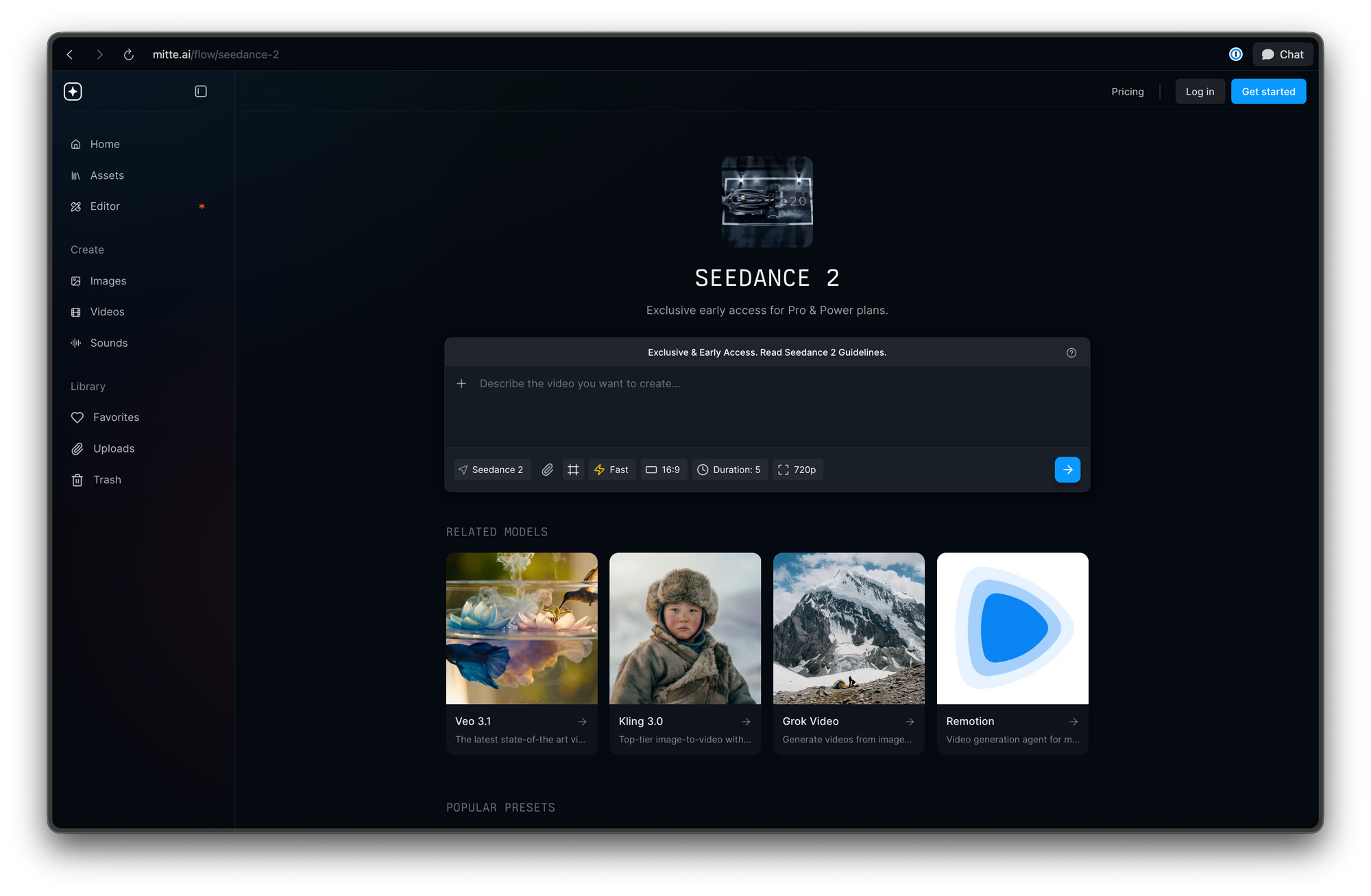
Mitte.ai is the most user-friendly option. It offers a visual interface where you can upload images, write prompts, and generate videos without any coding.
Pros:
- No VPN required
- No waitlist
- Clean, intuitive interface
- Supports image uploads and JSON prompts
- Frame-by-frame extension features
Cons:
- Pay-per-generation pricing
- No API access for automation
How to use: Create an account at mitte.ai, navigate to Seedance 2, and start generating.
Method 2: fal.ai (Best for Developers)
Best for: API integration, automated workflows, production applications
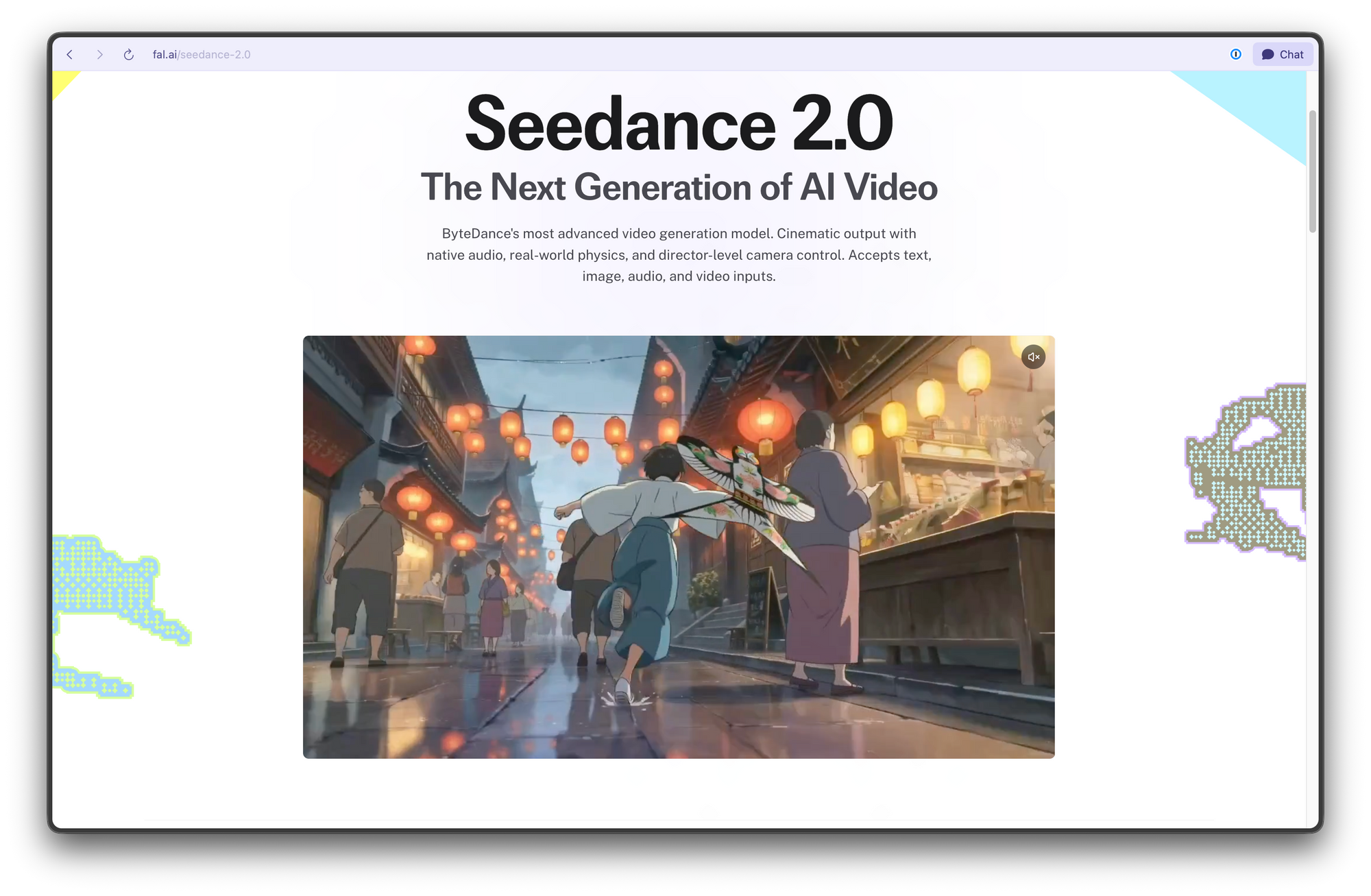
fal.ai provides direct API access to Seedance 2(From February 24, 2026), making it perfect for developers building applications or automating video generation.
Pros:
- RESTful API with comprehensive documentation
- Support for batch processing
- Webhook callbacks for long-running jobs
- Client libraries for Python, JavaScript, and more
- Pay-as-you-go pricing
Cons:
- Requires coding knowledge
- More expensive for single generations
- Steeper learning curve
How to use: Sign up at fal.ai, get your API key, and integrate using their SDK or REST API.
Sample API call:
import fal_client

response = fal_client.subscribe(
    "fal-ai/seedance-2",
    arguments={
        "prompt": "cinematic wide shot, 35mm film grain...",
        "duration": 10,
        "aspect_ratio": "16:9"
    }
)
Testing fal.ai API with Apidog
Before writing code, test your API requests visually with Apidog. This lets you:
- Build requests without code: Configure headers, authentication, and body in a visual interface
- Test prompt variations: Clone requests and modify parameters to find what works
- Debug API errors: See full response details when requests fail
- Save working templates: Keep successful configurations for reuse
- Generate production code: Export to Python, JavaScript, cURL, or 15+ languages
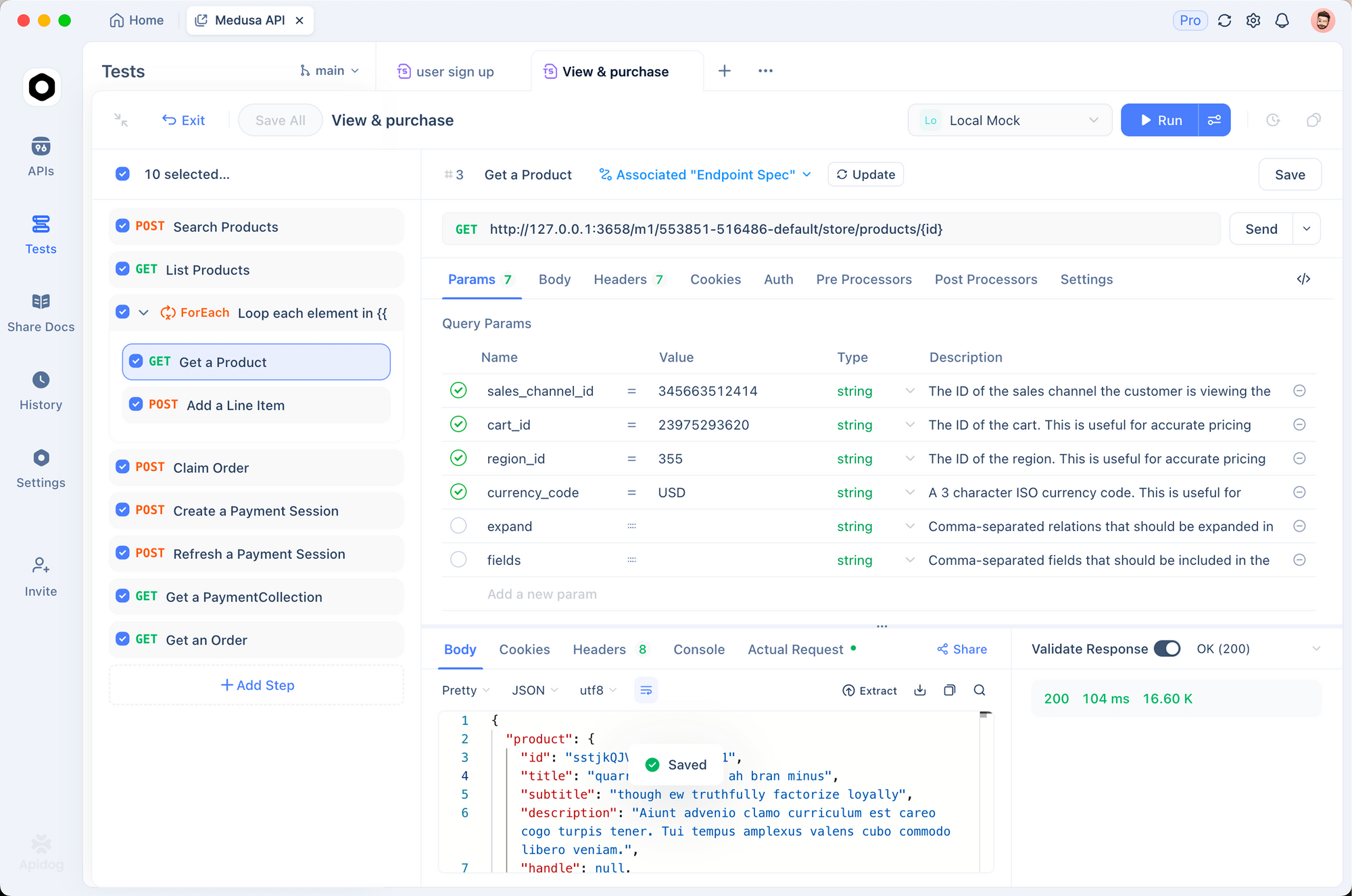
Setup in Apidog:
- Create a new POST request to
https://api.fal.ai/v1/seedance/video - Add authentication header:
Authorization: Bearer YOUR_API_KEY - Set Content-Type to
application/json - Build your request body:
{
  "prompt": "cinematic wide shot, a rider on horseback galloping through snowy mountains, 35mm film grain, 2.39:1 anamorphic",
  "duration": 10,
  "aspect_ratio": "16:9",
  "quality": "high"
}
Once you verify the request works in Apidog, click "Code" to generate the exact implementation for your application. This workflow ensures your code works before you write it.
Method 3: VPN + Official Chinese Platforms (Advanced)
Best for: Access to latest features first
If you're comfortable with VPNs and navigating Chinese interfaces, you can access Seedance 2 through official platforms like Doubao, or Jimeng.
Pros:
- Access to newest features before international release
- Often cheaper or free for limited use
- Direct from source
Cons:
- Requires VPN and Chinese phone number
- Interface entirely in Chinese
- Content restrictions may be different
- Payment requires Chinese payment methods (WeChat Pay, Alipay)
- More complex setup
How to use:
- Connect to a VPN with China servers
- Download Doubao app or visit Jimeng AI website
- Register with Chinese phone number
- Navigate to AI creation tools
Other AI Video Generation Options
While Seedance 2 is available through the platforms above, if you're interested in testing other cutting-edge AI video models, consider Hypereal. This platform offers 40% off on Sora 2 and Veo 3.1 — two powerful alternatives for AI video generation.
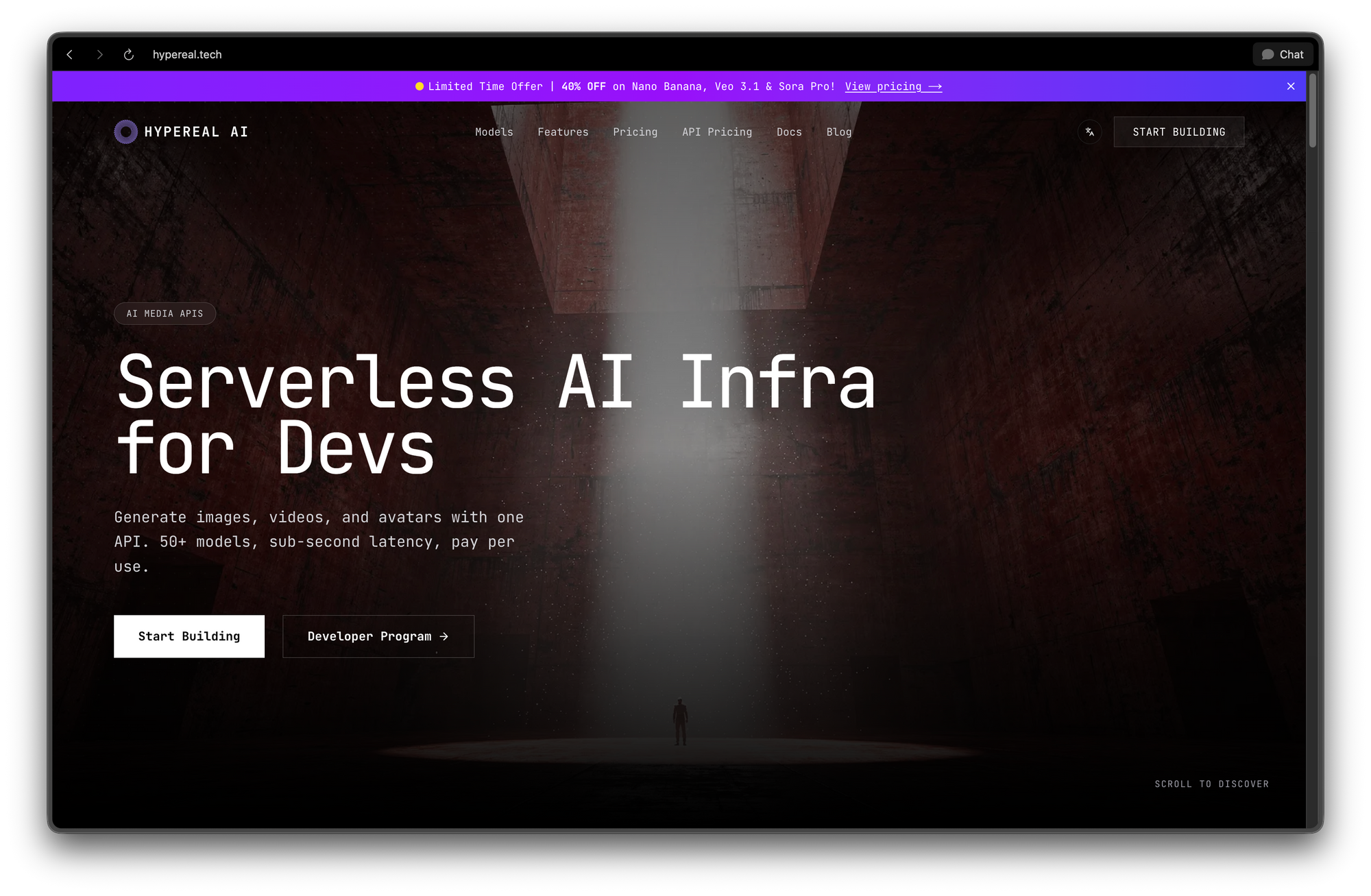
Important note: Hypereal doesn't currently offer Seedance 2 access, but it's an excellent platform for experimenting with other state-of-the-art video generation models at discounted rates. Many creators use it to test different AI video workflows and compare results across multiple platforms.
Platform Comparison Table
| Platform | Access Type | Technical Level | Pricing | Best For | Apidog Integration |
|---|---|---|---|---|---|
| Mitte.ai | Web UI | Beginner | Pay per video | Quick start, visual interface | Not needed (web-only) |
| fal.ai | API | Developer | Pay as you go | App integration, automation | Recommended for testing |
| VPN + Chinese platforms | Web/App | Advanced | Variable/Free tier | Early access, direct source | Not applicable |
| Hypereal.tech | Web UI | Beginner | 40% off (Sora 2, Veo 3.1) | Alternative models | Test other video APIs |
For Developers: If you're using the API-based platforms, use Apidog to test your API calls before writing code. Build requests visually, test prompt variations, debug errors, and generate production code — all without wasting API credits on failed requests. See the Testing with Apidog section below.
How to Get Started with Seedance 2 (Using Mitte.ai)
We'll use Mitte.ai for this tutorial since it's the most beginner-friendly option. The workflow is similar across platforms.
Step 1: Head to mitte.ai and create an account.
Step 2: Select Seedance 2 from the available models or click this direct link: mitte.ai/flow/seedance-2
How to Create Films with Seedance 2
Seedance 2 has two primary modes:
- Omni mode (default)
- Frame mode
To create your first scene, we'll stick with the default omni mode. If you want to set first and last frames for more control, click the square button in the control bar to switch to frame mode.
Step 1: Adding References
If you're creating a product film or want visual consistency, upload a reference image. This could be a product photo, a character reference, or any visual you want the model to work from.
Example: For a commercial film, you might upload a product photo (like a Spice deodorant can) that you want featured in your video.
Step 2: Write Your Prompt
Write a detailed prompt describing what you want to see. If you uploaded a reference image, refer to it as "attached image" in your prompt.
Pro tip: The more specific you are about camera angles, lighting, mood, and action — the better your results. You can write your initial idea, then ask ChatGPT to expand it into a more cinematic, detailed prompt. Seedance 2 responds incredibly well to rich descriptions.
Avoiding Content Moderation Flags
One of the biggest challenges with Seedance 2 is content moderation. 37% of prompts get rejected — not because they violate policies, but because the AI filter misinterprets intent.
Seedance 2 uses an LLM-based filter that evaluates your entire prompt's context, not just keywords. This means you need to structure prompts carefully to pass moderation.
Quick tips to avoid rejection:
- Build cinematic context: Use film terminology like "35mm film grain," "2.39:1 anamorphic," "wide establishing shot"
- Describe what the camera sees: Focus on visual elements, not character backstory or motivation
- Give actions clear purpose: "fires rifle as a signal" passes better than just "fires rifle"
- Avoid age descriptors with image uploads: Use "rider" instead of "young boy" when you have a reference image
- Don't upload photographic faces: Show characters from behind or use illustrated references
Example of a prompt that passes moderation:
cinematic wide shot, 35mm film grain, 2.39:1 anamorphic, a rider on horseback galloping through snowy mountains, overcast diffused light, the rider raises an old rifle overhead and fires once into the gray sky as a signal, sound echoing across the empty valley, muted desaturated tones
Why this works:
- Heavy cinematic framing establishes creative intent
- The action (firing rifle) has clear purpose (signaling)
- Film aesthetic language (35mm, anamorphic, diffused light)
- Environmental context (snowy mountains, empty valley)
Using JSON Prompts (Advanced)
Seedance 2 supports JSON prompts, which are extremely powerful. They let you control the entire film frame by frame, with precise transitions, timing, and cinematography.
Here's a sample JSON structure you can copy and customize with ChatGPT:
{
  "title": "Deodorant Product Film about a boxer using the deodorant in the attached image",
  "duration": "15 seconds",
  "concept": "A man pushes his body to the absolute edge. Every frame drips with intensity. Through all of it — the sweat, the impact, the heat — the deodorant holds. This is not a hygiene ad. This is a pressure test disguised as cinema.",
  "format": "16:9 and 9:16 deliverables",
  "fps": 24,
  "film_stock_emulation": "Kodak Vision3 500T, 35mm with heavy grain, shot wide open",
  "color_grade": "crushed blacks, teal midtones, burnt amber highlights, skin always warm and textured, everything else cold",
  "overall_energy": "HIGH BLOOD PRESSURE — every cut hits like a punch. No breathing room. The pacing is relentless. Cuts land on beat. Nothing soft. Nothing slow.",

  "transition_rules": {
    "style": "SMASH CUTS ONLY. Every cut is hard, violent, percussive.",
    "forbidden": ["dissolves", "fades", "cross fades", "morph transitions", "wipes"],
    "pacing": "cuts get FASTER as the film progresses"
  },

  "shot_list": [
    {
      "shot": 1,
      "timecode": "00:00 — 00:02",
      "duration_sec": 2,
      "type": "PRODUCT INTRO",
      "description": "Extreme close-up: hand grabs the deodorant stick from a gym bench. No hesitation. Pulls cap off. Quick hard cut to applying it under arm.",
      "lens": "100mm macro",
      "movement": "static, two cuts within the shot",
      "lighting": "hard side light, deep shadow on opposite side"
    },
    {
      "shot": 2,
      "timecode": "00:02 — 00:03.5",
      "duration_sec": 1.5,
      "description": "Wide shot. Boxer jumping rope in concrete gym. Haze in the air. Fast footwork. Camera locked off. The rope is a blur.",
      "lens": "35mm anamorphic",
      "movement": "locked tripod",
      "lighting": "single overhead fluorescent, rim light from behind"
    }
  ]
}
You can ask ChatGPT to adjust this template for your own film with custom scenes and transitions.
Step 3: Choose Aspect Ratio, Duration, and Quality
Select your video settings:
- Aspect ratio: 16:9, 9:16, 1:1, etc.
- Video duration: 5s, 10s, or 15s
- Quality level: Standard or High
Once everything looks good, hit the blue Generate button on the right.
Step 4: Wait for Your Video to Generate
Sit back for a moment while Seedance 2 works its magic. Generation times vary depending on duration and quality settings.
Once it's finished, you'll see your completed video ready for review.
Step 5: Extend Your Video from Any Frame
Want to make your film longer? Here's the trick:
- Place your cursor at any point on the video timeline
- Click Frames → Current Frame → Add as First Frame
This lets you pick the exact moment you want to continue from — giving you precise creative control over your narrative.
Now write a new prompt to continue the video from that exact frame. The model will pick up seamlessly from where you left off, maintaining visual consistency.
Testing Seedance 2 API Calls with Apidog
If you're using fal.ai or API for production applications, systematic testing is critical. Video generation costs money — you don't want to waste credits on malformed requests or untested prompts.
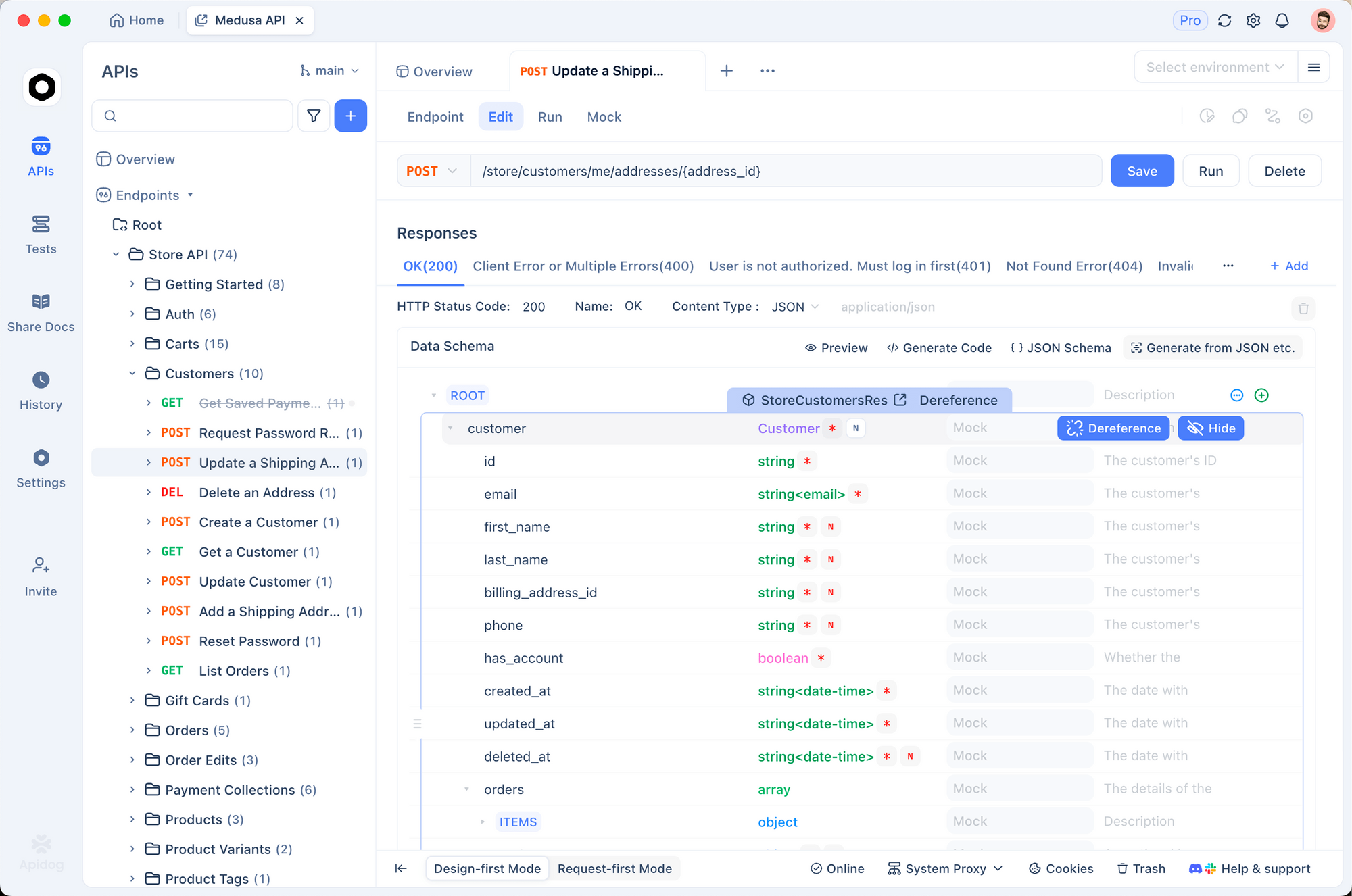
Testing prompt variations before deploying to production can save you significant time and API credits.
Apidog helps you build reliable Seedance 2 workflows by letting you test, debug, and optimize API calls before deploying to production.
Why Use Apidog for Seedance 2 Development
1. Test Without Writing Code
Build and test API requests visually before implementing them in your application. Configure authentication, headers, and request bodies in a clean interface — no coding required.
2. Save API Credits
Catch errors before they cost you. Apidog shows detailed error responses, helping you fix issues without burning through expensive video generation credits.
3. Test Prompt Variations Systematically
Clone requests and modify one parameter at a time. Test different:
- Prompt structures
- Aspect ratios
- Duration settings
- Quality levels
Track which configurations work and which fail.
4. Build Reusable Templates
Save successful API configurations as templates. When you find prompts that consistently generate great results, save them for reuse across your team.
5. Generate Production Code Instantly
Once your request works in Apidog, export it as production-ready code in Python, JavaScript, Go, PHP, or 15+ languages. No translation needed.
Debugging Failed Requests
When an API call fails, Apidog shows you exactly why:
Common error patterns:
{
  "error": "invalid_prompt",
  "message": "Prompt may violate content policy"
}
Fix: Add more cinematic context to your prompt.
{
  "error": "invalid_aspect_ratio",
  "message": "Aspect ratio must be one of: 16:9, 9:16, 1:1"
}
Fix: Check your aspect ratio value matches supported formats.
{
  "error": "face_detected",
  "message": "Uploaded image contains detectable faces"
}
Fix: Crop image to show character from behind or use illustrated version instead of photos.
Apidog's response viewer makes debugging systematic instead of guesswork. For content policy errors specifically, our prompt engineering guide covers proven techniques to avoid rejection.
Which Platform Should You Choose?
Choose Mitte.ai if you:
- Want the easiest setup
- Prefer visual interfaces
- Are creating videos manually
- Don't need API access
Choose fal.ai if you:
- Need API integration
- Are building applications
- Want to automate video generation
- Have coding experience
- Use Apidog to test and debug your API calls before deploying
Choose VPN + Chinese platforms if you:
- Want cutting-edge features first
- Don't mind Chinese interfaces
- Have Chinese payment methods
- Are willing to deal with complexity
Choose Hypereal if you:
- Want to test Sora 2 or Veo 3.1 instead
- Need discounted pricing (40% off)
- Want to compare multiple AI video models
- Don't specifically need Seedance 2
Start Creating Now
Seedance 2 is the real deal, and now you have multiple ways to access it from anywhere in the world:
- Beginners: Start with Mitte.ai for the simplest experience
- Developers: Use fal.ai for API access
- Advanced users: Access official Chinese platforms via VPN
For Developers Building Applications
If you're integrating Seedance 2 into production applications:
- Test systematically with Apidog before deploying
- Save successful configurations as reusable templates
- Debug failed requests without wasting API credits
- Generate production code from tested requests
- Build test collections for different video types
This workflow saves time, money, and prevents costly debugging in production.
Avoiding Content Moderation Issues
Important note on content moderation: 37% of Seedance 2 prompts get rejected by the AI content filter. If you're experiencing rejections, read our comprehensive guide: How to Write Seedance 2 Prompts That Won't Get Flagged, it covers proven strategies to pass moderation consistently.
You'll learn:
- How to build safe cinematic context
- Which words trigger the LLM filter
- How to test prompts systematically with Apidog's API testing tools
- JSON prompt structures that pass consistently
- Debugging techniques for failed prompts
Exploring Alternative Models
If you're exploring different AI video generation tools, Hypereal offers 40% off on Sora 2 and Veo 3.1 — perfect for testing multiple AI video models side by side. While it doesn't offer Seedance 2, it's valuable for comparison testing.
No matter which platform you choose, you now have access to one of the most powerful AI video generation tools ever created. And if you're building applications, Apidog ensures your API integration works reliably from day one.