TL;DR / Quick Answer
To use GPT-5.4 API: Install OpenAI SDK (pip install openai), initialize client with API key, call chat.completions.create() with model gpt-5.4. Key features: computer use (native browser automation), tool search (47% token reduction), 1M context window, vision capabilities. Pricing: $2.50/M input tokens, $15/M output tokens. This guide covers setup, code examples, computer use configuration, tool integration, and production best practices.
Introduction
GPT-5.4 isn't just another model upgrade. It's OpenAI's first general-purpose model with native computer use capabilities, efficient tool search, and 1M token context windows. Using GPT-5.4 effectively requires understanding these new capabilities and how to integrate them into your workflows.
This guide provides working code examples for every major GPT-5.4 feature. You'll learn how to implement computer use automation, configure tool search for MCP servers, process high-resolution images, handle long-context codebases, and optimize costs for production deployments.
Whether you're building AI agents, automating browser workflows, or integrating GPT-5.4 into existing applications, this guide gives you the implementation details you need.
Quick Start: Your First GPT-5.4 Request
Get up and running with GPT-5.4 in under 5 minutes. Before writing code, test your GPT-5.4 API requests in Apidog:
- Create a new HTTP request with POST to
https://api.openai.com/v1/chat/completions - Add Authorization header:
Bearer YOUR_API_KEY - Set request body with model, messages, and parameters
- Send and inspect the response
- Save to a collection for repeated testing
- Use environment variables to switch between API keys
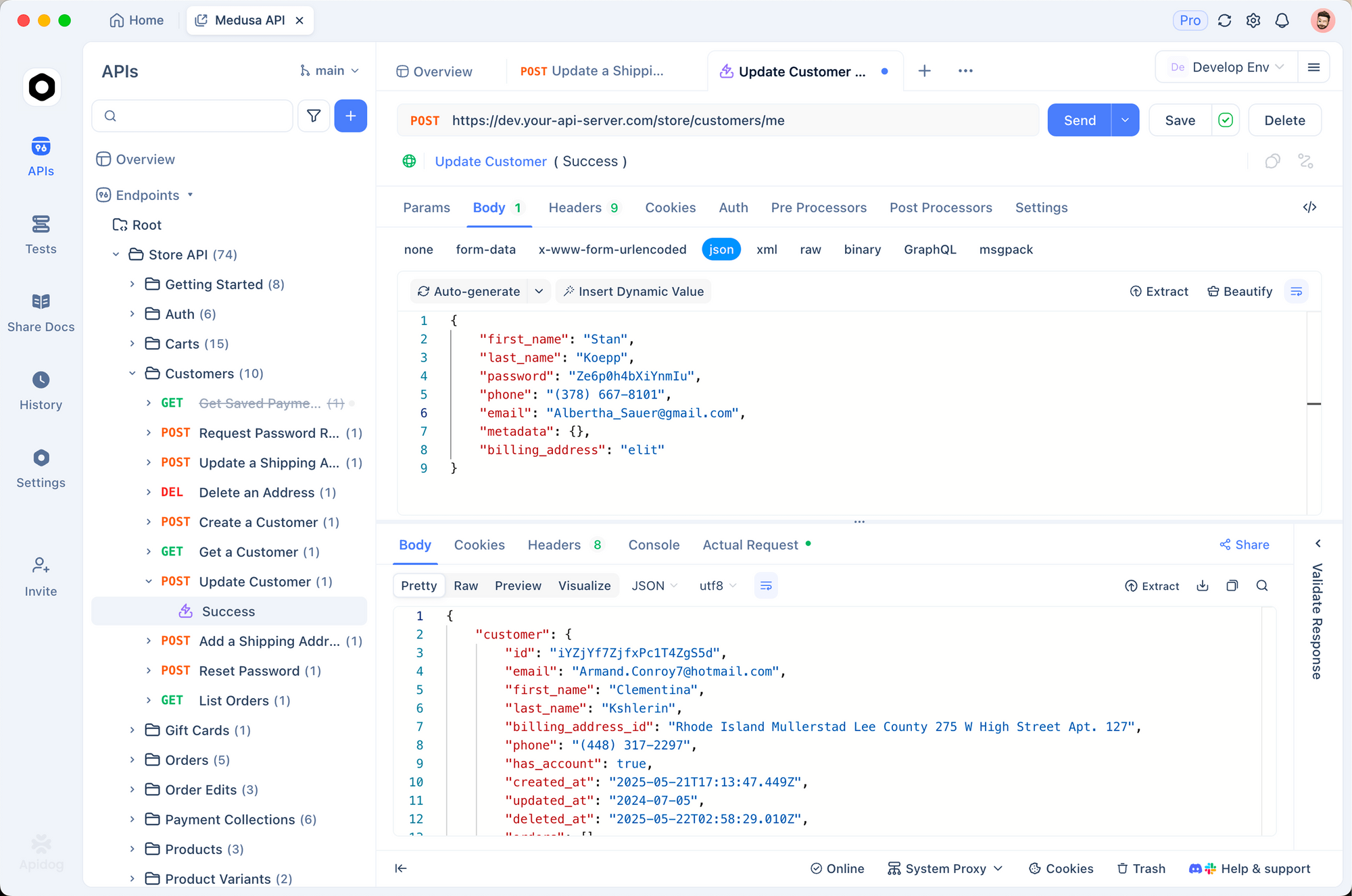
This visual approach speeds up initial testing and helps you understand the API structure before implementing in code.
Prerequisites
- OpenAI account with billing enabled
- API key from platform.openai.com/api-keys
- Python 3.7+ or Node.js 14+
Python Quick Start
from openai import OpenAI
import os

# Initialize client
client = OpenAI(
    api_key=os.getenv("OPENAI_API_KEY")
)

# Make request
response = client.chat.completions.create(
    model="gpt-5.4",
    messages=[
        {"role": "system", "content": "You are a helpful coding assistant."},
        {"role": "user", "content": "Write a Python function to sort a list of dictionaries by a key."}
    ]
)

print(response.choices[0].message.content)
Node.js Quick Start
const OpenAI = require('openai');

const client = new OpenAI({
    apiKey: process.env.OPENAI_API_KEY
});

async function main() {
    const response = await client.chat.completions.create({
        model: 'gpt-5.4',
        messages: [
            { role: 'system', content: 'You are a helpful coding assistant.' },
            { role: 'user', content: 'Write a Python function to sort a list of dictionaries by a key.' }
        ]
    });

    console.log(response.choices[0].message.content);
}

main();
Expected Output
def sort_dicts_by_key(dict_list, key, reverse=False):
    """
    Sort a list of dictionaries by a specified key.

    Args:
        dict_list: List of dictionaries to sort
        key: The dictionary key to sort by
        reverse: If True, sort in descending order

    Returns:
        Sorted list of dictionaries
    """
    return sorted(dict_list, key=lambda x: x.get(key, ''), reverse=reverse)

# Example usage
data = [
    {'name': 'Alice', 'age': 30},
    {'name': 'Bob', 'age': 25},
    {'name': 'Charlie', 'age': 35}
]

sorted_by_age = sort_dicts_by_key(data, 'age')
print(sorted_by_age)
# [{'name': 'Bob', 'age': 25}, {'name': 'Alice', 'age': 30}, {'name': 'Charlie', 'age': 35}]
Understanding GPT-5.4 Capabilities
GPT-5.4 excels in four key areas. Understanding these helps you choose the right approach for each use case.
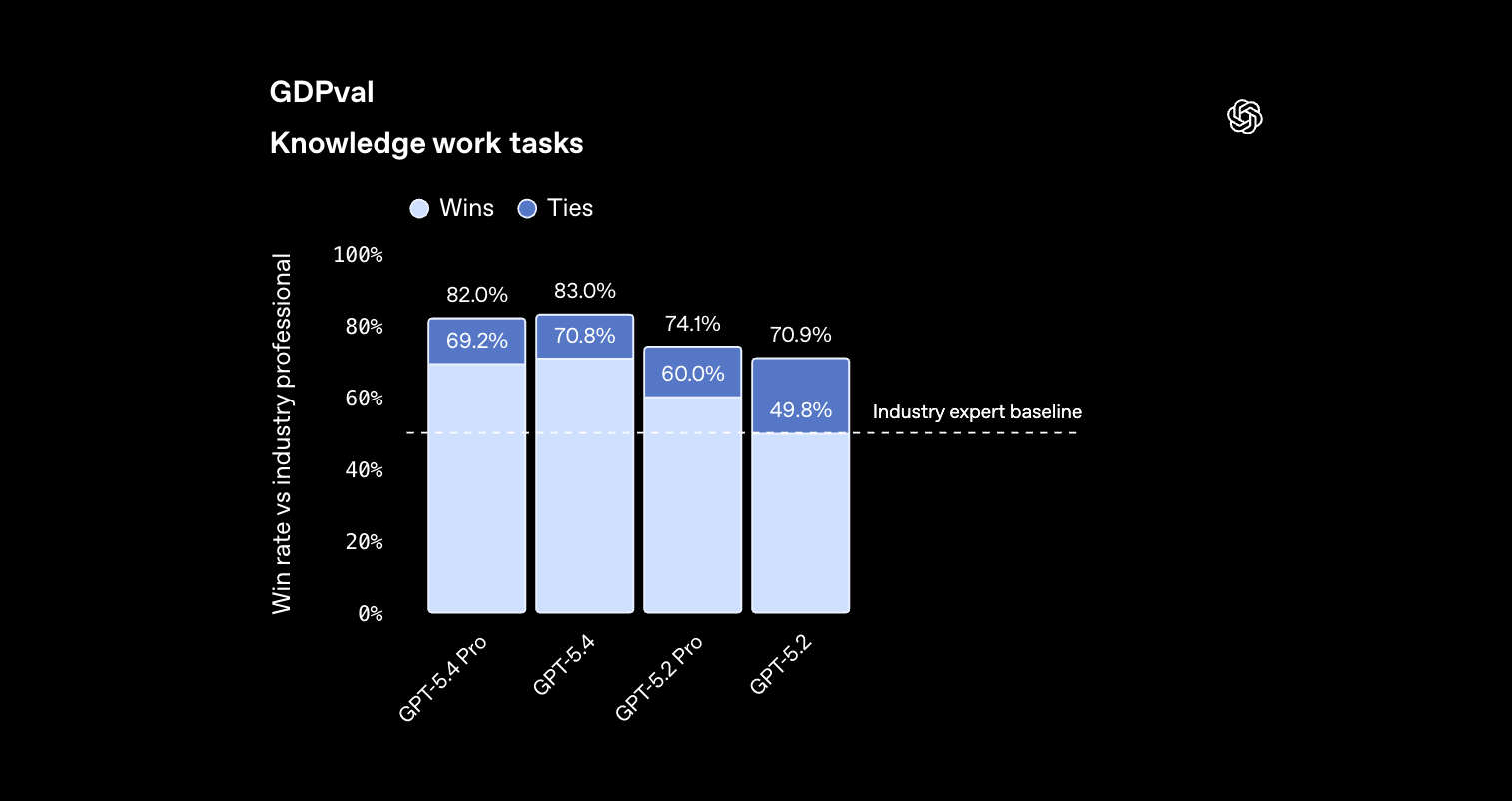
1. Knowledge Work (83% GDPval Win Rate)
Best for:
- Spreadsheet creation and analysis
- Presentation generation
- Document drafting and editing
- Financial modeling
- Data analysis and reporting
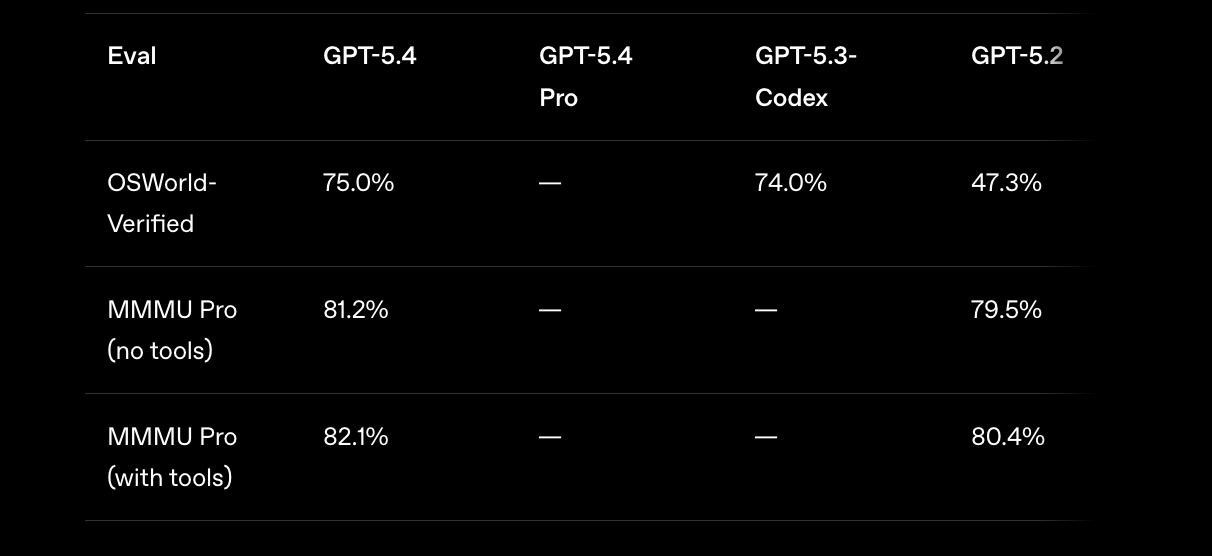
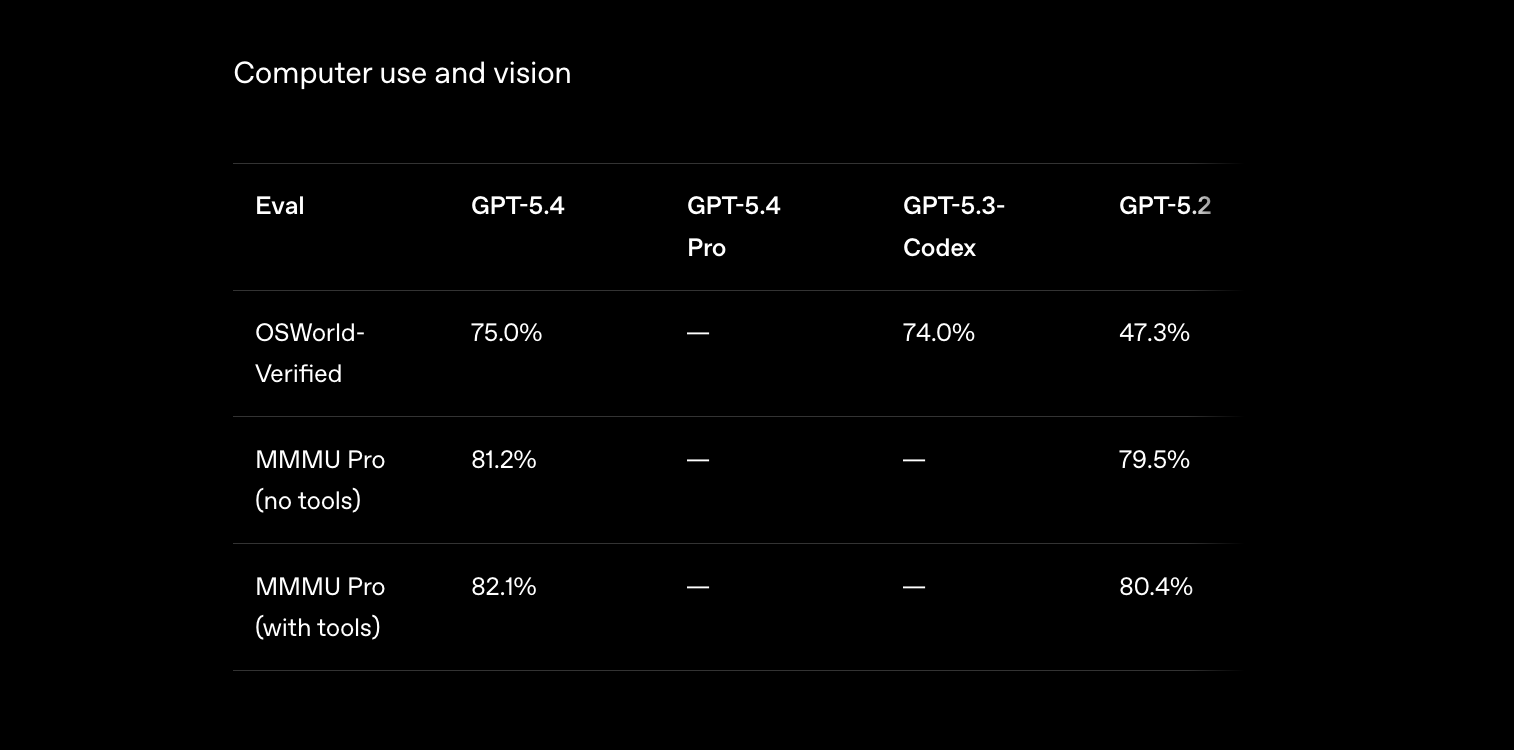
2. Computer Use (75% OSWorld-Verified)
Best for:
- Browser automation
- Data entry across applications
- Web scraping with interaction
- Testing workflows
- Cross-application task automation
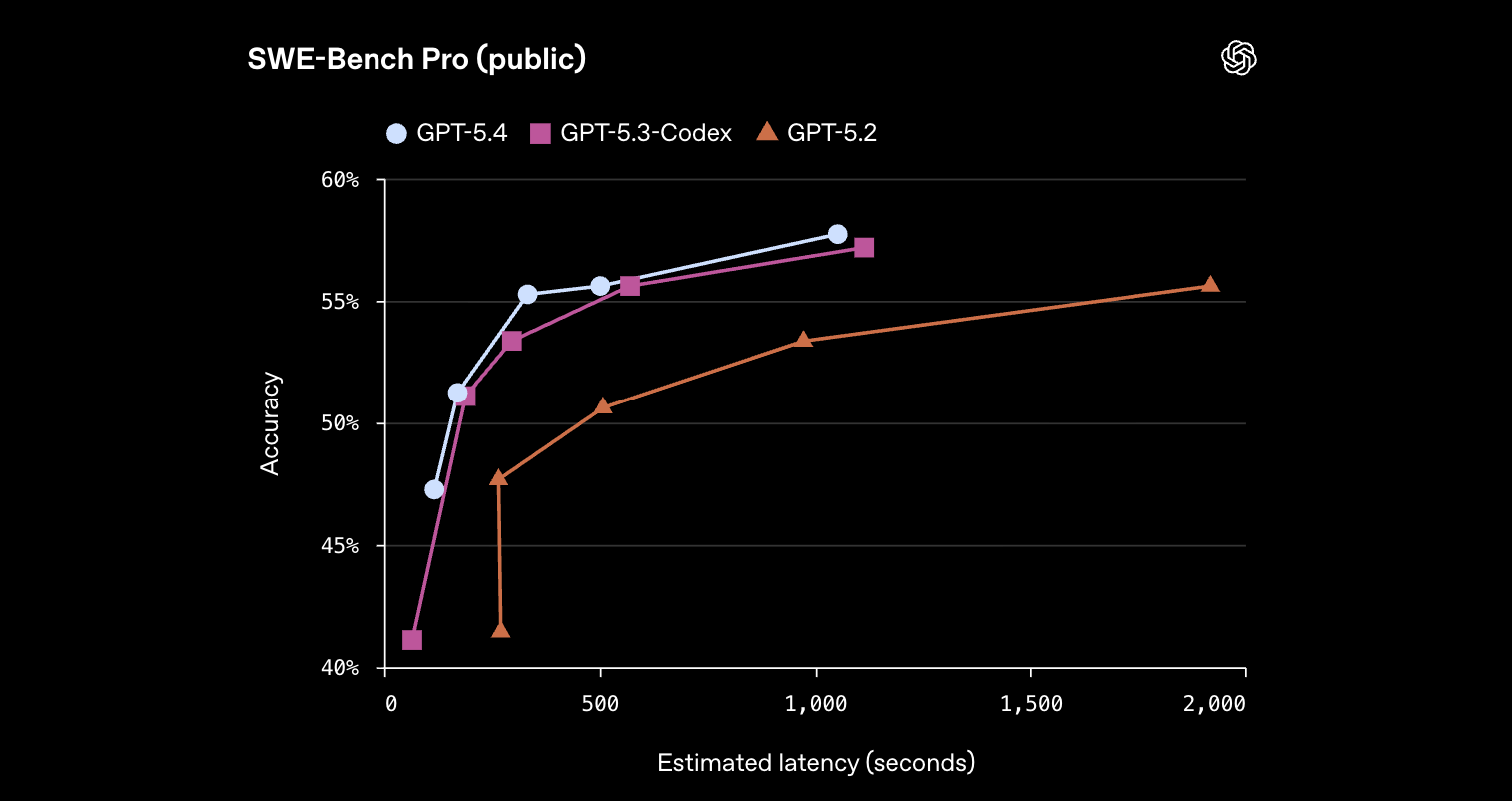
3. Coding (57.7% SWE-Bench Pro)
Best for:
- Full-stack development
- Frontend UI generation
- Debugging complex issues
- Code refactoring
- Test generation
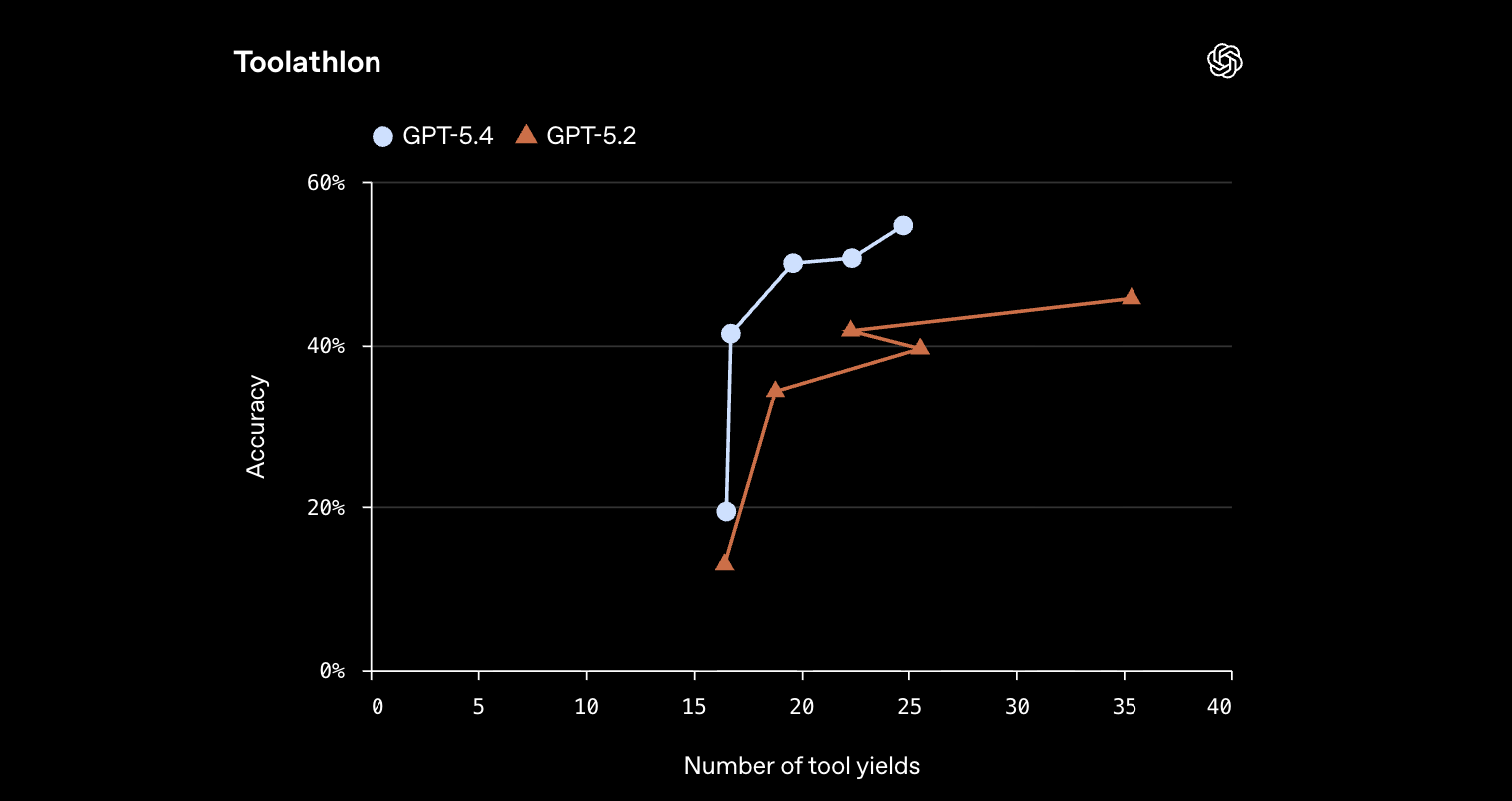
4. Tool Integration (54.6% Toolathlon)
Best for:
- MCP server integrations
- Multi-step API workflows
- External tool orchestration
- Agentic applications
Computer Use API
GPT-5.4's native computer use capabilities represent the biggest leap in this release. The model can operate computers through screenshots, mouse commands, and keyboard input.
When building applications with computer use capabilities, test each step of the workflow in Apidog:
- Validate screenshot upload endpoints
- Test command execution APIs (click, type, scroll)
- Create mock responses for each computer action
- Automate testing of multi-turn workflows
- Document the computer use API contract for team reference
How Computer Use Works
The computer use workflow uses the computer tool in API requests. The model:
- Receives screenshots of the current screen state
- Analyzes UI elements and determines actions
- Returns computer commands (click, type, scroll, etc.)
- Your application executes commands and captures new screenshots
- Loop continues until task completion
Basic Computer Use Setup
from openai import OpenAI
import base64

client = OpenAI()

def take_screenshot():
    """Capture current screen state - implement for your platform."""
    # Use pyautogui, PIL, or platform-specific screenshot
    import pyautogui
    screenshot = pyautogui.screenshot()
    import io
    buffer = io.BytesIO()
    screenshot.save(buffer, format='PNG')
    return base64.b64encode(buffer.getvalue()).decode('utf-8')

def execute_computer_command(command):
    """Execute computer command - implement based on command type."""
    import pyautogui

    action = command.get('action')

    if action == 'click':
        x, y = command.get('coordinate', [0, 0])
        pyautogui.click(x, y)
    elif action == 'type':
        text = command.get('text', '')
        pyautogui.write(text, interval=0.05)
    elif action == 'scroll':
        amount = command.get('scroll_amount', 0)
        pyautogui.scroll(amount)
    elif action == 'keypress':
        key = command.get('key', '')
        pyautogui.press(key)

    # Return new screenshot after action
    return take_screenshot()

# Computer use conversation
messages = [{
    "role": "user",
    "content": [
        {
            "type": "text",
            "text": "Navigate to gmail.com and log in with the credentials I provided."
        },
        {
            "type": "image_url",
            "image_url": {
                "url": f"data:image/png;base64,{take_screenshot()}"
            }
        }
    ]
}]

# Request with computer tool
response = client.chat.completions.create(
    model="gpt-5.4",
    messages=messages,
    tools=[{
        "type": "computer",
        "display_width": 1920,
        "display_height": 1080,
        "display_number": 1
    }],
    tool_choice="required"
)

# Parse and execute computer commands
for tool_call in response.choices[0].message.tool_calls:
    if tool_call.type == "computer":
        command = tool_call.function.arguments
        new_screenshot = execute_computer_command(command)

        # Continue conversation with new screenshot
        messages.append({
            "role": "assistant",
            "content": response.choices[0].message.content
        })
        messages.append({
            "role": "user",
            "content": [{
                "type": "image_url",
                "image_url": {"url": f"data:image/png;base64,{new_screenshot}"}
            }]
        })
Computer Use Safety Policies
Configure safety behavior based on your risk tolerance:
# Safe mode - requires confirmation for sensitive actions
response = client.chat.completions.create(
    model="gpt-5.4",
    messages=messages,
    tools=[{
        "type": "computer",
        "display_width": 1920,
        "display_height": 1080,
        "confirmation_policy": "always"  # or "never" or "selective"
    }],
    # Custom system message for safety
    system_message="""You are operating a computer. Follow these safety rules:
    1. Never enter credentials without explicit user confirmation
    2. Ask before deleting files or data
    3. Confirm before sending emails or messages
    4. Report any errors or unexpected states immediately
    """
)
Browser Automation Example
Automate browser tasks with Playwright integration:
from playwright.sync_api import sync_playwright

def browser_automation_workflow():
    with sync_playwright() as p:
        browser = p.chromium.launch(headless=False)
        page = browser.new_page()

        # Navigate to page
        page.goto("https://example.com")

        # Get screenshot for GPT-5.4
        screenshot = page.screenshot()
        screenshot_b64 = base64.b64encode(screenshot).decode('utf-8')

        messages = [{
            "role": "user",
            "content": [
                {"type": "text", "text": "Find the login form and fill it out."},
                {"type": "image_url", "image_url": {"url": f"data:image/png;base64,{screenshot_b64}"}}
            ]
        }]

        # Get computer commands from GPT-5.4
        response = client.chat.completions.create(
            model="gpt-5.4",
            messages=messages,
            tools=[{"type": "computer"}],
            tool_choice="required"
        )

        # Parse and execute commands on browser
        for tool_call in response.choices[0].message.tool_calls:
            if tool_call.type == "computer":
                command = json.loads(tool_call.function.arguments)

                if command.get('action') == 'click':
                    x, y = command.get('coordinate', [0, 0])
                    page.mouse.click(x, y)
                elif command.get('action') == 'type':
                    page.keyboard.type(command.get('text', ''))

                # Get new screenshot and continue
                new_screenshot = page.screenshot()
                # ... continue loop
Email and Calendar Automation
Real-world example: Process emails and schedule events:
def process_email_and_schedule_meeting():
    """
    Workflow: Read unread emails, extract meeting requests,
    check calendar availability, and send calendar invites.
    """

    workflow_prompt = """
    Complete this workflow:
    1. Open Gmail and find unread emails from the last 24 hours
    2. Identify any meeting requests or scheduling questions
    3. For each meeting request:
       - Extract proposed dates/times
       - Note attendees and meeting purpose
    4. Open Google Calendar and check availability
    5. Send calendar invites for confirmed meetings
    6. Reply to emails confirming the scheduled time

    Report back with a summary of what was accomplished.
    """

    # Start with inbox screenshot
    screenshot = take_screenshot()

    messages = [{
        "role": "user",
        "content": [
            {"type": "text", "text": workflow_prompt},
            {"type": "image_url", "image_url": {"url": f"data:image/png;base64,{screenshot}"}}
        ]
    }]

    # Execute multi-turn computer use workflow
    for turn in range(10):  # Limit turns to prevent infinite loops
        response = client.chat.completions.create(
            model="gpt-5.4",
            messages=messages,
            tools=[{"type": "computer"}],
            tool_choice="required"
        )

        # Check if task is complete
        if "complete" in response.choices[0].message.content.lower():
            print(f"Workflow completed in {turn + 1} turns")
            break

        # Execute computer commands and get new screenshot
        # ... (command execution logic from earlier example)
Performance Optimization
Mainstay's results processing 30K property tax portals:
- 95% first-attempt success rate
- 3x faster than previous models
- 70% fewer tokens per session
Tips for optimization:
- Use high-quality screenshots (1920x1080 minimum)
- Provide clear, specific task descriptions
- Implement turn limits to prevent loops
- Cache screenshots to avoid redundant captures
- Use selective confirmation policies for trusted workflows
Tool Search and Integration
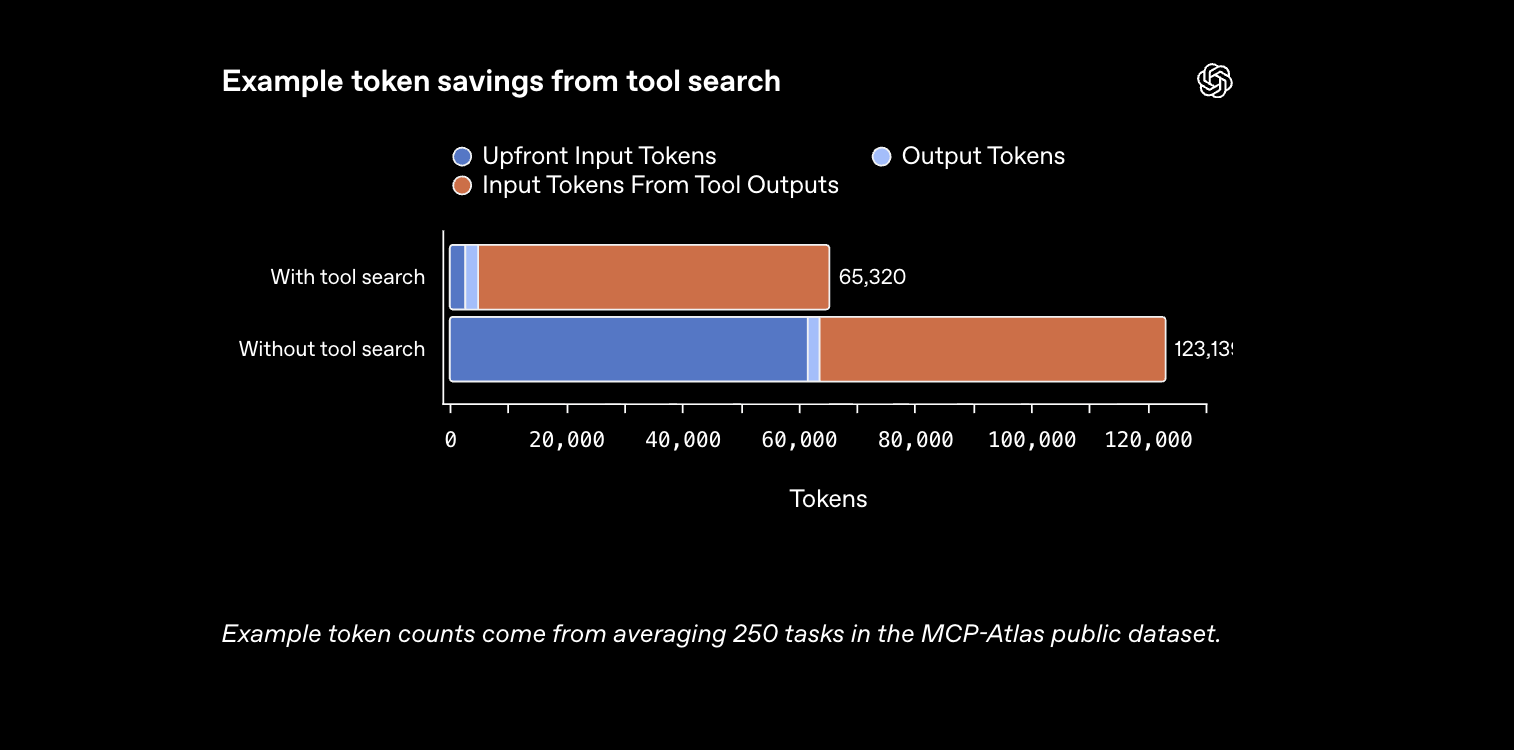
Tool search reduces token usage by 47% while enabling work with large tool ecosystems.
How Tool Search Works
Instead of loading all tool definitions upfront, the model receives a lightweight list and looks up definitions on-demand.
Basic Tool Search Setup
# Define available tools (lightweight list)
available_tools = [
    {
        "name": "get_weather",
        "description": "Get current weather for a location"
    },
    {
        "name": "send_email",
        "description": "Send an email to a recipient"
    },
    {
        "name": "calendar_search",
        "description": "Search calendar for events"
    },
    # ... hundreds more tools
]

# Initial request - model sees tool list, not full definitions
response = client.chat.completions.create(
    model="gpt-5.4",
    messages=[
        {"role": "user", "content": "What's the weather in Tokyo and send it to my team?"}
    ],
    tools=available_tools,
    tool_choice="auto"
)

# If model wants to use a tool, it requests the definition
# Your application provides the full definition at that point
MCP Server Integration
Scale's MCP Atlas benchmark showed 47% token reduction with tool search.
# MCP Server with many tools
mcp_servers = [
    {
        "name": "filesystem",
        "description": "File system operations",
        "tool_count": 12
    },
    {
        "name": "database",
        "description": "Database query operations",
        "tool_count": 8
    },
    {
        "name": "web-search",
        "description": "Web search and scraping",
        "tool_count": 15
    }
    # ... 36 MCP servers in benchmark
]

# Tool search configuration
response = client.chat.completions.create(
    model="gpt-5.4",
    messages=[
        {"role": "user", "content": "Find all Python files modified today and search for TODO comments."}
    ],
    tools=mcp_servers,
    # Tool search enabled automatically when using this pattern
    parallel_tool_calls=True
)

# Model will request tool definitions as needed
# Token savings: 47% vs loading all definitions upfront
Toolathlon-Style Multi-Step Workflows
Toolathlon tests complex multi-step tool workflows:
def grade_assignments_workflow():
    """
    Complex workflow: Read emails with attachments,
    upload to grading system, grade assignments,
    record results in spreadsheet.
    """

    workflow_steps = """
    1. Read emails from students with assignment attachments
    2. Download each attachment
    3. Upload to grading portal
    4. Grade each assignment using rubric
    5. Record grades in spreadsheet
    6. Send confirmation emails to students
    """

    tools = [
        {"name": "email_read", "description": "Read emails from inbox"},
        {"name": "email_send", "description": "Send emails"},
        {"name": "file_download", "description": "Download file attachments"},
        {"name": "file_upload", "description": "Upload files to web portal"},
        {"name": "web_form_fill", "description": "Fill and submit web forms"},
        {"name": "spreadsheet_write", "description": "Write data to spreadsheet"},
        {"name": "rubric_evaluate", "description": "Evaluate work against rubric"}
    ]

    response = client.chat.completions.create(
        model="gpt-5.4",
        messages=[
            {"role": "user", "content": workflow_steps}
        ],
        tools=tools,
        parallel_tool_calls=True  # Enable parallel tool execution
    )

    # GPT-5.4 achieves 54.6% on Toolathlon vs 45.7% for GPT-5.2
    # Key: Better tool selection and fewer turns required
Vision and Image Processing
GPT-5.4 supports enhanced visual perception with original image detail up to 10.24M pixels.
Image Detail Levels
# Original detail - highest fidelity (10.24M pixels, 6000px max dimension)
response = client.chat.completions.create(
    model="gpt-5.4",
    messages=[{
        "role": "user",
        "content": [
            {
                "type": "image_url",
                "image_url": {
                    "url": "https://example.com/high-res-image.jpg",
                    "detail": "original"  # or "high" or "low"
                }
            },
            {"type": "text", "text": "Analyze this technical diagram."}
        ]
    }]
)

# High detail - 2.56M pixels, 2048px max dimension
# Low detail - Fastest processing, lower accuracy
Document Parsing Example
OmniDocBench: 0.109 error rate (vs 0.140 for GPT-5.2)
def parse_complex_document(pdf_path):
    """Parse multi-page PDF with tables and figures."""

    # Convert PDF pages to images
    from pdf2image import convert_from_path
    pages = convert_from_path(pdf_path, dpi=300)

    messages = [{"role": "user", "content": []}]

    for i, page in enumerate(pages[:5]):  # First 5 pages
        import io, base64
        buffer = io.BytesIO()
        page.save(buffer, format='PNG')
        img_b64 = base64.b64encode(buffer.getvalue()).decode()

        messages[0]["content"].append({
            "type": "image_url",
            "image_url": {
                "url": f"data:image/png;base64,{img_b64}",
                "detail": "high"
            }
        })

    messages[0]["content"].append({
        "type": "text",
        "text": """
        Extract all data from this document:
        1. Tables with row/column headers
        2. Key figures and their captions
        3. Summary statistics mentioned in text
        Return as structured JSON.
        """
    })

    response = client.chat.completions.create(
        model="gpt-5.4",
        messages=messages
    )

    return response.choices[0].message.content
UI Screenshot Analysis
def analyze_ui_screenshot(screenshot_path):
    """Analyze UI screenshot for accessibility issues."""

    with open(screenshot_path, 'rb') as f:
        img_b64 = base64.b64encode(f.read()).decode()

    response = client.chat.completions.create(
        model="gpt-5.4",
        messages=[{
            "role": "user",
            "content": [
                {
                    "type": "image_url",
                    "image_url": {
                        "url": f"data:image/png;base64,{img_b64}",
                        "detail": "original"
                    }
                },
                {
                    "type": "text",
                    "text": """
                    Review this UI screenshot for accessibility issues:
                    1. Color contrast problems
                    2. Missing labels or alt text indicators
                    3. Keyboard navigation issues (visible focus states)
                    4. Text size and readability
                    5. Screen reader compatibility concerns

                    List issues with specific locations and severity.
                    """
                }
            ]
        }]
    )

    return response.choices[0].message.content
Long Context Workflows
GPT-5.4 supports up to 1M token context windows (experimental).
Standard Context (272K tokens)
# Load large codebase file
with open('large_codebase.py', 'r') as f:
    code = f.read()

response = client.chat.completions.create(
    model="gpt-5.4",
    messages=[
        {"role": "system", "content": "You are a code review assistant."},
        {"role": "user", "content": f"""
        Review this codebase for:
        1. Security vulnerabilities
        2. Performance issues
        3. Code style inconsistencies
        4. Missing error handling

        Code:
        {code}
        """}
    ],
    max_tokens=4000
)
Extended Context (1M tokens)
Configure via API parameters:
response = client.chat.completions.create(
    model="gpt-5.4",
    messages=[
        {"role": "user", "content": large_document}
    ],
    # Extended context configuration
    extra_body={
        "model_context_window": 1048576,  # 1M tokens
        "model_auto_compact_token_limit": 272000  # Auto-compact after 272K
    }
)

# Note: Requests exceeding 272K count at 2x usage rate
Multi-Document Analysis
def analyze_multiple_documents(documents):
    """Analyze 10+ documents in single context."""

    content_parts = []

    for i, doc in enumerate(documents):
        content_parts.append(f"=== Document {i+1}: {doc['title']} ===\n")
        content_parts.append(doc['content'][:50000])  # Truncate if needed
        content_parts.append("\n\n")

    combined_content = "".join(content_parts)

    response = client.chat.completions.create(
        model="gpt-5.4",
        messages=[{
            "role": "user",
            "content": f"""
            Analyze these documents and provide:
            1. Summary of key themes across all documents
            2. Contradictions or inconsistencies between documents
            3. Action items mentioned in any document
            4. Timeline of events if applicable

            {combined_content}
            """
        }],
        max_tokens=8000
    )

    return response.choices[0].message.content
Coding and Development Workflows
GPT-5.4 matches GPT-5.3-Codex on SWE-Bench Pro (57.7%) with added computer use capabilities.
Frontend Generation
def generate_frontend_component(spec):
    """Generate complete React component with styling."""

    prompt = f"""
    Create a complete React component based on this specification:

    {spec}

    Requirements:
    1. Functional component with hooks
    2. TypeScript types for all props and state
    3. Tailwind CSS for styling
    4. Responsive design (mobile, tablet, desktop)
    5. Accessibility (ARIA labels, keyboard navigation)
    6. Unit tests with Jest/React Testing Library

    Return complete code for:
    - Component file (.tsx)
    - Styles (if not Tailwind)
    - Test file (.test.tsx)
    """

    response = client.chat.completions.create(
        model="gpt-5.4",
        messages=[{"role": "user", "content": prompt}],
        max_tokens=6000
    )

    return response.choices[0].message.content

# Example: Theme park simulation (from OpenAI demo)
theme_park_spec = """
Create an interactive isometric theme park simulation game:
- Tile-based path placement
- Ride and scenery construction
- Guest pathfinding and queueing
- Park metrics (money, guests, happiness, cleanliness)
- Browser-playable with Playwright testing
- Generated isometric assets
"""

component_code = generate_frontend_component(theme_park_spec)
Debugging Complex Issues
def debug_with_full_context(error_logs, codebase_files, stack_trace):
    """Debug using full context of logs, code, and stack trace."""

    context = f"""
    ERROR LOGS:
    {error_logs}

    STACK TRACE:
    {stack_trace}

    RELEVANT CODE FILES:
    {codebase_files}

    Task: Identify the root cause and provide a fix.
    Consider:
    1. Race conditions or timing issues
    2. Memory leaks or resource exhaustion
    3. Incorrect assumptions about data flow
    4. Edge cases not handled
    5. External dependency issues

    Provide:
    1. Root cause analysis
    2. Specific code changes needed
    3. Tests to prevent regression
    """

    response = client.chat.completions.create(
        model="gpt-5.4",
        messages=[{"role": "user", "content": context}],
        max_tokens=4000
    )

    return response.choices[0].message.content
Playwright Interactive Testing
Experimental Codex skill for browser playtesting:
def playwright_interactive_debug():
    """
    Use Playwright Interactive for browser playtesting.
    GPT-5.4 can test apps while building them.
    """

    prompt = """
    Build a todo web application and test it as you build:

    1. Create HTML structure
    2. Add CSS styling
    3. Implement JavaScript functionality
    4. After each feature, use Playwright to:
       - Verify element visibility
       - Test user interactions
       - Check state persistence
       - Validate edge cases

    Report any issues found during testing and fix them.
    """

    response = client.chat.completions.create(
        model="gpt-5.4",
        messages=[{"role": "user", "content": prompt}],
        tools=[{"type": "playwright_interactive"}],
        max_tokens=8000
    )

    return response.choices[0].message.content
Streaming Responses
Streaming reduces perceived latency for long responses.
Python Streaming
from openai import OpenAI

client = OpenAI()

stream = client.chat.completions.create(
    model="gpt-5.4",
    messages=[{"role": "user", "content": "Write a detailed explanation of quantum computing."}],
    stream=True
)

for chunk in stream:
    if chunk.choices[0].delta.content:
        print(chunk.choices[0].delta.content, end="", flush=True)
Node.js Streaming
const stream = await client.chat.completions.create({
    model: 'gpt-5.4',
    messages: [{ role: 'user', content: 'Write a detailed explanation of quantum computing.' }],
    stream: true
});

for await (const chunk of stream) {
    if (chunk.choices[0].delta.content) {
        process.stdout.write(chunk.choices[0].delta.content);
    }
}
Streaming with Token Counting
def stream_with_usage(stream):
    """Track token usage while streaming."""
    total_tokens = 0

    for chunk in stream:
        if chunk.choices[0].delta.content:
            content = chunk.choices[0].delta.content
            print(content, end="", flush=True)
            total_tokens += len(content) // 4  # Rough estimate

        if chunk.usage:
            print(f"\n\nUsage: {chunk.usage.total_tokens} tokens")

    return total_tokens
Error Handling and Retry Logic
Production code needs robust error handling.
Comprehensive Error Handling
from openai import OpenAI, RateLimitError, APIError, AuthenticationError
import time

client = OpenAI()

def make_request_with_retry(messages, max_retries=3):
    """Make request with exponential backoff retry logic."""

    for attempt in range(max_retries):
        try:
            response = client.chat.completions.create(
                model="gpt-5.4",
                messages=messages,
                max_tokens=2000,
                temperature=0.7
            )
            return response

        except RateLimitError as e:
            if attempt == max_retries - 1:
                raise

            wait_time = 2 ** attempt  # 1s, 2s, 4s
            print(f"Rate limited. Waiting {wait_time}s...")
            time.sleep(wait_time)

        except APIError as e:
            if e.status_code >= 500:  # Server error, retry
                if attempt == max_retries - 1:
                    raise
                wait_time = 2 ** attempt
                time.sleep(wait_time)
            else:
                raise  # Client error, don't retry

        except AuthenticationError:
            print("Invalid API key. Check your credentials.")
            raise

        except Exception as e:
            print(f"Unexpected error: {e}")
            raise

    raise Exception("Max retries exceeded")

# Usage
try:
    response = make_request_with_retry([
        {"role": "user", "content": "Hello, GPT-5.4!"}
    ])
    print(response.choices[0].message.content)
except Exception as e:
    print(f"Request failed: {e}")
Timeout Handling
import httpx

# Configure timeout
client = OpenAI(
    timeout=httpx.Timeout(60.0, connect=10.0)  # 60s total, 10s connect
)

try:
    response = client.chat.completions.create(
        model="gpt-5.4",
        messages=[{"role": "user", "content": "Long-running task..."}]
    )
except httpx.TimeoutException:
    print("Request timed out. Consider using streaming or reducing complexity.")
Production Best Practices
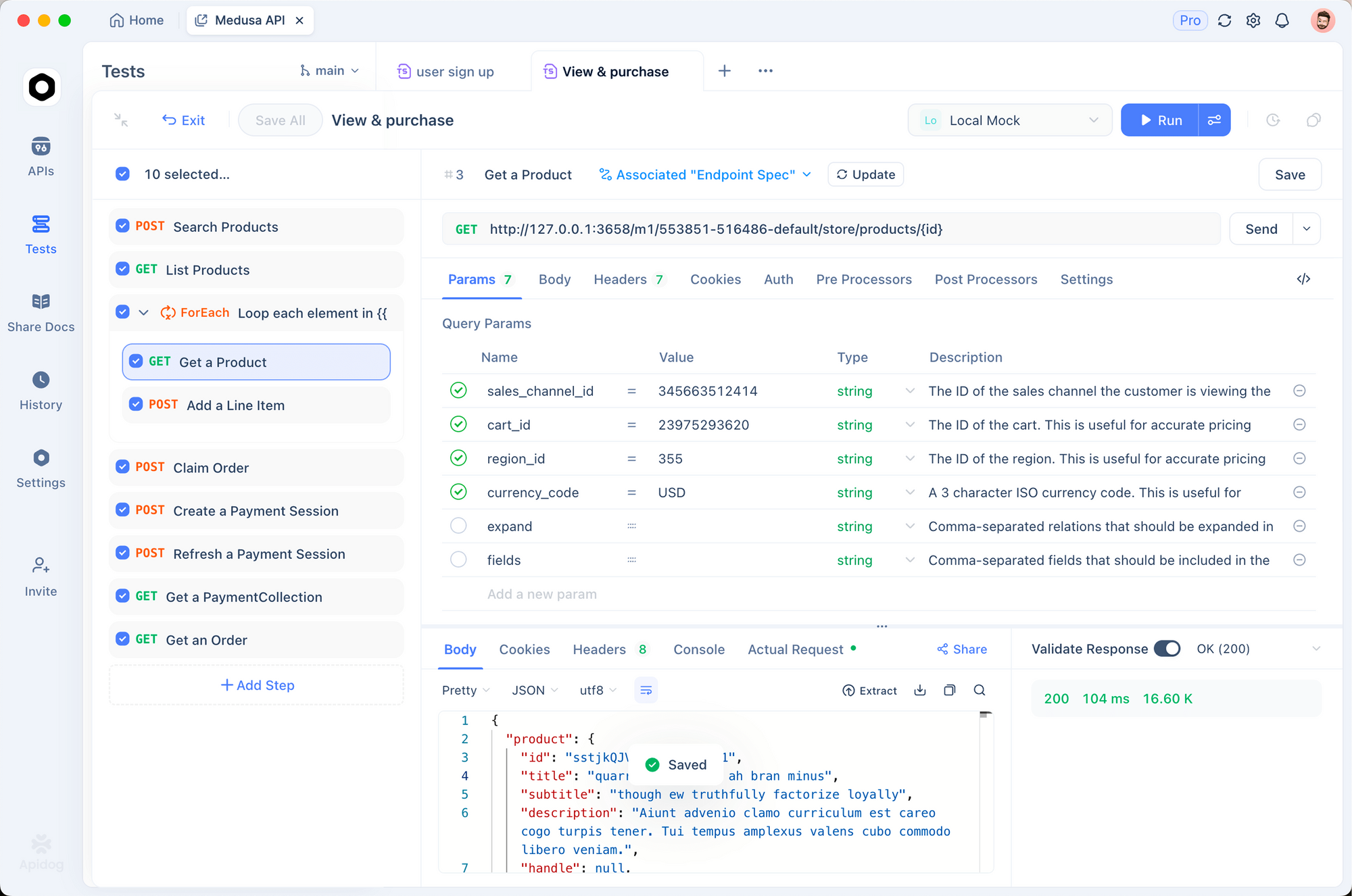
Using Apidog for Production API Workflows
Before deploying GPT-5.4 integrations to production, establish robust testing and monitoring workflows:
API Testing Pipeline:
- Use Apidog to create comprehensive test suites covering success and error cases
- Automate API tests in CI/CD pipelines to catch breaking changes
- Mock GPT-5.4 responses for integration tests to avoid token costs
- Generate API documentation automatically from tested requests
Team Collaboration:
- Share API collections with team members for consistent integration patterns
- Use environment variables to manage different API keys (dev/staging/production)
- Add request documentation explaining expected behavior and edge cases
Integration Pattern: Teams using Apidog report 40-60% faster API integration cycles. The ability to visually debug requests, create automated tests, and generate documentation in one platform eliminates context-switching between tools.
Cost Optimization Strategies
Prompt Optimization
# Bad: Verbose prompt
bad_prompt = """
Hello! I hope you're doing well. I was wondering if you could possibly help me
with something. I have this code here and I'm not quite sure what it does.
Could you please explain it to me? Here's the code:
""" + code

# Good: Direct prompt
good_prompt = f"Explain what this code does:\n{code}"

# Token savings: ~50 tokens = $0.000125 per request
# At 1M requests/month: $125 savings
Response Length Control
# Set max_tokens appropriately
response = client.chat.completions.create(
    model="gpt-5.4",
    messages=[{"role": "user", "content": "Summarize this article."}],
    max_tokens=200  # Don't let it ramble
)

# Use stop sequences
response = client.chat.completions.create(
    model="gpt-5.4",
    messages=[{"role": "user", "content": "List 5 items."}],
    stop=["\n\n", "6."]  # Stop after list
)
Batch Processing
# Use Batch API for 50% discount
from openai import OpenAI

client = OpenAI()

# Create batch file
batch_requests = []
for article in articles:
    batch_requests.append({
        "custom_id": article["id"],
        "method": "POST",
        "url": "/v1/chat/completions",
        "body": {
            "model": "gpt-5.4",
            "messages": [{"role": "user", "content": article["content"]}]
        }
    })

# Upload and process
batch_file = client.files.create(
    file=json.dumps(batch_requests),
    purpose="batch"
)

batch = client.batches.create(
    input_file_id=batch_file.id,
    endpoint="/v1/chat/completions",
    completion_window="24h"
)

# 50% cost savings for non-real-time workloads
Caching Repeated Requests
import hashlib
import json

class ResponseCache:
    """Cache identical API responses."""

    def __init__(self):
        self.cache = {}

    def _get_key(self, messages):
        return hashlib.md5(json.dumps(messages).encode()).hexdigest()

    def get_or_create(self, client, messages, **kwargs):
        key = self._get_key(messages)

        if key in self.cache:
            return self.cache[key]

        response = client.chat.completions.create(
            model="gpt-5.4",
            messages=messages,
            **kwargs
        )

        self.cache[key] = response
        return response

# Usage
cache = ResponseCache()
response = cache.get_or_create(client, messages)
Conclusion
GPT-5.4 opens new possibilities for AI-powered applications. Native computer use enables browser automation and cross-application workflows. Tool search reduces costs by 47% while supporting larger tool ecosystems. Enhanced vision handles complex document parsing. And 1M context windows process entire codebases.
Building production applications with GPT-5.4 requires robust API testing, debugging, and documentation workflows. Apidog provides a unified platform for the complete API lifecycle.
Whether you're building AI agents, automating workflows, or creating customer-facing features powered by GPT-5.4, having solid API development practices accelerates delivery and reduces bugs.
Start with basic chat completions, then layer in computer use, tool search, and vision as your use cases require. Monitor costs closely during initial deployment and optimize prompts and caching strategies.
FAQ
How do I use GPT-5.4 computer use feature?
Use the computer tool in API requests. Send screenshots as images, receive computer commands (click, type, scroll) in response. Execute commands using pyautogui or Playwright, then send new screenshots. Loop until task completion. Configure safety policies based on risk tolerance.
What is tool search and how do I enable it?
Tool search loads tool definitions on-demand instead of upfront, reducing token usage by 47%. Enable by providing a lightweight tool list in requests. The model requests full definitions when needed. Works automatically with MCP servers.
How do I use the 1M token context window?
Configure via extra_body parameters: model_context_window: 1048576 and model_auto_compact_token_limit: 272000. Note: Requests exceeding 272K tokens count at 2x usage rate. Available experimentally in Codex.
What is the difference between gpt-5.4 and gpt-5.4-pro?
GPT-5.4 Pro delivers higher accuracy on complex reasoning (89.3% vs 82.7% on BrowseComp) but costs 12x more ($30/$180 vs $2.50/$15). Use standard for most workloads, Pro for tasks requiring maximum accuracy.
How do I reduce GPT-5.4 API costs?
Use cached inputs (90% savings), optimize prompt length, set max_tokens limits, use Batch API (50% discount), implement response caching, and choose appropriate detail levels for images.
Can GPT-5.4 process multiple images in one request?
Yes. Include multiple image_url content parts in a single message. Useful for multi-page documents, comparison tasks, or sequential screenshots.
How do I handle rate limits in production?
Implement exponential backoff retry logic (1s, 2s, 4s delays), use Batch API for bulk processing, distribute requests over time, and request limit increases for high-volume needs.
What programming languages does GPT-5.4 support best?
GPT-5.4 excels at Python, JavaScript/TypeScript, React, Node.js, and common web technologies. Also strong in Java, Go, Rust, and SQL. Matches GPT-5.3-Codex performance (57.7% SWE-Bench Pro).
How do I stream GPT-5.4 responses?
Set stream=True in API requests. Iterate over chunks and process each delta. Reduces perceived latency for long responses.
Is GPT-5.4 suitable for production workloads?
Yes. GPT-5.4 has 33% fewer factual errors than GPT-5.2, uses tokens more efficiently, and includes robust error handling. Implement retry logic, monitoring, and cost tracking for production deployments.