

If you're a developer looking to supercharge your coding workflow, the combination of Claude Opus 4.6 and Cursor is exactly what you need. Released on February 5, 2026, Claude Opus 4.6 represents Anthropic's most capable AI model to date, and Cursor has already integrated it as a native option for developers worldwide.
Pro tip: Using Claude Opus 4.6 in Cursor? Add Apidog MCP Server so Claude can read your API specs directly—generate code, update DTOs, and scaffold endpoints from your Apidog or OpenAPI documentation without leaving the editor. Set up Apidog MCP Server in Cursor and give Claude Opus 4.6 full context of your APIs.
Claude Opus 4.6 in Cursor is a fundamental shift in how developers write, review, and debug code. With a massive 1-million-token context window, Claude Opus 4.6 can understand your entire project structure, making it the ideal companion for Cursor's AI-augmented development environment.
In this guide, you'll learn everything about using Claude Opus 4.6 with Cursor from initial setup to advanced configuration and best practices.
What Is Claude Opus 4.6?
Before diving into the Cursor setup, let's understand what makes Claude Opus 4.6 special. Claude Opus 4.6 is Anthropic's flagship AI model, designed specifically for complex reasoning, coding tasks, and long-horizon problem-solving.
Claude Opus 4.6 Key Features for Cursor Users
Claude Opus 4.6 brings several groundbreaking capabilities that make it perfect for Cursor integration:
- 1 Million Token Context Window: Claude Opus 4.6 can process up to 1 million tokens, meaning it can understand massive codebases within Cursor without losing context.
- 65.4% on Terminal-Bench 2.0: Claude Opus 4.6 achieves industry-leading results on coding benchmarks, outperforming competitors in real-world programming tasks.
- 72.7% on OSWorld: Claude Opus 4.6 excels at computer-using tasks, making it ideal for Cursor's integrated development environment.
- Superior Code Review: Claude Opus 4.6 provides more thorough and accurate code reviews than previous models, catching bugs that other AI assistants miss.
Claude Opus 4.6 Model ID and Pricing
When configuring Claude Opus 4.6 in Cursor, you'll need to know the price:
- Model ID:
claude-opus-4-6 - Input Pricing: $5 per million tokens
- Output Pricing: $25 per million tokens
- Cost Savings: Up to 90% with prompt caching, 50% with batch processing
What Is Cursor? The AI-First Code Editor
Cursor is a powerful AI-native code editor built as a fork of VS Code. What makes Cursor special is its deep integration with AI models like Claude Opus 4.6. Unlike traditional IDEs, Cursor was designed from the ground up to work with AI assistants.
Why Cursor Is Perfect for Claude Opus 4.6
Cursor's architecture makes it the ideal environment for Claude Opus 4.6:
- Full Project Context: Cursor reads your entire project, giving Claude Opus 4.6 complete understanding of your codebase.
- Native AI Integration: Cursor supports Claude Opus 4.6 without plugins or extensions.
- Smart Completions: Cursor leverages Claude Opus 4.6 for intelligent code suggestions.
- Inline Editing: Cursor allows Claude Opus 4.6 to make changes directly in your files.
How to Set Up Claude Opus 4.6 in Cursor: Step-by-Step Guide
Now let's walk through the complete process of setting up Claude Opus 4.6 in Cursor. Follow these steps to get Claude Opus 4.6 running in your Cursor IDE.
Step 1: Install or Update Cursor to the Latest Version
Before you can use Claude Opus 4.6 with Cursor, make sure you have the latest version of Cursor installed:
- Visit the official Cursor website
- Download the latest Cursor installer for your operating system
- Run the Cursor installer and follow the prompts
- Launch Cursor after installation completes
If you already have Cursor installed, check for updates by going to Help > Check for Updates within Cursor.
Step 2: Access Cursor Settings for Claude Opus 4.6 Configuration
To configure Claude Opus 4.6 in Cursor:
- Open Cursor on your computer
- Click on the gear icon or navigate to File > Preferences > Settings in Cursor
- In the Cursor settings panel, look for the Models section
- This is where you'll enable Claude Opus 4.6 for your Cursor workspace
Step 3: Enable Claude Opus 4.6 in Cursor's Model List
Within Cursor's model settings:
- Scroll through the available models in Cursor
- Find Claude Opus 4.6 in the Cursor model list
- Toggle the switch to enable Claude Opus 4.6 in Cursor
- Claude Opus 4.6 should now appear in your Cursor AI chat panel
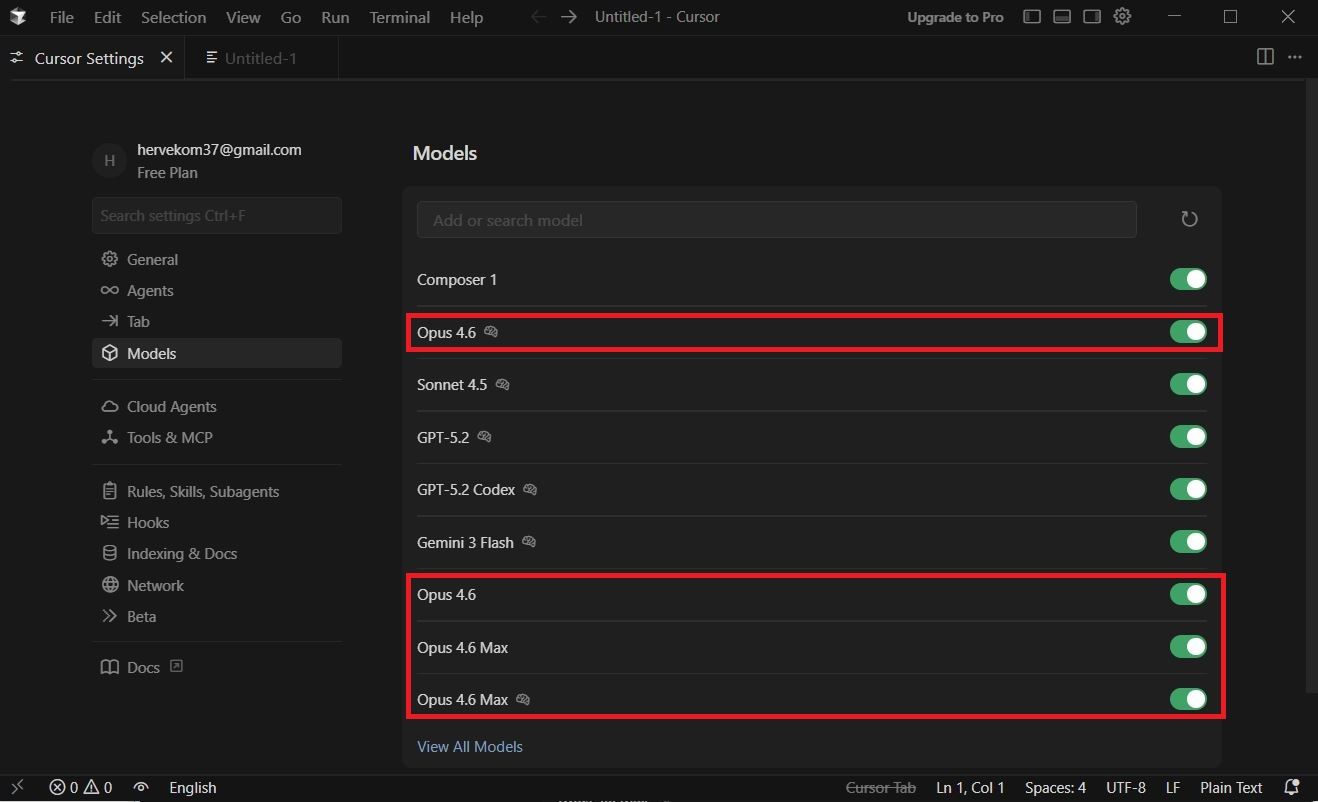
If Claude Opus 4.6 doesn't appear in your Cursor model list, proceed to Step 4.
Step 4: Add Your Anthropic API Key to Cursor for Claude Opus 4.6
To use Claude Opus 4.6 directly with your Anthropic API key in Cursor:
- In Cursor, navigate to Settings > Models > API Keys
- Look for the Anthropic API Key field in Cursor
- Enter your Anthropic API key to enable Claude Opus 4.6
- Click Save to confirm your Claude Opus 4.6 configuration in Cursor
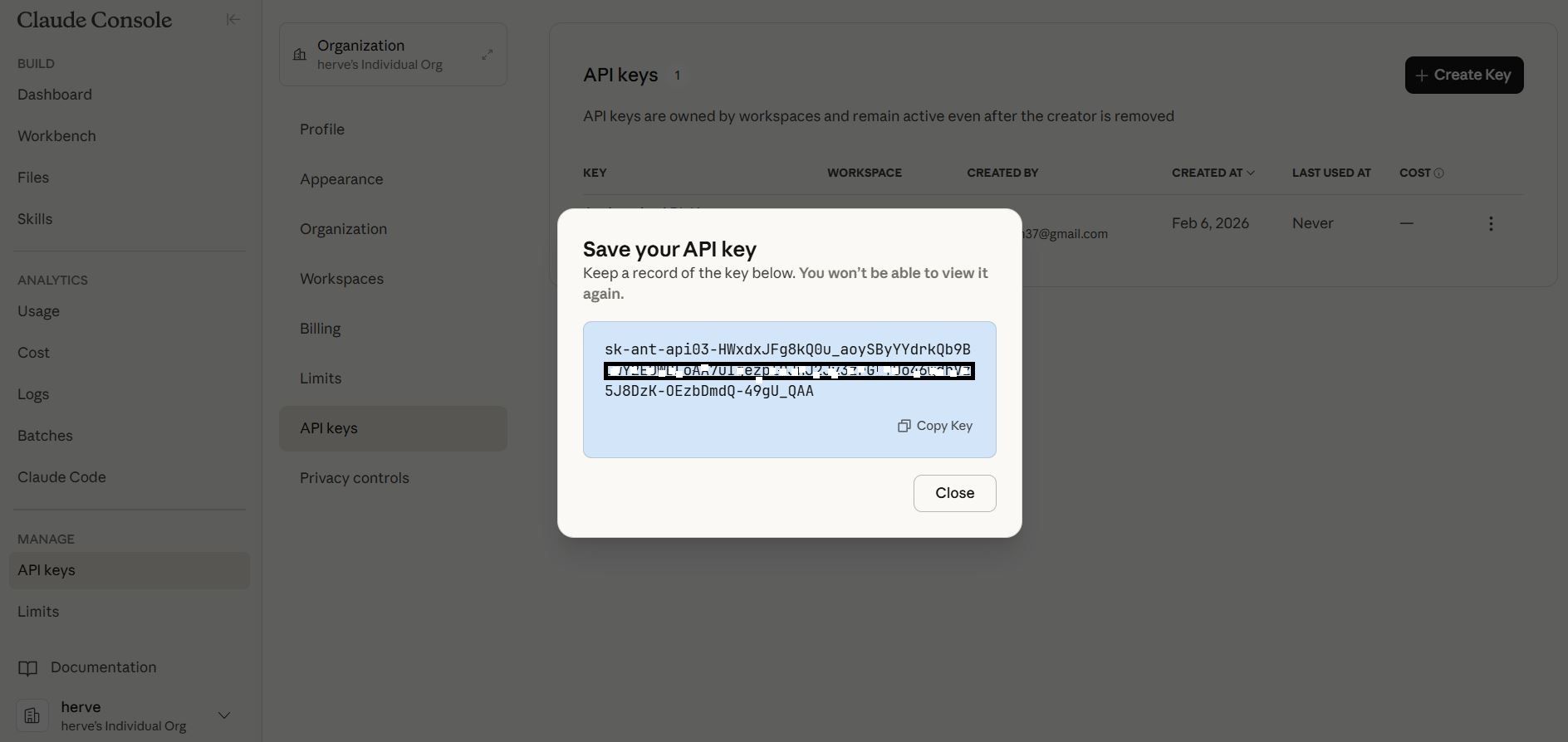
To get an Anthropic API key for Claude Opus 4.6:
- Visit the Anthropic Console
- Create an account or sign in
- Navigate to API Keys
- Generate a new key for Claude Opus 4.6 access
Step 5: Add Claude Opus 4.6 as a Custom Model in Cursor
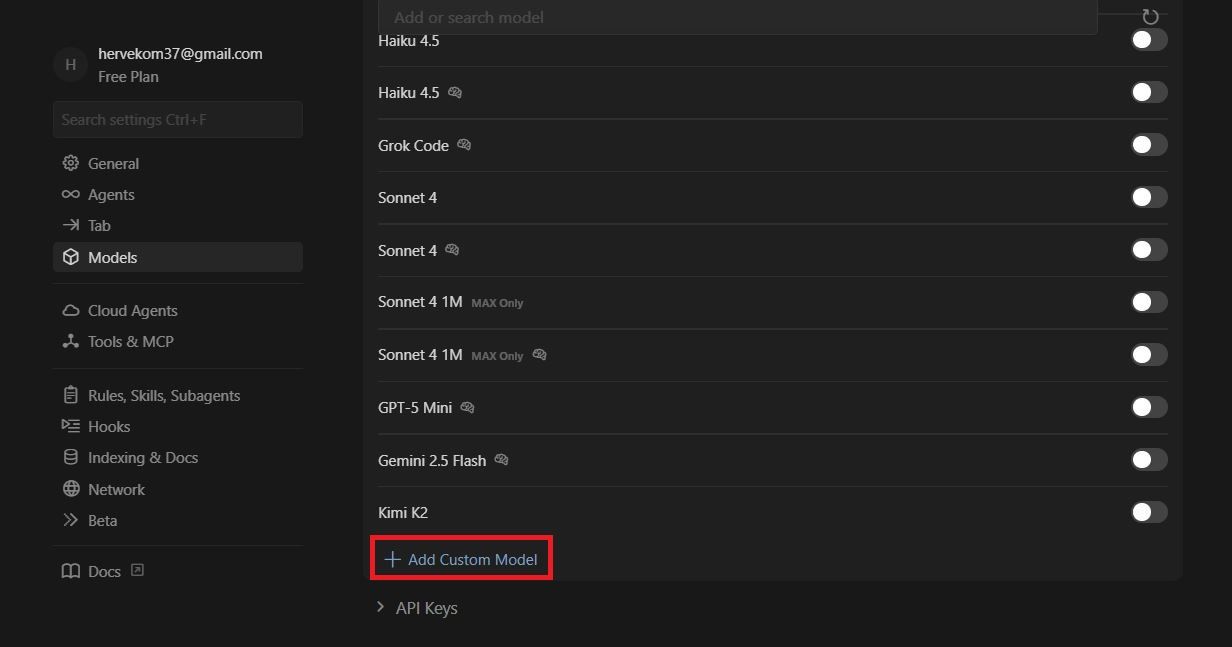
If Claude Opus 4.6 isn't available by default in Cursor:
- Go to Cursor Settings > Models
- Click Add Custom Model in Cursor
- Enter the model ID:
claude-opus-4-6 - Configure the endpoint for Claude Opus 4.6
- Save your custom Claude Opus 4.6 configuration in Cursor
Step 6: Select Claude Opus 4.6 in Cursor's AI Chat Panel
Once Claude Opus 4.6 is configured in Cursor:
- Open the AI Chat panel in Cursor (Ctrl+L or Cmd+L)
- Click the model selector dropdown in Cursor
- Choose Claude Opus 4.6 from the list
- Start chatting with Claude Opus 4.6 directly in Cursor
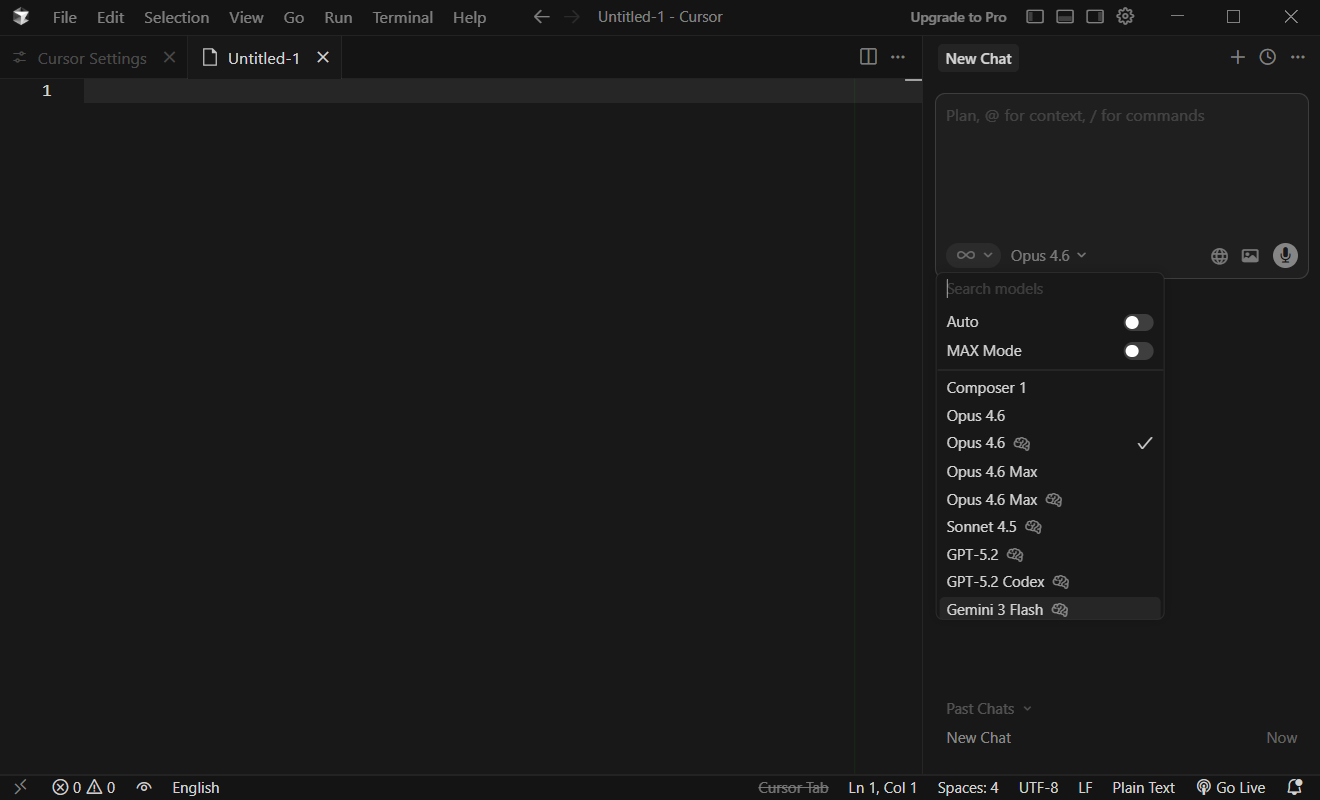
Using Claude Opus 4.6 in Cursor: Best Practices and Tips
Now that you have Claude Opus 4.6 running in Cursor, here are some tips to maximize your productivity.
Leverage Claude Opus 4.6's Context Window in Cursor
One of the biggest advantages of using Claude Opus 4.6 in Cursor is the massive context window. Claude Opus 4.6 can understand up to 1 million tokens, which means:
- Cursor can feed entire project structures to Claude Opus 4.6
- Claude Opus 4.6 remembers conversation history across long sessions in Cursor
- Complex refactoring tasks become easier with Claude Opus 4.6 in Cursor
Use Claude Opus 4.6 for Code Review in Cursor
Claude Opus 4.6 excels at code review within Cursor:
- Select the code you want reviewed in Cursor
- Open the Claude Opus 4.6 chat panel in Cursor
- Ask Claude Opus 4.6 to review the selected code
- Claude Opus 4.6 will provide detailed feedback directly in Cursor
Claude Opus 4.6 Inline Editing in Cursor
Cursor supports inline editing with Claude Opus 4.6:
- Press Ctrl+K (or Cmd+K) in Cursor to open inline edit mode
- Describe the changes you want Claude Opus 4.6 to make
- Claude Opus 4.6 will generate the edits directly in Cursor
- Review and accept the Claude Opus 4.6 suggestions in Cursor
Optimize Claude Opus 4.6 Performance in Cursor
To get the best results from Claude Opus 4.6 in Cursor:
- Be Specific: Give Claude Opus 4.6 clear instructions in Cursor
- Provide Context: Let Cursor share relevant files with Claude Opus 4.6
- Use Effort Parameter: For simpler tasks, reduce Claude Opus 4.6's effort level in Cursor to save costs and time
Troubleshooting Claude Opus 4.6 in Cursor
If you encounter issues with Claude Opus 4.6 in Cursor, try these solutions.
Claude Opus 4.6 Not Appearing in Cursor
If Claude Opus 4.6 doesn't show up in Cursor:
- Update Cursor to the latest version
- Check that your Anthropic API key is correctly entered in Cursor
- Try adding Claude Opus 4.6 as a custom model in Cursor
Claude Opus 4.6 Responses Are Slow in Cursor
If Claude Opus 4.6 takes too long to respond in Cursor:
- Check your internet connection
- Reduce the amount of context sent to Claude Opus 4.6 in Cursor
- Consider using Sonnet for simpler tasks, saving Claude Opus 4.6 for complex problems in Cursor
Claude Opus 4.6 API Errors in Cursor
If you see API errors when using Claude Opus 4.6 in Cursor:
- Verify your Anthropic API key is valid
- Check your API usage limits for Claude Opus 4.6
- Ensure you have sufficient credits for Claude Opus 4.6 usage
Claude Opus 4.6 vs Other Models in Cursor
When should you use Claude Opus 4.6 versus other models in Cursor?
When to Use Claude Opus 4.6 in Cursor
Choose Claude Opus 4.6 in Cursor for:
- Complex debugging and troubleshooting
- Large-scale refactoring projects
- Code review requiring deep analysis
- Long-running coding tasks
- Understanding large codebases
When to Use Sonnet in Cursor Instead of Claude Opus 4.6
Consider Sonnet in Cursor when:
- Working on simple, quick tasks
- Cost is a primary concern (Claude Opus 4.6 is more expensive)
- Speed matters more than depth
Conclusion: Getting Started with Claude Opus 4.6 in Cursor
Setting up Claude Opus 4.6 in Cursor is straightforward and unlocks powerful AI-assisted coding capabilities. With Claude Opus 4.6's 1-million-token context window and Cursor's deep project integration, you have access to one of the most advanced coding environments available today.
To recap, here's how to use Claude Opus 4.6 with Cursor:
- Install or update Cursor to the latest version
- Navigate to Settings > Models in Cursor
- Enable Claude Opus 4.6 or add it as a custom model
- Add your Anthropic API key in Cursor
- Select Claude Opus 4.6 from the model dropdown in Cursor
- Start coding with Claude Opus 4.6 assistance in Cursor
The combination of Claude Opus 4.6 and Cursor represents the future of AI-assisted development. Whether you're debugging complex issues, reviewing code, or building new features, Claude Opus 4.6 in Cursor provides the intelligence and context awareness you need to code faster and smarter.
Try Claude Opus 4.6 in Cursor today and experience the difference that Anthropic's most advanced model can make in your development workflow.
FAQs about Claude Opus 4.6 and Cursor
How do I enable Claude Opus 4.6 in Cursor?
To enable Claude Opus 4.6 in Cursor, go to Settings > Models and toggle on Claude Opus 4.6. If it's not listed, add your Anthropic API key under Settings > Models > API Keys, and Claude Opus 4.6 will become available in Cursor.
Is Claude Opus 4.6 free to use in Cursor?
Claude Opus 4.6 pricing depends on your usage. Cursor Pro subscribers may have included Claude Opus 4.6 access. For API usage, Claude Opus 4.6 costs $5 per million input tokens and $25 per million output tokens.
What is the model ID for Claude Opus 4.6 in Cursor?
The model ID for Claude Opus 4.6 is claude-opus-4-6. Use this when adding Claude Opus 4.6 as a custom model in Cursor.
Why is Claude Opus 4.6 better than other models in Cursor?
Claude Opus 4.6 offers a 1-million-token context window, superior code review capabilities, and better performance on complex tasks. In Cursor, Claude Opus 4.6 can understand your entire project, making it ideal for large-scale development.
Can I use Claude Opus 4.6 for free in Cursor?
Cursor offers limited free AI usage. For extensive Claude Opus 4.6 usage in Cursor, you'll need either a Cursor Pro subscription or your own Anthropic API key for Claude Opus 4.6 access.
How do I switch to Claude Opus 4.6 in Cursor chat?
In Cursor's AI chat panel, click the model selector dropdown and choose Claude Opus 4.6. Your subsequent conversations in Cursor will use Claude Opus 4.6.