Building applications with AI image generation feels like magic—until you hit the wall of complex API documentation, authentication headaches, and debugging nightmares. You've seen what Nano Banana 2 can do: stunning images generated from text prompts, Pro-quality output at Flash speeds, and features like subject consistency that make multi-image workflows possible. But actually integrating it into your codebase? That's where most developers get stuck.
You've probably tried wading through Google's documentation, piecing together authentication flows, and manually testing requests in a CLI. Maybe you've already burned through API quota debugging malformed requests or wondered why your images come back blurry every time. The truth is, integrating any new API, especially one as powerful as Nano Banana 2 requires more than just reading the docs. You need a workflow that lets you test quickly, iterate on prompts, and manage your API calls efficiently.
In this guide, we'll walk through everything you need to integrate Nano Banana 2 into your applications, from setting up your Google Cloud project to writing production-ready code in Python and JavaScript. But here's what makes this guide different: we'll show you how to test and debug every step using Apidog, so you're not just copying code, you're building a workflow you can maintain and scale.
Prerequisites
Before you start, make sure you have:
- A Google Cloud account (or sign up at cloud.google.com)
- Basic understanding of REST APIs
- Python 3.8+ or Node.js 18+ installed
- An API client like Apidog for testing
This guide assumes you're familiar with making HTTP requests and handling JSON data. If you're new to APIs, check out our API Testing Guide for fundamentals.
Setting Up Your Google Cloud Project
To use the Nano Banana 2 API, you need a Google Cloud project with the Generative Language API enabled.
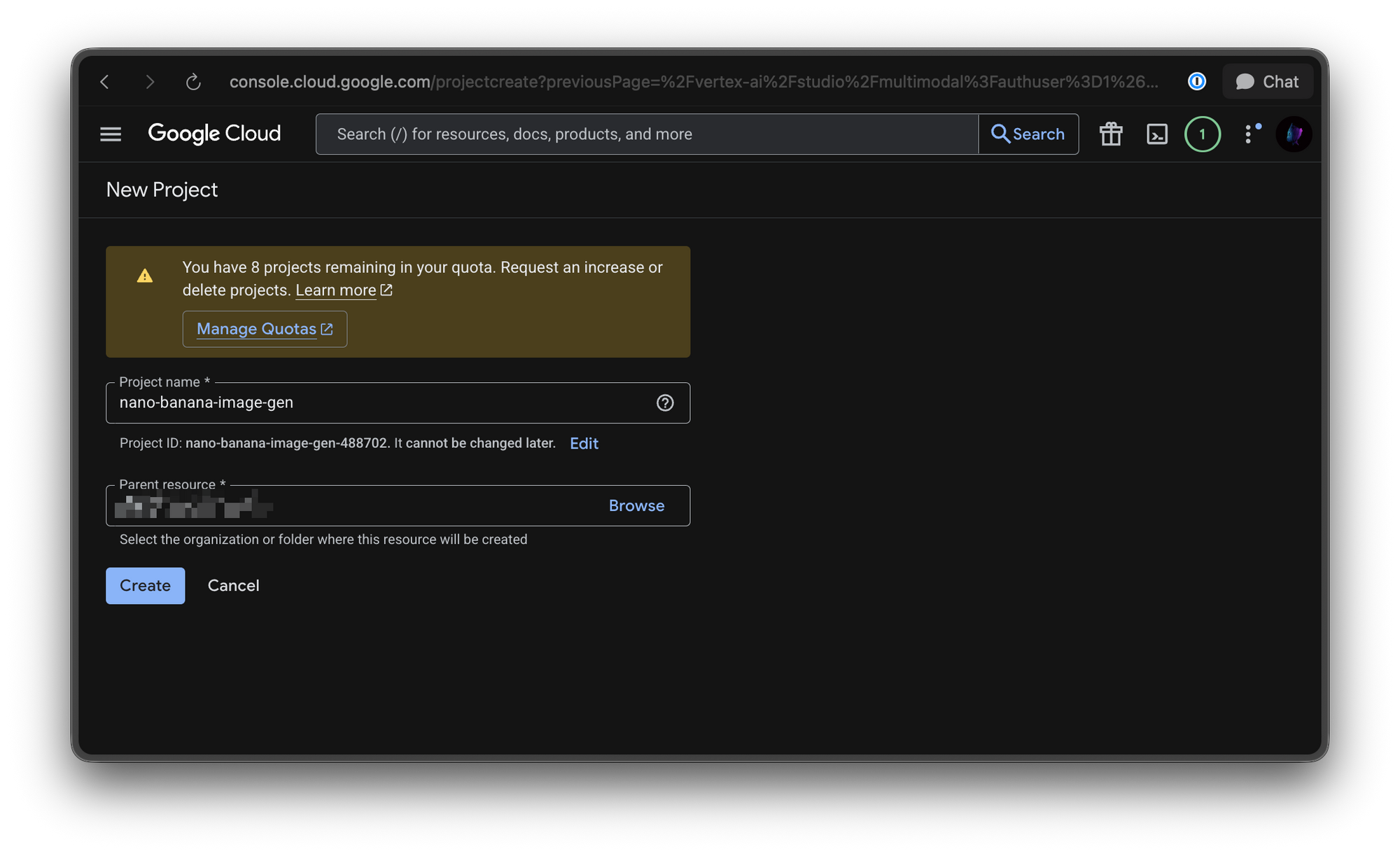
Step 1: Create a New Project
- Go to the Google Cloud Console
- Click "Select a project" → "New Project"
- Enter a project name (e.g., "nano-banana-image-gen")
- Click "Create"
- Wait for the project to be created
Step 2: Configure API Access
- Go to "APIs & Services" → "Credentials"
- Click "Create Credentials" → "API Key"
- Copy your API key (you'll need it later)
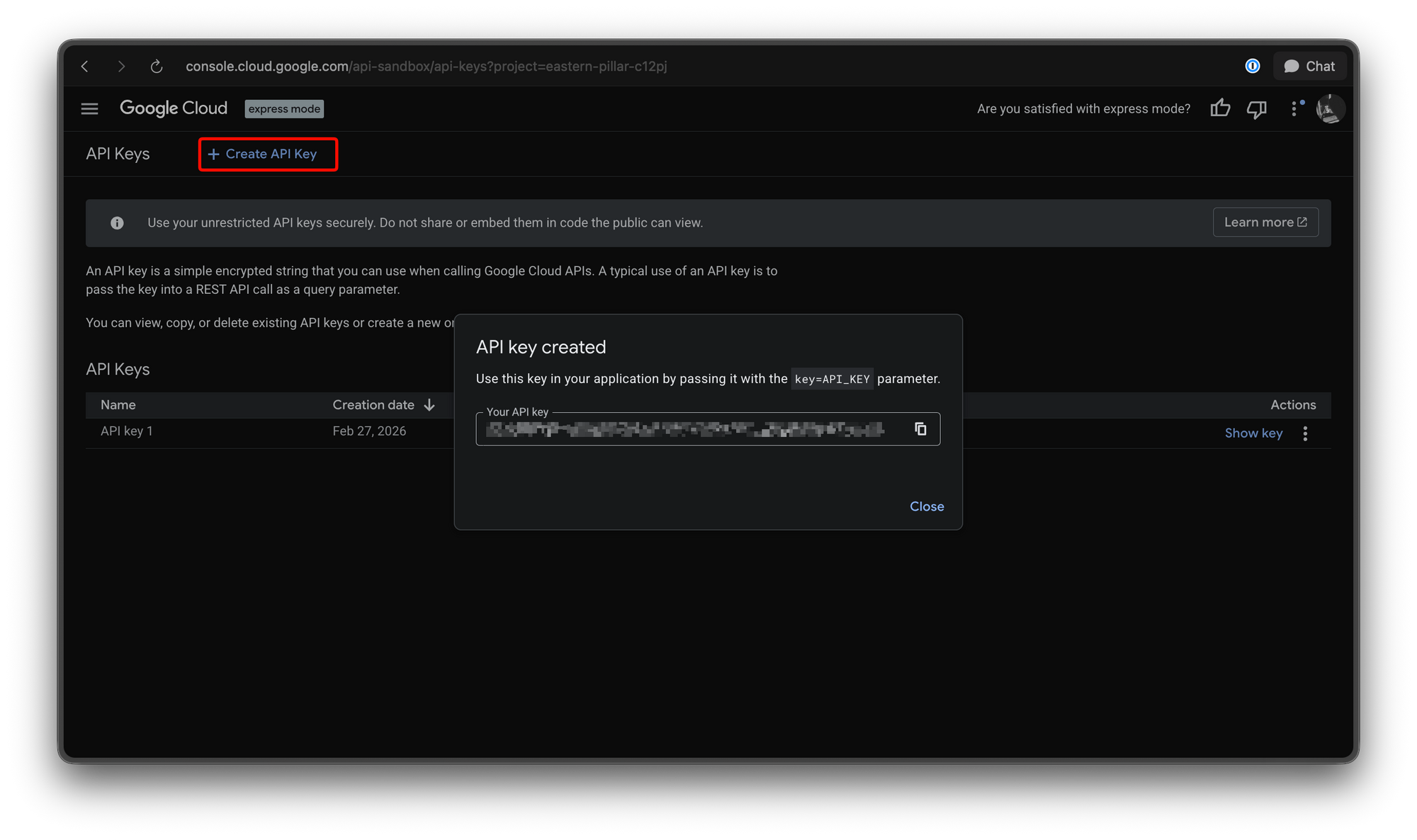
Pro Tip: It's best practice to restrict your API key in production. Limit it to the Generative Language API and your specific domains or IP addresses.
Getting Your API Key
There are two ways to get API access:
Option 1: Google Cloud Console (Recommended for Production)
Follow the steps above—the API key you created is your access credential.
Option 2: Google AI Studio (Recommended for Development)
- Go to Google AI Studio
- Sign in with your Google account
- Click "Get API Key" in the navigation
- Click "Create API Key" (or select an existing project)
- Copy your API key
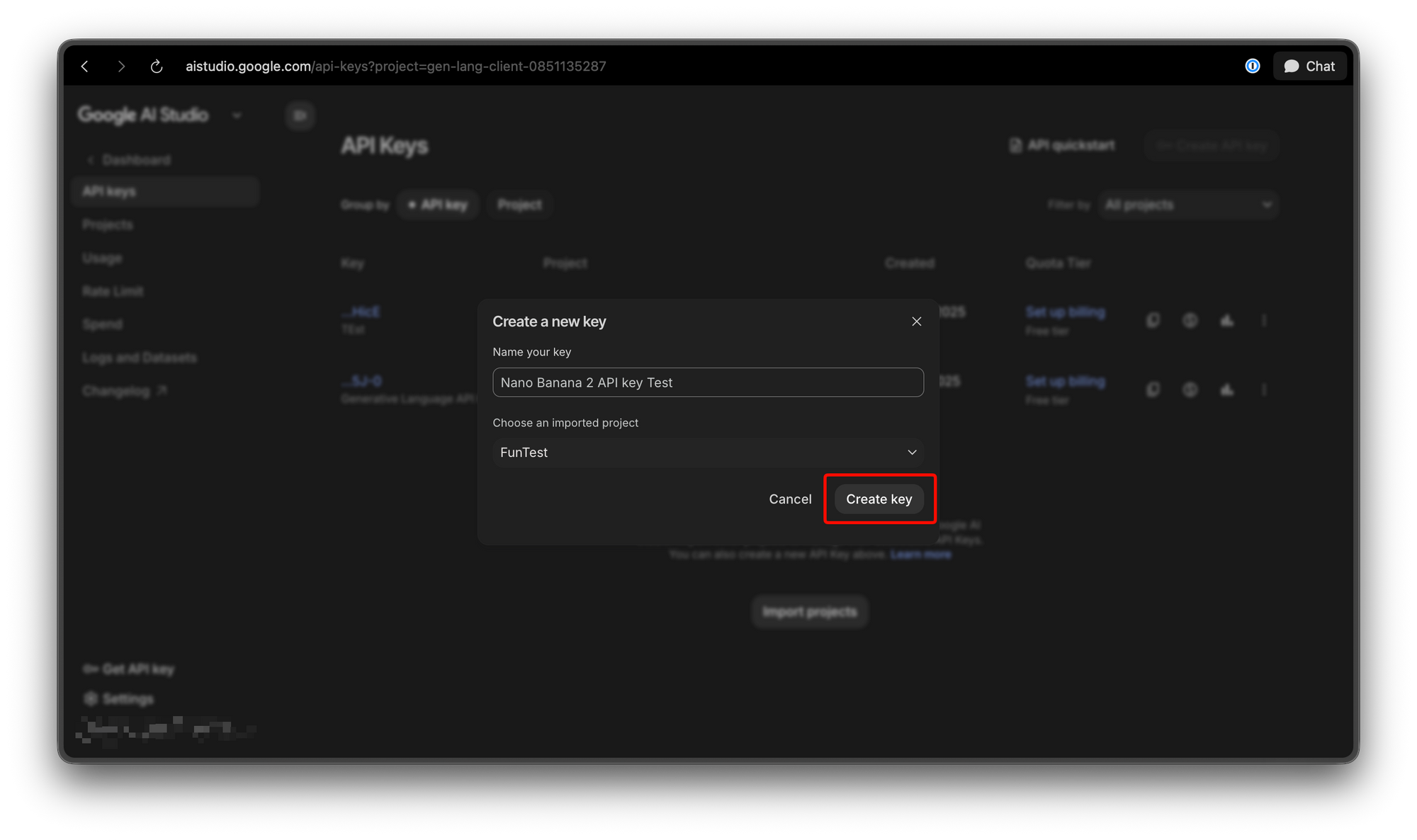
The AI Studio key is great for development and testing. For production, use the Google Cloud Console key for better management and security.
Your First API Request
Let's make a simple image generation request to verify everything works.
Using cURL
curl -X POST \
  "https://generativelanguage.googleapis.com/v1beta/models/gemini-2.0-flash-exp-image-generation:predict?key=YOUR_API_KEY" \
  -H "Content-Type: application/json" \
  -d '{
    "prompt": "A cute banana character wearing sunglasses, fun cartoon style",
    "number_of_images": 1
  }'
Understanding the Response
{
  "predictions": [
    {
      "image": {
        "mimeType": "image/png",
        "data": "iVBORw0KGgoAAAANSUhEUgAAAAEAAAABCAYAAAAfFcSJAAAADUlEQVR42mNk+M9QDwADhgGAWjR9awAAAABJRU5ErkJggg=="
      },
      "generatedImageId": "img_abc123xyz",
      "metadata": {
        "prompt": "A cute banana character wearing sunglasses, fun cartoon style",
        "seed": 12345,
        "finishReason": "SUCCESS"
      }
    }
  ],
  "metadata": {
    "modelVersion": "gemini-3.1-flash-image-preview",
    "processingTimeMs": 1250,
    "contentAuthenticity": {
      "synthID": "enabled",
      "c2pa": "enabled"
    }
  }
}
The data field contains a base64-encoded PNG image. You'll need to decode it to save or display the image.
Python Integration
Here's how to integrate Nano Banana 2 into your Python applications:
Installing the Client Library
pip install google-generativeai
Basic Image Generation
import google.generativeai as genai
import base64
import os

# Configure the API with your key
genai.configure(api_key=os.environ.get("GEMINI_API_KEY"))

# Create the model
model = genai.GenerativeModel("gemini-3.1-flash-image-preview")

# Generate an image
response = model.generate_images(
    prompt="A modern minimalist office with natural lighting, indoor plants, standing desk, 4k quality",
    number_of_images=1
)

# Save the image
if response.generated_images:
    image_data = response.generated_images[0].image_bytes
    with open("output_image.png", "wb") as f:
        f.write(image_data)
    print("Image saved to output_image.png")
Advanced Image Generation with Parameters
import google.generativeai as genai
from PIL import Image
import io

genai.configure(api_key=os.environ.get("GEMINI_API_KEY"))

model = genai.GenerativeModel("gemini-3.1-flash-image-preview")

# Generate with advanced parameters
response = model.generate_images(
    prompt="A futuristic cityscape at night with neon lights, flying cars, cyberpunk aesthetic",
    number_of_images=1,
    aspect_ratio="16:9",
    negative_prompt="blurry, low quality, distorted, ugly",
    safety_filter_level="block_medium_and_above"
)

# Process the response
for idx, generated_image in enumerate(response.generated_images):
    # Convert to PIL Image
    image = Image.open(io.BytesIO(generated_image.image_bytes))

    # Save with custom name
    image.save(f"generated_image_{idx}.png")

    # Access metadata
    print(f"Image {idx}: {generated_image.finish_reason}")
    print(f"Seed: {generated_image.seed}")
Batch Image Generation
import google.generativeai as genai
import os

genai.configure(api_key=os.environ.get("GEMINI_API_KEY"))
model = genai.GenerativeModel("gemini-3.1-flash-image-preview")

# Generate multiple images at once
prompts = [
    "A red sports car on a mountain road",
    "A cozy coffee shop interior",
    "A minimalist bedroom design",
    "A tropical beach sunset"
]

# Generate all images
for idx, prompt in enumerate(prompts):
    response = model.generate_images(
        prompt=prompt,
        number_of_images=1,
        aspect_ratio="16:9"
    )

    if response.generated_images:
        image_data = response.generated_images[0].image_bytes
        with open(f"image_{idx + 1}.png", "wb") as f:
            f.write(image_data)
        print(f"Generated: image_{idx + 1}.png")
Character Consistency Example
import google.generativeai as genai

genai.configure(api_key=os.environ.get("GEMINI_API_KEY"))
model = genai.GenerativeModel("gemini-3.1-flash-image-preview")

# Base character description
base_character = "A friendly cartoon robot with round body, blue eyes, antenna on head, white and light blue color scheme"

# Generate base character (note the seed for consistency)
response1 = model.generate_images(
    prompt=base_character + ", front view, standing pose",
    number_of_images=1,
    seed=42  # Important: note this seed
)

base_seed = response1.generated_images[0].seed
print(f"Base character seed: {base_seed}")

# Generate variations using the same seed
poses = [
    "sitting pose",
    "waving hand",
    "holding a ball",
    "walking"
]

for pose in poses:
    response = model.generate_images(
        prompt=f"{base_character}, {pose}, same character as seed {base_seed}",
        number_of_images=1,
        seed=base_seed  # Same seed maintains consistency
    )

    if response.generated_images:
        filename = f"robot_{pose.replace(' ', '_')}.png"
        with open(filename, "wb") as f:
            f.write(response.generated_images[0].image_bytes)
        print(f"Generated: {filename}")
JavaScript/Node.js Integration
Installing the Client Library
npm install @google/generative-ai
Basic Image Generation
const { GoogleGenerativeAI } = require("@google/generative-ai");
const fs = require("fs");
const path = require("path");

// Initialize with API key
const genAI = new GoogleGenerativeAI(process.env.GEMINI_API_KEY);

async function generateImage() {
  // Get the model
  const model = genAI.getGenerativeModel({
    model: "gemini-3.1-flash-image-preview",
  });

  // Generate image
  const result = await model.generateImages({
    prompt: "A beautiful sunset over the ocean with palm trees silhouette",
    numberOfImages: 1,
  });

  // Process the response
  if (result.generatedImages && result.generatedImages.length > 0) {
    const imageData = result.generatedImages[0].imageBytes;

    // Save to file
    fs.writeFileSync("sunset.png", Buffer.from(imageData, "base64"));
    console.log("Image saved to sunset.png");

    // Log metadata
    console.log("Seed:", result.generatedImages[0].seed);
    console.log("Finish Reason:", result.generatedImages[0].finishReason);
  }
}

generateImage().catch(console.error);
Handling Base64 Responses
const { GoogleGenerativeAI } = require("@google/generative-ai");
const fs = require("fs");

const genAI = new GoogleGenerativeAI(process.env.GEMINI_API_KEY);

async function generateAndProcessImage() {
  const model = genAI.getGenerativeModel({
    model: "gemini-3.1-flash-image-preview",
  });

  const result = await model.generateImages({
    prompt: "Professional headshot of a person in business attire, studio lighting",
    numberOfImages: 1,
    aspectRatio: "1:1",
    resolution: "1024x1024"
  });

  const generatedImage = result.generatedImages[0];

  // Decode base64
  const imageBuffer = Buffer.from(generatedImage.imageBytes, "base64");

  // Save with metadata in filename
  const filename = `portrait_${generatedImage.seed}.png`;
  fs.writeFileSync(filename, imageBuffer);

  return {
    filename,
    seed: generatedImage.seed,
    finishReason: generatedImage.finishReason
  };
}

generateAndProcessImage()
  .then(info => console.log("Generated:", info))
  .catch(err => console.error("Error:", err));
Express.js REST API Example
const express = require("express");
const { GoogleGenerativeAI } = require("@google/generative-ai");
const multer = require("multer");
const fs = require("fs");

const app = express();
const genAI = new GoogleGenerativeAI(process.env.GEMINI_API_KEY);

app.use(express.json());

// Image generation endpoint
app.post("/api/generate", async (req, res) => {
  try {
    const { prompt, aspect_ratio, negative_prompt, number_of_images } = req.body;

    const model = genAI.getGenerativeModel({
      model: "gemini-2.0-flash-exp-image-generation",
    });

    const result = await model.generateImages({
      prompt,
      numberOfImages: number_of_images || 1,
      aspectRatio: aspect_ratio || "1:1",
      negativePrompt: negative_prompt
    });

    // Convert images to base64 for response
    const images = result.generatedImages.map((img, idx) => ({
      id: idx,
      seed: img.seed,
      finishReason: img.finishReason,
      data: img.imageBytes // Base64 encoded
    }));

    res.json({
      success: true,
      images,
      metadata: {
        modelVersion: result.response?.metadata?.modelVersion,
        processingTimeMs: result.response?.metadata?.processingTimeMs
      }
    });
  } catch (error) {
    console.error("Generation error:", error);
    res.status(500).json({
      success: false,
      error: error.message
    });
  }
});

// Batch generation endpoint
app.post("/api/generate/batch", async (req, res) => {
  try {
    const { prompts } = req.body;
    const model = genAI.getGenerativeModel({
      model: "gemini-3.1-flash-image-preview",
    });

    const results = [];

    for (const prompt of prompts) {
      const result = await model.generateImages({
        prompt,
        numberOfImages: 1
      });

      results.push({
        prompt,
        seed: result.generatedImages[0]?.seed,
        success: !!result.generatedImages[0]
      });
    }

    res.json({ success: true, results });
  } catch (error) {
    res.status(500).json({ success: false, error: error.message });
  }
});

app.listen(3000, () => {
  console.log("Server running on port 3000");
});
Advanced Parameters
Nano Banana 2 supports various parameters to fine-tune your image generation:
Parameter Reference
| Parameter | Type | Description | Example |
|---|---|---|---|
prompt | string | Text description of desired image | "A cat sitting on a mat" |
number_of_images | integer | Number of images to generate (1-4) | 2 |
aspect_ratio | string | Image aspect ratio | "16:9", "1:1", "4:3" |
resolution | string | Output resolution | "1024x1024", "2048x2048" |
negative_prompt | string | Elements to exclude | "blurry, watermark" |
seed | integer | Random seed for reproducibility | 12345 |
safety_filter_level | string | Content filtering | "block_medium_and_above" |
Resolution Options
# Available resolutions
resolutions = [
    "512x512",    # Thumbnail, social media
    "768x768",    # Small web images
    "1024x1024",  # Standard square
    "1024x768",   # 4:3 landscape
    "1280x720",   # HD ready
    "1920x1080",  # Full HD
    "2048x2048",  # High quality
    "3840x2160"   # 4K
]

# Using specific resolution
response = model.generate_images(
    prompt="Professional product photography of a watch",
    resolution="2048x2048"
)
Aspect Ratios
aspect_ratios = [
    "1:1",    # Square (Instagram posts)
    "4:3",    # Standard photo
    "16:9",   # Landscape (YouTube, web)
    "9:16",   # Portrait (Stories, TikTok)
    "21:9",   # Ultrawide
    "3:4",    # Portrait standard
    "2:3"     # Portrait photo
]

# Using specific aspect ratio
response = model.generate_images(
    prompt="Modern office interior design",
    aspect_ratio="16:9"
)
Handling Responses
Parsing the Response Structure
import google.generativeai as genai

genai.configure(api_key=os.environ.get("GEMINI_API_KEY"))
model = genai.GenerativeModel("gemini-3.1-flash-image-preview")

response = model.generate_images(
    prompt="A fantasy castle on a mountain",
    number_of_images=2
)

# Access predictions (generated images)
for idx, image in enumerate(response.generated_images):
    print(f"Image {idx + 1}:")
    print(f"  - Seed: {image.seed}")
    print(f"  - Finish Reason: {image.finish_reason}")
    print(f"  - Image Bytes Length: {len(image.image_bytes)}")

# Access metadata
print("\nMetadata:")
print(f"  - Model Version: {response.response.metadata.model_version}")
print(f"  - Processing Time: {response.response.metadata.processing_time_ms}ms")
print(f"  - SynthID: {response.response.metadata.content_authenticity.synth_id}")
Converting to Different Formats
from PIL import Image
import io
import base64

def image_to_different_formats(image_bytes):
    """Convert generated image to multiple formats."""
    # Load as PIL Image
    img = Image.open(io.BytesIO(image_bytes))

    # Save as PNG
    img.save("image.png", "PNG")

    # Save as JPEG (with quality)
    img.save("image.jpg", "JPEG", quality=95)

    # Convert to WebP (smaller file size)
    img.save("image.webp", "WEBP", quality=85)

    # Get base64 for embedding
    buffered = io.BytesIO()
    img.save(buffered, format="PNG")
    base64_str = base64.b64encode(buffered.getvalue()).decode()

    return base64_str
Error Handling
Proper error handling is essential for production applications:
Python Error Handling
import google.generativeai as genai
from google.api_core.exceptions import (
    ResourceExhausted,
    InvalidArgument,
    ServiceUnavailable
)

genai.configure(api_key=os.environ.get("GEMINI_API_KEY"))
model = genai.GenerativeModel("gemini-3.1-flash-image-preview")

def generate_image_with_retry(prompt, max_retries=3):
    """Generate image with retry logic."""

    for attempt in range(max_retries):
        try:
            response = model.generate_images(
                prompt=prompt,
                number_of_images=1
            )
            return response

        except ResourceExhausted as e:
            # Rate limit or quota exceeded
            print(f"Rate limited (attempt {attempt + 1}/{max_retries})")
            if attempt < max_retries - 1:
                import time
                time.sleep(2 ** attempt)  # Exponential backoff
            else:
                raise Exception("Rate limit exceeded. Please try again later.")

        except InvalidArgument as e:
            # Invalid prompt or parameters
            raise ValueError(f"Invalid request: {e}")

        except ServiceUnavailable as e:
            # Service temporarily unavailable
            print(f"Service unavailable (attempt {attempt + 1}/{max_retries})")
            if attempt < max_retries - 1:
                import time
                time.sleep(5)  # Wait 5 seconds
            else:
                raise Exception("Service unavailable. Please try again later.")

    return None

# Usage
try:
    result = generate_image_with_retry("A beautiful landscape")
    if result:
        print("Image generated successfully")
except Exception as e:
    print(f"Error: {e}")
JavaScript Error Handling
const { GoogleGenerativeAI } = require("@google/generative-ai");

const genAI = new GoogleGenerativeAI(process.env.GEMINI_API_KEY);

async function generateImageWithRetry(prompt, maxRetries = 3) {
  const model = genAI.getGenerativeModel({
    model: "gemini-3.1-flash-image-preview",
  });

  for (let attempt = 0; attempt < maxRetries; attempt++) {
    try {
      const result = await model.generateImages({
        prompt,
        numberOfImages: 1
      });
      return result;
    } catch (error) {
      console.error(`Attempt ${attempt + 1} failed:`, error.message);

      if (error.message.includes("RESOURCE_EXHAUSTED")) {
        // Rate limited
        const delay = Math.pow(2, attempt) * 1000;
        console.log(`Rate limited. Retrying in ${delay}ms...`);
        await new Promise(resolve => setTimeout(resolve, delay));
      } else if (error.message.includes("INVALID_ARGUMENT")) {
        // Invalid prompt
        throw new Error(`Invalid prompt: ${error.message}`);
      } else if (attempt === maxRetries - 1) {
        throw error;
      }
    }
  }

  return null;
}

// Usage
generateImageWithRetry("A serene mountain lake at sunrise")
  .then(result => {
    if (result) {
      console.log("Image generated successfully");
    }
  })
  .catch(err => {
    console.error("Failed to generate image:", err.message);
  });
Common Error Codes
| Error Code | Description | Solution |
|---|---|---|
| 400 | Invalid request parameters | Check prompt, aspect ratio, resolution |
| 403 | API key invalid or lacks permissions | Verify API key and permissions |
| 429 | Rate limit exceeded | Implement backoff, reduce request frequency |
| 500 | Internal server error | Retry with exponential backoff |
| 503 | Service unavailable | Wait and retry |
Testing with Apidog
Apidog is an excellent tool for testing and debugging your Nano Banana 2 API integration:
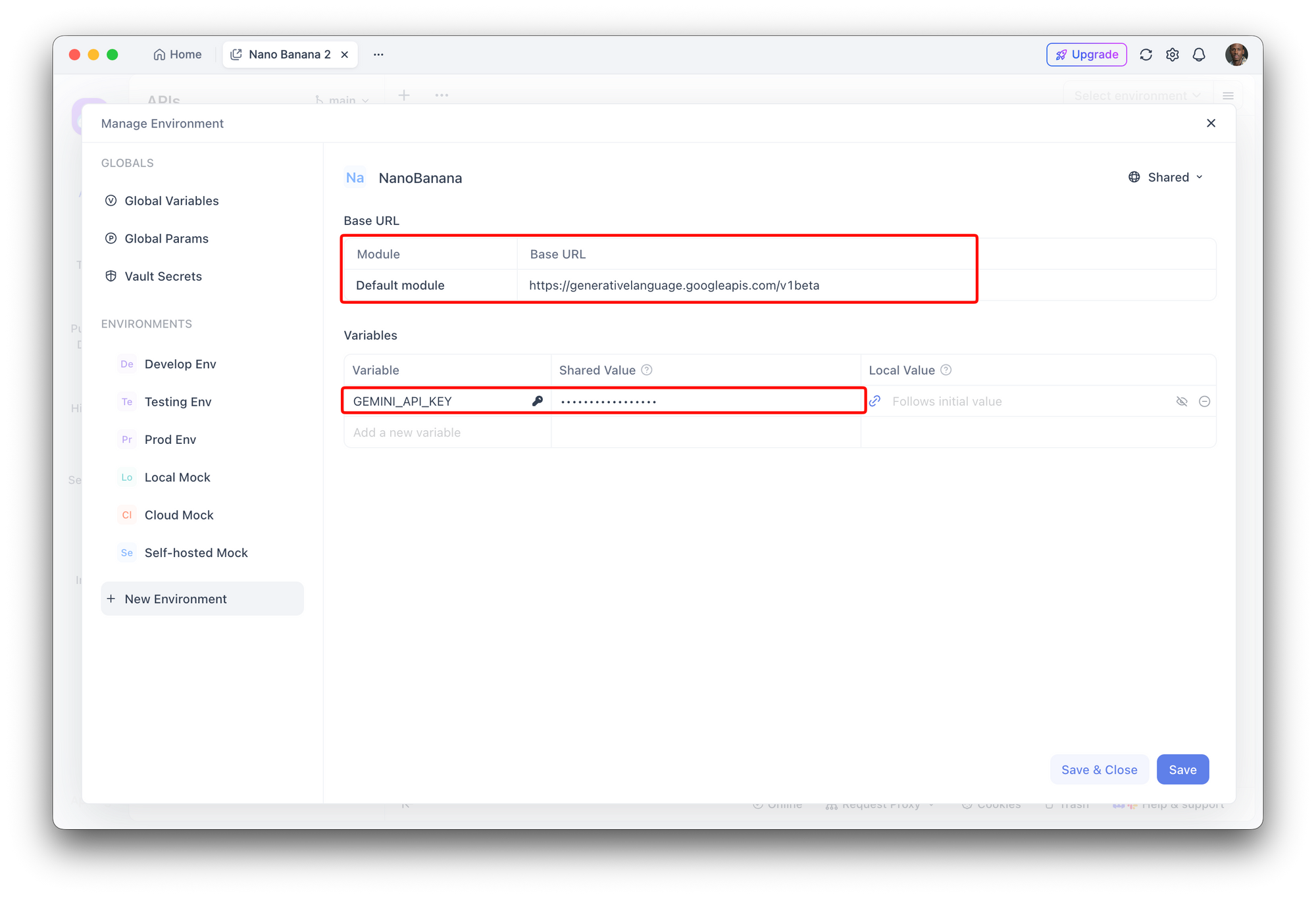
Setting Up Your Apidog Workspace
- Open Apidog and create a new project
- Add environment variables:
GEMINI_API_KEY: your_api_key_here
BASE_URL: https://generativelanguage.googleapis.com/v1beta
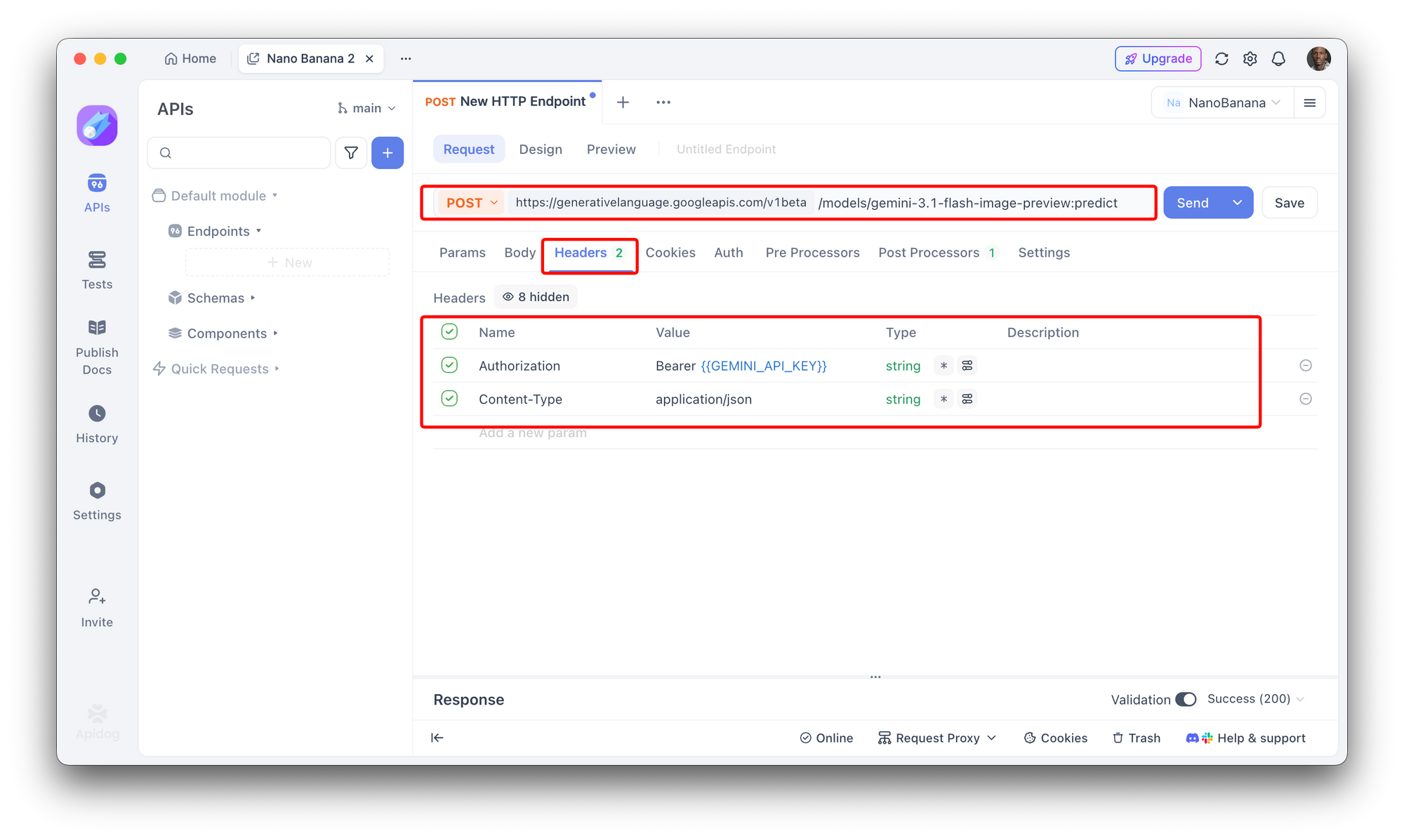
Creating API Requests
Endpoint: POST /models/gemini-3.1-flash-image-preview:predict
Headers:
Authorization: Bearer {{GEMINI_API_KEY}}
Content-Type: application/json
Request Body:
{
  "prompt": "{{prompt}}",
  "number_of_images": 1,
  "aspect_ratio": "1:1"
}
Query Parameters:
key: {{GEMINI_API_KEY}}
Writing Test Scripts
// Test: Successful generation
pm.test("Image generation successful", function() {
    var jsonData = pm.response.json();
    pm.expect(jsonData.predictions).to.have.property('image');
    pm.expect(jsonData.predictions[0].metadata.finishReason).to.eql('SUCCESS');
});

// Test: Response contains metadata
pm.test("Response has required metadata", function() {
    var jsonData = pm.response.json();
    pm.expect(jsonData.metadata).to.have.property('modelVersion');
    pm.expect(jsonData.metadata).to.have.property('processingTimeMs');
});

// Test: Content authenticity verified
pm.test("Content authenticity enabled", function() {
    var jsonData = pm.response.json();
    pm.expect(jsonData.metadata.contentAuthenticity.synthID).to.eql('enabled');
});

// Test: Response time acceptable
pm.test("Response time under 5 seconds", function() {
    pm.expect(pm.response.responseTime).to.be.below(5000);
});
Creating a Collection for Batch Testing
Save these requests in Apidog to build a test collection:
- Basic Generation - Single image generation
- Batch Generation - Multiple prompts
- Character Consistency - Same seed test
- Error Handling - Invalid prompt test
- Performance Test - Multiple concurrent requests
Production Best Practices
When deploying Nano Banana 2 in production:
1. Secure Your API Key
# Never hardcode API keys
# Use environment variables
import os

API_KEY = os.environ.get("GEMINI_API_KEY")

# Or use a secrets manager
# AWS Secrets Manager, HashiCorp Vault, etc.
2. Implement Caching
import hashlib
import redis

redis_client = redis.Redis(host='localhost', port=6379, db=0)

def generate_image_cached(prompt, seed=None):
    """Generate image with caching."""
    # Create cache key from prompt + seed
    cache_key = f"image:{hashlib.md5(f'{prompt}:{seed}'.encode()).hexdigest()}"

    # Check cache
    cached = redis_client.get(cache_key)
    if cached:
        return cached

    # Generate new image
    response = model.generate_images(prompt=prompt, seed=seed)
    image_data = response.generated_images[0].image_bytes

    # Cache for 24 hours
    redis_client.setex(cache_key, 86400, image_data)

    return image_data
3. Rate Limiting
from flask import Flask, request, jsonify
from flask_limiter import Limiter

app = Flask(__name__)
limiter = Limiter(app, key_func=lambda: request.headers.get("X-API-Key"))

@app.route("/generate", methods=["POST"])
@limiter.limit("10 per minute")  # Adjust based on your quota
def generate():
    # Your generation logic
    pass
4. Monitoring and Logging
import logging

logging.basicConfig(level=logging.INFO)
logger = logging.getLogger(__name__)

def generate_with_logging(prompt):
    logger.info(f"Generating image for prompt: {prompt[:50]}...")

    start_time = time.time()
    try:
        response = model.generate_images(prompt=prompt)
        elapsed = time.time() - start_time

        logger.info(f"Generated successfully in {elapsed:.2f}s")
        return response

    except Exception as e:
        elapsed = time.time() - start_time
        logger.error(f"Failed after {elapsed:.2f}s: {e}")
        raise
5. Webhook for Async Processing
For large batch jobs, use webhooks:
# Request with webhook
response = model.generate_images(
    prompt="Generate 10 product images",
    number_of_images=10,
    webhook_url="https://your-server.com/webhook/nano-banana"
)

# Your webhook handler
@app.route("/webhook/nano-banana", methods=["POST"])
def handle_webhook():
    data = request.json

    if data["status"] == "completed":
        images = data["images"]
        # Process completed images
    elif data["status"] == "failed":
        # Handle failure
        pass

    return jsonify({"received": True})
Conclusion
The Nano Banana 2 API provides a powerful way to integrate AI image generation into your applications. With support for multiple programming languages, flexible parameters, and robust error handling, you can build everything from simple image generators to complex production workflows.
Key takeaways:
- Getting started requires a Google Cloud project and API key
- Python and JavaScript SDKs make integration straightforward
- Advanced parameters like seeds and negative prompts give you fine control
- Apidog helps test and debug your API integration
- Production deployments need security, caching, rate limiting, and monitoring
Start with the basic examples in this guide, then progressively add advanced features as you become more comfortable with the API.
Next Step: Try integrating Nano Banana 2 with Apidog to test your API calls. Import your Postman collection or create new requests to experiment with different prompts and parameters.