TL;DR
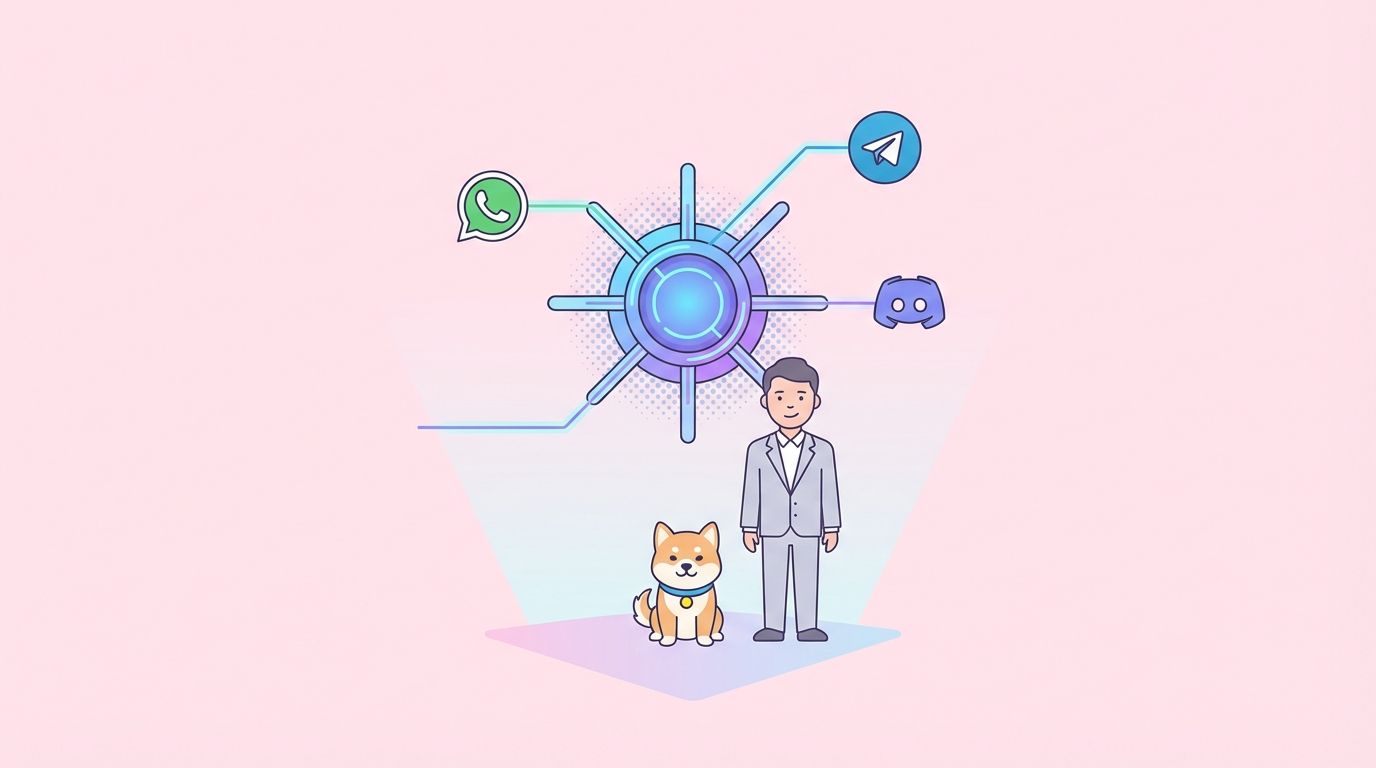
OpenClaw is a self-hosted gateway that connects WhatsApp, Telegram, Discord, and iMessage to AI coding agents. You run one Gateway process on your machine, and it becomes the bridge between your messaging apps and an AI assistant you control. No cloud dependencies, no data sharing, just your AI on your terms.
Why Multi-Channel AI Matters
You're on WhatsApp when a client asks about an API endpoint. You switch to Telegram to check with your team. Then Discord pings with a bug report. Each platform has its own context, its own conversation history, and you're juggling three different AI assistants.
This fragmentation costs time. Developers waste 23% of their workday switching between tools, according to a 2024 study by the University of California. That's nearly 2 hours lost daily to context switching.
OpenClaw solves this. It's a self-hosted gateway that connects all your messaging platforms to a single AI assistant. One setup, multiple channels, zero vendor lock-in. You control the data, you choose the AI model, and you decide which messages go where.
This guide shows you how to set up OpenClaw, connect multiple messaging platforms, and configure multi-agent routing. By the end, you'll have a personal AI assistant that works everywhere you do.
What is OpenClaw?
OpenClaw is an open-source gateway that sits between your messaging apps and AI agents. Think of it as a universal translator for AI conversations.

Here's what makes it different:
Self-hosted: You run it on your hardware. No third-party servers see your messages.
Multi-channel: One Gateway process handles WhatsApp, Telegram, Discord, iMessage, and more simultaneously.
Agent-native: Built for coding agents with tool use, sessions, memory, and multi-agent routing.
Open source: MIT licensed. You can fork it, modify it, or contribute back.
The architecture is straightforward. The Gateway runs as a Node.js process. It maintains persistent connections to your messaging platforms and routes messages to AI providers like Anthropic, OpenAI, or local models. Each conversation gets its own session with isolated memory.
How it works
- You send a message on WhatsApp
- OpenClaw receives it through the WhatsApp channel
- The Gateway routes it to your configured AI agent
- The agent processes the message and generates a response
- OpenClaw sends the response back to WhatsApp
The same flow works for Telegram, Discord, or any other connected channel. The Gateway handles authentication, session management, and message formatting automatically.
Key capabilities
Multi-channel gateway: Connect WhatsApp, Telegram, Discord, and iMessage with a single Gateway process. Each channel runs independently, so if one fails, the others keep working.
Plugin channels: Add Mattermost and other platforms with extension packages. The plugin system lets you write custom channel adapters without modifying core code.
Multi-agent routing: Route messages to different AI agents based on sender, channel, or content. You can have one agent for code questions, another for documentation, and a third for general chat.
Media support: Send and receive images, audio, and documents. The Gateway handles file uploads, downloads, and format conversions automatically.
Web Control UI: Browser dashboard for chat, config, sessions, and nodes. You can monitor all conversations, adjust routing rules, and debug issues from one interface.
Mobile nodes: Pair iOS and Android devices for Canvas, camera/screen capture, and voice-enabled workflows. Your phone becomes an extension of the Gateway.
Setting Up Your First Gateway
You need Node.js 22 or later, an API key from your AI provider, and 5 minutes. I'll use Anthropic's Claude as the example, but the process works for any provider.
Installation
Install OpenClaw globally:
npm install -g openclaw@latest
This adds the openclaw command to your PATH. You can now run it from any directory.
Onboarding
Run the onboarding wizard:
openclaw onboard --install-daemon
The wizard asks for:
- AI provider: Choose from Anthropic, OpenAI, or custom endpoints
- API key: Paste your key (it's stored locally in
~/.openclaw/config.json) - Default model: Pick the model you want to use (e.g.,
claude-sonnet-4-6) - Daemon setup: Whether to run OpenClaw as a background service
The --install-daemon flag sets up OpenClaw to start automatically when your system boots. If you prefer manual control, skip this flag.
First channel connection
Connect WhatsApp:
openclaw channels login
This opens a QR code in your terminal. Scan it with WhatsApp on your phone, just like you would for WhatsApp Web. OpenClaw uses the same protocol, so it's as secure as the official client.
Once connected, WhatsApp appears in your channel list:
openclaw channels list
Output:
Active channels:
- whatsapp (connected)
Start the Gateway
Launch the Gateway:
openclaw gateway --port 18789
The Gateway starts and listens on port 18789. You'll see:
OpenClaw Gateway v1.0.0
Listening on http://localhost:18789
Channels: whatsapp (connected)
Agents: default (claude-sonnet-4-6)
Open http://localhost:18789 in your browser. The Control UI shows your active channels, connected agents, and recent messages.
Test it
Send a message to your WhatsApp number from another device. Ask something like "What's the weather?" or "Explain async/await in JavaScript."
The Gateway receives the message, routes it to Claude, and sends the response back to WhatsApp. You should see the reply within seconds.
Check the Control UI. It shows the full conversation, including the raw message data and routing decisions.
Connecting Multiple Channels
Now that WhatsApp works, let's add Telegram and Discord.
Telegram setup
Create a Telegram bot:
- Open Telegram and search for @BotFather
- Send
/newbotand follow the prompts - Copy the bot token (looks like
123456:ABC-DEF1234ghIkl-zyx57W2v1u123ew11)
Add the bot to OpenClaw:
openclaw channels add telegram --token YOUR_BOT_TOKEN
The bot appears in your channel list. Start a conversation with it on Telegram. Send a message, and OpenClaw routes it to the same AI agent handling WhatsApp.
Discord setup
Create a Discord bot:
- Go to the Discord Developer Portal
- Click "New Application" and give it a name
- Go to the "Bot" tab and click "Add Bot"
- Copy the bot token
- Enable "Message Content Intent" under Privileged Gateway Intents
Add the bot to OpenClaw:
openclaw channels add discord --token YOUR_BOT_TOKEN
Invite the bot to your Discord server using the OAuth2 URL from the Developer Portal. Make sure to grant it "Send Messages" and "Read Message History" permissions.
iMessage setup (macOS only)
iMessage requires a Mac because it uses the Messages app's private APIs. OpenClaw runs a local bridge that intercepts messages.
Enable iMessage:
openclaw channels add imessage
Grant OpenClaw accessibility permissions when macOS prompts you. The bridge starts automatically and monitors your Messages app.
Send a message to yourself or a test contact. OpenClaw picks it up and routes it to your AI agent.
Channel status
Check all connected channels:
openclaw channels list
Output:
Active channels:
- whatsapp (connected)
- telegram (connected)
- discord (connected)
- imessage (connected, macOS only)
Each channel runs independently. If one disconnects, the others keep working. The Gateway logs connection issues and tries to reconnect automatically.
Multi-Agent Routing Explained
Multi-agent routing lets you send messages to different AI agents based on rules. You can route by sender, channel, keyword, or custom logic.
Why use multiple agents?
Different tasks need different models. Code questions benefit from models trained on programming. General chat works better with conversational models. Documentation queries need models with large context windows.
You can also use different providers. Route sensitive data to a local model running on your machine. Send everything else to a cloud provider for speed.
Default routing
By default, all messages go to the agent you configured during onboarding. This works fine for simple setups, but you'll want more control as you add channels.
Route by channel
Send WhatsApp messages to one agent and Telegram messages to another:
openclaw routing add --channel whatsapp --agent code-assistant
openclaw routing add --channel telegram --agent general-chat
Now WhatsApp conversations use the code-assistant agent, while Telegram uses general-chat.
Route by sender
Route messages from specific users to dedicated agents:
openclaw routing add --sender +1234567890 --agent client-support
Messages from that phone number always go to the client-support agent, regardless of channel.
Route by keyword
Trigger specific agents based on message content:
openclaw routing add --keyword "debug" --agent debugging-specialist
openclaw routing add --keyword "docs" --agent documentation-writer
If a message contains "debug", it goes to the debugging-specialist agent. Messages with "docs" go to documentation-writer.
Route by priority
Rules have priorities. Higher priority rules match first:
openclaw routing add --channel whatsapp --agent default --priority 1
openclaw routing add --sender +1234567890 --agent vip --priority 10
Messages from +1234567890 on WhatsApp go to the vip agent because priority 10 beats priority 1.
Custom routing logic
For complex scenarios, write a routing function in JavaScript:
// ~/.openclaw/routing.js
module.exports = function route(message) {
  // Route based on time of day
  const hour = new Date().getHours();
  if (hour >= 9 && hour < 17) {
    return 'work-agent';
  }
  return 'personal-agent';
};
Enable custom routing:
openclaw routing set-custom ~/.openclaw/routing.js
The Gateway calls your function for every message. Return the agent name, and OpenClaw routes accordingly.
Session isolation
Each agent gets its own session. Conversations with the code-assistant agent don't leak into general-chat. Memory, context, and tool state stay separate.
You can share sessions across agents if needed:
openclaw routing add --channel whatsapp --agent code-assistant --shared-session
Now all WhatsApp conversations share one session, even if they route to different agents.
Advanced Configuration
Environment variables
OpenClaw reads config from environment variables. Set them in ~/.openclaw/.env:
# AI provider settings
ANTHROPIC_API_KEY=your_key_here
OPENAI_API_KEY=your_key_here

# Gateway settings
GATEWAY_PORT=18789
GATEWAY_HOST=0.0.0.0

# Logging
LOG_LEVEL=info
LOG_FILE=~/.openclaw/gateway.log

# Session settings
SESSION_TIMEOUT=3600
MAX_CONTEXT_LENGTH=100000
Restart the Gateway after changing config:
openclaw gateway restart
Custom AI providers
Add a custom provider:
openclaw providers add custom \
  --endpoint https://your-api.com/v1/chat \
  --auth-header "Authorization: Bearer YOUR_TOKEN" \
  --model your-model-name
Use it in routing:
openclaw routing add --channel discord --agent custom-agent --provider custom
Webhooks
Send messages to external services:
openclaw webhooks add \
  --url https://your-service.com/webhook \
  --event message.received \
  --channel whatsapp
Every WhatsApp message triggers a POST request to your webhook with the message data.
Rate limiting
Protect your API quota:
openclaw limits set --agent code-assistant --max-requests 100 --window 3600
This limits the code-assistant agent to 100 requests per hour. Excess requests get queued or rejected based on your config.
Backup and restore
Export your config:
openclaw config export > openclaw-backup.json
Restore it later:
openclaw config import openclaw-backup.json
This includes channels, routing rules, agents, and webhooks. API keys aren't exported for security.
Real-World Use Cases
Freelance developer
Sarah runs a freelance development business. Clients message her on WhatsApp, her team uses Telegram, and she monitors Discord for open-source projects.
She set up OpenClaw with three agents:
client-support: Handles client questions, routes to Claude Opus for accuracyteam-chat: Answers team questions, uses Claude Sonnet for speedoss-helper: Monitors Discord, uses a local Llama model for privacy
Routing rules:
openclaw routing add --channel whatsapp --agent client-support
openclaw routing add --channel telegram --agent team-chat
openclaw routing add --channel discord --agent oss-helper
Now she gets context-aware responses on every platform without switching tools.
API testing team
A team at a fintech company tests APIs across multiple environments. They use Telegram for internal chat and Discord for vendor communication.
They configured OpenClaw to route API-related questions to an agent with access to their API documentation:
openclaw routing add --keyword "api" --agent api-specialist
openclaw routing add --keyword "endpoint" --agent api-specialist
The api-specialist agent has tools that query their internal API catalog and generate test cases. Team members ask questions like "How do I authenticate with the payment API?" and get instant, accurate answers with code examples.
Remote team coordination
A distributed team uses WhatsApp for urgent issues, Telegram for daily standups, and Discord for technical discussions.
They set up time-based routing:
// Route urgent messages to a high-priority agent during work hours
module.exports = function route(message) {
  const hour = new Date().getHours();
  const isWorkHours = hour >= 9 && hour < 18;

  if (message.channel === 'whatsapp' && isWorkHours) {
    return 'urgent-agent';
  }

  if (message.channel === 'telegram') {
    return 'standup-agent';
  }

  return 'general-agent';
};
The urgent-agent uses Claude Opus for accuracy. The standup-agent uses Claude Sonnet for speed. The general-agent uses a local model to save costs.
Troubleshooting Common Issues
WhatsApp disconnects frequently
WhatsApp's protocol is sensitive to network changes. If you're on a laptop that switches between WiFi networks, disconnections happen.
Fix:
- Use a stable network connection
- Run OpenClaw on a server instead of a laptop
- Enable auto-reconnect:
openclaw channels config whatsapp --auto-reconnect true
Telegram bot doesn't respond
Check bot permissions. The bot needs "Send Messages" and "Read Message History" in group chats.
Verify the token:
openclaw channels test telegram
If it fails, regenerate the token from @BotFather and update OpenClaw:
openclaw channels update telegram --token NEW_TOKEN
Discord bot offline
Discord bots need the "Message Content Intent" enabled. Go to the Developer Portal, select your app, go to the Bot tab, and enable it under Privileged Gateway Intents.
Restart the Gateway after enabling:
openclaw gateway restart
High API costs
Check your usage:
openclaw stats --agent code-assistant --period 7d
This shows request counts, token usage, and estimated costs for the past 7 days.
Reduce costs:
- Use cheaper models for simple queries
- Enable rate limiting
- Route non-critical messages to local models
Messages delayed
The Gateway queues messages when the AI provider is slow. Check queue status:
openclaw queue status
If the queue is growing, you have two options:
- Increase concurrency:
openclaw config set --max-concurrent-requests 10
- Add more agents to distribute load:
openclaw agents add backup-agent --provider openai --model gpt-4
openclaw routing add --fallback backup-agent
Session memory issues
Sessions grow over time. If responses get slow or irrelevant, clear old sessions:
openclaw sessions clear --older-than 7d
This deletes sessions inactive for more than 7 days.
Adjust session timeout:
openclaw config set --session-timeout 1800
Sessions now expire after 30 minutes of inactivity.
FAQ
Can I run OpenClaw on a Raspberry Pi?
Yes, but performance depends on your AI provider. If you're using cloud APIs like Anthropic or OpenAI, a Raspberry Pi 4 with 4GB RAM works fine. If you're running local models, you need more powerful hardware.
Does OpenClaw support voice messages?
Yes. The Gateway handles voice messages from WhatsApp and Telegram. It transcribes them using your configured speech-to-text provider (Whisper, Google Speech, or custom) and sends the text to your AI agent.
Can I use multiple AI providers simultaneously?
Yes. Configure different agents with different providers:
openclaw agents add anthropic-agent --provider anthropic --model claude-sonnet-4-6
openclaw agents add openai-agent --provider openai --model gpt-4
Route messages based on your needs.
Is my data secure?
OpenClaw runs on your hardware. Messages never touch third-party servers except when sent to your AI provider. If you use a local model, everything stays on your machine.
For extra security, enable encryption:
openclaw config set --encrypt-sessions true
This encrypts session data at rest using AES-256.
Can I contribute to OpenClaw?
Yes. OpenClaw is MIT licensed and hosted on GitHub. Fork the repo, make changes, and submit a pull request. The maintainers review contributions weekly.
What happens if the Gateway crashes?
The Gateway saves session state every 30 seconds. If it crashes, restart it:
openclaw gateway start
Sessions resume from the last checkpoint. You might lose the last 30 seconds of conversation, but everything else persists.
Can I run multiple Gateways?
Yes. Run one Gateway per machine or environment. Each Gateway has its own config, channels, and agents. They don't share state unless you set up a shared database.
How do I update OpenClaw?
Update to the latest version:
npm update -g openclaw
Restart the Gateway:
openclaw gateway restart
Check the changelog for breaking changes before updating.
Conclusion
OpenClaw gives you one AI assistant that works everywhere. You set it up once, connect your messaging platforms, and configure routing rules. After that, it runs in the background and handles conversations automatically.
Key takeaways:
- Self-hosted means you control your data
- Multi-channel support eliminates context switching
- Multi-agent routing lets you use the right model for each task
- Open source means no vendor lock-in
Start with one channel and one agent. Add more as you need them. The Gateway scales from personal use to team deployments without changing the architecture.
If you're building APIs or testing integrations across platforms, check out Apidog for API design and testing workflows. It pairs well with OpenClaw for teams that need both conversational AI and structured API management.
Next steps:
- Install OpenClaw:
npm install -g openclaw@latest - Run the onboarding wizard:
openclaw onboard - Connect your first channel:
openclaw channels login - Start the Gateway:
openclaw gateway --port 18789
Read the official documentation for advanced features like custom plugins, webhook integrations, and deployment guides.
Join the OpenClaw community on Discord to share setups, ask questions, and contribute to the project.