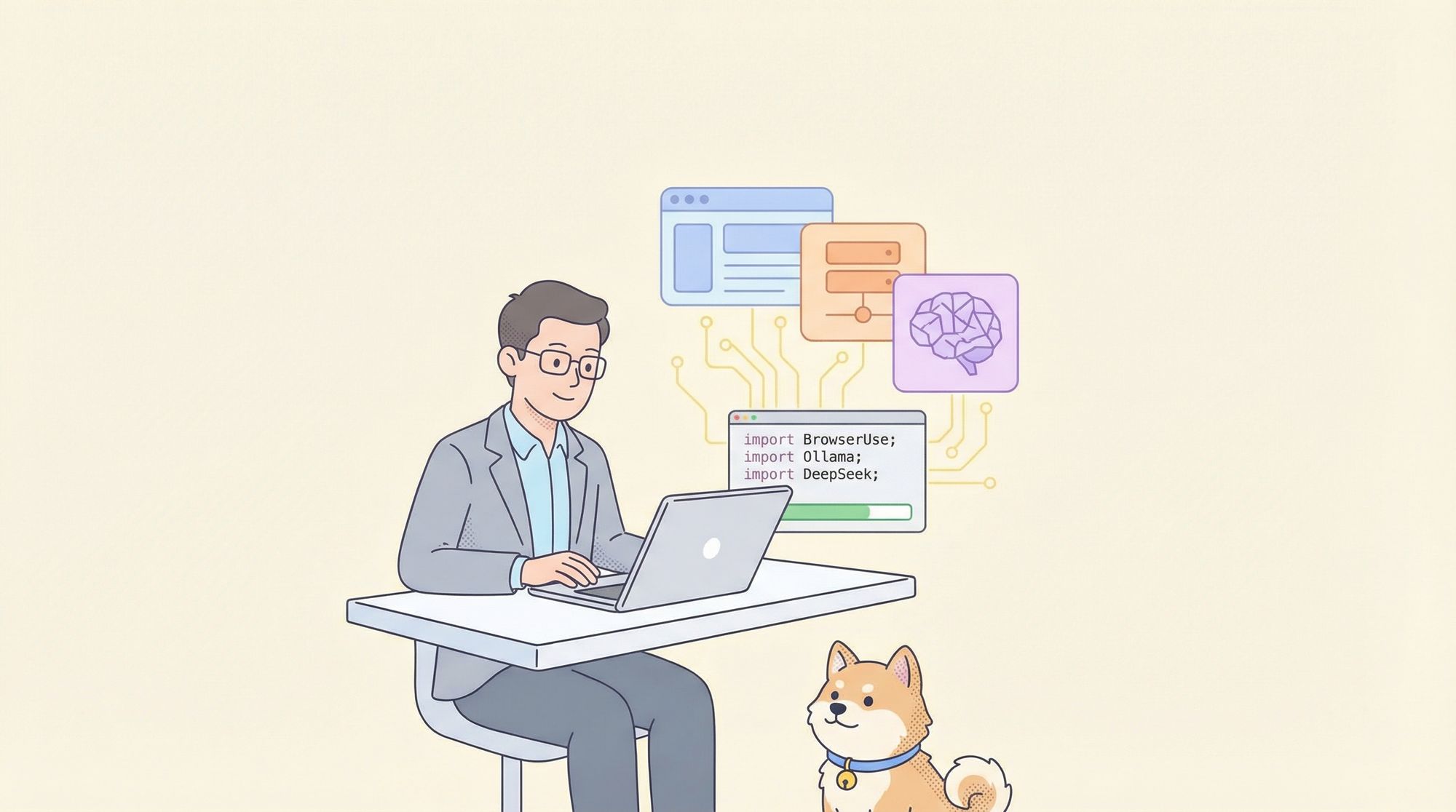
Modern browser automation is evolving rapidly. Gone are the days of brittle Selenium scripts and fragile workflows. With open-source tools like Browser Use, combined with local LLM hosts such as Ollama and advanced reasoning engines like DeepSeek, developers can now build AI agents that browse the web, interact with forms, extract data, and automate tasks reliably—all powered by natural language instructions.
In this guide, you'll learn how to set up this powerful stack, understand the role of each component, and write a Python-based AI agent that can control your browser programmatically. Whether you're an API developer, backend engineer, or QA specialist, this approach unlocks new possibilities for robust, private, and scalable browser automation.
Why Choose Browser Use, Ollama, and DeepSeek for AI Browser Automation?
- Browser Use: A Python package for orchestrating browser actions (navigate, click, extract).
- Ollama: A local LLM server, enabling private, high-performance model inference on your hardware.
- DeepSeek: An advanced reasoning engine (e.g., deepseek/seed or deepseek-r1) that translates high-level instructions into actionable browser steps.
Together, these tools empower you to build AI agents that can:
- Automate web navigation and data extraction
- Fill out forms and interact with dynamic pages
- Execute multi-step tasks based on natural language prompts
Prerequisites: Setting Up Your Development Environment
Before you dive in, make sure your system meets the following requirements:
- Python 3.11+ (
python --version) - Ollama (download from ollama.com)
- Node.js (
node --version, required for browser automation via Playwright) - Git (for cloning repositories)
- Hardware: At least 4 CPU cores, 16GB RAM, and 12GB free storage (for DeepSeek). A GPU is optional but recommended for large models.
Tip: Install any missing components to avoid setup issues later.
Step-by-Step Setup: Building Your AI Browser Automation Project
1. Organize Your Project
Create a dedicated folder for your work:
mkdir browser-use-agent
cd browser-use-agent
2. Clone the Browser Use Repository
git clone https://github.com/browser-use/browser-use.git
cd browser-use
3. Create and Activate a Python Virtual Environment
This keeps dependencies isolated:
python -m venv venv
# Activate:
# Mac/Linux:
source venv/bin/activate
# Windows:
venv\Scripts\activate
You'll see (venv) in your terminal, confirming activation.
4. Open Your Project in VS Code
VS Code offers excellent Python integration:
code .
Don’t have VS Code? Download it or use your favorite editor.
Installing Ollama and DeepSeek Locally
1. Install Ollama
Download and install from ollama.com. After installing, confirm it works:
ollama --version

2. Download the DeepSeek Model
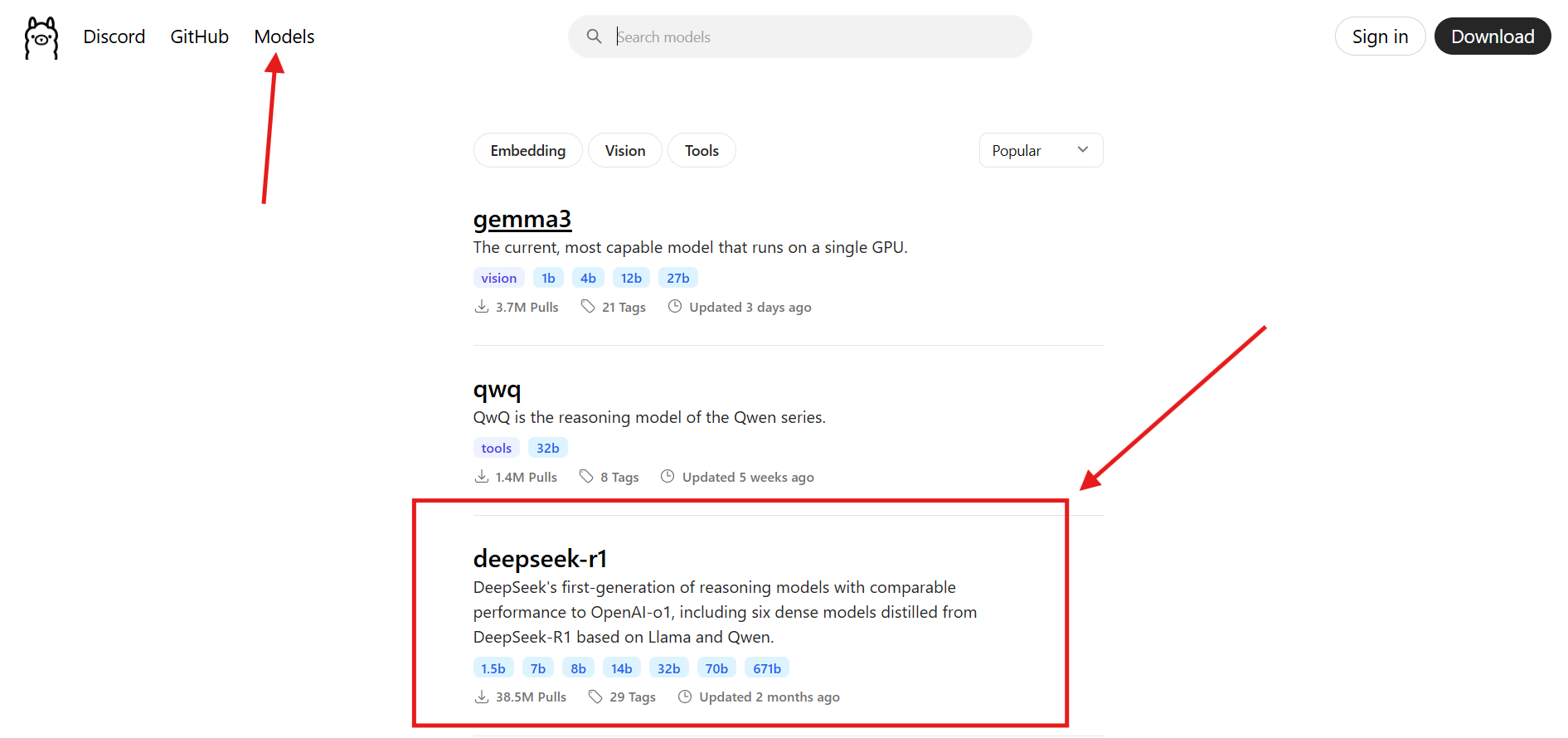
For high-quality reasoning, use the DeepSeek “seed” model:
ollama pull deepseek/seed
- Note: The model is ~12GB. If storage or GPU is limited, try
qwen2.5:14b(~4GB). - Verify installation:
ollama list
Look for deepseek-r1 or your chosen model.
Installing Browser Use and Required Dependencies
1. Install Browser Use and Development Tools
In your virtual environment, run:
pip install . ."[dev]"
2. Add LangChain and Ollama Integration
pip install langchain langchain-ollama
These packages connect your agent with the local LLM.
3. Install Playwright for Browser Automation
playwright install
If you encounter issues, ensure Python 3.11+ is active, or run:
playwright install-deps
Configuring the Stack: Connect Browser Use to Ollama & DeepSeek
Start the Ollama server in a separate terminal:
ollama serve
This launches the LLM server at http://localhost:11434. Keep this running while you work.
Example: Build an AI Agent to Check Boston Weather on Google
Let's create a Python script that instructs your AI agent to use Google and fetch Boston's weather.
- Create
test.pyin your project folder and add:
import os
import asyncio
from browser_use import Agent
from langchain_ollama import ChatOllama

# Task: Use Google to find the weather in Boston, Massachusetts
async def run_search() -> str:
    agent = Agent(
        task="Use Google to find the weather in Boston, Massachusetts",
        llm=ChatOllama(
            model="deepseek/seed",
            num_ctx=32000,
        ),
        max_actions_per_step=3,
        tool_call_in_content=False,
    )
    result = await agent.run(max_steps=15)
    return result

async def main():
    result = await run_search()
    print("\n\n", result)

if __name__ == "__main__":
    asyncio.run(main())
-
Ensure VS Code is using your virtual environment’s Python interpreter
- Press
Ctrl+P(orCmd+Pon Mac) - Type
> Select Python Interpreter - Choose the
.venvinterpreter from your project
- Press
-
Run the script:
python test.py
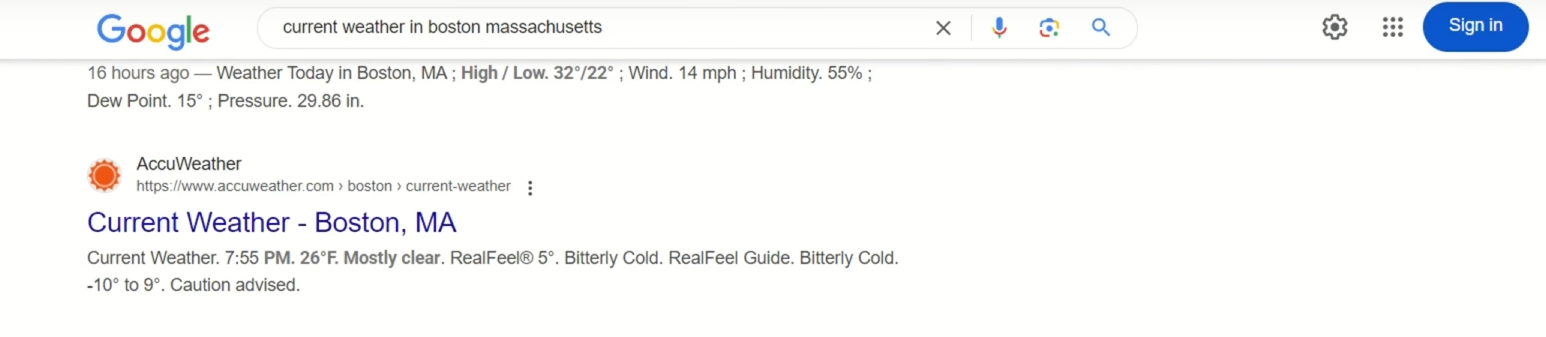
The agent will launch a browser, search Google for Boston’s weather, and output the result.
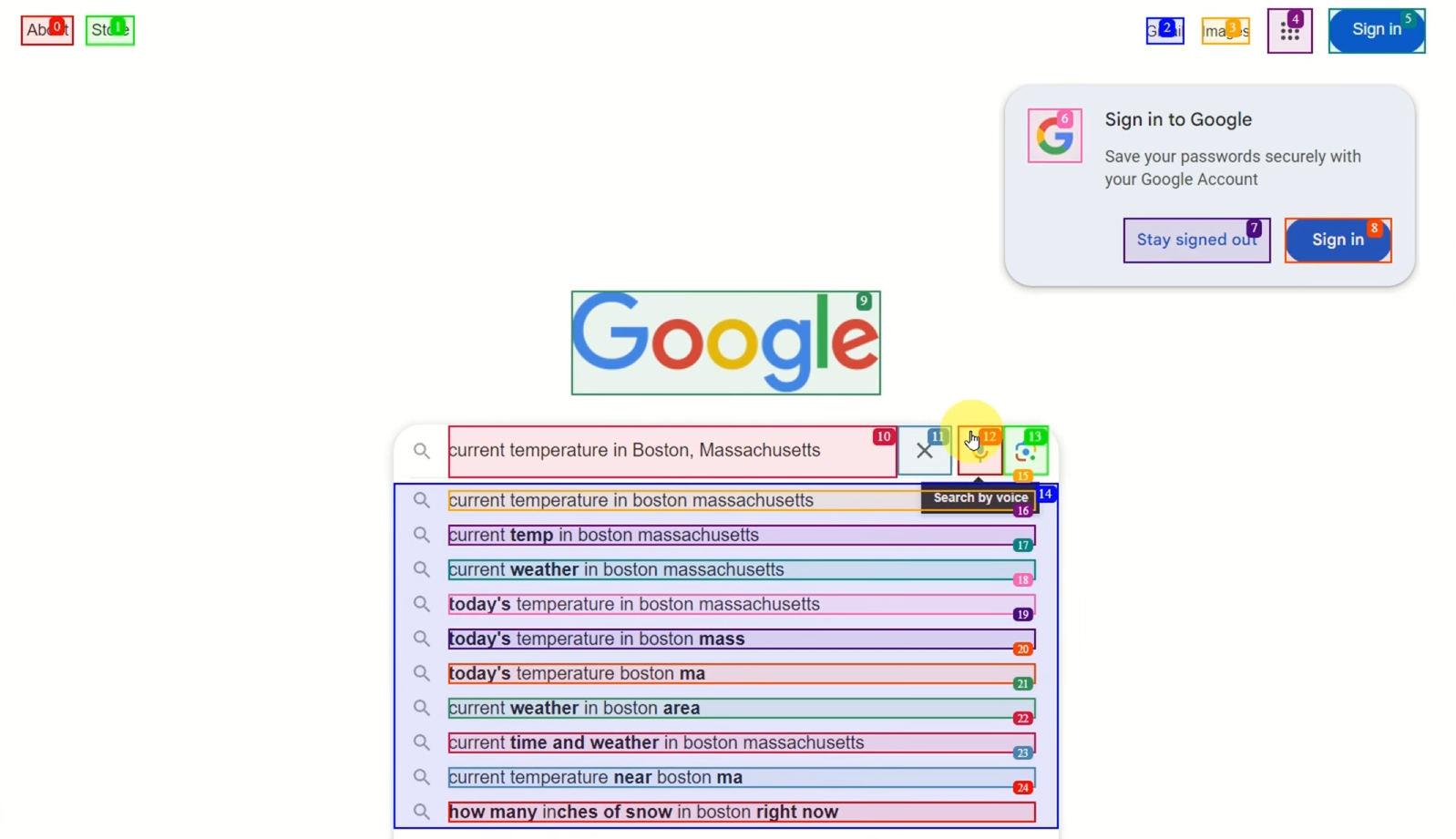
If you see an error, confirm that Ollama is running (ollama serve) and port 11434 is open. For troubleshooting, check logs in ~/.ollama/logs.
Integrating Apidog: Reliable API Testing for Browser AI Agents
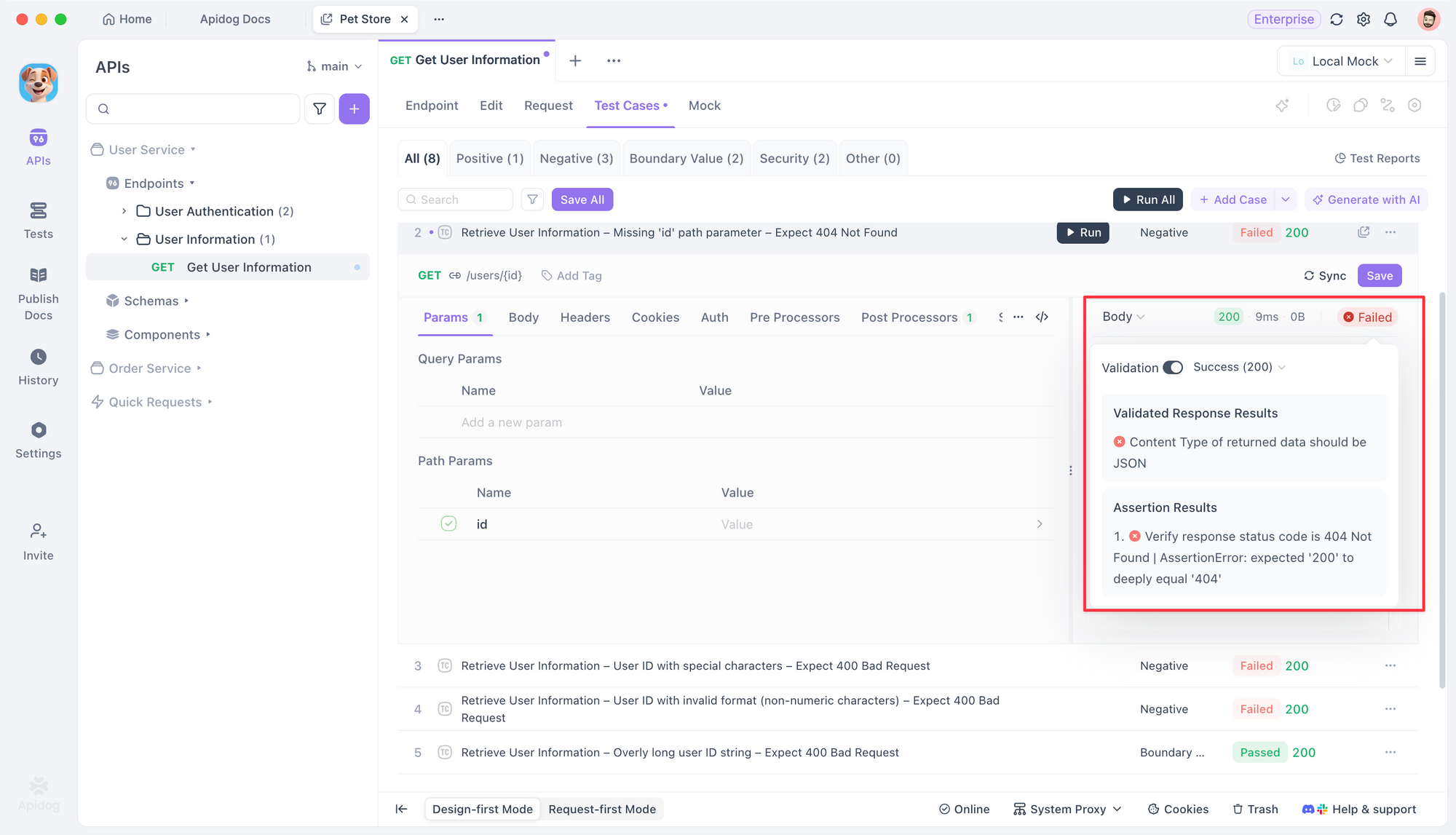
When your browser AI agent interacts with web APIs—such as scraping endpoints or automating API-driven workflows—reliable API contract validation becomes essential.
How Apidog helps:
- Automated API testing ensures endpoints work as expected
- Generates and manages API test cases for your backend
- Validates API contracts across staging and production
Apidog integrates smoothly into browser automation pipelines, letting you verify that APIs your agent relies on are robust and consistent.
Start using Apidog for free to strengthen your browser AI workflows.
API Contract Testing with Apidog
Tips for Effective Prompt Engineering
Get more accurate automation by crafting clear, specific prompts:
-
Be Specific:
"Go to kayak.com, search flights from Zurich to Beijing, 25.12.2025–02.02.2026, sort by price"
is better than
"Find flights." -
Break Down Complex Tasks:
e.g.,"Visit LinkedIn, search for ML jobs, save links to a file, apply to top 3." -
Iterate and Refine:
Adjust your prompts if results aren't as expected. Testing in Open WebUI chat can help.
Debugging and Troubleshooting
-
Check Ollama Logs:
Located at~/.ollama/logs, useful for diagnosing model errors. -
Monitor Playwright Output:
Playwright logs all actions and errors in your terminal. -
Performance:
If DeepSeek models run slowly, consider lighter models or distributed compute setups. -
Change Tasks Easily:
Update thetaskstring in your script to automate different workflows (e.g., scraping GitHub stars, automating login flows).
Frequently Asked Questions
Q1. What is Browser Use?
A Python package for AI-driven browser automation using Playwright. GitHub
Q2. Do I need a GPU?
Not required for smaller models like DeepSeek/seed, but GPUs speed up larger models.
Q3. Can I use models besides DeepSeek?
Yes, any reasoning-capable model supported by Ollama can work. GitHub
Q4. Is my data processed locally?
Yes. Running Ollama keeps data and inference on your machine unless configured otherwise. Chrome Web Store
Q5. Can I automate logins and multi-step tasks?
Absolutely—just define your high-level task, and the AI agent will break it down.
Conclusion
With Python, Browser Use, Ollama, and DeepSeek, you can build robust AI agents that automate real browsers using natural language instructions. This stack is ideal for API-driven teams who need reliable, private, and powerful automation—whether for QA, backend integration, or advanced testing.
Add Apidog to your workflow to validate and test the APIs your agents interact with, ensuring your automation always works as intended.
Ready to build intelligent browser agents? Start today and streamline your web automation with confidence.