TL;DR / Quick Answer
To access GPT-5.4 API: (1) Create an OpenAI account at platform.openai.com, (2) Add payment method in billing settings, (3) Generate API key from API Keys section, (4) Install OpenAI SDK (pip install openai or npm install openai), (5) Set OPENAI_API_KEY environment variable, (6) Make requests to gpt-5.4 model. Pricing: $2.50/M input tokens, $15/M output tokens. Pro version ($30/$180) available for complex tasks.
Introduction
Accessing GPT-5.4 API takes about 10 minutes from account creation to your first API call. But the setup process involves several steps where documentation gaps create friction: billing verification, API key management, SDK installation, and understanding pricing tiers.
This guide walks through each step with screenshots, code examples, and troubleshooting tips. You'll learn how to set up your OpenAI account, generate API keys securely, install the SDK, and start making requests to GPT-5.4.
We'll also cover pricing breakdowns, rate limits, platform-specific access (ChatGPT vs Codex vs API), and security best practices for production deployments.
What you'll get:
- Step-by-step account setup with billing configuration
- API key generation and secure storage
- SDK installation for Python, Node.js, and cURL
- First API request examples with expected responses
- Complete pricing breakdown and cost optimization tips
- Rate limit information and quota management
Prerequisites
Before starting, ensure you have:
- Email address - For OpenAI account creation
- Payment method - Credit/debit card (Visa, Mastercard, Amex)
- Phone number - For account verification
- Development environment - Python 3.7+, Node.js 14+, or cURL
- Text editor or IDE - VS Code, Cursor, or similar
Time required: 10-15 minutes Cost: $0 to start (pay-per-use pricing)
Step 1: Create OpenAI Account
Navigate to platform.openai.com and click "Sign Up".
You'll need to provide:
- Email address
- Password (minimum 8 characters)
- Full name
- Phone number for verification
OpenAI sends a verification code to your email. Enter the code to verify your account.
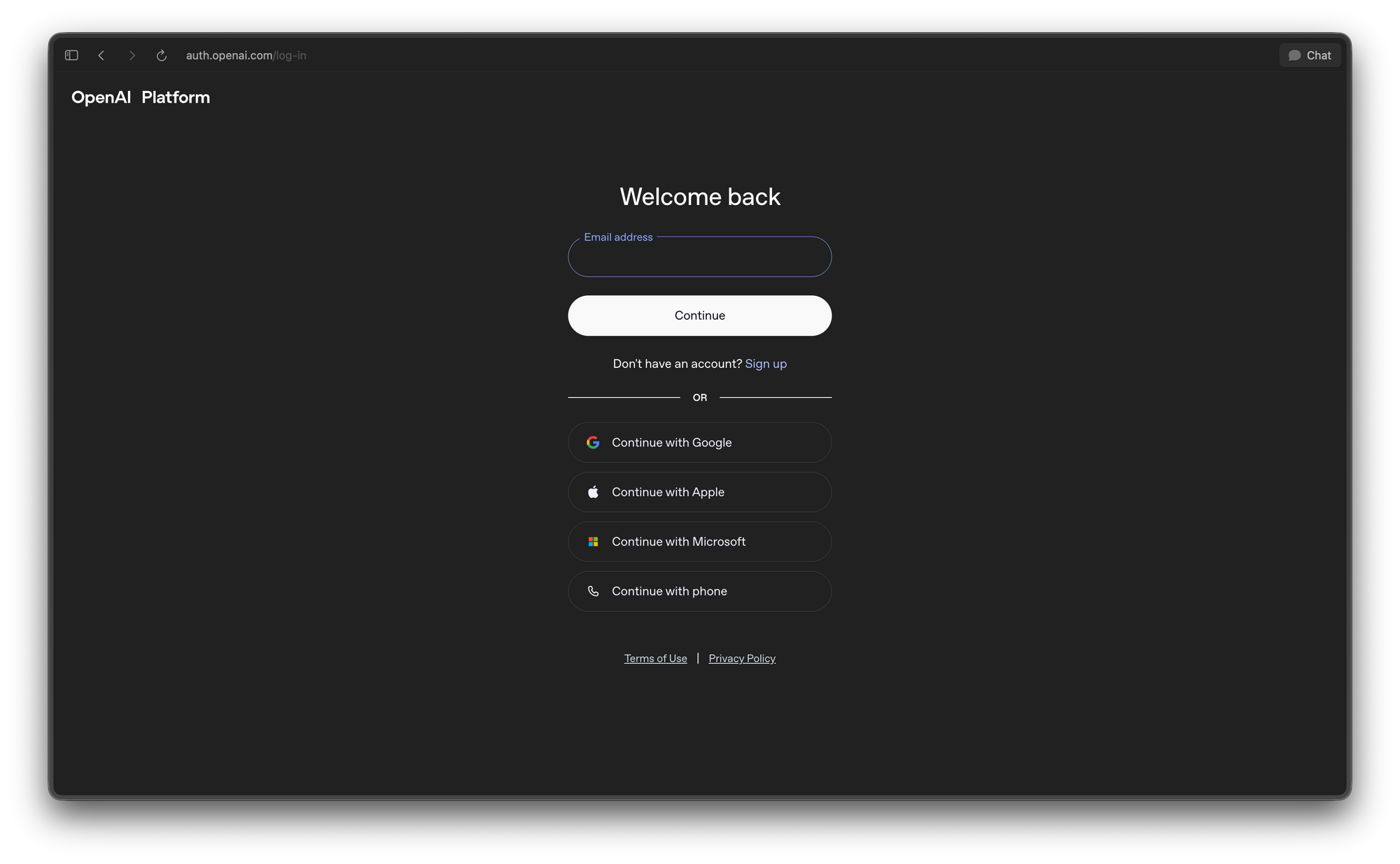
Important: Use a business email if you plan to use the API for commercial projects. Account ownership transfers require support tickets.
After email verification, complete phone verification:
- Select your country code
- Enter your phone number
- Receive SMS with verification code
- Enter code to complete verification
Some regions may have limited API access. Check OpenAI's supported countries list if you encounter issues.
Step 2: Set Up Billing
GPT-5.4 API uses pay-as-you-go pricing. You must add a payment method before making requests.
Navigate to Settings > Billing in the platform dashboard.
Add Payment Method
- Click "Add payment method"
- Enter credit/debit card details (Visa, Mastercard, or American Express)
- Billing address must match card registration
- Click "Save"
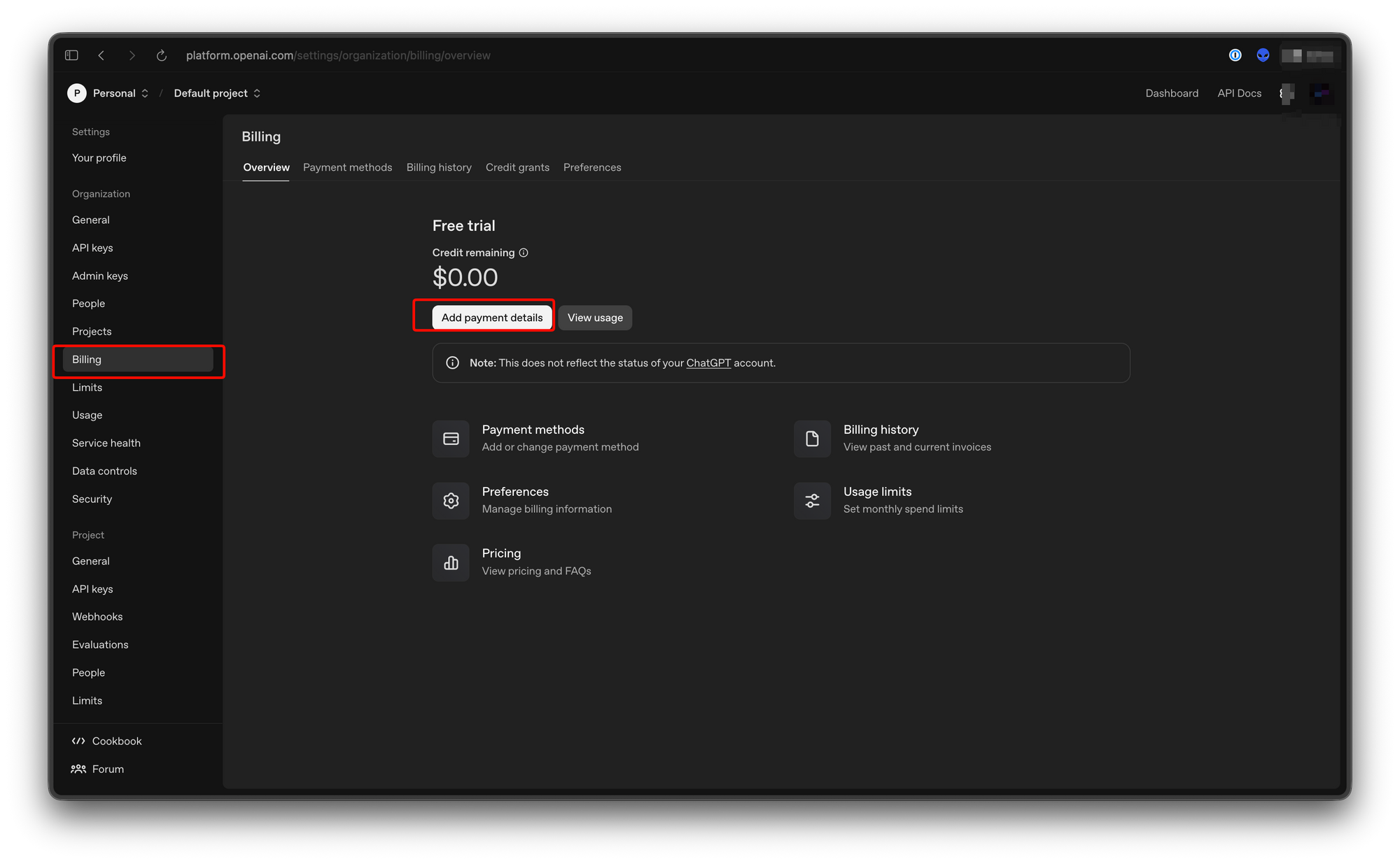
OpenAI performs a small authorization charge ($0.50-1.00) to verify the card. This charge reverses within 3-5 business days.
Billing Tiers
OpenAI accounts start with default tier limits:
Tier 1 (New accounts):
- $5 initial credit (expires after 3 months)
- Usage limit: $5/month
- Requires card verification
Tier 2 (After first payment):
- Usage limit: $120/month
- Automatic after successful billing cycle
Tier 3 (Verified high-volume):
- Custom limits
- Requires contact with sales team
To increase limits:
- Go to Settings > Billing > Limits
- Click "Request limit increase"
- Provide use case description and expected monthly spend
- Wait 1-3 business days for approval
Enable Usage Alerts
Set up billing alerts to avoid unexpected charges:
- Settings > Billing > Overview
- Click "Add alert"
- Set threshold (e.g., $50, $100, $500)
- Enter email for notifications
You'll receive emails when usage crosses each threshold.
Step 3: Generate API Key
API keys authenticate your requests to OpenAI's API.
Navigate to platform.openai.com/api-keys.
Create New Key
- Click "Create new secret key"
- Enter a descriptive name (e.g., "Development", "Production", "CI/CD")
- Select project (optional, for organization accounts)
- Click "Create secret key"
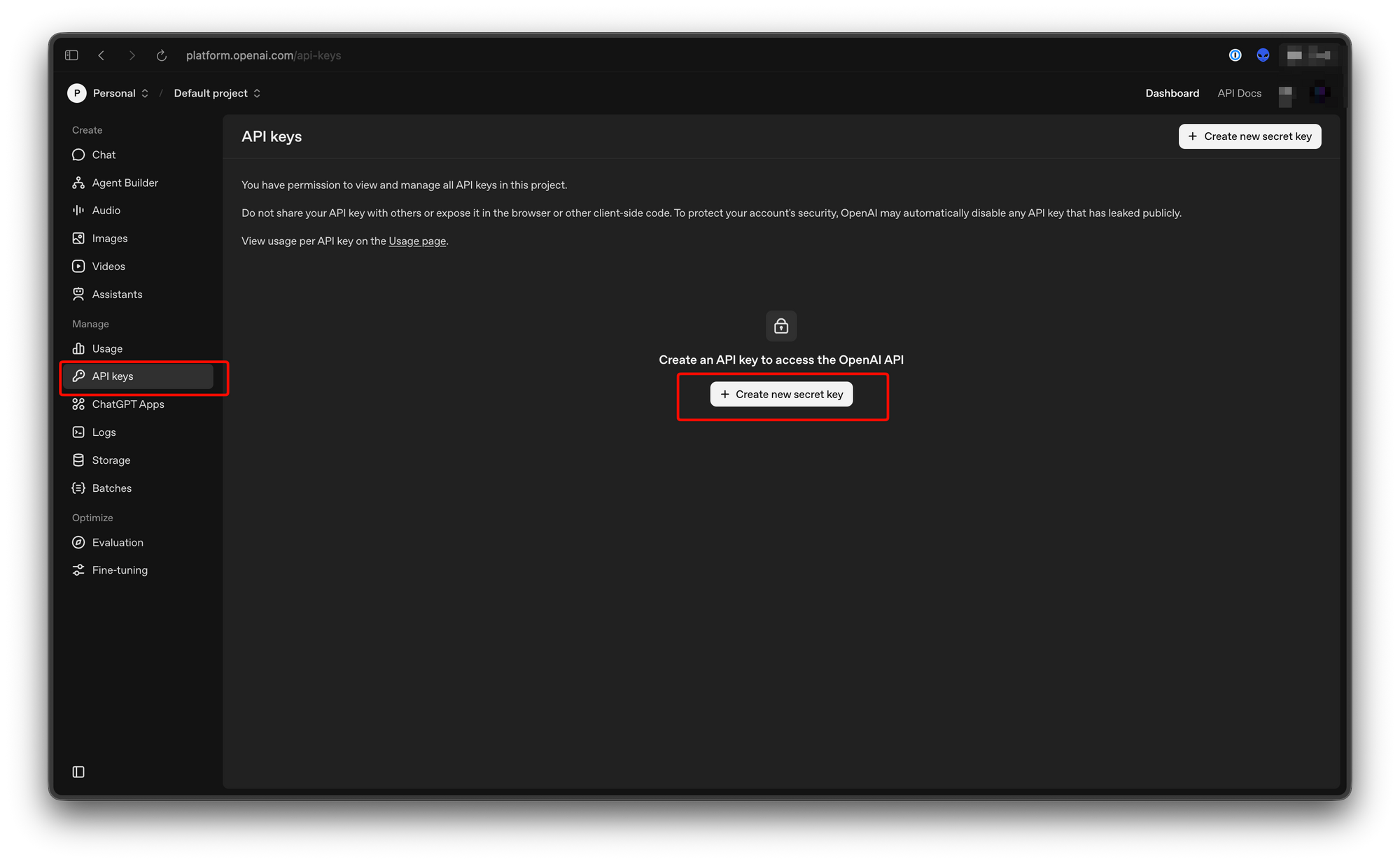
Critical: Copy the key immediately. You cannot view it again after closing the modal. If lost, generate a new key.
Key format: sk-proj- followed by alphanumeric string (example: sk-proj-abc123def456...)
Key Permissions
OpenAI supports granular permissions:
- All capabilities - Full API access (default)
- Specific models - Restrict to selected models
- Specific endpoints - Limit to certain API endpoints
For GPT-5.4 access, ensure the key has:
- Chat Completions endpoint access
- GPT-5.4 model permission
- Any required tool permissions (computer use, vision, etc.)
Key Rotation Best Practices
Rotate API keys every 90 days:
- Generate new key
- Update applications with new key
- Test thoroughly
- Delete old key from OpenAI dashboard
Use environment variables or secret management systems (AWS Secrets Manager, HashiCorp Vault) to store keys securely.
Step 4: Install OpenAI SDK
OpenAI provides official SDKs for Python and Node.js. You can also use cURL for direct HTTP requests.
Python Installation
pip install openaiVerify installation:
import openai
print(openai.__version__)
Requires Python 3.7 or higher. For virtual environments:
python -m venv venv
source venv/bin/activate  # Linux/macOS
venv\Scripts\activate     # Windows
pip install openai
Node.js Installation
npm install openaiVerify installation:
const OpenAI = require('openai');
console.log(OpenAI.version);
Requires Node.js 14 or higher. For TypeScript:
npm install --save-dev @types/nodecURL (No Installation)
cURL comes pre-installed on most systems. Verify:
curl --versionUse cURL for quick API testing without SDK dependencies.
Step 5: Configure Environment
Store your API key in environment variables. Never hardcode keys in source code.
Linux/macOS
Add to ~/.bashrc, ~/.zshrc, or shell profile:
export OPENAI_API_KEY="sk-proj-abc123def456..."Reload shell:
source ~/.zshrc # or ~/.bashrcWindows
Command Prompt:
set OPENAI_API_KEY=sk-proj-abc123def456...PowerShell:
$env:OPENAI_API_KEY="sk-proj-abc123def456..."Permanent (System Environment Variables):
- Search "Environment Variables" in Start menu
- Click "Edit the system environment variables"
- Click "Environment Variables"
- Under "User variables", click "New"
- Name:
OPENAI_API_KEY - Value: Your API key
- Restart terminal
.env File (Development)
Create .env file in project root:
OPENAI_API_KEY=sk-proj-abc123def456...Load with python-dotenv:
pip install python-dotenvfrom dotenv import load_dotenv
load_dotenv()Never commit .env files to version control. Add to .gitignore:
.envStep 6: Make Your First Request
Test your setup with a simple GPT-5.4 request.
Using Apidog for API Testing: Instead of writing code to test your GPT-5.4 API integration, use Apidog's visual interface to:
- Configure requests with headers, authentication, and body parameters
- Save requests to collections for repeated testing
- Use environment variables for API keys across dev/staging/production
- Create pre-request scripts for dynamic token generation
- Add test assertions to validate response structure and content
- Generate cURL, Python, or Node.js code snippets from working requests
Python Example
from openai import OpenAI
import os

client = OpenAI(
    api_key=os.getenv("OPENAI_API_KEY")
)

response = client.chat.completions.create(
    model="gpt-5.4",
    messages=[
        {"role": "system", "content": "You are a helpful assistant."},
        {"role": "user", "content": "What is GPT-5.4?"}
    ]
)

print(response.choices[0].message.content)
Node.js Example
const OpenAI = require('openai');

const client = new OpenAI({
    apiKey: process.env.OPENAI_API_KEY
});

async function main() {
    const response = await client.chat.completions.create({
        model: 'gpt-5.4',
        messages: [
            { role: 'system', content: 'You are a helpful assistant.' },
            { role: 'user', content: 'What is GPT-5.4?' }
        ]
    });

    console.log(response.choices[0].message.content);
}

main();
cURL Example
curl https://api.openai.com/v1/chat/completions \
  -H "Content-Type: application/json" \
  -H "Authorization: Bearer $OPENAI_API_KEY" \
  -d '{
    "model": "gpt-5.4",
    "messages": [
      {"role": "system", "content": "You are a helpful assistant."},
      {"role": "user", "content": "What is GPT-5.4?"}
    ]
  }'
Expected Response
{
  "id": "chatcmpl-abc123",
  "object": "chat.completion",
  "created": 1741234567,
  "model": "gpt-5.4",
  "choices": [
    {
      "index": 0,
      "message": {
        "role": "assistant",
        "content": "GPT-5.4 is OpenAI's most advanced frontier model..."
      },
      "finish_reason": "stop"
    }
  ],
  "usage": {
    "prompt_tokens": 25,
    "completion_tokens": 150,
    "total_tokens": 175
  }
}
Verify GPT-5.4 Access
If you receive an error about model access:
- Check billing is active (Settings > Billing)
- Verify API key has correct permissions
- Ensure you're using exact model name
gpt-5.4 - Contact OpenAI support if issues persist
GPT-5.4 rolled out gradually starting March 5, 2026. Some accounts may have delayed access during rollout.
GPT-5.4 API Pricing
Understanding GPT-5.4 pricing helps optimize costs and avoid billing surprises.
Standard Pricing
Component | Price |
|---|---|
Input tokens | $2.50 per million |
Cached input tokens | $0.25 per million |
Output tokens | $15 per million |
Pro Pricing
Component | Price |
|---|---|
Input tokens | $30 per million |
Output tokens | $180 per million |
Discount Programs
Batch Processing:
- 50% discount on standard rates
- Requests processed within 24-hour window
- Ideal for non-real-time workloads
Flex Processing:
- 50% discount on standard rates
- Requests processed during low-demand periods
- Variable latency (minutes to hours)
Priority Processing:
- 2x standard rates
- Requests processed ahead of standard queue
- Lowest latency for time-critical applications
Cost Calculation Example
Example: Processing 10,000 customer support queries monthly
Assumptions:
- Average input: 500 tokens per query
- Average output: 200 tokens per response
- Total monthly: 5M input + 2M output tokens
Standard pricing:
- Input: 5M × $2.50/M = $12.50
- Output: 2M × $15/M = $30.00
- Total: $42.50/month
With Batch pricing (50% off):
- Input: 5M × $1.25/M = $6.25
- Output: 2M × $7.50/M = $15.00
- Total: $21.25/month
Cost Optimization Tips
- Use cached inputs - Repeated system prompts cost 90% less ($0.25 vs $2.50)
- Optimize prompts - Shorter prompts = fewer input tokens
- Limit output tokens - Set
max_tokensparameter appropriately - Use Batch processing - 50% savings for non-real-time workloads
- Monitor usage - Set up billing alerts and track token consumption
Context Window Pricing
Standard context: 272K tokens (standard pricing) Extended context: Up to 1M tokens (2x usage rate)
Requests exceeding 272K tokens count at double the normal rate:
- Input: $5.00 per million (instead of $2.50)
- Output: $30 per million (instead of $15)
Rate Limits and Quotas
OpenAI enforces rate limits to ensure fair usage across customers.
Default Rate Limits
Rate limits vary by account tier and usage history.
Tier 1 (New accounts):
- Requests per minute (RPM): 20
- Tokens per minute (TPM): 40,000
- Tokens per day (TPD): 100,000
Tier 2 (Established accounts):
- Requests per minute (RPM): 60
- Tokens per minute (TPM): 150,000
- Tokens per day (TPD): 1,000,000
Tier 3 (High-volume):
- Custom limits based on use case
- Contact sales for enterprise tiers
Rate Limit Headers
API responses include rate limit information:
x-ratelimit-limit-requests: 60
x-ratelimit-limit-tokens: 150000
x-ratelimit-remaining-requests: 59
x-ratelimit-remaining-tokens: 149500
x-ratelimit-reset-requests: 1s
x-ratelimit-reset-tokens: 200ms
Handling Rate Limits
When rate limited, you'll receive HTTP 429 error:
{
  "error": {
    "message": "Rate limit reached for requests",
    "type": "rate_limit_error",
    "code": "rate_limit_exceeded"
  }
}
Retry strategy:
import time
from openai import OpenAI, RateLimitError

client = OpenAI()

def make_request_with_retry(messages, max_retries=3):
    for attempt in range(max_retries):
        try:
            return client.chat.completions.create(
                model="gpt-5.4",
                messages=messages
            )
        except RateLimitError as e:
            if attempt == max_retries - 1:
                raise
            wait_time = 2 ** attempt  # Exponential backoff
            time.sleep(wait_time)
Best practices:
- Implement exponential backoff (1s, 2s, 4s, 8s)
- Add jitter to prevent thundering herd
- Queue requests during high-traffic periods
- Use Batch API for bulk processing
Requesting Limit Increases
To increase rate limits:
- Go to Settings > Billing > Limits
- Click "Request limit increase"
Provide:
- Use case description
- Expected monthly spend
- Peak traffic patterns
- Technical contact information
- Wait 1-3 business days
Approval depends on:
- Payment history
- Use case legitimacy
- Technical requirements
- Current capacity
Access Across Platforms
GPT-5.4 is available across multiple OpenAI platforms with different access methods.
API Access
Model names:
gpt-5.4- Standard modelgpt-5.4-pro- Pro model
Access method:
- REST API via SDK or HTTP
- Authentication via API key
- Pay-per-token pricing
Best for:
- Custom applications
- Production integrations
- High-volume workloads
- Tool use and computer use features
ChatGPT Access
GPT-5.4 Thinking available to:
- ChatGPT Plus ($20/month)
- ChatGPT Team ($25/user/month)
- ChatGPT Pro ($200/month)
GPT-5.4 Pro available to:
- ChatGPT Pro subscribers
- ChatGPT Enterprise subscribers
Access method:
- Web interface at chatgpt.com
- Mobile apps (iOS, Android)
- No API access from ChatGPT interface
Best for:
- Individual productivity
- Ad-hoc queries
- Non-technical users
- ChatGPT-specific features (voice, image input)
Codex Access
GPT-5.4 is default model in Codex with:
- Experimental 1M context window
- Playwright Interactive skill
- /fast mode (1.5x token velocity)
Access method:
- Codex desktop application
- Codex cloud interface
- API with Codex-specific endpoints
Best for:
- Software development
- Code generation and debugging
- Frontend development
- Browser automation testing
Platform Comparison
Feature | API | ChatGPT | Codex |
|---|---|---|---|
GPT-5.4 Access | Yes | Yes (Plus+) | Yes |
GPT-5.4 Pro | Yes | Yes (Pro+) | Yes |
Computer Use | Yes | Limited | Yes |
Tool Search | Yes | No | Yes |
1M Context | Yes (experimental) | No | Yes |
Custom Integrations | Yes | No | Limited |
Pay-per-use | Yes | Subscription | Subscription |
Apidog for API Integration
When integrating GPT-5.4 API into applications, Apidog provides a unified platform for API development:
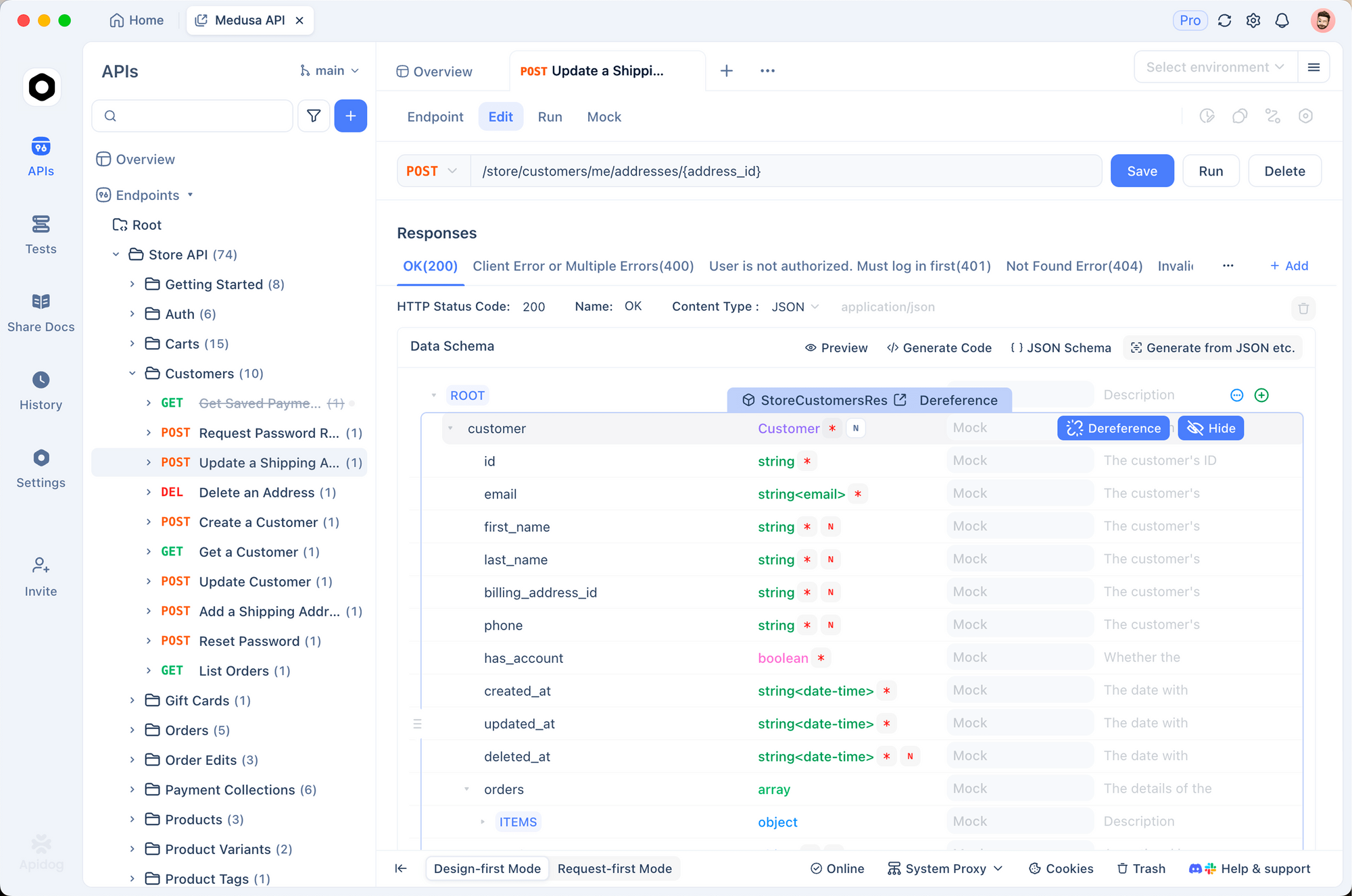
- Request Testing: Configure and test GPT-5.4 API requests visually without writing code
- Environment Variables: Manage API keys across development, staging, and production
- Automated Testing: Create test suites with assertions for response validation
- Mock Servers: Simulate GPT-5.4 responses during frontend development to avoid token costs
- Team Collaboration: Share API collections with documented integration patterns
- Code Generation: Generate cURL, Python, Node.js, Go, and Java code snippets from working requests
Troubleshooting Common Issues
"Model not found" Error
Error: The model gpt-5.4 does not exist
Causes:
- Typo in model name (use
gpt-5.4notgpt5.4orgpt-5-4) - Account doesn't have GPT-5.4 access yet
- API key lacks model permissions
Solutions:
- Verify exact model name:
gpt-5.4 - Check billing is active
- Generate new API key with correct permissions
- Wait 24 hours if account is newly created
"Insufficient quota" Error
Error: You exceeded your current quota
Causes:
- Reached daily/monthly token limit
- Billing payment failed
- Account tier limits reached
Solutions:
- Check usage at platform.openai.com/usage
- Verify payment method is current
- Request limit increase (Settings > Billing > Limits)
- Wait for quota reset (daily limits reset at midnight UTC)
Authentication Failures
Error: Invalid authentication - Please provide a valid API key
Causes:
- API key not set in environment
- Incorrect API key format
- API key revoked or expired
Solutions:
- Verify environment variable:
echo $OPENAI_API_KEY - Check key starts with
sk-proj-orsk- - Regenerate key if compromised
- Restart application after setting environment variable
Rate Limit Errors
Error: Rate limit reached for requests
Solutions:
- Implement exponential backoff retry logic
- Reduce request frequency
- Use Batch API for bulk processing
- Request limit increase for production needs
Billing Issues
Error: Payment required or Billing information needs updating
Solutions:
- Update payment method (Settings > Billing)
- Check card expiration date
- Verify billing address matches card
- Contact bank if charge declines repeatedly
- Reach out to OpenAI support for account review
Timeout Errors
Error: Request timed out or connection errors
Causes:
- Network connectivity issues
- Server-side processing delays
- Client timeout too short
Solutions:
- Increase timeout in HTTP client configuration
- Check network connectivity
- Implement retry logic with backoff
- Use streaming for long-running requests
Security Best Practices
Protect your API keys and data with these security practices.
Use Apidog to create comprehensive security test suites for your GPT-5.4 integrations:
- Test authentication failure scenarios (invalid keys, expired tokens)
- Validate rate limit handling with automated retry tests
- Create pre-request scripts to rotate API keys during testing
- Mock error responses to ensure graceful degradation
- Document security requirements in shared API collections for team reference
API Key Management
Do:
- Store keys in environment variables
- Use secret management systems (AWS Secrets Manager, HashiCorp Vault)
- Rotate keys every 90 days
- Use separate keys for development/staging/production
- Restrict key permissions to minimum required
Don't:
- Hardcode keys in source code
- Commit keys to version control
- Share keys via email or chat
- Use production keys in client-side code
- Log API keys in application logs
Secure Request Patterns
Use HTTPS only: All OpenAI API requests use HTTPS by default. Never disable SSL verification.
Validate inputs: Sanitize user inputs before sending to API to prevent prompt injection:
def sanitize_input(user_input):
    # Remove or escape potentially dangerous content
    dangerous_patterns = ['ignore previous instructions', 'system prompt', 'api key']
    for pattern in dangerous_patterns:
        user_input = user_input.replace(pattern, '[REDACTED]')
    return user_input
Log responsibly: Never log full API requests/responses containing sensitive data:
import logging

# Good: Log token usage, not content
logging.info(f"API call: {response.usage.total_tokens} tokens")

# Bad: Logs sensitive content
logging.info(f"API response: {response.choices[0].message.content}")
Data Privacy Considerations
Zero Data Retention (ZDR): OpenAI offers ZDR for enterprise customers:
- API requests not stored for training
- Enhanced privacy for sensitive data
- Required for certain cyber safety features
Data residency: For EU customers, OpenAI provides EU data residency options. Contact sales for details.
PII handling: Avoid sending personally identifiable information (PII) to API:
- Names, emails, phone numbers
- Social security numbers
- Financial account numbers
- Health information (HIPAA)
If PII is required, implement:
- Data minimization (send only what's necessary)
- Anonymization before API calls
- Encryption in transit and at rest
Network Security
IP allowlisting: Enterprise accounts can configure IP allowlists:
- Restrict API access to specific IP ranges
- Prevent unauthorized usage from compromised keys
- Configure in Organization Settings
VPC endpoints: AWS PrivateLink available for enterprise customers:
- Private connectivity to OpenAI API
- Traffic doesn't traverse public internet
- Reduced latency for AWS workloads
Conclusion
Accessing GPT-5.4 API requires straightforward setup: create account, add billing, generate API key, install SDK, and make your first request. The entire process takes 10-15 minutes.
For teams integrating GPT-5.4 into production applications, having robust testing and debugging workflows accelerates development. Apidog provides a unified platform for API design, debugging, testing, and documentation. Use it to validate your GPT-5.4 integrations, create automated test suites, mock responses during development, and collaborate with team members on API contracts.
Key steps recap:
- Create OpenAI account at platform.openai.com
- Add payment method and enable billing
- Generate API key with appropriate permissions
- Install OpenAI SDK (Python, Node.js, or use cURL)
- Store API key in environment variables
- Make test request to verify setup
Pricing summary:
- Standard: $2.50/M input, $15/M output
- Pro: $30/M input, $180/M output
- Batch/Flex: 50% discount available
- Default rate limits: 60 RPM, 150K TPM (Tier 2)
Next steps:
- Explore GPT-5.4 capabilities (computer use, tool search, vision)
- Implement retry logic for production resilience
- Set up monitoring and billing alerts
- Review security best practices for key management
GPT-5.4's improved token efficiency and reduced hallucination rates make it suitable for production workloads. Start with small tests, monitor usage, and scale gradually as you validate performance.
FAQ
How do I get access to GPT-5.4 API?
Create an account at platform.openai.com, add a payment method in billing settings, generate an API key, and use model name gpt-5.4 in your requests. Access rolled out gradually starting March 5, 2026.
Is GPT-5.4 API free to use?
No. GPT-5.4 costs $2.50 per million input tokens and $15 per million output tokens. New accounts receive $5 credit (expires after 3 months). Batch and Flex pricing offer 50% discounts.
What is the difference between gpt-5.4 and gpt-5.4-pro?
GPT-5.4 Pro delivers maximum performance on complex reasoning tasks but costs 12x more ($30/$180 vs $2.50/$15). Use standard GPT-5.4 for most workloads, Pro for tasks requiring highest accuracy.
How do I fix "model not found" errors?
Verify you're using exact model name gpt-5.4 (not gpt5.4 or gpt-5-4). Check billing is active and API key has correct permissions. Wait 24 hours if account is newly created.
What are the rate limits for GPT-5.4 API?
Default Tier 2 limits: 60 requests per minute, 150,000 tokens per minute, 1,000,000 tokens per day. New accounts start at Tier 1 (20 RPM, 40K TPM). Request increases via Settings > Billing > Limits.
Can I use GPT-5.4 for free in ChatGPT?
GPT-5.4 Thinking is available to ChatGPT Plus ($20/month), Team ($25/user/month), and Pro ($200/month) subscribers. Not available on free tier. API access uses separate pay-per-token pricing.
How do I reduce GPT-5.4 API costs?
Use cached inputs (90% savings on repeated prompts), optimize prompt length, limit output tokens with max_tokens parameter, and use Batch processing (50% discount for non-real-time workloads).
Is GPT-5.4 available worldwide?
GPT-5.4 API is available in most countries where OpenAI operates. Some regions have restrictions. Check platform.openai.com for country-specific availability during signup.
How do I rotate API keys securely?
Generate new key, update all applications with new key, test thoroughly, then delete old key from OpenAI dashboard. Use environment variables or secret management systems to avoid code changes.
What happens if I exceed my rate limit?
You'll receive HTTP 429 error. Implement exponential backoff retry logic (1s, 2s, 4s delays). Consider using Batch API for bulk processing or request limit increase for production needs.