You face high cloud bills when you run powerful AI agents every day. Qwen3.5 gives you frontier-level multimodal reasoning locally. You combine it with OpenClaw for persistent agent workflows and Ollama for simple local serving. The result is a complete AI agent that works 24/7 on your machine without subscriptions.
Small choices matter. You pick the right model tag. You set the correct base URL. These decisions create big differences in speed and reliability. This guide shows you exact steps so you finish with a production-ready stack you control completely.
What Makes Qwen3.5 Perfect for Local Agent Work
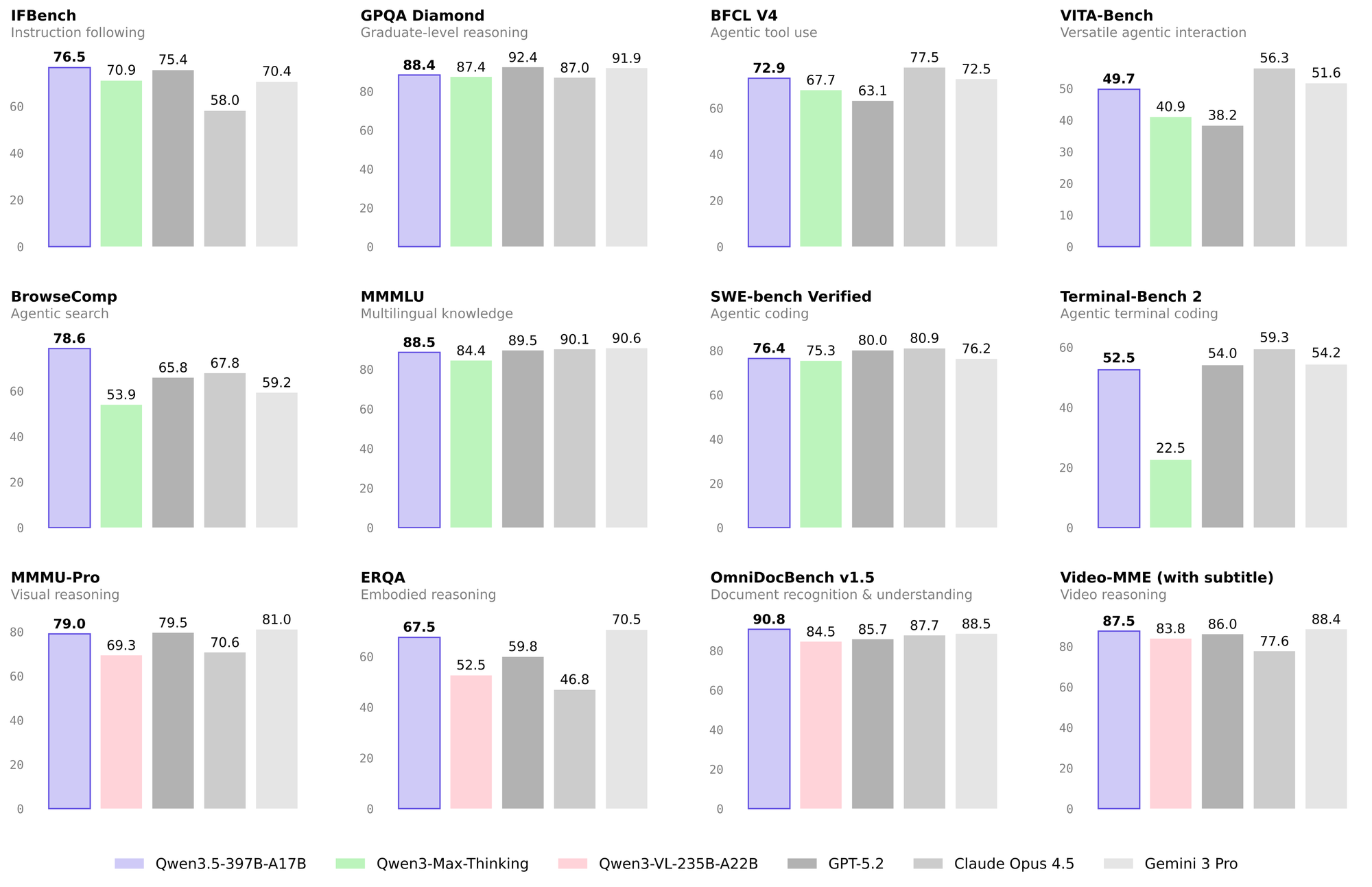
Alibaba released Qwen3.5 in early 2026 as its first native vision-language model family. The 397B-A17B flagship uses a hybrid architecture. It combines Gated Delta Networks with sparse Mixture-of-Experts. Only 17 billion parameters activate per token. You get strong performance with far less memory.
Ollama hosts these practical tags you pull today:
- qwen3.5:35b — fits in 24 GB VRAM, 256K context, full text and image support
- qwen3.5:122b — needs 81 GB for deeper reasoning
You run qwen3.5 locally and keep your data private. The model scores 86.7 on TAU2-Bench and 85.0 on MMMU. You therefore trust it for agent tasks that mix text, screenshots, and tool calls.
How OpenClaw Turns Qwen3.5 Into a Real Agent
OpenClaw runs as your always-on agent runtime. You connect it to WhatsApp, Telegram, Slack, Discord, or Signal once. The agent listens continuously. When you send a message, OpenClaw routes it to qwen3.5, calls tools, controls your browser with Playwright, edits files, updates calendars, and answers proactively.
You store memory across sessions. The agent remembers your projects and preferences forever. You install community skills or let qwen3.5 write new ones on demand. OpenClaw therefore becomes your personal digital assistant that never sleeps.
Why Ollama Makes the Integration Simple
Ollama serves models locally and exposes an OpenAI-compatible endpoint on port 11434. You point OpenClaw at http://localhost:11434/v1 and set the model to qwen3.5:35b. Ollama handles quantization, GPU offload, and context management automatically.
You achieve fast token generation on consumer hardware. You keep the full 256K context window that qwen3.5 needs for long agent conversations. You avoid cloud costs and data leaks at the same time.
Prerequisites You Need to Meet
You prepare your machine before you start. Use macOS 14 or later, Ubuntu 22.04/24.04, or Windows 11 with WSL2. You need at least 24 GB VRAM for the 35B model or 32 GB unified memory on Apple Silicon. Keep 30 GB free disk space. Install Node.js 22 or higher and Ollama 0.17 or newer.
You verify your GPU later with one command. Hardware that meets these requirements gives you responsive performance. You fall back to smaller quantized models if you have less memory.
Install Ollama and Pull Qwen3.5
You start by installing Ollama. On macOS you run:
brew install ollama
brew services start ollama
On Linux you run:
curl -fsSL https://ollama.com/install.sh | sh
systemctl enable --now ollama
You confirm the service runs with ollama list. Next you pull the model:
ollama pull qwen3.5:35b
The download finishes in 10 to 30 minutes. You test basic inference:
ollama run qwen3.5:35b
You type a prompt inside the REPL. Qwen3.5 answers accurately. You exit with /bye.
You immediately check the OpenAI-compatible endpoint because OpenClaw needs it:
curl http://localhost:11434/v1/models
The response lists qwen3.5:35b. You know the bridge works.
Launch OpenClaw With Qwen3.5
You use one Ollama command to install and start everything:
ollama launch openclaw --model qwen3.5:35b
Ollama installs missing components, starts the gateway, and opens the TUI wizard. You connect your messaging channels, confirm the model provider, and save settings. The gateway runs on port 8080.
You test by messaging your bot on Telegram: “List files in my Downloads folder.” OpenClaw uses qwen3.5 and returns the result.
You can also configure manually. You edit ~/.openclaw/openclaw.json and set the Ollama provider base URL. You restart with openclaw start. Both methods give identical results.
Test the Full Stack With Apidog
You open Apidog and create a new project called “Qwen3.5 OpenClaw Local Stack”. You set the base URL to http://localhost:11434/v1.
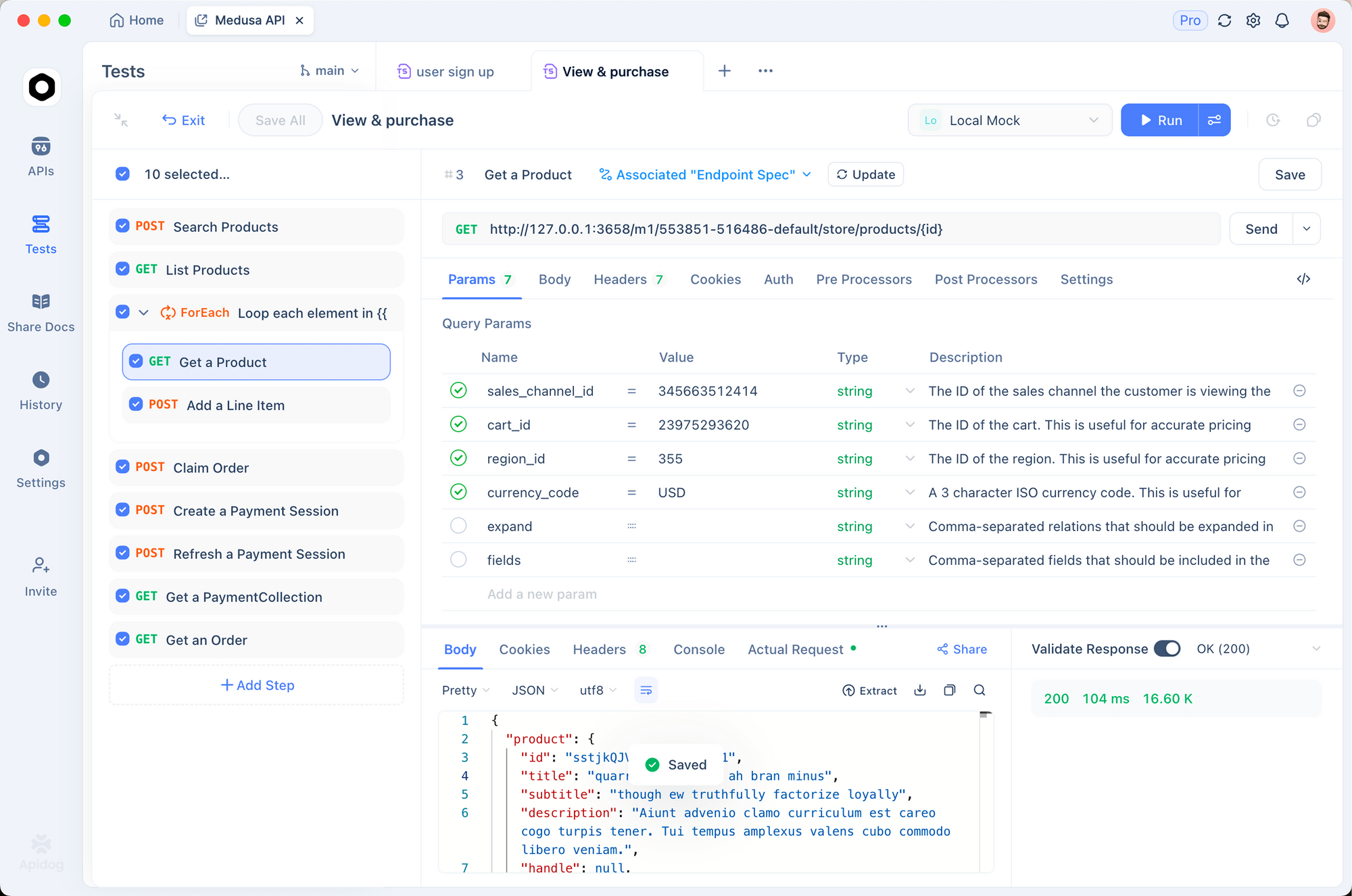
You add a POST request to /chat/completions. You include these headers:
- Content-Type: application/json
- Authorization: Bearer ollama
You use this body:
{
  "model": "qwen3.5:35b",
  "messages": [
    {"role": "system", "content": "You are a helpful agent."},
    {"role": "user", "content": "Plan steps to organize my Downloads folder by file type."}
  ],
  "temperature": 0.7,
  "max_tokens": 2048
}
You send the request. Apidog shows streaming tokens in real time. You add a visual assertion for status code 200. You save the request as a test scenario. You run the scenario again after you change settings. You therefore catch problems immediately.
You create a second collection for OpenClaw’s gateway at http://localhost:8080/v1. You test end-to-end message routing. Apidog’s schema validation confirms tool-call formats match what OpenClaw expects.
Design and Document Your Endpoints in Apidog
You use Apidog’s visual designer to model the chat completions schema. You import the official OpenAI spec. You customize it for qwen3.5 parameters. You generate interactive documentation automatically. You share the docs with teammates through Apidog workspaces if you work together.
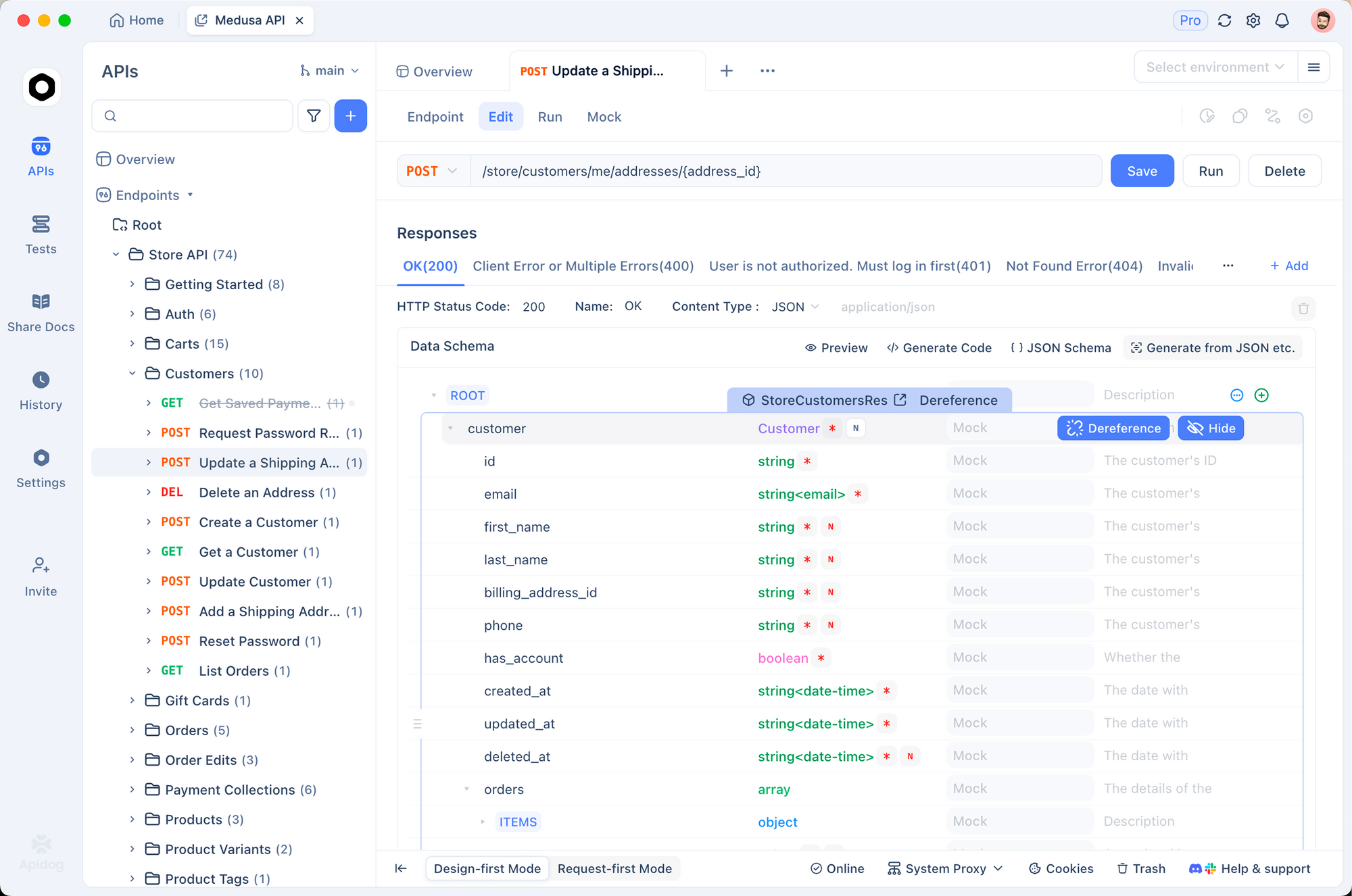
You also create mock responses inside Apidog. You simulate tool calls before you finish the full OpenClaw setup. You therefore develop faster and test edge cases safely.
Advanced Configuration for Better Performance
You create a custom Modelfile when you need lighter quantization:
FROM qwen3.5:35b
PARAMETER num_gpu 999
PARAMETER num_ctx 131072
You build it with ollama create qwen3.5:35b-q4 -f Modelfile. You update your OpenClaw config to use the new tag.
You enable vision by sending base64 images in chat messages. Qwen3.5 processes screenshots that OpenClaw captures during browser tasks. You therefore automate forms that require visual understanding.
You install extra skills:
openclaw skill install @community/calendar
openclaw skill install @community/github
Each skill registers JSON schemas. Qwen3.5 learns to call them automatically. You monitor usage inside the OpenClaw dashboard.
Real-World Workflows You Run Today
You use the stack for code reviews. You message OpenClaw: “Review the PR in my repo and suggest refactors.” The agent clones the repository, analyzes code, and creates a patch.
You automate personal tasks. You write: “Check my inbox for flight confirmations and add them to calendar.” OpenClaw parses emails and updates your calendar.
You build research assistants. You send a PDF screenshot and ask for a summary plus follow-up questions. Qwen3.5 extracts text accurately. OpenClaw keeps context across days.
You run multiple agents. You launch separate OpenClaw workspaces. One uses qwen3.5:35b for general work. Another uses a specialized coder model. The gateway routes messages correctly.
Optimize Speed and Memory Usage
You set OLLAMA_NUM_GPU=999 to use all GPU layers. You monitor with nvidia-smi. On Apple Silicon you enable flash attention.
You reduce context bloat with periodic summarization prompts that qwen3.5 runs automatically. You compare token-per-second rates. The 35B model reaches 45–60 tokens per second on a 4090-class GPU. You choose the variant that fits your hardware.
You use Apidog’s performance testing to measure latency across 100 requests. You adjust temperature and max_tokens until you reach your target response time.
Solve Common Problems Quickly
You see “model not found.” You run ollama list and correct the tag in your config.
You experience high latency. You check logs with journalctl -u ollama and increase GPU layers. You use Apidog to re-test the same request and confirm improvement.
Tool-call parsing fails. You lock temperature at 0.7 inside Apidog test scenarios and re-run.
OpenClaw loses connection to a messaging app. You run openclaw configure --section channels to refresh tokens.
You hit rate limits in Ollama. You increase concurrency settings and test again in Apidog.
You use Apidog’s error inspection pane for every issue. The visual stack trace and response comparison speed up fixes dramatically.
Keep Your Setup Secure
You run OpenClaw under a dedicated user account. You enable sandboxing for tool execution. You never expose ports 11434 or 8080 publicly. You access them through SSH tunnels or Tailscale when you travel.
You review every skill source before you install it. You turn on memory encryption in OpenClaw settings. You back up the ~/.openclaw folder regularly.
You therefore operate a system safer than most cloud services because your data never leaves your network.
Plan for Future Updates
Alibaba releases smaller Qwen3.5 variants regularly. Ollama adds them quickly. You pull updates with ollama pull qwen3.5:35b --force.
OpenClaw’s skill library grows every week. You check GitHub notifications to stay current.
You repeat the Apidog testing process after each update. You keep your test collection and simply change the model tag. You therefore maintain reliability without extra work.
Conclusion
You now run qwen3.5 with OpenClaw for free using Ollama. You control the entire stack on your hardware. You get strong reasoning, vision support, persistent memory, and proactive automation.
You followed clear steps. You tested every layer with Apidog. You optimized performance and secured the environment. Small configuration choices produced a capable personal AI agent.
Open your terminal now. Run the launch command. Connect your messaging apps. Send your first task. You will see how powerful a fully local agent feels.
Download Apidog to follow along with future updates and keep testing your endpoints efficiently. You already have everything you need to build smarter workflows today.