TL;DR
This guide walks you through deploying and using KiloClaw in 6 simple steps: sign up at app.kilo.ai/claw, choose your deployment type, connect chat platforms (Telegram, Discord, Slack, etc.), select your AI model, configure memory settings, and start using your AI assistant. The entire process takes under 60 seconds, and new users get 7 days of free compute.
Introduction
You've heard about KiloClaw, the hosted version of OpenClaw that's taken the AI agent world by storm. With 230,000+ GitHub stars and the ability to connect to 50+ platforms, it's never been easier to deploy a personal AI assistant.
In this tutorial, we'll walk through the entire process of setting up KiloClaw from scratch. By the end, you'll have a fully functional AI assistant connected to your preferred chat platforms, ready to help with automation, research, and productivity tasks.
Prerequisites
Before you begin, ensure you have:
| Requirement | Description |
|---|---|
| Kilo Account | Sign up at app.kilo.ai (free) |
| Chat Platform Account | At least one of: Telegram, Discord, Slack, etc. |
| AI API Key (optional) | Anthropic, OpenAI, or Google key if bringing your own |
| Web Browser | Chrome, Firefox, Safari, or Edge |
That's it. No server, no Docker, no command line required.
Step 1: Create Your KiloClaw Account
Navigate to KiloClaw
Open your browser and visit https://app.kilo.ai/claw
You'll see the KiloClaw landing page with the option to sign in or create an account.
Sign Up Process
- Click "Get Started" or "Sign Up"
- Choose your sign-up method:
- Email + password
- Google account
- GitHub account
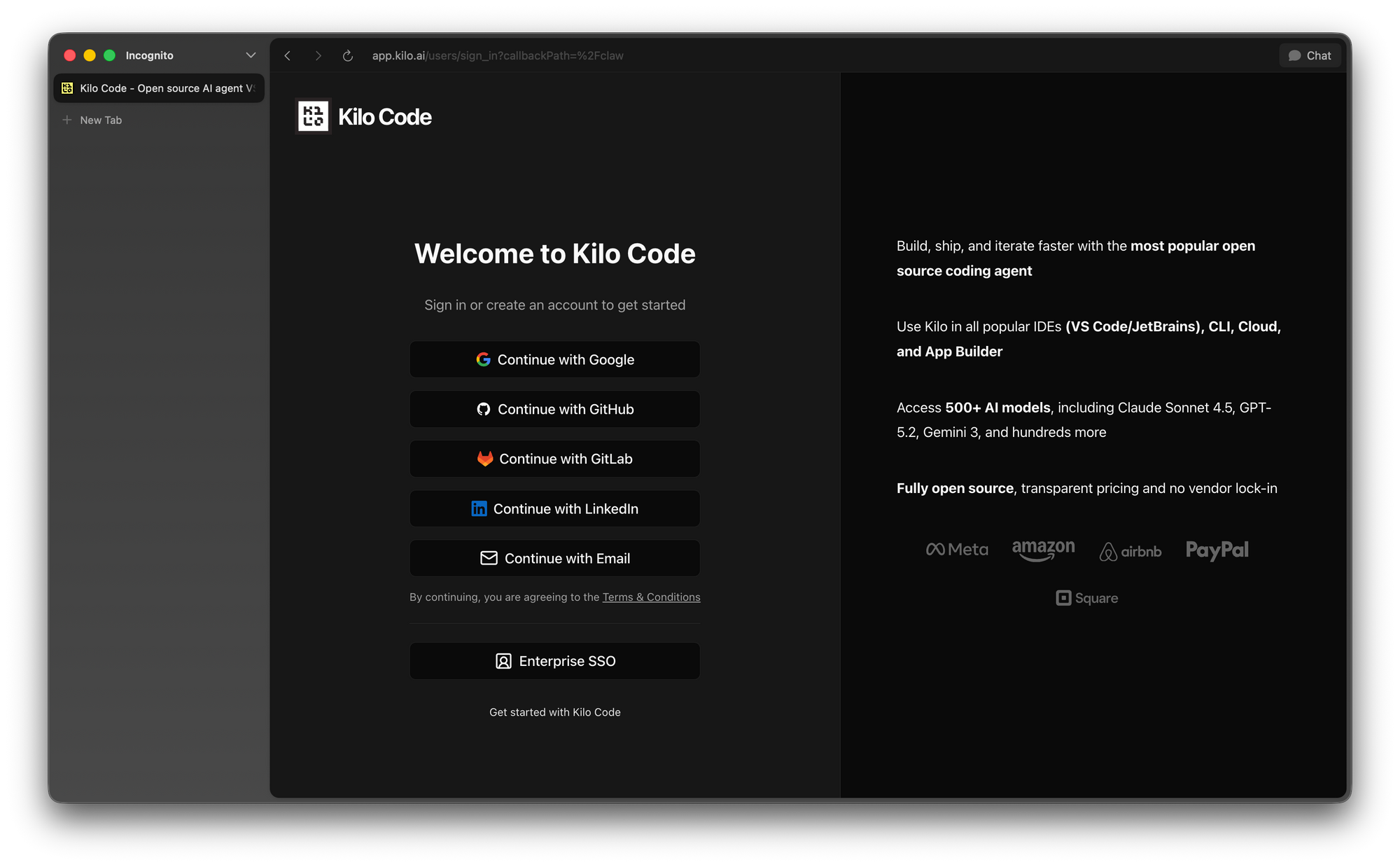
Complete the verification (email or OAuth)
Account Setup
After signing up, you'll land on the Kilo dashboard. If you're new to Kilo:
- Enter your name or display name
- (Optional) Add a profile photo
- Accept terms of service
You're now ready to create your first KiloClaw instance.
Step 2: Choose Your Deployment Type
KiloClaw offers three deployment options to match your experience level:
Option A: Quick Start (Recommended for Beginners)
The fastest path to a running assistant:
✓ Pre-configured defaults
✓ All popular platforms enabled
✓ Default model selected
✓ Standard memory settings
Time to deploy: ~30 seconds
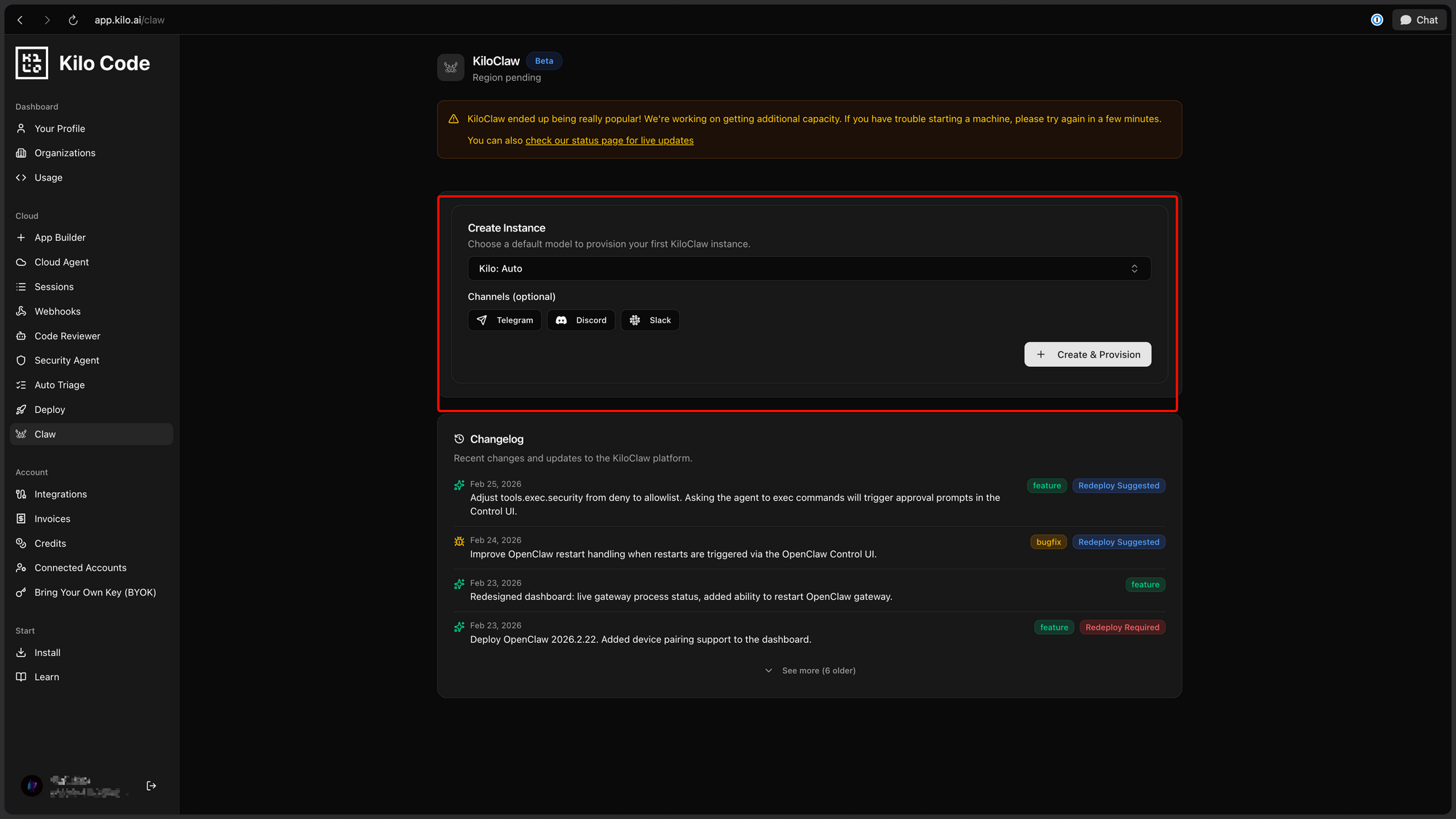
Option B: Custom Deployment
For users who know what they want:
- Platform Selection: Choose specific platforms to connect
- Model Selection: Pick your preferred AI model(s)
- Memory Configuration: Set conversation history limits
- Capability Tuning: Enable/disable specific AgentSkills
Time to deploy: ~60 seconds
Option C: Import Configuration
For existing OpenClaw users:
- Export your config from self-hosted OpenClaw
- Upload the configuration file
- KiloClaw maps settings to hosted environment
Time to deploy: ~45 seconds
Recommendation: Start with Quick Start to see KiloClaw in action, then customize later.
Step 3: Connect Chat Platforms
This is where KiloClaw shines, connecting your AI assistant to the platforms you already use.
Supported Platforms
| Platform | Authentication | Setup Time |
|---|---|---|
| Telegram | Bot token | 2 min |
| Discord | Bot token + server invite | 3 min |
| Slack | OAuth installation | 3 min |
| QR code pairing | 2 min | |
| Microsoft Teams | OAuth + admin consent | 5 min |
| Signal | Phone number + verification | 2 min |
| Matrix | Access token | 3 min |
Platform Setup Walkthrough
Telegram (Most Popular)
- In KiloClaw dashboard, click "Add Platform" → "Telegram"
- Open Telegram and message @BotFather
- Create a new bot:
/newbot - Copy the bot token
- Paste token into KiloClaw
- Click "Connect"
- Start chatting with your bot!
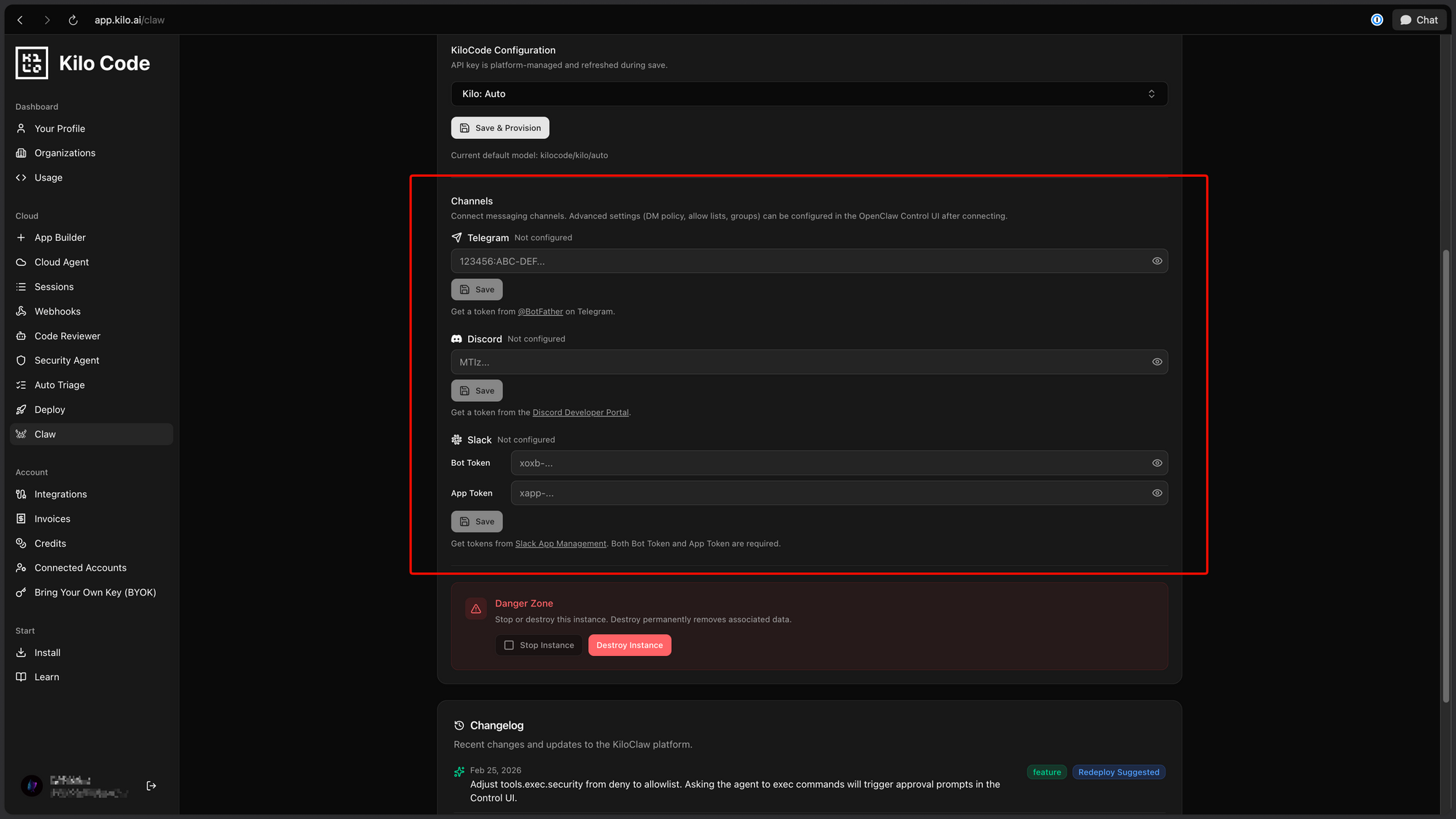
Telegram bot token format: 1234567890:ABCdefGHIjklMNOpqrsTUVwxyz
Discord
- Go to Discord Developer Portal
- Create a new application
- Add a bot to your application
- Copy the bot token
- In KiloClaw, paste token and specify server
- Set required permissions:
- Read messages
- Send messages
- Manage messages (optional)
- Generate invite link and add bot to server
Slack
- Create a Slack app at api.slack.com
- Enable Bot Token Scopes:
chat:writechannels:readim:write
- Install app to your workspace
- Copy Bot User OAuth Token
- Paste into KiloClaw
Connecting Multiple Platforms
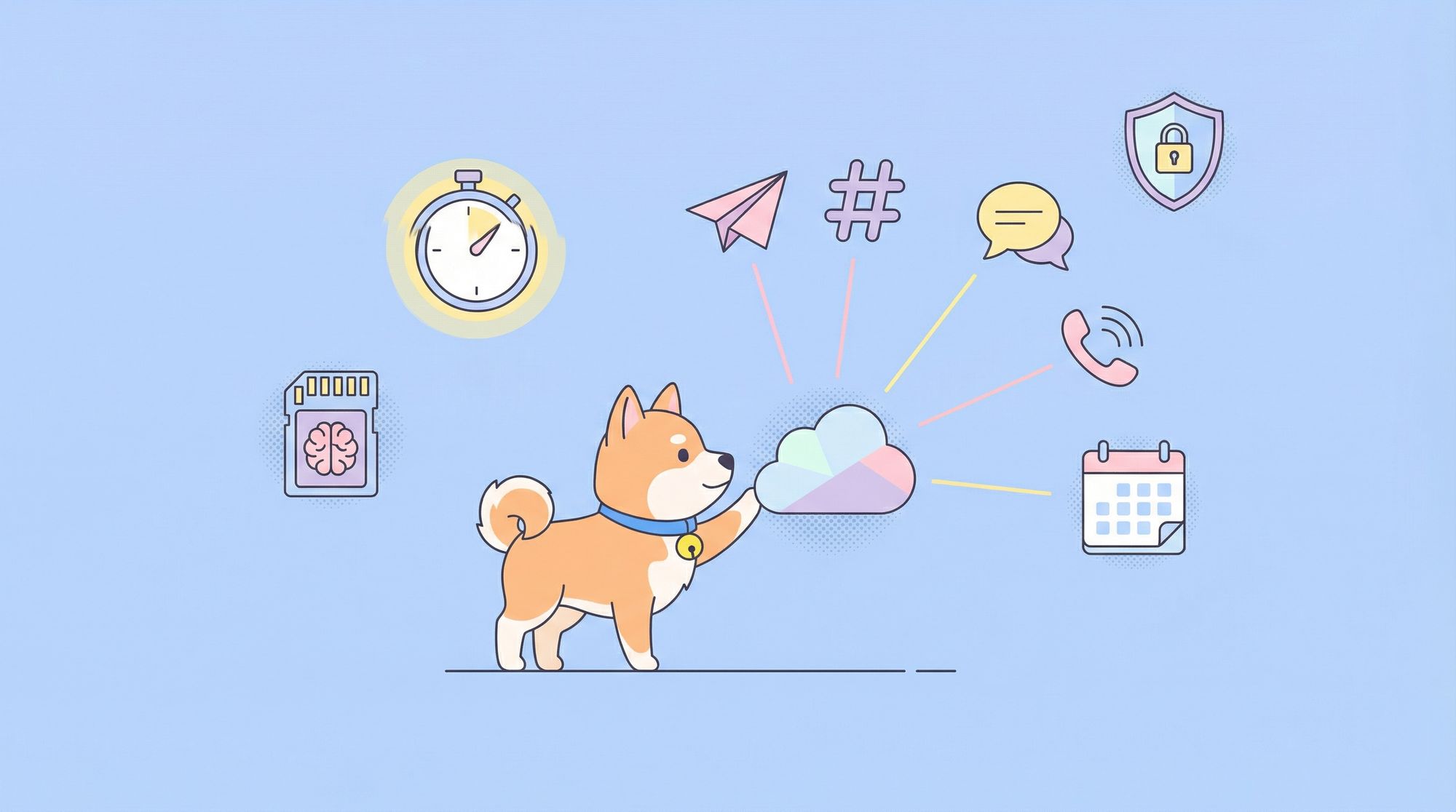
KiloClaw supports connecting to multiple platforms simultaneously. Your AI assistant will be accessible across all connected channels:
Example setup:
├── Telegram: @MyAIAssistant
├── Discord: #ai-assistant in MyServer
├── Slack: @ai-assistant in workspace
└── WhatsApp: +1-555-AI-HELP
All platforms share the same memory and context, magic!
Step 4: Select Your AI Model
KiloClaw gives you flexibility in choosing how your assistant thinks.
Option A: Kilo Gateway Models
Access 500+ models through Kilo's unified gateway:
| Model Category | Examples Best For | |
|---|---|---|
| Reasoning | Claude 4 Opus, GPT-4.5 | Complex problem-solving |
| Balanced | Claude 3.5 Sonnet, GPT-4o | General tasks |
| Fast | GPT-4o-mini, Claude 3 Haiku | Quick responses |
| Coding | Claude 4.5 Code, Codex | Development tasks |
| Vision | Claude 4 Vision, GPT-4V | Image understanding |
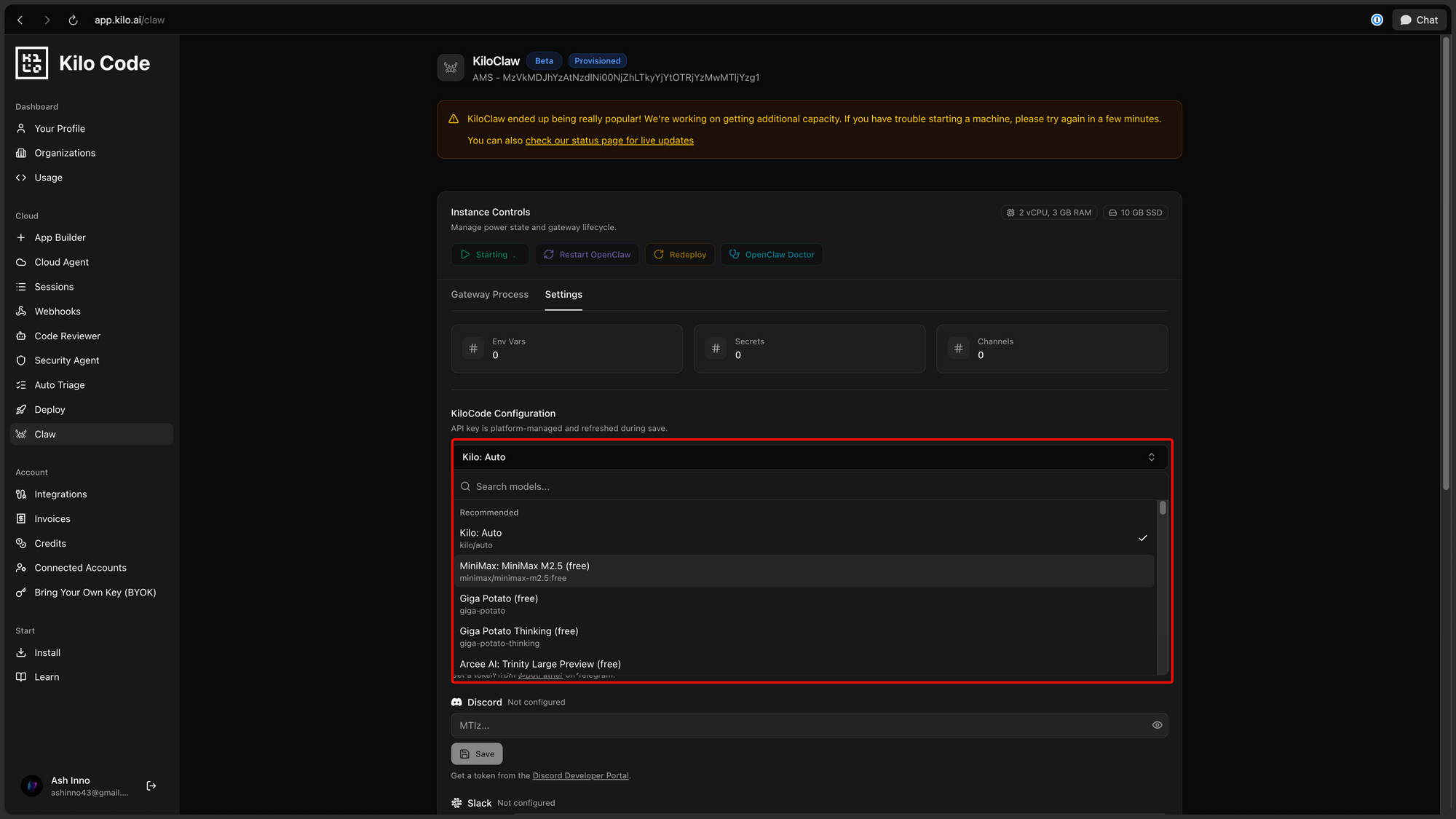
Pricing: Pay-per-token at Kilo Gateway rates (no markup)
Option B: Bring Your Own Key
Use existing API keys:
- Click "Bring Your Own Key"
- Select provider: Anthropic, OpenAI, or Google
- Paste your API key
- Choose model(s) from that provider
- Save
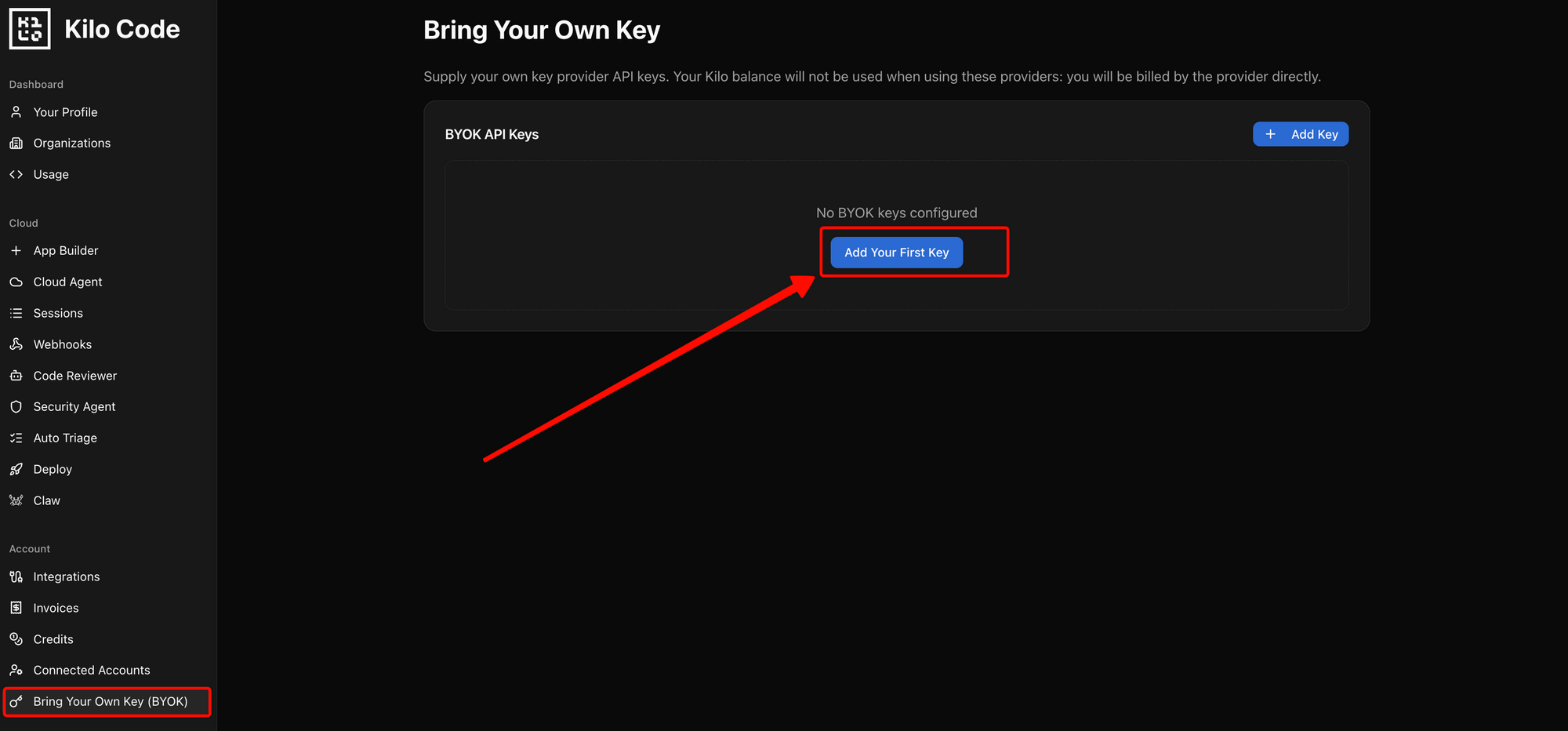
Your API key is securely stored and proxied through Kilo's infrastructure, it never touches your local environment.
Model Selection Tips
- Start with Claude 3.5 Sonnet: Excellent balance of capability and cost
- Switch per-task: Create different configurations for different use cases
- Use fast models for simple tasks: Save Opus/GPT-4 for complex reasoning
Step 5: Configure Memory and Preferences
One of KiloClaw's most powerful features is persistent memory, your assistant remembers context across sessions.
Memory Settings
| Setting | Description | Default |
|---|---|---|
| Conversation History | How many messages to retain | 100 |
| User Preferences | Remember user settings | Enabled |
| Context Window | How much context per request | Provider limit |
| Memory Format | Markdown files for persistence | Enabled |
Custom Instructions
Set system prompts that define your assistant's behavior:
You are a helpful AI assistant specialized in:
- Software development and code review
- Research and fact-finding
- Drafting emails and documents

Be concise, accurate, and proactive. When unsure, ask clarifying questions.
Privacy Controls
Configure what your assistant can access:
- Read access: Which platforms can it read from?
- Write access: Which platforms can it respond on?
- Tool access: Which capabilities are enabled?
- Data retention: How long is history kept?
Step 6: Deploy and Start Using
Launch Your Instance
With all settings configured:
- Click "Deploy KiloClaw"
- Wait for provisioning (~30 seconds)
- See "Instance Running" status
- Start chatting!
First Conversation
Send a message on any connected platform:
You: Hello! What can you help me with?

KiloClaw: Hi! I'm your personal AI assistant. I can help with:
- Research and information gathering
- Drafting emails, documents, and code
- Scheduling and reminders
- Automation across your connected apps
- And much more!

What would you like help with today?
Using Your KiloClaw AI Assistant
Now that it's running, here are the ways you can interact:
Basic Commands
| Command | Description |
|---|---|
help | Show available commands |
status | Display current configuration |
memory | Show what the assistant remembers about you |
reset | Clear conversation history |
Task Examples
Research Task
You: Can you research the latest developments in AI agents and summarize the key trends?

KiloClaw: [Conducts web research, synthesizes findings, presents summary]
Code Assistance
You: Write a Python function to fetch data from a REST API with error handling.

KiloClaw: [Provides well-commented code with proper error handling]
Automation
You: Remind me to review pull requests every day at 9 AM.

KiloClaw: [Sets up scheduled reminder task]
Voice Interaction
If enabled, talk to your assistant:
- macOS: Native integration via system microphone
- iOS/Android: Mobile app integration
- Phone: Twilio integration for voice calls
Advanced Configuration
AgentSkills (100+ Pre-built Capabilities)
KiloClaw includes pre-configured skills for common tasks:
| Category | Skills |
|---|---|
| Development | Code review, debugging, documentation |
| Productivity | Calendar, email, note-taking |
| Research | Web search, data extraction |
| Automation | Scheduled tasks, webhooks |
| Communication | Drafting, translation, summarization |
Enable/disable skills in dashboard settings.
Custom Tools
For advanced users, add custom capabilities:
- Create tool definition in JSON schema format
- Implement tool logic (Python, JavaScript)
- Register tool in KiloClaw dashboard
- Start using in conversations
Webhooks
Connect KiloClaw to external services:
{
  "trigger": "new_lead_form",
  "action": "notify_slack",
  "payload": "{{form_data}}"
}
Scheduling Automated Tasks
KiloClaw supports cron-style scheduling for recurring tasks.
Setting Up a Scheduled Task
- Go to "Automation" → "Scheduled Tasks"
- Click "Add Task"
- Configure:
| Field | Example |
|---|---|
| Name | Daily Standup Summary |
| Schedule | 0 9 * * 1-5 (Weekdays 9 AM) |
| Action | Run defined workflow |
| Notification | Post to Slack #standup |
Common Scheduled Automations
- Daily briefings: Summarize calendar, emails, tasks
- Weekly reports: Compile analytics and metrics
- Monitoring: Check API health, alert on failures
- Data sync: Pull/push data between services
Cron Expression Reference
┌───────────── minute (0-59)
│ ┌───────────── hour (0-23)
│ │ ┌───────────── day of month (1-31)
│ │ │ ┌───────────── month (1-12)
│ │ │ │ ┌───────────── day of week (0-6)
│ │ │ │ │
* * * * *
Managing Your Instance
Dashboard Controls
From the KiloClaw dashboard:
| Action | Description |
|---|---|
| Start/Stop | Pause or resume your instance |
| Restart | Force restart (fixes most issues) |
| View Logs | See activity and error logs |
| Update | Apply latest KiloClaw version |
| Delete | Permanently remove instance |
Monitoring Usage
Track your KiloClaw usage:
- API tokens consumed: Per-model breakdown
- Messages processed: Daily/weekly counts
- Active platforms: Connection status
- Runtime hours: Compute time used
Scaling Up
For higher usage:
- Upgrade to dedicated instance
- Add team members
- Enable enterprise features
Troubleshooting Common Issues
Bot Not Responding
Symptoms: Message sent but no reply
Solutions:
- Check platform connection status in dashboard
- Verify bot has necessary permissions
- Restart the instance
- Check logs for errors
Rate Limiting
Symptoms: "Too many requests" error
Solutions:
- Wait for rate limit window to reset
- Switch to a faster model
- Reduce message frequency
Memory Issues
Symptoms: Assistant forgets context / repeats itself
Solutions:
- Increase memory settings in configuration
- Manually remind assistant of context
- Check available context window for your model
Platform Connection Errors
Symptoms: "Failed to connect" for platform
Solutions:
- Verify authentication credentials
- Check platform API status
- Regenerate tokens/keys
- Reconnect platform in dashboard
Best Practices
Security
- Use least privilege: Only enable platforms you need
- Rotate keys regularly: Update API keys periodically
- Monitor activity: Review logs for suspicious behavior
- Limit capabilities: Disable unused AgentSkills
Performance
- Choose appropriate models: Use fast models for simple tasks
- Set reasonable limits: Don't retain unlimited history
- Schedule intelligently: Run heavy tasks during off-peak
User Experience
- Set clear instructions: Define your assistant's role clearly
- Test thoroughly: Verify all platforms work as expected
- Gather feedback: Ask users what improvements they want
- Iterate: Start simple, add complexity as needed
Conclusion
KiloClaw makes deploying a powerful personal AI assistant accessible to everyone. In under 60 seconds, you can have an AI agent connected to 50+ platforms, powered by 500+ models, ready to handle automation, research, and productivity tasks.
The 7-day free trial gives you plenty of time to explore its capabilities. Start with Quick Start deployment, then customize as you learn what works best for your needs.
Next Step: As your KiloClaw assistant grows more sophisticated, you'll want to monitor and debug the API calls it makes. Apidog provides the perfect companion tooling, inspect requests, validate responses, and optimize performance.
FAQ
How long does KiloClaw take to set up?
The entire process takes under 60 seconds with Quick Start deployment. Adding platforms takes 2-5 minutes each depending on authentication requirements.
Do I need coding skills to use KiloClaw?
No. KiloClaw is designed for non-technical users. The only coding required is for advanced custom tools, which is optional.
Can I use KiloClaw for free?
Yes. New users get 7 days of free compute. After that, you pay for compute time and AI tokens at Kilo Gateway rates with zero markup.
How do I connect multiple chat platforms?
In the KiloClaw dashboard, go to "Platforms" and add each platform one by one. Each platform has its own authentication process (bot tokens, OAuth, etc.).
Can I use my own API keys?
Yes. KiloClaw supports bringing your own keys from Anthropic, OpenAI, Google, or any OpenAI-compatible API.
What happens if my instance crashes?
KiloClaw automatically restarts crashed instances. You can also manually restart from the dashboard if needed.
Can I schedule automated tasks?
Yes. KiloClaw supports cron-style scheduling for automated workflows that run on recurring schedules.
How do I delete my KiloClaw instance?
Go to Dashboard → Settings → Delete Instance. This permanently removes your instance and all associated data.