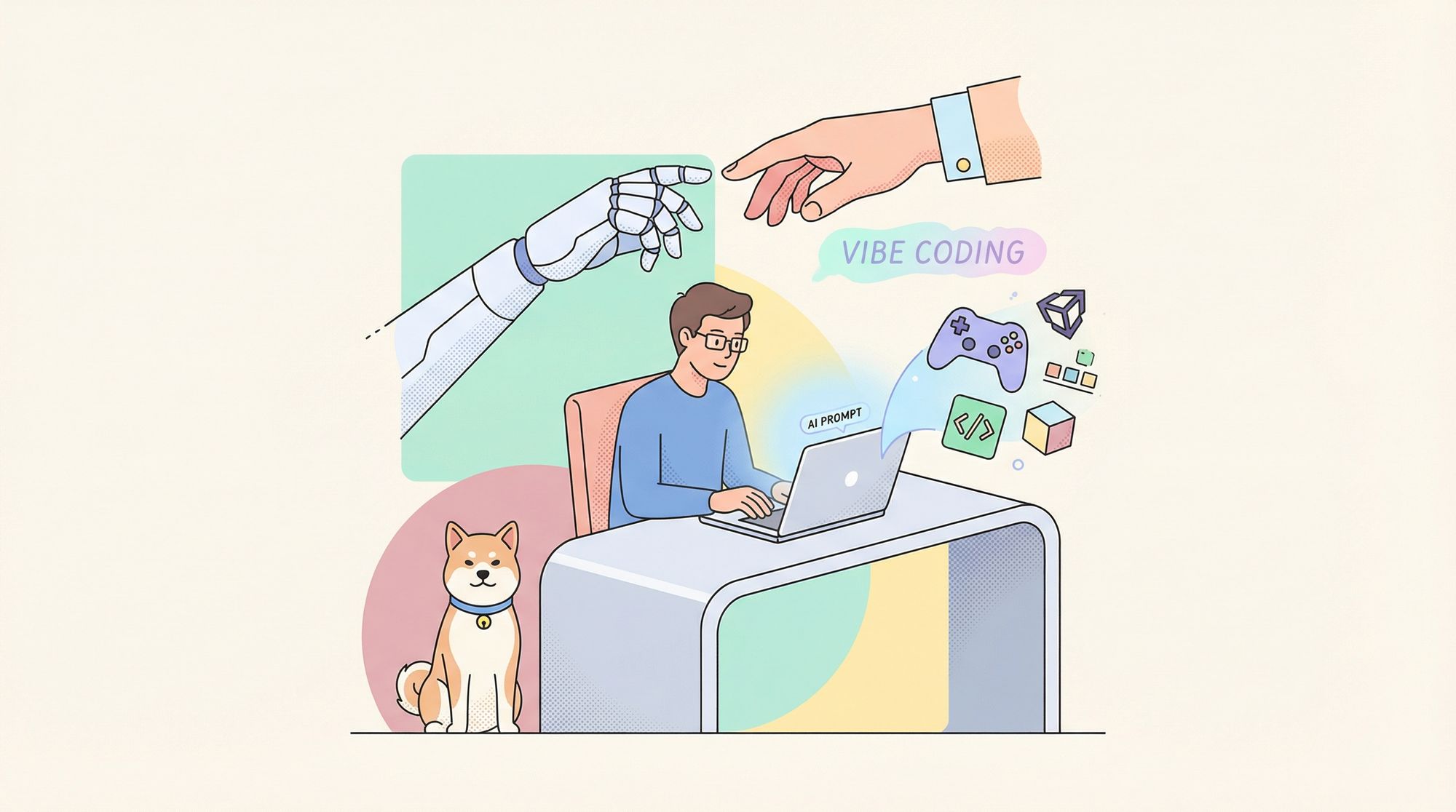
Imagine building entire games in Unity using just a few natural language prompts. Unity MCP (Model Context Protocol) is bringing this vision to life by integrating large language models (LLMs) like Claude Desktop directly into the Unity game engine. This approach, known as "vibe coding," is blurring the lines between traditional game development and AI-driven automation—allowing developers to accelerate workflows, improve asset management, and focus on creative problem-solving.
Whether you're automating repetitive Unity tasks, generating C# scripts, or streamlining API-driven workflows, tools like Apidog and Unity MCP can unlock new efficiencies for technical teams.
💡 Ready to supercharge your MCP and API workflow? Download Apidog for free and see how it can streamline your process!
What Is Unity MCP? (Model Context Protocol for Unity)
Unity MCP is an open-source protocol that enables seamless, bidirectional communication between Unity and LLMs such as Claude Desktop. It acts as a bridge: developers can automate editor tasks, manipulate assets, and programmatically control Unity—all through AI-driven prompts.
If you're looking to connect AI tools to your Unity projects or automate complex workflows, Unity MCP offers:
- Script generation and updates
- Asset import and prefab management
- Scene editing and game object control
- Real-time communication between Unity and AI agents
Curious about how MCP works or want to get started quickly? Check out this Beginner’s Guide to Model Context Protocol (MCP) for a step-by-step introduction.
Apidog Blog by Ashley Goolam

How Does Unity MCP Work? Key Features and Workflow
Unity MCP unlocks powerful automation and AI-driven interactions in Unity. Here’s what stands out:
Core Features of Unity MCP
- Bidirectional Communication: Send commands and receive responses from MCP-compliant tools for real-time, interactive development.
- Asset Management: Programmatically create, import, and manipulate Unity assets—ideal for pipeline automation.
- Scene Control: Open, save, and edit scenes or game objects directly via AI prompts.
- Material Editing: Automate material assignments and adjustments from scriptable inputs.
- Script Integration: Generate or modify C# scripts on demand, reducing manual coding overhead.
- Editor Automation: Automate project builds, play mode toggling, and other editor tasks to accelerate iteration.
Prerequisites: What You Need to Use Unity MCP
To set up Unity MCP, ensure you have:
- Unity 2020.3 LTS or newer (URP projects supported)
- Python 3.7+
- Git (optional, but streamlines installation)
- uv (Ultra Fast Python Installer for managing dependencies)
- Claude Desktop App (installed and logged in)
Step-by-Step: Setting Up Unity MCP in Your Project
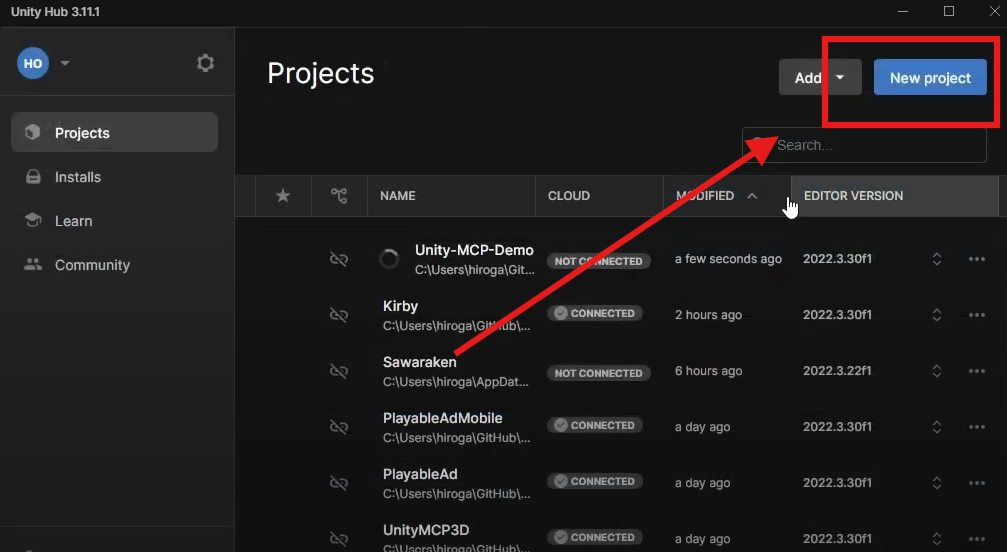
1. Create a New Unity MCP Project
- Open Unity Hub and click "New Project"
- Choose the latest LTS version (2022.3+ recommended)
- Select the 3D Core template or another as needed
- Name your project (e.g., "UnityMCP_Demo") and select a simple file path
Tips:
- Use a short path (like
C:\Dev\UnityMCP) to avoid file permission issues - Enable Version Control (Git) from the start for team projects
2. Install Unity MCP via the Package Manager
- In Unity, go to: Window > Package Manager
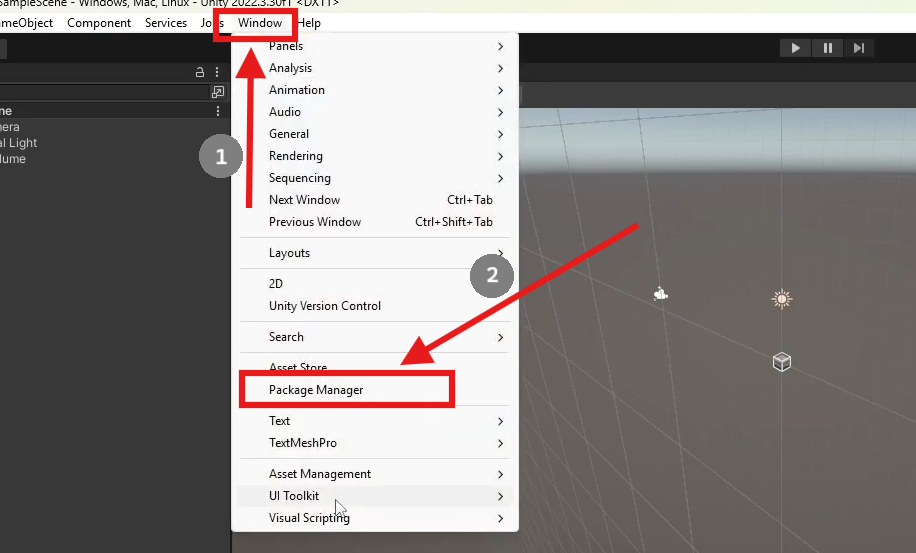
- Click the "+" dropdown > Add package from git URL
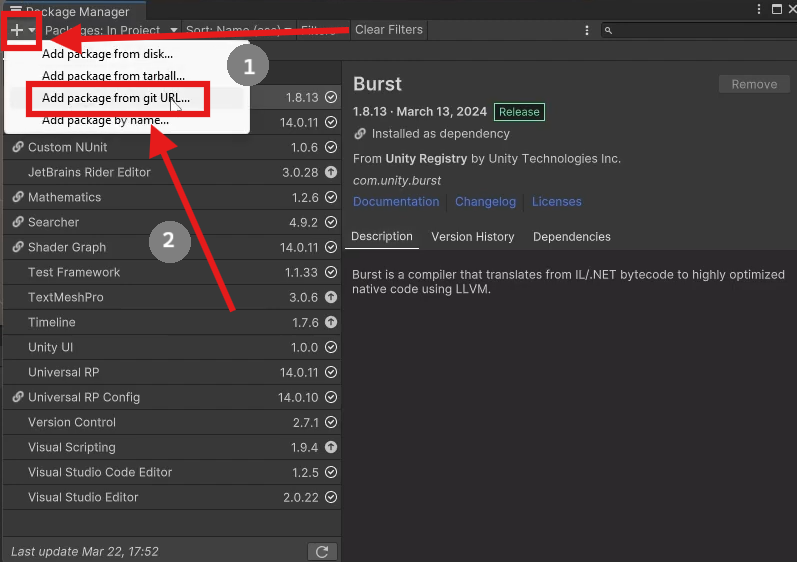
- Enter:
https://github.com/justinpbarnett/unity-mcp.git
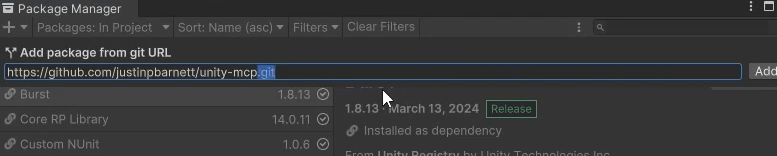
Note: Be sure to include the .git at the end for successful installation.
- Click Add and let Unity resolve dependencies
Troubleshooting:
- Check your internet connection
- Verify Git is installed (
git --version) - To pin a specific version, try adding
#stableafter.git
3. Clone the Unity-MCP Repository Locally
- Option A (Recommended):
git clone https://github.com/justinpbarnett/unity-mcp.git cd unity-mcp - Option B (Manual Download):
- Visit:
github.com/justinpbarnett/unity-mcp - Click Code > Download ZIP, then extract to a folder (e.g.,
C:\Dev\unity-mcp)
- Visit:
Why?
The local repo contains Python scripts for MCP server communication—essential for real-time AI-driven Unity workflows.
4. Set Up the UV Package Manager
- Windows (PowerShell):
powershell -c "irm https://astral.sh/uv/install.ps1 | iex" - Mac/Linux (Terminal):
brew install uv - Verify Installation:
uv --version # Should return v0.1.0+
UV provides faster dependency resolution compared to pip.
5. Configure Unity MCP Python Dependencies
- Navigate to your cloned
unity-mcpfolder - Run:
uv pip install -e . - Confirm installation:
python -c "import unity_mcp; print('OK')"
6. Integrate Unity MCP with Claude AI
- Locate your Claude config file:
- Windows:
%APPDATA%\Claude\claude_desktop_config.json - macOS:
~/Library/Application Support/Claude/claude_desktop_config.json
- Windows:
- Add the Unity MCP server configuration:
{ "mcpServers": { "unityMCP": { "command": "uv", "args": [ "-directory", "C:/Dev/UnityMCP_Demo", // Update with your repo path "run", "server.py" ] } } } - Save and restart Claude.
7. Verify Your Unity MCP Connection
- In Unity: Go to Window > Unity MCP > Configurator
- Click Auto Configure and look for a green status (🟢 = connected)
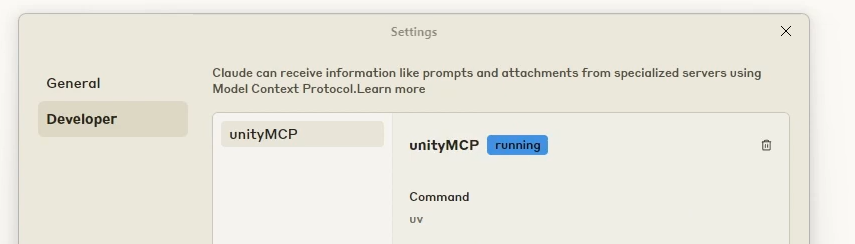
- In Claude: Navigate to Settings > Developer > Unity MCP
Exploring Other Unity MCP Implementations
Beyond the main Unity MCP, options like YetAnotherUnityMcp use WebSockets for real-time Unity-AI communication—enabling features like scene inspection, C# execution, and AI-driven screenshots.
💡 Want more MCP server options for tools like Claude or Windsurf? Check out HiMCP and explore 1682+ Awesome MCP Servers and Clients to boost your AI coding workflow.
The Future of Game Development with Unity MCP
Unity MCP and AI-powered “vibe coding” are fundamentally changing how games are built:
- Efficiency: Automate repetitive Unity tasks and code generation to speed up development cycles.
- Creativity: Let AI handle technical details, so you can focus on design, gameplay, and storytelling.
- Accessibility: Lower the barrier for non-coders, educators, and indie creators to prototype and launch games.
Considerations: Challenges and Limitations
While Unity MCP unlocks major advantages, keep these in mind:
- Technical Complexity: Initial setup requires comfort with Python, Git, and editor configuration.
- AI Dependence: Output quality relies on the LLM’s capabilities and the clarity of prompts.
- Learning Curve: Shifting from manual workflows to AI-driven prompts takes getting used to.
Real-World Examples: Unity MCP in Action
Unity MCP isn’t just theory—developers are using it for rapid prototyping and full game builds.
Example 1: Creating a Mario Clone
Prompt:
Using the unity-mcp tool, please make a mario clone in unity
Claude will request permission before running any MCP tool. Click "Allow for This Chat" to proceed.
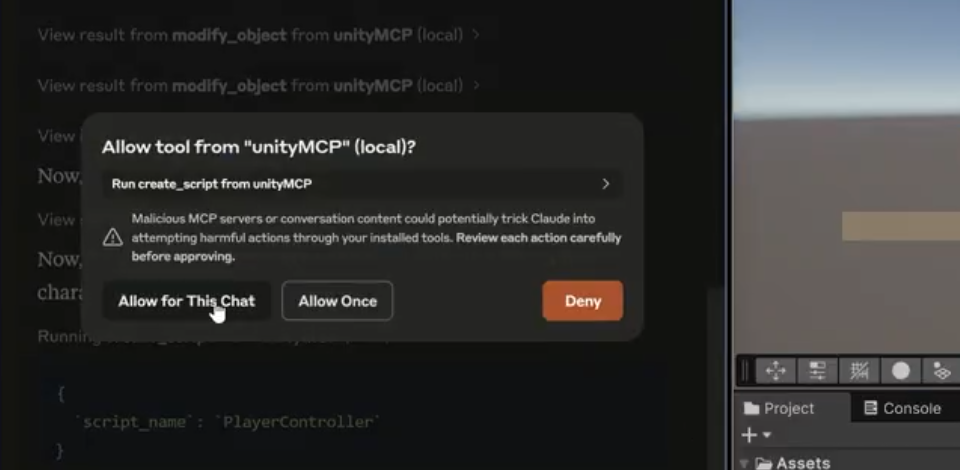
You can view each step as Claude builds the game:
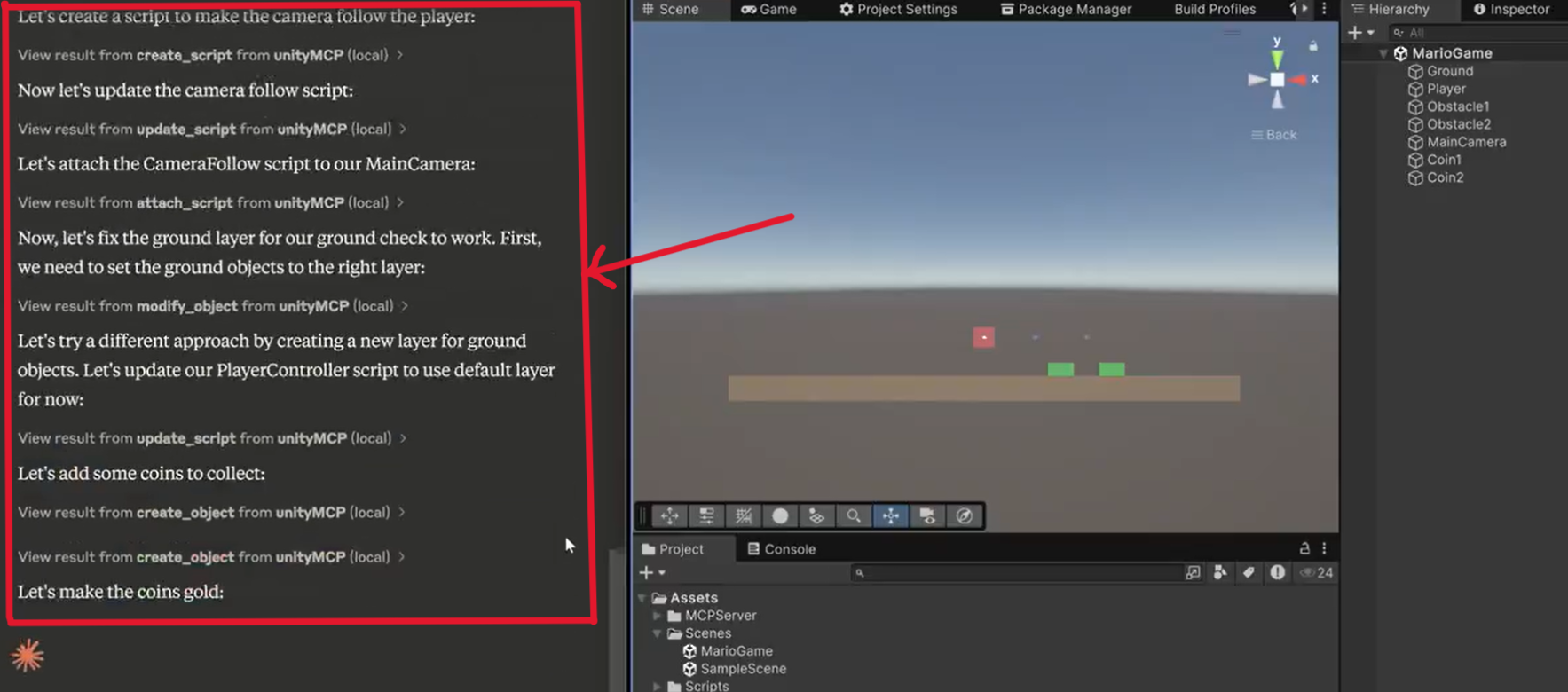
After a few minutes, the Unity project begins to take shape:
0
Final output:
1
Example 2: Modeling an Aquarium with Fish
Prompt:
Model an aquarium with fish inside using Unity MCP.
2
Final Thoughts: Unlocking Developer Productivity with Unity MCP
Unity MCP is redefining game development by merging human creativity with AI-driven automation. Integrating MCP servers means more than just automating Unity tasks—you’re opening the door to faster prototyping, improved accuracy, and next-level collaboration between APIs and AI agents.
As you explore new workflows, consider how tools like Apidog can streamline API testing and management alongside your Unity MCP setup. The future of scalable, efficient game development is here—driven by automation, powered by your creativity.