You've just implemented JWT (JSON Web Token) authentication in your API. It's elegant, stateless, and secure. But now comes the critical part: testing it thoroughly. How do you verify that your protected endpoints correctly reject requests without tokens? How do you test token expiration? How do you simulate different user roles?
If you're reaching for curl commands or writing one-off scripts, you're about to discover a much better way. Apidog transforms JWT testing from a chore into a streamlined, powerful workflow.
In this guide, we’ll walk through exactly how to test JWT auth in APIs using Apidog, including how to configure it, automate validation, and avoid common pitfalls. Plus, we’ll cover all the authentication methods Apidog supports, so you know you’re covered no matter your stack.
Now, let's walk through exactly how to master JWT authentication testing with Apidog, and explore the wide range of authentication methods it supports.
Why JWT Testing Is Crucial
JWT authentication has become the standard for securing modern APIs. But with its power comes complexity that needs rigorous testing:
- Token Validation: Does your API correctly validate the token signature?
- Endpoint Protection: Are your endpoints truly protected without a valid token?
- Role-Based Access Control (RBAC): Do different tokens (with different claims) get the correct access levels?
- Token Expiration: Does your API properly reject expired tokens?
- Error Handling: Do you return clear
401 Unauthorizedresponses with helpful messages?
Manually testing these scenarios with command-line tools or browser plugins is tedious and error-prone. Apidog provides a centralized, visual, and automated approach to handle all of this.
Getting Started: Setting Up Your JWT Authentication in Apidog
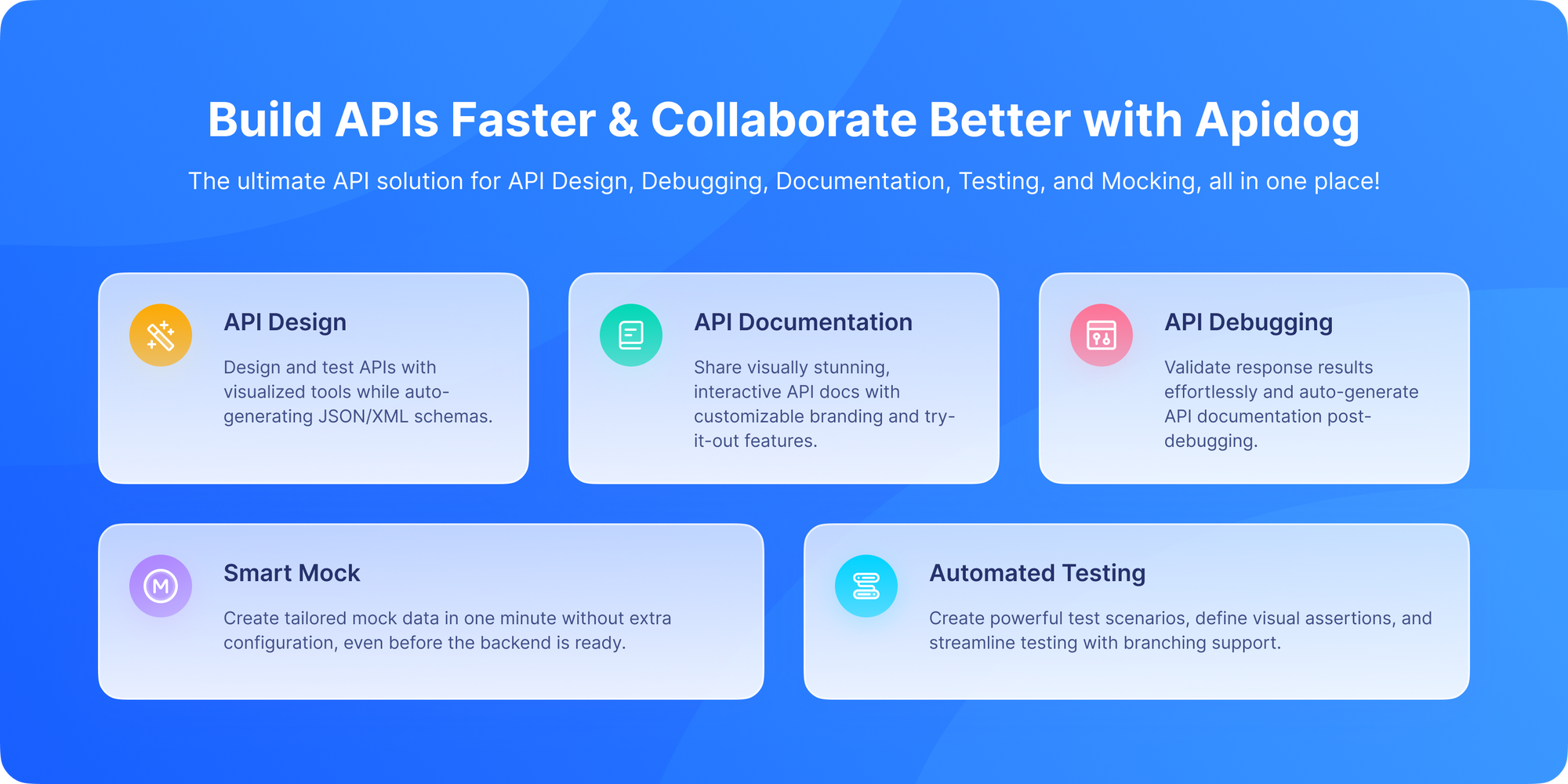
Apidog makes configuring JWT authentication intuitive. Let's break it down step by step.
Step 1: Create Your Authentication Request
First, you need to obtain a JWT token from your authentication endpoint (e.g., POST /api/auth/login).
In Apidog, create a new POST request.
Set the URL to your login endpoint.
In the Body tab, add the required credentials (usually JSON like {"username": "test", "password": "test"}).
Send the request. You should receive a 200 OK response with a token in the body, often looking like:
{
  "access_token": "eyJhbGciOiJIUzI1NiIs...",
  "token_type": "bearer",
  "expires_in": 3600
}
Step 2: Extract and Store the Token
This is where Apidog shines. Instead of manually copying the token for every request, you can automate this.
In the Tests tab of your login request, add a script to extract the token from the response and save it as an environment variable.
// Apidog Test Script Example
const responseJson = pm.response.json();
// Extract the access_token from the response
const accessToken = responseJson.access_token;
// Store it in an environment variable named 'jwt_token'
pm.environment.set("jwt_token", accessToken);
Run the request. Apidog will execute this script and save the token to your active environment.
Step 3: Configure JWT Bearer Auth for Protected Endpoints
Now, for any endpoint that requires JWT authentication (e.g., GET /api/users/me):
- Create a new request to your protected endpoint.
- Go to the Auth tab.
- From the Type dropdown, select "JWT Bearer".
This is the heart of the setup. Apidog's JWT Bearer auth type is specifically designed for this standard.
- In the Token field, you can now reference your saved environment variable by using double curly braces:
{{jwt_token}}. - The Prefix field is typically
Bearer(which is the standard and automatically applied by Apidog for this auth type).
What happens under the hood? When you send this request, Apidog automatically formats the Authorization header for you:
Authorization: Bearer eyJhbGciOiJIUzI1NiIs...
No manual header editing required!
Advanced JWT Testing Workflows with Apidog
1. Testing Token Expiration and Renewal
A robust test should check how your API handles expired tokens.
- Simulate Expiry: You can manually change the
jwt_tokenenvironment variable to an expired token string and re-run your protected endpoint requests. They should return401 Unauthorized. - Automate Refresh Flow: If your API has a refresh token endpoint (
POST /api/auth/refresh), you can build a test sequence in Apidog:
- Request a protected endpoint with an expired token (expect
401). - Call the refresh endpoint with the refresh token to get a new
access_token. - Automatically update the
jwt_tokenenvironment variable with the new token. - Retry the original protected endpoint (now expecting
200 OK).
2. Testing Role-Based Access Control (RBAC)
Test if a user with a "role": "user" claim cannot access admin endpoints.
- Create separate environment variables for different user tokens:
{{admin_jwt_token}}and{{user_jwt_token}}. - For an admin-only endpoint (e.g.,
DELETE /api/users/123), create two test cases in Apidog:
- Test Case A: Use
{{admin_jwt_token}}. Expected:200 OKor204 No Content. - Test Case B: Use
{{user_jwt_token}}. Expected:403 Forbidden.
3. You can run these as part of an automated test suite to ensure your RBAC logic is always enforced.
3. Testing Malformed or Invalid Tokens
Apidog makes it easy to test edge cases:
- No Token: Simply disable or remove the auth configuration for a request and send it. Verify you get a
401. - Malformed Token: Set the
jwt_tokenvariable to a random string like"invalid"and send the request. Should return401. - Tampered Signature: You can use online tools to decode a valid JWT, change a claim, and re-encode it with a wrong signature. Save this tampered token to your environment and test with it.
Beyond JWT: The Full Spectrum of Authentication in Apidog

While JWT Bearer is incredibly common, modern APIs use various authentication methods. Apidog's strength is its comprehensive support for all of them in one unified interface.
1. API Key Authentication
The simplest and most common method for machine-to-machine communication.
- In Apidog: Select "API Key" from the Auth type dropdown.
- Configuration: Choose whether the key goes in the header (e.g.,
X-API-Key) or query parameters. Enter your key value, which can also reference an environment variable{{api_key}}.
2. Basic Authentication
The classic username and password prompt, often used for legacy systems or initial login endpoints.
- In Apidog: Select "Basic Auth".
- Configuration: Enter the username and password. Apidog automatically encodes them in base64 and adds the
Authorization: Basic ...header.
3. OAuth 2.0
The industry standard for user delegation and authorization. This is where Apidog becomes exceptionally powerful.
- In Apidog: Select "OAuth 2.0".
- Supported Flows: It guides you through configuring the Authorization Code flow (the most common for web apps), Client Credentials flow (for machine-to-machine), and others.
- Automated Token Management: Apidog can handle the entire OAuth dance redirecting to the authorization server, capturing the authorization code, and exchanging it for an access token. It then automatically attaches the token to subsequent requests as a Bearer token.
4. Hawk Authentication
A less common but secure scheme using message authentication codes.
- In Apidog: Select "Hawk Authentication" and fill in the required ID, key, and algorithm.
5. AWS Signature
Crucial for testing APIs hosted on Amazon Web Services.
- In Apidog: Select "AWS Signature".
- Configuration: Enter your AWS Access Key, Secret Key, Region, and Service name (e.g.,
execute-api). Apidog automatically calculates and adds the complex AWS Signature v4 headers for you.
6. Digest Authentication
A more secure challenge-response protocol than Basic Auth.
- In Apidog: Select "Digest Auth" and provide the username and password.
This unified approach means you can test every endpoint of your API, regardless of its authentication method, within the same project and interface.
Creating Robust Test Suites and Documentation
Once you've configured your authentication and tested your endpoints manually, Apidog lets you scale this into professional-grade workflows.
1. Build Test Collections
Group all requests for a specific feature (e.g., "User Management") into a collection. You can run the entire collection with one click, ensuring all your JWT-protected endpoints work together correctly.
2. Parameterize with Environments
Use different Apidog environments (e.g., "Development," "Staging," "Production") to store different sets of variables. Your {{jwt_token}} in the "Development" environment can point to your local server, while in "Production" it uses live (but test) credentials. Switch contexts instantly.
3. Generate and Share Documentation
Apidog automatically creates beautiful, interactive API documentation from your requests. This documentation will clearly show which endpoints require JWT Bearer auth, making it instantly clear for your frontend or mobile developers.
Conclusion: From Tedious to Transformative
Testing JWT authentication no longer needs to be a manual, fragile process. Apidog provides a complete, integrated solution that handles the entire lifecycle: from obtaining tokens, to configuring authentication for endpoints, to building automated test suites that validate both positive and negative scenarios.
Its support extends far beyond JWT to encompass the full gamut of modern API authentication standards API Key, Basic, OAuth 2.0, and more all within the same intuitive interface.
By adopting Apidog, you move from simply checking if your API works to confidently verifying that its security model is robust, reliable, and ready for production. Stop copying and pasting tokens; start building a professional, automated testing strategy.