TL;DR
Ollama is the easiest way to run powerful AI models locally. Combined with OpenClaw, it creates a free, privacy-focused AI assistant that rivals paid alternatives. This guide walks you through setting up Ollama, choosing the right model, and integrating it with OpenClaw for your personal AI assistant.
Introduction
Running AI locally was once a hobbyist's pursuit, requiring complex setup and expensive hardware. Ollama changed that. With a simple install command and intuitive API, Ollama makes running AI models locally accessible to anyone.

When paired with OpenClaw, you get a powerful AI assistant that:
- Costs nothing to run (after initial setup)
- Keeps your data 100% private
- Works offline once models are downloaded
- Offers full customization control
This guide covers everything you need to get started.
Why Use Ollama with OpenClaw
Benefits of Local AI
- Privacy: Your conversations never leave your machine
- No API costs: Pay once for hardware, use unlimited
- Offline access: Works without internet
- Full control: Customize models and prompts
- No rate limits: Use as much as you want
Why Ollama
Ollama stands out for several reasons:
- Simple installation: One command gets you started
- Model library: 100+ models available
- Cross-platform: Works on macOS, Linux, Windows
- API-first: Easy integration with OpenClaw
- Active development: Regular updates and new models
Prerequisites
Before starting, ensure you have:
Hardware Requirements
| Model Size | Minimum RAM | Recommended RAM |
|---|---|---|
| 7B params | 8GB | 16GB |
| 14B params | 16GB | 32GB |
| 32B params | 32GB | 64GB |
| 70B params | 64GB | 128GB |
Software Requirements
- macOS 10.15+, Linux, or Windows 10+
- Administrator/root access for installation
- Internet connection for initial downloads
- Command line familiarity
What You'll Need
- A computer meeting RAM requirements
- Internet for downloading models
- Time for initial model downloads (varies by size and connection)
Installing Ollama
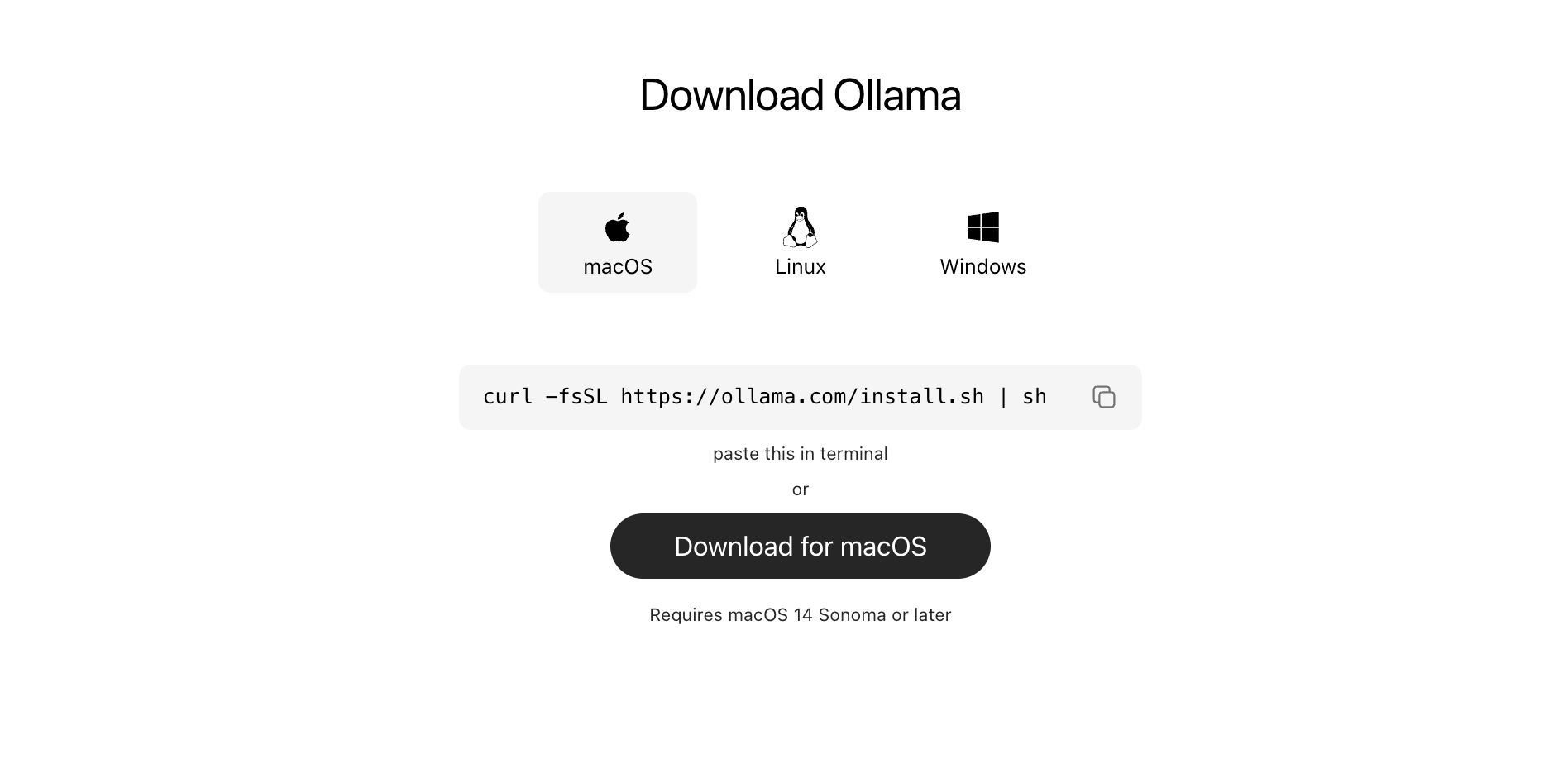
macOS Installation
The easiest method uses Homebrew:
brew install ollama
Or use the official installer script:
curl -fsSL https://ollama.ai/install.sh | sh
Linux Installation
# Using the install script (recommended)
curl -fsSL https://ollama.ai/install.sh | sh

# Or download the binary directly
sudo curl -L https://ollama.ai/download/ollama-linux-amd64 -o /usr/bin/ollama
sudo chmod +x /usr/bin/ollama
Windows Installation
- Download the installer
- Run the installer
- Follow the on-screen instructions
Verifying Installation
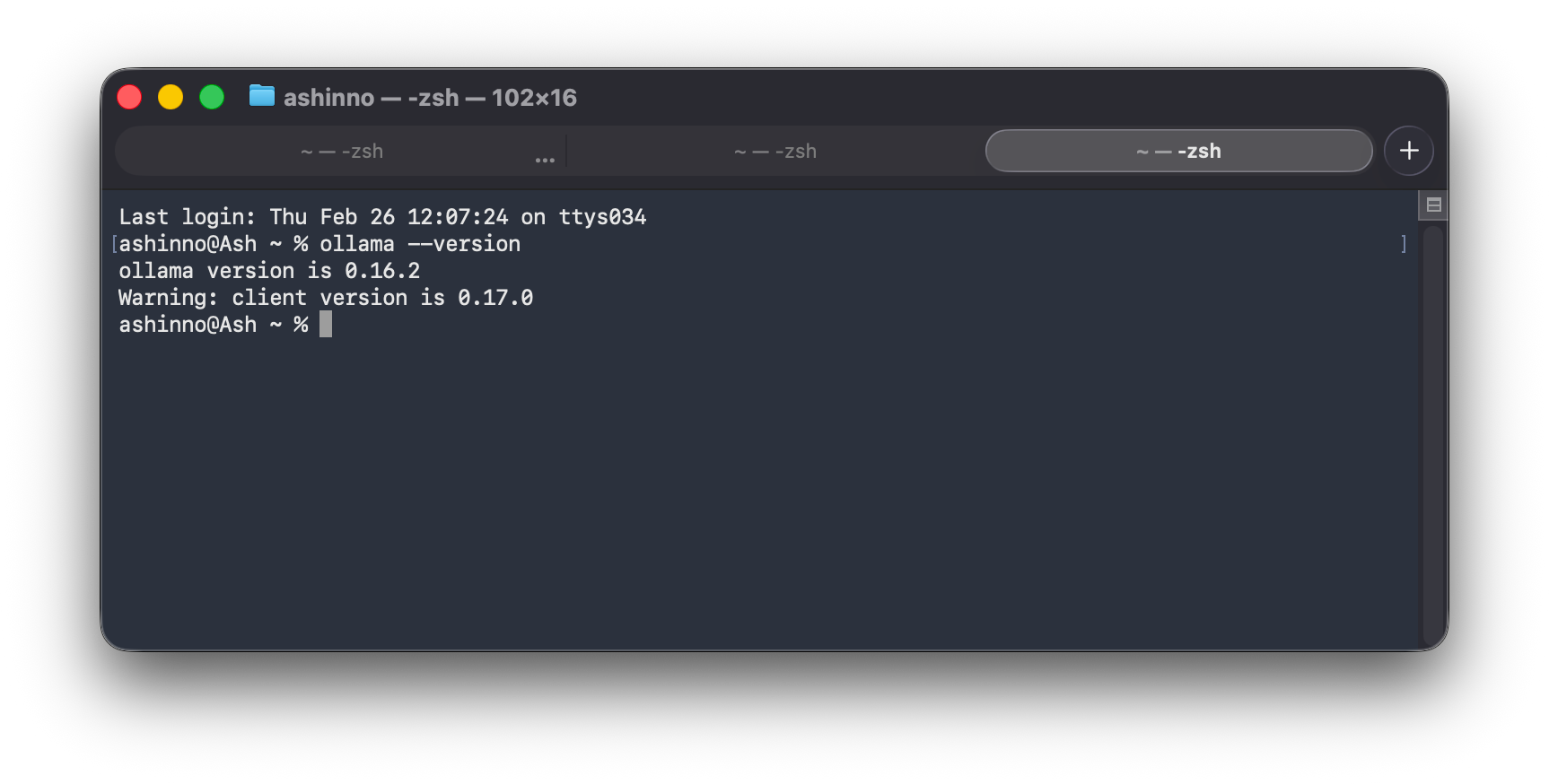
ollama --version
You should see output like ollama version 0.15.0 or newer.
Starting Ollama Service
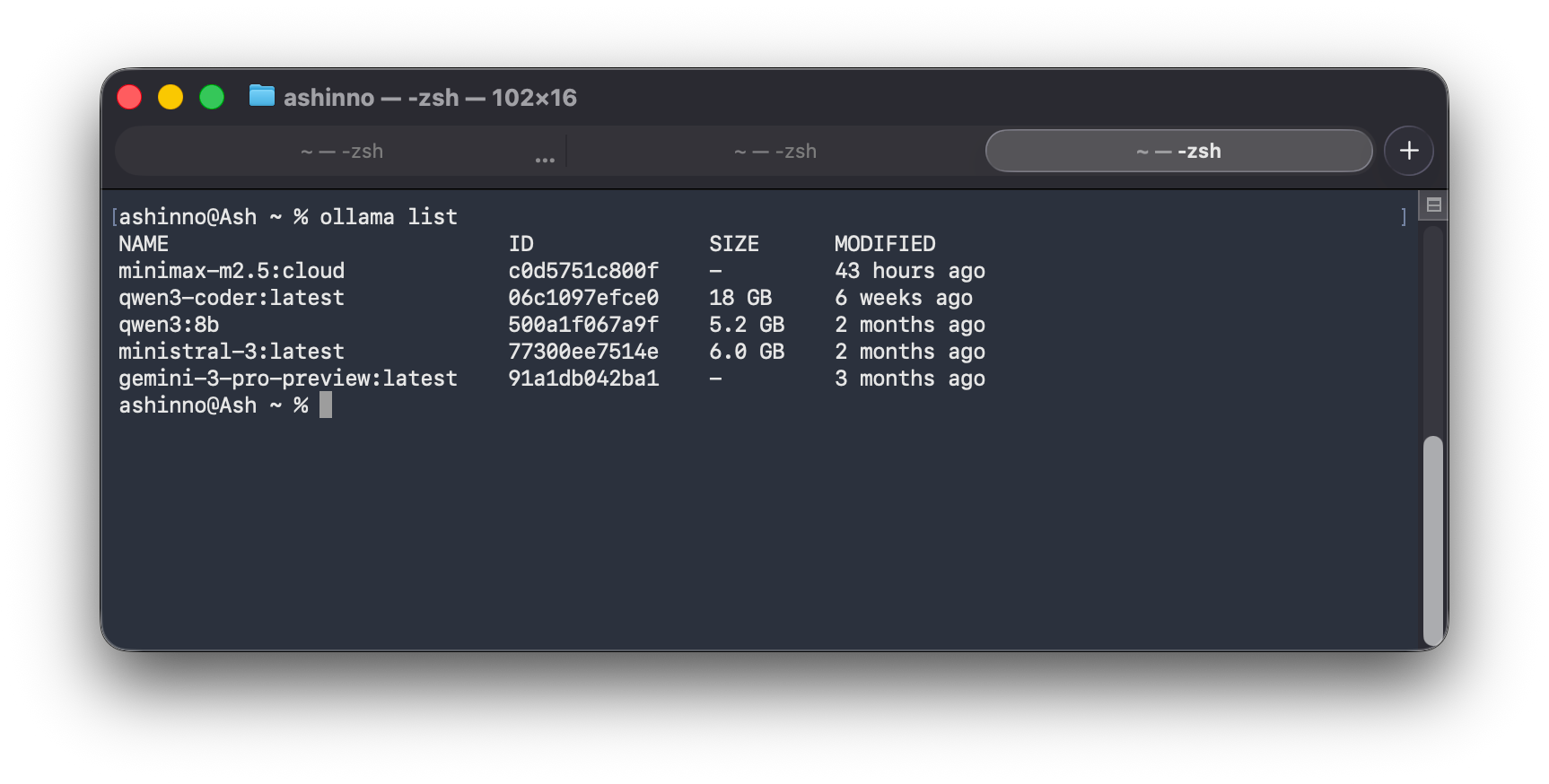
Ollama runs as a background service:
# Check if Ollama is running
ollama list

# Start Ollama if not running
ollama serve
Choosing the Right Model
Ollama supports 100+ models. Here's how to choose:
By Use Case
| Use Case | Recommended Models |
|---|---|
| General conversation | Qwen3.5, Llama 3.2, Mistral |
| Coding assistance | Qwen3.5-Coder, DeepSeek-Coder |
| Reasoning/math | DeepSeek-R1, Qwen3.5 |
| Smaller hardware | Phi3.5, Gemma2.2B |
By Hardware
| Available RAM | Recommended |
|---|---|
| 8GB | 7B models (Qwen3.5, Llama3.2, Mistral) |
| 16GB | 8-14B models |
| 32GB | 14-32B models |
| 64GB+ | 70B+ models |
Popular Models in 2026
Qwen3.5 — Excellent all-around performance, strong reasoning, good for coding. The most popular choice for OpenClaw in 2026.
DeepSeek-R1 — Open-source reasoning model that rivals GPT-4 on math and logic tasks. Great for complex problem-solving.
Mistral — Lightweight but capable. Excellent for systems with limited RAM.
Installing Models
Pulling Models
# Install Qwen3.5 (recommended for most users)
ollama pull qwen2.5:7b

# Or the latest Qwen3
ollama pull qwen3:7b

# DeepSeek-R1 for reasoning tasks
ollama pull deepseek-r1:7b

# Llama 3.2
ollama pull llama3.2:7b

# Mistral
ollama pull mistral:7b
Model Tags
Models come in different sizes:
# Different parameter sizes
ollama pull qwen2.5:3b    # Smaller, faster
ollama pull qwen2.5:7b    # Balanced
ollama pull qwen2.5:14b   # More capable
Viewing Installed Models
ollama list
This shows all downloaded models and their sizes.
Running and Testing Models
Interactive Mode
# Chat with the model
ollama run qwen2.5:7b
Type your message and press Enter. Type /bye to exit.
API Mode
Ollama runs an API server on port 11434 by default:
# Generate endpoint
curl http://localhost:11434/api/generate -d {
  "model": "qwen2.5:7b",
  "prompt": "Hello, how are you?",
  "stream": false
}
Using the Python Library
from ollama import Client

client = Client()
response = client.chat(
    model='qwen2.5:7b',
    messages=[
        {'role': 'user', 'content': 'Hello!'}
    ]
)
print(response['message']['content'])
Testing with Apidog
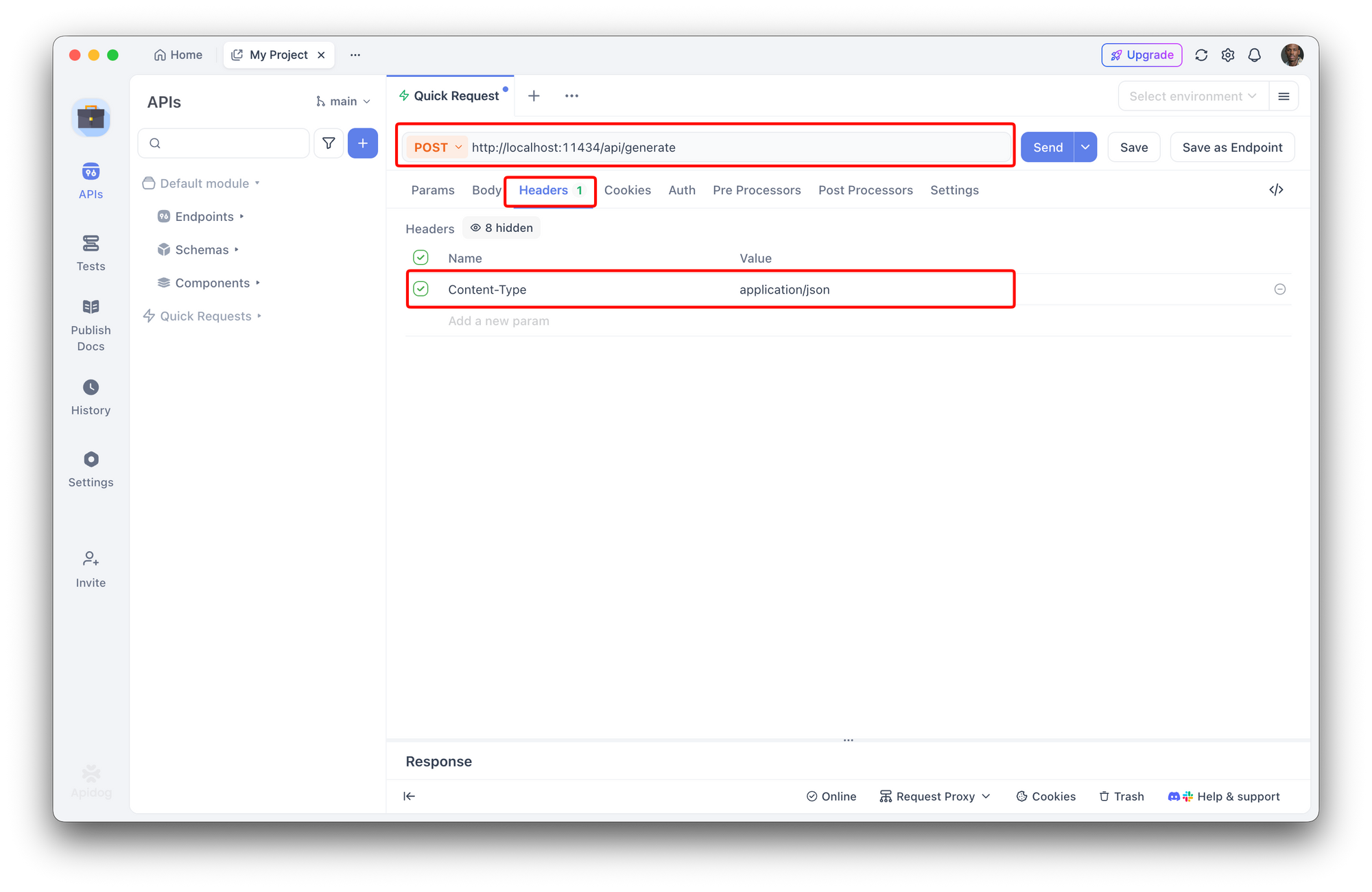
Before connecting to OpenClaw, test your Ollama setup using Apidog:
- Create a new request in Apidog
- Set method to POST
- Enter URL:
http://localhost:11434/api/generate - Add header:
Content-Type: application/json
5. Add body:
{
  "model": "qwen3-coder",
  "prompt": "What is 2 + 2?",
  "stream": false
}
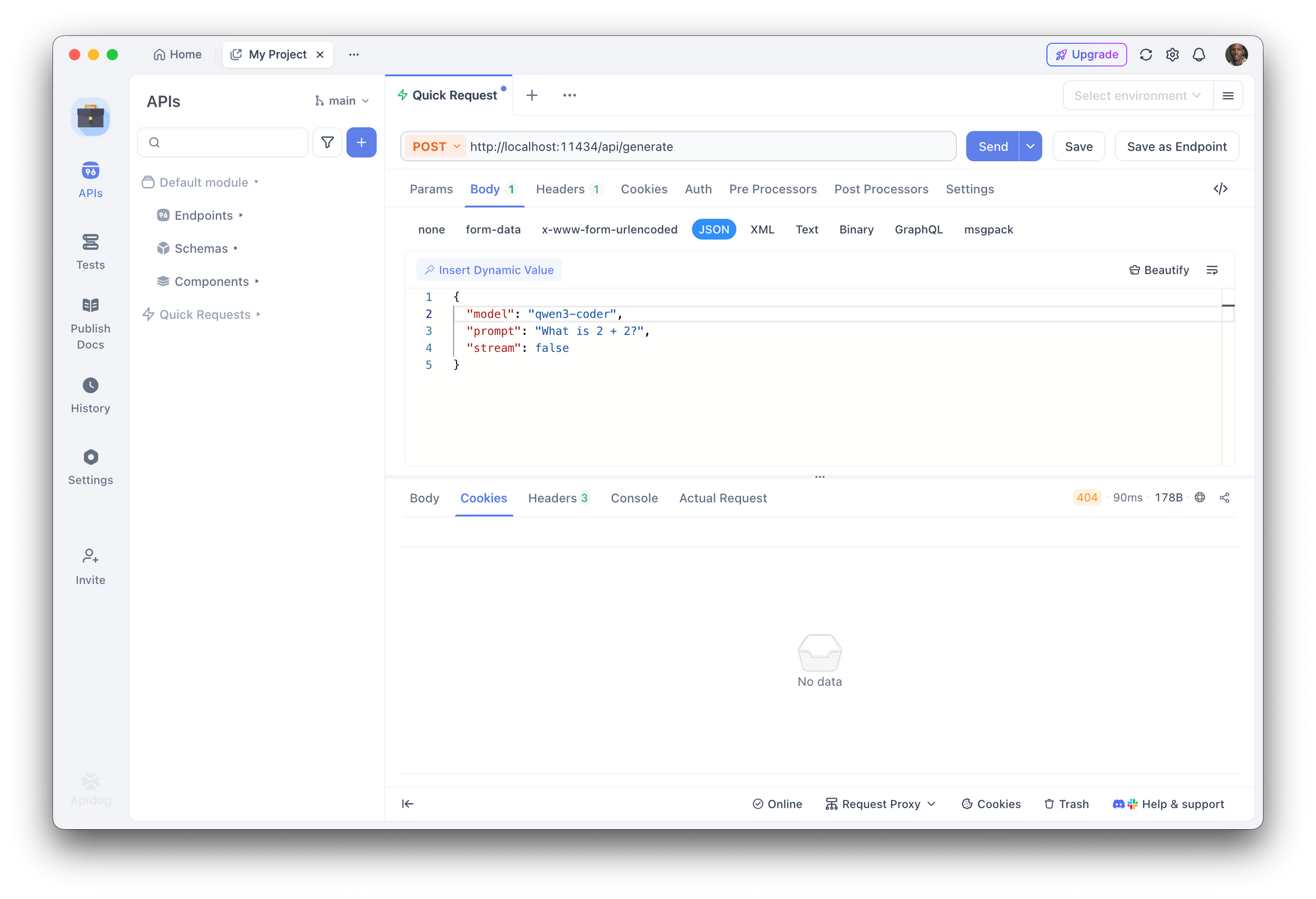
This verifies your Ollama setup works before integrating with OpenClaw.
Integrating Ollama with OpenClaw
Now let's connect Ollama to OpenClaw.
Method 1: Quick Configuration
# Set OpenClaw to use Ollama with your model
openclaw models set ollama/qwen2.5:7b
Method 2: Environment Variables
# Configure Ollama endpoint
export OLLAMA_HOST=http://localhost:11434

# Set the default model
export OLLAMA_MODEL=qwen2.5:7b
Method 3: Configuration File
Create or edit ~/.openclaw/config.yaml:
models:
  default: ollama/qwen2.5:7b

ollama:
  host: http://localhost:11434
  model: qwen2.5:7b
  temperature: 0.7
  top_p: 0.9
Verifying Integration
# Check OpenClaw model status
openclaw models status

# Test with a message
openclaw chat "Hello!"
You should receive a response from your local model.
Configuration Options
Fine-tune your Ollama + OpenClaw setup:
Temperature
Controls creativity vs precision:
ollama:
  temperature: 0.7    # 0.0 = precise, 1.0 = creative
Top-P and Top-K
Control response diversity:
ollama:
  top_p: 0.9         # Nucleus sampling
  top_k: 40          # Token selection
Context Length
For longer conversations:
ollama:
  context_size: 4096  # Default is often 2048 or 4096
System Prompt
Customize model behavior:
ollama:
  system_prompt: |
    You are a helpful coding assistant.
    Provide clear, concise code examples.
    Explain concepts simply.
Switching Between Models
One advantage of Ollama is easy model switching:
# Switch to DeepSeek-R1 for reasoning
openclaw models set ollama/deepseek-r1:7b

# Switch to Qwen-Coder for coding tasks
openclaw models set ollama/qwen2.5-coder:7b

# Switch back to general model
openclaw models set ollama/qwen2.5:7b
Multiple Model Setup
Configure multiple models in config.yaml:
models:
  default: ollama/qwen2.5:7b
  coding: ollama/qwen2.5-coder:7b
  reasoning: ollama/deepseek-r1:7b
Then switch between them:
openclaw models set coding
openclaw models set reasoning
Troubleshooting
Model Won't Load
Problem: Out of memory errors
Solutions:
- Use a smaller model (7B instead of 14B)
- Close other applications to free RAM
- Check available memory with
free -h(Linux) or Activity Monitor (Mac)
Slow Responses
Problem: Responses take too long
Solutions:
- Use a smaller model
- Enable GPU acceleration (if available)
- Reduce context size
- Use SSD storage for model files
Connection Refused
Problem: OpenClaw can't connect to Ollama
Solutions:
# Verify Ollama is running
ollama serve

# Check the port
curl http://localhost:11434
Model Not Found
Problem: Model doesn't exist in Ollama
Solutions:
# Pull the model
ollama pull qwen2.5:7b

# Check available models
ollama list
Conclusion
You've now got a powerful, private AI assistant running locally. Ollama + OpenClaw delivers capabilities that would cost $20+/month with cloud alternatives—all running on hardware you control.
What you can do now:
- Chat with your AI through multiple platforms
- Switch between models based on tasks
- Customize prompts for specialized behaviors
- Run offline once models are downloaded
The only limit is your hardware.
Next steps:
- Experiment with different models
- Try Qwen3.5, DeepSeek-R1, and others
- Customize your system prompts
- Explore OpenClaw skills on ClawHub
Ready to build professional AI applications? Download Apidog free and test your AI integrations with a visual interface designed for developers.
FAQ
What's the best Ollama model for OpenClaw?
Qwen3.5 is currently the most popular—balanced performance with good reasoning and coding capabilities. DeepSeek-R1 excels at reasoning tasks if that's your priority.
Can I run multiple Ollama models at once?
Yes, but each model requires RAM. A typical setup runs one model at a time, switching as needed.
Do I need a GPU?
No, Ollama works on CPU. GPU acceleration makes it faster but isn't required. Smaller models (7B) work reasonably well on CPU.
How do I update models?
ollama pull model-name
Ollama updates automatically if a newer version is available.
Can I use my own fine-tuned models?
Yes, import custom models using Ollama's import functionality. Check the Ollama documentation for details.