TL;DR
DeepSeek is a powerful open-source AI model family (1.5B to 671B parameters) with exceptional reasoning capabilities. OpenClaw is a viral open-source AI assistant (170K+ GitHub stars) that runs entirely locally. By combining DeepSeek with OpenClaw via Ollama, you get a free, privacy-focused AI assistant that rivals paid alternatives, no API costs, no subscriptions, complete control.
Introduction
Building a personal AI assistant has never been more accessible. Between API costs, subscription plans, and privacy concerns, developers need a clear path to getting started with local AI capabilities.
If you've been looking for a way to run powerful language models locally without spending money on API calls, you're in the right place. This guide walks you through setting up DeepSeek, the impressive open-source model from DeepSeek AI with OpenClaw, a viral open-source AI assistant that gives you a personal AI agent running entirely on your hardware.
The best part? Both DeepSeek and OpenClaw are free to use. No credit card. No subscription. No data leaving your machine.
Whether you're a developer looking to automate tasks, a hobbyist exploring local AI, or a business seeking privacy-first AI solutions, this setup delivers enterprise-grade capabilities at zero cost.
Why DeepSeek + OpenClaw?
The Power of DeepSeek
DeepSeek has emerged as one of the most capable open-source AI model families in 2026. Here's what makes it stand out:

Exceptional Reasoning
DeepSeek-R1 achieves performance approaching leading models like OpenAI O3 and Gemini 2.5 Pro on reasoning tasks. It's particularly strong in mathematics, coding, and complex problem-solving.
Model Variety
DeepSeek offers models for every use case:
| Model | Parameters | Best For |
|---|---|---|
| DeepSeek-R1 | 1.5B - 671B | Reasoning and problem-solving |
| DeepSeek-V3 | 671B | General-purpose tasks |
| DeepSeek-V3.1 | 671B | Hybrid thinking/non-thinking |
| DeepSeek-Coder | 1.3B - 236B | Coding tasks |
Hybrid Reasoning
Like Qwen3, DeepSeek-V3.1 supports both thinking mode (Chain-of-Thought reasoning) and non-thinking mode (direct answers), letting you choose based on your task.
Cost Efficiency
DeepSeek models are open-source and free to run locally. You only pay for the hardware.
The Flexibility of OpenClaw
OpenClaw (formerly Clawdbot/Moltbot) is an open-source AI agent with 170,000+ GitHub stars.
It provides:
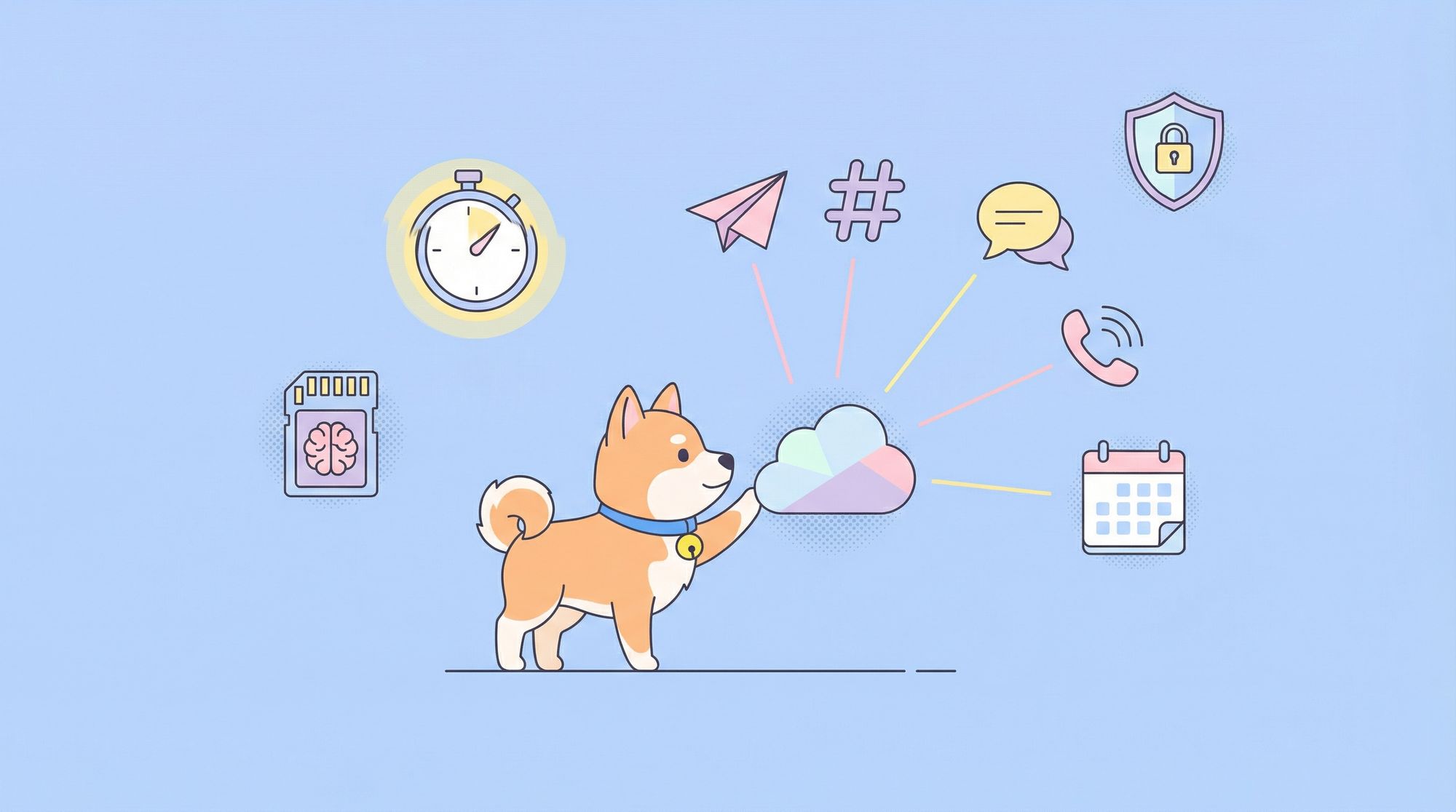
- Multi-platform integration: WhatsApp, Telegram, Discord, Slack, and more
- Autonomous actions: Send emails, manage calendars, browse web, execute commands
- Persistent memory: Remembers context across sessions
- Skills ecosystem: 700+ community-built extensions via ClawHub
- Privacy-focused: Runs entirely locally
Why This Combination Works
The combination of DeepSeek's powerful reasoning with OpenClaw's agentic capabilities creates a free, private AI assistant that rivals paid alternatives:
- Zero API costs
- Complete data privacy
- Customizable behavior
- Full control over your AI assistant
- Multi-platform access
Prerequisites
Before starting, ensure you have:
- A computer with sufficient RAM (see requirements below)
- Administrator/root access to install software
- Internet connection for initial downloads
- Basic familiarity with command line (we'll explain each step)
RAM Requirements by Model
| Model | Minimum RAM | Recommended RAM |
|---|---|---|
| DeepSeek-R1 1.5B | 8GB | 8GB |
| DeepSeek-R1 7B | 16GB | 16GB |
| DeepSeek-R1 14B | 32GB | 32GB |
| DeepSeek-R1 32B | 64GB | 64GB |
| DeepSeek-R1 70B | 128GB | 128GB+ |
| DeepSeek-V3 671B | 256GB | 256GB+ |
Pro tip: Start with the 7B model if you have 16GB RAM. You can always scale up later.
Installing Ollama
Ollama is the bridge that lets you run DeepSeek locally. It handles model downloading, memory management, and inference serving.
macOS Installation
# Using Homebrew (recommended)
brew install ollama

# Or using the install script
curl -fsSL https://ollama.ai/install.sh | sh
Linux Installation
# Using the install script
curl -fsSL https://ollama.ai/install.sh | sh

# Or download the binary directly
sudo curl -L https://ollama.ai/download/ollama-linux-amd64 -o /usr/bin/ollama
sudo chmod +x /usr/bin/ollama
Windows Installation
Download and run the installer from ollama.
Verifying Installation
After installation, verify Ollama is working:
ollama --version
You should see output like ollama version 0.5.0 or similar.
Starting Ollama Service
Ollama runs as a background service. It should start automatically, but you can verify:
# Check if Ollama is running
ollama list

# If not running, start it
ollama serve
Setting Up DeepSeek Models
Now let's get DeepSeek running on your machine.
Pulling DeepSeek-R1 (Recommended)
DeepSeek-R1 is the flagship reasoning model. For most users, we recommend starting with the 7B or 8B model:
# Pull the 7B model (recommended for most users)
ollama pull deepseek-r1:7b

# Or pull the 8B model for slightly better performance
ollama pull deepseek-r1:8b

# For more powerful hardware, try the 14B model
ollama pull deepseek-r1:14b
Pulling DeepSeek-V3 (General Purpose)
If you need a general-purpose model rather than a reasoning-focused one:
# Pull DeepSeek-V3 (requires significant RAM)
ollama pull deepseek-v3:671b
Pulling Distilled Models (Low Resource)
For systems with limited RAM, distilled models offer good reasoning at smaller sizes:
# Pull distilled models based on Qwen architecture
ollama pull deepseek-r1:1.5b
ollama pull deepseek-r1:14b
Running the Model
Test that the model works:
# Interactive chat mode
ollama run deepseek-r1:7b
Type your message and press Enter. Type /exit to quit.
Testing with Python
Here's how to use DeepSeek programmatically:
import requests

url = "http://localhost:11434/api/generate"
payload = {
    "model": "deepseek-r1:7b",
    "prompt": "Explain what DeepSeek R1 is in one sentence",
    "stream": False,
}
response = requests.post(url, json=payload).json()
print(response["response"])
Testing Your Ollama API with Apidog
Before integrating with OpenClaw, you can test your DeepSeek setup using Apidog. This is especially useful for debugging and verifying your API endpoints work correctly.
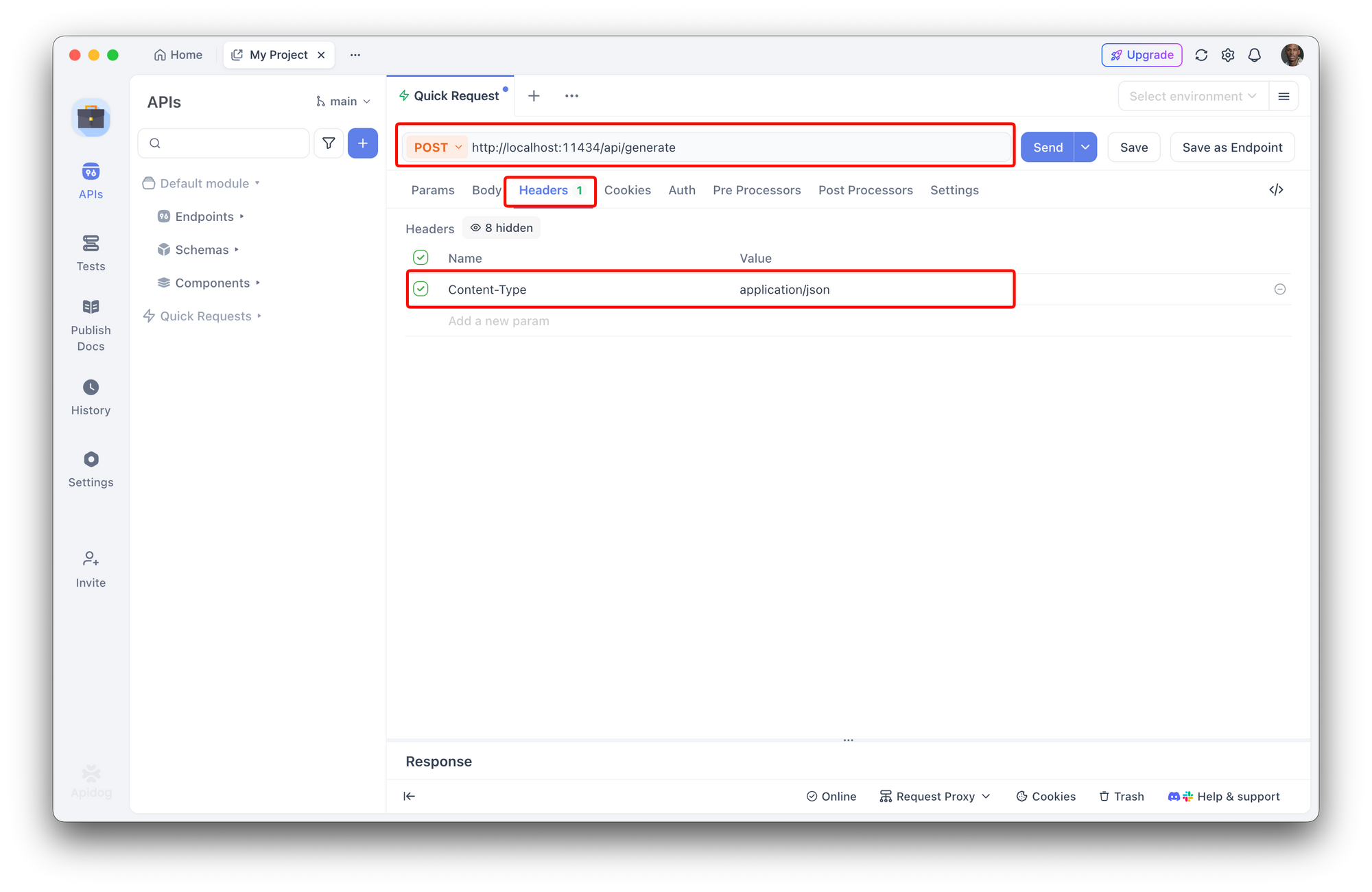
- Create a new Request in Apidog
- Set the method to POST
- Enter the URL:
http://localhost:11434/api/generate - Add Headers:
Content-Type:application/json
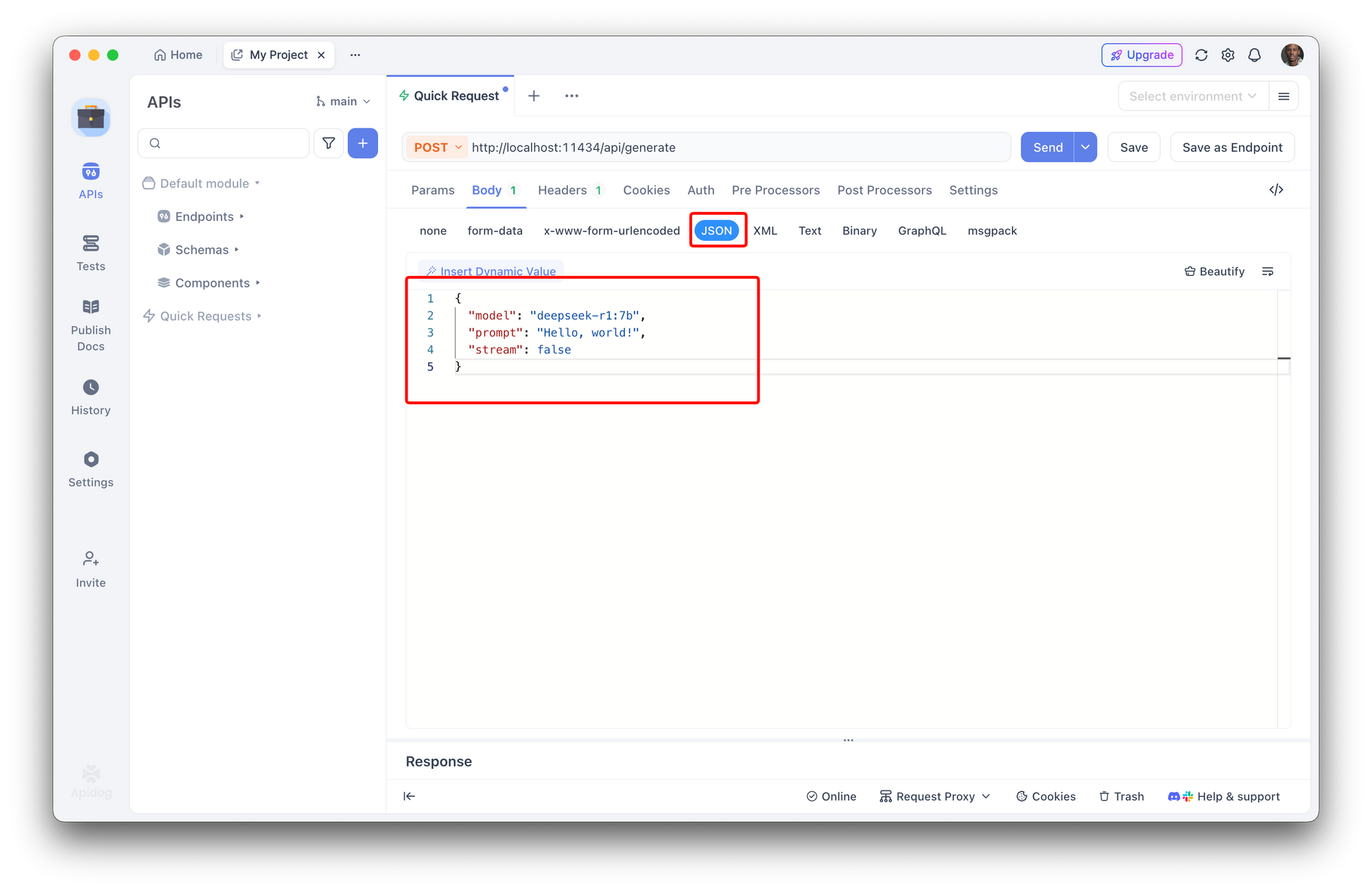
Add Body (JSON):
{
  "model": "deepseek-r1:7b",
  "prompt": "Hello, world!",
  "stream": false
}
Apidog's visual interface makes it easy to test your Ollama API responses and debug any issues before connecting to OpenClaw. You can also save this request to test different prompts and configurations.
Using the Ollama Python Library
from ollama import Client

client = Client()
output = client.chat(
    model="deepseek-r1:7b",
    messages=[{"role": "user", "content": "Write a hello world in Python"}]
)
print(output["message"]["content"])
Installing OpenClaw
Now let's install OpenClaw to create your AI assistant.
Quick Installation
# Using npx (no installation needed)
npx openclaw

# Or using the installation script
curl -fsSL https://openclaw.ai/install.sh | bash
Initial Setup
Run OpenClaw for the first time:
npx openclaw
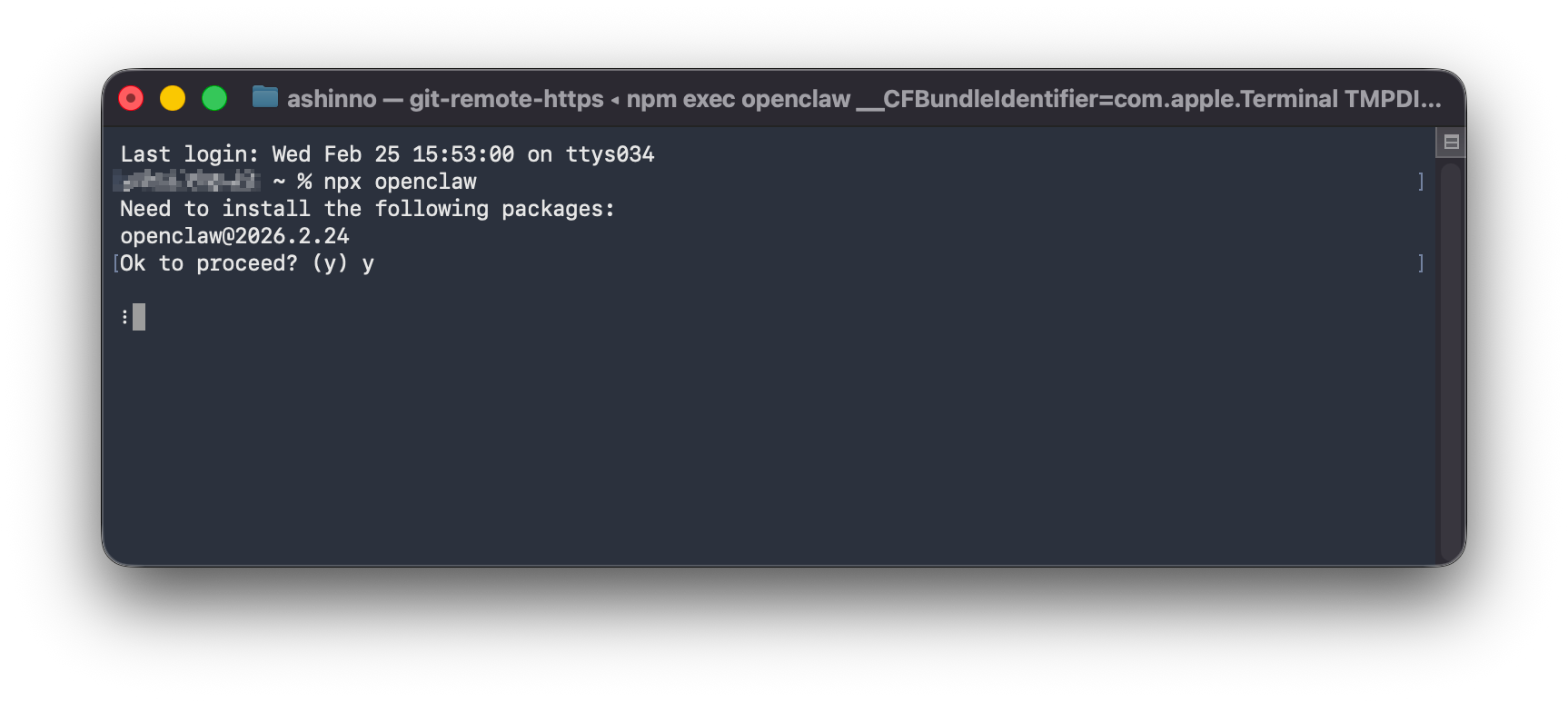
This will guide you through initial configuration:
- Set up your first platform connection (Telegram, Discord, etc.)
- Configure basic preferences
- Start the assistant
Verifying OpenClaw is Running
# Check OpenClaw status
openclaw status
Integrating DeepSeek with OpenClaw
Now the magic happens, we connect DeepSeek as the brain of your OpenClaw assistant.
Method 1: Using Ollama as Backend
OpenClaw natively supports Ollama. Configure it to use DeepSeek:
# Set OpenClaw to use Ollama with DeepSeek-R1
ollama launch openclaw --model deepseek-r1

# Or specify a different model size
ollama launch openclaw --model deepseek-v3.1
Method 2: Environment Configuration
Set environment variables for more control:
# Configure Ollama endpoint
export OLLAMA_HOST=http://localhost:11434

# Set the model
export OLLAMA_MODEL=deepseek-r1
Method 3: Configuration File
Create or edit ~/.openclaw/config.yaml:
models:
  default: ollama/deepseek-r1:7b

ollama:
  host: http://localhost:11434
  model: deepseek-r1:7b
  temperature: 0.7
  top_p: 0.9
Testing the Integration
# Test that OpenClaw is using DeepSeek
openclaw models status
You should see output confirming DeepSeek-R1 is active.
Chat Through Your Platform
Now you can chat with DeepSeek through any connected platform:
Telegram:
Send a message to your OpenClaw bot on Telegram.
Discord:
Mention your OpenClaw bot in Discord.
WhatsApp:
Message your OpenClaw WhatsApp number.
The response will come from DeepSeek running locally!
Configuration and Optimization
Fine-tune your DeepSeek + OpenClaw setup with these options.
Temperature and Top-P
Control response creativity:
# In config.yaml
ollama:
  temperature: 0.7    # 0.0 = focused, 1.0 = creative
  top_p: 0.9         # Nucleus sampling
  top_k: 40          # Token selection
Context Length
Adjust for longer conversations:
ollama:
  context_size: 4096  # Increase for longer context
System Prompt
Customize DeepSeek's behavior:
ollama:
  system_prompt: |
    You are a helpful coding assistant.
    You provide clear, concise code examples.
    You explain concepts in simple terms.
Switching Between Models
You can easily switch between different DeepSeek models based on your needs:
# Switch to the 14B model for more capability
openclaw models set ollama/deepseek-r1:14b

# Switch to V3 for general tasks
openclaw models set ollama/deepseek-v3:671b

# Switch back to 7B for speed
openclaw models set ollama/deepseek-r1:7b
Testing Your AI Assistant
Testing via Ollama Directly
# Test DeepSeek reasoning capabilities
ollama run deepseek-r1:7b "Solve this problem: If a train travels 120km in 2 hours, what is its speed?"
Testing via OpenClaw
# Send a test message through OpenClaw
openclaw chat "Hello, what's 2 + 2?"
Testing Platform Integrations
Once your platforms are configured:
Telegram:
Send /start to your OpenClaw bot.
Discord:
Mention your bot with @your-bot hello.
WhatsApp:
Send a message to your configured WhatsApp number.
Monitoring Logs
Check OpenClaw logs to see what's happening:
# View recent logs
openclaw logs --recent

# View live logs
openclaw logs --follow
Advanced Setup Tips
GPU Acceleration
If you have an NVIDIA GPU, enable CUDA acceleration:
# Verify GPU is detected
ollama list

# Run with GPU acceleration (automatic if GPU available)
ollama run deepseek-r1:7b --gpu
Creating Custom Models
Use system prompts to create specialized versions:
# Create a Modelfile
echo 'FROM deepseek-r1:7b
SYSTEM """You are a Python expert.
Provide clean, PEP 8 compliant code.
"""' > /tmp/python-expert

# Create the custom model
ollama create python-expert -f /tmp/python-expert

# Use it in OpenClaw
openclaw models set ollama/python-expert
Multi-Model Setup
Run different models for different tasks:
# In config.yaml - configure multiple model presets
models:
  default: ollama/deepseek-r1:7b
  coding: ollama/deepseek-coder:7b
  reasoning: ollama/deepseek-r1:14b
Then switch between them:
# Use coding model
openclaw models set coding

# Use reasoning model for complex tasks
openclaw models set reasoning
Performance Optimization
For better performance:
- Close unnecessary applications to free RAM
- Use the smallest model that meets your needs
- Consider upgrading RAM if you frequently hit limits
- Use SSD storage for faster model loading
Monitoring Resource Usage
# Check current model and resources
openclaw status --verbose

# Monitor Ollama directly
ollama list
Troubleshooting Common Issues
Model Won't Load (Out of Memory)
Problem: Ollama fails to load the model due to insufficient RAM.
Solution:
- Use a smaller model (7B instead of 14B)
- Close other applications to free RAM
- Add more RAM to your system
Slow Responses
Problem: Responses take too long.
Solutions:
- Use a smaller model
- Enable GPU acceleration
- Reduce context size
- Use a faster storage drive (SSD)
OpenClaw Can't Connect to Ollama
Problem: OpenClaw reports connection errors to Ollama.
Solutions:
- Verify Ollama is running:
ollama serve - Check the host in config (default:
http://localhost:11434) - Restart Ollama:
pkill ollama && ollama serve
Platform Connection Issues
Problem: Can't connect Telegram/Discord/WhatsApp.
Solutions:
- Verify your API credentials are correct
- Check the platform's API status
- Review OpenClaw logs for specific error messages
FAQ
Is DeepSeek really free to use?
Yes, DeepSeek is open-source and free to run locally. You only need to provide the hardware (computer with RAM). No API fees, no subscriptions.
Can I use DeepSeek commercially with OpenClaw?
Yes, both DeepSeek and OpenClaw have permissive licenses that allow commercial use. Always review the latest license terms.
What if I don't have a GPU?
DeepSeek can run on CPU-only systems. Expect slower inference (a few seconds per response instead of milliseconds). The smaller models (1.5B-7B) work reasonably well on CPU.
How do I choose between DeepSeek-R1 and DeepSeek-V3?
- DeepSeek-R1: Best for reasoning tasks, math, coding, and problem-solving
- DeepSeek-V3: Best for general-purpose conversation and tasks
Can I run multiple DeepSeek models at once?
Yes, but each model requires additional RAM. A typical setup might run the 7B model alongside a smaller specialist model for specific tasks.
How do I update DeepSeek to the latest version?
ollama pull deepseek-r1:7b
Ollama will automatically update if a newer version is available.
Can I connect OpenClaw to my own applications?
Yes, OpenClaw provides API endpoints and webhooks for custom integrations. Check the OpenClaw documentation for details.
Conclusion
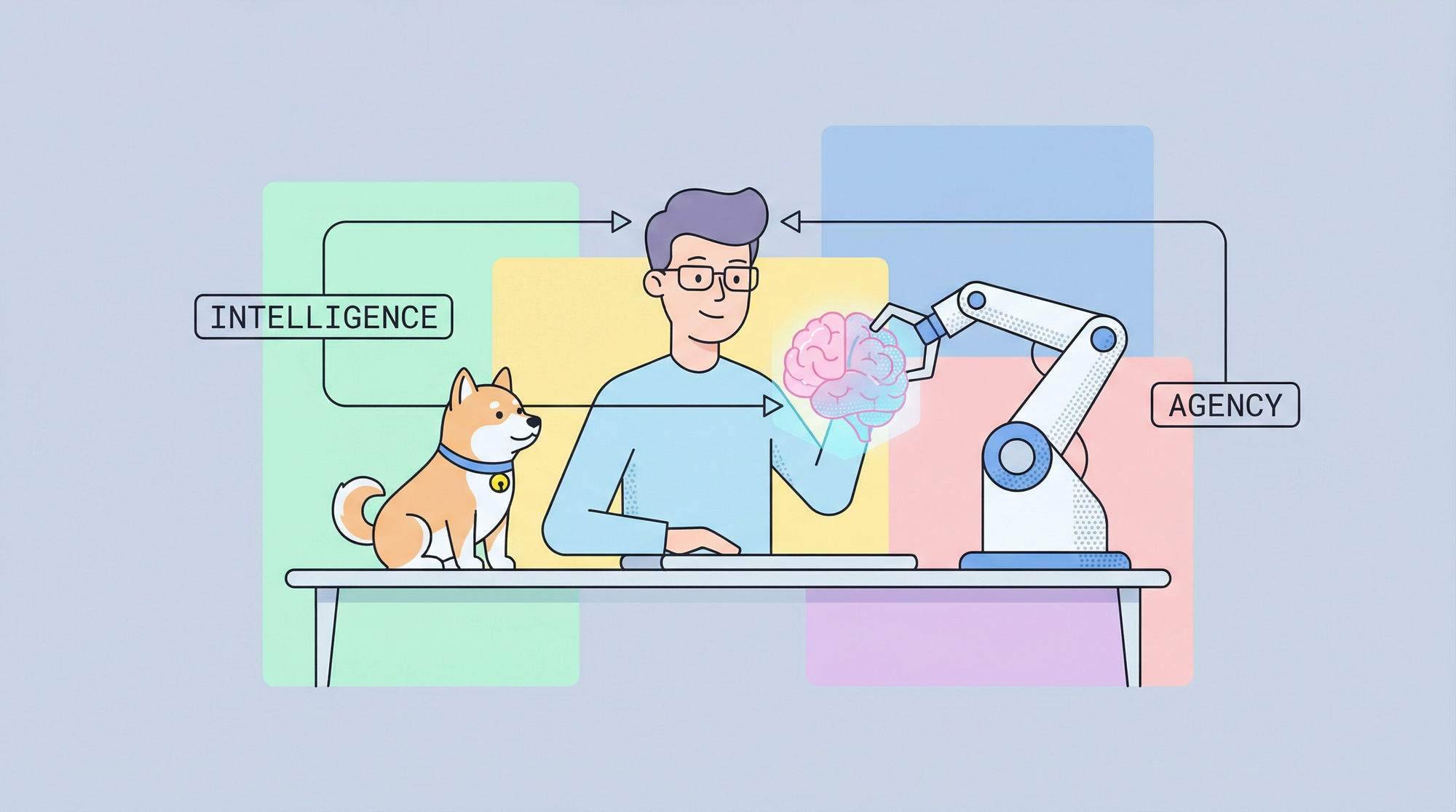
You've now got a powerful, free AI assistant running locally on your machine. DeepSeek provides the intelligence, OpenClaw provides the agency, and Ollama makes it all work seamlessly.
What you can do now:
- Chat with DeepSeek through Telegram, Discord, WhatsApp, or other platforms
- Automate tasks like sending emails and managing calendars
- Build custom AI workflows with full privacy
- Scale from the smallest model to the most powerful as your needs grow
The combination of DeepSeek and OpenClaw delivers capabilities that would cost hundreds of dollars per month with cloud alternativesall running on hardware you own.
Next steps:
- Experiment with different DeepSeek model sizes
- Explore OpenClaw's skill marketplace (ClawHub)
- Connect additional platforms to your assistant
- Create custom prompts for specific use cases
The only limit is your imagination.
Ready to build professional AI applications? Download Apidog free and test your AI service integrations with a visual interface designed for developers. Try Apidog's API testing suite to ensure your AI workflows are robust and reliable.