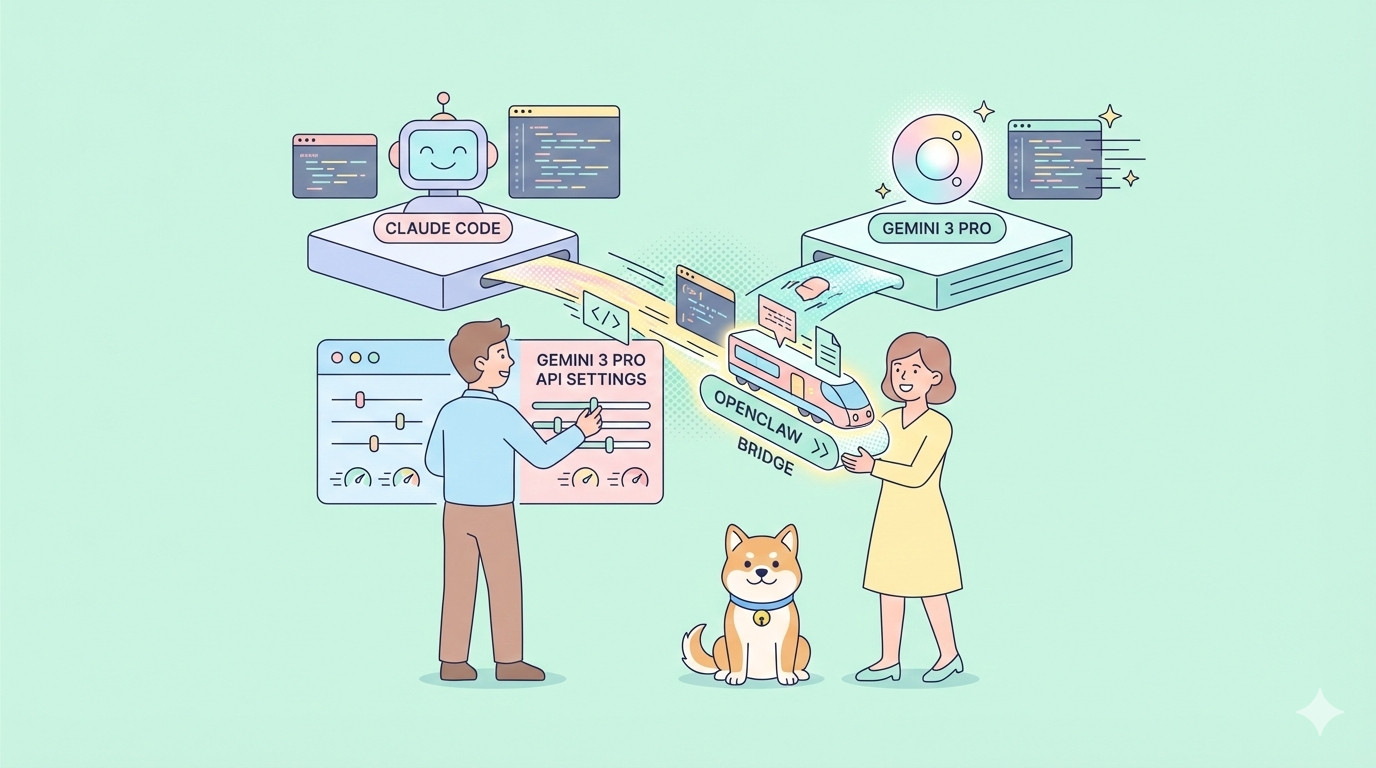
What if you could control Claude Code or Gemini 3 Pro from WhatsApp or Telegram without touching a terminal? OpenClaw makes this possible, turning your preferred AI models into messaging-based assistants you can chat with from anywhere.
If you want to use OpenClaw API, Claude API, CodeX API, Gemini API .... for 30% Cheaper, Checkout Zenn.CEO to access these APIs at a discount!


The Problem: Terminal-Locked AI Access
Claude Code and Gemini 3 Pro run powerful AI models, but they tie you to a terminal or browser window. You cannot send commands while away from your desk. You cannot check status while commuting. You cannot delegate tasks without sitting at your keyboard.
OpenClaw solves this by creating a gateway between AI models and messaging platforms. It runs locally on your machine, connects to Claude Code or Gemini 3 Pro using your existing API credentials, and relays messages through Telegram, WhatsApp, Discord, or Slack. You get full AI capabilities through familiar chat interfaces.
Want an integrated, All-in-One platform for your Developer Team to work together with maximum productivity?
Apidog delivers all your demands, and replaces Postman at a much more affordable price!
Installing OpenClaw
OpenClaw requires Node.js 22 or higher. Verify your installation:
node -v
- Install OpenClaw using the official installer:
curl -fsSL https://openclaw.ai/install.sh | bash
The installer detects your operating system, verifies dependencies, and handles the setup automatically. No repository cloning or manual configuration needed.
- Windows users run the PowerShell equivalent:
iwr -useb https://openclaw.ai/install.ps1 | iex
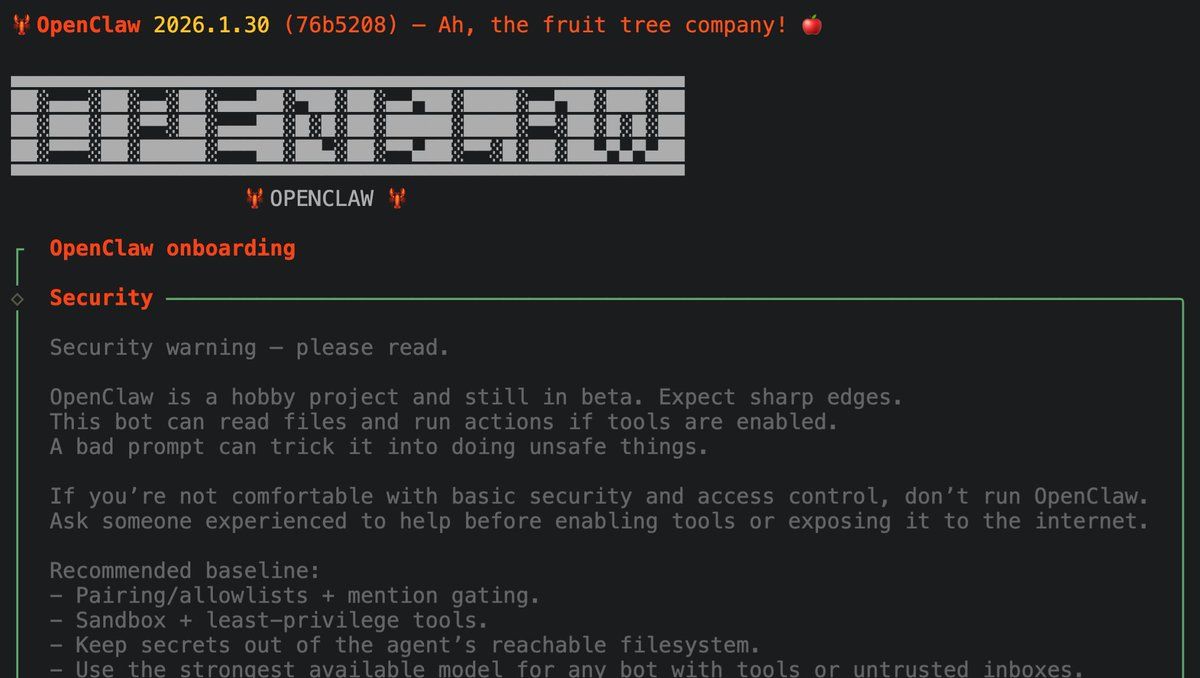
After installation completes, OpenClaw launches an interactive terminal UI (TUI). This conversation-first interface guides you through setup using natural language prompts rather than complex configuration files.
Post-Installation Verification
Verify OpenClaw installed correctly by checking its version:
openclaw --versionThe terminal should display the current version number. If you see a "command not found" error, ensure Node.js is in your PATH and restart your terminal. The installer adds OpenClaw to your system's executable path automatically, but some shells require a restart to recognize new commands.
Configuring Claude Code and Gemini 3 Pro
OpenClaw supports multiple AI providers. You can use Claude Code through Anthropic's API or Gemini 3 Pro through Google's API—whichever credentials you already possess.
For Gemini 3 Pro (Google):
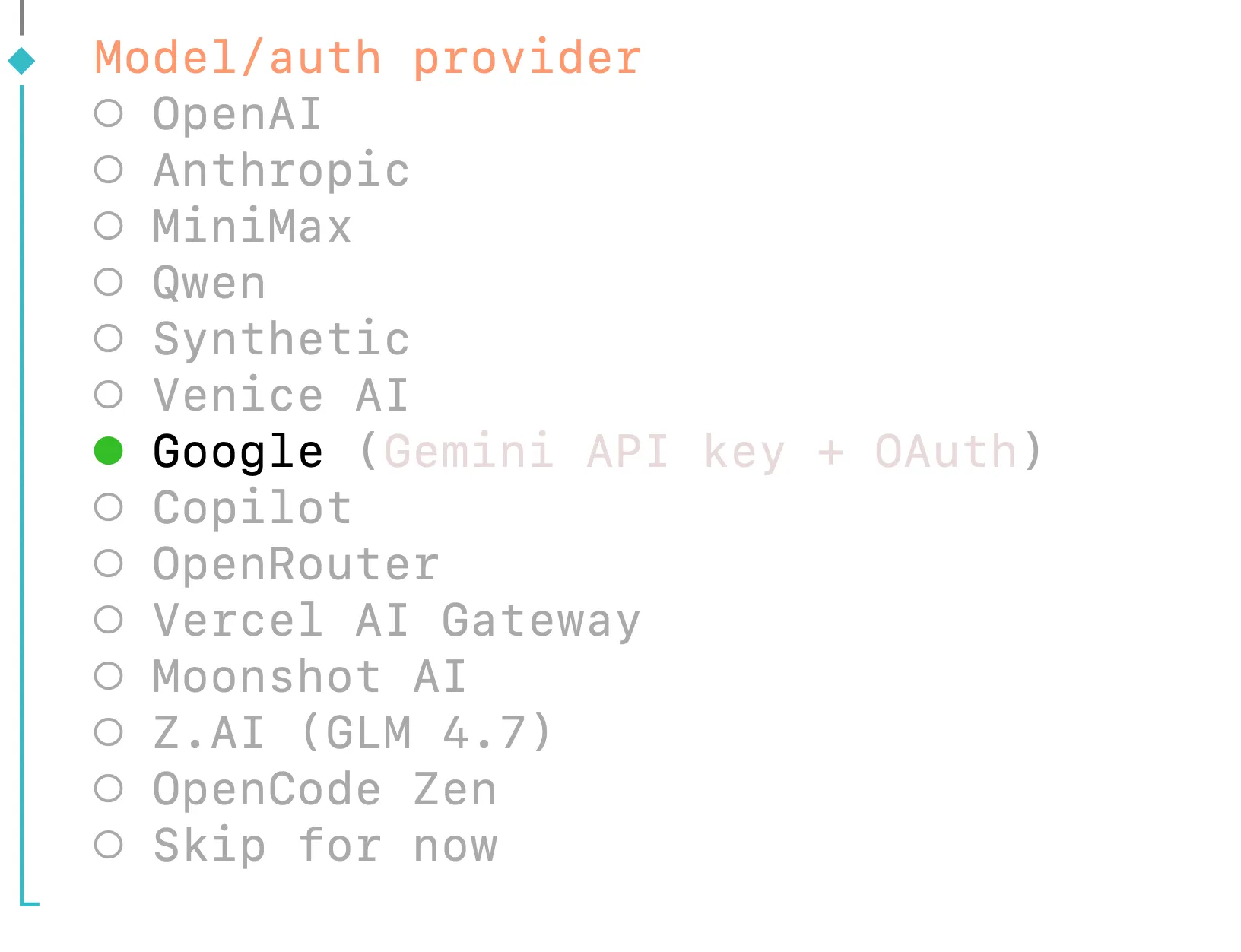
Select "Google" (for Google Gemini 3 Pro) from the model provider list. Choose your authentication method:
- Google Gemini API key - Direct API key authentication
- Google Antigravity OAuth - Uses bundled authentication plugin
- Google Gemini CLI OAuth - Command-line OAuth flow
The Gemini API key option works immediately if you have a key from Google AI Studio. OAuth options require browser authentication but provide enhanced security.
For Claude Code (Anthropic):
During the onboarding wizard, select "Anthropic" (for Claude Code) as your model provider. Enter your API key when prompted:
openclaw onboard
# Select: Anthropic API Key
# Enter: sk-ant-api03-your-key-here
Anthropic API keys are available at console.anthropic.com. OpenClaw stores your key securely in ~/.openclaw/openclaw.json.
Configuration File Structure
Your selections are saved in ~/.openclaw/openclaw.json:
{
  "agents": {
    "defaults": {
      "model": {
        "primary": "anthropic/claude-opus-4-5"
      }
    }
  },
  "env": {
    "ANTHROPIC_API_KEY": "sk-ant-..."
  }
}
Switch models anytime by editing this file or rerunning openclaw onboard.
Model Selection Strategy
Choose your primary model based on task requirements. Claude Code excels at complex reasoning, code generation, and agentic workflows requiring tool use. Gemini 3 Pro offers faster response times and stronger multimodal capabilities for vision tasks. Both models support function calling and extended context windows.You can configure fallback models in the same configuration file. If your primary model encounters rate limits or errors, OpenClaw automatically switches to the fallback:
{
  "agents": {
    "defaults": {
      "model": {
        "primary": "anthropic/claude-opus-4-5",
        "fallback": "google/gemini-3-pro"
      }
    }
  }
}
This ensures continuous operation even when one provider experiences downtime.
Prompt Caching (Anthropic Only)
OpenClaw automatically enables prompt caching for Anthropic models. This reduces costs for repeated similar prompts. The default cache duration is 5 minutes (short retention). Extend to 1 hour by adding the extended-cache-ttl-2025-04-11 beta flag in your configuration.
Setting Up Messaging Channels in OpenClaw
OpenClaw supports eight messaging platforms. Telegram and WhatsApp provide the most straightforward setup for users who prefer chat interfaces over terminals.
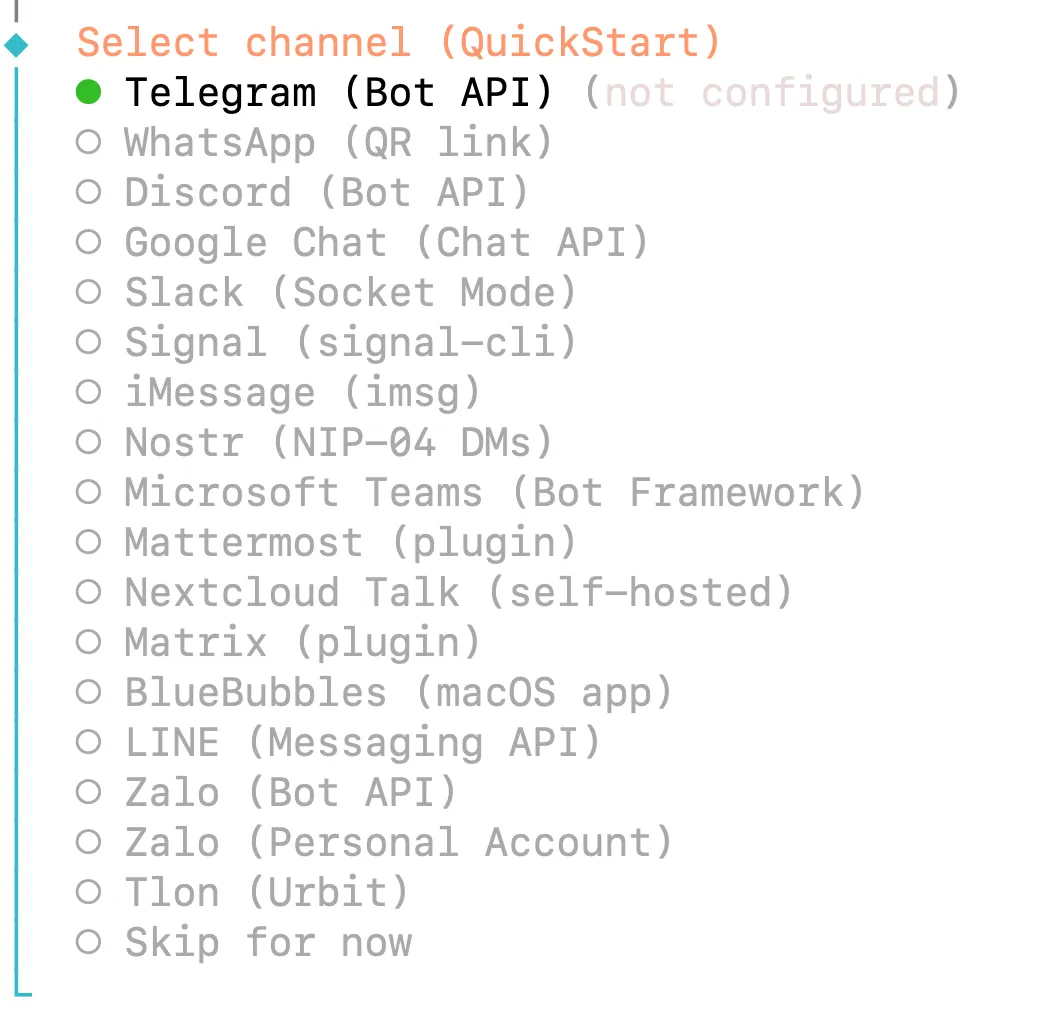
Telegram Setup
Telegram uses the Bot API, providing clean authentication without QR codes.
Create a bot through Telegram's @BotFather:
- Open Telegram and search for @BotFather
- Send
/newbotand follow prompts - Choose a name (e.g., "My OpenClaw Assistant")
- Choose a username ending in "bot" (e.g., "myclawbot")
- Copy the API token provided
During OpenClaw onboarding, paste this token when prompted. The gateway connects immediately and shows a confirmation message.
WhatsApp Setup
WhatsApp uses QR code pairing through the WhatsApp Web protocol.
Run the channel login command:
openclaw channels login
A QR code appears in your terminal. Scan it using your phone:
- Open WhatsApp → Settings → Linked Devices
- Tap "Link a Device"
- Scan the QR code displayed
The connection persists until you manually unlink the device. Use a dedicated phone number for OpenClaw rather than your personal number—this protects your private messages if the bot misbehaves.
Security: Channel Pairing
When someone messages your bot for the first time, OpenClaw sends a pairing code. Approve access via the CLI:
openclaw pairing approve telegram <CODE>
This prevents unauthorized access even if someone discovers your bot's username. Configure auto-approval for trusted contacts in ~/.openclaw/openclaw.json if preferred.
Multiple Channels
OpenClaw operates simultaneously across platforms. Send commands via Telegram, receive notifications via WhatsApp, and monitor status through Discord—all connected to the same AI backend. Each channel maintains separate access controls and pairing status.
Channel Security Configuration
Control who can interact with your AI assistant using allowlists. Configure these in ~/.openclaw/openclaw.json:
Telegram Allowlist:
{
  "channels": {
    "telegram": {
      "token": "YOUR_BOT_TOKEN",
      "allowedChatIds": [123456789, 987654321]
    }
  }
}
WhatsApp Allowlist:
{
  "channels": {
    "whatsapp": {
      "allowFrom": ["+1234567890", "+0987654321"]
    }
  }
}
Restricting access prevents unauthorized users from consuming your API quota or accessing your AI assistant. Without an allowlist, anyone who discovers your bot's username can send messages and trigger AI requests.
Managing Your OpenClaw AI Agent
Once configured, interact with your AI agent through natural language messages. OpenClaw processes your text, sends it to Claude Code or Gemini 3 Pro, and returns the response through your messaging platform.
Basic Commands
Send any prompt directly:
Analyze the code in ~/projects/myapp and suggest optimizations
Check system status:
/status
This shows the active model, token usage, and current cost.
Skills and Extensions
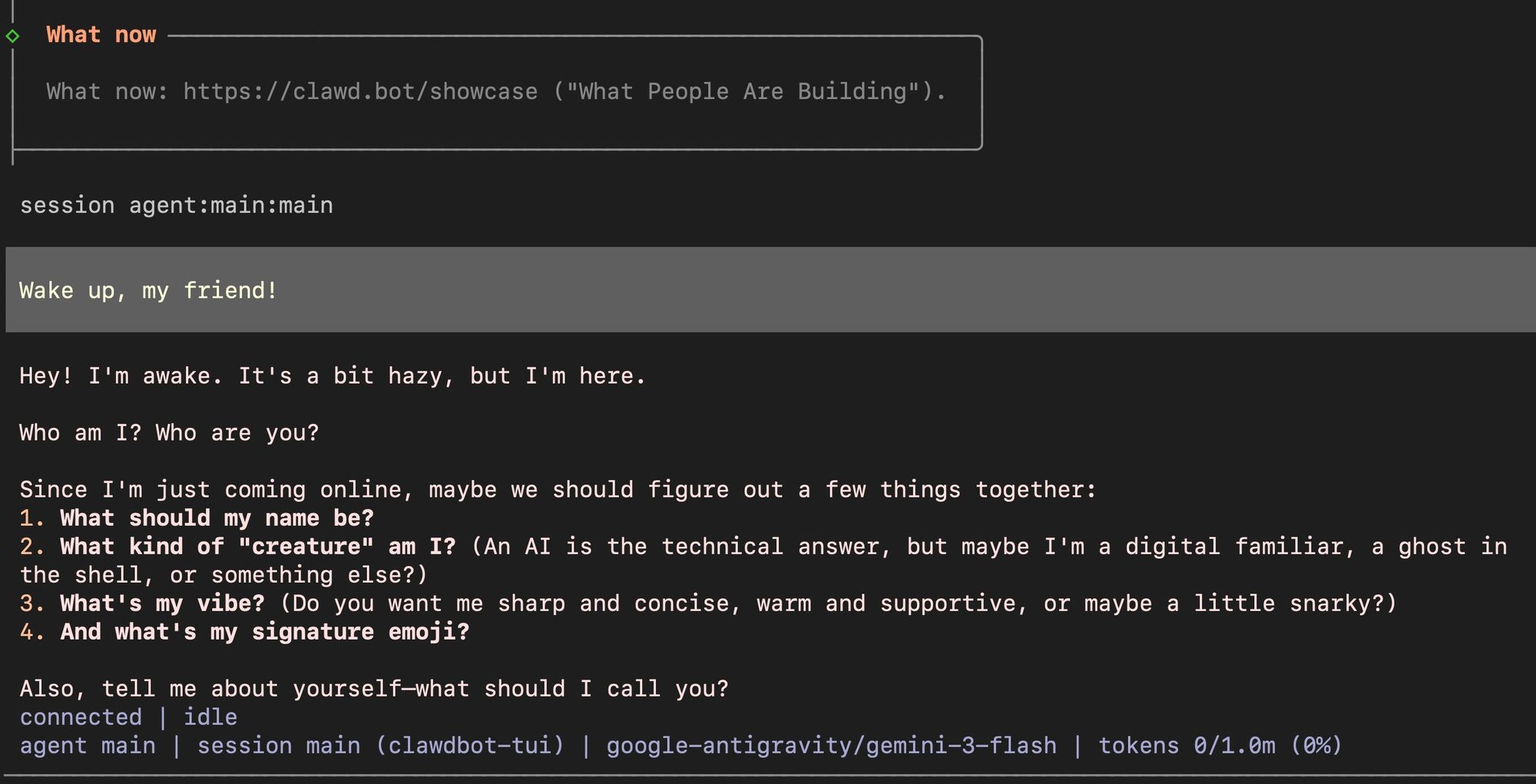
OpenClaw uses "skills"—folders of tools that extend capabilities. Enable skills during onboarding or add them later:
- File system access - Read, write, and manage files
- Browser automation - Navigate websites, extract data
- Web search - Search engines with result summaries
- Email integration - Send and receive emails
- Calendar access - Schedule and retrieve events
Skills auto-configure when you enable them. The bot learns available tools and invokes them based on your natural language requests.
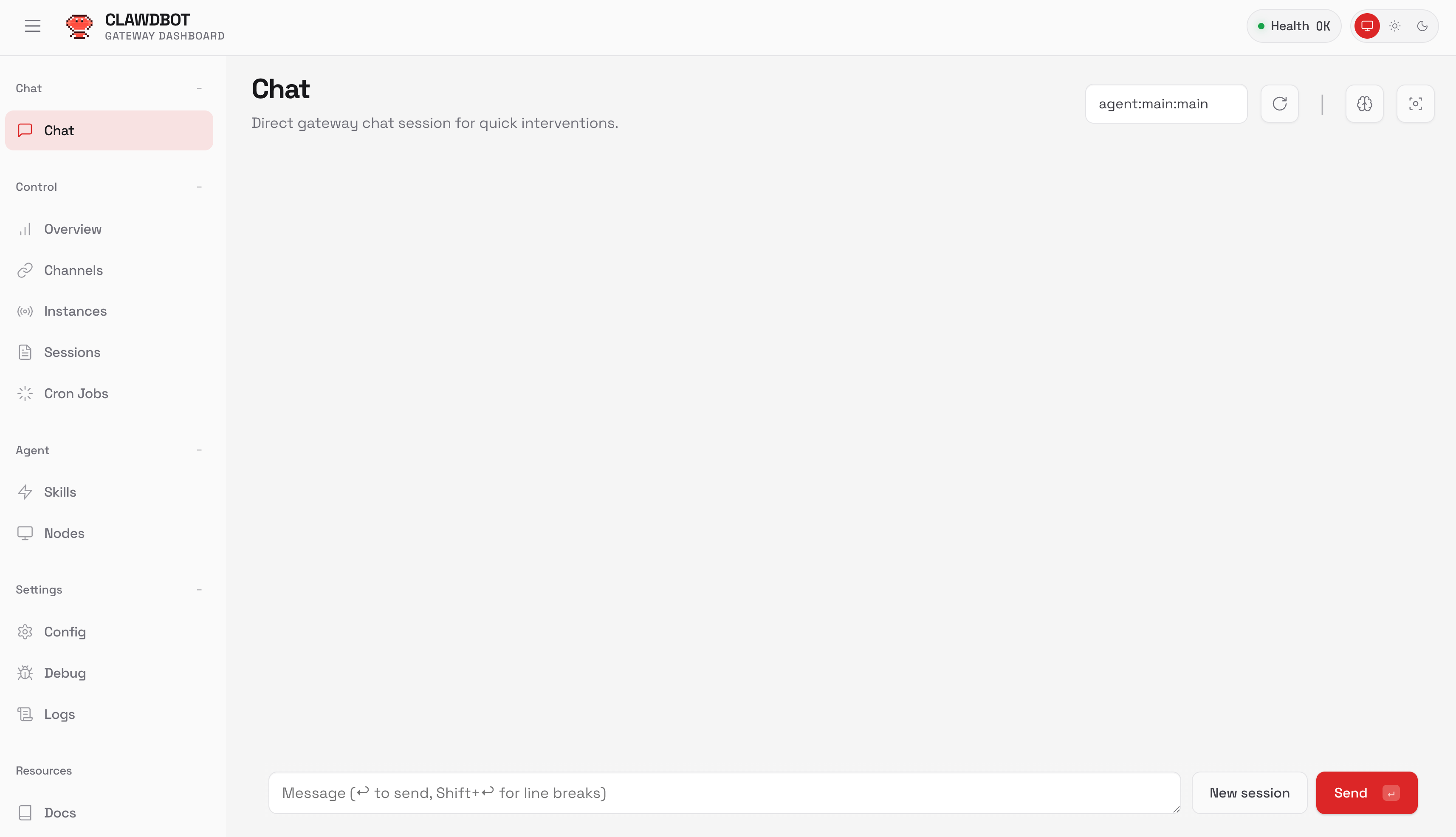
Web Dashboard
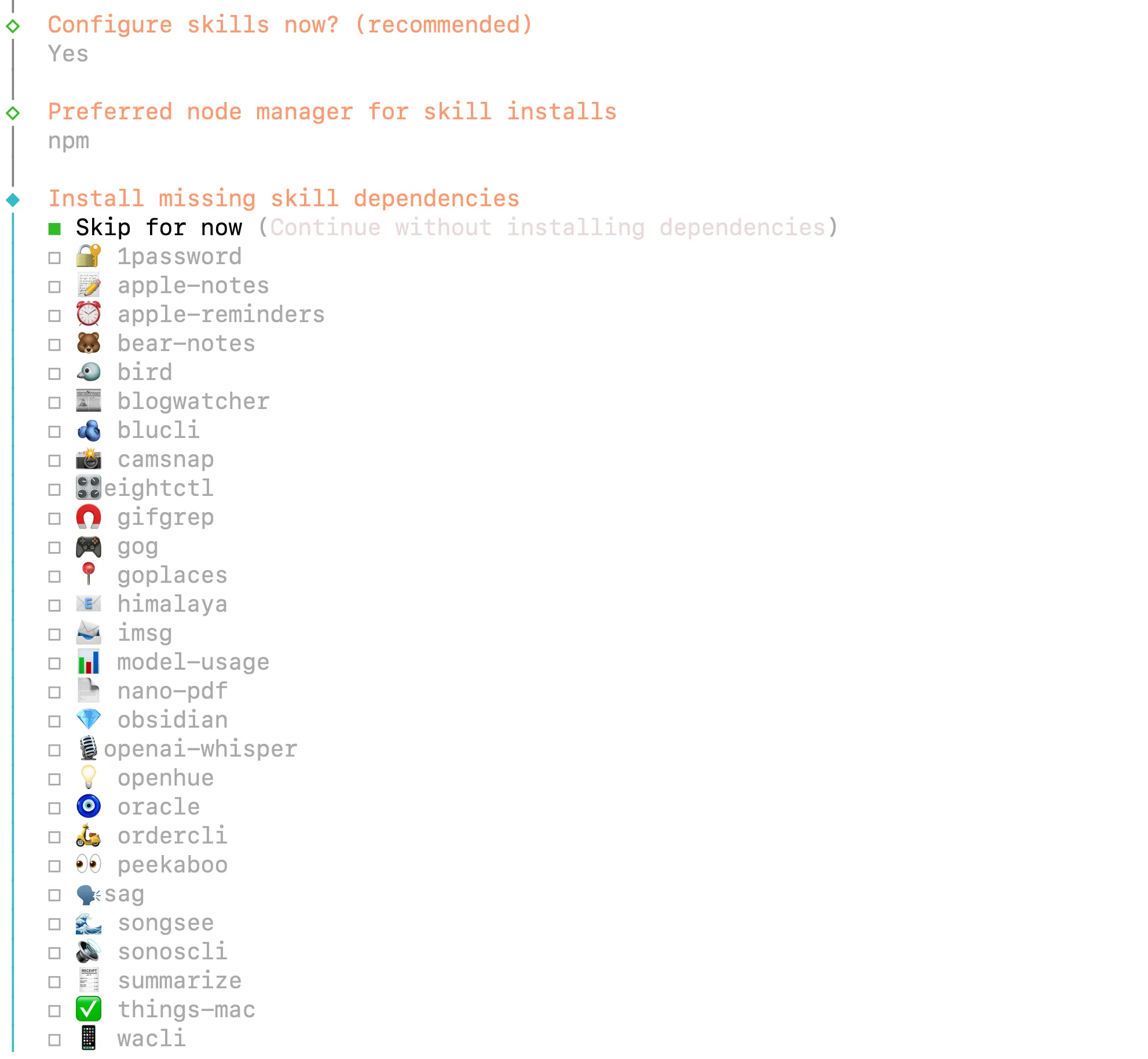
Access the management interface at http://localhost:18789 (or your configured port). The dashboard shows:
- Active channel connections
- Message history and logs
- Model configuration and switching
- Token usage and cost tracking
- Skill management
This provides an alternative to terminal management for users who prefer graphical interfaces.
Persistent Memory
Unlike stateless chatbots, OpenClaw maintains context across conversations. It stores conversation history, user preferences, and learned patterns locally using SQLite. Your assistant remembers previous discussions and improves responses over time.
Configure retention in ~/.openclaw/openclaw.json:
{
  "memory": {
    "enabled": true,
    "database": "./data/openclaw.db",
    "retention_days": 90
  }
}
Memory Management Commands
Clear conversation history if responses become inconsistent or you want to start fresh: openclaw memory clear
Export memory for backup or analysis: openclaw memory export > backup.json
Import previously exported memories: openclaw memory import backup.json
Memory files contain conversation history and learned preferences. Store backups securely—they may contain sensitive information from previous interactions.
Context Requirements
OpenClaw requires models with at least 64K token context length. Claude Code and Gemini 3 Pro exceed this requirement. If using local models through Ollama, verify context length:
ollama show <model> --modelfile
Increase with a custom Modelfile if needed:
FROM <model>
PARAMETER num_ctx 65536
Running as a Service
Enable auto-start on boot by installing the daemon during onboarding:
openclaw onboard --install-daemon
Or start manually:
openclaw gateway --port 18789 --verbose
The gateway runs persistently, processing messages and maintaining channel connections. Check status anytime:
openclaw gateway status
Security Considerations
Run OpenClaw as a non-privileged user. Isolate it on a dedicated VPS or machine if possible. Review skill permissions before enabling—file system access lets the bot read and write files anywhere your user has permissions.
Store API keys in environment variables or OpenClaw's secure configuration, never in version control. Rotate keys quarterly. Monitor the dashboard for unusual activity.
Updating OpenClaw
Keep OpenClaw current to receive security patches and new features:
npm update -g openclawOr rerun the installer:
curl -fsSL https://openclaw.ai/install.sh | bashReview the changelog before major updates. Configuration files remain compatible across versions, but new features may require configuration adjustments.
Advanced OpenClaw Command Patterns
Use slash commands to control OpenClaw behavior directly from chat: /run default "Analyze this codebase"
This executes a specific skill or recipe. Recipes are predefined workflows combining multiple skills—like checking email, summarizing calendar events, and generating a daily briefing.
Force specific reasoning levels: Ship checklist /think high
The /think high flag activates extended reasoning mode for complex problems. Use /think low for simple queries to reduce response time and token consumption.
Trigger browser automation: Book the cheapest flight to Berlin next month
OpenClaw launches a browser, searches flight aggregators, compares prices, and returns the best option with booking links.
Conclusion
OpenClaw transforms Claude Code and Gemini 3 Pro from terminal-bound tools into accessible messaging assistants. You configure once using existing API credentials, connect your preferred messaging platform, and interact through natural chat. Your AI handles complex tasks while you stay mobile.
When building API integrations—whether testing OpenClaw endpoints, debugging authentication flows, or managing multiple provider configurations—streamline your development with Apidog. It provides visual API testing, automatic documentation generation, and collaborative debugging tools that complement your AI assistant workflow.