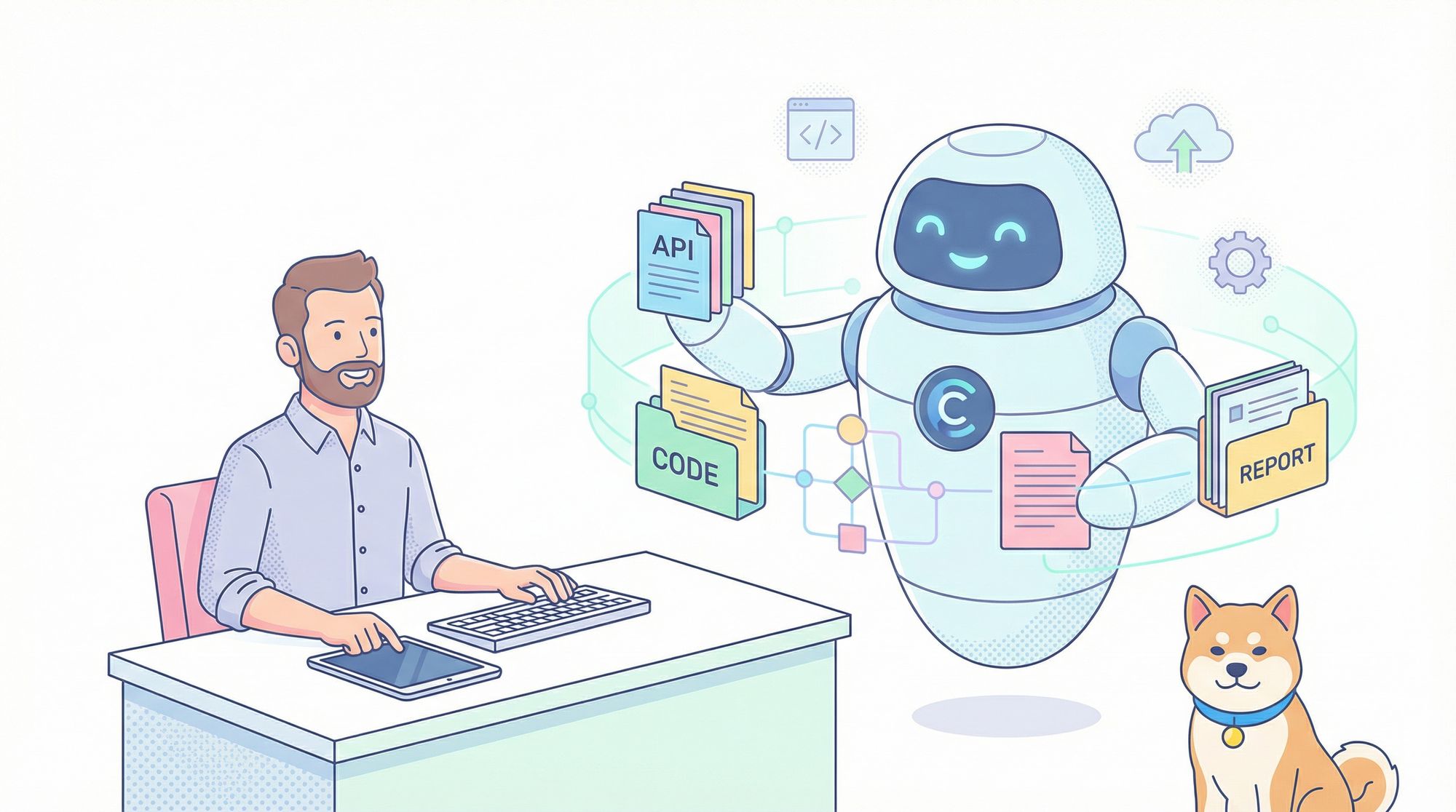
Take your development workflow to the next level with Cursor Agent Mode—a powerful AI assistant built into the VS Code-based Cursor editor. This guide shows API developers and backend engineers how to maximize productivity and code quality by integrating AI-driven automation into real-world projects. You'll also discover how Apidog streamlines API testing when paired with Cursor, helping you ship robust APIs faster.
Why Cursor Agent Mode Matters for API Developers
Cursor is an AI-first code editor that goes beyond code suggestions. Agent Mode enables advanced automation: it understands your codebase, makes multi-file changes, executes terminal commands, and implements features based on natural language instructions. Released in update 0.43, Agent Mode is a leap forward for developers seeking intelligent, context-aware coding help.
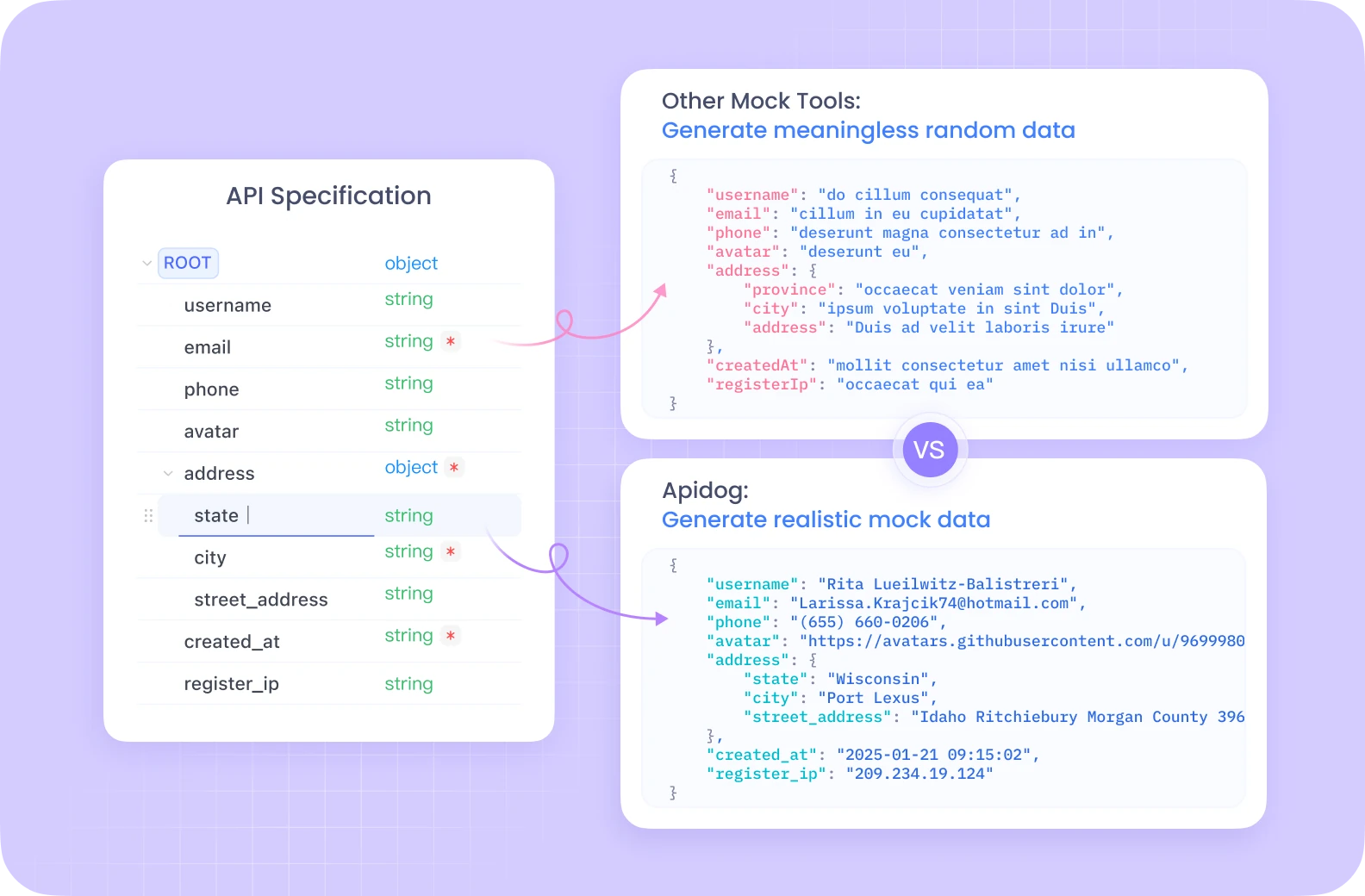
For those building or testing APIs, pairing Cursor with Apidog offers a seamless workflow. Apidog is a robust API platform that simplifies designing, documenting, and debugging APIs—making it a strong alternative to tools like Postman. With features like automated testing, environment management, and team collaboration, Apidog fits naturally alongside Cursor’s AI-powered development environment.
What Is Cursor Agent Mode?
Cursor Agent Mode transforms the way you interact with your code editor:
- Autonomous Task Execution: Agent Mode can implement features, fix bugs, refactor code, and execute terminal commands across your entire project.
- Multi-File Understanding: It indexes your codebase, making context-aware changes that respect your architecture and coding standards.
- Natural Language Coding: Describe what you want in plain English; Agent Mode handles the rest, from generating new endpoints to updating dependencies.
- Collaborative AI: It acts like a skilled teammate—handling routine work so you can focus on architecture and problem solving.
[ ]
]
Example:
Ask Agent Mode to "Extract the authentication logic into a separate module and update all imports." The agent will locate the relevant code, create new files, update dependencies, and ensure consistency—saving you hours of manual work.
Getting Started with Cursor Agent Mode
1. Install and Set Up Cursor
- Download Cursor from cursor.com for Windows, macOS, or Linux.
- Create an account (free tier available) and follow the setup steps.
- Open or create a project folder—ensure all files are loaded for maximum context.
A clear project structure helps Agent Mode make accurate, holistic changes.
[ ]
]
2. Activating Agent Mode
- Open the AI Pane: Press
CMD + L(macOS) orCTRL + L(Windows), or click the AI icon in the sidebar. - Navigate to Composer: The Composer tab is optimized for direct code changes and reviewing AI proposals.
- Enable Agent Mode: Look for the "Agent" toggle or dropdown in the Composer window. Once active, the AI can search files, create new files, and run terminal commands autonomously.
[ ]
]
[ ]
]
Configuring Agent Mode: Best Practices
Define "Rules for AI" to Guide Output
- Go to
Settings > Features > Chat & Composer > Rules for AI. - Set guidelines: coding styles, naming conventions, documentation requirements, architectural preferences.
- Example: "Use functional components, document all public functions with JSDoc, prefer async/await over callbacks."
Clear, concise rules improve code consistency and reduce post-generation edits.
YOLO Mode: When to Use It
Cursor's "YOLO Mode" allows Agent Mode to execute terminal commands and delete files without confirmation.
- Enable:
Settings > Features > Chat & Composer > Enable YOLO mode. - Best for: Rapid prototyping, sandboxed environments, or routine refactoring.
- Caution: Avoid in production or with critical files—review all changes if possible.
[ ]
]
[ ]
]
Key Use Cases for API & Backend Teams
Multi-File Refactoring
Agent Mode excels at large-scale changes:
- Example: Refactor a monolithic API handler into modular endpoints.
- Prompt: "Split the main API handler into separate controller files for users, auth, and payments."
- Agent Mode updates imports/exports, creates new files, and ensures consistency.
Automated Project Setup
- Example: "Initialize a new Express.js API project with TypeScript, install core dependencies, and create sample routes."
- Agent Mode runs terminal commands, scaffolds files, and configures your project structure in minutes.
Debugging Complex Issues
[ 0]
0]
- Paste an error message and prompt Agent Mode: "Identify and fix this error."
- The agent traces dependencies, reviews configuration, and proposes holistic fixes across files—especially useful for elusive bugs in large codebases.
Advanced Tips: Getting the Most from Agent Mode
Enhance Context with Documentation
- Add a detailed
README.mdoutlining your architecture, technologies, and API conventions. - For complex modules (e.g., custom authentication, middleware), provide extra docs in your project—Agent Mode references these for deeper understanding.
[1]
Use Notepads for Persistent Context
- Create Notepads (beta feature) in the AI sidebar—store reusable prompts, coding standards, or API patterns.
- Reference Notepads in your prompts for consistent output across sessions and team members.
[2]
Index External Documentation
- Go to
Settings > Features > Docs > Add new doc, paste the URL of framework or library documentation. - Agent Mode indexes docs for technologies like Express, Mongoose, or custom SDKs, improving code generation and adherence to best practices.
Integrating Apidog with Cursor for End-to-End API Development
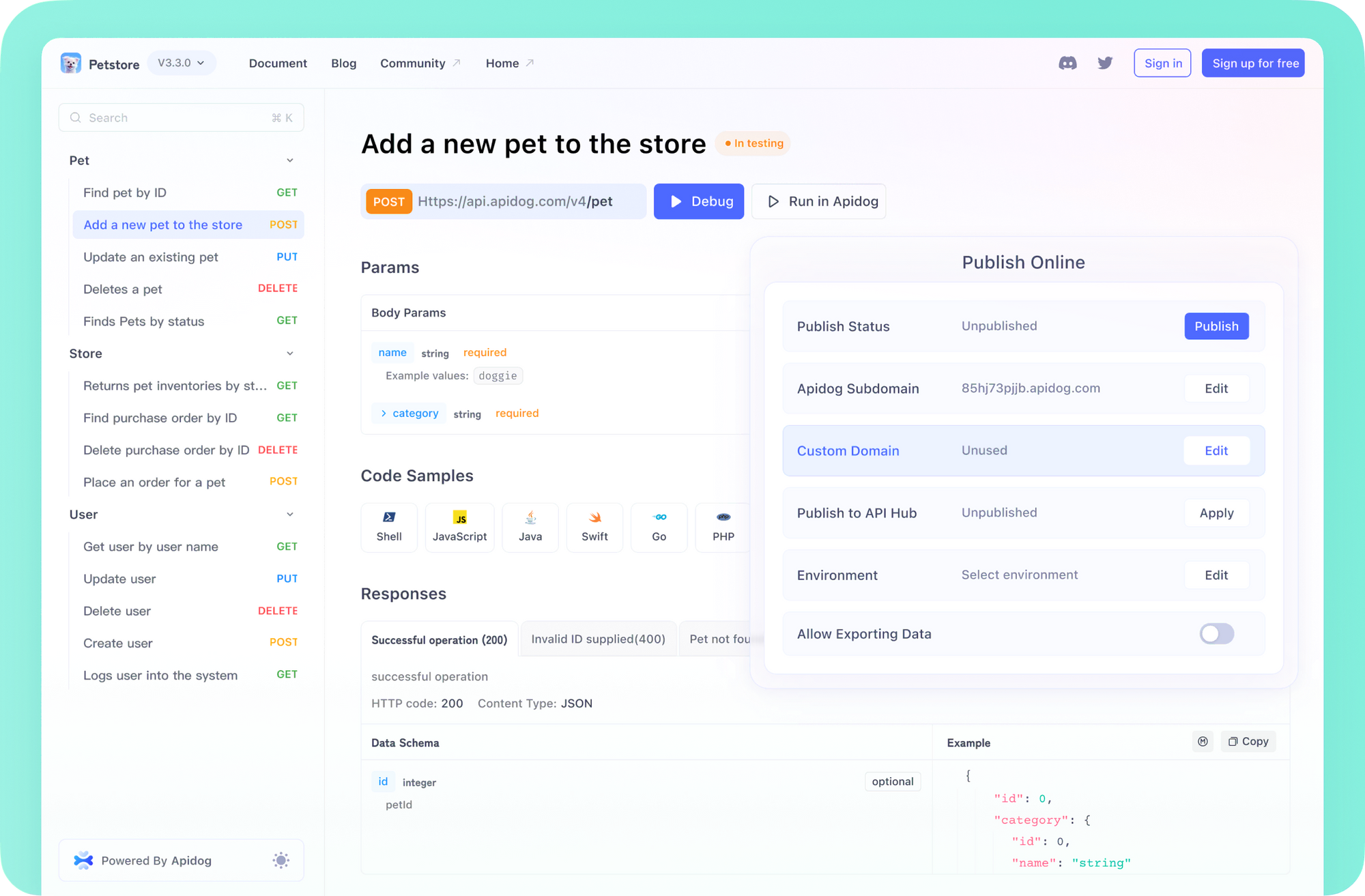
While Cursor Agent Mode boosts code automation and project setup, Apidog fills the gap for API design, testing, and documentation. Together, they create an efficient, developer-centric workflow:
- Design APIs in Apidog: Define endpoints, models, and environments visually.
- Build and Refactor in Cursor: Use Agent Mode to scaffold endpoints, update controllers, or refactor business logic.
- Test with Apidog: Use automated testing, mock servers, and environment management to ensure API reliability before deployment.
[ ]
]
Why Apidog?
- Intuitive interface for API design and debugging
- Automatic documentation generation
- Collaboration tools for teams
- Versatile support for REST, GraphQL, and WebSockets
Conclusion
Cursor Agent Mode is transforming how API-focused developers build, refactor, and maintain codebases. By combining intelligent, multi-file automation with a robust API platform like Apidog, technical teams can accelerate delivery, improve code quality, and focus on solving core business problems—not boilerplate.
Experiment with rules, documentation, and Notepads to tailor Agent Mode to your workflow. By integrating these tools, you'll be ready for the next evolution of software development—where human expertise and AI work side by side for faster, smarter results.