TL;DR
The Grok image-to-video API uses the grok-imagine-video model to animate a static image into a video clip. You POST your image URL, a prompt, and optional settings to https://api.x.ai/v1/videos/generations. The API returns a request_id right away. You then poll GET /v1/videos/{request_id} until status becomes "done". Duration ranges from 1 to 15 seconds. Pricing starts at $0.05 per second for 480p output.
Introduction
On January 28, 2026, xAI launched the grok-imagine-video model for public API access. Within that first month, the model generated 1.2 billion videos and ranked number one on the Artificial Analysis text-to-video leaderboard. Image-to-video is one of its flagship capabilities: you hand the API a photograph and a descriptive prompt, and it animates the photograph into a short video clip ready to download as an MP4.
That async flow, where you submit a job and then poll for completion, introduces a testing challenge many developers skip over. Your integration isn't finished when the first POST returns 200. It's finished when you've confirmed the polling loop handles "processing", "done", and "failed" states correctly under real network conditions.
Apidog's Test Scenarios solve this directly. You can build a chained sequence: post to /v1/videos/generations, extract the request_id, loop the poll request until status == "done", then assert the video URL is present. Download Apidog free to follow the testing walkthrough later in this guide.
What is the Grok image to video API?
The Grok image-to-video API is part of xAI's video generation product. It lives under the grok-imagine-video model and accepts an image as the starting frame of the output video. The model studies the image content and the text prompt, then generates natural motion to animate the scene.
The API endpoint is:
POST https://api.x.ai/v1/videos/generations
Authentication uses a standard Bearer token:
Authorization: Bearer YOUR_XAI_API_KEY
You get your key from the xAI console. The same API surface also supports text-to-video (omit the image parameter), video extensions, and video edits.
How the image-to-video process works
The image parameter in the request body designates the first frame of the output video. The model does not replace the image. It starts from it. Every pixel in the first frame comes from your source image. The model then predicts how that scene would move forward in time based on your prompt.
For example: you provide a photograph of a mountain lake at sunrise. Your prompt says "gentle ripples spread across the water as morning mist drifts." The first frame of the output video is your photograph. Subsequent frames show the water and mist animating according to the prompt.
This is different from text-to-video, where the model generates the first frame itself. Image-to-video gives you exact control over the starting scene.
You should choose image-to-video when: - You have existing product photos, landscapes, or portraits you want to bring to motion. - Your brand assets need consistent visual identity in the first frame. - You want motion to feel grounded in a real or specific scene.
You should choose text-to-video when: - You're exploring visual ideas without a reference image. - You want the model to decide the scene composition entirely. - Speed of iteration matters more than first-frame precision.
Prerequisites
Before making your first call, you need:
- An xAI account at console.x.ai.
- An API key from the xAI console. Keep this in an environment variable, not hardcoded.
- Python 3.8+ or Node.js 18+ (examples in this guide use both).
- A publicly accessible image URL, or a base64-encoded image as a data URI.
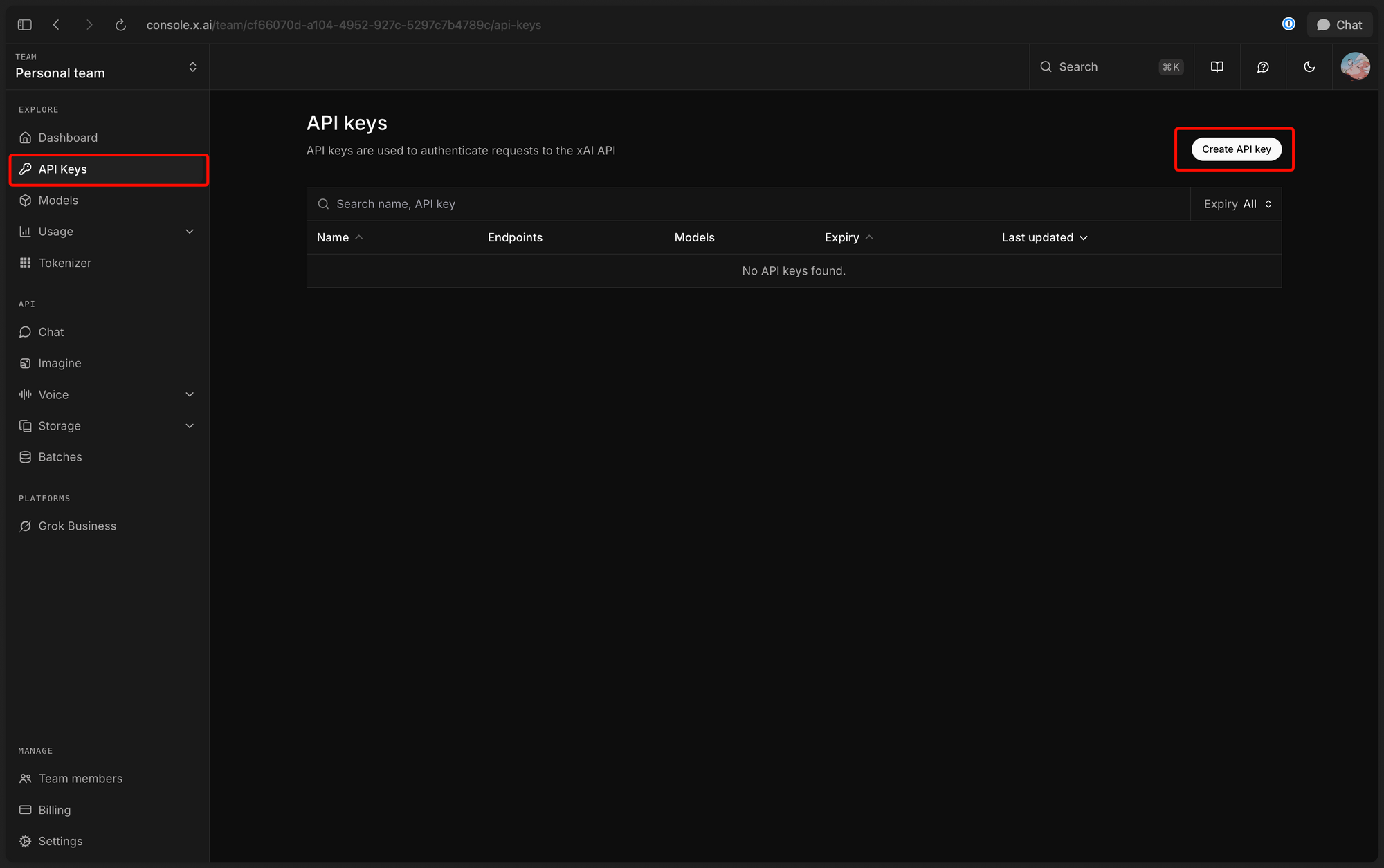
Set your key as an environment variable:
export XAI_API_KEY="your_key_here"
Install the xAI Python SDK if you want the higher-level client:
pip install xai-sdk
For raw HTTP calls, no additional packages are required beyond requests (Python) or fetch (Node.js).
Making your first image-to-video request
Using curl
curl -X POST https://api.x.ai/v1/videos/generations \
  -H "Authorization: Bearer $XAI_API_KEY" \
  -H "Content-Type: application/json" \
  -d '{
    "model": "grok-imagine-video",
    "prompt": "Gentle waves move across the surface, morning mist rises slowly",
    "image": {
      "url": "https://upload.wikimedia.org/wikipedia/commons/thumb/1/1a/24701-nature-natural-beauty.jpg/1280px-24701-nature-natural-beauty.jpg"
    },
    "duration": 6,
    "resolution": "720p",
    "aspect_ratio": "16:9"
  }'
The response comes back immediately with a request_id:
{
  "request_id": "d97415a1-5796-b7ec-379f-4e6819e08fdf"
}
The video is not ready yet. Generation happens asynchronously in xAI's infrastructure. You need to poll for the result.
Using Python (raw requests)
import os
import requests

api_key = os.environ["XAI_API_KEY"]

payload = {
    "model": "grok-imagine-video",
    "prompt": "Gentle waves move across the surface, morning mist rises slowly",
    "image": {
        "url": "https://upload.wikimedia.org/wikipedia/commons/thumb/1/1a/24701-nature-natural-beauty.jpg/1280px-24701-nature-natural-beauty.jpg"
    },
    "duration": 6,
    "resolution": "720p",
    "aspect_ratio": "16:9"
}

headers = {
    "Authorization": f"Bearer {api_key}",
    "Content-Type": "application/json"
}

response = requests.post(
    "https://api.x.ai/v1/videos/generations",
    json=payload,
    headers=headers
)

data = response.json()
request_id = data["request_id"]
print(f"Job started: {request_id}")
Using a base64 image
If your image is local or not publicly accessible, encode it as a data URI:
import base64

with open("my_image.jpg", "rb") as f:
    encoded = base64.b64encode(f.read()).decode("utf-8")

payload["image"] = {
    "url": f"data:image/jpeg;base64,{encoded}"
}
Polling for the result
Video generation is asynchronous. The API returns request_id while your video renders on xAI's servers. You must poll the status endpoint:
GET https://api.x.ai/v1/videos/{request_id}
The status field moves through these values:
| Status | Meaning |
|---|---|
"processing" |
Video is still rendering |
"done" |
Video is ready, URL is in the response |
"failed" |
Something went wrong |
A completed response looks like this:
{
  "status": "done",
  "video": {
    "url": "https://vidgen.x.ai/....mp4",
    "duration": 6
  },
  "progress": 100
}
Full Python polling loop
import time

def poll_video(request_id: str, api_key: str, interval: int = 5) -> dict:
    url = f"https://api.x.ai/v1/videos/{request_id}"
    headers = {"Authorization": f"Bearer {api_key}"}

    while True:
        response = requests.get(url, headers=headers)
        data = response.json()
        status = data.get("status")

        print(f"Status: {status} | Progress: {data.get('progress', 0)}%")

        if status == "done":
            return data["video"]
        elif status == "failed":
            raise RuntimeError(f"Video generation failed for {request_id}")

        time.sleep(interval)

# Usage
video = poll_video(request_id, api_key)
print(f"Video URL: {video['url']}")
print(f"Duration: {video['duration']}s")
Keep the polling interval at 5 seconds or higher. The API has a rate limit of 60 requests per minute (1 per second). Tight polling on multiple jobs simultaneously can burn that budget quickly.
Using the xAI Python SDK
The xai-sdk library wraps the async pattern for you. client.video.generate() submits the job and blocks until the video is ready, handling all polling internally:
from xai_sdk import Client
import os

client = Client(api_key=os.environ["XAI_API_KEY"])

video = client.video.generate(
    model="grok-imagine-video",
    prompt="Gentle waves move across the surface, morning mist rises slowly",
    image={"url": "https://example.com/landscape.jpg"},
    duration=6,
    resolution="720p",
    aspect_ratio="16:9"
)

print(f"Video URL: {video.url}")
print(f"Duration: {video.duration}s")
The SDK handles the polling loop, status checks, and error propagation. Use this approach when you want clean application code without managing HTTP polling yourself.
For fine-grained control over polling intervals, retry strategies, or logging, the raw requests approach gives you more flexibility.
Controlling resolution, duration, and aspect ratio
The Grok video API gives you direct control over the output format.
Duration
The duration parameter accepts integers from 1 to 15 seconds. The default is 6.
"duration": 10
Longer videos cost more. A 10-second clip costs roughly 10 times a 1-second clip at the same resolution.
Resolution
Two options are available:
| Value | Description |
|---|---|
"480p" |
Default. Lower cost, faster generation. |
"720p" |
Higher quality. Costs $0.07/sec vs $0.05/sec. |
"resolution": "720p"
Aspect ratio
The aspect_ratio parameter controls the output frame dimensions:
| Value | Use case |
|---|---|
"16:9" |
Default. Widescreen for landscape scenes. |
"9:16" |
Vertical for mobile or social stories. |
"1:1" |
Square for Instagram or social thumbnails. |
"4:3" |
Classic photography or presentation format. |
"3:4" |
Portrait photography. |
"3:2" |
Standard photography crop. |
"2:3" |
Tall portrait format. |
When you provide an image, the aspect ratio defaults to match the source image's dimensions. Set it explicitly to override or crop.
Using reference images for style guidance
The reference_images parameter is distinct from the image parameter. Understanding the difference is important.
image: The source photograph that becomes the first frame of the video. The model animates from this starting point.
reference_images: An array of up to 7 images that guide the style, content, or visual context of the generated video. These are not frames in the output. They influence how the model renders motion and appearance.
Use reference_images when you want the output video to adopt visual characteristics from existing assets, but not as the starting frame:
{
  "model": "grok-imagine-video",
  "prompt": "A product rotating slowly on a clean white surface",
  "image": {
    "url": "https://example.com/product-shot.jpg"
  },
  "reference_images": [
    {"url": "https://example.com/brand-style-reference-1.jpg"},
    {"url": "https://example.com/lighting-reference.jpg"}
  ],
  "duration": 6,
  "resolution": "720p"
}
In this example, product-shot.jpg is the first frame. The reference images guide the lighting and stylistic treatment.
You can supply reference images without a first-frame image at all. In that case, the model generates a text-to-video output while drawing style guidance from the references.
Extending and editing videos
The API supports two additional operations beyond initial generation.
Extending a video
POST /v1/videos/extensions takes an existing video and generates additional seconds from where it left off. This is useful for creating longer clips from multiple generation passes, staying within the 15-second per-call limit.
curl -X POST https://api.x.ai/v1/videos/extensions \
  -H "Authorization: Bearer $XAI_API_KEY" \
  -H "Content-Type: application/json" \
  -d '{
    "model": "grok-imagine-video",
    "video_id": "your_original_request_id",
    "prompt": "The mist continues to lift as sunlight breaks through",
    "duration": 5
  }'
The response follows the same async pattern: poll GET /v1/videos/{request_id} for the extended clip.
Editing a video
POST /v1/videos/edits applies prompt-guided modifications to an existing video. You can change specific aspects of the content or motion without regenerating from scratch.
curl -X POST https://api.x.ai/v1/videos/edits \
  -H "Authorization: Bearer $XAI_API_KEY" \
  -H "Content-Type: application/json" \
  -d '{
    "model": "grok-imagine-video",
    "video_id": "your_original_request_id",
    "prompt": "Change the sky to a dramatic sunset with deep orange tones"
  }'
Both extensions and edits are asynchronous and use the same polling pattern.
Pricing breakdown: what a 10-second video costs
The xAI video API charges for two components: the input image processing and the output video duration.
| Component | Cost |
|---|---|
| Input image | $0.002 per image |
| Output at 480p | $0.05 per second |
| Output at 720p | $0.07 per second |
Example: 10-second video at 720p
- Input image: $0.002
- Output: 10 seconds × $0.07 = $0.70
- Total: $0.702
Example: 6-second video at 480p (default settings)
- Input image: $0.002
- Output: 6 seconds × $0.05 = $0.30
- Total: $0.302
The input image charge applies each time you submit a generation request, even if you re-use the same image URL. Plan your generation calls accordingly if you're iterating on the same base image.
Text-to-video (no image parameter) omits the $0.002 input charge but otherwise follows the same per-second pricing.
How to test your Grok video API integration with Apidog
The async pattern creates a testing challenge that simple one-shot request tests can't cover. You need to verify that:
- The generation request returns a
request_id. - The polling request correctly handles
"processing"status while waiting. - The final response has
status == "done"and a non-empty video URL.
Apidog's Test Scenarios chain these steps together in one automated flow. Here's how to build it:
Step 1: Create a new Test Scenario
In Apidog, open the Tests module and click the + button to create a new scenario. Name it "Grok image-to-video async flow."
Step 2: Add the generation request
Add a custom POST request step:
- URL:
https://api.x.ai/v1/videos/generations - Method: POST
- Header:
Authorization: Bearer {{xai_api_key}} - Body (JSON):
{
  "model": "grok-imagine-video",
  "prompt": "Gentle mist rises from the water as light filters through the trees",
  "image": {
    "url": "https://example.com/your-test-image.jpg"
  },
  "duration": 6,
  "resolution": "480p"
}
Step 3: Extract the request_id
After the POST step, add an Extract Variable processor. Configure it:
- Variable name:
video_request_id - Source: Response body
- Extraction method: JSONPath
- JSONPath expression:
$.request_id
Apidog stores the extracted value in {{video_request_id}} for use in later steps.
Step 4: Build the polling loop
Add a For loop processor. Inside the loop, add the poll request:
- URL:
https://api.x.ai/v1/videos/{{video_request_id}} - Method: GET
- Header:
Authorization: Bearer {{xai_api_key}}
Add an Extract Variable processor inside the loop to capture the current status:
- Variable name:
video_status - JSONPath:
$.status
Add a Wait processor (5000ms) after the status extraction to avoid hitting the rate limit.
Set the loop's Break If condition: {{video_status}} == "done".
Step 5: Assert the video URL
After the For loop, add a final GET step to the same poll endpoint. Add an Assertion processor:
- Field:
$.video.url - Condition: Is not empty
This assertion confirms the video URL is present before your test passes.
For a deeper look at how to test async APIs with Apidog, including more complex polling patterns and CI/CD integration, see that dedicated guide.
Running the scenario
Click Run in the test scenario view. Apidog executes the POST, extracts the request_id, loops the poll until status == "done", and then evaluates your assertions. The test report shows each step's status and timing.
You can plug this scenario into your CI/CD pipeline with the Apidog CLI:
apidog run --scenario grok-video-async-flow --env production
Common errors and fixes
401 Unauthorized
Your API key is missing or invalid. Check the Authorization header format: Bearer YOUR_XAI_API_KEY. Confirm the key is active in the xAI console.
422 Unprocessable Entity
The request body is malformed. Common causes: the model field is missing, the prompt is empty, or the image.url is not accessible. Test the image URL in a browser before using it.
Image URL not accessible
xAI's servers must be able to fetch the image URL at generation time. Private URLs, localhost addresses, or URLs behind authentication will fail. Use a public CDN or a base64 data URI instead.
Status stays at "processing" indefinitely
A generation can take anywhere from 30 seconds to several minutes depending on resolution and duration. If status stays in "processing" beyond 10 minutes, the job may have stalled. Submit a new request. The xAI API does not currently expose a timeout signal separately from "failed".
Rate limit errors (429)
The API allows 60 requests per minute and 1 per second. If you're polling multiple jobs concurrently, stagger your requests. Add a time.sleep(1) between poll calls at minimum.
Base64 upload rejected
Make sure your data URI includes the correct MIME type prefix. Use data:image/jpeg;base64, for JPEG files and data:image/png;base64, for PNG files.
Aspect ratio mismatch
When you set an explicit aspect_ratio that differs significantly from your source image's proportions, the model may crop or letterbox. Match the aspect ratio to your source image for best results.
Conclusion
The Grok image-to-video API gives you a direct path from a static photograph to a short animated clip. You POST the image and prompt, receive a request_id, poll until done, and download the MP4. The grok-imagine-video model ranked at the top of the Artificial Analysis leaderboard in January 2026. Over a billion videos were generated in that single month. That scale reflects how capable the underlying model is.
The async polling pattern is where most integrations go wrong. A proper test in Apidog's Test Scenarios covers the Extract Variable step, the polling loop with break condition, and a final URL assertion. That combination catches issues before they reach production.
Start building your integration with Apidog free. No credit card required.
FAQ
What model name do I use for the Grok image-to-video API?
The model name is grok-imagine-video. Pass it as the model field in your POST request body.
What's the difference between the image and reference_images parameters?
The image parameter sets the first frame of the output video. The model animates forward from that starting image. The reference_images array provides style and content guidance without being used as a frame. You can combine both in the same request.
How long does video generation take?
Generation time varies by duration and resolution. A 6-second 480p video typically takes 1 to 3 minutes. A 15-second 720p video may take 4 to 8 minutes. Poll every 5 seconds to check status without burning your rate limit.
Can I use a local file as the source image?
Yes. Encode your local file as a base64 data URI: data:image/jpeg;base64,{encoded_bytes}. Pass that string as the url value inside the image object.
What happens if I don't specify aspect_ratio?
When you provide an image parameter, the aspect ratio defaults to match the source image's native proportions. When generating text-to-video without an image, the default is 16:9.
How much does a 10-second 720p video cost?
The input image costs $0.002. The output costs 10 × $0.07 = $0.70. Total: approximately $0.702 per video.
What are the rate limits?
The API allows 60 requests per minute and 1 request per second. This covers both the generation POST and polling GET requests combined.
Can I extend a video beyond 15 seconds?
Yes, using the POST /v1/videos/extensions endpoint. You generate an initial clip up to 15 seconds, then extend it with additional generation passes. Each extension also follows the async polling pattern.