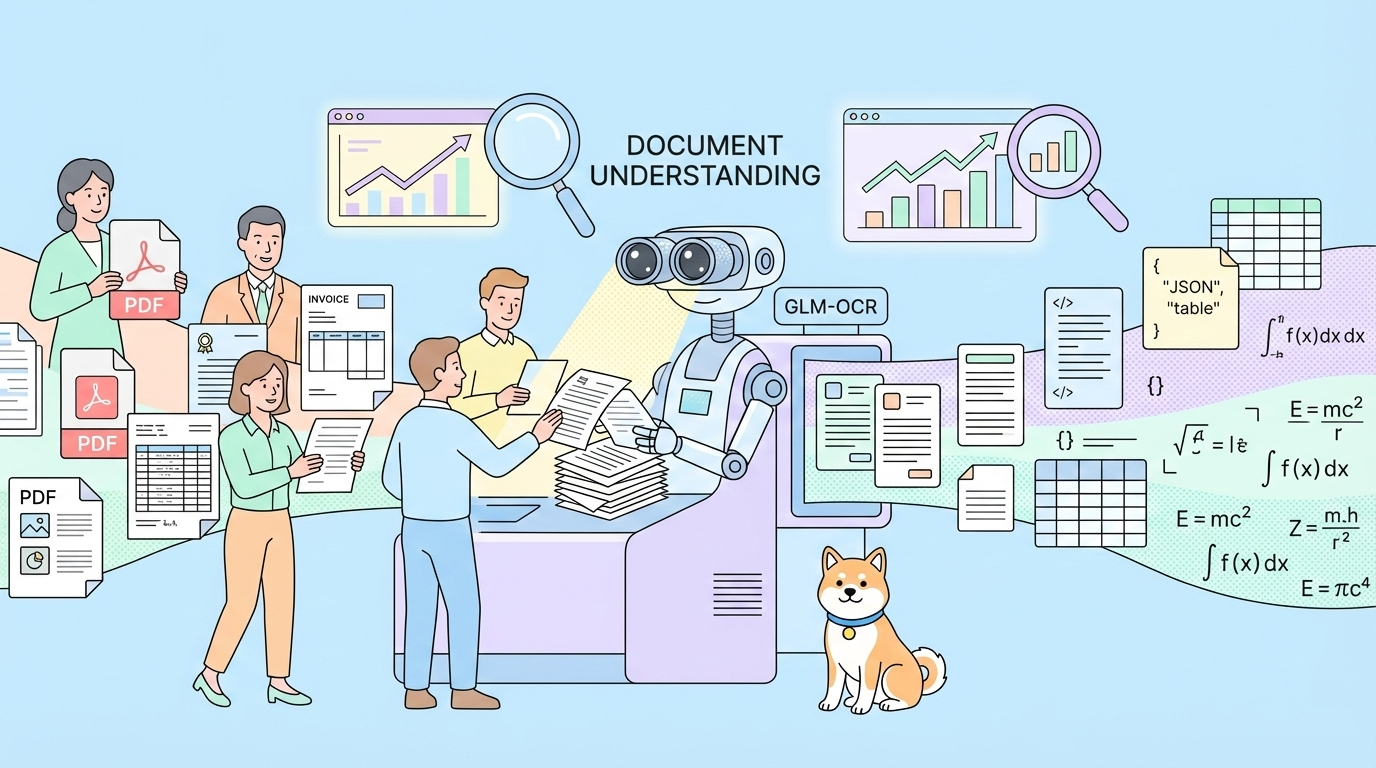
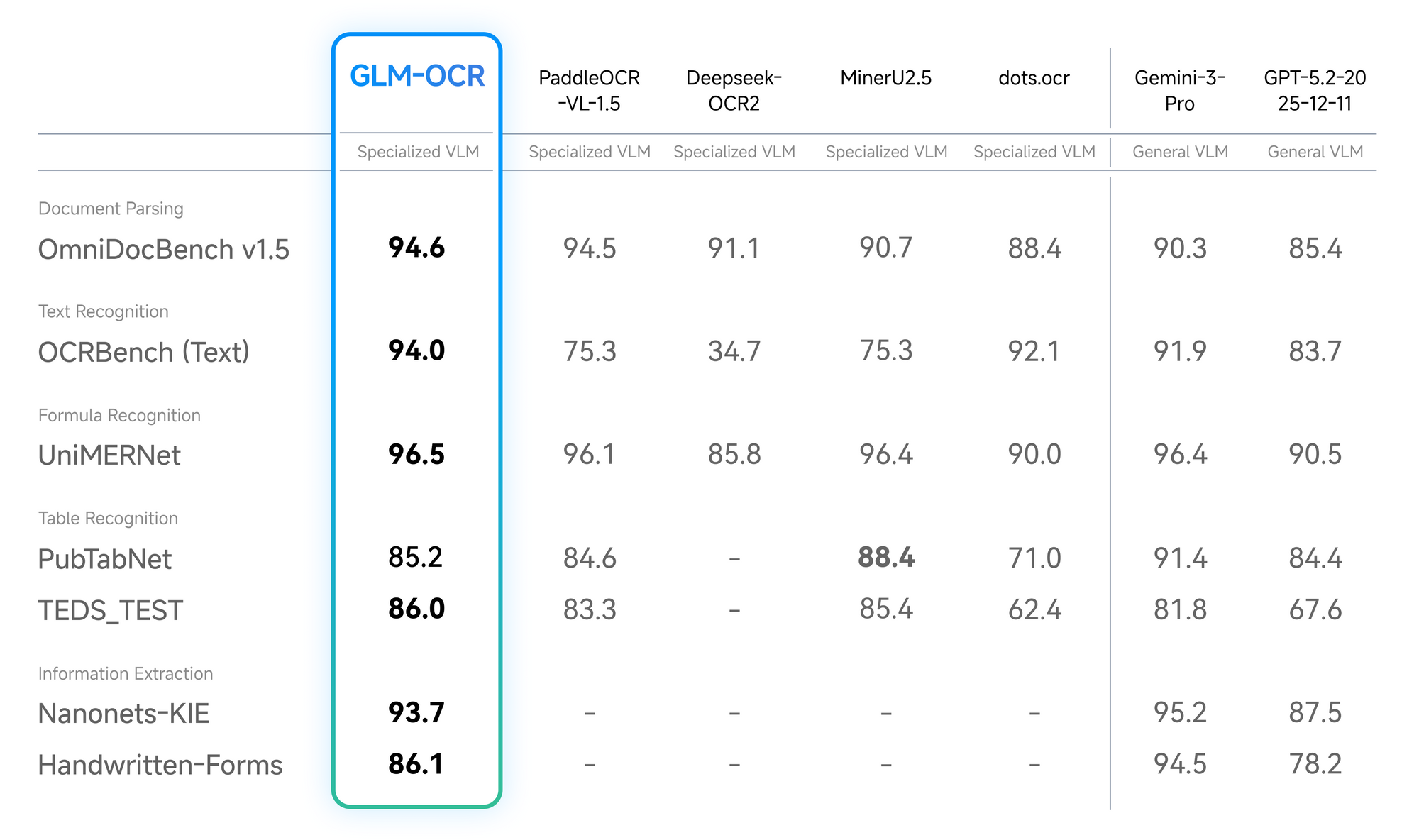
What if you could extract text from complex PDFs, tables, and formulas with a model smaller than most smartphone apps? GLM-OCR achieves state-of-the-art document understanding with just 0.9 billion parameters. It's lightweight enough to run on modest hardware yet accurate enough to top the OmniDocBench V1.5 leaderboard at 94.62 points.
Traditional OCR tools struggle with document structure. They lose table formatting, misread mathematical formulas, and fail on multi-column layouts. Cloud APIs solve these problems but charge per request and send your sensitive documents to third-party servers. GLM-OCR eliminates both issues: it handles complex layouts locally with production-grade accuracy, all under an MIT license that permits commercial use without licensing fees.
Understanding GLM-OCR Architecture
GLM-OCR uses a three-component encoder-decoder architecture optimized for document understanding. The CogViT visual encoder processes document images using weights pretrained on billions of image-text pairs. It extracts visual features while preserving spatial relationships critical for understanding layout.
A lightweight cross-modal connector sits between encoder and decoder. This component downsamples visual tokens efficiently, reducing computational overhead without sacrificing accuracy. The GLM-0.5B language decoder then generates structured text output, handling everything from plain paragraphs to complex nested tables.
The model employs a two-stage inference pipeline. First, PP-DocLayout-V3 analyzes document structure—identifying headers, paragraphs, tables, and figures. Second, parallel recognition processes each region simultaneously. This approach maintains document hierarchy where traditional OCR flattens everything into unstructured text.
Training innovations further boost performance. Multi-token prediction loss improves training efficiency by predicting multiple tokens simultaneously. Stable full-task reinforcement learning enhances generalization across diverse document types. The result: 96.5% accuracy on formula recognition, 86.0% on table recognition, and leading performance on information extraction tasks.
At inference, GLM-OCR processes 1.86 PDF pages per second on a single GPU—significantly faster than comparable models. The 0.9B parameter count means you deploy on consumer hardware rather than enterprise clusters.
Model Specifications
GLM-OCR handles documents up to 8K resolution (7680×4320 pixels). It recognizes 8 languages including English, Chinese, Japanese, and Korean. The model processes both raster images (PNG, JPEG) and vector inputs. Typical inference consumes 4-6GB VRAM at FP16 precision, fitting on consumer GPUs like RTX 3060 or cloud instances like AWS g4dn.xlarge.
> | Hardware        | VRAM Required | Pages/sec | Use Case         |
 --------------------------------------------------------------------
> | RTX 3060        | 4-6GB         | ~1.5      | Development      |
> | RTX 4090        | 4-6GB         | ~2.5      | Production       |
> | AWS g4dn.xlarge | 16GB          | ~1.8      | Cloud deployment |
> | 4x A100 (TPS=4) | 80GB          | ~7.0      | Enterprise       |
Local Deployment Options
GLM-OCR supports four deployment methods depending on your infrastructure and performance requirements. Each uses the same underlying model weights from Hugging Face but optimizes for different scenarios.
- vLLM provides the best balance of throughput and latency for production workloads. It implements PagedAttention for efficient memory management and supports continuous batching for high-concurrency scenarios.
- SGLang offers maximum performance through its runtime optimization. It excels at speculative decoding and structured generation, making it ideal when you need the fastest possible inference.
- Ollama delivers the simplest setup. One command downloads and runs the model locally—no Python dependencies or configuration files. Perfect for prototyping and personal use.
- Transformers enables direct Python integration. Use this for development, debugging, or when you need fine-grained control over the inference pipeline.
All methods require the GLM-OCR weights from Hugging Face (zai-org/GLM-OCR). The model runs on NVIDIA GPUs with CUDA support. CPU-only inference works but at significantly reduced speed.
Setting Up vLLM for Production
vLLM provides production-ready inference with OpenAI-compatible API endpoints. This lets you swap GLM-OCR into existing applications that currently use OpenAI's vision models.
Installation
Install vLLM with CUDA support:
pip install -U vllm --extra-index-url https://wheels.vllm.ai/nightly
For containerized deployment, use the official Docker image:
docker pull vllm/vllm-openai:nightly
Install compatible Transformers—vLLM requires the latest development version for GLM-OCR support:
pip install git+https://github.com/huggingface/transformers.git
Launching the Service
Start the vLLM server with GLM-OCR:
vllm serve zai-org/GLM-OCR \
  --allowed-local-media-path / \
  --port 8080 \
  --speculative-config '{"method": "mtp", "num_speculative_tokens": 1}'
The --allowed-local-media-path flag enables the model to access local image files. Set this to your document directory or / for unrestricted access (use with caution in production).
The --speculative-config enables Multi-Token Prediction, a GLM-OCR feature that accelerates inference by predicting multiple tokens simultaneously.
Client Integration
Once running, interact with GLM-OCR through standard HTTP requests:
curl --location --request POST 'http://localhost:8080/v1/chat/completions' \
  --header 'Content-Type: application/json' \
  --data-raw '{
    "model": "zai-org/GLM-OCR",
    "messages": [
      {
        "role": "user",
        "content": [
          {"type": "image_url", "image_url": {"url": "file:///path/to/document.png"}},
          {"type": "text", "text": "Extract all text from this document"}
        ]
      }
    ]
  }'
The OpenAI-compatible response format means existing SDKs work without modification. Point your OpenAI client at http://localhost:8080 and use zai-org/GLM-OCR as the model name.
Production Configuration
For high-throughput deployments, add tensor parallelism across multiple GPUs:
vllm serve zai-org/GLM-OCR \
  --tensor-parallel-size 4 \
  --gpu-memory-utilization 0.95 \
  --max-model-len 8192 \
  --allowed-local-media-path / \
  --port 8080
Adjust --tensor-parallel-size to match your GPU count. Monitor GPU utilization and increase batch sizes to maximize throughput.
Monitoring and Scaling
Track vLLM performance through its built-in metrics endpoint at /metrics. Prometheus-compatible data includes request latency, queue depth, and GPU utilization. Set up alerts when queue depth exceeds 10 requests or GPU memory hits 90%. For horizontal scaling, deploy multiple vLLM instances behind a load balancer with sticky sessions to maintain context across requests.
Consider using Apidog's API monitoring features to track production metrics alongside your model performance.
SGLang High-Performance Inference
SGLang provides advanced runtime optimizations for maximum inference speed. It excels at speculative decoding and structured generation, making it ideal for latency-sensitive applications.
Installation
Install SGLang via Docker (recommended for dependency isolation):
docker pull lmsysorg/sglang:dev
Or install from source:
pip install git+https://github.com/sgl-project/sglang.git#subdirectory=python
Install compatible Transformers:
pip install git+https://github.com/huggingface/transformers.git
Launching the Service
Start SGLang with optimized speculative decoding:
python -m sglang.launch_server \
  --model zai-org/GLM-OCR \
  --port 8080 \
  --speculative-algorithm NEXTN \
  --speculative-num-steps 3 \
  --speculative-eagle-topk 1 \
  --speculative-num-draft-tokens 4
The speculative decoding parameters accelerate inference by drafting multiple tokens simultaneously and verifying them in parallel. Adjust --speculative-num-steps based on your hardware—higher values increase speed but require more memory.
Structured Output
SGLang's structured generation ensures GLM-OCR outputs valid JSON or other schemas:
import sglang as sgl

@sgl.function
def extract_invoice(s, image_path):
    s += sgl.user(sgl.image(image_path) + "Extract invoice data as JSON")
    s += sgl.assistant(sgl.gen("json_output", json_schema={
        "type": "object",
        "properties": {
            "invoice_number": {"type": "string"},
            "date": {"type": "string"},
            "total": {"type": "number"},
            "items": {
                "type": "array",
                "items": {
                    "type": "object",
                    "properties": {
                        "description": {"type": "string"},
                        "quantity": {"type": "integer"},
                        "price": {"type": "number"}
                    }
                }
            }
        }
    }))

result = extract_invoice.run(image_path="invoice.png")
print(result["json_output"])
This guarantees machine-readable output without post-processing or retry logic. For API endpoints that serve structured responses, Apidog's schema validation can automatically verify your output formats match expected JSON structures.
When to Choose SGLang Over vLLM
Select SGLang when you need structured outputs or speculative decoding. Its regex-constrained generation guarantees valid JSON schemas, eliminating retry logic. The speculative algorithm accelerates token generation by 30-40% on GPUs with sufficient memory.
> | Feature           | vLLM            | SGLang              |
 ---------------------------------------------------------------
> | Throughput        | High            | Very High           |
> | Latency           | Good            | Excellent           |
> | OpenAI Compatible | Yes             | No                  |
> | Structured Output | Manual          | Built-in            |
> | Community Support | Excellent       | Growing             |
> | Setup Complexity  | Medium          | High                |
> | Best For          | Production APIs | Speed-critical apps |
For standard OCR without strict latency requirements, vLLM provides sufficient performance with simpler configuration and better community support.
Transformers Direct Integration
For development, debugging, or custom pipelines, use the Transformers library directly. This provides maximum flexibility at the cost of lower throughput compared to vLLM or SGLang.
Installation
Install the latest Transformers from source:
pip install git+https://github.com/huggingface/transformers.git
Basic Inference
Load and run GLM-OCR in Python:
from transformers import AutoProcessor, AutoModelForImageTextToText
import torch

MODEL_PATH = "zai-org/GLM-OCR"

# Prepare input
messages = [
    {
        "role": "user",
        "content": [
            {"type": "image", "url": "document.png"},
            {"type": "text", "text": "Text Recognition:"}
        ],
    }
]

# Load model and processor
processor = AutoProcessor.from_pretrained(MODEL_PATH)
model = AutoModelForImageTextToText.from_pretrained(
    MODEL_PATH,
    torch_dtype="auto",
    device_map="auto",
)

# Process input
inputs = processor.apply_chat_template(
    messages,
    tokenize=True,
    add_generation_prompt=True,
    return_dict=True,
    return_tensors="pt"
).to(model.device)

inputs.pop("token_type_ids", None)

# Generate output
generated_ids = model.generate(**inputs, max_new_tokens=8192)
output_text = processor.decode(
    generated_ids[0][inputs["input_ids"].shape[1]:],
    skip_special_tokens=False
)

print(output_text)
The device_map="auto" automatically distributes model layers across available GPUs. For single-GPU deployment, this loads the full model on one device. For CPU-only inference, change to device_map="cpu"—expect significantly slower performance.
Batch Processing
Process multiple documents efficiently:
import os
from pathlib import Path

def batch_process(directory, output_file):
    documents = list(Path(directory).glob("*.png")) + \
                list(Path(directory).glob("*.pdf"))

    results = []
    for doc_path in documents:
        # Convert PDF to images if needed
        if doc_path.suffix == ".pdf":
            images = convert_pdf_to_images(doc_path)
        else:
            images = [doc_path]

        for image in images:
            text = extract_text(image)  # Your extraction function
            results.append({
                "file": str(doc_path),
                "page": image.page_num if hasattr(image, 'page_num') else 1,
                "text": text
            })

    # Save results
    with open(output_file, 'w') as f:
        json.dump(results, f, indent=2)

# Usage
batch_process("./invoices/", "extracted_data.json")
When processing documents in production, Apidog's workspace management helps organize multiple document processing endpoints into logical groups, making it easier to test and monitor different workflows.
Memory Optimization
For GPUs with limited VRAM, use quantization:
from transformers import BitsAndBytesConfig

quantization_config = BitsAndBytesConfig(
    load_in_4bit=True,
    bnb_4bit_compute_dtype=torch.float16
)

model = AutoModelForImageTextToText.from_pretrained(
    MODEL_PATH,
    quantization_config=quantization_config,
    device_map="auto",
)
4-bit quantization reduces memory usage by 75% with minimal accuracy impact for document understanding tasks.
Handling Edge Cases
Documents with heavy handwriting or extreme skew angles reduce accuracy. Pre-process images with deskewing algorithms before sending to GLM-OCR. For multi-page PDFs, extract pages as separate images rather than passing the entire file. This enables parallel processing and simplifies error handling when individual pages fail. Watermarked documents occasionally trigger false positives in text regions—experiment with contrast adjustments if you see garbled output in specific areas.
Real-World GLM-ORC Use Cases
GLM-OCR excels in several production scenarios:
Invoice Processing
Finance teams extract line items, dates, and totals from scanned invoices. The model maintains table structure, ensuring accurate totals calculation without manual review. Process thousands of invoices per day with local deployment and zero API costs.
Technical Documentation
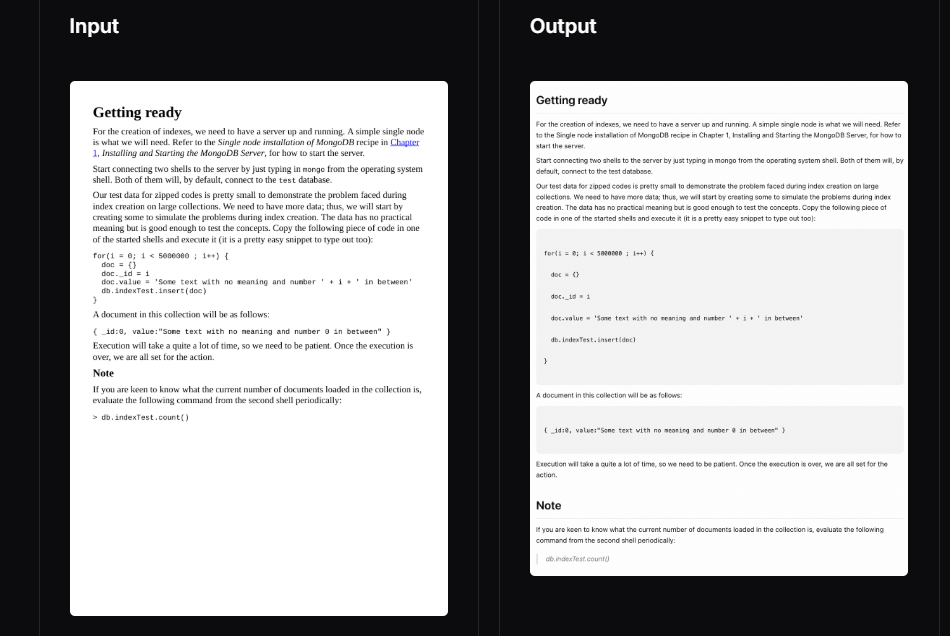
Engineering teams convert PDF manuals and specs to searchable text. Formula recognition preserves mathematical equations, making technical content machine-readable. Ideal for legacy documentation modernization projects.
Legal Document Analysis
Legal professionals review contracts and agreements with OCR that respects document hierarchy. Multi-column layout handling ensures paragraphs aren't incorrectly merged. Privacy-first approach keeps sensitive data on-premises.
Healthcare Records
Medical offices digitize patient forms and prescriptions. Recognizes 8 languages, useful for multilingual healthcare environments. Local deployment meets HIPAA compliance requirements by keeping data internal.
Conclusion
GLM-OCR delivers production-grade document understanding in a 0.9B parameter package. You deploy it locally, maintain data privacy, and achieve throughput rates that rival cloud APIs—all without per-request pricing. The architecture handles complex layouts, tables, and formulas that traditional OCR misses, while the MIT license permits unrestricted commercial use.
Choose vLLM for production deployments requiring high throughput and OpenAI compatibility. Use SGLang when maximum inference speed matters. Select Transformers for development and custom pipelines. Each option runs the same underlying model, so you switch deployment methods without retraining or retuning.
When building document processing pipelines—whether extracting data from invoices, parsing technical documentation, or automating form processing—streamline your API testing with Apidog. It provides visual request building, automated documentation generation, and collaborative debugging tools that complement your GLM-OCR deployment workflow.